

Cloudflare Worker
Configure a Cloudflare Worker to route crawler traffic through Edge Gateway for server-side rendering of JavaScript-heavy pages.
Prerequisites
- Running Edge Gateway instance (see Quick Start)
- Configured host with
render_keyanddomain - Cloudflare account with Workers enabled
- Domain proxied through Cloudflare (orange cloud icon in DNS settings)
How it works
A Cloudflare Worker sits at the edge and intercepts incoming requests. When a crawler requests a page, the Worker routes the request to Edge Gateway for pre-rendered HTML. Regular users go directly to your origin server, preserving cookies, sessions, and authentication.
Worker script
Copy this script into your Cloudflare Worker and edit the configuration constants at the top.
// =============================================================================
// CONFIGURATION - Edit these values
// =============================================================================

const CONFIG = {
  // Your Edge Gateway URL (e.g., "https://render.example.com")
  EDGE_COMET_URL: "https://render.example.com",

  // Your render key from host configuration
  RENDER_KEY: "your_render_key_here",

  // Request timeout in milliseconds (default: 60 seconds)
  TIMEOUT: 60000,
};

// =============================================================================
// CRAWLER DETECTION
// For alternative options, see the Worker reference documentation
// =============================================================================
function isCrawler(userAgent) {
  if (!userAgent) return false;

  const patterns = [
    // Generic crawler keywords
    /bot/i,
    /crawl/i,
    /spider/i,
    /slurp/i,

    // Crawlers without generic keywords in name
    /WhatsApp/i,
    /Snapchat/i,
    /facebookexternalhit/i,
    /AMZN-User/i,
    /Claude-User/i,
    /Perplexity-User/i,
    /ChatGPT-User/i,
  ];

  return patterns.some(pattern => pattern.test(userAgent));
}

// =============================================================================
// STATIC ASSET DETECTION
// =============================================================================

const STATIC_EXTENSIONS = /\.(avif|css|eot|gif|gz|ico|jpeg|jpg|js|json|map|mp3|mp4|ogg|otf|pdf|png|svg|ttf|txt|wasm|wav|webm|webp|woff|woff2|xml|zip)$/i;

function isStaticAsset(pathname) {
  return STATIC_EXTENSIONS.test(pathname);
}

// =============================================================================
// MAIN HANDLER
// =============================================================================

export default {
  async fetch(request, env, ctx) {
    const url = new URL(request.url);
    const userAgent = request.headers.get("User-Agent") || "";

    // Loop prevention: if request is from EdgeComet (render or bypass fetch), pass to origin
    if (request.headers.get("X-Edge-Render")) {
      return fetch(request);
    }

    // Skip static assets
    if (isStaticAsset(url.pathname)) {
      return fetch(request);
    }

    // Only route crawlers to Edge Gateway
    if (!isCrawler(userAgent)) {
      return fetch(request);
    }

    // Build Edge Gateway request
    const renderUrl = `${CONFIG.EDGE_COMET_URL}/render?url=${encodeURIComponent(request.url)}`;

    const controller = new AbortController();
    const timeoutId = setTimeout(() => controller.abort(), CONFIG.TIMEOUT);

    try {
      const response = await fetch(renderUrl, {
        method: "GET",
        headers: {
          "X-Render-Key": CONFIG.RENDER_KEY,
          "User-Agent": userAgent,
          "X-Forwarded-For": request.headers.get("CF-Connecting-IP") || "",
          "X-Forwarded-Proto": url.protocol.replace(":", ""),
        },
        signal: controller.signal,
      });

      clearTimeout(timeoutId);

      // If Edge Gateway returns error, fall back to origin
      if (!response.ok && response.status >= 500) {
        return fetch(request);
      }

      return response;

    } catch (error) {
      clearTimeout(timeoutId);
      // On timeout or network error, fall back to origin
      return fetch(request);
    }
  },
};
Configuration
| Constant | Required | Description |
|---|---|---|
EDGE_COMET_URL | Yes | Full URL to your Edge Gateway instance. |
RENDER_KEY | Yes | Authentication token from host configuration. |
TIMEOUT | No | Request timeout in milliseconds (default: 60000). |
Set TIMEOUT higher than your Edge Gateway's render.timeout configuration to allow renders to complete.
For detailed explanations of crawler detection options, loop prevention, and error handling, see the Worker reference.
Cloudflare settings
Review these Cloudflare settings to ensure they do not interfere with crawler traffic or Edge Gateway requests.
Bot Fight Mode
Recommendation: Review and test
Bot Fight Mode may interfere with legitimate crawlers. If you notice crawlers being blocked, review your bot management settings.
Location: Security > Settings > Bot traffic > Bot Fight Mode
Under Attack Mode
Recommendation: Use temporarily only
Under Attack Mode presents a JavaScript challenge to all visitors, including crawlers. Only enable during active attacks and disable promptly.
Location: Overview > Quick Actions > Under Attack Mode
Installation
Option A: Cloudflare Dashboard
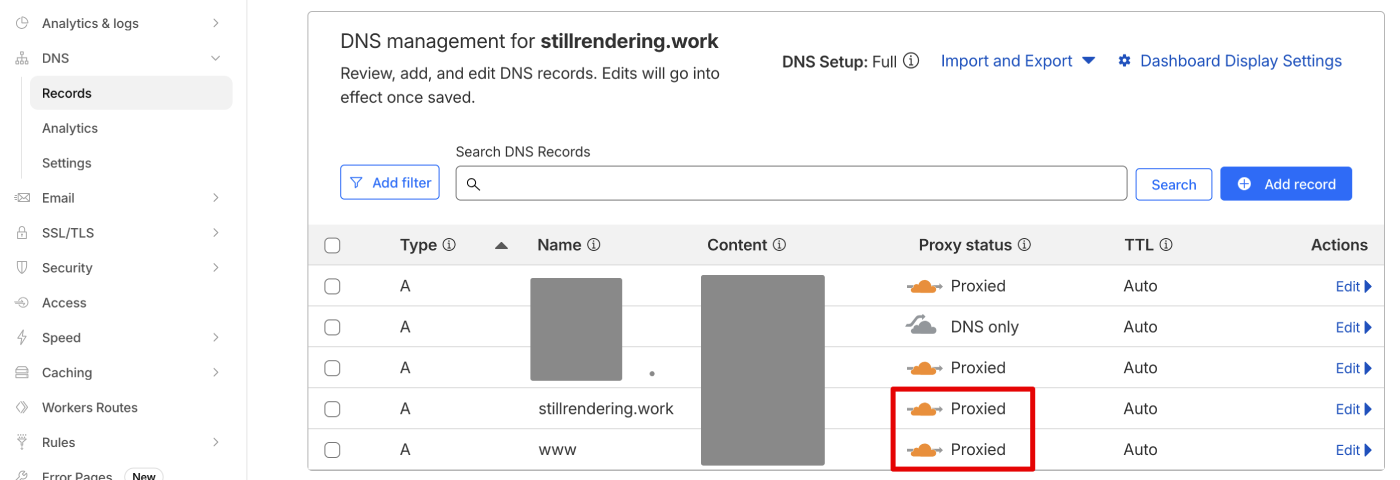
- Verify your domain's DNS is proxied through Cloudflare:
- Go to your domain's DNS > Records
- Confirm the A record shows the orange cloud icon (Proxied)
- If it shows a gray cloud (DNS only), click to enable proxying
Log in to the Cloudflare Dashboard
Navigate to Compute & AI > Workers & Pages in the sidebar
Click Create application
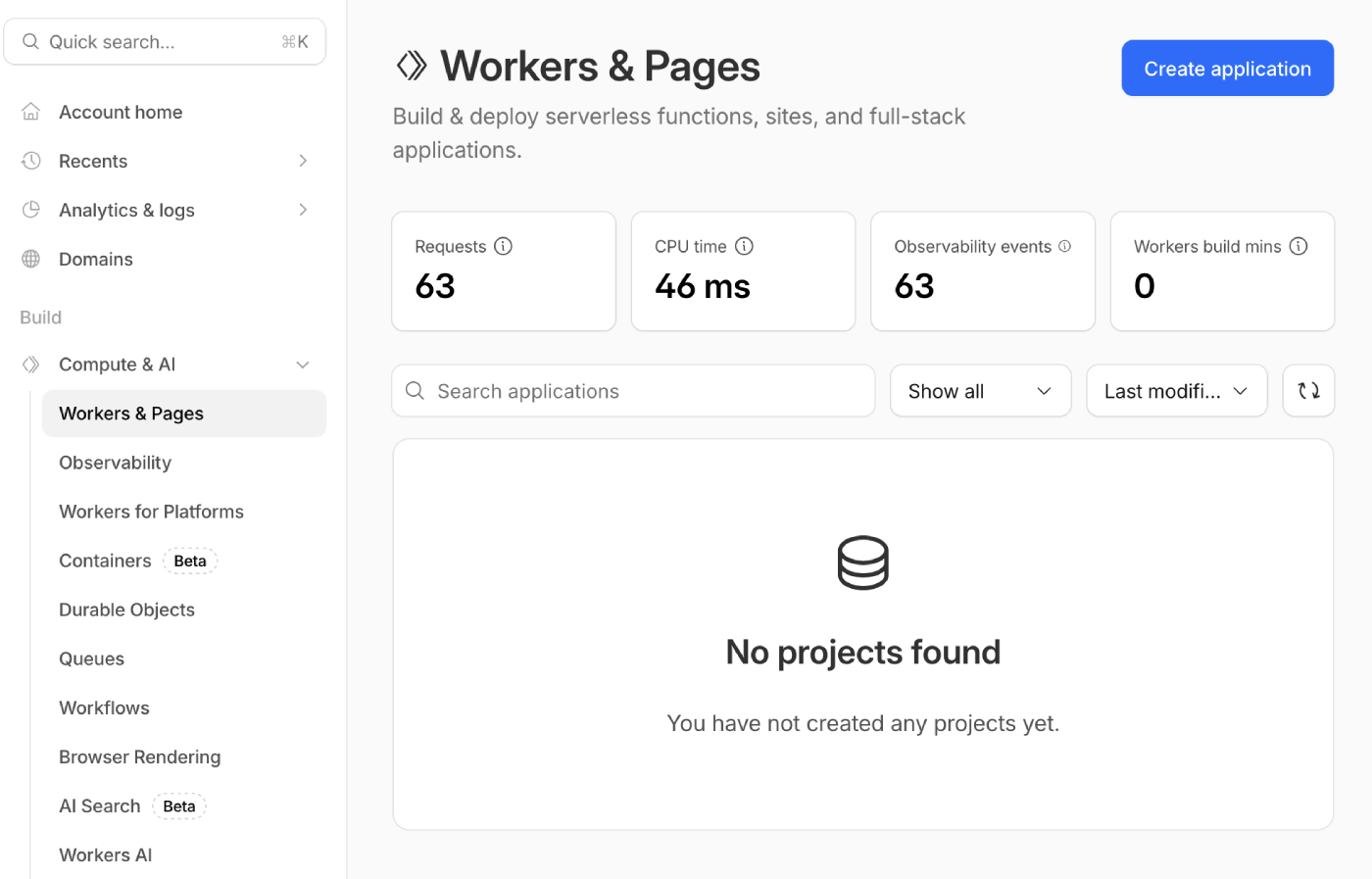
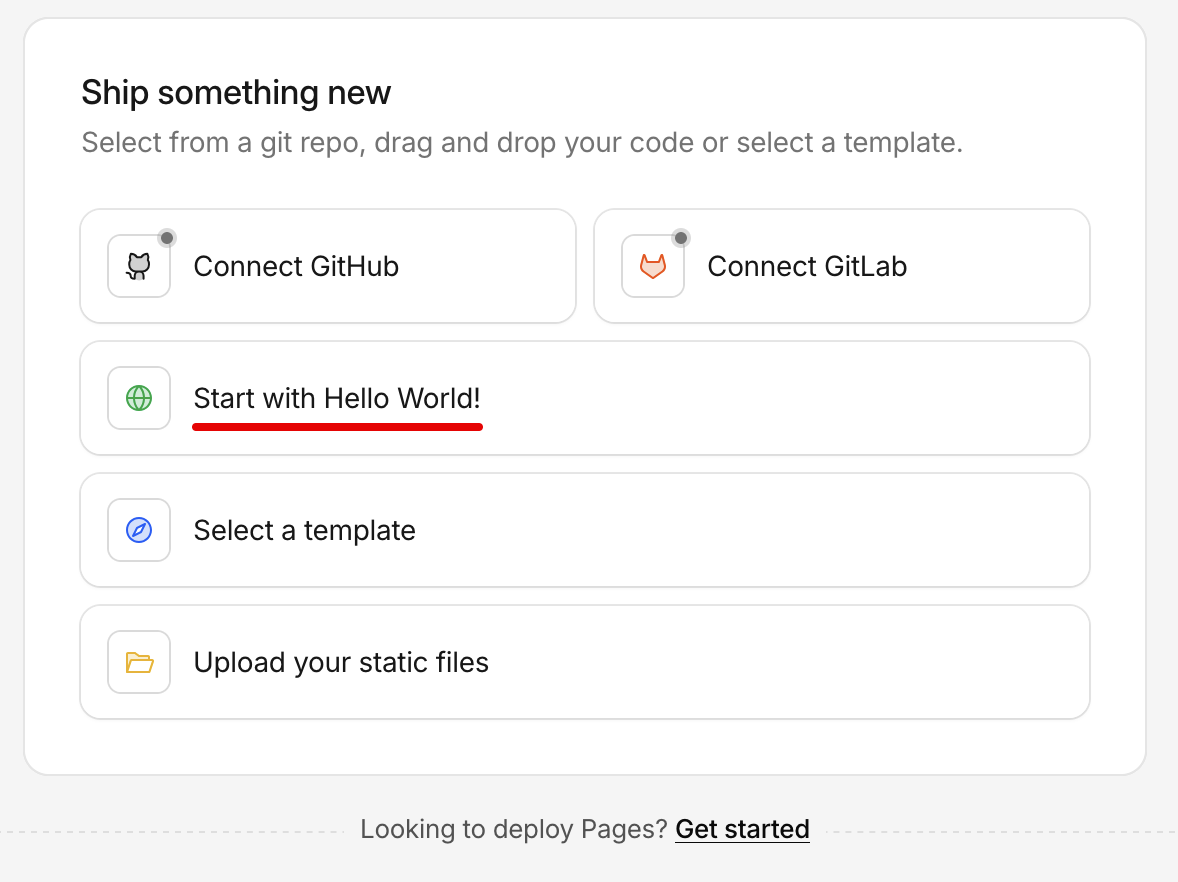
- Select Start with Hello World!
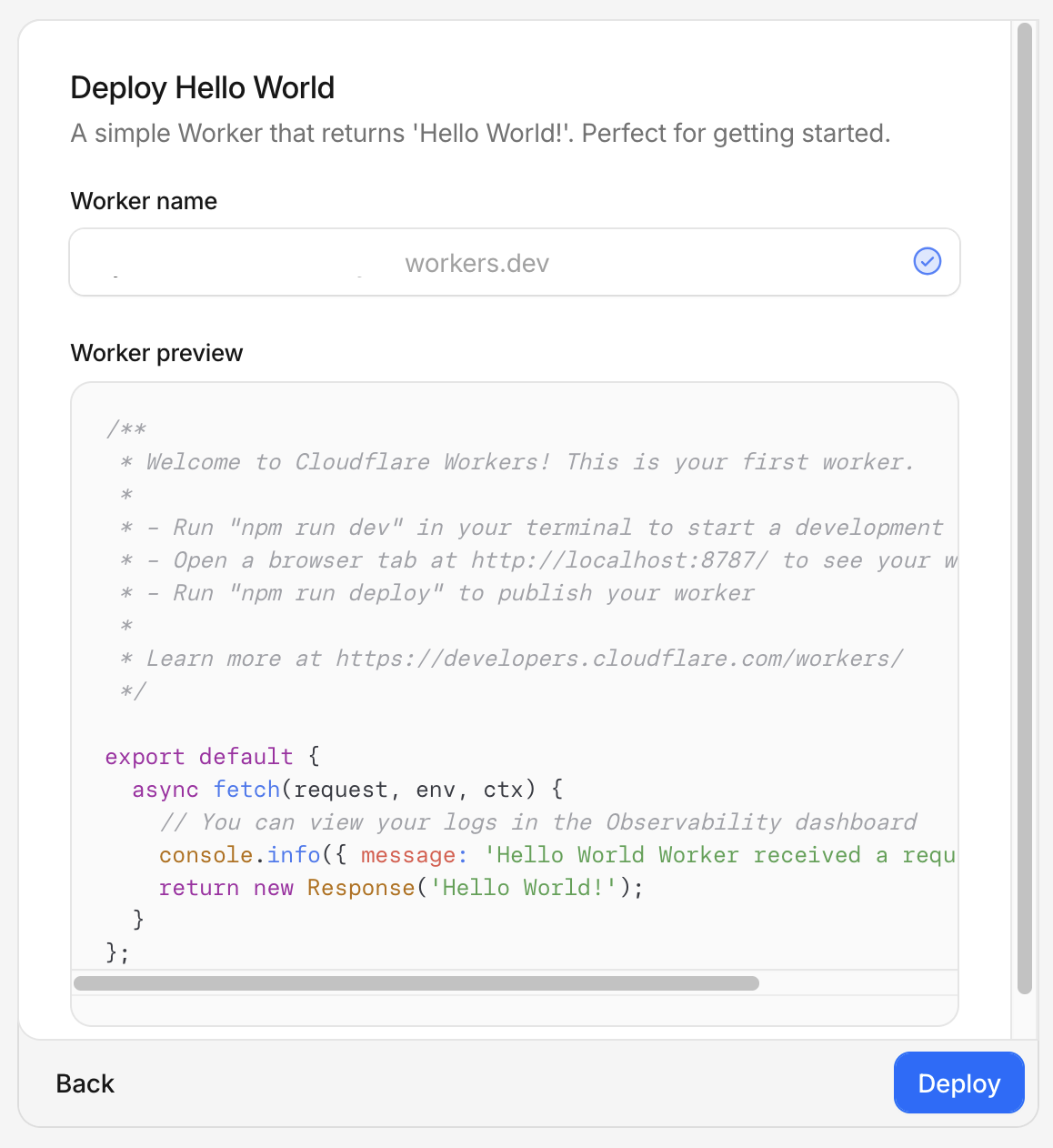
- Enter a name for your Worker (e.g.,
edge-comet-router) and click Deploy
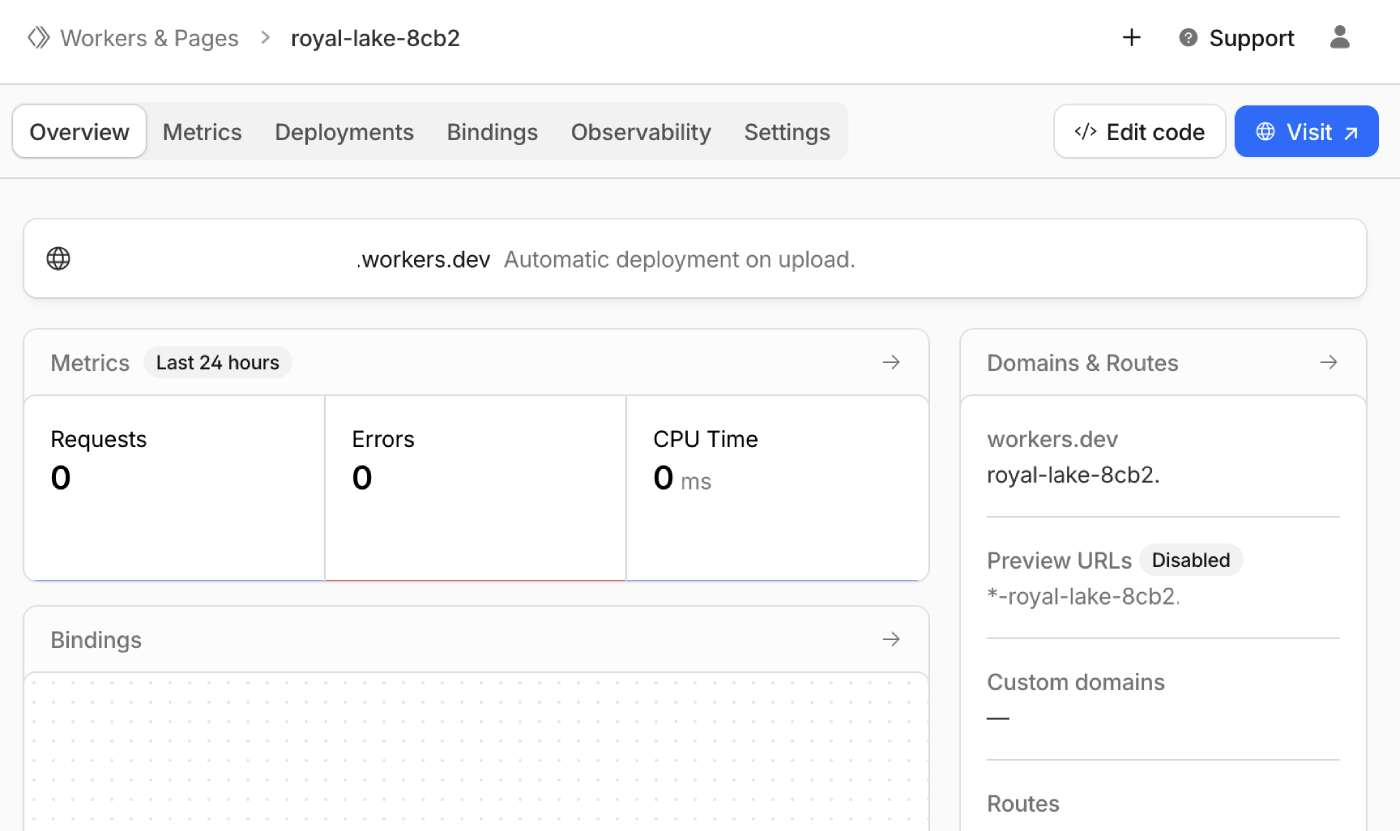
- After deployment, click Edit code to open the editor
- Replace all code with the Worker script and update the configuration:
- Set
EDGE_COMET_URLto your Edge Gateway URL - Set
RENDER_KEYto your host's render key
- Set
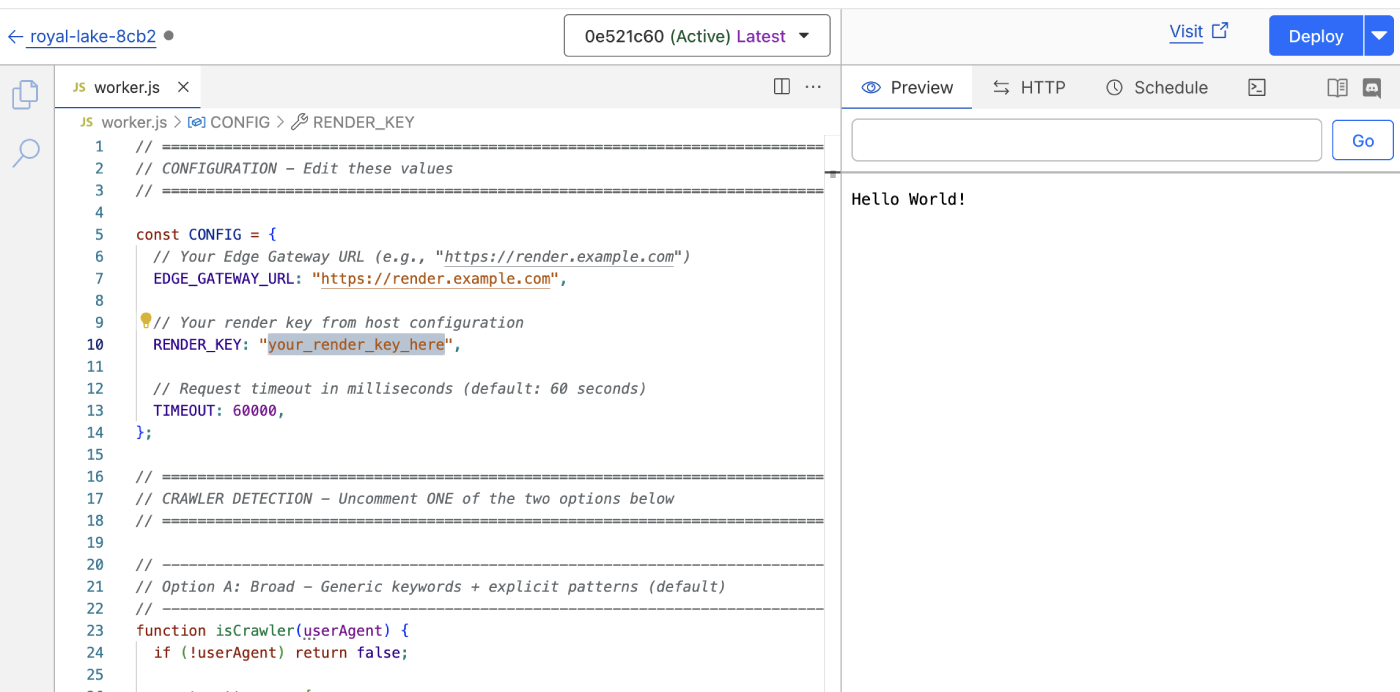
Click Deploy to save your changes
Go to your domain, then navigate to Workers Routes (under Workers & Pages in the sidebar)
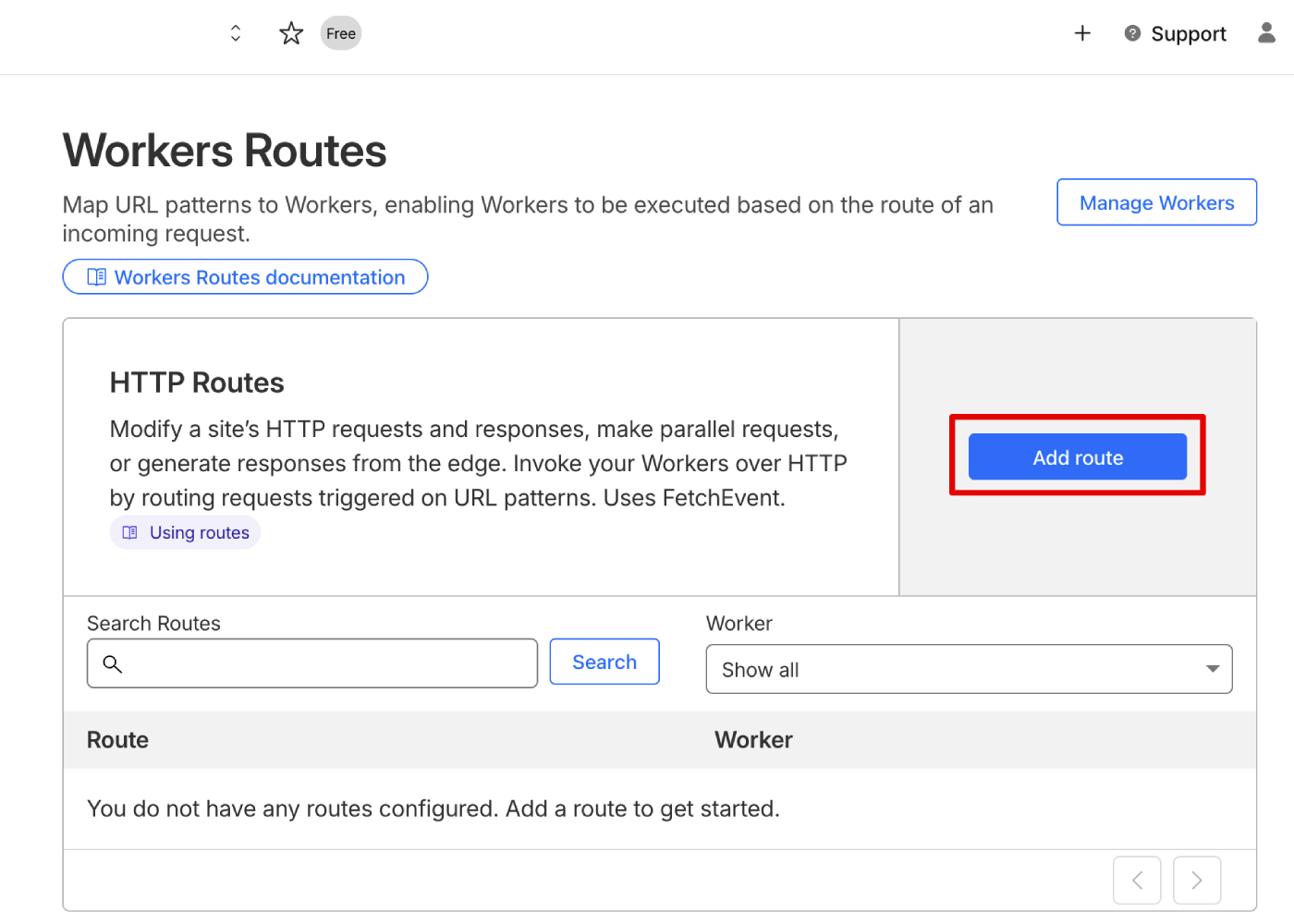
- Click Add route and configure:
- Route:
your-domain.com/*(your domain with wildcard) - Worker: Select the Worker you created
- Failure mode: Select Fail open (proceed) to ensure users reach your origin if the Worker fails
- Route:
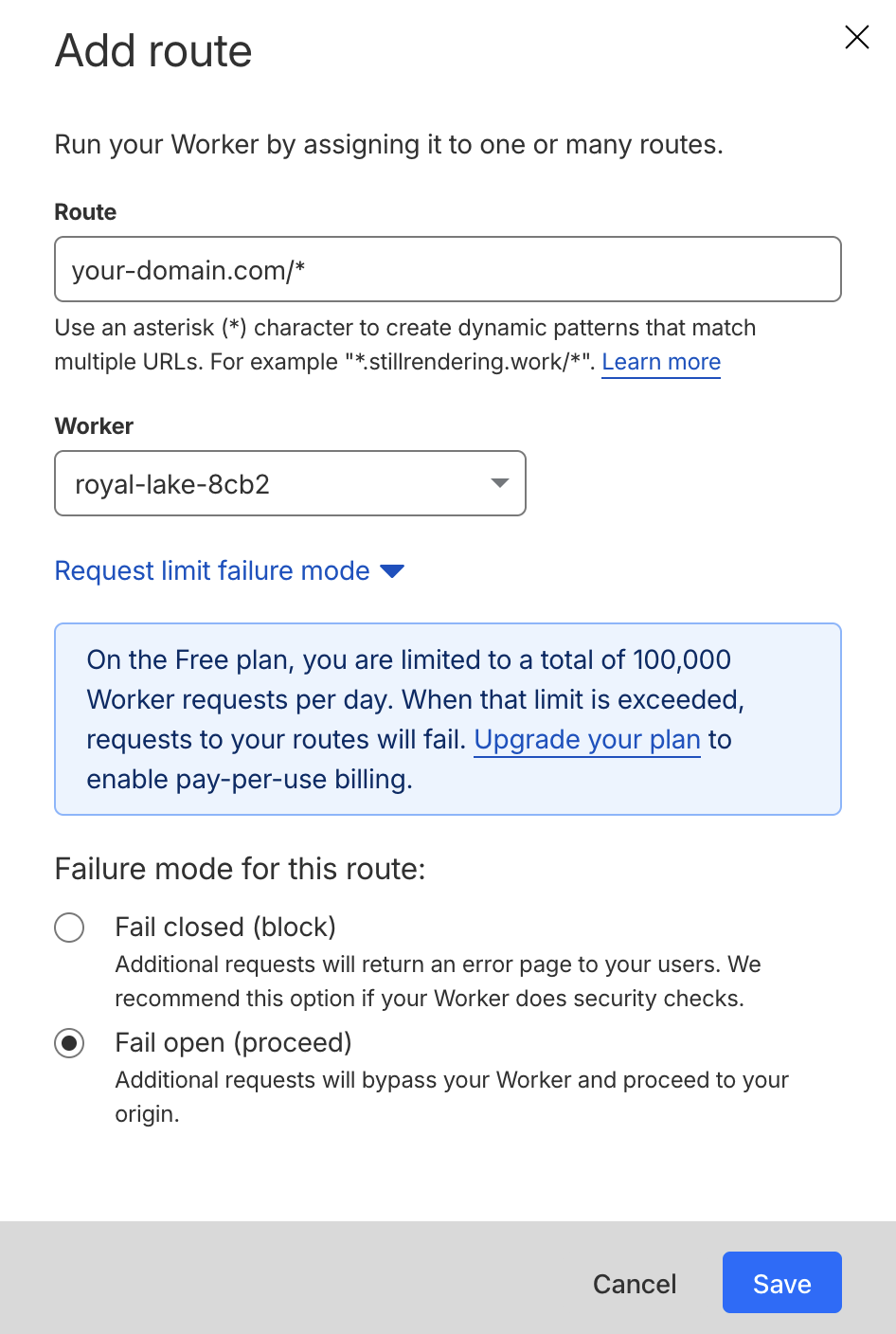
- Click Save
Option B: Wrangler CLI
For developers who prefer command-line deployment or want version control.
Verify your domain's DNS is proxied through Cloudflare (orange cloud icon in DNS settings)
Install Wrangler:
npm install -g wrangler- Authenticate with Cloudflare:
wrangler login- Create a project directory:
mkdir edge-comet-worker && cd edge-comet-worker- Create
wrangler.toml:
name = "edge-comet-router"
main = "worker.js"
compatibility_date = "2024-01-01"

routes = [
  { pattern = "*example.com/*", zone_name = "example.com" }
]
Create
worker.jswith the Worker scriptEdit the configuration constants in
worker.jsDeploy:
wrangler deployVerifying the setup
Test with jsbug
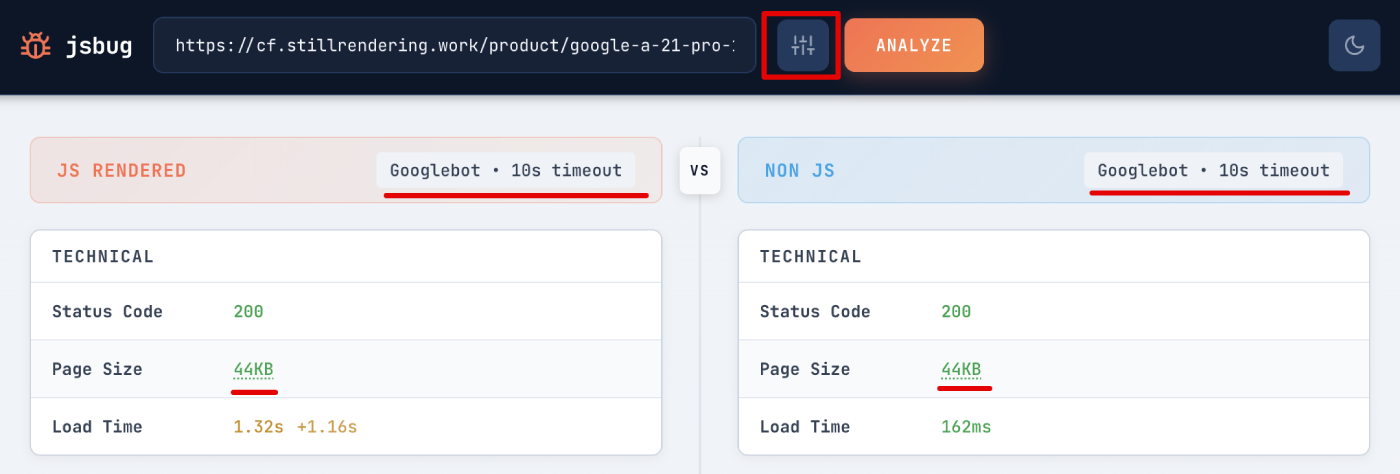
Use jsbug.org to verify that crawlers receive rendered content:
- Enter your page URL
- Click the settings icon and select Googlebot as the User-Agent
- Click Analyze
The JS Rendered panel shows what Edge Gateway returns to crawlers. Compare it with the Non JS panel to confirm JavaScript content is being rendered.
Monitor Worker requests
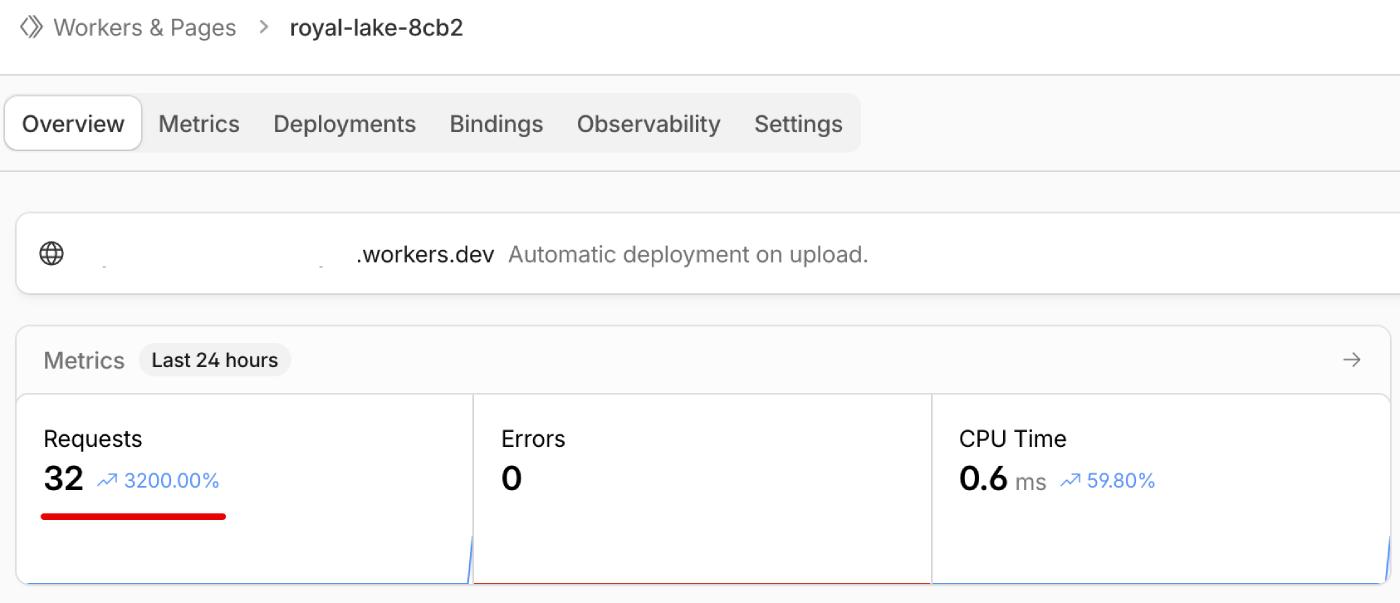
After testing, check your Worker metrics to confirm requests are being processed:
- Go to Workers & Pages in the Cloudflare Dashboard
- Select your Worker
- View the Metrics section
Test with curl (alternative)
For command-line testing, send a request with a crawler User-Agent:
curl -v \
  -H "User-Agent: Mozilla/5.0 (compatible; Googlebot/2.1; +http://www.google.com/bot.html)" \
  "https://example.com/"
Check response headers:
EC-Source: renderorEC-Source: render_cacheconfirms Edge Gateway processed the request
Test regular user traffic goes directly to origin:
curl -v \
  -H "User-Agent: Mozilla/5.0 (Macintosh; Intel Mac OS X 10_15_7) AppleWebKit/537.36" \
  "https://example.com/"
Request should have no EC-* headers in response.
Worker requests
Cloudflare's free tier includes 100,000 Worker requests per day. All HTTP requests count toward this limit, not just page requests. Each page load can trigger tens or hundreds of additional requests for JavaScript, CSS, images, and other resources, consuming your quota quickly.
Reducing request count
If your static assets are served from dedicated paths (e.g., /images/, /js/, /css/, /assets/), you can create routes that bypass the Worker:
- Go to Workers Routes in your domain settings
- Click Add route
- Enter the asset path pattern (e.g.,
*example.com/assets/*) - Set the Worker field to None
- Click Save
- Repeat for each asset folder
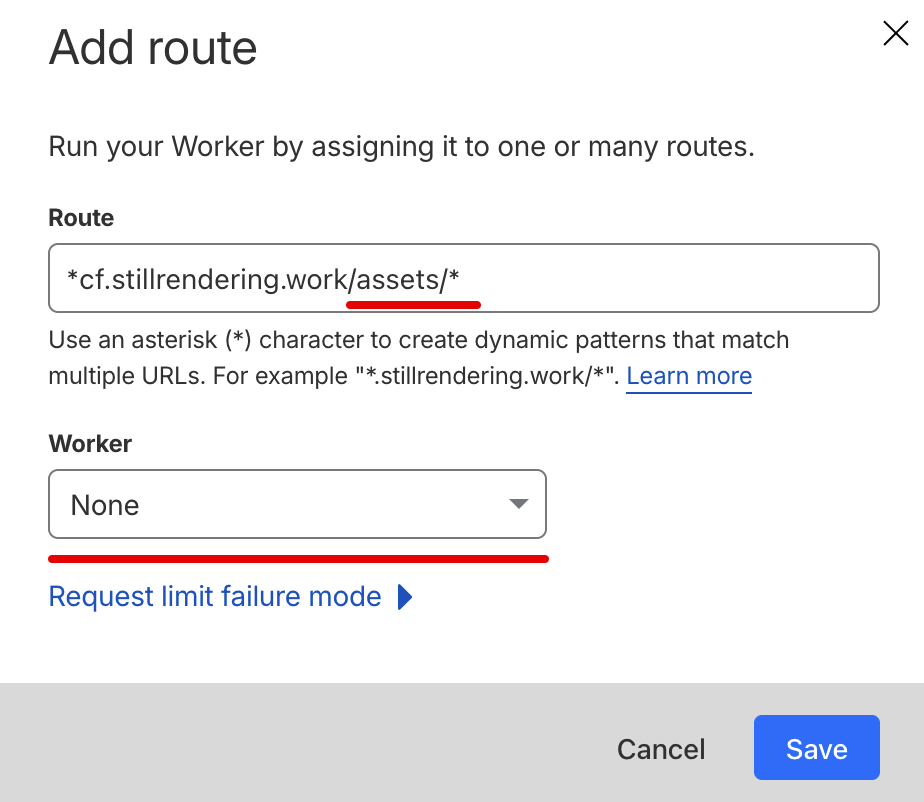
Requests matching these routes go directly to origin without invoking the Worker. This can significantly reduce request consumption, allowing small to medium websites to stay within the free tier.
Troubleshooting
The Worker script provided in this guide works without modification. Most issues occur when:
- Custom edits were made to the source code
- Other Workers on your domain conflict with or prevent execution of this Worker
403 Forbidden from Edge Gateway
- Verify
RENDER_KEYmatches your host configuration - Check the domain in the URL matches your configured
domain - Confirm the host is
enabled: true
Timeout errors
- Increase
TIMEOUTconstant to exceed your Edge Gateway render timeout - Check Edge Gateway logs for render failures
- Verify Render Service is running and registered
Crawlers not being detected
- Test the User-Agent against your
isCrawlerfunction - Add missing patterns to the crawler detection list
- Consider switching to the broad detection approach
Infinite loops or repeated requests
- Verify the
X-Edge-Renderheader check is present and working - Check that no other Cloudflare settings strip this header
- Review Edge Gateway logs for the request flow
Users seeing pre-rendered content
- Verify the crawler detection logic only matches crawlers
- Check that the User-Agent check is case-insensitive
- Test with common browser User-Agents
Bot Fight Mode blocking crawlers
- Review Cloudflare's bot analytics to see blocked requests
- Add legitimate crawler IPs to the allowlist
- Consider adjusting Bot Fight Mode sensitivity
Cache not working
- Verify
EC-Sourceheader showsrender_cacheon repeat crawler requests - Check
EC-Cache-Ageheader for cache duration - Review Edge Gateway cache configuration
Related documentation
- Worker reference - Detailed code explanations
- Diagnostic headers - Response header reference
- Dimensions - Crawler detection via User-Agent matching
- Caching - Cache configuration
- nginx integration - Alternative integration method