

Rendering failures
JavaScript applications are fragile. Issues with loading or executing JS files can interfere with the rendering process and break a page completely.
For pre-rendering, most issues occur when the renderer cannot determine when a page is ready and HTML can be captured.
EdgeComet provides detailed debug information for the entire process, including debug render with HAR data.
Step 1: Manual check
Before investigating further, open the page in a browser and check the JavaScript console for errors. Verify that all AJAX requests complete successfully.
Step 2: Configuration check
EdgeComet renders pages differently from a standard browser. By default, to speed up rendering, it does not load images, CSS, or media files. It also blocks requests to tracking domains, Google Maps, and similar services.
You can configure additional request blocks. Ensure these do not include endpoints required for rendering.
render:
  block_resources:
    - "*.analytics.com"
- "*.tracking.io"render:
block_resources:
- "maps.googleapis.com"In rare cases, pages may not render fully with image loading disabled. If you encounter this, enable image loading for the affected host:
render:
blocked_resource_types: [] # Empty list enables all resource typesrender:
blocked_resource_types: []EdgeComet also blocks 45+ tracking and analytics domains by default (Google Analytics, Facebook, ad networks, etc.). If your page relies on third-party scripts for rendering, check the HAR debug output for blockedRequests to see what is being blocked.
Page content requirements
Page content must render fully without user interactions such as clicks or scrolls. Search engine bots do not interact with pages. If you use lazy loading triggered by user events, ensure it does not affect the main content.
Step 3: Check response headers
Before diving into detailed debugging, check the response headers for quick insights:
curl -I "https://example.com/page" \
  -H "X-Render-Key: your-api-key" \
-H "User-Agent: Googlebot/2.1"| Header | Values | Meaning |
|---|---|---|
EC-Source | render, bypass, render_cache, bypass_cache, render_stale, bypass_stale, status | How the response was generated |
EC-Cache-Age | Seconds since content was cached | Time since content was cached (cache serves only) |
If EC-Source shows bypass when you expect render, check your dimension configuration. When a User-Agent does not match any configured dimension pattern, EdgeComet applies a fallback dimension; this no longer surfaces in a response header, but the signal is recorded in the logs and metrics.
Step 4: Adjust render parameters
If AJAX requests complete successfully and no JavaScript errors appear, adjust the render configuration settings.
render:
  timeout: "30s"
  events:
    wait_for: "networkIdle"
additional_wait: "2s"render:
timeout: "30s"
events:
wait_for: "networkIdle"
additional_wait: "2s"timeout: Set at least 10 seconds. EdgeComet uses two timeout behaviors (see Render mode for details):
- Soft timeout: The lifecycle event (e.g.,
networkIdle) does not fire within the timeout. HTML is still captured, but the page may be incomplete. Check the HAR metadata fortimed_out: true. - Hard timeout: The entire render operation exceeds the Render Service maximum. The render fails completely with no HTML output.
wait_for: The networkIdle event waits until network activity stops. This is the safest option for pages with complex AJAX workflows, though it increases render time.
additional_wait: Adds a fixed delay after the wait event fires. Use as a last resort for pages that modify the DOM after network activity stops. Keep this value at 1-2 seconds maximum to avoid excessive render times.
Step 5: Stale cache fallback
If rendering consistently fails for certain pages, configure stale cache serving as a safety net. When a render fails, EdgeComet can serve previously cached content instead of returning an error.
render:
  cache:
    expired:
      strategy: "serve_stale"
stale_ttl: "24h"render:
cache:
expired:
strategy: "serve_stale"
stale_ttl: "24h"With this configuration, expired cache entries remain available for 24 hours after expiration. If a new render fails, the stale content is served instead.
Step 6: HAR debug
Use the Edge Gateway internal API to generate a HAR debug file for any URL. The file contains detailed information about page loading, including network requests and browser events.
curl "http://localhost:10071/debug/har/render?url=https://example.com&dimension=desktop&timeout=30s" \
  -H "X-Internal-Auth: your-internal-auth-key" \
-o debug.har| Parameter | Description |
|---|---|
url | Page URL to render (required) |
dimension | Dimension name from host config: desktop, mobile, etc. |
timeout | Render timeout, e.g., 30s, 45s |
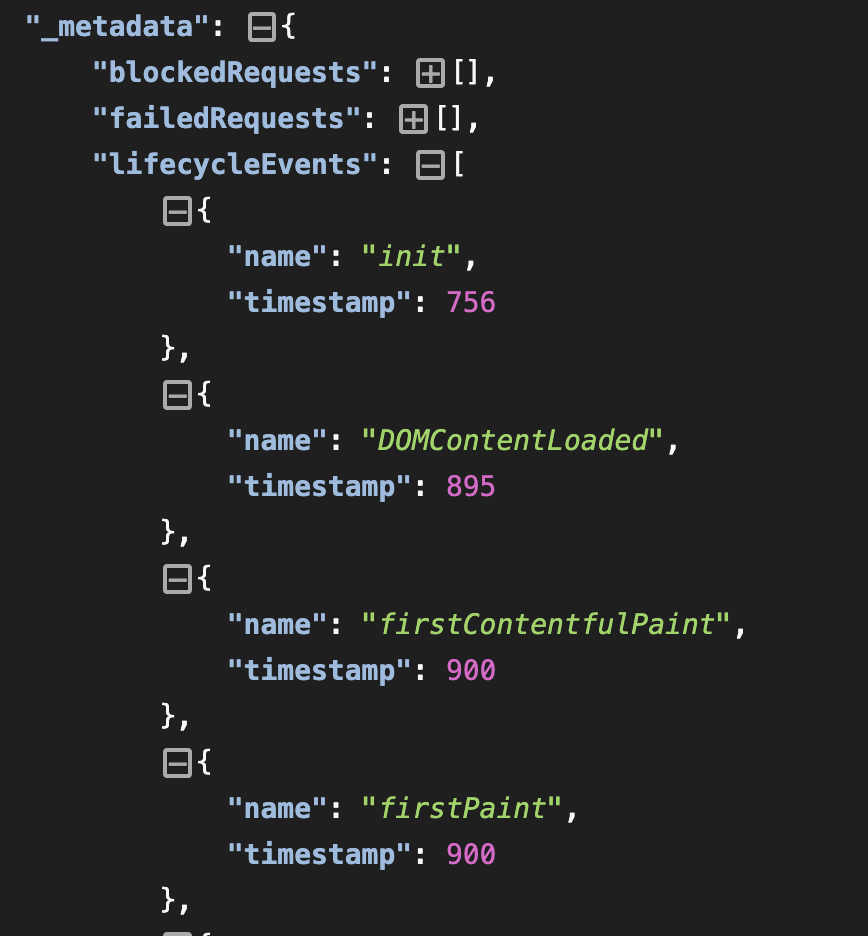
The HAR file is compatible with standard viewers such as the Chrome DevTools Network panel. Open the _metadata key to find EdgeComet-specific data:
- blockedRequests: Resources blocked by
block_resourcesrules - failedRequests: Network requests that failed during rendering
- lifecycleEvents: Browser events with timestamps (DOMContentLoaded, networkIdle, etc.)
- renderConfig: The exact render configuration applied to the request
Step 7: Manual debug
If the previous steps did not resolve the issue, debug the render process locally.
- Clone the repository to your local machine
- Build and run the render service:bash
go build -o bin/render-service ./cmd/render-service ./bin/render-service -c configs/sample/render-service.yaml - Send a render request:bash
curl -X POST http://localhost:10080/render \ -H "Content-Type: application/json" \ -d '{ "request_id": "debug-001", "url": "https://example.com", "viewport_width": 1920, "viewport_height": 1080, "user_agent": "Mozilla/5.0 (compatible; Googlebot/2.1; +http://www.google.com/bot.html)", "timeout": 30000000000, // 30 seconds in Go nanoseconds "wait_for": "networkIdle" }' - Step through
internal/render/chrome/renderer.gowith a debugger. This file contains all render logic, including lifecycle event handling and HTML capture.
Step 8: Open an issue
If you find a bug while rendering your website, open an issue on GitHub. Pull requests are welcome.