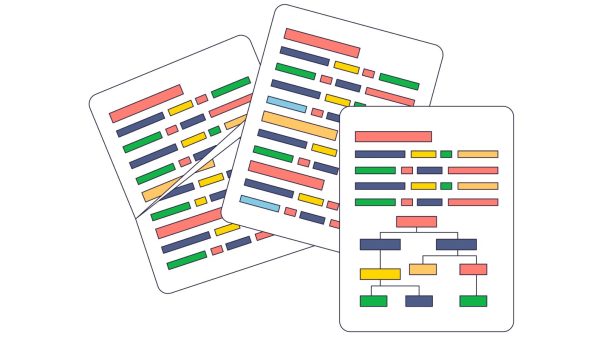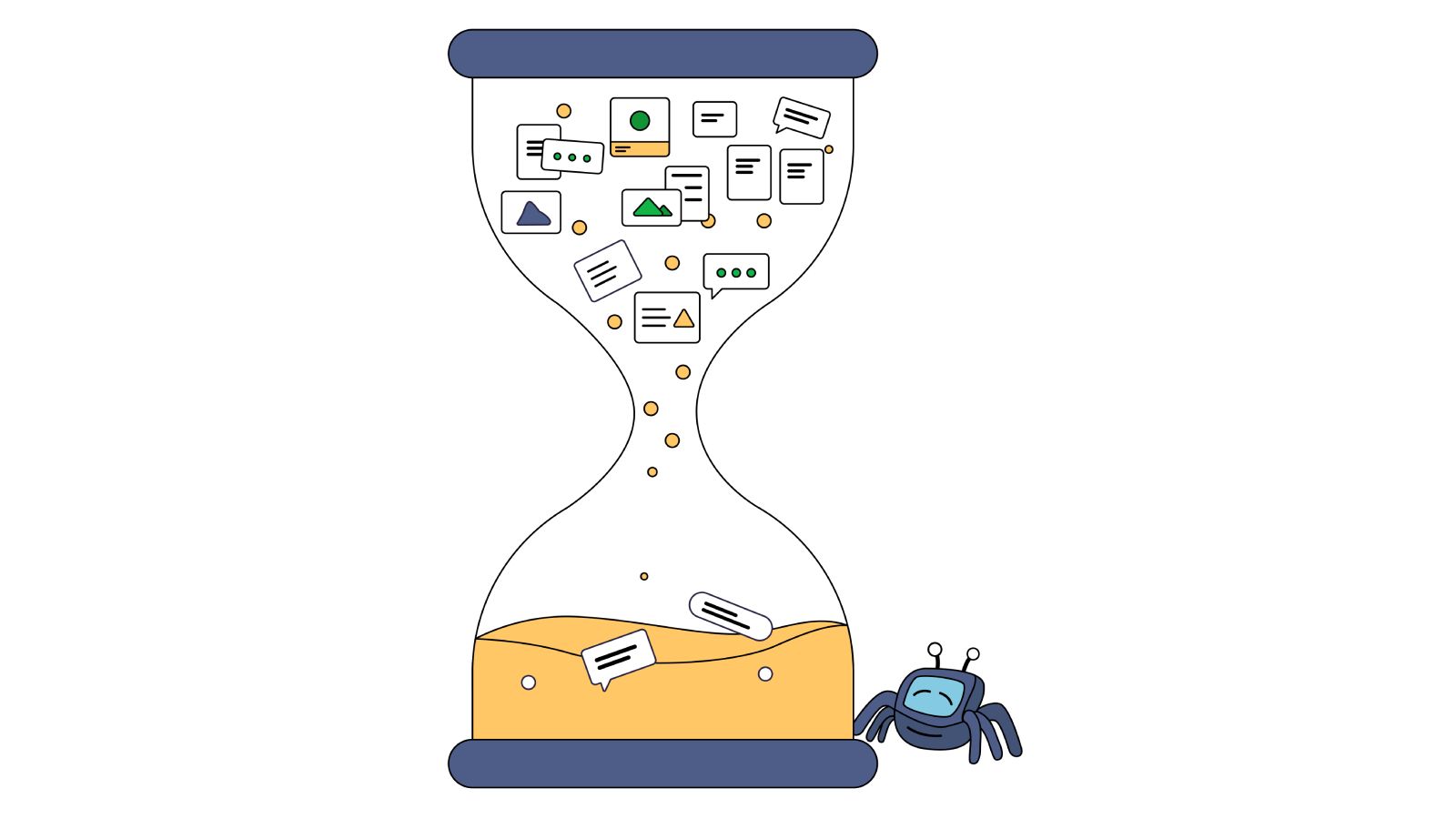
Google renders every page it crawls now, and it does it fast: the crawl-to-render gap that used to stretch into days or weeks is now usually minutes to hours.
Short answer: yes, Google can read JavaScript-generated content, but only after a second pass. Googlebot crawls your raw HTML first, then queues the page for a separate render pass that executes your JavaScript. If that second pass fails, times out, or never runs, the content it depended on never reaches the index. That’s the gap this guide walks through.
But a page that renders is not automatically a page that gets indexed. Your React app passes every test in Chrome DevTools. Marketing says Google isn’t indexing your product pages. Both are telling the truth.
I spent two weeks debugging this exact problem on an e-commerce site. The pages loaded in 1.2 seconds in my browser. Google Search Console showed “Crawled – currently not indexed” for more than a half of product pages. The disconnect wasn’t a bug in the code or a misconfiguration in robots.txt. It was the fundamental difference between how browsers and crawlers process JavaScript.
Googlebot’s Two-Phase JavaScript Processing
Three separate things have to happen before your JavaScript content shows up in Google: crawling (Googlebot fetches the raw HTML), rendering (a headless Chromium instance executes your JavaScript and builds the final DOM), and indexing (Google decides the rendered content is worth storing and serving). Most JavaScript SEO problems trace back to a failure in the second step – rendering – which is why it gets its own section here.
Googlebot splits JavaScript page processing into two distinct phases: a crawl phase that captures raw HTML, and a render phase that executes JavaScript and captures the final DOM. Understanding how Googlebot renders JavaScript is essential for diagnosing indexing delays and visibility issues on modern web applications.
Crawl phase: Googlebot fetches raw HTML. It checks wherever a page has a 200 status code and it is canonical.
Render phase: The page enters a rendering queue. Google’s Web Rendering Service (WRS) spins up a headless Chromium instance, executes your JavaScript, and captures the final DOM state. Only then can the content be indexed.
The render delay still tracks site authority, but the spread is far tighter than the days-to-weeks range people saw a few years ago. Now this gap is about minutes to hours.
So can we simply forget about JavaScript and not care about client-side rendering? Unfortunately, no.
Google’s rendering queue prioritizes pages by site authority because JavaScript execution is computationally expensive. A page from a site with strong backlinks and consistent traffic gets priority. A page from a new or low-traffic site waits longer. This isn’t documented as official policy, but the crawl data patterns are consistent.
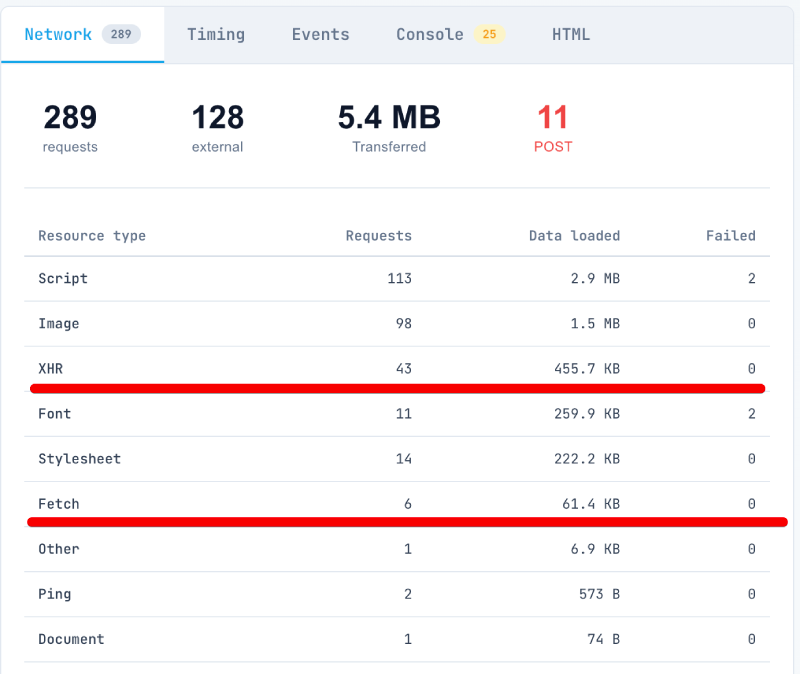
The other aspect is that each AJAX request from the page, during its rendering, counts as a crawl budget. So if your page produces 52 requests per load, it means it takes 43 crawl budget requests instead of just one.
Google caches GET requests extensively. It helps them to speed up the rendering process. However, POST requests can be cached by their nature. It harms their rendering performance and the whole crawl budget for a JS-heavy website. I will say that POST requests are the first thing that you have to check on your page during the render analysis.
Googlebot’s 2MB Indexing Limit and Timeout Window
Googlebot operates under hard constraints that differ from your local development environment.
| Constraint | Value | What Happens |
|---|---|---|
| Indexing size limit | 2MB per resource | Googlebot indexes only the first 2MB of each text-based file |
| Rendering timeout | ~5-20 seconds (undocumented) | Google indexes partial or empty content |
| JS execution | Single pass | Googlebot does not retry errors within the same render |
Google operates a two-tier file size model. Google Search Central documents crawling infrastructure applies a default 15MB-per-file limit across all its crawlers and fetchers. But for Search indexing, Googlebot processes only the first 2MB of each HTML, JavaScript, and CSS file. Each subresource referenced in the HTML is fetched and size-checked separately. Google documented this two-tier model in February 2026, describing the change as a documentation clarification rather than a behavioral change.
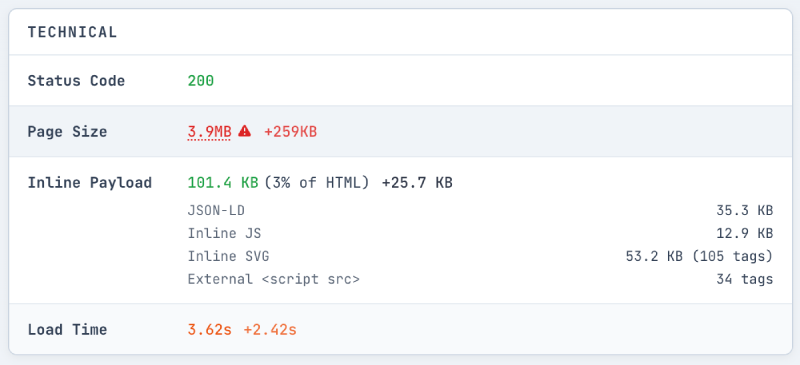
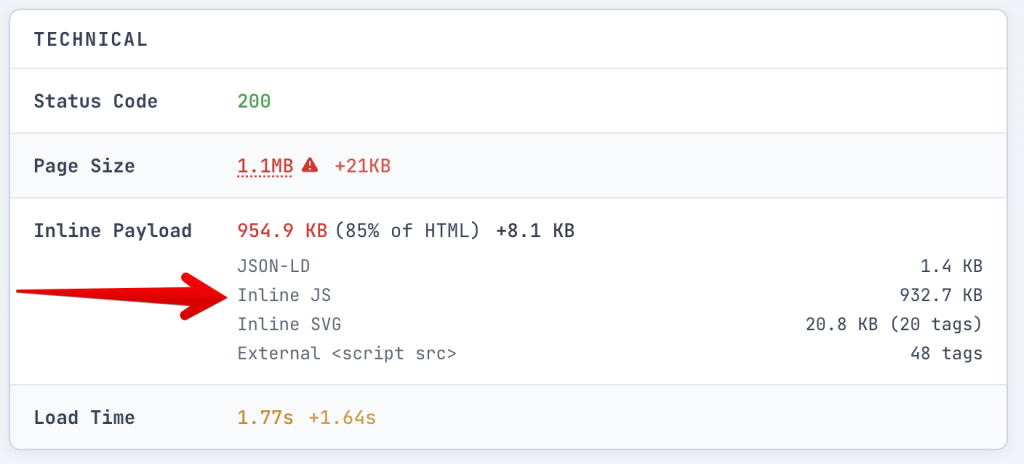
Serialized state, not raw file size, causes most payload problems in practice.
I’ve audited Next.js sites where the __NEXT_DATA__ script tag exceeded 8MB on category pages. This happens when you fetch an entire product catalog server-side and serialize it into the page. Forget the crawl limit – 8MB of inline JSON is a performance disaster on its own. The browser has to download, parse, and hold that data in memory before your page becomes interactive. A mid-range Android phone or an older laptop will choke. Users on slow connections wait while megabytes of product data they’ll never scroll to transfers over the wire.
Check your own payload:
// Run this in DevTools console on any Next.js page
const data = document.getElementById('__NEXT_DATA__');
if (data) {
  console.log(`__NEXT_DATA__: ${(data.innerHTML.length / 1024).toFixed(0)}KB`);
}
If you’re above 500KB, investigate. If you’re above 1MB, you’re consuming more than half of Googlebot’s 2MB limit on a single data blob.
The timeout is harder to pin down. Google hasn’t published a definitive rendering timeout. Design for 5 seconds as your safe budget. Some practitioners report successful renders up to 20 seconds, but past the 5-second mark you’re gambling. If your page depends on a slow API call to render the main content, assume Google won’t wait.
The single-pass execution matters too. Based on anecdotal practitioner testing, if your JavaScript throws an uncaught exception, Google doesn’t appear to retry within that rendering attempt. Google indexes the page in whatever broken state it reached before the error.
Everything above applies regardless of framework. Angular’s zone.js change detection and Vue’s reactivity system both run inside the same WRS Chromium instance as React – Googlebot doesn’t special-case any of them. If your Angular or Vue app blocks on a slow API call before painting content, you’ll hit the identical timeout problem described below.
Non-200 Responses Skip Rendering
In December 2025, Google updated their JavaScript SEO documentation with a critical clarification: pages returning non-200 HTTP status codes may skip JavaScript rendering entirely.
The updated documentation states: “All pages with a 200 HTTP status code are sent to the rendering queue… If the HTTP status code is non-200 (for example, on error pages with 404 status code), rendering might be skipped.”
The impact shows up clearly when handling deleted products. Consider two scenarios:
Scenario A: Soft 404 (common in React apps)
- User requests
/product/discontinued-item - Server returns 200 OK with the React shell
- React fetches product data, gets a 404 from your API
- React renders a “Product Not Found” component
- Google eventually renders the page and figures out it’s a soft 404
Scenario B: Proper 404
- User requests
/product/discontinued-item - Server returns 404 Not Found
- Google may skip rendering
- Any client-side logic—canonical tags, redirects, noindex directives—may never execute
In Scenario B, if you rely on client-side JavaScript to set a canonical URL or trigger a redirect, that logic may never run. Google sees the raw HTML (probably your empty React shell) and the 404 status code. That’s it.
The fix is architectural: handle error states at the server level, not in React. Your server or CDN should return proper status codes before the response reaches the browser. Don’t depend on JavaScript to clean up after a failed data fetch.
// Pages Router: pages/products/[id].js
export async function getServerSideProps(context) {
  const product = await fetchProduct(context.params.id);

  if (!product) {
    return {
      notFound: true, // Returns actual 404 status code
    };
  }

  return {
    props: { product },
  };
}
If you’re using the App Router:
// App Router: app/products/[id]/page.js
import { notFound } from 'next/navigation';

export default async function ProductPage({ params }) {
  const product = await fetchProduct(params.id);

  if (!product) {
    notFound(); // Returns actual 404 status code
  }

  return (
    <main>
      <h1>{product.name}</h1>
    </main>
  );
}
Four Patterns That Block JavaScript Indexing
Four patterns cause most JavaScript indexing failures.
API calls blocking render. Your component waits for a slow endpoint before displaying any content. Googlebot times out. I see this pattern constantly:
// Bad: renders nothing until the API responds
function ProductPage({ id }) {
  const [product, setProduct] = useState(null);

  useEffect(() => {
    fetch(`/api/products/${id}`).then(r => r.json()).then(setProduct);
  }, [id]);

  if (!product) return <div className="spinner" />;

  return <h1>{product.name}</h1>;
}
Googlebot sees the spinner, waits for the fetch, and may time out before the content appears. The fix is either server-side data fetching (so the HTML already contains the content) or rendering meaningful static content immediately while data loads asynchronously.
Auth-gated content. Googlebot can’t log in to your site. If product details require authentication, Google sees a login wall. The content doesn’t exist as far as search is concerned.
Lazy-loaded main content. Your LCP element (largest contentful paint) loads on scroll or on user interaction. Googlebot doesn’t scroll. It doesn’t click. If the content isn’t in the initial render, it’s invisible.
Client-side routing without real links. This one catches experienced developers:
// Bad: Google can't follow this
<div onClick={() => navigate('/products')} className="nav-link">
  Products
</div>

// Good: Crawlable link that also works with client-side routing
<Link href="/products">
  Products
</Link>
The first example looks fine in the browser. Click handlers work. Navigation happens. But there’s no href attribute for Googlebot to discover during the crawl phase. The link doesn’t exist in the raw HTML. Google never finds your products page.
Always use semantic <a> elements with real href attributes. Your client-side router can intercept the click and prevent a full page load while still leaving a crawlable link in the markup.
Robots.txt blocking your own CSS/JS
A fifth pattern I’ve seen sink otherwise-solid sites: robots.txt blocking the CSS or JS directories outright. Search-engine-friendly-looking rules like Disallow: /wp-content/ block the theme’s stylesheets and scripts along with everything else in that folder – Googlebot can still fetch the HTML, but it renders a blank or broken layout because it can’t load what makes the page work. The fix is narrow: allow crawlers into /wp-content/themes/ and /wp-content/plugins/ (or wherever your CSS/JS actually lives) even while blocking the rest of that directory.
Three Approaches to JavaScript Indexing
Three approaches, ranked by implementation effort:
Server-Side Rendering / Static Site Generation
The most reliable solution. Your server executes JavaScript and returns complete HTML. Googlebot sees real content on the first crawl. No rendering queue delay.
For Next.js, convert critical pages from client-side to server-side rendering:
// pages/products/[id].js
export async function getServerSideProps(context) {
  const product = await fetchProduct(context.params.id);

  if (!product) {
    return { notFound: true };
  }

  return {
    props: {
      product,
      // Only send what the page needs
      // Don't serialize your entire database
    },
  };
}

export default function ProductPage({ product }) {
  return (
    <main>
      <h1>{product.name}</h1>
      <p>{product.description}</p>
      {/* Content exists in initial HTML */}
    </main>
  );
}
If you’re using the App Router, server components handle this by default:
// App Router: app/products/[id]/page.js
import { notFound } from 'next/navigation';

export default async function ProductPage({ params }) {
  const product = await fetchProduct(params.id);

  if (!product) {
    notFound();
  }

  return (
    <main>
      <h1>{product.name}</h1>
      <p>{product.description}</p>
      {/* Content exists in initial HTML - no client JS needed */}
    </main>
  );
}
With the App Router, server components are the default. The page fetches data and renders HTML on the server without shipping that data to the client as JSON. No __NEXT_DATA__ blob, no hydration overhead for static content.
The tradeoff is infrastructure complexity. You need a Node.js runtime, not just static file hosting. Response times depend on your server and database performance.
Pre-rendering Service
Don’t confuse this with “dynamic rendering” – Google’s older recommendation to serve a completely separate bot-only version of your site, which Google itself now advises against as a long-term strategy. A pre-rendering service is narrower: a middleware layer intercepts crawler requests and serves pre-rendered HTML of the SAME app, not a separate bot-specific build. Your application stays client-side rendered for real users. Bots get a static snapshot.
EdgeComet works this way. You deploy your existing React app unchanged. The service handles crawler detection and returns cached, fully-rendered HTML.
This approach requires less code change than SSR migration but adds operational dependency on the rendering service.
Hybrid Approach
SSR for SEO-critical pages (products, categories, landing pages). CSR for authenticated dashboard pages, user settings, and other content that doesn’t need indexing.
Five Tools for Debugging JavaScript Indexing Failures
JavaScript indexing failures leave specific traces in five diagnostic tools.
1. Google Search Console URL Inspection
This is the authoritative source. Enter your URL, request a live test, and examine the rendered HTML. The tool shows you exactly what Google sees after JavaScript execution. It also reports JavaScript errors and blocked resources.
2. curl with Googlebot User-Agent
Test what your server returns to Googlebot specifically. Some CDNs and security tools serve different content based on user-agent strings.
curl -A "Mozilla/5.0 (compatible; Googlebot/2.1; +http://www.google.com/bot.html)" -s https://yoursite.com/page | head -100Compare this output to what you see in a browser. If they differ significantly, investigate why. Geo-targeting, A/B tests, bot mitigation rules, or CDN configuration can cause legitimate differences. But if your product content is missing entirely for Googlebot, that’s worth fixing.
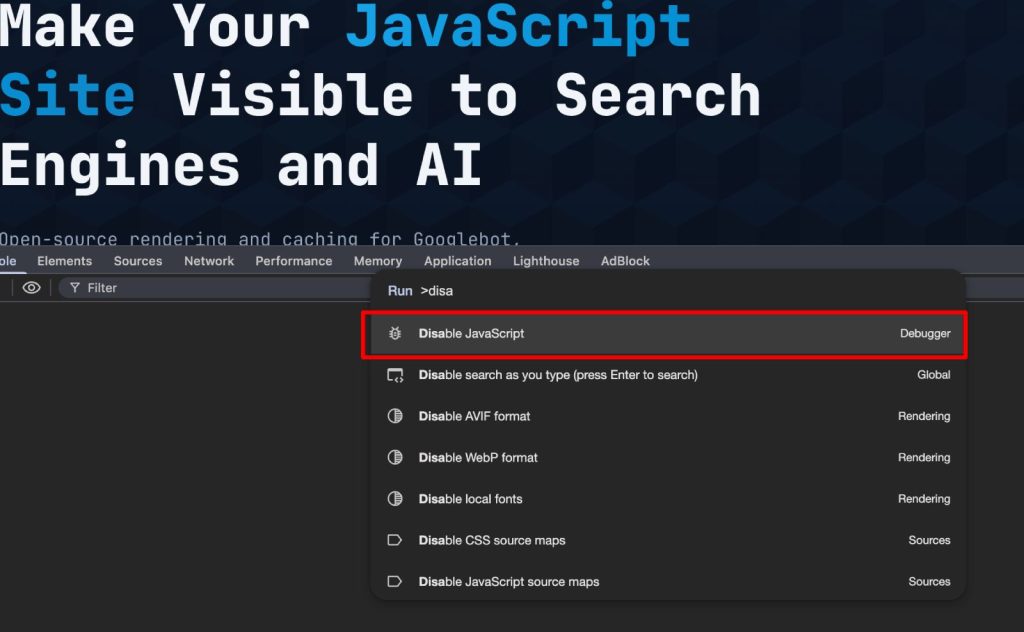
3. Disable JavaScript in DevTools
This simulates the initial crawl phase:
- Open Chrome DevTools
- Press Cmd+Shift+P (Mac) or Ctrl+Shift+P (Windows)
- Type “Disable JavaScript” and select the option
- Reload the page
What you see now is what every crawler sees before rendering. If your page is blank or shows a loading spinner, that’s your indexing problem visualized.
4. jsbug.org
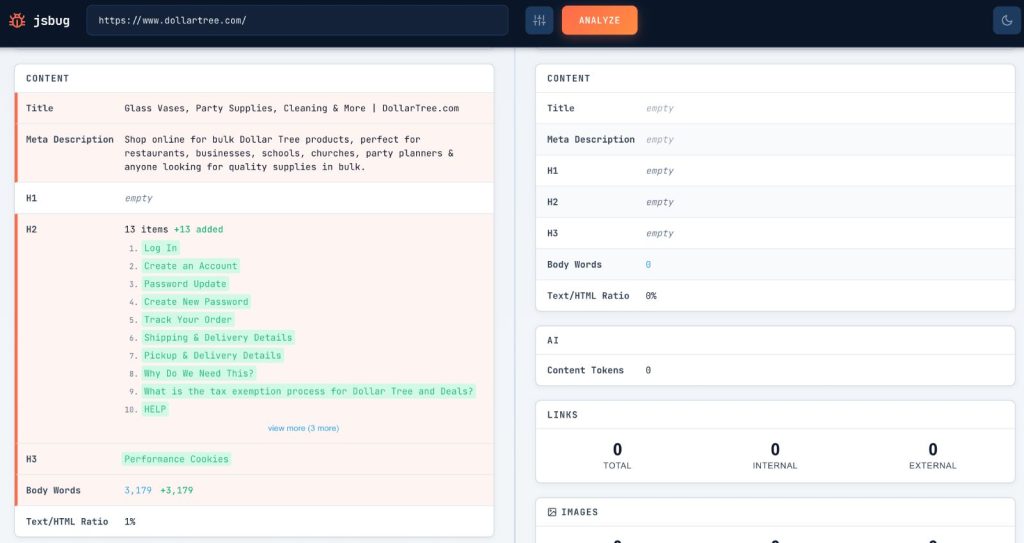
We built jsbug.org for this exact use case. Enter a URL and it renders the page twice: once with JavaScript enabled, once without. You get a side-by-side diff showing exactly what content depends on client-side rendering. I use it for quick audits before diving into Search Console.
5. Server Logs
Check your actual access logs for Googlebot requests. Filter by user-agent and look for patterns. Look for pages Googlebot never requests and for requests returning unexpected status codes. The truth lives in your logs.
Hard Lessons from the Rendering Queue
The difference between what browsers see and what crawlers see isn’t a bug. It’s how the architecture works.
Google invested heavily in JavaScript rendering. They run headless Chrome at scale. But they still process pages in two phases (crawl, then render), they still impose time and size limits, and they still deprioritize low-authority sites in the rendering queue.
AI crawlers GPTBot, ClaudeBot, PerplexityBot do not render JavaScript at all. Vercel’s analysis of over a billion monthly bot requests confirmed this. These crawlers see only your raw HTML response. We tested this ourselves: GPTBot and ChatGPT-User fetch raw HTML only, with ChatGPT-User timing out after 5 seconds. Google’s own Gemini bot behaves the same way – no JavaScript execution, a 4-second timeout, and it ignores structured data like JSON-LD entirely. These bots generally respect robots.txt, but they cannot see anything your JavaScript renders. If you want your content visible in AI-powered search and discovery tools, SSR or pre-rendering is not optional – it’s the only path.
On the e-commerce site from the intro, moving product pages to SSR and fixing the soft 404 handling brought indexed page count from 40% to 78% within three weeks. The rendering queue delay dropped from days to hours.
Hard lessons from this and similar projects:
- Disable JavaScript in your browser right now and load your most important page. If it’s blank, that’s your problem.
- Check
__NEXT_DATA__size on every deploy. Over 1MB is a warning sign. Over 5MB is a fire. - Handle HTTP status codes on the server. Never rely on React to communicate 404s or redirects to crawlers.
- Use real
<a>tags withhrefattributes.onClicknavigation is invisible to every crawler. - Check Search Console weekly. The “Crawled – currently not indexed” status is the earliest signal that something broke.
About EdgeComet
We built EdgeComet to solve this problem. It’s an open-source rendering and caching layer that sits in front of your app and serves pre-rendered HTML to search engine and AI crawlers. Crawlers get fully rendered content on the first request, with no rendering queue wait. Your app stays unchanged. This approach helps support edge SEO optimization by ensuring critical content, metadata, and crawlable links are available in the initial HTML response.