In our previous article, we broke down the mechanics of the Rendering Gap, that dangerous disconnect between what your users see in Chrome and what Googlebot sees in its queue. But knowing the gap exists is different from spotting it in the wild.
You don’t need to be a search engineer to audit your site. The Rendering Gap leaves specific fingerprints, clues that scream “invisible content” to a trained eye. The specific technology varies (React, Vue, Angular, Next.js), but the failure modes are remarkably consistent.
We’ve compiled the 8 most common “Red Flags” that kill SEO performance based on our experience debugging hundreds of sites. If you find even one of these on a critical page, you aren’t just facing a technical glitch. You are risking your organic visibility.
Red Flag #1: Title and Meta Description Only Appear After JavaScript Runs
The <title> tag is one of the most important on-page SEO elements. It’s what appears in search results and browser tabs. If it only exists after JavaScript executes, you’re gambling with how search engines index your page.
How to detect it
In jsbug.org, look at the Content card in the main panel. Compare the Title and Meta Description fields between the “Without JS” (raw HTML) and “With JS” (rendered) columns.
If the raw HTML shows a generic placeholder like “Loading…”, “React App”, or your brand name while the rendered view shows your actual page title, or if the field is highlighted as “Changed,” you have this problem.

Why it matters
Before Google sends your page to rendering, it reads the raw HTML to decide whether rendering is worth it. Title, meta description, canonical, and `noindex` are part of that read. If the raw HTML looks thin or broken, the page is competing for crawl budget at a disadvantage, Googlebot prefers fast, high-signal pages and revisits them more often. JavaScript-injected metadata can’t repair a first impression that was already made.
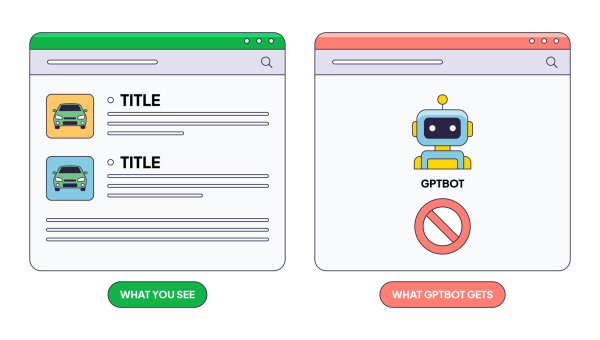
AI crawlers like GPTBot, ClaudeBot, and PerplexityBot often don’t execute JavaScript at all. They’ll only ever see what’s in your raw HTML.
How to fix it
Ensure your <title> and <meta name="description"> tags exist in the initial server response. If you’re using a framework like Next.js or Nuxt, configure server-side rendering (SSR) for these elements. For single-page applications (SPAs), consider a prerendering solution that generates static HTML with proper metadata.
Red Flag #2: Indexing Signals (Canonical & Robots) Rely on JavaScript
The Canonical tag and the Meta Robots tag are your primary instructions to search engines. They tell Google “index this page” or “this is the main version.” If these instructions depend on JavaScript, you are building on a shaky foundation.
How to detect it
In jsbug.org, check the Indexation card. Look at both the Canonical URL and Meta Robots rows.
Watch for these dangerous patterns:
- Meta Robots Flip: The raw HTML says
noindex(or is missing the tag), but JavaScript changes it toindex. - Canonical Mismatch: The canonical tag is missing or different in the “Without JS” column compared to “With JS”.
- Self-referencing with parameters: Raw HTML shows
?session_id=xyzas the canonical, while JS cleans it up.

Why it matters
Google treats the noindex directive in raw HTML as a strict instruction. To save crawl budget and rendering resources, Googlebot typically skips the rendering stage for pages it has been told not to index.
If your raw HTML contains a noindex tag, the indexing process effectively ends there. Even if your JavaScript is designed to remove that tag and open the page for indexation, Googlebot will likely never execute that code. The page will remain unindexed.
Similarly, if your canonical tag is missing or incorrect until JavaScript runs, you risk massive duplicate content issues. Google may ignore your client-side canonical entirely or index thousands of parameterized URLs before the JavaScript is ever processed. Google’s own documentation states that injecting these tags via JavaScript is “not recommended” for a reason: it’s high risk with zero reward.
How to fix it
Treat indexing signals as immutable server-side constants. Both <link rel="canonical"> and <meta name="robots"> must be correct in the initial HTTP response. Do not rely on client-side logic to “fix” them after the fact.
Red Flag #3: Word Count Drops by More Than 50% Without JavaScript
This is the clearest indicator of the “empty shell” problem. If most of your content disappears when JavaScript is disabled, crawlers are seeing a fundamentally different page than your users.
How to detect it
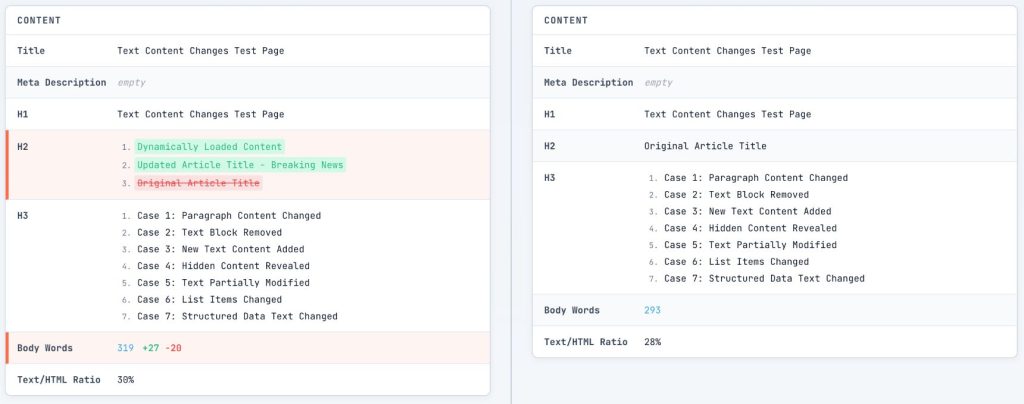
In jsbug.org, check the Content card for the Body Words row. Compare the numbers. A healthy page might show 1,500 words in raw HTML and 1,600 words rendered, that’s a small delta, is fine. But if you see 50 words in raw HTML and 2,000 words rendered, 97% of your content is invisible to non-rendering crawlers.
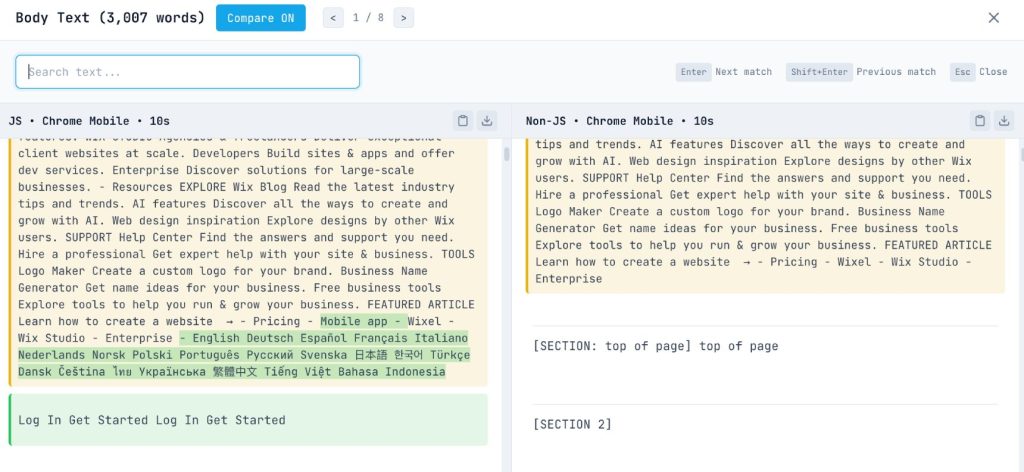
If you see a large red negative number (e.g., -1200) or a large green positive number (+800), click the number or the diff buttons to open the Word Diff modal. This highlights exactly what text is being added or removed by JavaScript.
Why it matters
When Google first crawls a client-side rendered page, it sees a “thin” page, minimal text, no semantic structure, and few relevance signals. While the Web Rendering Service eventually processes the JavaScript, the initial signal sent to the indexing system is of low quality.
The percentage matters less than which content is missing. Focus on what defines the page’s purpose:
Must be in raw HTML: Product descriptions, pricing, article body text, category descriptions—anything that determines what the page ranks for.
Acceptable as JS-loaded: Comments sections, review carousels, “related products” widgets, live chat, personalized recommendations.
If your core content the text that answers “what is this page about?” only appears after JavaScript runs, you have a structural issue worth addressing.
Research from Onely found that JavaScript-dependent sites take roughly 9x longer to get indexed compared to static HTML sites. Pages can sit in Google’s rendering queue for over 160 hours during high-load periods. For AI crawlers that don’t render JavaScript, the problem is permanent. Your content simply isn’t captured in their training data.
How to fix it
Move your core content to server-side rendering. The interactive features can hydrate later, but the text that defines what your page is about should be in the initial response.
Red Flag #4: Internal Links Only Appear After JavaScript Execution
Internal links are how crawlers discover your pages. If your navigation and contextual links exist only after JavaScript runs, you’re blocking the pathways that let search engines explore your site.
How to detect it
In jsbug.org, look at the Links card. Check the Internal column.
If you see a green button with a plus sign (e.g., +47) next to the Internal link count, it means 47 internal links were added by JavaScript. Click the button to open the Links Modal and see exactly which URLs are invisible to the raw HTML crawler.

Why it matters
When crawlers can’t follow links from your pages, those destination pages may never be discovered. This creates “orphaned” content that sits unindexed despite being technically accessible.
There’s also a PageRank consideration. Links that crawlers can’t see don’t pass authority. Your carefully crafted internal linking strategy might exist only for human visitors.
How to fix it
Ensure every internal link is a proper <a href="..."> tag. This is the #1 mistake in React/Vue apps: using <button> or <div> with an onClick handler to navigate.
Crawlers are scanners, not clickers. They follow href attributes; they don’t trigger events or look for onClick handlers on non-anchor elements. JavaScript can (and should) enhance these links with prefetching or transitions, but the foundation must be a standard HTML link in the initial server response. If it doesn’t have an <a> tag and an href, it’s invisible to the crawl.
Regular audits with a technical SEO crawler can help identify internal links that are invisible to search engines before they impact discovery and indexation.
Red Flag #5: Images Missing or Without Alt Text in Raw HTML
Images matter for SEO, both in regular search and image search. Lazy loading improves user experience, but certain implementations make images completely invisible to crawlers.
How to detect it
In jsbug.org, check the Images card. Look for discrepancies between the “Total” count in the raw vs. rendered views. A +X badge indicates images that only exist after JavaScript runs.
Also, check if the “Without JS” view is missing the alt text for key images, while the “With JS” view has it.

Why it matters
Googlebot uses a viewport roughly 12,000 pixels tall for mobile. It doesn’t scroll. Legacy lazy loading that relies on scroll events simply breaks—the scroll event never fires, so images waiting for that trigger stay hidden permanently.
Beyond discoverability, missing images hurt Core Web Vitals. Largest Contentful Paint often depends on your hero image loading quickly and being present in the initial HTML.
How to fix it
Use native lazy loading: <img loading="lazy" src="..." alt="...">. The browser handles this gracefully. For images that can’t use native lazy loading, provide <noscript> fallbacks with the full <img> tag. Always include alt text in the raw HTML, not just injected via JavaScript.
Red Flag #6: Structured Data (JSON-LD) Not in Initial HTML
Structured data powers rich snippets, the star ratings, prices, FAQ accordions, and recipe details that make search results more compelling. If your JSON-LD schema only exists after JavaScript runs, you’re risking these enhancements.
How to detect it
In jsbug.org, look at the Content card, specifically the Schema row.
If you see schema types (like Product, BreadcrumbList, or FAQPage) that appear only in the “With JS” column, or have a green “added” highlight, your structured data depends on JavaScript.

Why it matters
While Google supports JavaScript-generated structured data, it relies on the rendering queue. If rendering fails or is delayed, your rich snippets disappear.
The Rich Results Test tool renders JavaScript, so your schema might validate perfectly there while still being invisible to the actual index during rendering failures or queue delays.
More importantly, third-party tools and AI crawlers often won’t see this data at all if it’s not in the raw HTML.
How to fix it
Generate your JSON-LD on the server and include it in the <head> or <body> of the initial HTML response. For dynamic data like prices, server-side rendering ensures the current values are always present without depending on client execution.
Red Flag #7: “Soft 404s” Returning HTTP 200
This is perhaps the most insidious issue in Single Page Applications (SPAs). You visit a URL for a non-existent product, your React/Vue router catches it and renders a “Page Not Found” component. To the user, it looks like a 404. But to Googlebot, your server returned a 200 OK status code.
How to detect it
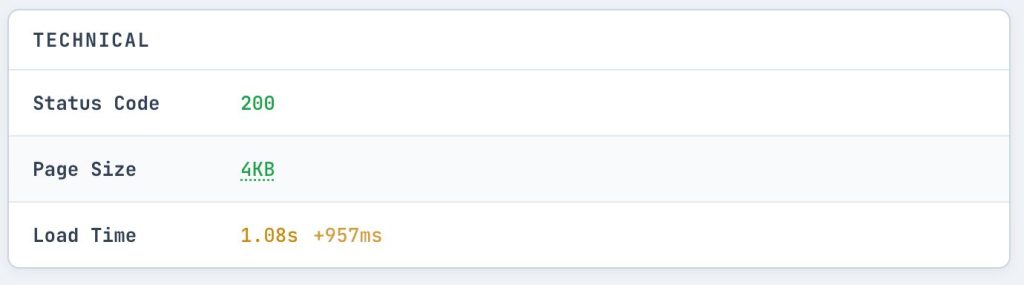
In jsbug.org, verify the Status Code in the Technical card.
If you are inspecting a URL that should be a 404 (like yourdomain.com/this-does-not-exist), but jsbug shows a 200 status code, you have a Soft 404. You can also verify this in Chrome DevTools: open the Network tab, navigate to a non-existent URL, and check the status of the document request.
Why it matters
Google indexes these “error” pages because your server told it they are valid pages. This leads to:
- Index Bloat: Thousands of junk pages flooding Google’s index.
- Crawl Budget Waste: Google wastes time crawling garbage instead of your actual content.
- Confusing Signals: If 50% of your indexed pages say “Page Not Found” but return 200 OK, it dilutes your site’s quality signals.
How to fix it
For SPAs, the client-side router cannot change the HTTP status code (which has already been sent). You must handle 404s on the server side.
Red Flag #8: Total Load Time (TTFB + Render) Exceeds 5 Seconds
There’s no hard timeout for Googlebot’s rendering, but there is a practical “patience” limit. The bot doesn’t just wait for your JavaScript to execute; it waits for the entire process from the first byte of data to a stable rendered state.
How to detect it
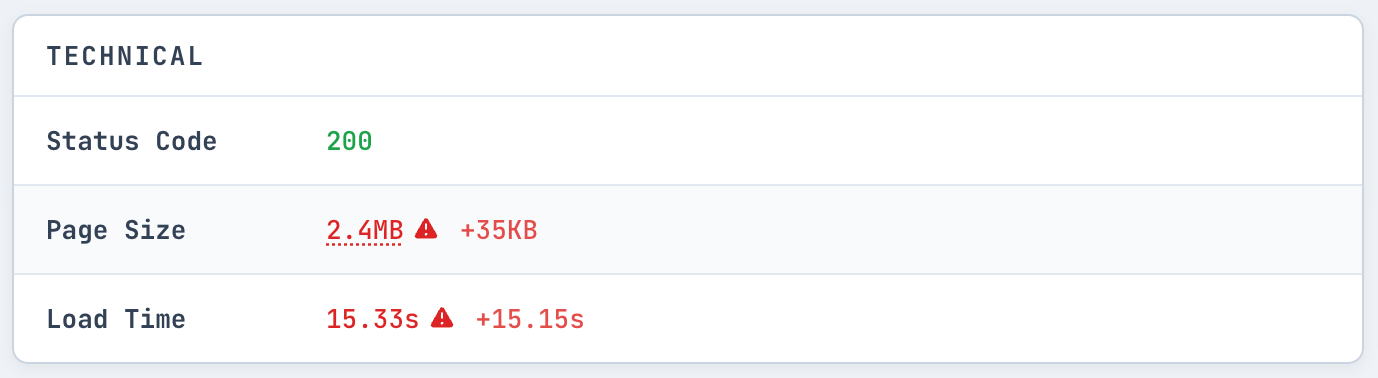
In jsbug.org, check the Technical card for the Load Time. Also, look at the Timeline tab to see the sequence of events.
If the “Load Time” is significantly higher than 5 seconds, or if you see critical content loading very late in the Timeline view, you’re in the danger zone.
Why it matters
There’s no hard timeout for Googlebot’s rendering. However, Martin Splitt from Google’s Search Relations team noted that the median rendering time is roughly 5 seconds. This isn’t just about how long your React components take to mount; it’s a total budget.
If your server takes 4 seconds to respond (Time to First Byte or TTFB), you only have roughly 1 second left for JavaScript to fetch data and render before the bot risks taking a snapshot. A slow API call or a heavy bundle size can easily push you over this edge.
- 0-5 seconds: High probability of complete indexing
- 5-10 seconds: Risk zone, the bot may snapshot before your content appears
- 10+ seconds: Failure zone, content arriving this late will likely be missed
How to fix it
Optimize your critical rendering path. Ensure API responses for initial content return quickly (aim for <500ms). If your server-side TTFB is high, no amount of frontend optimization can save your SEO. If you can’t speed up the backend, consider server-side rendering (SSR) or pre-rendering so the content is delivered in the initial HTML, removing the dependency on secondary API calls.
Solving the Rendering Gap
If you find these issues on critical pages: your homepage, key landing pages, product pages, they are worth addressing immediately.
Sometimes the fix is a simple code tweak. But often, these red flags point to a deeper structural issue: your stack isn’t built for crawlers.
This is no longer just about Google. If you want your content to be the answer in ChatGPT, Perplexity, or Claude, you cannot rely on client-side JS. Most AI agents don’t render JavaScript at all. If they can’t see your content in the raw HTML, it won’t exist in their world. This is why JavaScript Rendering for SEO has become increasingly important for websites that depend on modern frontend frameworks.
If you want to solve this permanently without rewriting your application, check out EdgeComet. It’s the open-source rendering engine we built to handle this exact problem. It sits between your site and the crawlers, delivering perfect, pre-rendered HTML to bots while your real users get the full interactive experience. You can self-host the open-source version or use our managed cloud service.