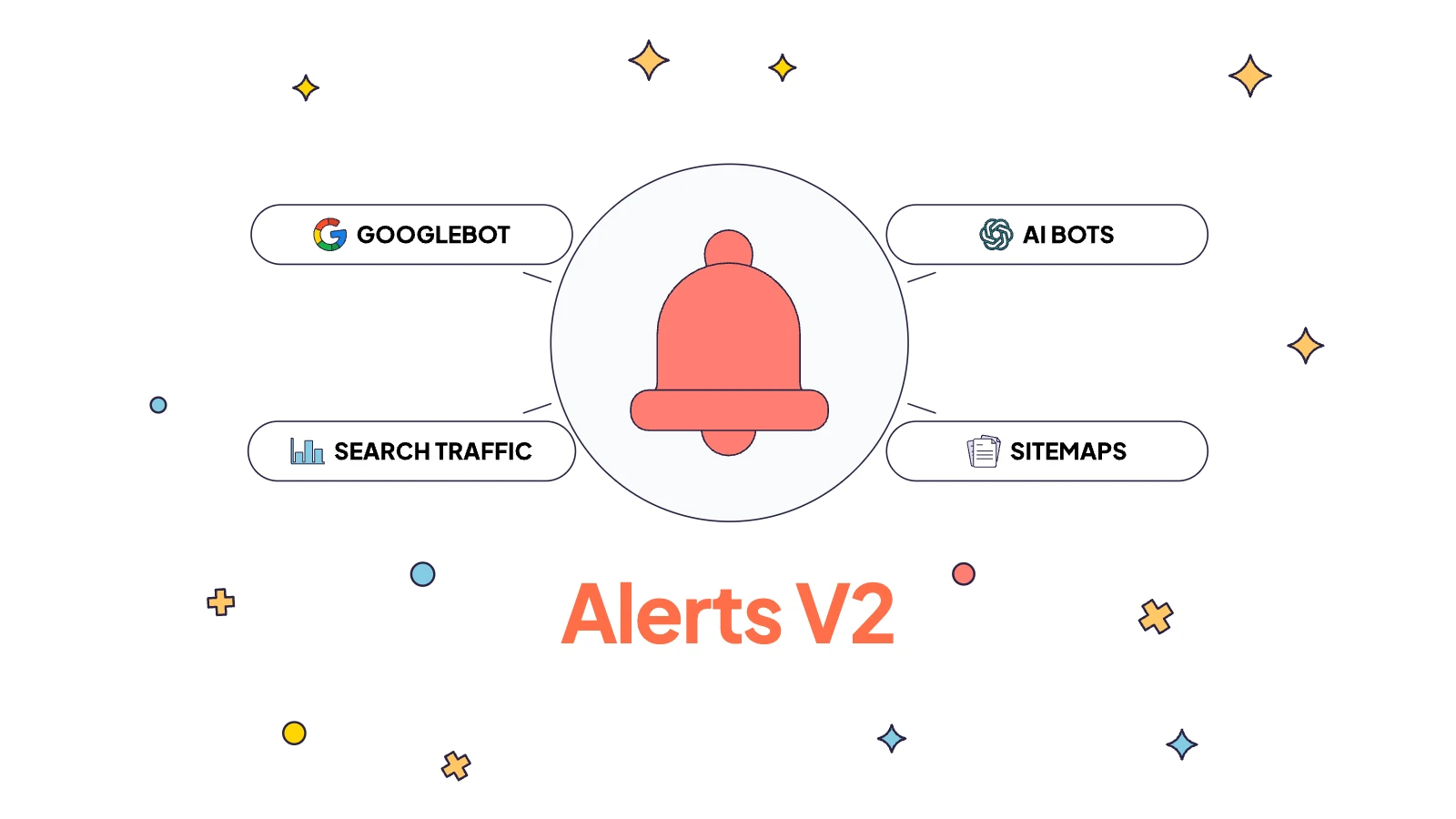
We’ve just released the second version of SEO alerts in EdgeComet, and it’s a huge step up from the first one. I’ve been around SEO monitoring tools for more than a decade, and I’m comfortable calling this one state of the art for SEO alerting today. That isn’t because it has more switches than the others.
It has fewer.
It’s built on two layers. A deterministic layer keeps an eye on your data and decides, by clear rules, when something deserves an alert. An LLM loop works on top of it: it turns a sentence like “tell me if root categories become non-indexable” into a working alert, and when an alert fires, it tells you what most likely went wrong and where to start.
There’s no crawl to schedule and no thresholds to guess. EdgeComet watches what Googlebot and the AI bots already do on your site, along with your Search Console traffic, evergreen crawl and sitemaps, and lets you know within minutes when something breaks.
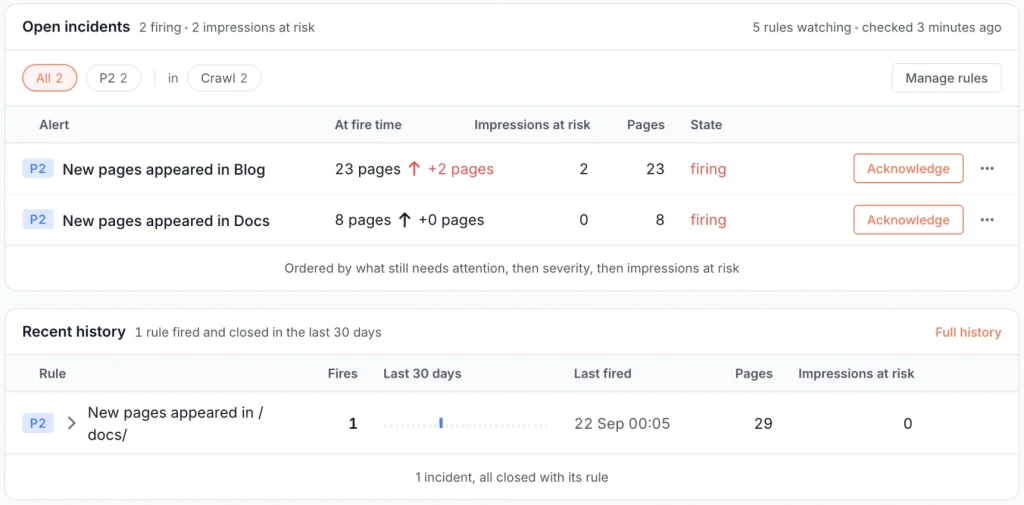
Two kinds of SEOs
There are two kinds of SEOs: those who don’t have an alert system yet, and those who had one bad week and set one up right after.
It doesn’t matter how modern the stack is, how carefully the team tests releases or how stable the site has been for the past two years; sooner or later something breaks. A template ships with noindex. A canonical starts pointing at the staging domain, or a new filter opens a few hundred thousand parameter URLs to Googlebot.
The usual way to find out is Google Search Console, and by the time the drop shows up there, it’s already late: pages have left the index and recovery takes weeks or months. On the bright side, you get a great recovery case study for your next BrightonSEO talk. We’d rather you skipped that talk, caught the problem on the day it appeared and fixed it before Google had seen much of it.
What’s out there, and where it falls short
There’s no shortage of monitoring tools. UptimeRobot is one of the oldest, and I remember them from as far back as 2013. ContentKing was very good at SEO change tracking before Conductor bought it. There are plenty of others.
Most of them follow the same approach: crawl a set of pages every so often, compare each page with its last snapshot and report what changed. It’s a sensible design, and on a big website it runs into three problems.
Crawl frequency. A tool that checks once a day can miss a problem for 23 hours if it starts right after a check. That’s enough time for Googlebot to crawl tens of thousands of auto-generated junk pages and pollute the index with them.
Noise. Websites change constantly. Someone rewrites a batch of titles, a section’s indexation changes on purpose, crawl budget shifts from one directory to another. Each of those is technically a change, so the Slack channel fills up with alerts nobody needed, and eventually someone mutes it. The alert that actually matters then lands in a channel nobody reads.
Configuration. Most tools come with a wall of switches, and you may need an onboarding session just to understand which ones apply to you. After that you still pick the conditions and guess the thresholds yourself.
Even so, any of these is far better than nothing. We just believe a tool should save you time, not demand a week of it before it does anything useful.
We don’t crawl anything
The main difference in EdgeComet is that there’s no crawler to schedule. Search engines and AI bots crawl your site around the clock anyway, and EdgeComet already sees every page they request and what they got back, so we simply watch that. When something breaks, you hear about it within minutes instead of after the next daily crawl. Nothing extra hits your server either, which means alerts add zero load to your site.
We released the first version of alerts in March 2026. It was pretty good, but you had to configure it by hand, and that never fit the idea behind EdgeComet: a tool that watches the traffic, learns the website and sets itself up.
Over the following months we collected feedback and looked at how people actually used alerts. A few things kept coming up:
- It only watched bot traffic, so a drop in Search Console clicks or a problem found by the crawl never triggered anything.
- It needed a couple of weeks to learn a new site before its alerts meant much.
- Small numbers made scary percentages. One broken page turning into two looked like a 100% spike.
- Every alert had to be built by hand.
So instead of patching V1, we rebuilt alerts from scratch.
How V2 works
Back to the two layers from the start. The deterministic layer is a set of plain, predictable rules that decide when to alert you. The LLM loop writes those rules for you from a sentence, and when an alert fires, it explains what happened. The AI never decides on its own whether to wake you up. The rules do, and that’s what keeps the alerts consistent.
Alerts that fire for a reason
Every alert compares what it sees now with what’s normal for your site: the last check, the same time yesterday or the same day last week. It also needs a minimum size before it fires, so “up 50% and at least 100 pages” catches a real regression while one page becoming two stays quiet. There’s no learning period, so alerts work from the first day.
Each alert checks as soon as fresh data arrives. For bot traffic that’s a matter of minutes; the crawl alerts run when a crawl finishes, and Search Console alerts run as soon as Google publishes a new day. When data is missing, for example when Search Console is running late, the alert waits instead of guessing. It won’t fire on the gap, and it won’t tell you a problem is fixed just because it stopped seeing it.
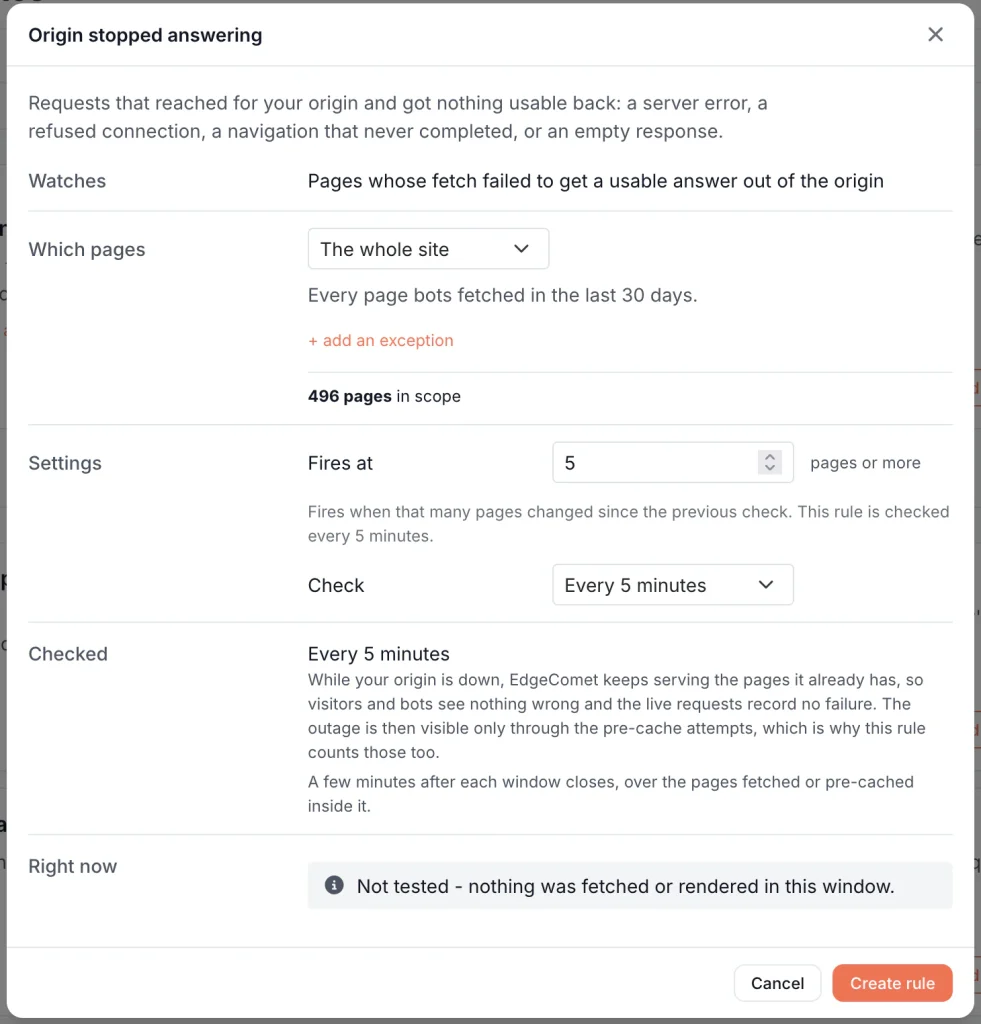
AI that tells you what happened
When an alert fires, AI looks at the affected pages, what changed on them, how much search traffic they bring and what else is going wrong on the site at the same moment. It can dig further into your data to check its theory before it commits to one. On the alert you get a “Likely cause” in plain words and up to five steps to investigate and fix the problem. If the problem turns out to be worse than it first looked, the AI raises its severity and notifies you again.
A real case from our own site: a redirect-loop alert fired on edgecomet.com for 12 URLs. The AI noticed that all of them carried odd parameters like ?exec= and ?host= and recognized them as attack probes, not a broken redirect rule. It suggested removing those URLs and checking who was generating them. Nobody had to open a spreadsheet to get there.
Seeing the whole site at once matters because a bad deploy rarely breaks just one thing. Server errors climb, pages stop rendering and titles change across the same section within minutes of each other, so six alerts fire for what is really one problem. The AI already reads them together and names the shared cause. Next, we’re merging those into a single alert, so one bad deploy gets you one notification instead of six.
Describe the alert in a sentence
Normally, creating an alert means choosing conditions, guessing thresholds and hoping the rule does what you meant. In V2 you type what you want to track:
Check if root categories become non-indexable pages.That’s it. EdgeComet already knows your site, so it works out which pages are your root categories, drafts the alert and checks how it would have behaved over the past few days before it shows you anything. A draft that would have fired too often never reaches you. Here’s how it turned one down in our own testing:
Reworked: the threshold of 2 would have fired on 11 of the last 14 days, which is not an alert but a dashboard – raise it or widen the window
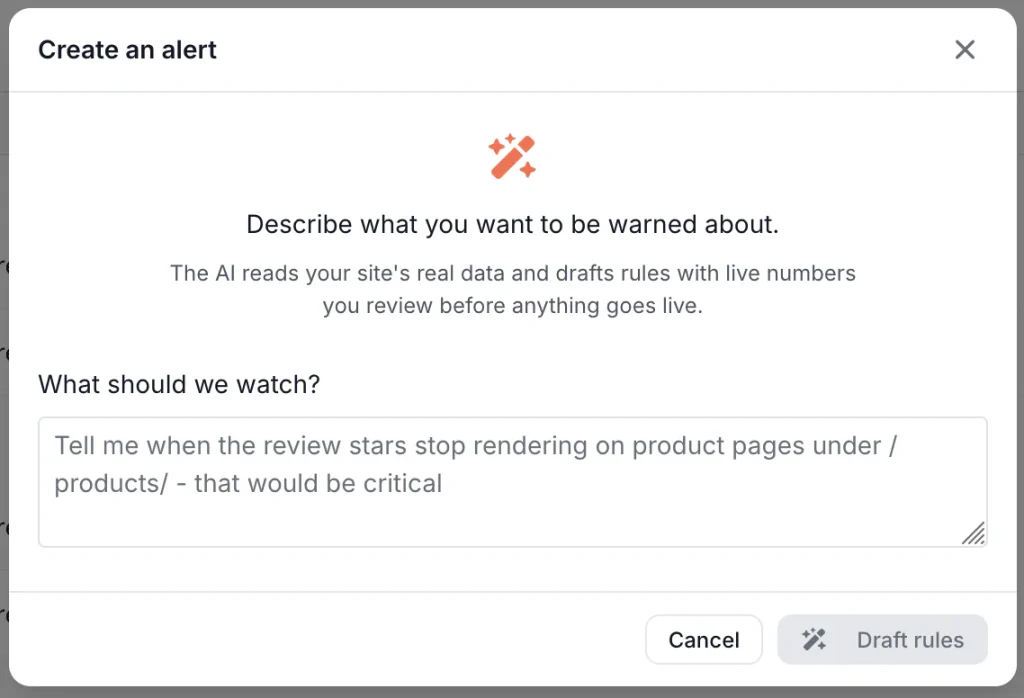
Thresholds come from your actual data too. When one of our team asked it to “alert me when AI bots start getting 5xx errors on /docs/” on edgecomet.com, it first checked 90 days of AI bot visits to that section and found not a single server error. On a section like that, even three errors in an hour deserve a notification, so that’s where it set the alert.
The draft comes back in plain words: what it watches, which pages, how many match right now and when it will alert you. Change anything and it re-checks. If part of your request can’t become a reliable alert, it tells you why rather than guessing. One click turns the alert on.
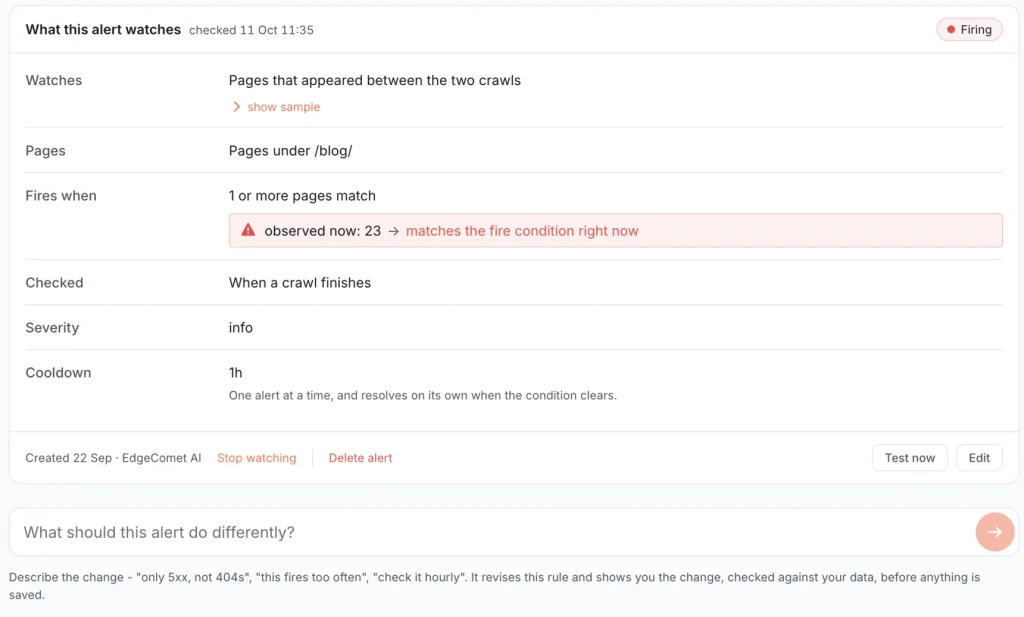
Tracking something nobody measures yet
The second example goes further:
Track if top performing products become out of stockStock status isn’t something EdgeComet tracks out of the box, so it sets that up first. It finds the stock block on your product pages, tests it on real pages, shows you what it found and builds the alert around it. Before, that meant a custom extraction, a segment and an alert rule in three different screens, about an hour of work. Now it’s a sentence and a quick review.
If an alert gets too chatty, click “Too noisy? Tune this alert” and write what to change, like “only 5xx, not 404s” or “this fires too often”. You see the updated alert before anything is saved.
What you can track
Alerts cover everything EdgeComet sees on your site: bot visits, the evergreen crawl, Search Console and your sitemaps. That includes:
- Page changes. Titles, meta descriptions, H1s, canonicals, noindex, status codes, redirects, hreflang, structured data, or a page whose content was rewritten. You can be as specific as “canonical no longer points to itself” or “title went empty”.
- Any block on a page. An internal linking block that disappeared, a product description that stopped showing, review stars missing from product pages.
- Pages bots can’t see properly. Pages that fail to render or come back empty for bots, pages that got slower, JavaScript errors.
- Crawling and access. Your server stops responding, bots start getting 404s, fake Googlebots flood the site, or bots suddenly visit far fewer pages. From the crawl: new redirect loops, newly broken pages, pages that lost their internal links.
- Search traffic. Pages losing half their clicks, a section’s clicks falling week over week, queries that brought clicks drying up. Each alert shows how many impressions are at stake.
- AI bots. Errors GPTBot, ClaudeBot or PerplexityBot run into, or a change in how much they crawl. Describe what you want to know and the alert follows.
If you’d rather start from something ready-made, 26 templates cover the common cases. The Changes report also lets you turn any change you spot into an alert with one button.
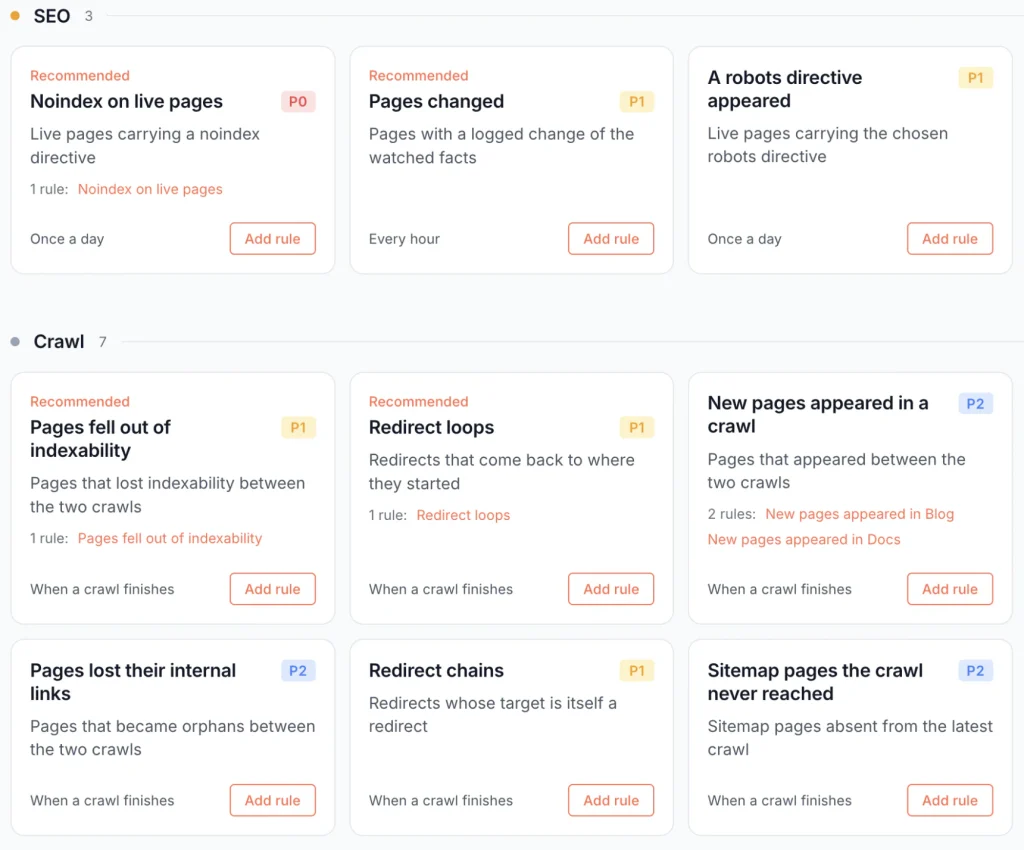
Each alert can watch the whole site, a folder, a segment or just a list of your most important URLs, with exceptions wherever you need them.
Less noise by design
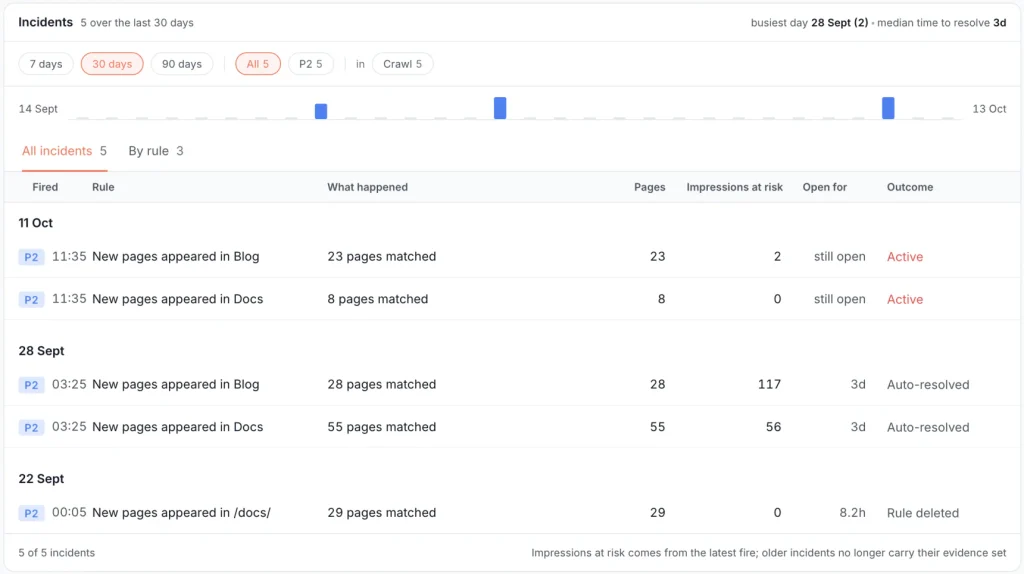
One problem, one alert. If 500 pages lose their canonical, you get a single alert listing those pages, the ones with the most search traffic first, not 500 notifications. After an alert fires, it stays quiet for a while (an hour by default, and you can change that) instead of repeating itself. Alerts close themselves when the problem goes away, so the list you open in the morning holds only what still needs you.
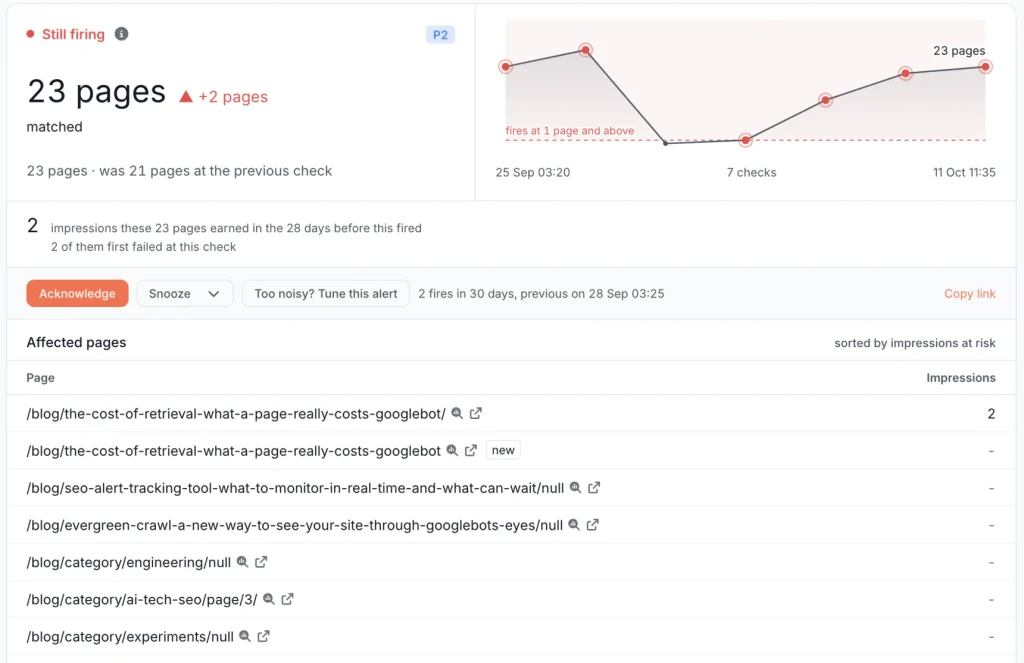
You also decide who hears about what. Minor alerts stay in the dashboard, and each person picks whether they get warnings or only critical issues. Snooze an alert and the notifications pause, but EdgeComet keeps watching and still shows you the moment the problem clears.
Nothing to set up
You don’t need to configure anything to get started. EdgeComet looks at your site’s data and switches on the alerts that fit it, so you’re covered from day one: your server going down, waves of 404s, noindex on live pages, title and canonical changes, lost clicks, redirect loops. If an alert needs something you haven’t connected yet, such as Search Console, it tells you.
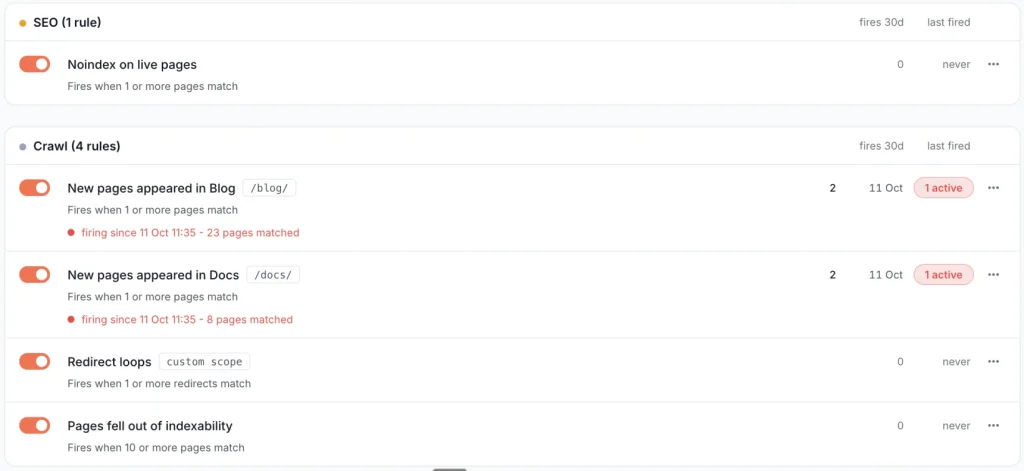
Notifications arrive by email and in Slack. In the dashboard, open alerts sit in one list with the most urgent at the top. For anything specific to your business, you write a sentence.
Conclusion
The second version of EdgeComet alerts is a big step toward SEO alerts that are simple to set up and easy to understand. They’re built on the bot traffic your site already gets, so there’s no crawl to wait for and no extra load on your server. Predictable rules decide when you hear from us, which keeps the noise down, and AI takes over the part that’s hardest at 2 a.m.: reading the evidence and telling you where to start.
The plain-text setup matters more than it sounds. In my experience, sites go without monitoring less because of the price and more because nobody found a free afternoon to configure it. A sentence doesn’t need an afternoon.
Every template, setting and example is in the alerts documentation. The quickest way through it is to give the link to Claude or whichever AI assistant you use, and ask it your questions.