Server log analysis provides technical SEO teams with direct visibility into how search engines and AI crawlers interact with a site in real time. While traditional analytics tools show sampled performance data long after the fact, server logs record exact bot behavior at the moment of request.
Understanding how to analyze server log files for seo has become essential as search expands toward Generative Engine Optimization (GEO) and Answer Engine Optimization (AEO). Log file analysis for AI search optimization lets technical teams monitor AI crawler logs, uncover hidden crawl bottlenecks, and ensure search engines and AI models retrieve critical pages efficiently.
Designed as a hands-on operational manual, this guide walks technical SEO managers, in-house teams, and agencies through practical log audit workflows, from bot verification and path segmentation to isolating rendering timeouts and executing technical fixes.
Table of contents:
What is Log File Analysis?
What You Need Before Starting Log File Analysis
Our Step-by-Step Guide on How to Analyze Log Files for SEO
Common SEO Problems Found in Server Logs
How to Analyse AI Crawlers in Server Logs
Log File Analysis SEO Example: Data to Action Scheme
Log File Analysis Tools and Methods
SEO Log File Analysis Checklist
What you can find with log file analysis
- Verify Authentic Bots: Filter out fake Googlebots and scrapers spoofing user agents through real-time IP validation.
- Eliminate Crawl Waste: Identify parameter URLs, 404 error loops, and non-canonical pages consuming server capacity.
- Audit JavaScript Rendering: Spot discrepancies between raw HTTP fetches and post-JavaScript rendered DOM states.
- Track AI Crawler Behavior: Separate AI traffic into separate operational workflows: model training, search indexing, and real-time user fetches.
- Recover Under-Crawled Pages: Uncover important commercial pages that search crawlers visit infrequently.
- Diagnose Server Load Bottlenecks: Detect intermittent 5xx errors, high render weights, and slow response times before crawl frequency drops.
- Turn Data into Shipped Fixes: Export raw event logs to implement technical corrections without waiting on engineering queues.
What is Log File Analysis?
Log file analysis involves inspecting raw server logs or edge request data to observe how search engine crawlers and AI bots interact with a website.
Client-side analytics require JavaScript tags to run in a browser, whereas server logs record direct requests made by automated crawlers.
| Metric / Feature | Google Search Console | Server Log Analysis SEO |
| Data Freshness | 24–48 hour delay | Real-time stream |
| Data Sampling | Aggregated & sampled | 100% unsampled logs |
| AI Bot Tracking | None (Googlebot only) | GPTBot, ClaudeBot, PerplexityBot, etc. |
| Non-200 Error Detail | Sampled URL groups | Exact request status & response headers |
| Post-JS Page Snapshot | Manual inspection | Automated per-request DOM snapshot |
Standard server log limitations and edge logging solutions
Standard web server access logs (Nginx, Apache, IIS) contain basic fields: IP address, timestamp, HTTP method, URL, status code, bytes transferred, user agent, and response time. These fields leave key technical gaps:
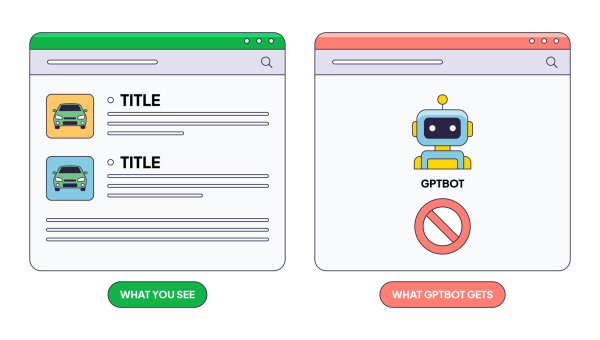
- Missing post-JavaScript state: Standard logs show a 200 OK for an empty HTML shell, obscuring client-side JavaScript execution failures.
- Missing response metadata: Access logs do not record page titles, canonical tags, meta robots directives, or structured data.
- Unconfirmed indexability: Standard logs cannot verify whether a URL was indexable at the request moment.
- Missing third-party telemetry: Origin logs miss failed CDN assets or third-party API latency that block rendering.
What You Need Before Starting Log File Analysis
Conducting effective seo log file analysis requires both sufficient historical data and a reliable method for processing high-volume request logs. While technical teams traditionally exported raw access logs from origin servers, modern workflows rely on edge-level data collection to capture post-JavaScript rendering context without heavy manual parsing.
As an Edge SEO platform operating at the CDN layer, EdgeComet simplifies this setup. Our EdgeComet Log Analyzer automatically captures every bot request directly at the CDN edge alongside a 90-field SEO snapshot of the rendered DOM, giving technical teams complete, real-time visibility without server overhead or manual file uploads.
Whether you rely on edge logging or traditional server exports, verify that your data pipeline meets these core prerequisites before running an audit.
Key Data Requirements
- Log data window: Maintain at least 30 days of continuous log data (90 days preferred) to detect trend anomalies, core algorithm update impacts, and seasonality.
- Essential log fields: Ensure your log schema records Timestamp (UTC), IP Address, User-Agent string, HTTP Method (GET/POST), Request URI, HTTP Status Code, Bytes Sent, and Response Time (ms).
- Bot verification data: Access to verified search engine bot IP lists or automated DNS lookup tools for log analysis for bot detection, validating Googlebot and Bingbot requests against spoofed scrapers.
- DevOps alignment: Establish clear communication with server administrators or DevOps teams to ensure log retention policies do not truncate historical data before quarterly audits.
What you can find with log file analysis
When deploying traditional log shipping, request unsampled access logs containing response headers and timing metrics. When using EdgeComet, integration requires an edge routing rule at the CDN or reverse proxy level, eliminating manual file transfers and log format parsing.
Our Step-by-Step Guide on How to Analyze Log Files for SEO
Step 1: Prepare and segment your log data
- What to check: Analyze bot activity within different site sections (such as /products/, /categories/, /blog/, and /faceted-navigation/) rather than viewing site traffic as a single aggregated number.
- How to check it in EdgeComet: To configure custom path groupings:
- Navigate to Data Explorer → Bot log in the left sidebar menu.
- Click + Add Filter and set Page contains /products/ (or your target path pattern)
- Click the Save as Segment button at the top right of the table.
- In the popup modal, select Create new, type a descriptive Segment Name (such as Product Pages), assign a Group (Commercial, Content, or Brands), select a color badge, and click Save Segment
- Return to Log Analyzer → Overview, click the Segment Scope Filter in the top header, and select your new segment to isolate metrics across all dashboards.
- What the data means: Segmenting data shows where crawler attention goes. If 60% of total bot requests hit parameterized filter URLs while core product categories receive 15%, the site has a crawl allocation issue.
- What action to take: Create named Saved Segments for every main template in the site architecture. Re-use these segment rules across reports to monitor performance by section.
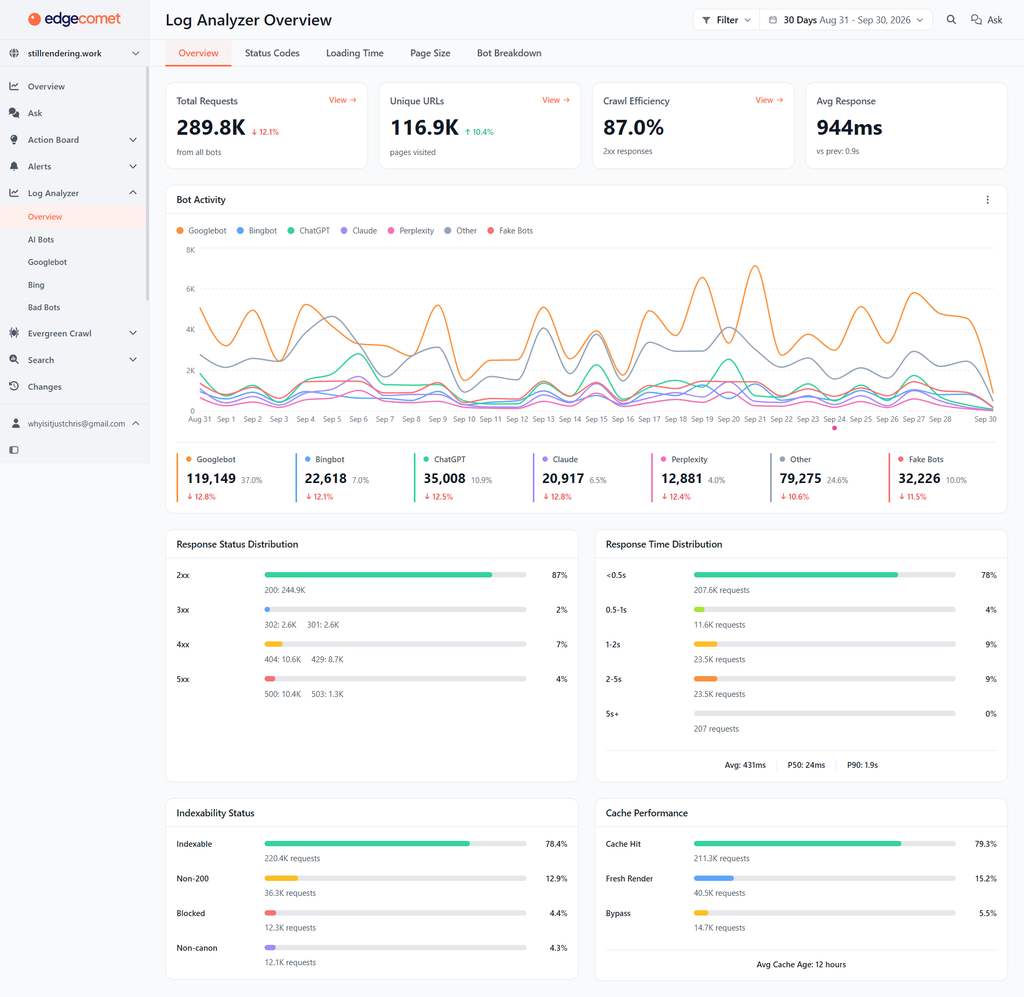
| EdgeComet Log Analyzer Overview dashboard displaying 30-day KPI cards, Bot Activity trend lines, and the Segment Scope filter in the top navigation header. |
Step 2: Identify and verify search engine bots
- What to check: Determine whether crawler requests come from legitimate search engines and AI vendors, or from scrapers spoofing official User-Agent strings.
- Is there a technical SEO platform that verifies both Googlebot and AI crawler identities?
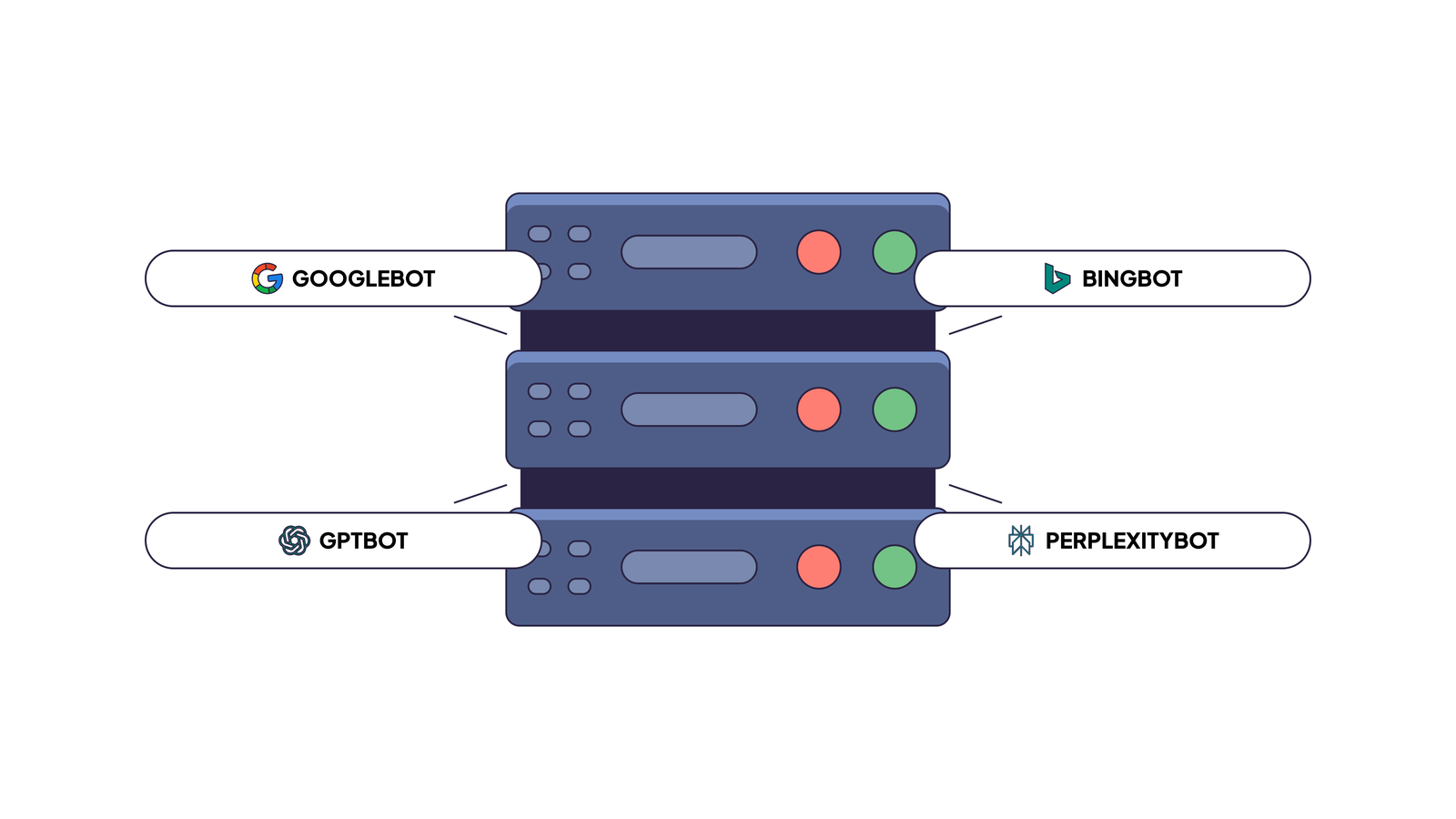
Yes. Advanced log analysis for bot detection relies on reverse DNS lookups and IP validation executed at the CDN edge. Platforms like EdgeComet automatically verify incoming HTTP requests against official published IP ranges for both traditional search engines (Googlebot, Bingbot) and generative AI user-agents (GPTBot, ClaudeBot, PerplexityBot). This real-time AI crawler log file analysis filters out malicious scrapers spoofing legitimate bot user-agent strings before they skew your crawl metrics.
- How to Check It in EdgeComet:
- Open Log Analyzer → Bad Bots in the main menu.
- Review the impersonated bots distribution graph to spot unauthorized scrapers pretending to be Googlebot or Bingbot.
- Examine the risk tier breakdown cards: High Risk (IP validation failed against official vendor CIDR feeds), Medium Risk (unidentified automated crawler), and Low Risk (known SEO tools).
- Scroll down to the top subnets table to view the WHOIS organization details and request counts for high-risk IP ranges.
- What the data means: EdgeComet validates bot requests using real-time IP verification against 12 vendor CIDR feeds (Google, OpenAI, Bing, Perplexity, Anthropic). If a request claims to be Googlebot but falls outside Google’s published IP ranges, it is flagged as a High-Risk Fake Bot.
- What action to take: Export high-risk subnet ranges directly from the Bad Bots report. Block or rate-limit these abusive IP ranges at your WAF or CDN level, or use Edge SEO Platform to drop fake bot connections automatically without affecting real search engines.
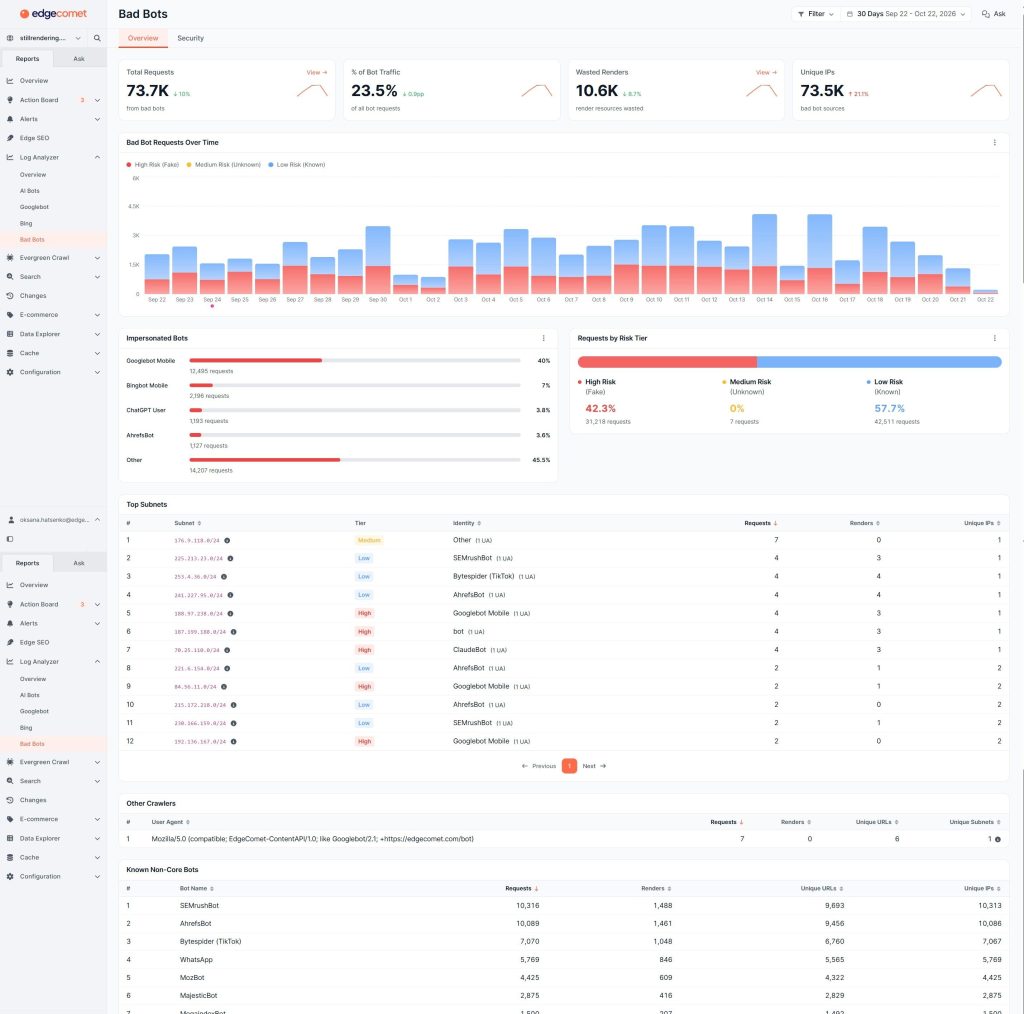
| Bad Bots report displaying the Impersonated Bots graph, Risk Tier breakdown, and Top Subnets WHOIS details. |
Step 3: See which URLs and sections bots crawl
- What to check: Map total crawler request volume against unique URL counts per site section to evaluate crawl distribution across your catalog.
- How to check it in EdgeComet:
- Navigate to Log Analyzer → Googlebot (or Bing) in the left menu.
- Click the Crawl budget tab.
- Inspect the Segment performance table to compare % of Crawl, Total Requests, Unique URLs, and Avg Response Time across site sections.
3. What the data means: High request counts on a low number of unique URLs indicate heavy recrawling of existing pages. Conversely, high request counts spread across millions of unique URLs point to parameter expansion or endless pagination.
4. What action to take: If non-commercial utility pages or filter variations consume excessive crawl share, implement canonical tags, update robots.txt rules, or deploy pre-rendering with Smart Cache.
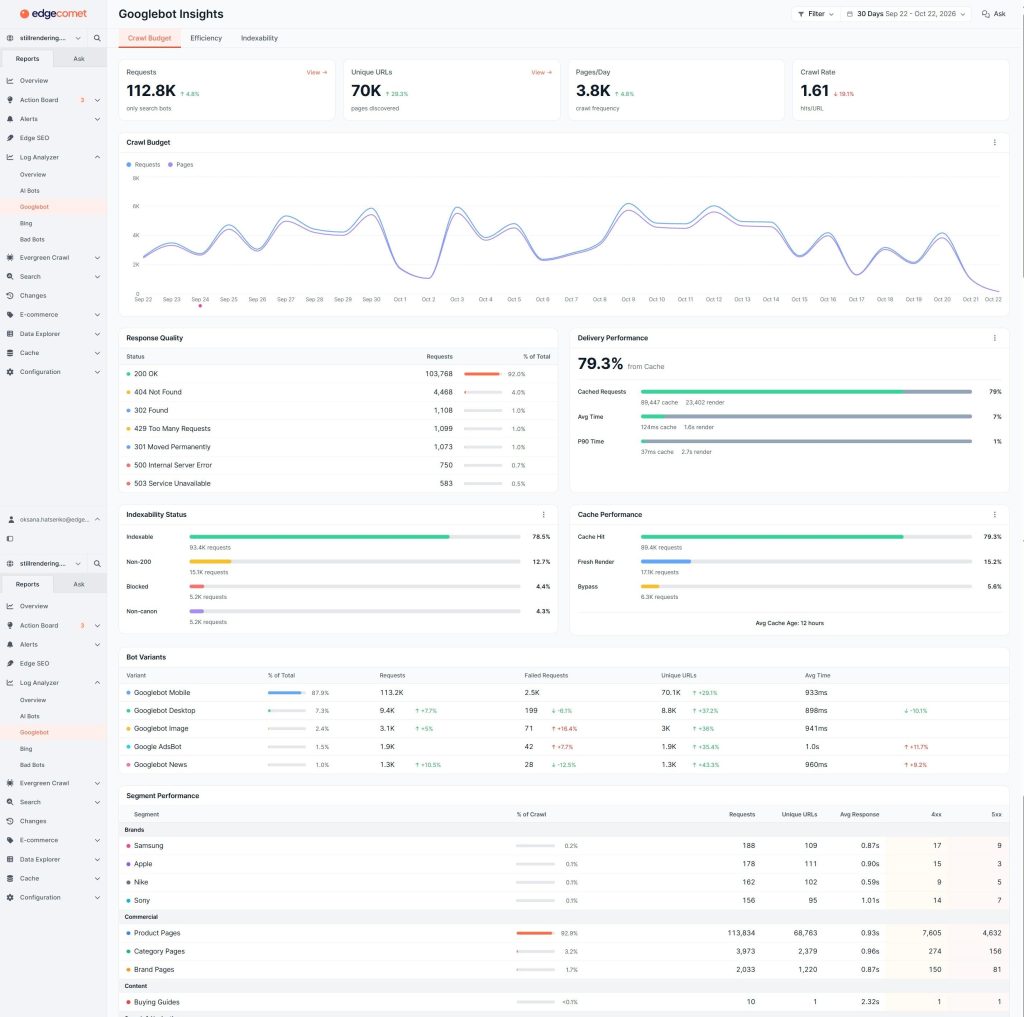
| EdgeComet Googlebot Insights dashboard showing Crawl Budget dynamics, Response Quality, and Segment Performance table. |
Step 4: Audit Status Codes, Serve Times, and Render Weights
- What to check: Monitor HTTP status code churn, server delivery latency, and post-JavaScript render weight across all bot requests.
- How to check it in EdgeComet:
- Open Log Analyzer → Overview → Status codes: Toggle between Counts and Percentage views to check 2xx, 3xx, 4xx, and 5xx trends. Review the Period Churn panel to track net error changes (+51.6K new 404s, -42.4K resolved).
- Open Log Analyzer → Overview → Loading Time: Inspect the Serve Time Distribution chart (<0.5s, 0.5–1s, 1–2s, 2–5s, >5s) and check the Segments table to isolate slow response times by section.
- Open Log Analyzer → Overview → Page Size: Review the Render Weight card detailing Render events, Avg total bytes (e.g. 2.4 MB), p90 total bytes (4.3 MB), and the Same-origin vs Third-party byte split (e.g. 70%/30%). Inspect the Pages with Fluctuating Size report to catch rendering anomalies.
- What the data means: Spikes in 3xx redirects point to redirect chains. Spikes in 5xx errors indicate server timeouts. High third-party byte percentages indicate heavy tracking scripts or external widgets blocking crawler execution.
- What action to take: Update internal links pointing to 3xx redirects. Configure SEO Alerts to catch server errors immediately, and defer heavy third-party scripts on key bot rendering paths.
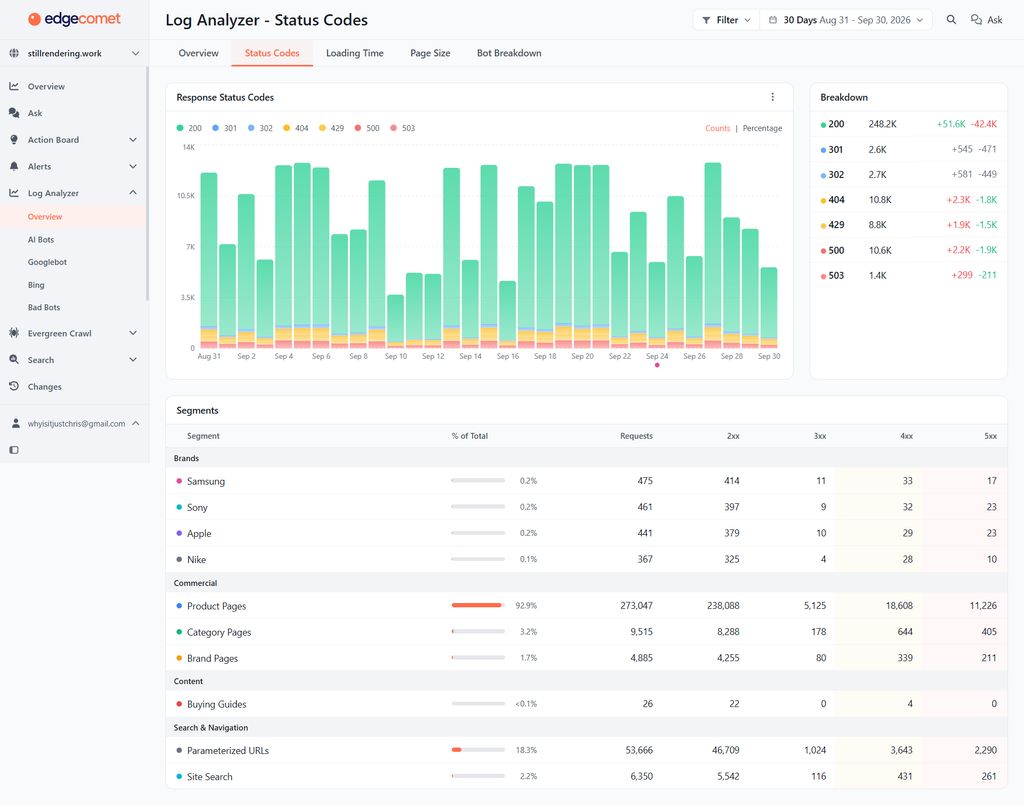
| EdgeComet Overview Status Codes tab displaying response status code distribution, response time brackets, and period churn. |
Step 5: Diagnose Single Page Health Using the ‘Analyze a Page’ Tool
- What to check: Inspect the detailed request history, status code changes, and render performance for a specific high-value URL that is losing rankings or experiencing crawl drops.
- How to check it in EdgeComet:
- Click the Analyze a page search button located in the top navigation bar or sub-header menu.
- In the pop-up modal, paste the target URL (such as https://yourdomain.com/key-product-page/).
- Click Submit to launch the diagnostic lookup.
- Review the dedicated single-page report displaying total bot requests, last crawl timestamp, status code history, raw vs rendered DOM differences, and third-party script latency.
- What the data means: If the single-page lookup reveals that Googlebot receives a 200 OK but encounters a 3-second render timeout or missing H1/canonical tags in the rendered snapshot, client-side JavaScript execution is failing.
- What action to take: Fix broken client-side scripts, optimize heavy image assets, or deploy dynamic pre-rendering to serve clean rendered HTML directly to search bots.
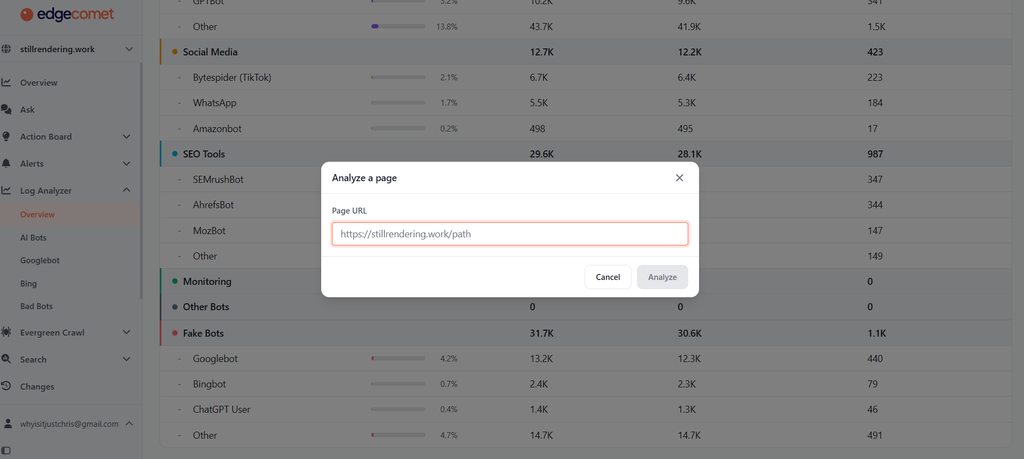
| Analyze a Page evaluation popup window where an administrator submits a specific URL for deep bot history inspection. |
Step 6: Find Important Pages Crawled Infrequently
- What to check: Identify commercial pages, new articles, or key product categories that receive infrequent visits from Googlebot.
- How to check it in EdgeComet:
• Open Log Analyzer → Googlebot → Efficiency → URL Inventory.
• Select Under-crawled Indexable URLs or filter by low crawl frequency (< 1 visit / 30 days).
• Cross-reference page depth (Click Depth / DFI) and internal link counts using Evergreen Crawl.
- What the data means: Pages located more than 3 or 4 clicks from the homepage or having fewer than 3 internal links receive significantly lower crawl frequency. Pages with under 500 words also show reduced bot interest.
- What action to take: Add internal links from frequently crawled seed pages (such as the homepage or top category pages), reduce click depth for priority URLs, and expand thin page content.
Step 7: Turn Log Data Into SEO Actions via Data Explorer
- What to check: Transition from diagnosing issues to applying automated fixes across your technical setup.
- How to check it in EdgeComet:
- Open Data Explorer → Bot log in the left sidebar.
- Apply filter combinations using + Add Filter: Period = 30 Days, Bot = Googlebot, and Index Status = Non 200 (or Event Type = Render Error).
- Inspect the log table columns: Page URL, Date/Time, Index Status badges, User-Agent badges, Serve Time (color-coded green for fast, red for >2s timeouts), Page Size, and Event Type badges (Cache Hit, Render, Bypass Cache, Precache, Rate Limited, Error).
- Click Export CSV (supporting up to 1,000,000 rows) or click Send to AI Action Board.
- What the data means: Log analysis creates value when raw server data turns into implemented site changes.
- What action to take: Apply structural SEO updates (title tags, canonical overrides, custom HTTP headers, and dynamic rendering rules) through Edge SEO Platform to bypass development backlog delays.
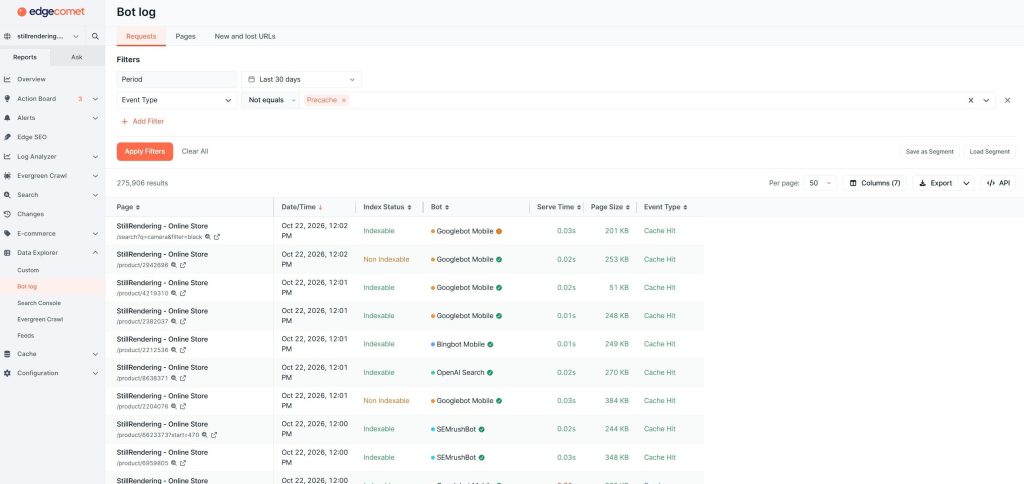
| Data Explorer event log displaying granular URL request tables, indexability status badges, serve times, and filter controls. |
Common SEO Problems Found in Server Logs
The matrix below maps technical crawl issues to log signals, diagnostic checks, and corrective actions:
| Log Signal | Possible Issue | What to Check in EdgeComet | Corrective Action |
| Sudden drop in bot requests with 429/503 status codes | SRE team turned on strict server rate-limiting or firewall rules. | Check Status Codes tab for 429/503 spikes; inspect Bad Bots / Top Subnets for rate-limited IPs. | Align server bot rules with SEO targets; whitelist verified Googlebot and AI bot IP ranges. |
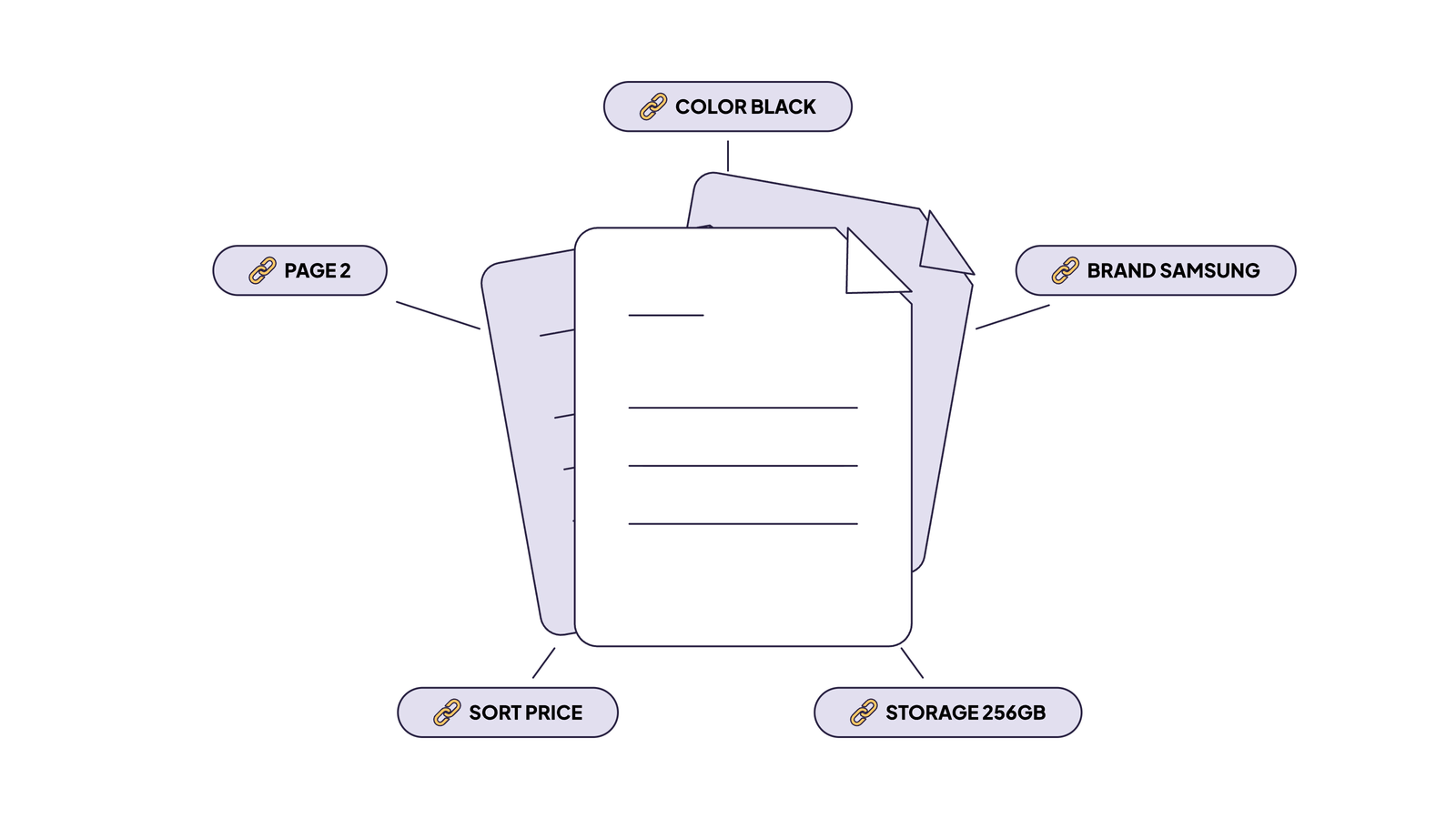
| High request volume on non-canonical or filter URLs | Parameter expansion from faceted navigation (color, size, price sorting). | Filter Data Explorer by URL contains? and compare request share against total crawl. | Implement parameter rules in robots.txt, set canonical tags, or block waste via Edge SEO Platform. |
| 200 OK status in log, but zero impressions and empty rendered text | JavaScript rendering failure (Client-Side Rendering execution timeout or JS crash). | Inspect JavaScript Errors and compare raw HTML vs post-JS DOM snapshot in Page Analysis. | Implement pre-rendering via JavaScript Rendering or SSR. |
| Crawler traffic detected on staging. or dev. subdomains | Development or preview environment indexed by search bots. | Open Overview → Segment Scope Filter and check domain distribution. | Enforce HTTP Basic Authentication or IP restriction at server level; do not rely solely on noindex. |
| Repeated 301 responses for identical URL paths | Internal redirect chains or legacy canonical loops consuming crawl capacity. | Check Crawl Waste Breakdown for Redirects; open Data Explorer redirect target report. | Update internal links to point directly to final 200 OK destination URLs. |
| Spike in High-Risk Fake Bot traffic claiming to be Googlebot | Scrapers or competitors spoofing User-Agent strings. | Open Bad Bots → Impersonated Bots report; verify IP addresses against vendor feeds. | Block fake bot subnets at CDN or WAF level using verified IP lists. |
How to Analyse AI Crawlers in Server Logs
As search engine algorithms evolve toward Generative Engine Optimization (GEO) and Answer Engine Optimization (AEO), conducting log file analysis for AI bots is essential for understanding how generative engines discover and parse your content. Unlike traditional search engine crawlers that focus strictly on indexing, AI platforms deploy specialized bots with distinct operational roles.
The three AI bots categories
EdgeComet categorizes 19 distinct AI crawlers by operational purpose rather than operator identity:
| Category | Primary Function | Key Crawlers |
| Training Bots | Model corpora training | GPTBot, ClaudeBot, CCBot |
| Search Bots | AI search indexation | OAI-SearchBot, Claude-SearchBot, PerplexityBot |
| User Fetchers | Real-time prompt resolution | ChatGPT-User, Claude-User, Perplexity-User |
Note: Bot request counts and page fetch metrics measure crawler discovery and retrieval activity. They do not represent or guarantee AI citation frequency or brand visibility inside conversational chat responses (such as ChatGPT or Perplexity answer outputs).
Benefits of log file analysis for AI search
Monitoring AI crawler logs through structured log file analysis for AI crawlers gives technical SEO teams three primary strategic advantages:
- Track live prompt fetches: See when conversational AI assistants execute real-time page fetches to fulfill live user queries.
- Catch broken AI journeys: Identify 404 errors encountered specifically by AI user-agents before they degrade answer quality or citation access.
- Audit training access: Monitor high-frequency training bots to manage server resource allocation and refine `robots.txt` disallow rules for log file analysis for GEO and AEO performance.
Analyzing real-time AI user fetches
- OpenAI report: Go to Log Analyzer → AI Bots → AI Chatbots in the left sidebar menu.
- Monitor fetch metrics: Check key metric cards: Total Requests, Pages Fetched, Fetch Frequency, and 404 Pages Fetched.
- Inspect dead links: Inspect the 404 Pages Fetched metric to spot instances where an AI assistant attempted to fetch a page for a live user prompt but encountered a dead link.
- Review attention map: Review the AI Attention Map (chart mapping Training → Search → User flows across site sections) to identify which sections drive AI discovery.
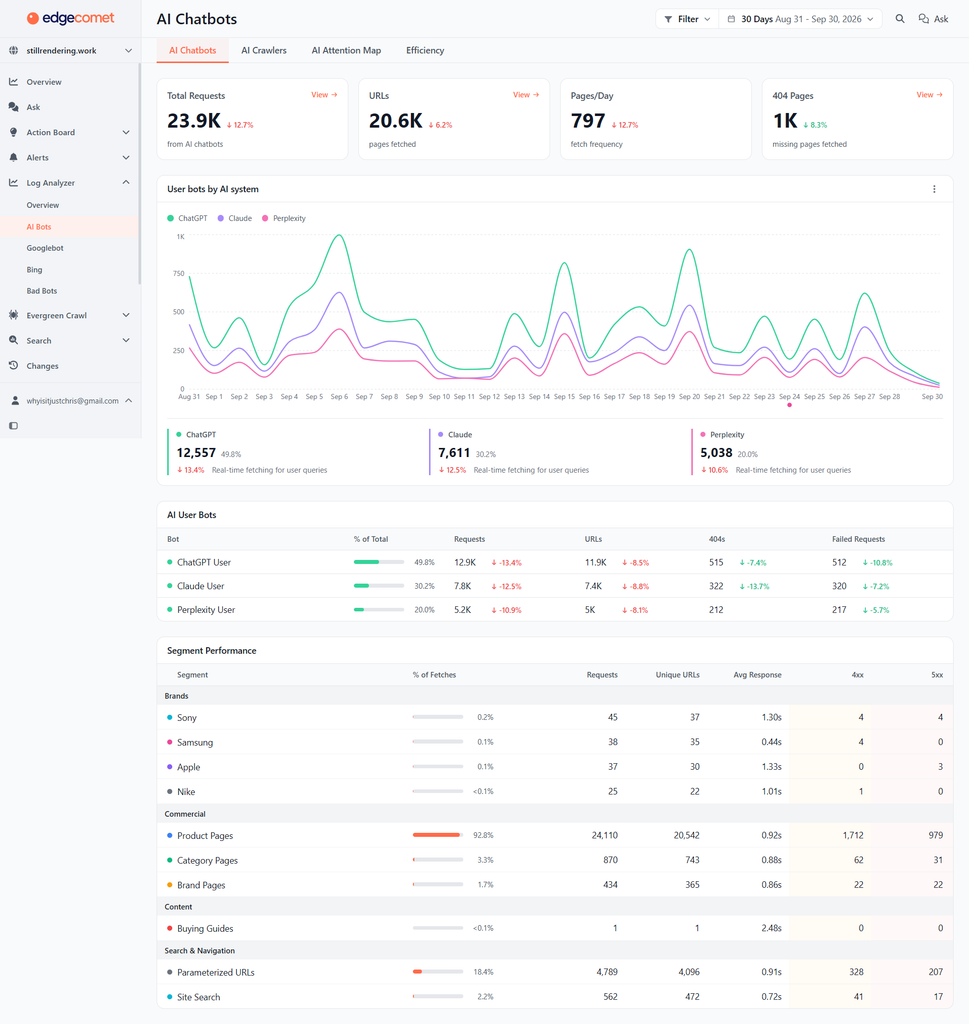
| AI Chatbots dashboard showing Real-Time User Bot fetches, 404 Pages Fetched Metric, and Segment Performance. |
Which SEO tools also report on bot visits to my website?
While standard web analytics tools (like Google Analytics 4) only record human browser sessions, specialized technical tools track bot traffic:
- EdgeComet Log Analyzer: Provides real-time CDN edge logging with verified IP tracking for 19+ AI crawlers, Googlebot, and Bingbot, combined with post-JS rendered DOM snapshots.
- *Google Search Console (Crawl Stats): Offers basic sampled request totals for Googlebot over a 90-day window, but excludes AI crawlers and third-party bots.
- Server Access Log Parsers (ELK Stack / Screaming Frog Log File Analyser): Allows raw manual server log file analysis parsing, but requires local log storage and custom regex setup to track AI user-agents.
Log File Analysis SEO Example: Data to Action Scheme
Log file analysis creates measurable business value when raw event data leads directly to a shipped technical fix. Below is a real-world troubleshooting workflow demonstrating how to move from initial data detection to verification using the 5-stage Data to Action scheme.
1. Data (The Initial Signal)
During a routine weekly audit, the Log Analyzer overview shows a 45% surge in total Googlebot request volume, but organic impressions on core category pages remain flat.
2. Problem (The Underlying Issue)
Googlebot is spending nearly half its allocated crawl capacity requesting dynamic, parameterized filter URLs (`/products/?color=red&sort=price_asc`) generated by faceted navigation, rather than crawling indexable canonical product pages.
3. Investigation (Platform Deep Dive)
- Open Data Explorer and filter by `URL contains ?`.
- Review the Index Status column: 82% of these requests return a status of Non-Canonical or Blocked by Robots.txt.
- Cross-reference Page Size and Render Weight: The origin server is attempting to execute client-side JavaScript for thousands of duplicate filter combinations, causing average serve times to spike above 2.4 seconds.
4. Fix (Implementation)
- Update `robots.txt` disallow rules to block unindexed filter parameter combinations.
- Deploy dynamic URL stripping rules via Edge SEO Platform to return immediate 410 Gone status codes for legacy faceted URLs without waiting for a developer release sprint.
5. Recheck (Validation)
Seven days after deployment, re-open Log Analyzer → Googlebot → Efficiency. Crawl waste drops from 48% to under 6%, and Googlebot request frequency on primary indexable category pages increases by 34%.
Log File Analysis Tools and Methods
SEO professionals historically analyzed server logs through manual methods, such as downloading access logs via SSH, processing raw text files with command-line utilities, or importing CSV dumps into desktop crawlers and database spreadsheets. While useful for small sites, manual log handling breaks down on large websites due to file size limits, truncated log fields, and lack of post-JavaScript rendering context.
Modern technical teams use an automated SEO log file analyzer that operates at the CDN edge. Edge logging captures 100% of bot requests continuously, enriches each log event with post-JS DOM snapshots, and provides instant visual reporting without manual data exports or server management.
SEO Log File Analysis Checklist
Use this 7-point checklist during weekly technical audits to keep search engines and AI crawlers focused on your highest-value pages:
- Verify bot authenticity: Run real-time IP verification in the Bad Bots report to identify scrapers spoofing Googlebot or AI user agents.
- Segment key site paths: Create named saved segments for product categories, blog posts, and utility pages to monitor crawl allocation per template.
- Eliminate crawl waste: Check the Crawl Efficiency breakdown to isolate 404 loops, 301 redirect chains, and non-canonical parameter crawls.
- Audit render weight & latency: Inspect page size and serve time distribution charts to catch slow JavaScript execution before it triggers a crawl drop.
- Categorize AI crawler traffic: Separate AI traffic into training crawlers, search indexers, and real-time user prompt fetches.
- Diagnose priority URLs: Use single-URL lookup tools to inspect request history and render health for key revenue pages.
- Ship technical corrections: Export filtered event logs to your edge platform or developer backlog to resolve status errors and canonical conflicts.
Next Steps for Your Technical SEO Workflow
Log file analysis works best as a continuous technical routine. By tracking crawler interactions, verifying authentic bot traffic, trimming crawl waste, and resolving rendering errors, technical teams protect organic search visibility and ensure accurate AI discovery.
Frequently Asked Questions (FAQ)
How often should you analyse server logs for SEO?
Enterprise websites and e-commerce stores with frequently changing inventory should monitor server logs continuously or weekly. Smaller sites or static blogs should perform log analysis monthly or immediately following site migrations, core algorithm updates, or sudden traffic drops.
Can log file analysis help identify crawl budget issues?
Yes. Server logs record every visit made by search engine crawlers, showing the exact percentage of requests spent on high-value pages versus unproductive URLs like 404 errors, redirect loops, and faceted navigation parameters.
Can server logs show whether AI crawlers visit your website?
Yes. Server logs capture the user-agent strings and IP addresses of AI crawlers (such as GPTBot, ClaudeBot, and PerplexityBot), allowing you to track how frequently AI models request your content for training, search indexing, and live user prompts.
How can log file analysis reveal JavaScript rendering issues?
Advanced edge logging records post-JavaScript DOM snapshots alongside raw HTTP requests. Comparing the initial status code with the rendered page state reveals instances where client-side JavaScript fails, times out, or returns blank content despite returning a 200 OK status.
What does a sudden drop in bot crawl frequency mean?
A sudden drop in bot crawl frequency usually indicates origin server instability, elevated response times, accidental disallow rules in `robots.txt`, or server-side rate-limiting rules blocking legitimate crawler IP ranges.
What is the role of log file analysis in technical SEO?
Log file analysis provides verified, unsampled data showing how search engines and AI crawlers actually experience a website. It eliminates guesswork by revealing real-time crawler activity, status codes, and rendering errors before they affect search rankings.