Crawlability problems are technical SEO issues that stop search engines from reaching and reading your website pages, so even strong content never gets indexed or ranked. Most sites carry at least a few of them, and they drain crawl budget and organic traffic. This guide covers the most common crawlability problems, how to spot each one, and how to fix crawl issues.
Table of Contents
- What Are Crawlability Problems?
- What Poor Crawlability Costs You
- How to Identify Crawlability Problems
- Top Crawlability Issues That Quietly Drain Your Traffic
- Why JavaScript Is the Biggest Crawlability Risk (and How to Fix It)
- Final Thoughts: Fixing Crawlability at the Source
- FAQ
What Are Crawlability Problems?
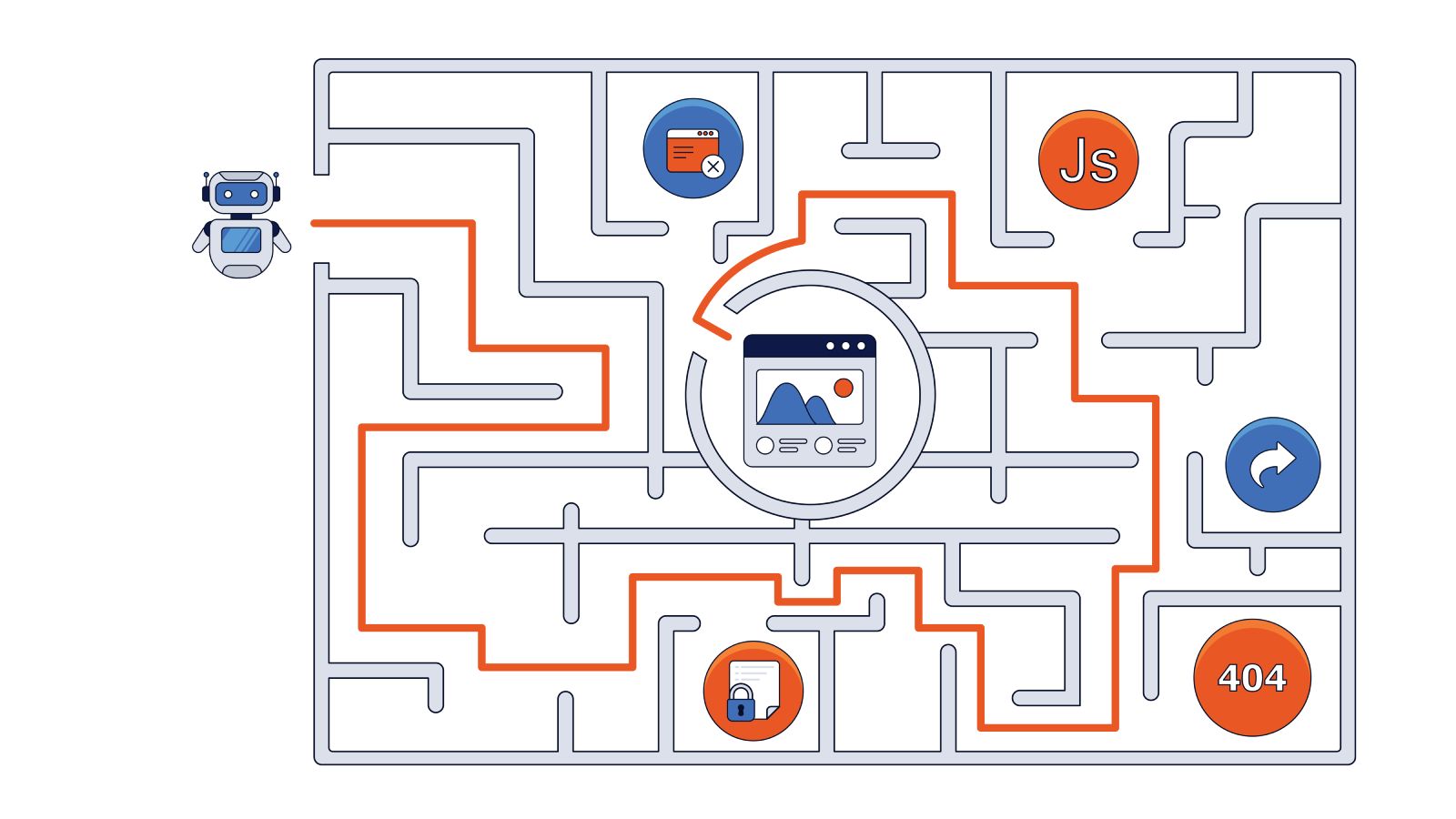
Crawlability is a search engine’s ability to reach your pages and read their HTML by following the links between them. A crawlability problem is anything that blocks or slows that process, from a misconfigured robots.txt file to links a bot cannot follow. If a crawler cannot reach a page, that page has no path into search results.
Crawlability and indexability get treated as one thing, but they cover two separate stages. Crawlability comes first: can a bot reach the page?
Indexability is the next question. Once a bot reaches a page, is it eligible to show up in search results? The two split apart all the time. A page can be perfectly crawlable and still stay out of the index because of a noindex tag. The reverse hurts just as much: a page you want indexed earns nothing if crawlers can’t get to it.
| Crawlability | Indexability | |
| Question it answers | Can a bot reach and read the page? | Can the page appear in search results? |
| Controlled by | robots.txt, internal links, server responses, rendering | noindex tags, canonical tags, content quality |
| Typical blocker | Disallowed URL, orphan page, server error | noindex directive, canonical pointing elsewhere |
What Poor Crawlability Costs You
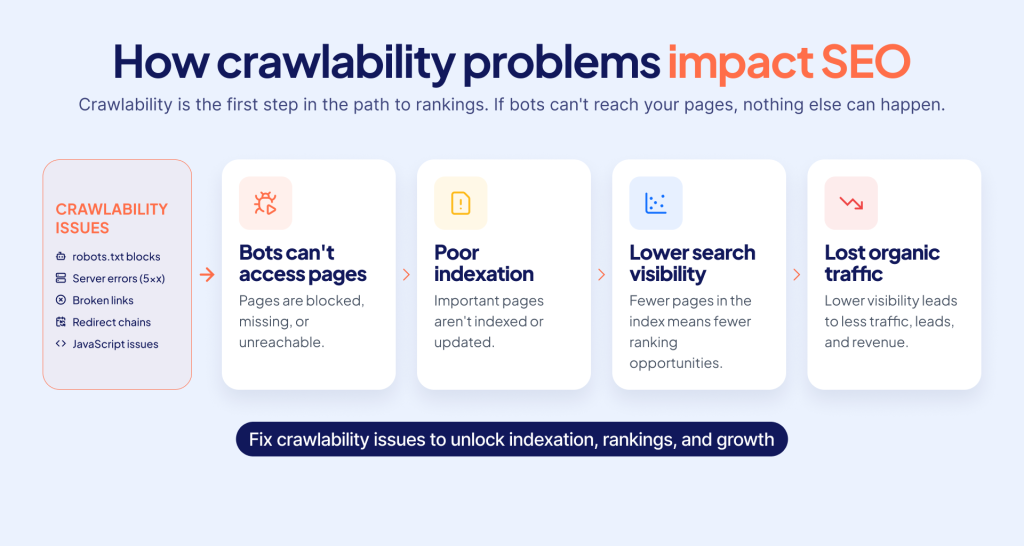
Crawlability matters because search engine crawling is the first link in the chain that ends with rankings. Search engines crawl a page, render it, index it, then rank it. Break the first step, and none of the rest can happen.
Crawling, rendering, and indexing happen in a fixed order, and each one depends on the step before it. First a crawler fetches the raw HTML. Next comes rendering, where the page executes its JavaScript and builds out the full content. Only then does the page become eligible for indexing. When crawlability is weak, the whole pipeline stalls early, and pages end up undiscovered or stuck half-rendered.
The effects show up in website indexing and organic visibility. New pages take weeks to appear, and content updates go unnoticed. Crawl budget burns on duplicate or broken URLs instead of the pages you care about. On large sites, this is the difference between fresh inventory ranking quickly and product pages that never get seen.
How to Identify Crawlability Problems
Identify crawlability problems by combining four data sources: Google Search Console, a site crawler, your server logs, and XML sitemap validation. Each one reveals a different slice of crawler accessibility on your site.
Work through these steps:
- Check Google Search Console. The Pages report flags states like “Crawled, currently not indexed,” “Discovered, currently not indexed,” and crawl errors. The URL Inspection tool shows how Googlebot fetches and renders a single page.
- Run a site crawl. A website crawler for SEO audits can surface broken links, redirect chains, orphan pages, and blocked URLs in one pass.
- Analyze your logs. Server log file analysis shows what Googlebot and AI bots actually request and where crawl budget is going.
- Validate your XML sitemap. It should list only canonical, indexable URLs, and every one of them should return a 200 status. Drop anything that redirects, 404s, or carries a noindex tag.
Quick check: open /robots.txt and see what’s disallowed. Pull up a key page and look for a noindex tag in the head. Then disable JavaScript, reload your top page, and check whether important content is still accessible to crawlers. For a faster check, use our free JS testing tool to find JavaScript-related crawlability issues before they affect indexing.
Top Crawlability Issues That Quietly Drain Your Traffic
The problems below are the crawlability mistakes that cause most crawl errors on real sites. Crawlability issues rarely affect just one page. When several problems occur simultaneously, they can waste crawl budget, slow indexing, and gradually reduce organic visibility.
The overview below highlights the most common issues technical SEO teams should check first.
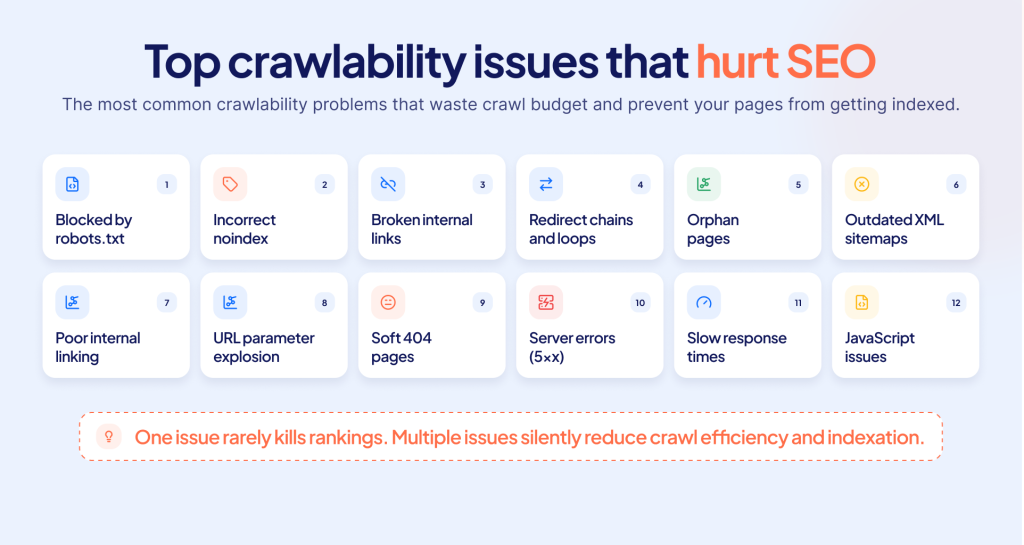
Fixing crawlability issues starts with knowing which ones you have, so each entry follows the identical structure: what the problem is, how it affects crawling, how to detect it, how to fix it, and a quick example.
| # | Problem | Impact | Solution |
| 1 | Pages unintentionally blocked by robots.txt | Pages never crawled | Narrow or remove Disallow rules |
| 2 | Incorrect noindex directives | Pages dropped from index | Remove unintended noindex |
| 3 | Broken internal links | Crawl budget wasted, dead ends | Fix or redirect broken URLs |
| 4 | Redirect chains and loops | Crawl waste, abandoned hops | One 301 to the final URL |
| 5 | Orphan pages | Pages not discovered | Add internal links |
| 6 | Outdated XML sitemaps | Crawlers sent to dead URLs | Auto-generate clean sitemaps |
| 7 | Poor internal linking structure | Deep pages crawled rarely | Flatten architecture |
| 8 | URL parameter explosion | Budget burned on duplicates | Canonical tags, parameter rules |
| 9 | Soft 404 pages | Empty URLs recrawled as valid | Return real 404 or 410 |
| 10 | Server errors (5xx) | Bots back off, pages drop | Fix root cause, add capacity |
| 11 | Slow server response times | Fewer pages crawled per visit | Cache and serve from the edge |
| 12 | JavaScript-generated links | Links not followed | Use real <a href> elements |
| 13 | Client-side rendered content | Invisible to non-JS bots | SSR or pre-rendering |
| 14 | Blocked JavaScript resources | Pages render broken | Allow JS and CSS in robots.txt |
| 15 | Crawl budget waste on large-scale websites | Budget spent on low-value URLs | Audit logs, remove or consolidate URLs |
1. Pages Blocked by robots.txt
A misconfigured Disallow rule, or a simple error in robots.txt, can break crawlability across the entire site. Crawlers skip the blocked URLs entirely. The page is never read, and its content might as well not exist.
Blocking pages on purpose is normal. Admin paths and internal search are common candidates, and Disallow works fine there. The risk is the rule nobody checked, the one added without knowing what it covers.
A blocked URL can still appear in results without a description if other sites link to it, though it cannot rank on its own content.
Usually, it’s a leftover staging rule. A site gets locked down during development, then goes live with the blanket Disallow still in place.
Detect: GSC flags these under “Blocked by robots.txt,” and you can confirm the rule by opening /robots.txt directly.
Fix: Loosen or remove the Disallow rule for any page that should rank. Keep blocks only on genuine non-content, things like admin paths and internal search.
Example: A Disallow: / left in production after launch hides the entire site from Google.
2. Incorrect Noindex Directives
A noindex meta tag or X-Robots-Tag header tells search engines to drop a page from results even though the crawler reaches it fine. So, the page is technically reachable; it just never shows up.
This one bites most often after a template change or a migration, when noindex gets applied to pages nobody meant to hide.
Detect: Inspect the source for <meta name="robots" content="noindex">, check response headers, and review GSC “Excluded by ‘noindex’ tag.”
Fix: Remove noindex from pages that should rank.
Example: A staging template ships to production and noindexes 500 product pages overnight, and nobody notices until traffic drops.
3. Broken Internal Links
Internal links that point to 404s or moved URLs waste crawl budget before the bot reaches your deeper pages. There’s a second cost, too: any link equity that page should have passed along just gets stranded.
Detect: A site crawl flags 4xx internal links, and GSC reports “Not found (404).”
Fix: Update or remove broken links and redirect retired URLs with a single 301 redirect.
Example: A renamed category leaves dozens of navigation links pointing to a 404.
4. Redirect Chains and Loops
One redirect points to another, and that one to a third. The bot hops through all of them before it reaches the real page.
Every hop costs crawl budget, and the longer the chain runs, the more likely the bot gives up before it ever reaches the destination.
Detect: A crawler reports redirect chains and loops. Most crawler tools also show you the full hop path so you can see where each redirect leads.
Fix: Point each redirect straight at the final 200 URL in a single step. Then kill any circular redirects.
Example: HTTP to HTTPS, then to www, then to a trailing slash, and you’ve built a four-hop chain that fires on every page.
5. Orphan Pages
An orphan page has no internal links pointing to it, so crawlers can find it only through a sitemap or an external link, if at all. Discovery is slow, and without an internal link Google may never reach the page at all. In general, Google understands pages within a context of other linked pages. Orphan pages don’t have such signals and usually get very little crawl budget and are indexed slowly, if at all.
Detect: Compare your sitemap against your crawl. URLs in the sitemap but missing from the internal link graph are orphans.
Fix: Add contextual internal links from relevant pages and from navigation.
Example: A campaign landing page built outside the CMS is linked from nowhere on the site.
6. Outdated XML Sitemaps
A sitemap full of dead, redirected, or noindexed URLs points crawlers at low-value destinations every time they read it. Do that often enough and Google stops trusting the sitemap as a signal. When new URLs are missing from it, those pages also take longer to get discovered.
Detect: Validate the sitemap first. Then open the GSC Sitemaps report and look at what it flags as errors or excluded URLs.
Fix: Auto-generate the sitemap so it only ever contains canonical 200 URLs. Refresh it the moment you publish.
Example: A sitemap still lists last season’s promo pages that now return a 404.
7. Poor Internal Linking Structure
When your internal linking structure is shallow or tangled, important pages end up buried many clicks from the homepage. Crawlers reach those pages rarely, and the ones they do reach inherit very little authority. The pages you actually care about wind up competing for crawl attention with deep, low-value URLs.
Detect: Pull a crawl depth report. It highlights any page sitting more than three or four clicks from the homepage.
Fix: Flatten the architecture so priority pages sit closer to the top. Link to them from pages that already carry authority. Give every link descriptive anchor text while you’re at it.
Example: A product buried six clicks deep gets crawled far less often than one linked straight from the homepage.
8. URL Parameter Explosion
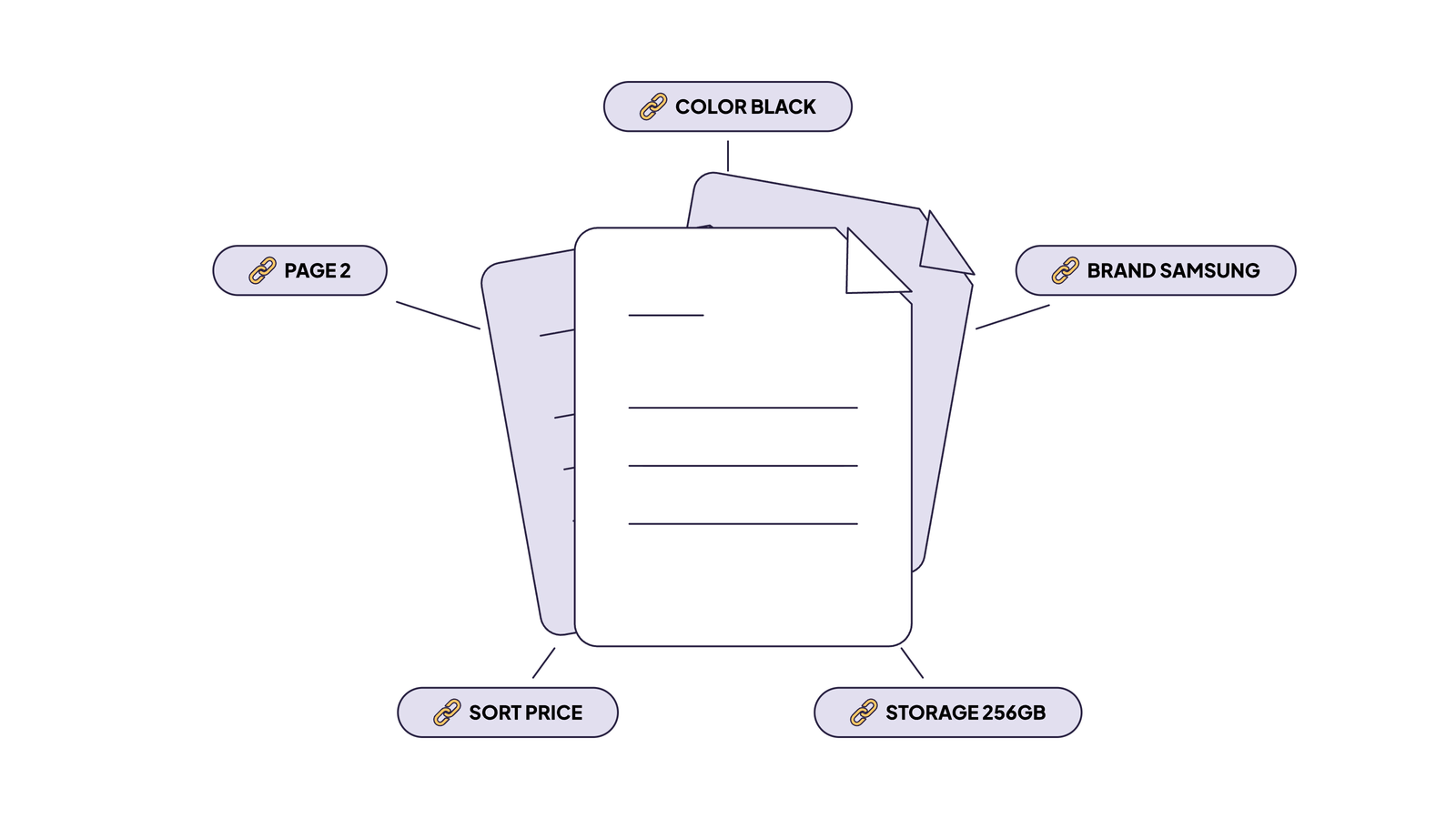
Bots end up spending the crawl budget on duplicates. The usual source is faceted navigation: each filter combo spins up a fresh URL.
Google itself calls out faceted navigation and session identifiers as classic crawl waste.
Detect: Log analysis shows bots hammering ?sort= and ?color= variants. A crawl then confirms it by surfacing the duplicate parameter URLs.
Fix: Add a canonical tag pointing at the clean URL. Set parameter rules so non-indexable variants stay out of the crawl. Keep your parameter handling consistent across the site, so the same filter never produces two different URLs.
Example: A shop with five filters can generate thousands of crawlable combinations out of a single category.
9. Soft 404 Pages
A soft 404 hands back a 200 status for a page that has no real content, like a “product not found” screen. So crawlers keep coming back to recrawl an empty URL as though it were a live page. You see this a lot in JavaScript apps that fail a data fetch but still serve the shell. The header says 200, the page itself is empty, and Google ends up trusting neither signal.
Detect: GSC reports “Soft 404.” You can also catch them by hand, spotting thin or error pages that still return a 200.
Fix: Return a real 404 or 410 for missing pages. The server has to send that status in the header. Client-side JavaScript can’t do this job, because the bot reads the header before any script runs.
Example: A deleted product still shows a “not found” message while returning 200 OK.
10. Server Errors (5xx)
A 5xx response tells crawlers your server failed, so Googlebot backs off and slows its crawl to avoid piling more load on a struggling server. Let those errors run long enough, and pages start dropping out of the index.
Detect: GSC shows “Server error (5xx).” Your server logs and uptime monitoring confirm whether it’s still happening.
Fix: Start by diagnosing the root cause. Add capacity or caching where the load is breaking things. For planned downtime, return a 503 with a Retry-After header so bots know to come back. Real-time alerting shortens the gap here. Our alerting module detects 5xx responses from live bot traffic, so you hear about them within minutes instead of discovering the damage days later.
Example: Traffic spikes on a big sale day, and the origin can’t keep up. Googlebot gets served 500s for hours right when the site matters most.
11. Slow Server Response Times
Slow responses mean bots crawl fewer pages per session. Google scales its crawl rate to how fast your server answers, so a high time to first byte (TTFB) caps how much gets crawled. On large sites, that leaves pages uncrawled.
Detect: Check average response time in the GSC Crawl Stats report, in your logs, and with TTFB tools.
Fix: Cache aggressively and serve bots from the edge, optimizing the origin and database behind it. Our cache returns pages to bots in under 15ms. You can improve site speed with web cache service no matter how slow the origin is.
Example: A two-second TTFB on a 100,000-page site caps how deep Google crawls each day.
12. JavaScript-Generated Links
Links created only by JavaScript, such as an onClick handler with no href, do not exist in the raw HTML, so crawlers cannot follow them during the crawl phase. The destination pages may never be found. It’s one of the more common reasons links go uncrawled.
Detect: To find which link is not crawlable, view the page source rather than the rendered DOM and look for a missing <a href>, then disable JavaScript and test navigation.
Fix: Use semantic <a href> elements and let your router intercept the click while leaving a crawlable link in the markup.
Example: A <div onClick={navigate('/products')}> menu item leaves no href for bots to follow.
13. Client-Side Rendered Content
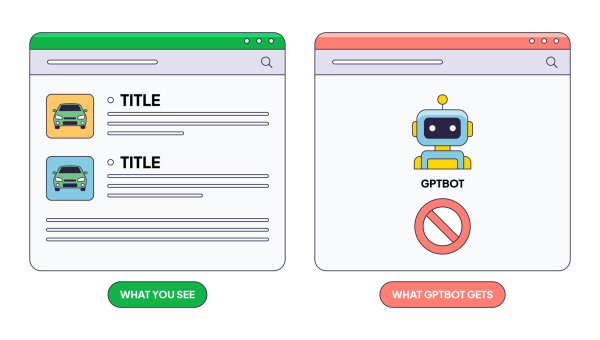
With pure client-side rendering, the initial HTML is an empty shell, and all content loads through JavaScript. Bots that do not execute JavaScript see nothing. The majority of AI crawlers cannot run JavaScript, so client-side content is invisible to them.
Detect: Disable JavaScript and load the page. If it is blank, that is what non-rendering crawlers see too.
Fix: Use server-side rendering, static generation, or pre-rendering for crawlers. See our analysis of how AI crawlers process websites.
Example: A React storefront shows products to shoppers, but an empty <div id=”root”> to GPTBot.
14. Blocked JavaScript Resources
When robots.txt blocks the JavaScript or CSS a page depends on, Google can’t render the page properly and may end up indexing a broken or half-empty version. Rendering only works if the bot can fetch those resources.
Size plays a role here, too. For Search indexing, Googlebot reads only the first 2MB of each HTML file, so heavy inlined scripts or bloated markup can shove the content you care about past that cutoff before Google ever reaches it.
Detect: GSC URL Inspection lists “blocked resources” for the page. You can also catch it by hand, scanning robots.txt for rules that disallow /static/ or /assets/.
Fix: Let crawlers fetch whatever JavaScript and CSS the page needs to render. Reserve your robots.txt blocks for scripts that are genuinely private, like internal tooling or admin logic.
Example: A Disallow: /assets/ rule hides the bundle Google needs to render the page.
15. Crawl Budget Waste on Large-Scale Websites
On a large site, the issues above stop sitting in isolation. They start to compound. Pile enough of them together, and the result is crawl budget waste. Crawl budget is just the set of URLs Google is able to crawl and willing to crawl on your site, and the real question is where that budget goes. Parameter URLs, redirect chains, soft 404s, a sluggish server, all of them spend it on pages that were never worth the visit.
Google’s own guidance says sites under roughly 10,000 pages rarely need to think about this. Once you’re past that scale, a budget eaten by junk URLs leaves the pages you care about sitting uncrawled.
Fixing crawl budget waste starts in your server logs. See where the bots are spending their time. You will almost always find them stuck on URLs you forgot existed. Once you can see the waste, remove the low-value URLs or consolidate them, so the budget goes back to pages that earn it.
Why JavaScript Is the Biggest Crawlability Risk (and How to Fix It)
JavaScript is the single biggest source of modern crawlability problems. The content a user sees often does not exist in the HTML a crawler first receives. Closing that gap is what JavaScript SEO is about. Frameworks like React, Vue, Angular, and Svelte build the page in the browser, which creates a distance between what renders and what gets crawled.
CSR vs SSR vs pre-rendering. All three build the page in a different place, and that spot decides how much a crawler sees. Client-side rendering hands the browser an almost empty shell and makes it build everything from there. For crawlers, that’s the dangerous one.
A bot that won’t run JavaScript shows up, finds a blank page, and leaves. Server-side rendering does the opposite. The server sends back finished HTML on the first request, so the content is just there waiting for the bot. Pre-rendering splits the difference. Real users get your normal client-side app, but when a crawler shows up, a separate service feeds it fully rendered HTML.
JavaScript navigation issues. Routing built on click handlers gives a bot nowhere to go. It cannot click. It follows links, real ones, written as <a href>. If your navigation lives entirely in onClick, the crawler hits a wall at every step. Give it a true <a href> for every route that matters, and let JavaScript build on top of that.
Rendering delays and crawl efficiency. Every page that waits in the render queue is a page Google indexes later, and low-authority sites wait longest. Serving rendered HTML up front removes that delay and uses crawl budget more efficiently.
How AI crawlers process JavaScript. Most AI crawlers do not render JavaScript at all and read only your raw HTML response. If your content depends on client-side rendering, those engines see an empty page. Server-side rendering or pre-rendering is the only reliable way to stay visible to them. Our rendering module pre-renders JavaScript content through headless Chrome and serves it from cache. It is one practical option for technical SEO for developers shipping JavaScript apps.
Final Thoughts: Fixing Crawlability at the Source
You can often trace a crawlability problem back to two things: what your server returns to bots, and what your JavaScript hides from them.
We built EdgeComet to handle both. It serves pre-rendered, cached HTML to search engines and AI crawlers, so your pages are crawlable on the first request. There are no code changes, and setup takes about a day. Start a free trial and see what bots actually see on your site.
FAQ
How do I test crawlability?
Test crawlability by combining Google Search Console with a crawler and your server logs. Use the URL Inspection tool to see how Googlebot fetches and renders a page, run a site crawl to surface broken links, redirects, and blocked URLs, then check logs to see which pages bots actually request. Together, they show exactly where crawlers stop.
Can crawlability issues hurt SEO?
Yes, and often more than teams expect. A page that cannot be crawled can’t be indexed or ranked, so crawlability problems cost you organic visibility. They also drain crawl budget onto low-value URLs, which slows discovery of the pages that matter. On a large e-commerce site, parameter and redirect waste can leave brand-new products uncrawled for weeks.
Can JavaScript affect crawlability?
Yes, significantly. Content and links that appear only after JavaScript runs can be invisible on the first crawl, and any page that depends on rendering waits in Google’s render queue. Many AI crawlers skip JavaScript entirely and read only your raw HTML. Server-side rendering or pre-rendering keeps that content crawlable.
What is the difference between crawlability and indexability?
Crawlability is whether a search engine can reach and read a page. Indexability is whether that page is eligible to appear in search results once it is read. A page can be crawlable but kept out of the index by a noindex tag, and a page meant for the index will never rank if crawlers cannot reach it in the first place.
How can I increase website crawlability?
Give bots fast, clean paths to your content. That means clearing the obstacles first: fix broken links and redirect chains, then pull orphan pages back in with internal links. Keep your XML sitemap current and limited to canonical URLs, make sure robots.txt isn’t blocking rendering resources, and trim slow server responses. For JavaScript sites, server-side render or pre-render your key pages so the content is there on the first request.
What factors affect a website’s crawl budget?
The crawl budget depends on two things. Crawl capacity is set by how fast and reliably your server responds. Crawl demand is set by your content’s popularity and freshness. Google wastes budget on duplicate parameter URLs, redirect chains, soft 404s, and slow pages. According to Google, sites under about 10,000 pages rarely need to be managed actively.