

Manage client accounts as an agency
An EdgeComet agency account manages clients from Sub accounts. You create an account for each client, add their websites for them, and get Admin access to every website the client owns, now and later. Also called a master account or client accounts.
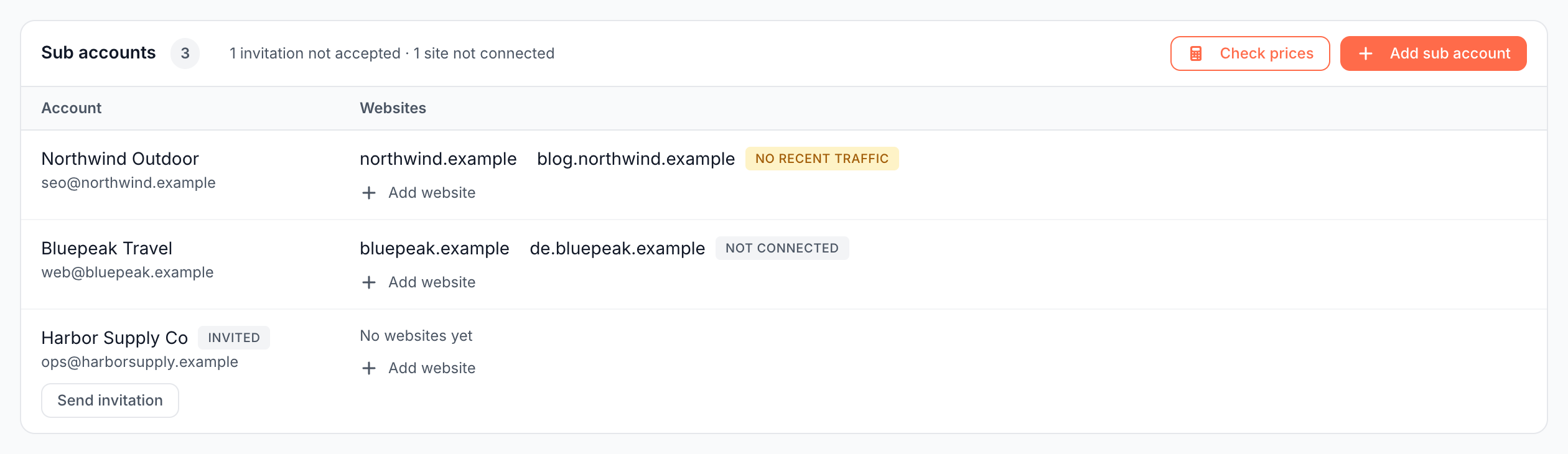
One roster lists every client with their websites and each website's install state. You see which client sites are not connected or stopped getting bot traffic without opening each account.
How agency accounts work
A sub account is a normal EdgeComet account that the client owns, with your agency as Admin on every website in it.
- The client owns their account. The client signs in to it, sees their own data, and is the Owner of their websites.
- You are Admin on all their websites. Creating the account adds you as an Admin on every website the client owns, including websites added later. The client's Team Access marks you Managed.
- You add their websites. A client account has no way to add websites. Its website list reads "Your websites are managed by {agency}" until you add one.
Before you start
- Your account is an agency account: Sub accounts appears in the account menu. EdgeComet turns agency accounts on. See Changes that go through support.
- You have the client's name and the email address they will sign in with.
Add a client
- Open the account menu at the bottom of the left strip, then Sub accounts.
- Click Add sub account.
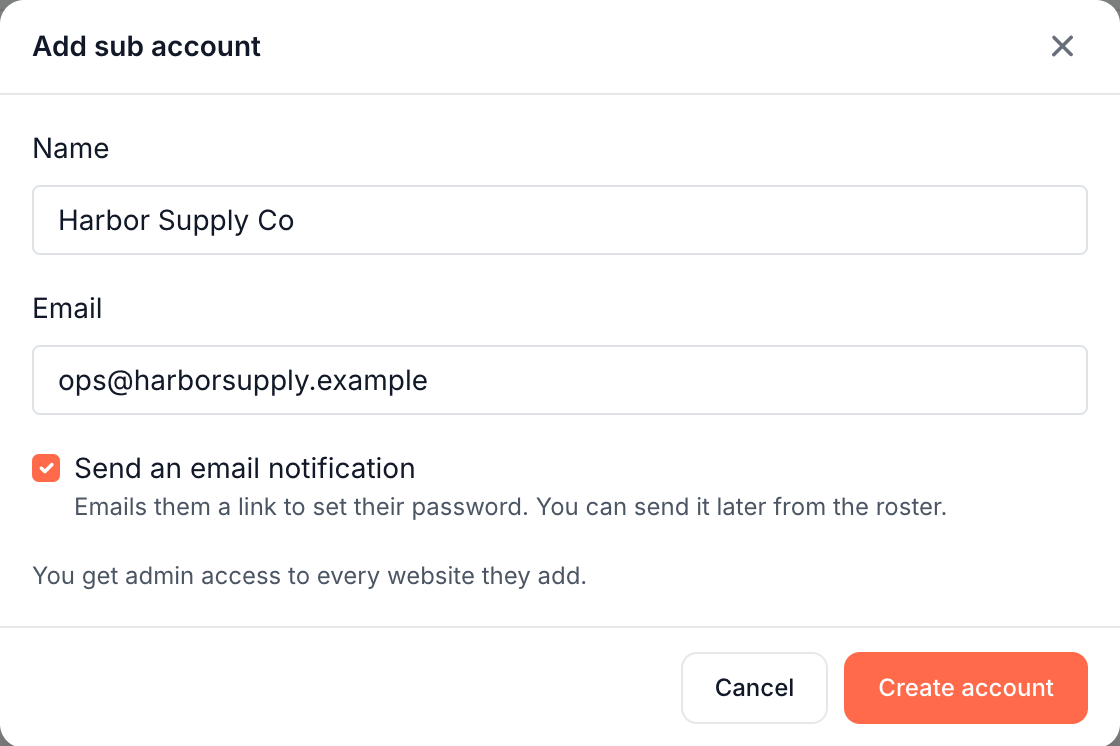
- Enter the client's Name and Email.
- Tick Send an email notification to send the client a link to set their password now. It is off by default: "Emails them a link to set their password. You can send it later from the roster."
- Click Create account.
The page confirms "Sub account created. We emailed a link to set the password." or, without the email, "Sub account created. Send the invitation when you are ready."
Invite the client to their account
The client gets an email, "{agency} created an EdgeComet account for you": "{agency} manages your websites on EdgeComet and created an account for {email}." Set your password opens a page to choose one. "This link is valid for 7 days."
Until the client first signs in, the roster marks them Invited and shows Send invitation. Click it to send a new link. The page confirms "Invitation sent."
Once the client has signed in, the Invited mark and the button disappear. A client who forgot the password uses Forgot password? on the sign-in page.
Add a website for a client
You can add a client's websites before the client signs in.
- In the roster, click Add website under the client's websites.
- In Add website for {client}, enter the Domain: "Hostname only - protocol and path are stripped."
- Choose the Mode:
- Cache and render: "Bots get the page after its JavaScript has run."
- Cache only: "Bots get your server's own HTML from cache, with no rendering."
- Click Add website.
The dialog notes that the website is created under the client's account and that you can configure it right away. It opens on its Overview with "Website added." Then route the site's bot traffic to EdgeComet, the same way as for your own websites. See Route bot traffic and Choose a serving mode.
Read the roster
Each client row shows:
- Account: the client's name and email, with Invited until they first sign in.
- Websites: each domain opens that website in a new tab. A pill marks websites that need work: Not connected, No recent traffic or No traffic 7d+. Working websites have no pill. Long lists end with "and {n} more sites".
The line beside the Sub accounts title counts what needs attention, such as "1 invitation not accepted" and "1 site not connected". Counts at zero are left out.
For the website states, see "Not connected" and "No recent traffic".
What the client sees
The client sees their own EdgeComet account, with your agency listed as a Managed Admin in their Team Access.
- Their own account: their websites, reports and settings, under their own name.
- You in their Team Access: an Admin row marked Managed, with the tooltip "Added when {agency} created this account. Contact support to change it." The client cannot edit or remove it, and you cannot leave it from the website selector.
- Their own team: as an Admin, you cannot invite people to a client's websites. The client invites their colleagues through Team Access, because inviting people is for the Owner.
Changes that go through support
Contact [email protected] to:
- Turn your account into an agency account.
- Move an existing EdgeComet account under your agency.
- Remove your agency's access to a client account.
If it does not work
"This email already has an EdgeComet account. Contact support to link it."
The client already uses EdgeComet. Support moves an existing account under your agency. See Changes that go through support.
"Websites for this account are added by {agency}."
The client opened the add-website page. Client accounts get their websites from the agency: add the website from the roster. See Add a website for a client.
Where to find it
In the dashboard: the account menu at the bottom of the left strip, then Sub accounts. It also sits in the account settings sidebar, on agency accounts only.