

Confirm that an SEO fix worked
Verification is how EdgeComet confirms that a fix worked. After you deploy or ship it, the next recount checks whether any of its pages are still in the state the finding fixes, and the task shows the result as a label, such as Confirmed fixed or Not fixed. Also called fix verification.
The proof comes from the same data that found the problem, not from the task. Marking a task Shipped never closes a finding. Only a recount that finds none of its pages left does.
Recounts run each time the crawl is re-evaluated, every day. EdgeComet confirms a fix at the first recount after it goes live, without waiting for the next analysis.
Verification labels
| Label | What it means |
|---|---|
| Awaiting deploy | Some of the fix's drafts are still waiting to be deployed. |
| Drafts discarded | Every draft of the fix was discarded. Nothing was deployed. |
| Rolled back | The fix's rules were rolled back. |
| Awaiting verification | The fix is live or shipped, and no recount has run since. |
| Change confirmed live | A check of sample pages found the new robots directive, canonical or status code in place. The recount is still to come. |
| Confirmed fixed | A recount after the fix found none of its pages left. |
| Not fixed | A recount after the fix still found pages in the state the finding fixes. |
The label shows on the second line of the task's row on the Tasks page and in the After deploy section of the task page. Rows whose Status column already reads Live since a date or Rolled back leave the label off the second line.
When verification starts
Verification counts only the recounts that run after the fix goes live or ships:
- Edge SEO fixes: verification starts when you deploy the rules. A recount that ran between drafting and deploying does not count.
- Every other task: verification starts when the task ships, either when you set Shipped or when you save or download its output on the review step.
A task with no finding behind it, which reads Site-level, has nothing to recount and shows no label.
What the recount checks
EdgeComet judges a task on a step by that step's pages:
- Edge values for each page, such as new titles: Confirmed fixed when none of the pages the fix drafted is still in the step.
- Every other fix on a step, such as one Edge SEO rule, a developer brief or content briefs: Confirmed fixed when the step reads Done.
A task on a whole finding, such as one from a finding without steps, reads Confirmed fixed when the finding resolves on a recount after verification starts.
EdgeComet fixes a step with more than 100 pages in batches of 100. When a batch reads Confirmed fixed and pages remain, the step offers Fix the next 100 at the edge. See Fix routes a step offers.
Check that a change is live before the recount
Between the deploy and the recount, the task page checks the change itself. For a fix that sets a robots directive, a canonical or a status code, EdgeComet fetches a sample of the matching pages through the edge and confirms the new value is served. The task page then reads Change confirmed live.
The check runs when you open the task page. The Tasks page keeps Awaiting verification until the recount.
From a confirmed fix to a resolved finding
When a recount finds none of a finding's pages left, the finding resolves:
- Its row on the board reads Fixed in the Status column and moves to Resolved.
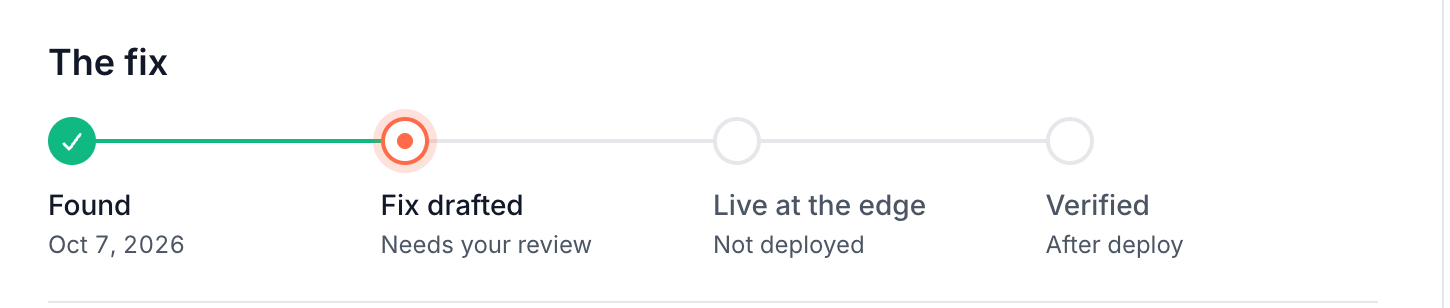
- Its fix progress reaches Verified: "Verified. The latest analysis found none of these pages left."
- N fixed since last run appears in the board's filter band and opens the Resolved findings.
If the pages come back later, the finding reopens. EdgeComet counts dismissed findings the same way. See How often the Action Board runs.
Prove which fixes shipped
To report what changed and whether it worked:
- Open Action Board > Tasks and set Status to Shipped or All.
- For edge fixes only, set + Route to Edge SEO.
- Read the verification label on each row's second line.
- Open a task for its After deploy section: the deploy date and time, the verification, and the History with who deployed or rolled back and when.
- Click Download list on the task's Step for the pages the fix covers.
Edge SEO keeps the same history per rule. See See who changed a rule.
Where to find it
In the dashboard: Action Board > Tasks, on each row's second line, and in the After deploy section of a task.