

Page Analysis overview
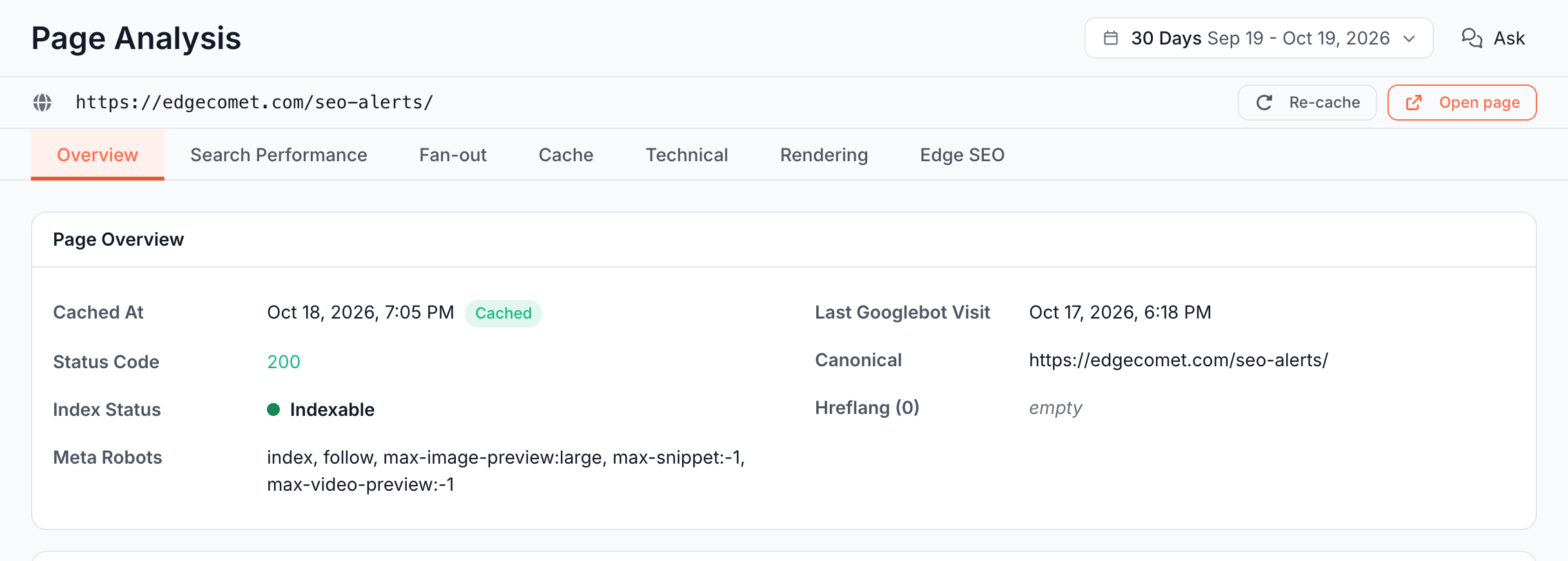
EdgeComet Page Analysis shows everything EdgeComet knows about one URL on one screen: its status and SEO tags, the bots that requested it, the changes EdgeComet saw on it, its Google search performance and the copy bots receive. The Analyze row in Search and ask labels it Page Explorer.
Changes and search data share one chart. Every change to the page's title, meta description, H1, canonical, robots directives or structured data is marked on its Google clicks, impressions and position chart, with what the field was and what it became.
Page Analysis needs no setup of its own. It reads the requests EdgeComet already serves to bots and, when connected, your Search Console data.
How Page Analysis works
Page Analysis reads data EdgeComet already holds for the URL. It does not fetch the page again when you open it.
- The copies bots received: each time EdgeComet renders or fetches the page for a bot or for the pre-cache, it records an SEO snapshot of the page: status code, title, meta description, headings, canonical, robots directives, hreflang, structured data types, links and images. See Which copy of the page the Overview tab describes.
- Bot requests: every request a search engine or AI bot makes for the page through EdgeComet, recorded in the request path. See How EdgeComet collects data.
- Change history: EdgeComet compares the recorded states of the page and dates each change. See Track SEO changes on one page against its Google traffic. For changes across the whole site, see the Changes overview.
- Search Console: clicks, impressions, CTR, position and keywords for the URL, from your connected property. See Connect Google Search Console.
- The cache: the stored copy EdgeComet serves to bots. See Cache pages for search and AI bots.
The period in the header applies to every chart and stat card. Switching tabs keeps the URL and the period.
Open Page Analysis for a URL
Open Page Analysis from Search and ask, from a report, or by typing a URL:
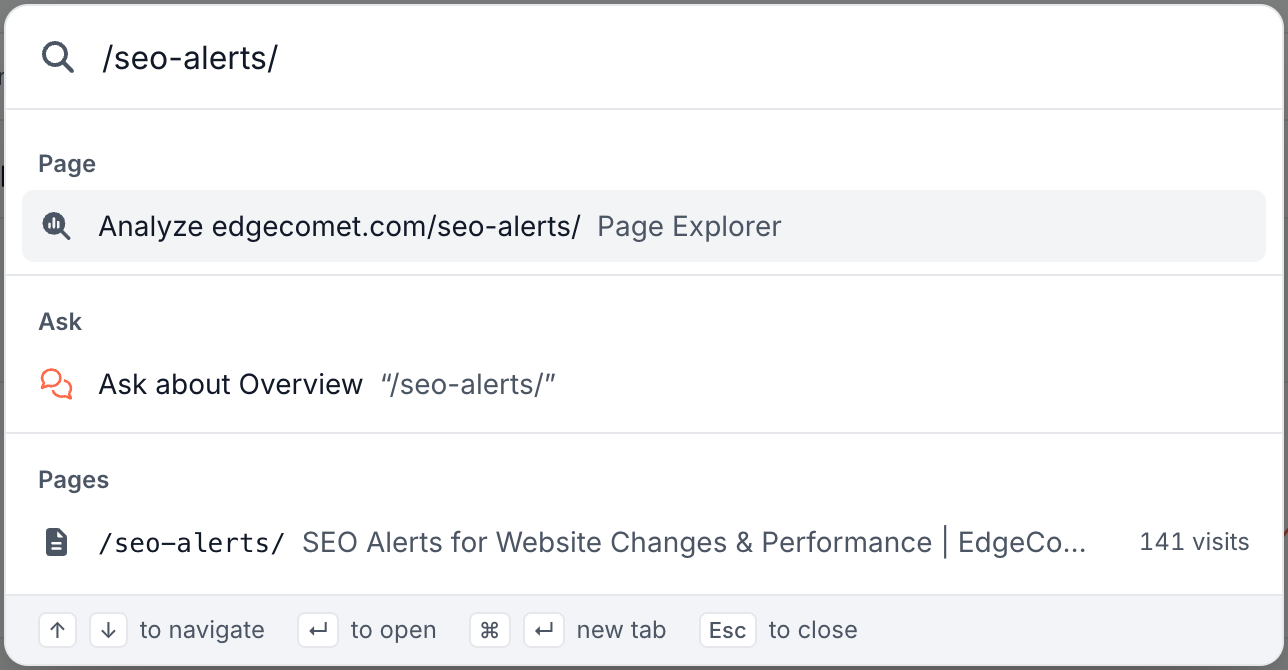
- Search and ask: press Cmd+K (Ctrl+K), type or paste a URL or a path such as
/pricing/, and choose Analyze. The Pages group below it finds pages by URL or title. See Analyze a URL. - Report tables: click the magnifier icon titled Page Analysis beside a URL in report tables, Data Explorer, crawl issue evidence and alert evidence tables. Analyze on Cache > Precache > Cached URLs opens the URL too.
- URL bar: on Page Analysis, type another URL in the bar above the tabs and press Enter. With no URL, the page shows Enter a URL to explore: paste the full URL and click Explore.
Next to the URL, Re-cache stores a new copy of the page and highlights the fields that changed. See Re-cache: store a new copy and see what changed. Open page opens the live URL in a new tab.
What you can see
Page Analysis has seven tabs. Each answers one question about the URL.
Overview: what state is the page in, and what changed?
The Overview tab shows the page as bots received it: Page Overview with the status code, index status, robots directives, canonical, hreflang and the last Googlebot visit, then Content, Links & Resources, Search Performance, Bot Visits and Recent changes. See Check one page's status, indexability, SEO tags and bot visits.
The Search Performance card and Recent changes answer whether a change moved the page's traffic. See Track SEO changes on one page against its Google traffic.
Search Performance: how does the page rank in Google?
The Search Performance tab shows the page's Google clicks, impressions, CTR and average position against the previous period, and every keyword the page ranks for, with winners, losers and striking distance keywords. See Check one page's Google rankings, clicks and keywords.
Fan-out: which questions do AI assistants ask about the page?
The Fan-out tab lists the questions AI assistants searched for when Google showed them the page, and checks whether the page answers each one. It appears when Search Console is connected. See Check if a page answers the questions AI assistants ask.
Cache: what copy do bots receive?
The Cache tab shows the stored copy EdgeComet serves to bots, as a rendered page, as HTML and as Markdown. See See the cached HTML bots receive for one page.
Technical: how fast and how reliably is the page served?
The Technical tab counts the page's bot requests and shows its serve time, cache hit rate, 5xx error rate and status codes over time. See Check one page's serve time, status codes and render errors.
Rendering: how does the page render for bots?
The Rendering tab shows render time, render errors, console errors, page size and the resources the page loads while EdgeComet renders it. See Check one page's serve time, status codes and render errors.
Edge SEO: which Edge SEO rules change the page?
The Edge SEO tab lists the Rules affecting this URL, draft or live, and Create rule for this URL opens the rule editor for the URL. See Create an Edge SEO rule.
Ask about the page
Ask in the header opens EdgeComet's chat about the page on screen. Its starter questions are "Are impressions or CTR falling?", "Is this page indexable?", "Are its renders failing?" and "Which questions does it answer?". See Ask about any report.
How Page Analysis differs from URL Inspection and SEO browser extensions
Page Analysis shows the copies bots received over time, next to the Google traffic they earned. Google Search Console's URL Inspection tool reports on one copy, the one Google crawled last, and an SEO browser extension reads the page your own browser loads.
Google says of URL Inspection: "The results shown are from most recently indexed version of a page, not the live version on the web." and "All information shown in this tool is derived from this last crawled version." (Search Console Help)
What Page Analysis adds:
- History, not one snapshot: Page Analysis dates each change to the page's tags and shows the value before and after.
- Changes on the search chart: changes to the title, meta description, H1, canonical, robots directives and structured data are marked on the page's clicks, impressions and position, and on each keyword's trend.
- Every bot, not only Google: Bot Visits counts Googlebot, Bingbot, ChatGPT, Claude, Meta AI and other bots, and counts fake bots separately.
- The copy bots receive: the Cache tab shows the stored copy EdgeComet serves to bots, rendered when your site needs rendering, not the page your browser builds.
- One place: status, tags, rankings, keywords, AI questions, serve times, render errors and Edge SEO rules for the URL sit behind one URL bar.
URL Inspection's strength is Google's own verdict on whether the URL is indexed and why. Use it next to Page Analysis for that answer.
What Page Analysis does not do
- It does not analyze pages of other websites. Page Analysis covers the pages of the website you have open. A URL on another domain shows "This URL is not on {domain}. Analysis only covers pages on this website."
Where to find it
In the dashboard: press Cmd+K (Ctrl+K) in a website to open Search and ask, type a URL and choose Analyze, or click the magnifier icon beside a URL in a report. Page Analysis has no sidebar entry.
Next
Related Articles
- Log File Analysis for SEO: A Practical Guide for 2027
- Best SEO Log Analysis Tools in 2027: Features, Use Cases & Comparison
- Evergreen Crawl: A New Way to See Your Site Through Googlebot’s Eyes
- SEO Alert Tracking Tool: What to Monitor in Real Time (and What Can Wait)
- AI Search Indexation Monitoring: What You Can and Can’t Measure Today
- Why EdgeComet’s Alerts Catch What Scheduled Monitors Miss