

Fan-out queries: what AI assistants search for about you
EdgeComet's Fan-out Queries report shows the Google searches AI assistants ran on people's behalf that reached your site, grouped back into the questions those people most likely asked. Also called the query fan-out report.
AI assistants such as Google AI Mode, Gemini and ChatGPT often run several web searches of their own while they answer a person: conversational rewrites of the question. The searches that run on Google reach your Search Console with impressions and almost never a click. See Query fan-out: how AI assistants search the web.
EdgeComet detects these searches in your Search Console data and classifies them with AI. You see the question behind each group, its topic, what kind of question it is, the vendors, products and technologies it names, and whether a person or an automated tool was behind it.
How EdgeComet turns searches into questions
The report works from the Search Console data EdgeComet imports for your site and builds four things from it:
- Fan-out keyword: a Search Console keyword that EdgeComet detects as a search an AI assistant ran. Detection needs no setup; see the Fan-out threshold card.
- Question: the question a person most likely asked, written by AI for a group of fan-out keywords that ask the same thing in different words.
- Topic: a subject discovered from your site's own questions. Each question belongs to at most one topic, and questions that fit no topic are counted in the last row of Topics.
- Probe: a fan-out keyword that an automated AI tool or a scraper produced, not a person's question. Probes have their own lane in Who is asking.
Pending classification
Pending classification means EdgeComet has found the fan-out keywords but has not classified them yet. Counts of fan-out keywords, impressions and pages come straight from your Search Console rows and appear as soon as the data is imported. Questions, topics, types, intents, entities and lanes appear after classification.
Until then, the Fan-out keywords card reads "N keywords pending classification", and the bars in What AI asks show a gray Pending segment.
What the report shows
The report has three tabs and a page for each topic. The period, filter, drill-downs and Ask panel work as on every Search report: see Filter, drill down and ask.
Overview tab: how much do AI assistants search your subject?
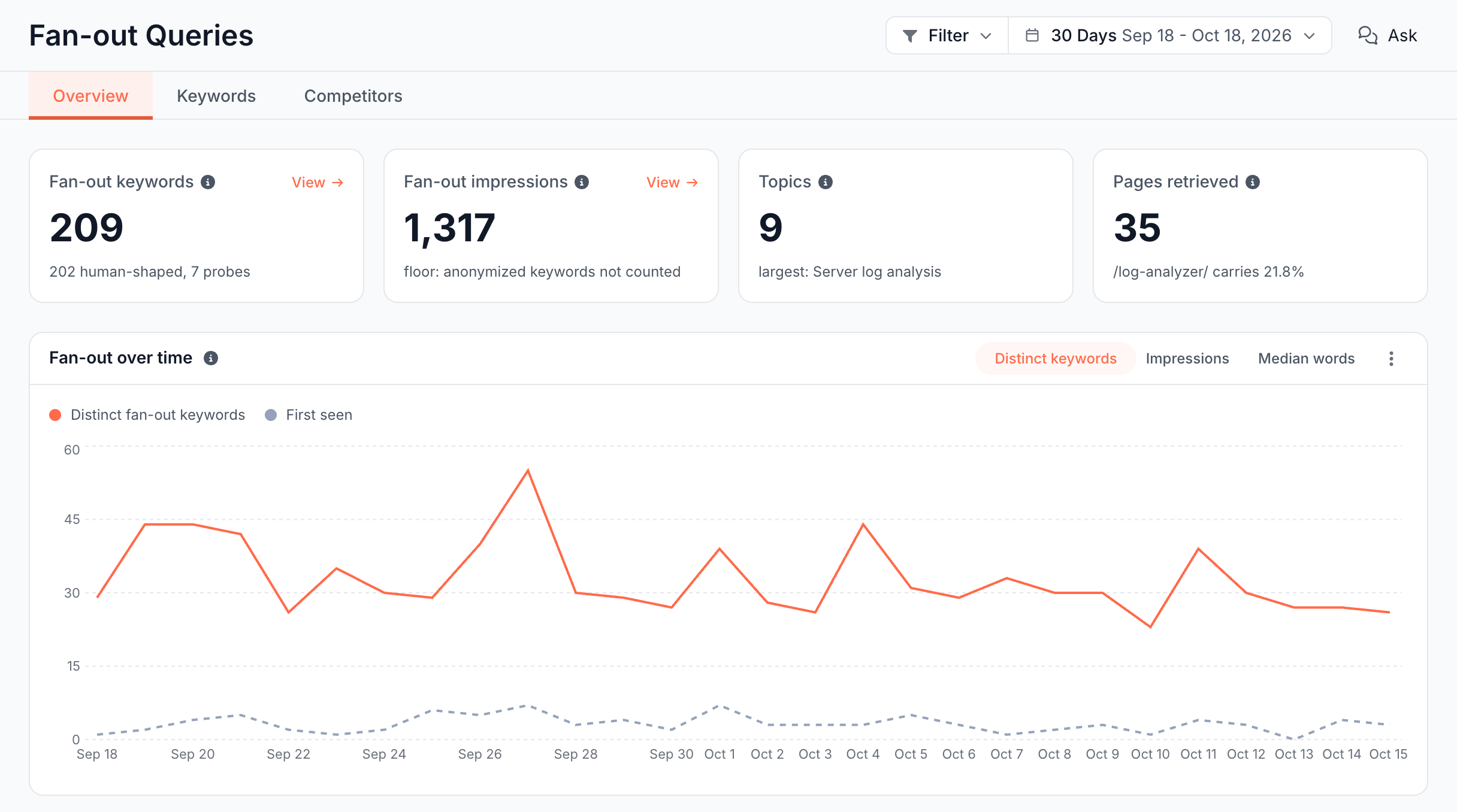
The Overview tab opens with four stat cards for the selected period:
- Fan-out keywords: distinct fan-out keywords that drew impressions. The footer splits them into human-shaped keywords and probes.
- Fan-out impressions: the impressions those keywords drew. The footer reads "floor: anonymized keywords not counted". Google withholds rare queries from keyword data, and the impressions of those anonymized queries are missing.
- Topics: the number of topics, with the largest one in the footer.
- Pages retrieved: pages that drew at least one fan-out keyword, with the share the top page carries. A link to a section of a page (
#fragment) counts toward the page itself.
Fan-out over time: is AI interest growing?
Fan-out over time charts the selected period with three measures:
- Distinct keywords: distinct fan-out keywords per day, week or month, with the keywords first seen in that bucket as a dashed First seen line.
- Impressions: the fan-out impressions per bucket.
- Median words: the median length of a fan-out keyword in words.
What AI asks: what kind of questions, and who is asking?
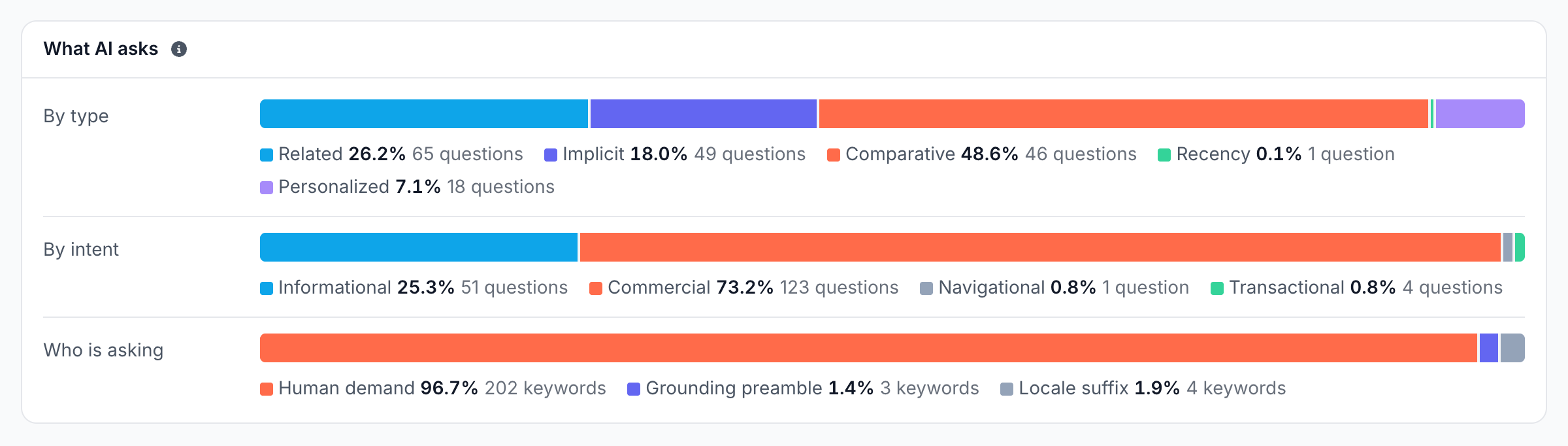
What AI asks splits the period's fan-out keywords three ways. Each segment opens the matching keywords in the Keywords tab.
- By type and By intent are weighted by impressions and show the number of questions in each segment.
- Who is asking counts distinct keywords per lane.
Question types
The type says how the assistant expanded the person's question:
- Related: a neighboring aspect of the same subject.
- Implicit: a need behind the question that the person did not state.
- Comparative: options, vendors or products weighed against each other.
- Recency: the latest or current state of something.
- Personalized: a version tailored to the person's role, location, company or situation.
Intents
The intent says what the person wants:
- Informational: to learn or understand something.
- Commercial: to research products, tools or vendors before choosing one.
- Navigational: to reach one specific site, brand or page.
- Transactional: to buy, sign up, book or download.
Who is asking: human demand and probes
Human demand is the lane for keywords that read as a person's own question. The other lanes hold probes, each named for the tool pattern behind it, such as Grounding preamble or Locale suffix.
Probes show tools testing how assistants answer about your subject, for example by asking them to rank vendors.
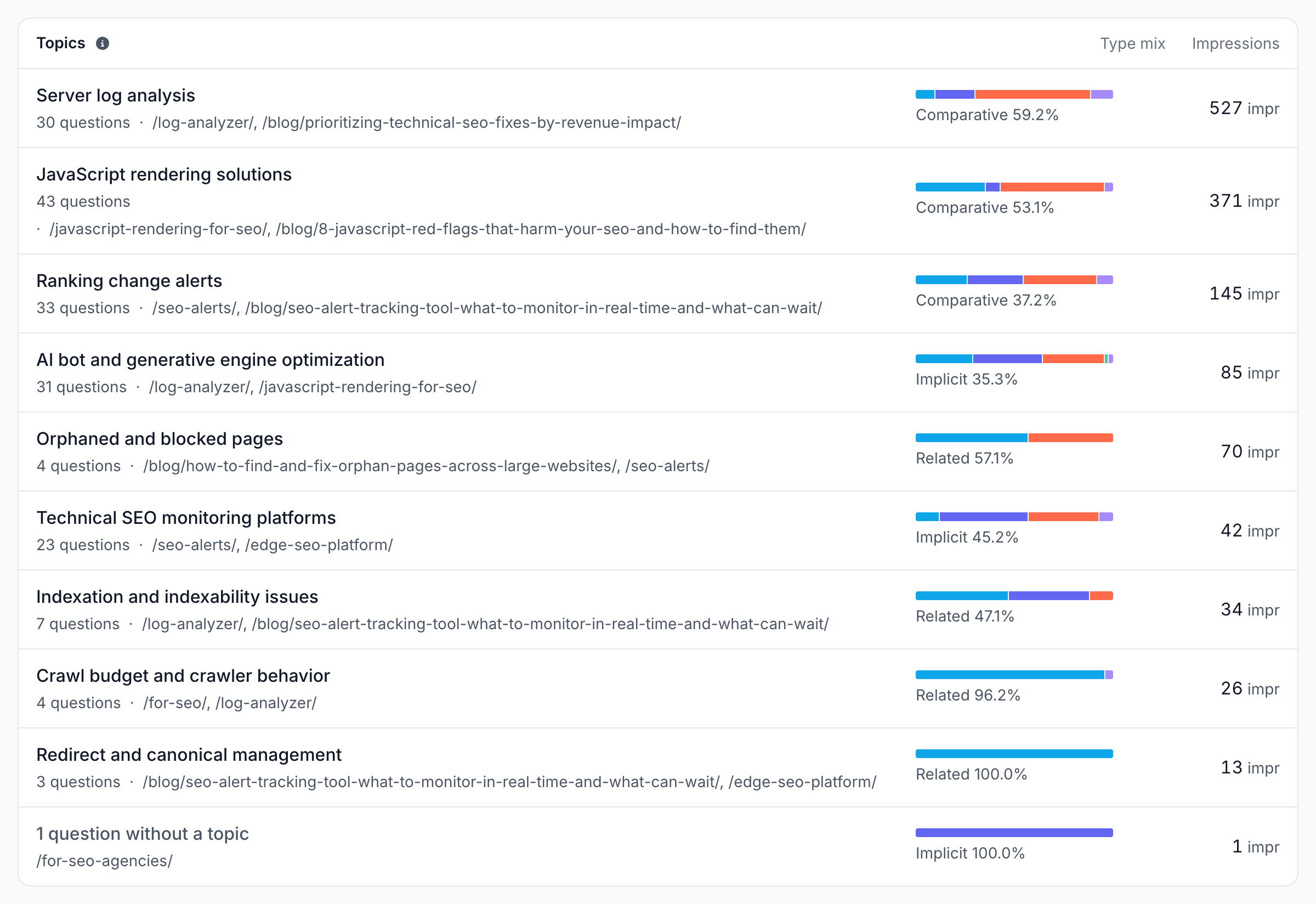
Topics: which subjects draw the most AI searches?
Topics ranks the topics by fan-out impressions, each with its questions, top pages and a Type mix bar. A last row counts the questions without a topic. A topic name opens its topic page.
Segment Performance: which sections do AI searches land on?
Segment Performance counts fan-out keywords by the segment of the page they land on, with Share of fan-out keywords, Keywords, Impressions and Pages. A page in two segments counts in both.
Keywords tab: which searches did AI assistants run?
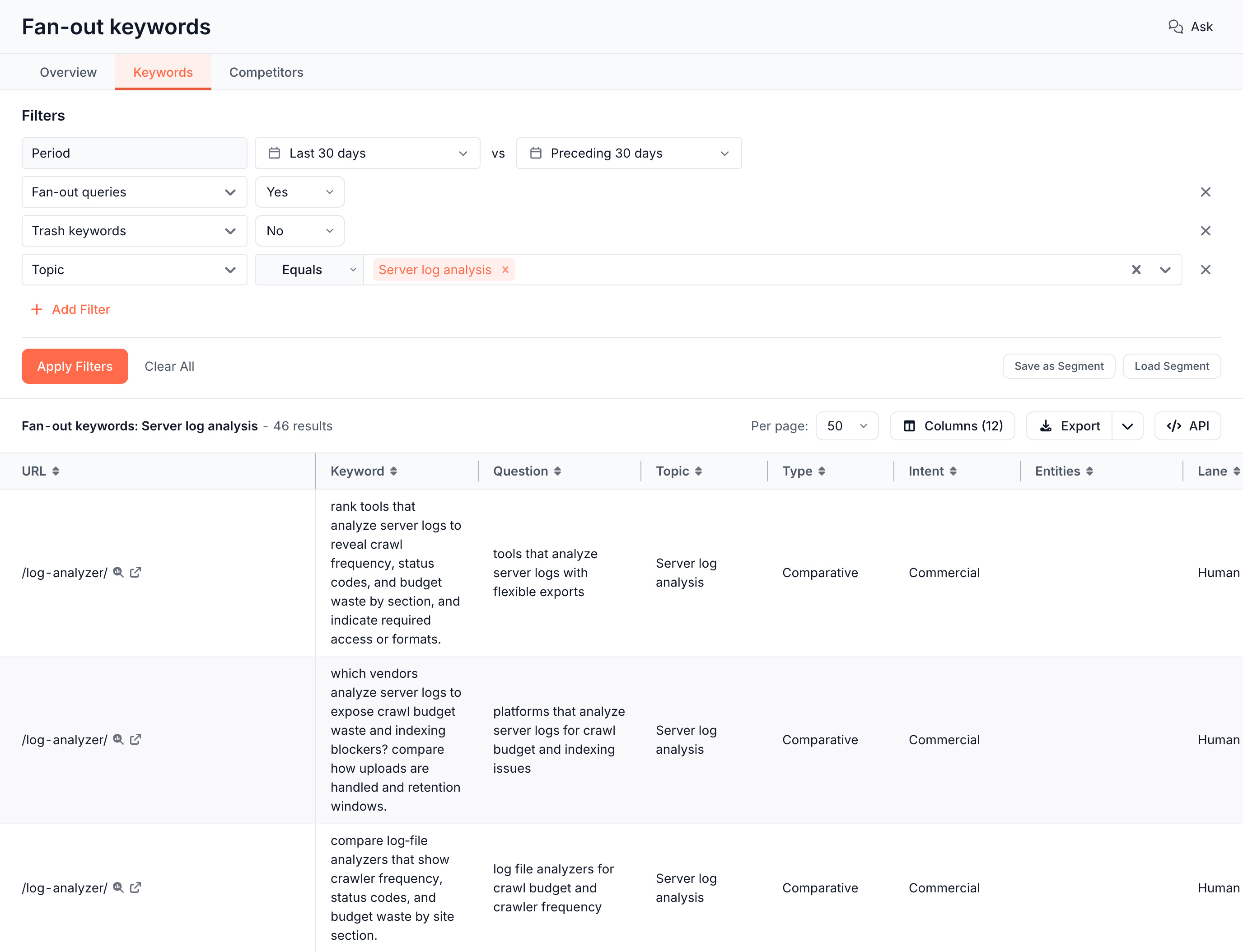
The Keywords tab is a table titled Fan-out keywords, sorted by impressions. Next to URL, Query, Impressions and Position it shows Question, Topic, Type, Intent, Lane, Entities (the vendors, products and technologies the keyword names), First seen and Last seen (the first and last day the keyword drew an impression on your site).
The same columns and the Fan-out queries filter are available in Data Explorer > Search Console.
Competitors tab: who does AI compare you with?
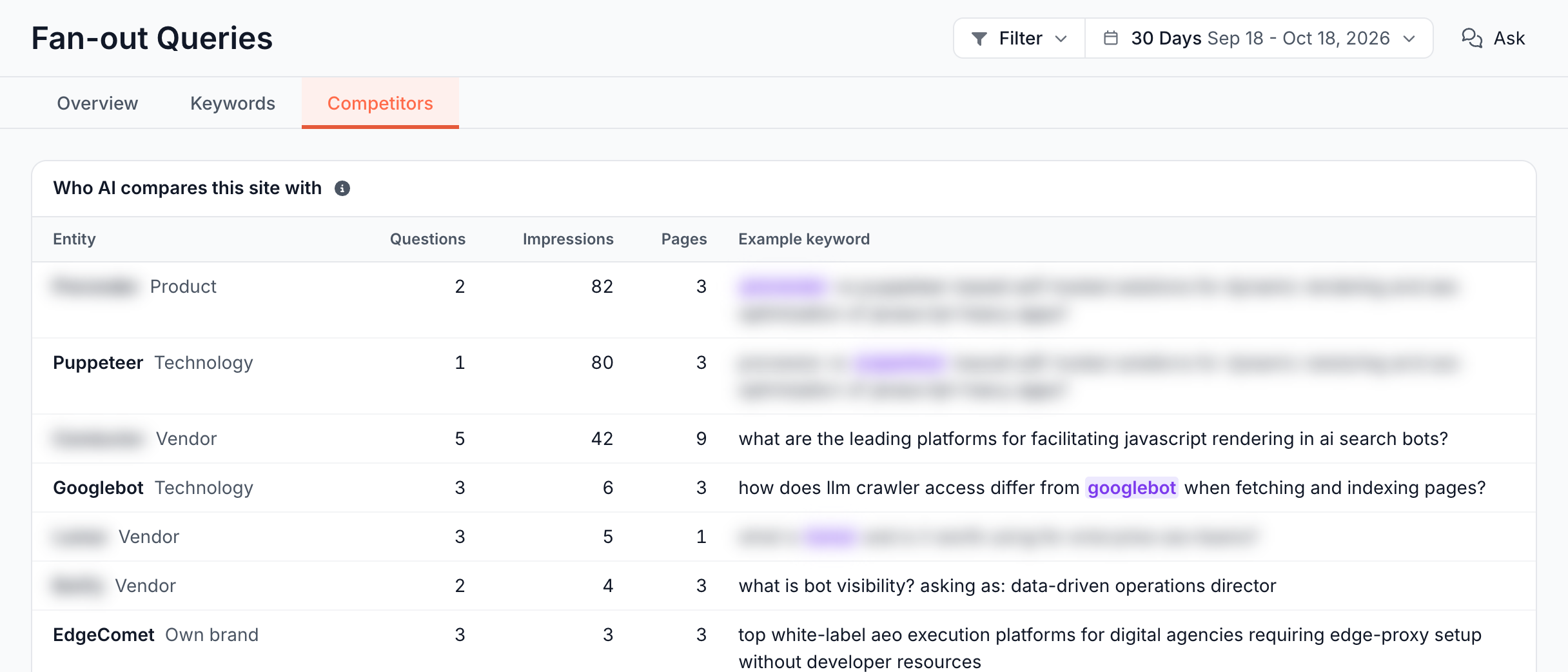
The Competitors tab lists, in the card Who AI compares this site with, every vendor, product and technology named inside your fan-out keywords, your own brand included, ordered by impressions. Each entity shows its kind: Vendor, Product, Technology or Own brand for your own company and products.
The columns Questions, Impressions and Pages show the demand behind each entity, and Example keyword shows one keyword with the entity highlighted. An entity name opens its keywords, questions and pages in a dialog; the Questions count opens them in the Keywords tab.
Topic page: what does AI ask within one subject?
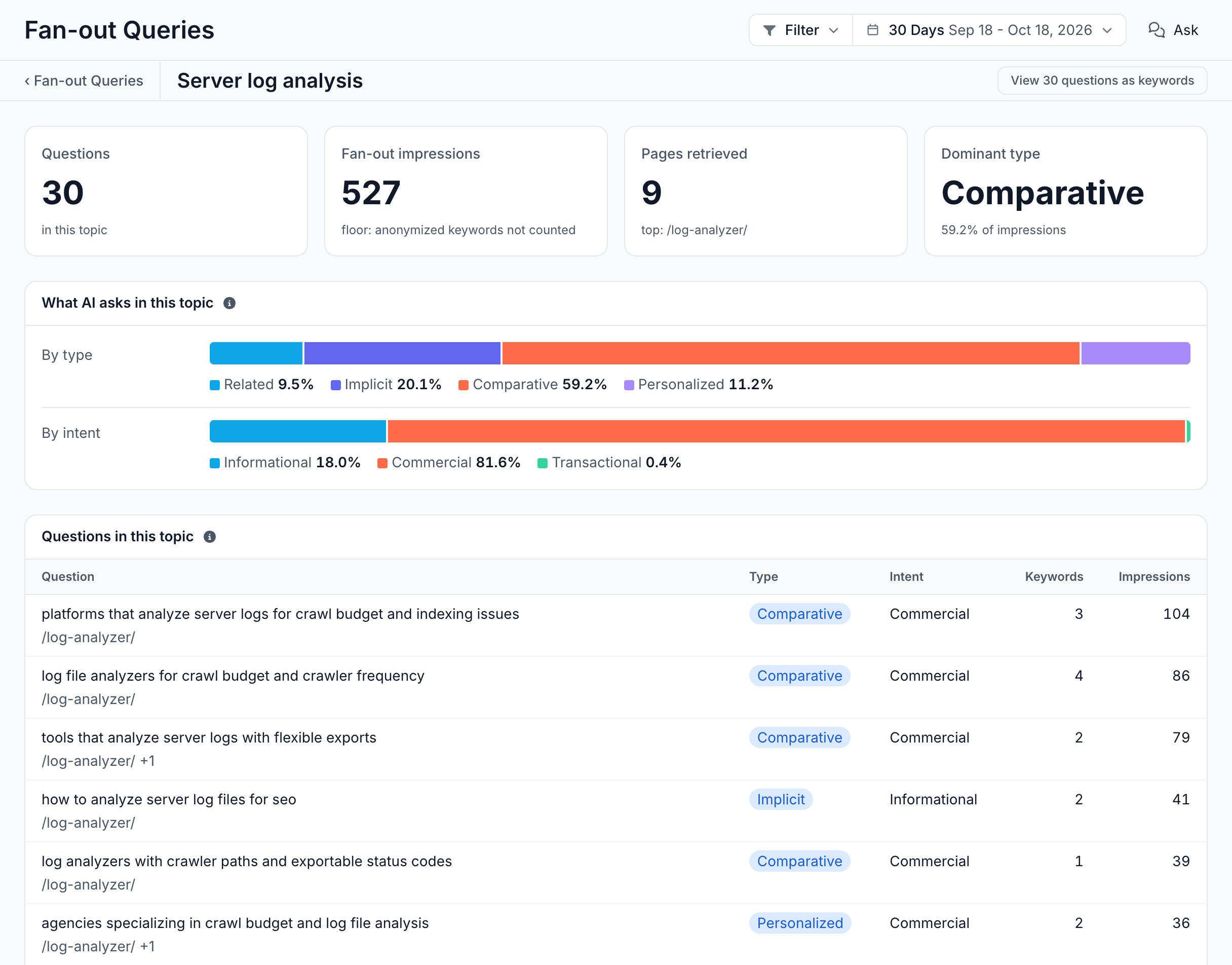
A topic page opens from the Topics list. It shows the stat cards Questions, Fan-out impressions, Pages retrieved and Dominant type, the type and intent bars for the topic, and three tables:
- Questions in this topic: each question with its type, intent, keyword count and impressions.
- Pages retrieved: the pages the questions landed on, with the number of questions reaching each.
- Named in this topic: the vendors, products and technologies the keywords name, with the number of questions naming each.
How to read it
- A rising First seen line means assistants started searching new wordings on your subject.
- A large Comparative share means assistants weigh you against alternatives, named in the Competitors tab.
- Many probes mean tools are testing assistants on your subject. The Human demand lane holds the real questions.
- A topic that lands on one page shows the page Google offers assistants for it. A topic spread over many pages has no clear answer page.
How this differs from prompt tracking
Fan-out Queries starts from the searches assistants actually ran for real people, recorded by Google in your own Search Console. Prompt tracking tools start from prompts you write and send them to AI assistants on a schedule.
- No prompt list to maintain. The questions come from real demand, including ones you would not think to write.
- Volume from Google. Every question carries the impressions its searches drew.
- Joined with your pages. Each search names the page Google showed, and that page's Fan-out tab checks whether it answers the question.
In a plain Search Console export, each wording is its own row with a few impressions and no clicks. The report groups those rows into the questions and topics behind them.
Other places fan-out data appears
Fan-out data also appears in Page Analysis, the site Overview, Ask and the MCP server:
- Page Analysis > Fan-out: one page's fan-out questions and AI assistant fetches, with a coverage check.
- Page Analysis > Search Performance: the Fan-out chip filters the page's keywords to fan-out keywords. See Chips.
- Overview > Visibility: in the site Overview, the Fan-out queries count in the top pages table opens the page's fan-out keywords.
- Ask: the report's Ask panel starts with "Which topic draws most interest?", "How much fan-out is tooling?" and "Is fan-out interest growing?". See Ask overview.
- MCP: AI clients read the report with
get_report.
What to do next
- Check one page: open a page from a topic and run the coverage check to see which questions it answers.
- Close gaps across the blog: run Blog fan-out coverage on your articles.
- Plan new content: run Keyword opportunity research or a Content brief for a topic no page answers.
If the report or a card is empty
Each empty state has one cause and one fix:
- "Connect Search Console to see fan-out queries." No Search Console property is connected. See Connect Google Search Console.
- "AI assistants have not expanded queries onto this site in the last N days." EdgeComet found too few fan-out keywords in the period for the report. Choose a longer period, such as 90 Days.
- "No topics in this period." No question in the period has a topic yet, often because its keywords are still pending classification. Choose a longer period, or open the report again later.
- "No vendors or products named in fan-out keywords in this period." None of the period's fan-out keywords names a vendor, product or technology. Choose a longer period.
- "No keywords in this period." The dialog you opened has no keywords in the selected period. Choose a longer period.
- "This topic no longer exists." The topic was removed. Open the report again from Topics.
Where to find it
In the dashboard: Search > Fan-out Queries, with the tabs Overview, Keywords and Competitors.