

Review and deploy fixes from the Action Board
Every fix the EdgeComet Action Board drafts waits on its task page until a person reviews it. You compare each page's current and new value, edit or untick rows, and deploy the ticked rows at the edge in one click. Also called approving Action Board drafts.
Deploying changes what bots receive from the edge on their next request. Your origin code and CMS stay as they are, and Roll back stays one click away on the same page.
Edge fixes change titles, meta descriptions, H1s, canonicals, robots directives, redirects and status codes. For fixes that go to people, see SEO developer briefs and tickets from the Action Board and Write content briefs for existing pages.
How a fix moves through review
A task that changes page values goes through these states, shown in the Status row of the task page:
- Preparing: EdgeComet writes the drafts. You can leave the page while it works. See Watch a run.
- Needs your review: the drafts are written and nothing is saved yet. See Review the drafted values.
- Ready to deploy: the drafts are saved as Edge SEO draft rules and nothing is live. See Deploy saved drafts.
- Live since a date, or Partly live: the rules serve the new values at the edge. See After deploy.
A fix can also end as Rolled back, Discarded, Failed or Cancelled. See When a fix ends without going live and Task states.
Review the drafted values
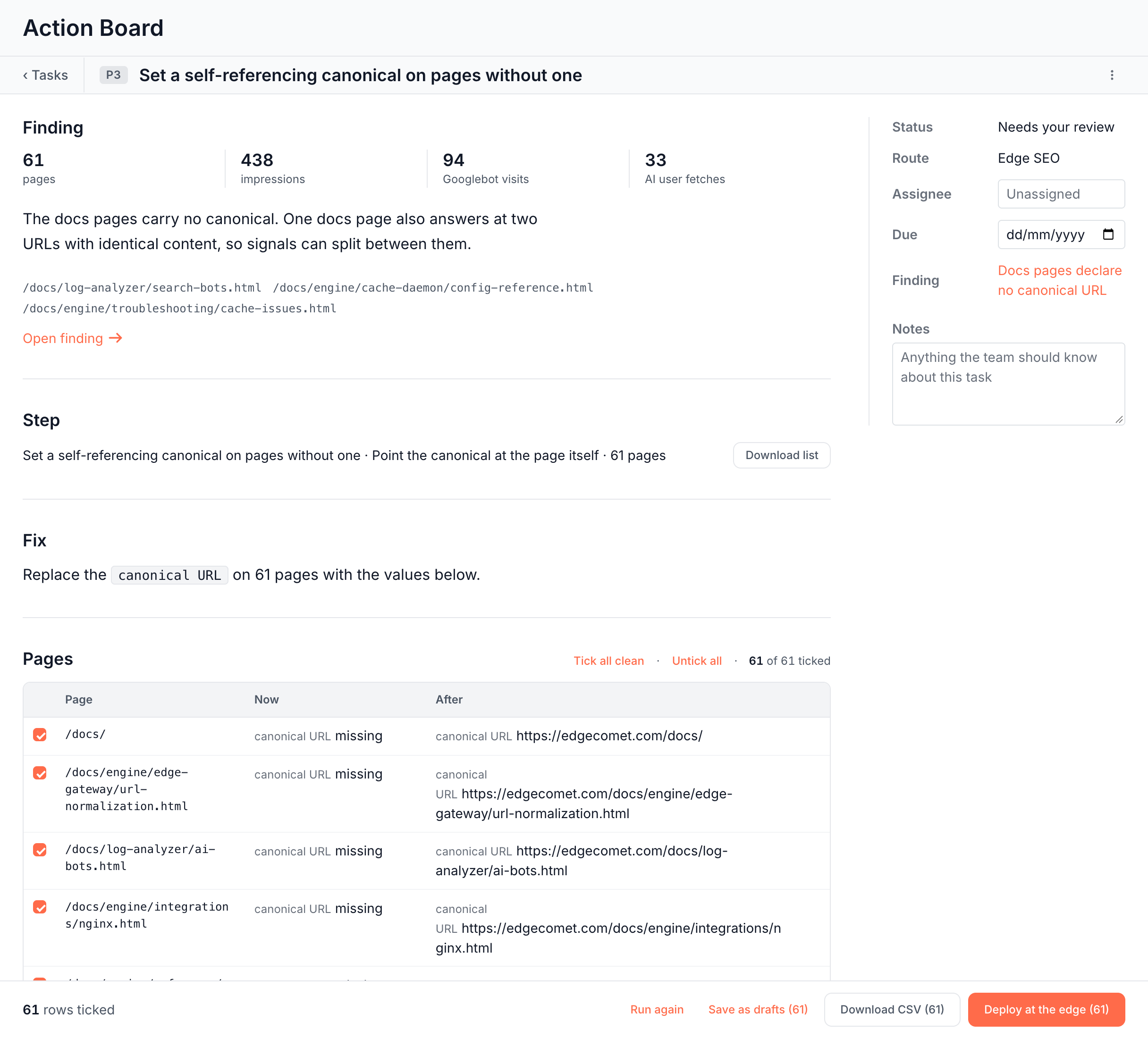
When the drafts are written, the task reads Needs your review and the Pages table lists every page the fix changes:
- Page: the URL.
- Now: the value the page serves bots today, per field.
- After: the drafted value, per field, with any flags under it.
Clean rows arrive ticked and flagged rows arrive unticked, which puts every flagged value in front of a person. The header shows Tick all clean, Untick all and a counter such as "61 of 61 ticked".
Rows with written values, such as titles and meta descriptions, have two actions:
- Edit: changes the drafted values of that page. Saving the edit ticks the row.
- Regenerate: writes that one row again. The task returns to drafting until the row is back, and the other rows keep your decisions.
Values EdgeComet derives from the page itself, such as a canonical pointing at the page's own URL, have nothing to rewrite and show no actions.
Briefs started from a finding arrive as documents on the task and the finding, not in this table. See Read, change and hand off the briefs.
A run can end with nothing to change, because every page already carries the value the fix sets. The table then reads "Nothing to generate - the target set is empty."
A cancelled run keeps what it wrote. See When a run stops early.
Flags on a drafted value
A flag marks a value worth reading before it goes live. It is not an error, and you can deploy a flagged row after you read it.
| Flag | When it appears |
|---|---|
| Empty | The draft has no value for that field. |
| Unchanged | The new value equals what the page already serves, ignoring spaces. |
| Placeholder | The value contains a template token in curly braces such as {brand}, or "TODO", "lorem ipsum" or "XXXX". |
| Over length | A title runs past 70 characters or a meta description past 175. Drafts aim for 60 (title) and 155 (meta description) characters. |
| Review required | The fix sets the same fixed value on every page, such as a robots directive, or deletes an element. |
| Empty body | A brief has no text. |
| Short body | A brief has fewer than 200 characters. |
| No keyword grounding | The page had no Search Console queries or keyword research to write toward, only its content. |
| Thin grounding | The page had no queries, no keyword research and no content to read. |
Deploy, save or download the ticked rows
The footer counts the ticked rows, such as "61 rows ticked", and offers what to do with them:
- Deploy at the edge (N): saves the ticked rows as Edge SEO rules and deploys them in one step.
- Save as drafts (N): saves them as Edge SEO draft rules without deploying. The task moves to Ready to deploy.
- Download CSV (N): downloads the ticked rows as a CSV for your own CMS. The file stays in Outputs as a Rewrite set document.
- Download bundle (N): for briefs, downloads the ticked briefs as a ZIP.
- Run again with a focus: starts the drafts over with a note that steers them. See Run a generation again.
The buttons stay disabled with "Tick at least one row" until you tick a row. Deploy at the edge and Save as drafts appear only for fixes the edge can serve.
Deploy at the edge opens a confirmation titled "Deploy N rules?". It states how many pages get a new value, and how many ticked rows carry a flag and which ones. It reads:
The rules go live on the edge immediately. Your origin code is not changed - bots read the rewritten page, and where the Edge SEO snippet is installed your browser visitors read the same rewrites. Roll back stays one click on this page.
Each ticked page becomes one rule. After a deploy or a save, the task page reports what it staged, such as "12 staged, 3 skipped (no change)". A skipped row already served the value you approved.
If a deploy does not go through
- "A deploy is in progress on this site - try again in a minute." Another deploy is running on the site. Your drafts are safe; deploy again in a minute.
- "The drafts were saved, but the deploy did not go through. Deploy them from this page." The rules exist as drafts and the task is in Ready to deploy, one click from deploying.
- "N pages could not be drafted, so nothing was deployed. Deploy the drafts that were created from this page." Some rows could not become rules. The rows that became rules wait as drafts.
Deploy saved drafts
A task in Ready to deploy holds saved draft rules and nothing is live. The Pages section shows how far the fix reaches, such as "84 rules" with "2% of the 4,120 pages seen in the last 30 days".
A ledger shows Page, Now, After deploy and Length for the first six rows, and Show all N opens the rest.
Each row has three actions:
- Preview: opens the page with the draft applied, in a new tab.
- Edit: changes the drafted value in place. Open in the rule editor opens the full Edge SEO editor for that rule.
- Discard: removes that draft after "Discard this draft? The page keeps its current title."
Select all and Discard selected remove several drafts at once. A Scope section warns about the reach when needed, such as "12 of these pages already carry a title; the rule replaces it." or "Wide blast radius: this changes most of the site."
A fix written as one rule for many pages, such as a noindex on a URL pattern, shows "N pages match", a sample of matching pages with their Now and After deploy values, and Test a URL. Paste any URL to see whether the rule applies to it:
- Matches. with the value the page serves after deploy.
- "This rule does not apply to that page.", or the filter that excludes it.
- "No data yet for this URL - it has not been crawled."
Edit rule in the Fix section opens the rule in Edge SEO.
The footer reads "N draft rules · nothing is live yet". Deploy N rules opens the same reach check as Edge SEO. See How many pages a rule affects. Discard removes every draft of the task.
After deploy
A deployed fix reads Live since the deploy date, or Partly live when some of its drafts are still waiting. The Pages ledger switches to Page, Was, Now served and Length, with each rule marked Active, Draft or Archived.
The After deploy section shows:
- Deployed: the date and time, and how many rules are active.
- Verification: where the confirmation stands, such as Awaiting verification or Confirmed fixed. See Verification labels.
- History: every event with When, What and Who: Created, Edited, Deployed, Rolled back, Restored to draft and Draft discarded.
The footer reads "84 rules live", the deploy date and the verification label. Deploy the remaining N appears when some drafts were left out of the deploy.
Roll back a fix
Click Roll back in the footer and confirm "Roll back all N rules? They stop applying immediately." The task reads Rolled back:
These rules no longer apply, so the pages serve the "was" values again. To bring the batch back, restore it to draft in Edge SEO and deploy from there.
The rules stay in Edge SEO on the Rolled back tab with their history. See Roll back a rule.
When a fix ends without going live
A fix that never goes live ends as Discarded, Failed or Cancelled, and each one offers a new run.
- Discarded: the drafts were discarded on the date shown, and "Nothing was ever live." The footer reads "Discarded · nothing was live" and offers Run again with a focus.
- Failed: the run stopped, such as "Stopped after 3 of 40 pages · nothing was created". Run again starts a fresh run on the same task.
- Cancelled: a person cancelled the run, and what it already wrote is kept. Run again starts a fresh run on the same task.
Action Board drafts in Edge SEO
Saved drafts also appear on the Drafts tab of Edge SEO as one change, with the Action Board icon beside the author. Its Pages column names its pages, such as "84 pages". Expand it: "Fixes the Action Board finding" links to the finding, and each page lists its field with the Now and New value.
You can deploy the batch from the task page, or from the rule editor with Deploy N drafts, and the task page updates to match. The list on the Edge SEO page does not deploy. On the task page, Open in Edge SEO in the Batch row opens the batch in Edge SEO. See Review drafts from the Action Board, Ask and AI clients.
Where to find it
In the dashboard: Action Board > Tasks, then the task. From a finding, Review the drafts or Open the task under The fix opens the same page.