

Create and compare crawls: Current, monthly and custom
Every Evergreen Crawl report reads one crawl, and the Crawls manager is where you pick it. You can open a past crawl, start a custom crawl for the bots and period you choose, or rebuild the Current crawl.
You never have to start a crawl for the reports to work. The Current crawl rebuilds itself every day, and a monthly crawl is added at the start of each month.
A custom crawl is built from the bot visits EdgeComet already recorded. It takes minutes and sends no requests to your site.
Open the Crawls manager
Click the crawl selector in the header of any Evergreen Crawl report. It shows the name of the crawl you read, Current by default. The Crawls manager lists every crawl of the site with four columns:
- Crawl: the name, with a custom badge on crawls you started and a pin on crawls you keep.
- Period: the window of bot visits the crawl covers, such as Sep 18 - Oct 18.
- Bots: the bots whose visits built it, such as Search + AI for every search engine and AI bot.
- Pages: how many pages it holds.
The crawl you read shows Viewing. Click View on another row to read it instead. Every report, and every link under Evergreen Crawl in the sidebar, follows you onto that crawl until you pick another one.
Current, monthly and custom crawls compared
The three kinds of crawl differ in who makes them and what they cover:
| Kind | Name in the list | Covers | Made |
|---|---|---|---|
| Current | Current | The last 30 days of bot visits and pre-cache fetches | By EdgeComet, rebuilt every day |
| Monthly | The previous month, such as September 2026 | The 30 days before the crawl was made | By EdgeComet, in the first days of each month |
| Custom | Your name for it, or one made from the bots, days and date, such as Googlebot - 14d - Aug 20 | The bots and period you choose | By you, with + New crawl |
A rebuild replaces the Current crawl in place, and the previous build stays readable until the new one is ready. A monthly crawl covers the 30 days before it was made: the crawl named September 2026 can run from the first days of September into the first days of October.
Start a custom crawl
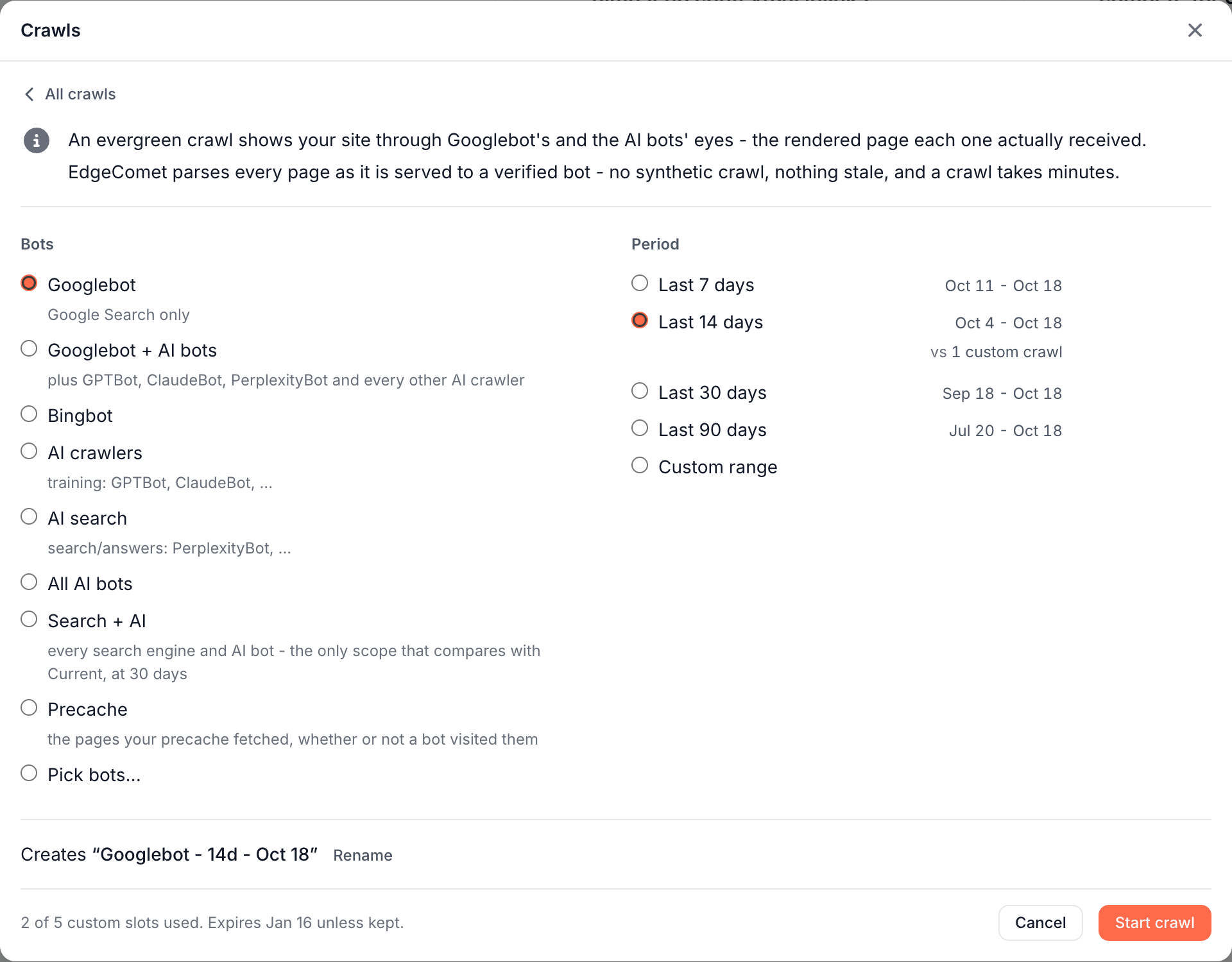
Start a custom crawl to audit what one group of bots received, or a period of your choice, such as the week after a release.
- Open the Crawls manager and click + New crawl.
- Under Bots, pick Googlebot (the default, Google Search only) or Googlebot + AI bots. More bots shows Bingbot, AI crawlers, AI search, All AI bots, Search + AI, Precache and Pick bots..., which lets you tick bots one by one.
- Under Period, pick Last 7 days, Last 14 days (the default), Last 30 days or Last 90 days, or Custom range with a From and a To date.
- Optional: click Rename to name the crawl.
- Click Start crawl.
Under the selected period, the form names the crawls the new one will be comparable with, such as "vs 1 custom crawl". When none covers the same window, it reads "No crawl covers that window yet, so one is built automatically from your recorded data." Search + AI over 30 days is the only choice that compares with Current.
Precache audits the pages your pre-cache rules fetched, whether or not a bot visited them, including pages from your sitemaps that no bot has requested yet.
A site keeps up to 5 custom crawls at a time, and the form shows how many slots are used. A custom crawl expires 90 days after you start it, unless you keep it: Keep in its row menu pins it, and the pin reads "Kept - never expires".
Watch a crawl build
Starting a crawl opens its progress in three steps: Building the crawl, Checking issues and Ready. The progress names the step the engine is on, how many pages the crawl covers and, for a site that has built crawls before, how long its crawls usually take.
When the title reads "Crawl is ready", click View this crawl. A crawl that is still building shows Watch on its row, which reopens the progress.
Rebuild the Current crawl
The Current crawl rebuilds on its own every day. To rebuild it at once, for example right after a fix went live, click Rebuild now on its row. The rebuild covers the 30 days up to that moment.
While it runs, its progress notes "Rebuilding - the published crawl stays readable until this finishes." The rebuilt crawl opens before its issue checks finish, and its issues fill in when they do.
You can rebuild by hand once a day. When Rebuild now is unavailable, hover it to see why:
- "This crawl was updated less than 24 hours ago. It can be rebuilt by hand once a day."
- "The last rebuild of this crawl did not finish. It can be started again 6 hours after it stopped."
- "No verified bot visits reached this site in the last 30 days, so a rebuild would replace this crawl with an empty one."
Rename, keep, run again or delete a crawl
The three-dot menu (⋮) on a monthly or custom crawl's row holds its actions:
- Run again: opens the new crawl form with the same bots. For a 7, 14, 30 or 90-day crawl, the form selects the same number of days ending today, and any other window keeps its own dates.
- Rename: custom crawls only. A monthly crawl keeps its month name.
- Keep or Unkeep: custom crawls only. A kept crawl never expires.
- Delete: removes the crawl and its data after you confirm.
A completed Current crawl has no menu and cannot be deleted. This month's monthly crawl can be deleted after the 7th, and older monthly crawls at any time. A deleted monthly crawl cannot be made again and leaves a permanent gap in the site's month-over-month history.
A custom crawl that is still building offers Cancel and delete, and a crawl that failed offers only Delete.
Which crawl each report compares with
Every report compares automatically, with nothing to configure. Each change figure compares the crawl you read with an earlier crawl that EdgeComet picks: one with the same bots and the same window length, which starts no later than yours.
- Current compares with the latest monthly crawl.
- A monthly crawl compares with the monthly crawl before it.
- A custom crawl compares with the closest earlier crawl of the same bots and window length. When none exists, EdgeComet builds one over the window just before yours from your recorded bot visits. It does not appear in the list and does not use a slot.
The Change column and every Changed since last crawl card read this comparison. They show the pages that entered and the pages that left, never only a net figure, and you can open the pages behind each number.
Compare a crawl with the one before it, row by row
To see each URL of a crawl next to the same URL in the crawl before it, pick the crawl in the report header and open Data Explorer > Evergreen Crawl > Crawl comparison. View rows links in Evergreen Crawl reports open the same tab with the report's own comparison crawl. See Compare two crawls.
What you should see
- The crawl selector in every report header names the crawl you read.
- At the right of the tab row, the crawl's name and window, such as Current Sep 18 - Oct 18, with a green dot on Current.
- With a filter applied, that line starts with "Scoped to" and the segment, and a whole crawl tag marks the facts that describe the crawl itself rather than the filtered pages.
If it does not work
"Your first crawl is scheduled"
The site has no crawl yet. The first one is built once the site has 3 days of verified bot visits, and Run a crawl now builds one at once. See Your first days.
"Building your crawl" or "Counting issues"
The crawl is being built, or it is built and its issues are being counted. The report opens on its own when they finish, usually within minutes.
"No earlier crawl to compare this one against"
No earlier crawl has the same bots and window length:
- On Current, the site has no monthly crawl yet.
- On the first monthly crawl, no monthly crawl comes before it.
- On a custom crawl, your recorded bot visits do not reach back far enough to build one.
While the comparison crawl is still being built, cards read "The comparison crawl is still being built - this will fill in shortly."
"All 5 custom crawl slots are used. Delete a custom crawl to free one."
Delete a custom crawl you no longer need from its row menu, then start the new one.
"A crawl with these bots is already building - it is in the list. Wait for it to finish, then try again."
One crawl per set of bots builds at a time. Wait for the one in the list to finish.
"This crawl fetched no pages"
The crawl's window holds no page the chosen bots fetched. The detail line says which case applies:
- "No verified bot fetched a page from this site between" two dates: the bots you picked did not visit in that window. Start a crawl with more bots or a longer period.
- "This crawl's window ends on" a date "before your first recorded bot visit": pick a later window.
- "No verified bot visit has ever reached EdgeComet from this site, so this crawl had nothing to assemble." Bots do not reach EdgeComet yet. See Check that bots reach EdgeComet.
Click Choose another crawl to go back to the list.
"This crawl did not finish, so it has no data to show."
The build failed. Delete the row, then start the crawl again, or wait for the next scheduled build if it was Current or a monthly crawl.