

Choose a serving mode: Cache-only or Cache + Render
The serving mode decides how EdgeComet builds the pages it serves to bots:
- Cache-only stores the HTML your server sends and serves it from the cache.
- Cache + Render runs the page's JavaScript in headless Chrome first, then caches the result.
You choose the mode in step 2 of adding a website.
The two modes
| Cache-only | Cache + Render | |
|---|---|---|
| What bots receive | Your server's HTML, from the cache | The page after its JavaScript ran, from the cache |
| Built for | Server-rendered sites, static HTML, WordPress and most CMSs | React, Vue, Angular and other single-page apps |
| Device profiles | One, Bypass, for every bot | Mobile and Desktop render profiles for search engines and AI bots, plus Bypass for every other bot |
| Cache on a miss | Fetches the page from your origin | Renders the page in headless Chrome |
Each device profile, called a dimension, has its own viewport and its own cached copy of every page. A Cache + Render website starts with these three:
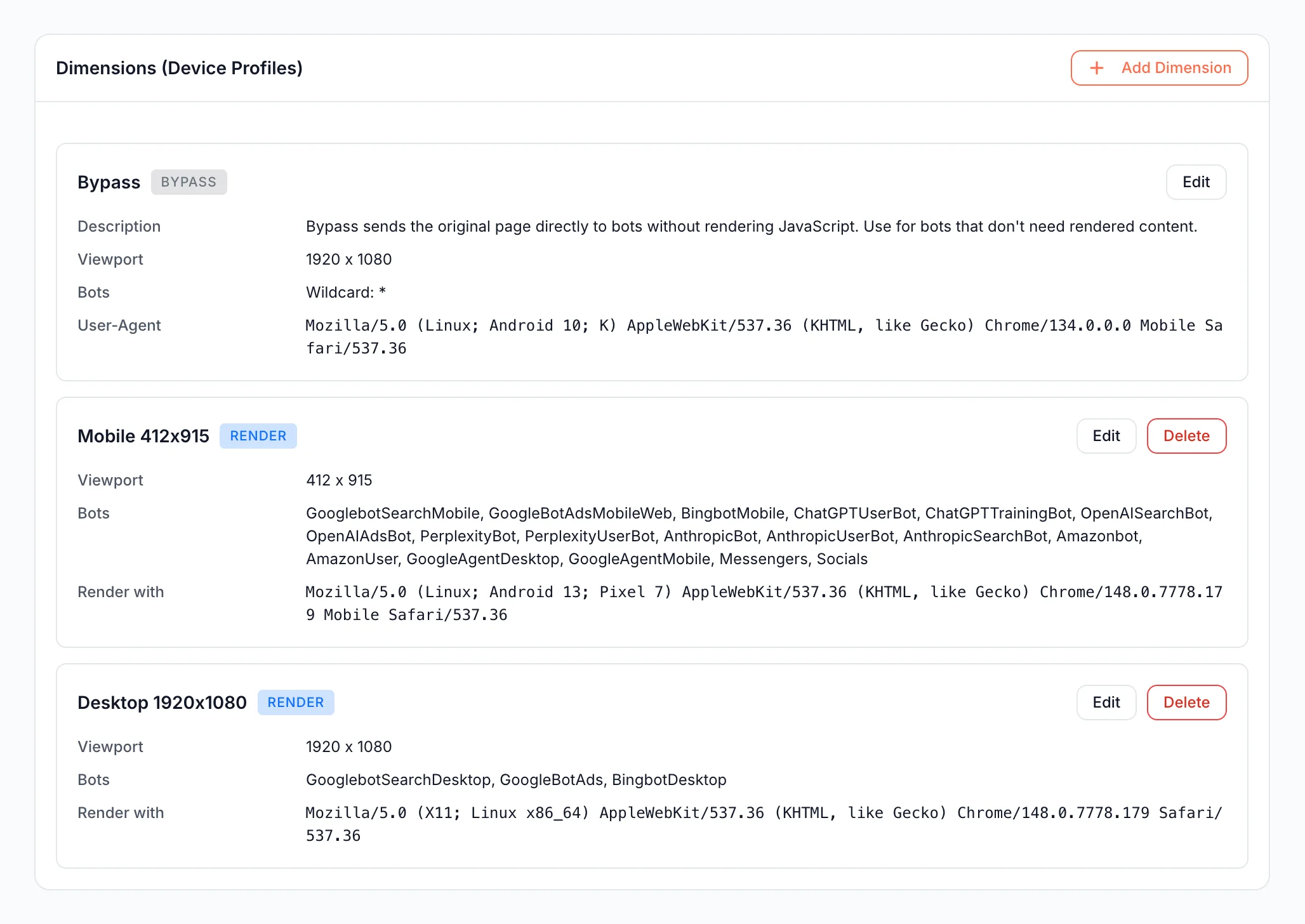
Which mode your site needs
Choose Cache-only if the HTML your server sends already contains your content, titles, links and structured data. Choose Cache + Render if that content appears only after JavaScript runs in the browser.
This matters most for AI bots. Googlebot renders JavaScript in a later pass, but the AI bots EdgeComet has tested read only the HTML your server sends. See How Googlebot and AI bots handle JavaScript.
| Your site | Usual mode |
|---|---|
| WordPress or another CMS that builds pages on the server | Cache-only |
| Static site or static site generator | Cache-only |
| Next.js or Nuxt with server-side rendering or static generation | Cache-only |
| React, Vue or Angular single-page app | Cache + Render |
| Content loaded by JavaScript after the page loads, such as prices, reviews or product lists | Cache + Render |
Check what your server sends
Open a key page in your browser and choose View page source. If the text, headings and links you see on the page appear in the source, your server sends them.
Or request the page without JavaScript and search for a sentence from it. A request with curl's own user agent goes to your origin, not to EdgeComet:
bashcurl -s https://example.com/your-page | grep -o "<title>[^<]*</title>" curl -s https://example.com/your-page | grep -c "A sentence from the page"The first command prints the page title. The second prints how many lines contain the sentence.
0means your server does not send it.Or compare a page with and without JavaScript on jsbug.org, EdgeComet's free page analyzer.
Change the mode later
The wizard has no mode switch after you create the website. You change what bots receive by editing the device profiles under Configuration > System Settings > Dimensions:
- To start rendering on a Cache-only website: click Add Dimension, choose the Render action, a viewport and the bots it serves, then click Save Dimension and Save. Click Deploy in the banner to publish the change.
- To stop rendering: delete the render dimensions, then Save and Deploy. Every bot then gets the Bypass copy. Turn on Bypass cache under Configuration > Caching > Settings so those copies are cached.
To render or bypass only some URLs, use URL rules under Configuration > System Settings > URL Rules instead of changing the whole site. See Serve mobile and desktop versions to the right bots for every dimension setting.
How the mode affects usage
The serving mode does not change your usage. Usage counts Googlebot requests, whether EdgeComet serves them from the cache, renders the page or fetches it from your origin. Every other bot, including Bingbot and every AI bot, is free. See Do AI bot requests count toward EdgeComet usage?
If it does not work
Bots get an empty or partial page
On a Cache-only website, your server may not send the content. Run the check above, and add a render dimension if the content is missing. On a Cache + Render website, see the render check.
A rendered page misses content that loads late
The render ends when the page's network requests settle, after up to 15 seconds by default. For content that loads later, raise Render Timeout or add Additional Wait under Configuration > System Settings > Rendering. Turn on Scroll Page for sections that load only when scrolled into view. See Render settings.