

Changes overview
EdgeComet Changes logs every change to the SEO facts of the pages search engines and AI bots receive: status code, redirect target, indexability, canonical, title, meta description, H1, structured data, hreflang, the page body and your own extracted fields, such as price or stock. Also called SEO change monitoring or a site-wide page change log.
The log comes from the pages EdgeComet renders and fetches for bots, across the whole site. Nothing crawls your site to look for changes. A change made outside your release process, such as a plugin update, a hotfix or a CDN rule, shows up too.
On top of the log, Changes ranks what changed by priority, losses first, finds site releases (the same change on many pages of one page type), and shows whether Googlebot and AI bots have fetched each changed page again.
How Changes works
EdgeComet compares each new copy of a page with the copy before it and logs every tracked field that moved. The result is the page change log: one entry per change, with the page, the field, the value before and after, and the time.
A new copy comes from each render or origin fetch EdgeComet makes for a bot, and from each pre-cache rule refresh. A page served from the cache is a copy EdgeComet already has. The log updates every 5 minutes.
The Changes report, Page Analysis, alerts, Ask and the MCP server all read the same log.
When a change shows up
A change appears within minutes of the next render or origin fetch that carries it. A page served from the cache shows the change once EdgeComet renders it again: when its cached copy expires, when a pre-cache rule refreshes it, or when you re-cache it.
To record a change at once, re-cache the page. See Recache or remove one page. Pre-cache rules keep important pages fresh without waiting for bots. See How EdgeComet keeps cached pages fresh.
On a new site, the first change appears after the second copy of a page: "A change is detected when a bot fetches a page again, so the first one appears after the second fetch of a page."
How copies are compared
The log keeps to real changes:
- First copy: the first copy of a page opens its history. That is not a change, and neither is the first value an extraction rule finds.
- Errors and redirects: a page that redirects or answers with an error logs a status code change, not a lost title or canonical. A page that redirects for a day and comes back logs two status code changes.
- Mobile and desktop: each cached version of a page, such as mobile and desktop, has its own history. Counts in the report are pages, not versions.
What Changes tracks
Changes tracks 11 fields on every page, plus each custom extraction field you track. The Group column is the color the field takes on the Timeline chart.
| Field | Group | What gets logged |
|---|---|---|
| Status code | Status codes | The status moved, such as 200 to 301 or 200 to 404 |
| Redirect target | Status codes | A redirect started or now points somewhere else |
| Index status | Indexing | The page moved between Indexable, Blocked and Non-canonical |
| Meta robots | Indexing | Directives were added or removed, such as noindex |
| Canonical URL | Indexing | The canonical was added, removed or rewritten |
| Title | Title | The title was filled, emptied or rewritten |
| Meta description | Description | The description was filled, emptied or rewritten |
| H1 | Headings | H1 headings were added, removed or rewritten |
| Structured data | Head tags | schema.org types were added or removed |
| Hreflang | Head tags | Language alternates were added, removed or replaced |
| Content | Content | The page body became less than 80% similar to the previous copy |
| Your extraction fields | Extraction | A tracked custom extraction value was filled, emptied or changed |
Index status is EdgeComet's verdict from the page's HTML. Blocked means a robots meta tag blocks indexing, and Non-canonical means the canonical points to another URL.
Each Content change shows how similar the two copies of the page body are, such as "58% similar".
Track your own fields
Each custom extraction rule that returns one value, such as a price, a stock flag or a review count, is tracked as its own field, named after the rule. A drop in stock or a price that vanished from product pages shows up next to the SEO changes.
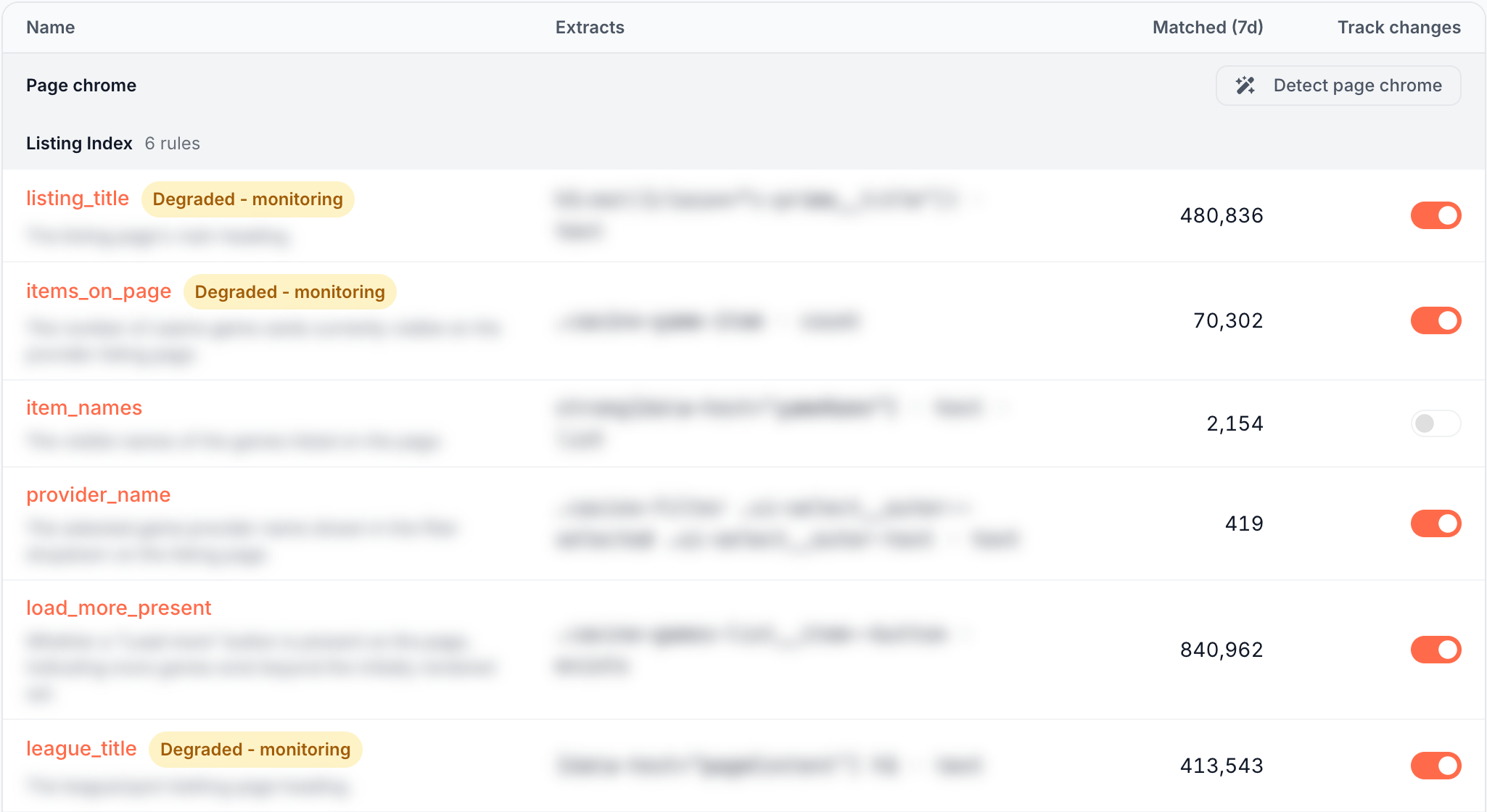
Each of these rules has a Track changes switch in Configuration > Custom extractions, on by default. Turning it off hides the rule's history from the Changes report, the Change log and the alert field list. EdgeComet keeps collecting the values, and turning it back on shows the full history at once.
Rules that return a list of values are not tracked. Their switch is off, and its tooltip reads "Lists are not tracked".
Page types
The Changes table and Recrawl group pages by page type: the segments that sort your URLs, such as product pages, listings and articles. EdgeComet creates them in your first days, and a page in none of them is under Other pages. See What EdgeComet configures on its own.
Site releases uses its own page types, built from URL patterns such as /blog/*. See Page types in a release.
What you can see
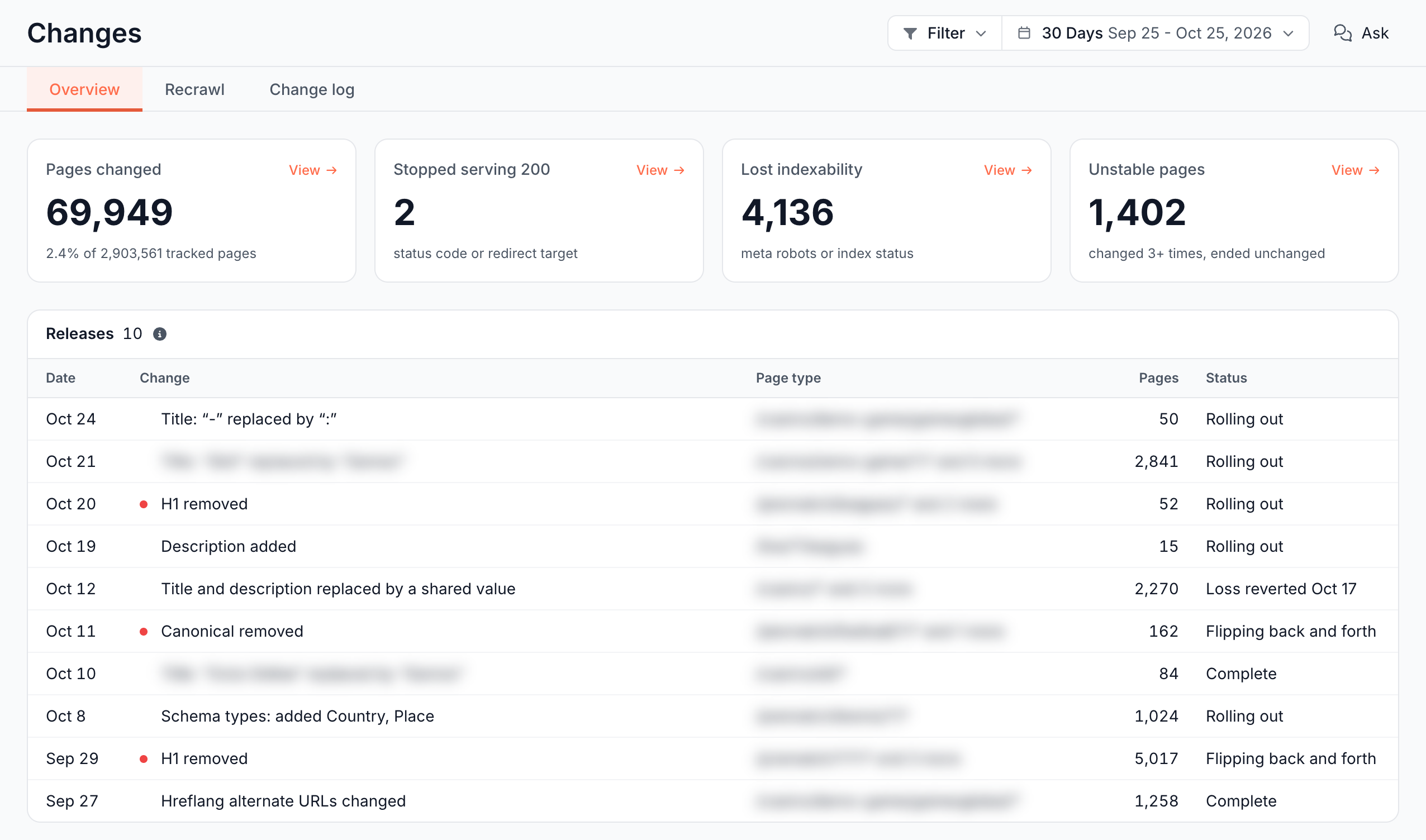
The Changes report has three tabs, and each release opens its own page.
Overview: what changed, and which changes matter?
Four cards count changed pages and losses, the Timeline charts them per day, and the Changes table ranks every change pattern by priority. See Review SEO changes across your site by priority.
Site releases: did a deploy change many pages at once?
EdgeComet finds site releases on its own and follows each one until it is complete or reverted. Nobody has to log a deploy. See Site releases: deploys that changed SEO on many pages.
Recrawl: have bots fetched the changed pages again?
For each changed page it counts, Recrawl shows whether Googlebot, Bingbot and each AI crawler fetched it after the change, or last fetched it before. See Did Googlebot and AI bots refetch your changed pages?
Change log: what exactly changed, before and after?
The Change log lists every change, or every changed page with its fields, with quick filters such as Lost indexability and Title changed, and exports to CSV or Google Sheets. See Change log: every SEO change with before and after values.
Page Analysis and alerts: where else do changes show up?
- One page: Page Analysis shows a page's changes on its Google clicks and impressions chart. See Track SEO changes on one page against its Google traffic.
- Alerts: Pages changed fires when chosen fields change on many pages, and Site releases when a release breaks something. See Get alerted when titles, canonicals or noindex change and Get alerted about a release.
Ask and MCP
Ask and AI clients connected to the EdgeComet MCP server read the same log and the same releases. You can ask for the changed pages with their old and new values, one page's history, or whether the pages whose title changed lost Google clicks.
The Ask button on the report offers starter questions: "Did changes hurt indexability?", "Has Googlebot seen the changes?" and "Which change type dominates?".
Period and filter
The report header has a Filter, a period and an Ask button. They apply to the Overview and Recrawl tabs. A release page shows the same header, but the period and filter do not change it.
- Period: Last 24h, 7 Days, 14 Days, 30 Days (the default), 90 Days or Custom, up to 365 days. Days are UTC days.
- Filter: a saved segment, or rules you build. A rule on the URL narrows the report to those pages. A rule on another field, such as the bot, narrows it to pages that had a matching request in the period.
- Releases: the Releases card lists releases from the whole site. The filter does not apply to it.
- Blank filter: a segment whose rules are all blank shows "This scope narrows nothing". Give a rule a value, or pick another segment.
How this differs from crawler-based change monitoring
A crawler-based change monitor requests your pages on a schedule and compares its own copies. Changes reads the copies real bots received:
- The copy bots got: each change comes from a page EdgeComet served to Googlebot, Bingbot or an AI bot, rendered when your site needs rendering, or from your pre-cache rules. It is what search engines and AI assistants read, not a copy made for monitoring.
- The whole site, with no extra requests: every page EdgeComet renders or fetches is tracked, on sites with millions of pages too. There is no page quota or crawl schedule to tune, and Changes sends no requests of its own to your origin.
- Releases, not a flood of page alerts: a template change on 5,000 pages becomes one release with a status, followed until it completes or is reverted.
- Seen and weighed: Recrawl shows which crawlers fetched each changed page again, and the Changes table ranks patterns with their Search Console impressions.
- Your own fields: prices, stock flags and other extracted values are tracked next to the SEO tags.
A crawler-based monitor reaches pages no bot has requested yet, on its own schedule. Changes logs a change when EdgeComet next renders or fetches the page. For a product comparison, see EdgeComet compared with a site crawler.
Where to find it
In the dashboard: Changes, with the tabs Overview, Recrawl and Change log. A release opens from the Releases card on the Overview tab.