

See every Googlebot and AI bot request in the Bot log
The Bot log in EdgeComet Data Explorer lists every request a search engine or AI bot made to your site through EdgeComet, one row per request, with the page the bot received. Also called the bot request log or raw bot logs.
EdgeComet records each request in the request path as it serves it. There are no log files to collect, upload or parse, and new requests appear in the table as bots make them.
The Bot log has three tabs:
- Requests: one row per bot request, with the bot, its IP verification, the status code, serve time and the page's SEO tags.
- Pages: one row per URL, with the requests it received in the period, averages, SEO changes and its Google Search Console clicks.
- New and lost URLs: URLs bots requested in one period and not in the other. See New and lost URLs in the Bot log.
Where the Bot log gets its rows
Every request your CDN or proxy routes to EdgeComet becomes a row: Googlebot, Bingbot, AI crawlers such as GPTBot and ClaudeBot, AI assistants fetching a page for a user, SEO tools and other bots. See How EdgeComet collects data.
Each row records how EdgeComet handled the request, as its event type: Cache Hit, Render, Bypass, Bypass Cache, Precache, Error or Rate Limited. Rendered and fetched pages carry an SEO snapshot of the page: title, meta tags, canonical, headings, structured data and links. See Log Analyzer sees page content.
The same rows feed the Log Analyzer reports, Evergreen Crawl and Alerts. Almost every Log Analyzer number opens the Bot log rows behind it.
What the Bot log shows when it opens
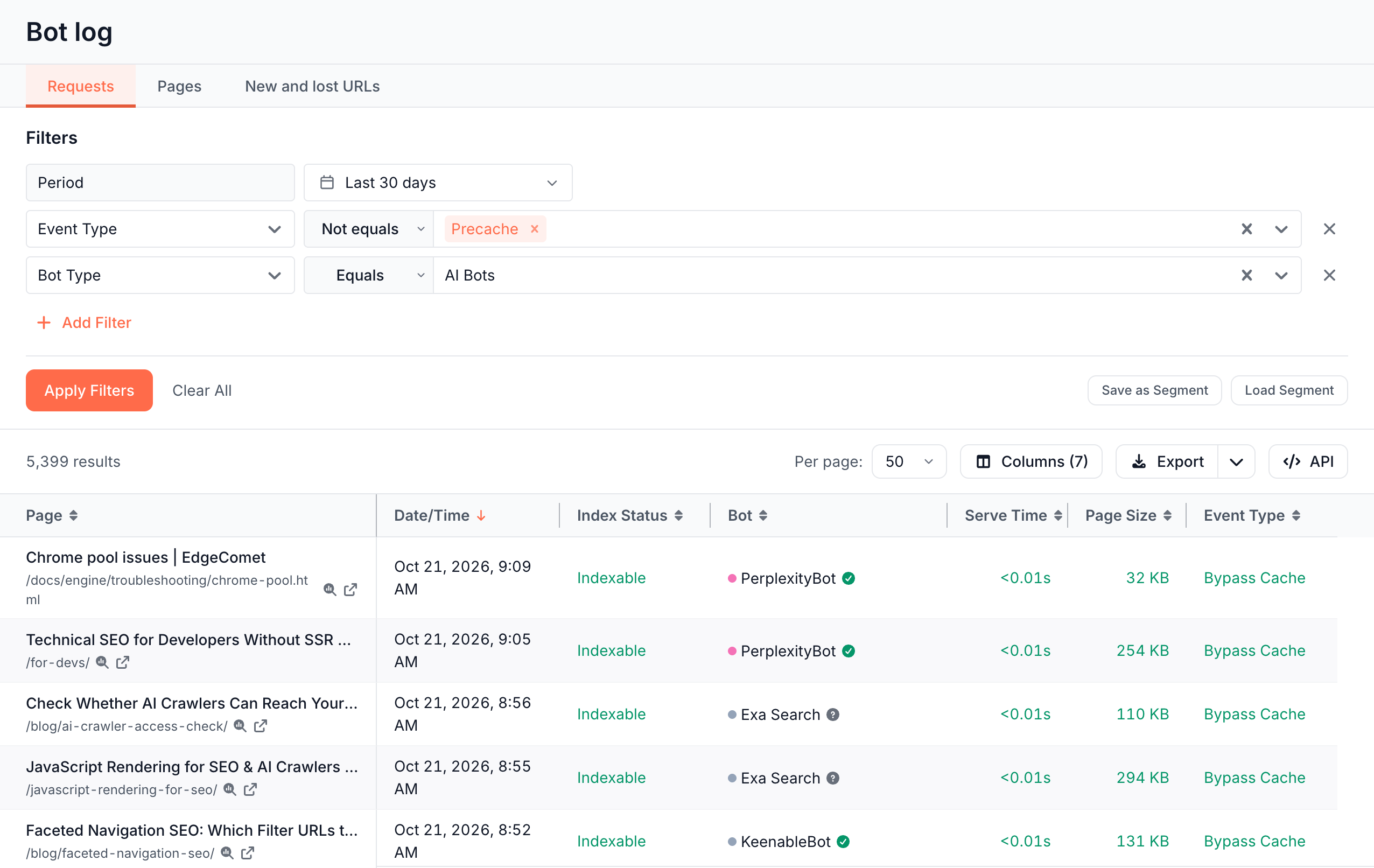
The Bot log opens on Requests for the Last 30 days, newest first, with 50 rows per page. The columns are Page, Date/Time, Index Status, Bot, Serve Time, Page Size and Event Type.
Two defaults keep the table to real bot traffic:
- Pre-cache fetches are hidden. The first filter row reads Event Type Not equals Precache. Remove it with its × to see the fetches EdgeComet made to fill its own cache. Clear All removes it too. Links from reports open without this row.
- Fake bots are left out. Requests whose IP failed verification do not show until you ask for them: add an IP Validation filter, set Bot Type to Fake Bots or Bad Bots, or use Fakes claiming this bot in the bot details.
The Page cell shows the page title above its path, and "redirect" for a redirect. The magnifier icon opens the URL in Page Analysis, and the arrow icon opens the live page.
Requests: one row per bot request
Requests shows each bot request with 44 built-in columns, plus one per custom extraction rule, grouped in the column picker:
| Group | Columns |
|---|---|
| URL | Page, Index Status, Canonical URL, Date/Time, Request ID |
| Bot | Bot, Bot Type, IP Validation, IP |
| Content | Meta Description, Meta robots, H1, Structured Data, Word Count, Title Length, H1 Count, Hreflang URLs, Hreflang Count |
| Links & Media | Total Links, Internal Links, External Links, Nofollow Links, Total Images, Images With Alt, Images Without Alt |
| Response | Status code, Page Size, Cache Age |
| Performance | Serve Time, Render Time, Resource requests, Total Bytes, 3P Requests, 3P Bytes, Same-Origin Requests |
| Event | Event Type, Source |
| Errors | Error, JS Console Messages, JS Errors, JS Warnings, Failed resource requests, Blocked Requests |
| Headers | Headers |
| Custom extraction | One column per extraction rule, titled with the rule's name |
To add or reorder columns, click Columns. See Choose columns.
Find the requests of one bot or bot type
Use the Bot filter to pick one or more bots by name. To match a user agent the list does not know, type part of it and choose Search: "...".
Bot Type narrows to a group of bots:
- Any Bot: every request from a bot.
- Search Bots: search engine crawlers, such as Googlebot and Bingbot.
- AI Bots: AI crawlers and AI assistants, such as GPTBot, ClaudeBot and ChatGPT-User.
- Social Bots: the link preview fetchers of chat and social apps, such as iMessage, WhatsApp and Facebook, without spoofed requests and Meta and Apple platform checks. See Which apps count as social bots?
- Other Bots: recognized bots outside Googlebot, Bingbot, ChatGPT, Claude and Meta AI, such as PerplexityBot and SEO tool crawlers.
- Fake Bots: requests whose IP is outside the ranges published for the bot they claim to be.
- Bad Bots: fake bots, plus bots that EdgeComet does not recognize and SEO tool bots. See What counts as a bad bot.
For the bots in each group, see Search bots, AI crawlers and AI user agents explained.
The Social bot check filter, in the URL group of the Requests tab, finds what a social bot ran into on a request, such as Shared page returns 404. Its values are the checks of Which shared links need attention?
Questions the Requests tab answers
Each question in this list is a set of filter rows. Add the rows with Add Filter, then click Apply Filters. See Filter Data Explorer tables by period, field and segment.
- Which Googlebot requests got a server error? Bot Googlebot Mobile and Googlebot Desktop, Status code
>=500. - Which pages did ChatGPT fetch for its users this week? Bot ChatGPT User, Period Last 7 days.
- Which requests did bots spend on low-value URLs? Budget Allocation Wasted. See Crawl budget and crawl waste explained.
- Which renders failed? Error Type Broken Page.
- Which requests carried an
x-robots-tagfrom your server? Origin Response Headerx-robots-tagExists. - Which scanner probes for secrets got a 2xx? Probe category Secrets & Keys, Response class 2xx, IP Validation Unverifiable and Fake. See Find exposed .env, .git and backup files scanners probe for.
Check whether a bot is real
The mark after the bot's name shows the result of EdgeComet's IP check on that request. Hover it for the reason, and click it to open the bot's details.
| Mark | Label | What it means |
|---|---|---|
| Green check | Verified | "The IP is inside the published IP ranges for {bot}." |
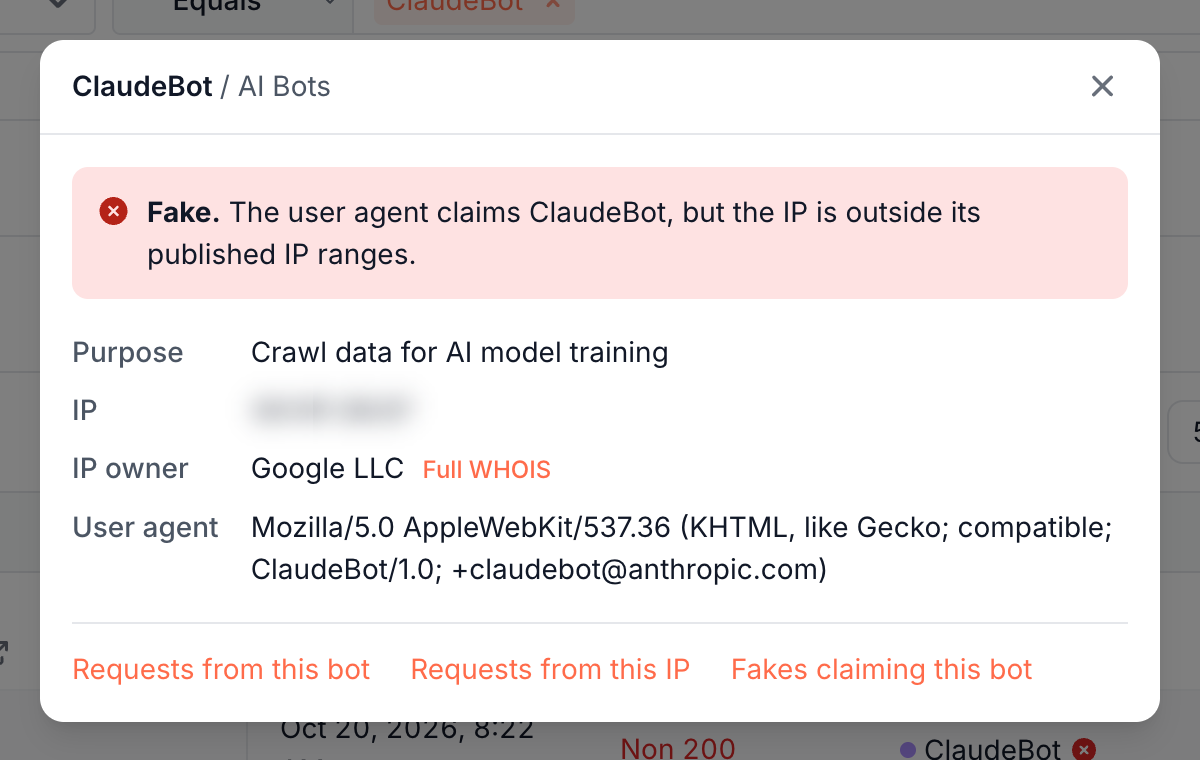
| Red cross | Fake | "The user agent claims {bot}, but the IP is outside its published IP ranges." |
| Grey question mark | Unverifiable | "EdgeComet has no IP list to check {bot} against, so its user agent is unconfirmed." For a bot EdgeComet does not recognize: "EdgeComet does not recognise this bot, so its IP was not checked." |
| Exclamation mark | Error | "The request arrived without a client IP, so it was not checked." |
How EdgeComet verifies bots covers each check and the operators that publish IP ranges.
The details window is titled with the bot and its category, such as Googlebot Mobile / Search Bots. Under the verdict it lists:
- Purpose: for AI bots, what the bot fetches for: "Crawl data for AI model training", "Build AI search indexes" or "Real-time user query fetching".
- IP: the address the request came from.
- IP owner: the organization that holds the address, from a WHOIS lookup. Full WHOIS shows the whole registry record.
- User agent: the full user agent string the bot sent.
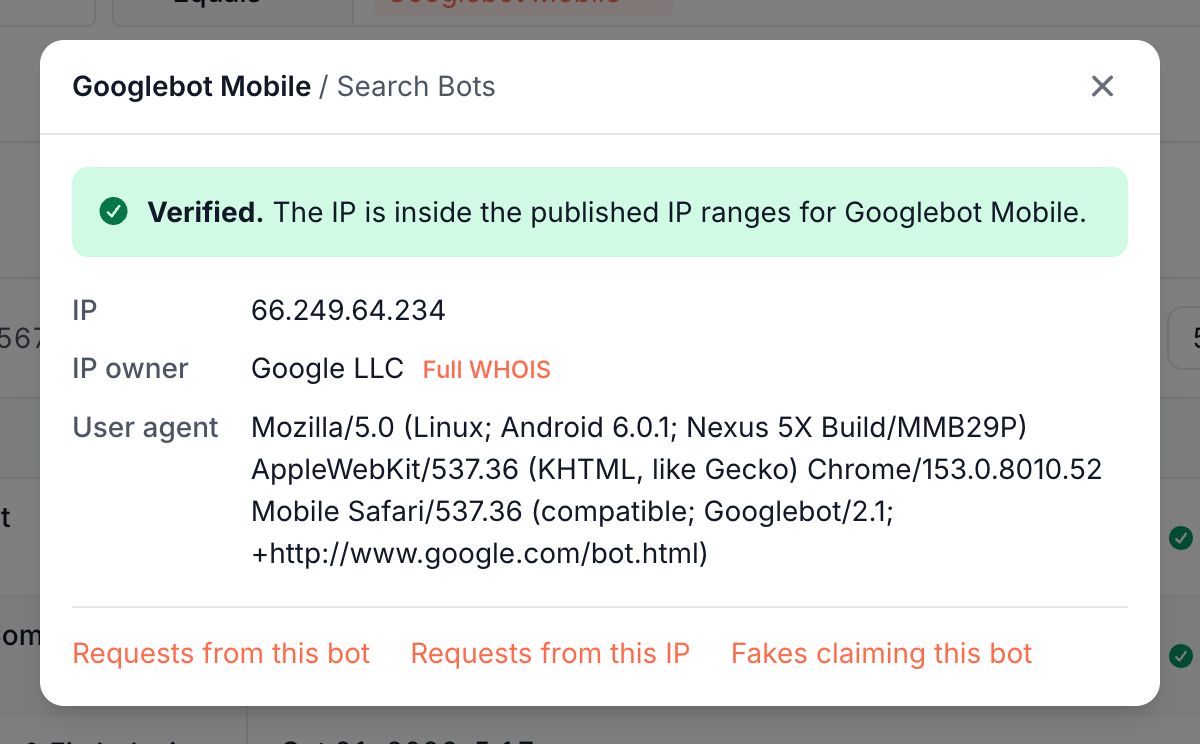
Three links open the matching requests in the Bot log, for the same period:
- Requests from this bot: every request from the bot.
- Requests from this IP: every request from the address, fake bots included.
- Fakes claiming this bot: requests that used the bot's user agent from an address outside its ranges. It shows for bots EdgeComet can verify.
For a fake, IP owner shows who holds the sending address. In this example, a request claimed to be ClaudeBot, Anthropic's training crawler, from an address that belongs to Google LLC:
To block bots that misuse a name, see How to block a bot.
Look up who owns an IP address
Add the IP column under Columns. The info icon beside an address, titled WHOIS lookup, opens WHOIS - {ip} with the Organization, IP Range, Network, Country, Status and Abuse Email of the address, then the raw registry text.
If the registry does not answer, the window reads "WHOIS lookup failed. Please try again later." Open it again a little later.
See the HTTP headers of a request
Add the Headers column to see how many headers each step of the request carried: Bot → EdgeComet, EdgeComet → Origin, Origin → EdgeComet and EdgeComet → Bot. Click the counts to open Request headers with every header of the four steps.
A request with no stored headers shows a dash and the tooltip "No headers were captured for this request." To find requests by header, use the filters Bot Request Header, Origin Request Header, Origin Response Header and Served Response Header.
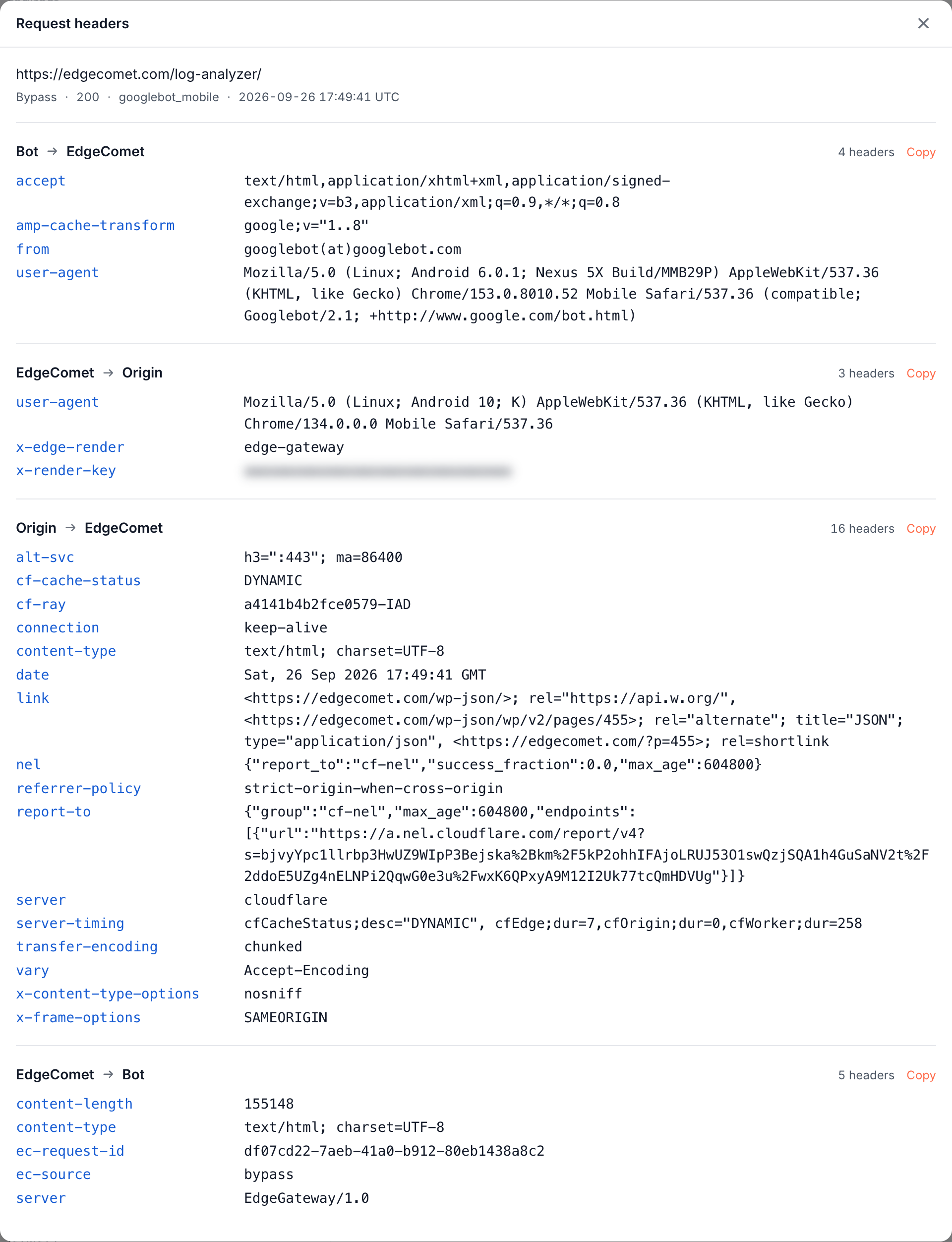
See the HTTP headers of each bot request covers what each step shows and the filter conditions.
Pages: one row per URL
Pages adds up the requests for each URL in the period. It opens with Page, Requests, Avg Serve Time, Avg Render Time and Error Rate, sorted by Requests.
Filters narrow the requests first, and each row adds up the requests that are left. With Bot Type set to AI Bots, Requests counts each page's AI bot requests, and Avg Serve Time averages them.
Other per-page columns include Avg Page Size, Cache Hit Rate, link and image averages, Word Count, Title Length and Structured Data.
Filter on totals and averages
The Aggregate Filters section, under the regular filters, filters on the per-page numbers instead of single requests:
- Total Requests: pages with more than 100 bot requests, for example.
- Avg Render Time and Avg Serve Time: pages that take over 2 seconds to render on average, for example.
- SEO Changed in Period: pages whose SEO tags changed in the period. See See which pages changed their SEO tags.
Put Google clicks next to bot requests
The Search Console column group brings each page's Google numbers into the same row: GSC: Clicks, GSC: Impressions, GSC: CTR, GSC: Position, their change against the preceding period of the same length, the prior values, and the page's GSC: Decay bucket and GSC: Decay cause.
EdgeComet joins the two sources by URL for the same period, counted in whole days. You need no SQL, export or spreadsheet to put them side by side.
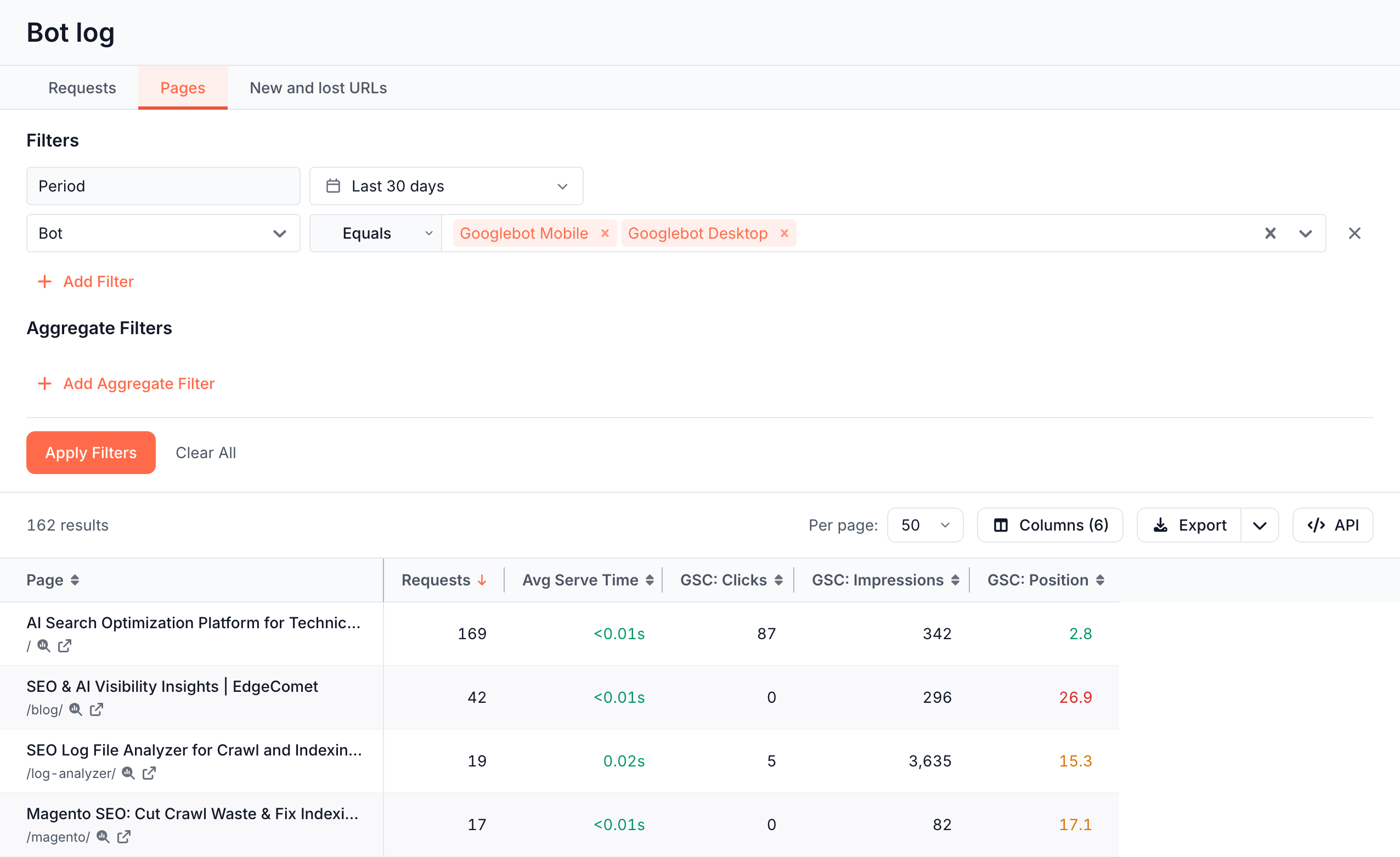
The GSC: ... filters work on Requests and Pages. They keep the pages, or the requests to pages, whose Search Console totals for the period match the rule. GSC: Presence set to Absent keeps pages with no Search Console data in the period, such as pages AI bots fetch that had no Google impressions.
How decay buckets and causes are defined is explained in Find pages and keywords losing traffic.
See which pages changed their SEO tags
The SEO Changes column group shows the first and last value EdgeComet recorded for a page in the period: Old Title and New Title, and the same pair for Canonical URL, Index Status, Meta Robots, H1 Headings, Structured Data and Hreflang.
To list only the pages where a field changed, add SEO Changed in Period under Aggregate Filters and pick the fields. A page matches when any picked field held more than one value in the period, including a tag that appeared or disappeared.
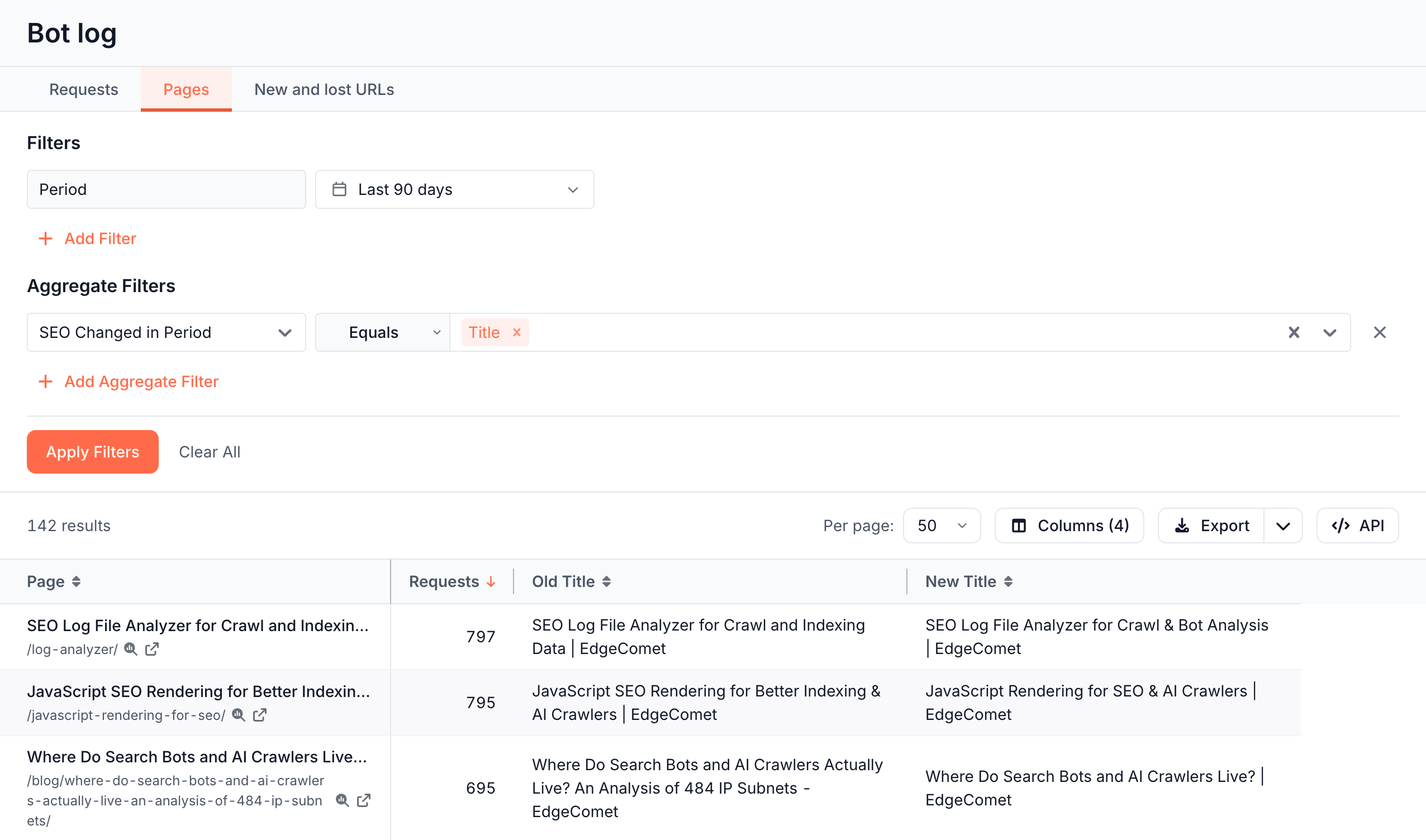
The values come from renders, pre-cache fetches and bypass fetches, the requests that carry a page snapshot. For one page's full history next to its Google traffic, see Track SEO changes on one page against its Google traffic.
Custom extraction columns
Each custom extraction rule adds a column and a filter, titled with the rule's name, in the Custom extraction group. On Requests, the column shows the value recorded with that request. On Pages, it shows the value from the page's latest render, pre-cache or bypass fetch.
If a link names a rule that was deleted, the table drops it and reads "Custom extraction field X no longer exists and was removed from this view."
Take the rows elsewhere
You can take a Bot log view out of EdgeComet three ways:
- Export: download the view as a CSV file or open it in Google Sheets. See Export Data Explorer tables to CSV or Google Sheets.
- API: the API button above the table shows the request that returns the same view from the Data Explorer API. See Get the API request for a view.
- MCP: AI clients connected to the EdgeComet MCP server read the same requests.
Where to find it
In the dashboard: Data Explorer > Bot log, with the tabs Requests, Pages and New and lost URLs.
Next
Related Articles
- Request headers – what Googlebot and AI bots send with every request
- Can Google Analytics Detect Bot Traffic? Why Server Logs Tell a Different Story
- Log File Analysis for SEO: A Practical Guide for 2027
- Log File Analysis in the Age of AI Bots
- Best SEO Log Analysis Tools in 2027: Features, Use Cases & Comparison
- Where Do Search Bots and AI Crawlers Actually Live?