

Filter Data Explorer tables by period, field and segment
Every EdgeComet Data Explorer table has a filter card above it, with the filter rows you add and, on tables that read dates, the period. Change the rows, click Apply Filters, and the table and its count update.
The view you build lives in the page address: filters, period, columns and sort. Bookmark it or send it to a teammate to open the same table.
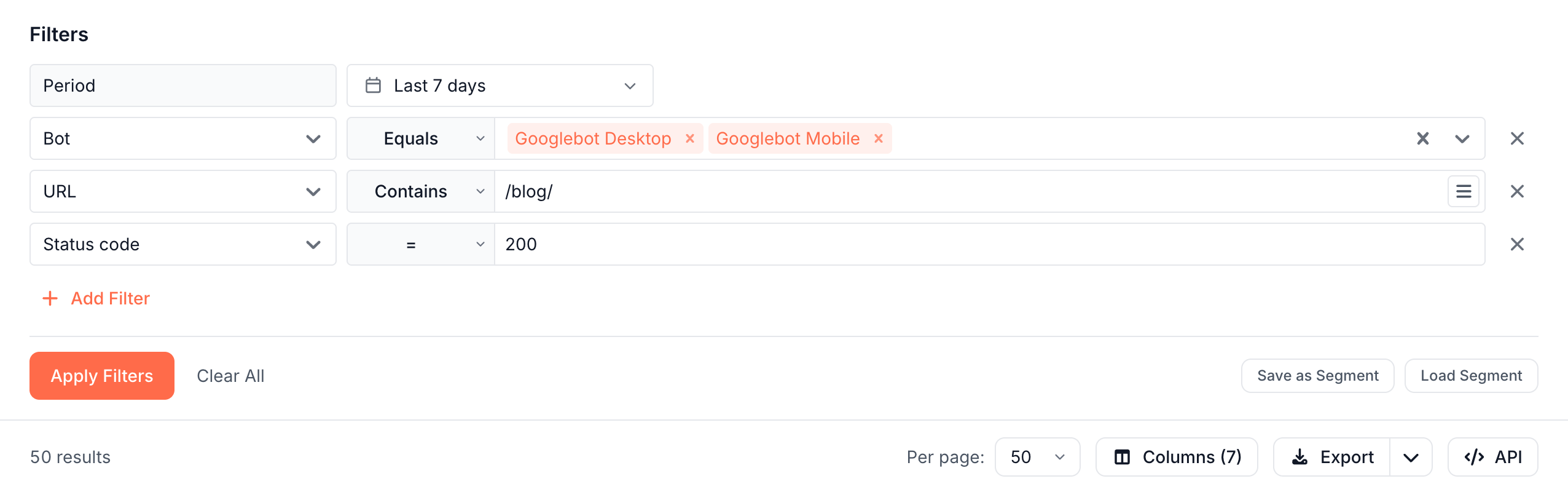
Add a filter row
- Click Add Filter. A new row opens on the URL field.
- Pick a field in the first box. Fields are grouped, such as Bot, Response and Content, and you can type to search them.
- Pick an operator, such as Contains or >=.
- Enter or pick a value.
- Click Apply Filters.
Until you apply them, a dot on Apply Filters marks the edits, with the tooltip "Filters have been modified". The × at the end of a row removes it, and Clear All removes every row and resets the period and sort.
Each filter row narrows the table further. The table keeps the requests, pages or keywords that match all of your filter rows.
Operators for each kind of field
The operators depend on the field:
| Field | Operators |
|---|---|
| Text, such as URL or Page Title | Contains, Not contains, Starts with, Ends with, Equals, Not equals, Regex, Not regex, Is empty, Is not empty |
| Number, such as Status code or Serve Time | =, !=, >, <, >=, <=, Range |
| Choice, such as Event Type or Index Status | Equals, Not equals |
| Yes or no | Any, Yes, No |
| Date | In range, Is not set, Is set |
| HTTP header | Exists, Does not exist, Equals, Contains, Does not contain, Is present but empty |
Contains, Starts with and Ends with ignore case. Equals matches the exact value. Range takes a From and a To value and includes both.
The URL field holds the full address, such as https://example.com/blog/post/. To match a section, use Contains with the path, such as /blog/, or Starts with with the full address.
The Evergreen Crawl tables name a few operators differently: choices use Is any of and Is none of, text adds Equals, ignore case, and lists such as H2 headings use Has, Does not have and Count.
Match several values in one row
Most choice fields accept several values in one filter row. Equals with several values keeps the requests or pages that match any of them, and Not equals keeps those that match none. Bot Type, Source and Budget Allocation take one value.
For text, the button at the right end of the value box, Switch to multi-line mode (one value per line, OR logic), switches the row to one value per line:
- Positive operators, such as Contains, Equals or Regex, keep rows that match any line. Paste a list of full URLs with Equals to filter to those pages.
- Negative operators, such as Not contains or Not equals, keep rows that match no line.
Find title, description, H1 and canonical problems
In the Bot log, four fields add SEO checks above the text operators:
- Page Title: Is missing, Is duplicated, Is too short (<30), Is too long (>60).
- Meta Description: Is missing, Is duplicated, Is too short (<70), Is too long (>160).
- H1 Headings: Is missing, Has multiple H1s.
- Canonical URL: Is canonical (self), Is non-canonical, Is external canonical, Is cross-protocol.
Is duplicated compares the pages EdgeComet recorded in the period. For the same checks across a whole crawl, see Find duplicate, missing and long titles and descriptions.
Set the period
The Period row sets the dates the table reads. Pick Last 24 hours, Last 7 days, Last 14 days, Last 28 days, Last 30 days or Last 90 days, or Custom for a Start and End date. The default is Last 30 days.
The Search Console tables do not offer Last 24 hours. On the Bot log and the Change log, a custom period also takes times, in UTC. A period can cover up to 365 days. A longer one shows "Date range cannot exceed 1 year (365 days)".
The Search Console tables count whole days and end on the last day Search Console has reported, about 3 days behind today. See Google Search Console performance data.
The Evergreen Crawl and Feeds tables read one crawl or one sitemap or feed fetch instead of a period. Their header names the crawl or the fetch.
Compare with an earlier period
On the Search Console tables and on Bot log > New and lost URLs, the Period row has a second picker after vs: the compare window. It offers Preceding 7 days, Preceding 30 days and the other lengths, or Custom.
By default, the compare window is the period of the same length that ends where the main period starts. On the Search Console tables it feeds the change and prior columns, such as Δ Clicks and Prior clicks. On New and lost URLs it is the second set of URLs. See New and lost URLs in the Bot log.
Start from a quick filter
The Sitemap and Sitemap comparison tables, and the Change log of the Changes report, show Quick filters above the filter rows: "Fills the filters below. Edit them freely." A quick filter replaces the rows and the columns with a ready view, such as Googlebot not fetched since lastmod. See Sitemap quick filters.
Save filters as a segment, or load one
A segment groups your URLs by page type, such as product pages, listings and articles. The Bot log Requests tab and the Search Console tables have two segment buttons:
- Save as Segment: saves the current rows as a new segment, with a Name, a Group and a Color, or updates an existing one with Update existing.
- Load Segment: lists your segments with their filters. Picking one adds its rules as ordinary rows after the rows you have.
A segment holds rules about pages. Rows that read Search Console numbers are left out, and the save window says "Search Console filters are not part of a segment and will not be saved."
EdgeComet creates segments from your own data in your first days. See What EdgeComet configures on its own.
Choose columns
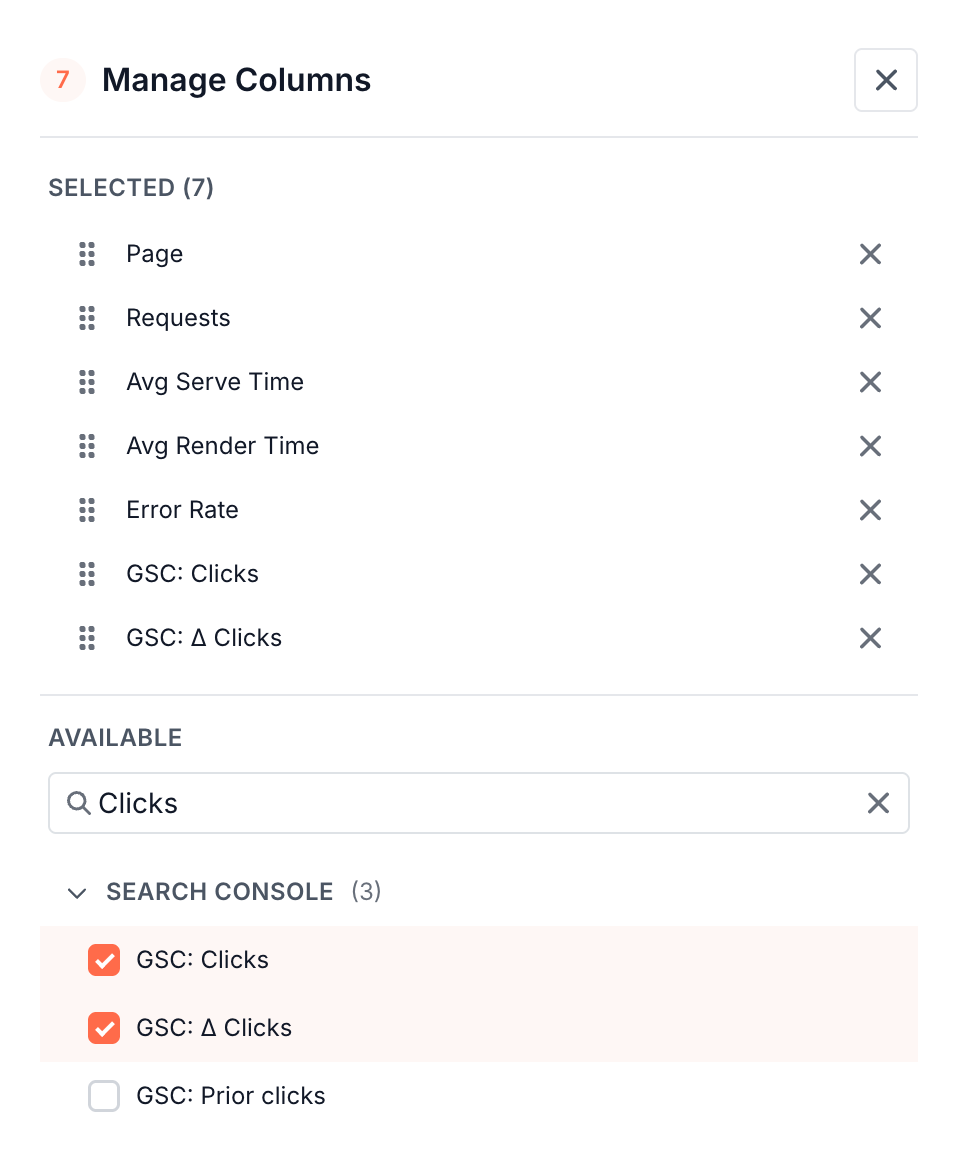
Click Columns above the table to open Manage Columns:
- Selected lists the columns on screen. Drag them to reorder, or remove one. The last column cannot be removed: its remove button reads "At least one column is required".
- Available lists the rest by group. Type in Search columns... to find one, then add it.
Changes apply as you make them. Columns from other sources sit in their own groups: Search Console on Bot log > Pages, and Bot log on the Search Console tables. See Put Google clicks next to bot requests.
Sort, page and resize the table
- Sort: click a column header. A new column sorts from the highest value first, and a second click reverses it.
- Per page: show 10, 25, 50 or 100 rows. The Evergreen Crawl tables offer 25, 50 or 100. Prev and Next move between pages.
- Resize: drag the right edge of a header. Double-click the edge to reset it. This browser remembers the widths for each table.
Share or bookmark a view
Every applied change updates the page address: the filter rows, the period, the compare window, the columns, the sort and the page. Copy the address from your browser to bookmark the view or send it to a teammate with access to the website.
A view opened from a report carries a title, such as ChatGPT User Unique URLs - 64 results, and a back link to the report. See Open the rows behind a report number.
If a table shows no rows
"No Data Found"
The filters matched no rows: "Try adjusting your filters or search criteria to find what you are looking for." Remove the last row you added, widen the period, or check that Apply Filters has no dot.
The Search Console tables show "No Data Found"
The website has no Search Console data yet. Connect Search Console, and the tables fill once the first import finishes. See Connect Google Search Console.
"Error Loading Data"
The table could not run with the current rows. A message under a filter row names the row to fix. A period over 365 days reads "Date range cannot exceed 1 year (365 days)".
Fake bot requests do not show
The Bot log leaves out requests that failed IP verification until you add an IP Validation row or set Bot Type to Fake Bots or Bad Bots. See What the Bot log shows when it opens.
Where to find it
In the dashboard: the filter card sits at the top of every table under Data Explorer: Bot log, Search Console, Evergreen Crawl and Feeds.