

Team roles and permissions
EdgeComet has four roles on a website: Read-only, Manager, Admin and Owner. Each role can do everything the role before it can, plus more. Also called user roles, permissions or access levels.
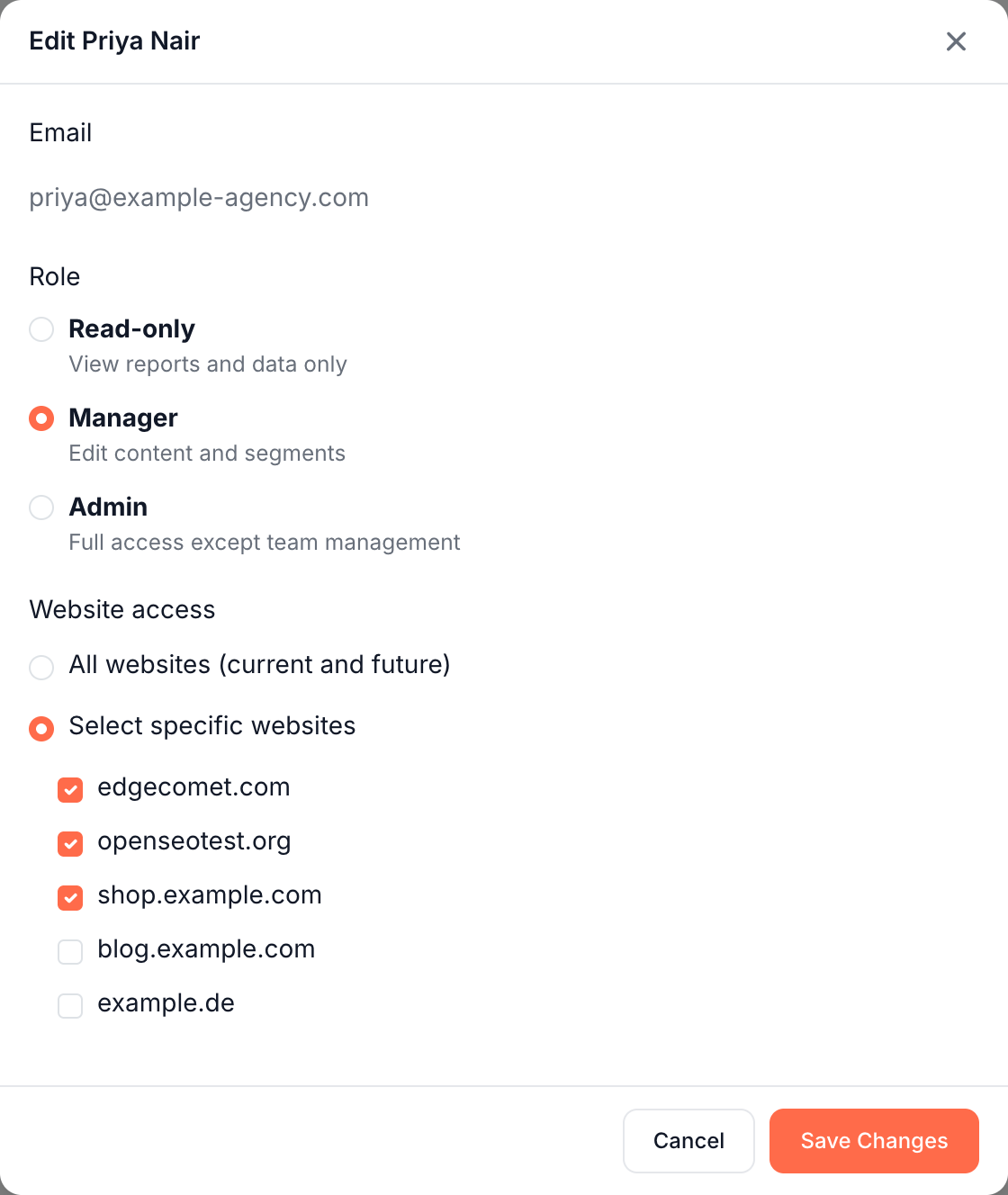
A person has one role per website. You choose Read-only, Manager or Admin when you invite someone. The Owner is the account that added the website, and every website has exactly one.
The four roles
- Read-only: views every report and the data behind it, and exports Data Explorer tables. Changes no settings or content.
- Manager: also works with Ask, the Action Board, alerts, segments, custom extractions, crawls and Edge SEO rules, and refreshes cached pages.
- Admin: also changes website settings: rendering, caching, URL rules, pre-cache rules, the CDN connection and Search Console.
- Owner: also manages who has access, through Team Access and Sharing, and the plan the website runs on.
What each role can do
| What you do on a website | Read-only | Manager | Admin | Owner |
|---|---|---|---|---|
| View every report: Overview, Log Analyzer, Evergreen Crawl, Search, Page Analysis, Changes, Shelf Edge, alert history and cache reports | Yes | Yes | Yes | Yes |
| Use Data Explorer and export tables to CSV or Google Sheets | Yes | Yes | Yes | Yes |
| Read the Action Board and its findings, with sample URLs | Yes | Yes | Yes | Yes |
| Open a finding's full URL list and evidence, and export it | No | Yes | Yes | Yes |
| Work with the Action Board: tasks, generation runs, review and deploy, and skills | No | Yes | Yes | Yes |
| Start Ask conversations and save custom reports | No | Yes | Yes | Yes |
| Create and edit alert rules, acknowledge and snooze alerts, set notification destinations and the weekly email | No | Yes | Yes | Yes |
| Create and edit Edge SEO drafts, deploy, roll back, archive and reorder rules | No | Yes | Yes | Yes |
| Create and edit segments, custom extractions, link regions and annotations | No | Yes | Yes | Yes |
| Create, rename, delete and rebuild Evergreen Crawl crawls | No | Yes | Yes | Yes |
| Regenerate Crawl Budget Rules and add guidance notes | No | Yes | Yes | Yes |
| Rename site releases, mark them expected and recache their pages | No | Yes | Yes | Yes |
| Submit URLs, recache, invalidate, and pause, resume or purge the re-cache queue | No | Yes | Yes | Yes |
| Recache and invalidate through the HTTP API | No | Yes | Yes | Yes |
| Query and export Data Explorer through the HTTP API | Yes | Yes | Yes | Yes |
| Flush the whole cache and set pre-cache rules: Smart Re-cache, Search Console, sitemaps and Merchant Feed | No | No | Yes | Yes |
| Change System Settings: General, Dimensions, Rendering, URL Rules and Advanced, then deploy, or restore from Deployment History | No | No | Yes | Yes |
| Change cache settings under Configuration > Caching | No | No | Yes | Yes |
| Install and connect: Getting started install steps, Configuration > Connections, Cloudflare, Search Console and branded keywords | No | No | Yes | Yes |
| Manage who has access: Team Access and Configuration > Sharing | No | No | No | Yes |
Read-only and Manager members see the Status tab of Configuration > Connections, which shows whether the install works.
Anyone a website was shared with can leave it, except an agency on its client's websites. See Leave a website shared with you.
How limits show in the dashboard
- Hidden entries. For Read-only and Manager members, Configuration shows only Connections, Crawl Budget Rules, Segments, Custom extractions, Link regions and Annotations. Read-only members do not see Tasks and Skills under the Action Board. Only the Owner sees Sharing.
- Hidden or disabled buttons. Some buttons your role cannot use are hidden. Others stay visible and greyed out, with the tooltip "You have read-only access to this website" on actions that need Manager, or "Admin access required" on actions that need Admin.
- Direct links. Opening a page your role cannot use, from a bookmark or a shared link, returns an error page with status 403.
Different roles on different websites
A person can have one role on all your websites, or a different role on each. Set a per-website role in the role dropdown on that website's Configuration > Sharing page. See Share one website.
When the roles differ, Team Access shows Mixed in the Role column. Choosing one role in Edit sets it on all their websites again.
The website owner
The account that adds a website owns it. The Owner cannot be removed or demoted, and only the Owner can share the website and change who has access. Moving a website to another account goes through support. See Changes that go through support.
An Admin has full access to the website except team management and billing: Admins cannot invite people or change roles.
Features on a website follow the Owner's plan, not the member's. See Members and your plan.
API tokens and AI clients
API tokens and AI clients act as the person who created or approved them, on the websites that person can open. An API token carries that person's role on each website. See the HTTP API rows in What each role can do.
An AI client connected through the MCP server drafts Edge SEO changes but cannot deploy them. Drafting needs the Manager role there too, and some other tools do as well; see Who can run each tool. A Manager, Admin or Owner reviews and deploys the drafts in the dashboard.
Changes to this list
- 2026-10-26: first version.