

Find orphan pages, weak internal linking and broken links
The Evergreen Crawl Internal Linking report maps the internal links on the pages bots received. It finds orphan pages, broken links and pages that earn traffic but get almost no links from page content, and its Changes tab shows which links appeared and disappeared since the comparison crawl. The report has two tabs: Overview and Changes.
It tells links in page content apart from links in menus, footers and other templates. A page linked from every footer but from no article is weakly linked, and a link count alone hides that.
Content links and template links
EdgeComet records where each link sits on the page, and link regions sort those positions into named regions. A content link, also called a contextual link, sits in Main content or a Catalog listing. A template link sits in any other region, such as Navigation, Footer or Interlinking. See Regions and what counts as content.
EdgeComet generates the link region rules from your site's own link positions and applies them on its own once enough links are recorded. New rules apply to crawls built after them.
To regenerate them, open Configuration > Link regions and click Generate rules or Regenerate. An AI run reads the link positions of the last 30 days, proposes rules and measures them, then waits for you to click Apply N rules or Discard. See Generate or regenerate rules.
Until a crawl is classified, the content and template cards read "Link regions not configured", the Internal links per page chart says "No link region rule set has classified this crawl, so content and template links cannot be told apart.", and the checks that need the split list under Needs setup.
What the Overview tab shows
The Overview tab answers how well each page is linked on this crawl.
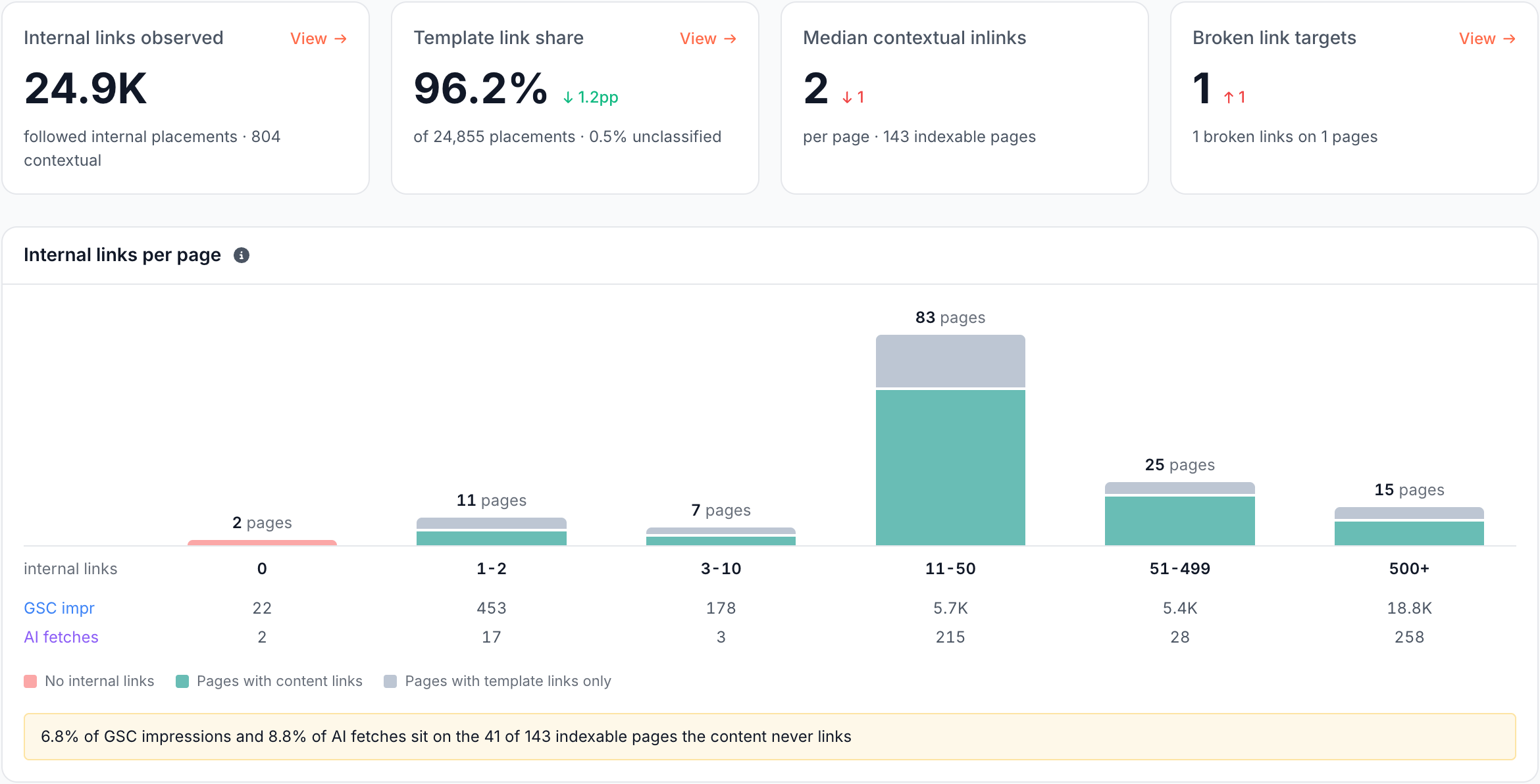
Cards: how many links, and how many from content?
The four cards at the top count the internal links:
- Internal links observed: every followed internal link on the crawl's pages, with how many sit in page content.
- Template link share: the share of links that sit in templates.
- Median contextual inlinks: the median number of content links pointing at each indexable page.
- Broken link targets: internal link targets that answered
4xxor5xx, with how many links and pages point at them.
View opens the links behind a card in Data Explorer.
Internal links per page: how many links reach each page?
Internal links per page groups indexable pages by how many followed internal links point at them: 0, 1-2, 3-10, 11-50, 51-499 and 500+. Pages in the 0 column have No internal links, and every other column splits into Pages with content links and Pages with template links only, with the Google impressions and AI fetches under it.
The callout under the chart sums up the demand on the indexable pages that no page content links to. Click the callout's page count to open those pages, or click a column to open that column's pages.
Starved winners: which pages that earn traffic need links?
Starved winners lists the pages with only 1 or 2 content links that still earn Google impressions or AI fetches. They are the pages where a few links from your own content pay off first.
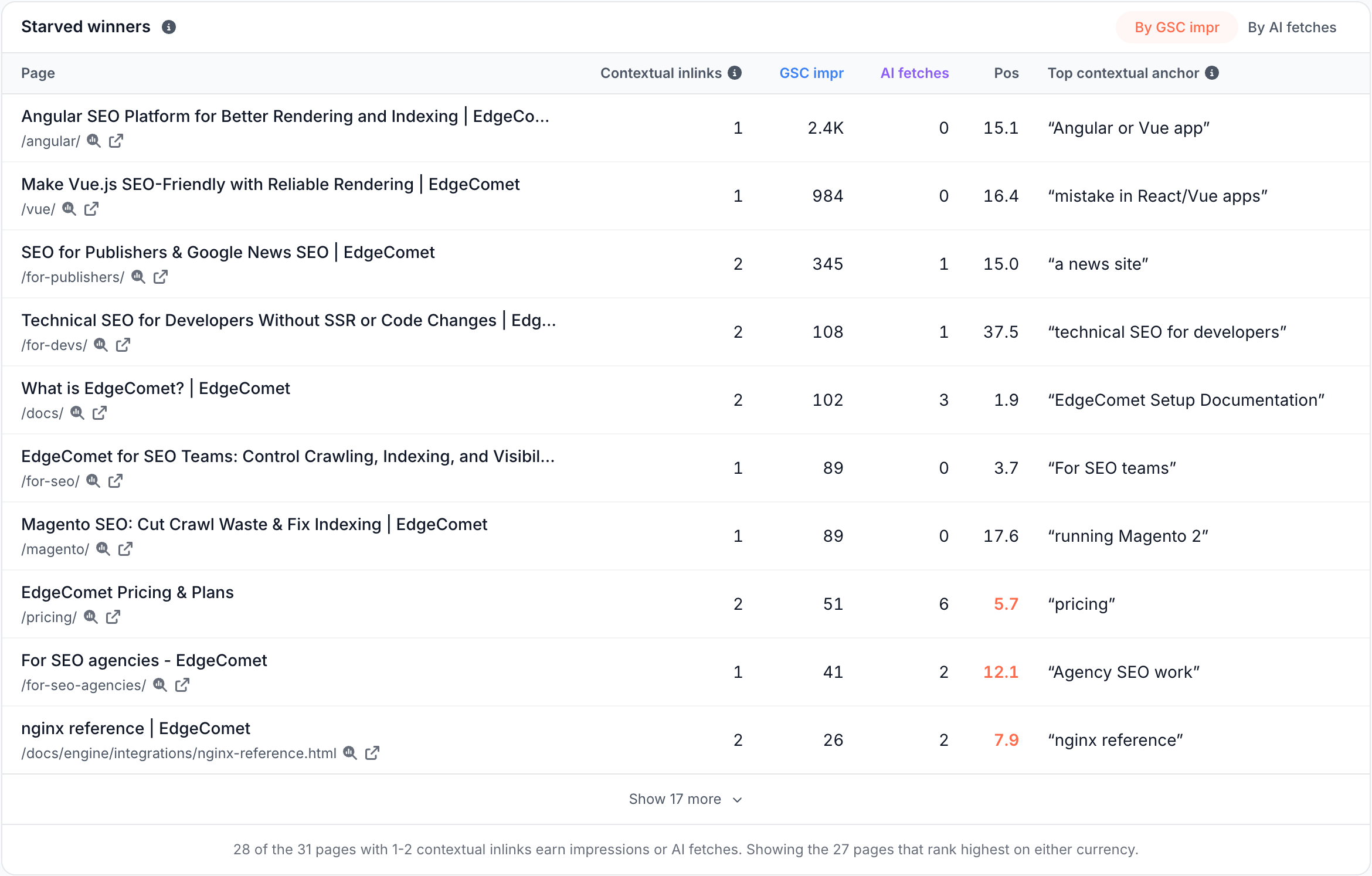
Each row shows the page's Contextual inlinks, GSC impr, AI fetches, Pos (the weighted Google position, highlighted from 4 to 15 as striking distance) and its Top contextual anchor. Order the list By GSC impr or By AI fetches.
Inlink profile: how is linking spread across the site?
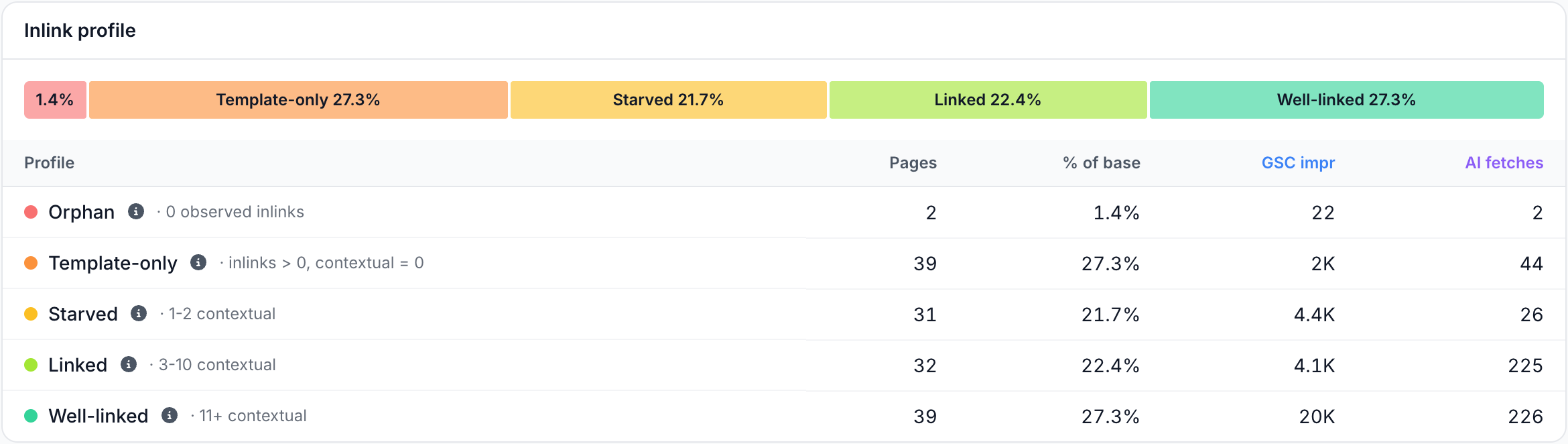
Inlink profile puts each indexable page in one state:
- Orphan: no inlink from any page this crawl observed.
- Template-only: reachable only through navigation, breadcrumb, footer and other template links.
- Starved: 1 or 2 content links.
- Linked: 3 to 10 content links.
- Well-linked: 11 or more content links.
Issues in this category
The Issues in this category card lists the Internal Linking checks that found pages, such as Broken links in the main menu, Orphan indexable page or Internal links point at redirects.
What the Changes tab shows
The Changes tab compares this crawl's links with the comparison crawl. It counts a link only when bots fetched its source page in both crawls, and a page fetched in only one crawl never reads as links appearing or disappearing.
When too few pages were fetched in both crawls, a notice says the changes are incomplete.
On this tab, Template means Navigation, Footer and Faceted navigation, and every other non-content region is Other.

Cards: what changed in content links?
The four cards at the top count the changes in content links:
- Content links added and Content links removed: content links that appeared or disappeared on pages fetched in both crawls.
- Newly orphaned pages: indexable pages no page links to anymore, though one did in the comparison crawl.
- Got their first content link: indexable pages with a content link now, and none before.
Template edits: did a menu, footer or sidebar change?
Template edits finds the same link changing on many pages at once, which is how a menu, footer, breadcrumb or sidebar edit looks. There is one entry per page region, with each changed link marked Added, Removed, Moved or Replaced, the linked page's status and how many pages link to it now.
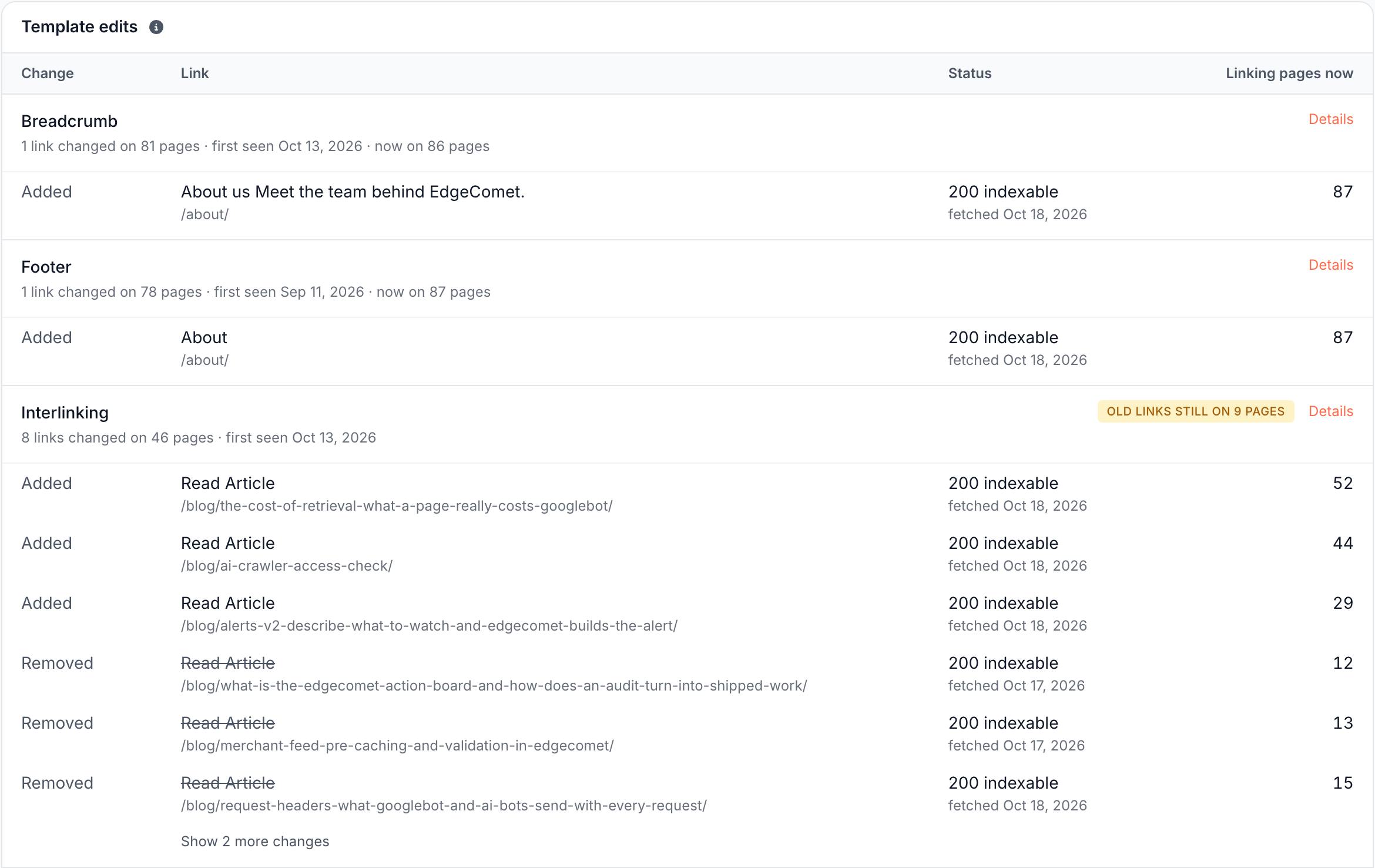
Pills on an entry flag what needs a look, such as a new link that is broken, an indexable page left with no links, or old links still on some pages. A listing that rotates its items does not count as a template edit. When no template changed, the card reads "No template edits between these two crawls."
Link flow: which sections gained or lost links?
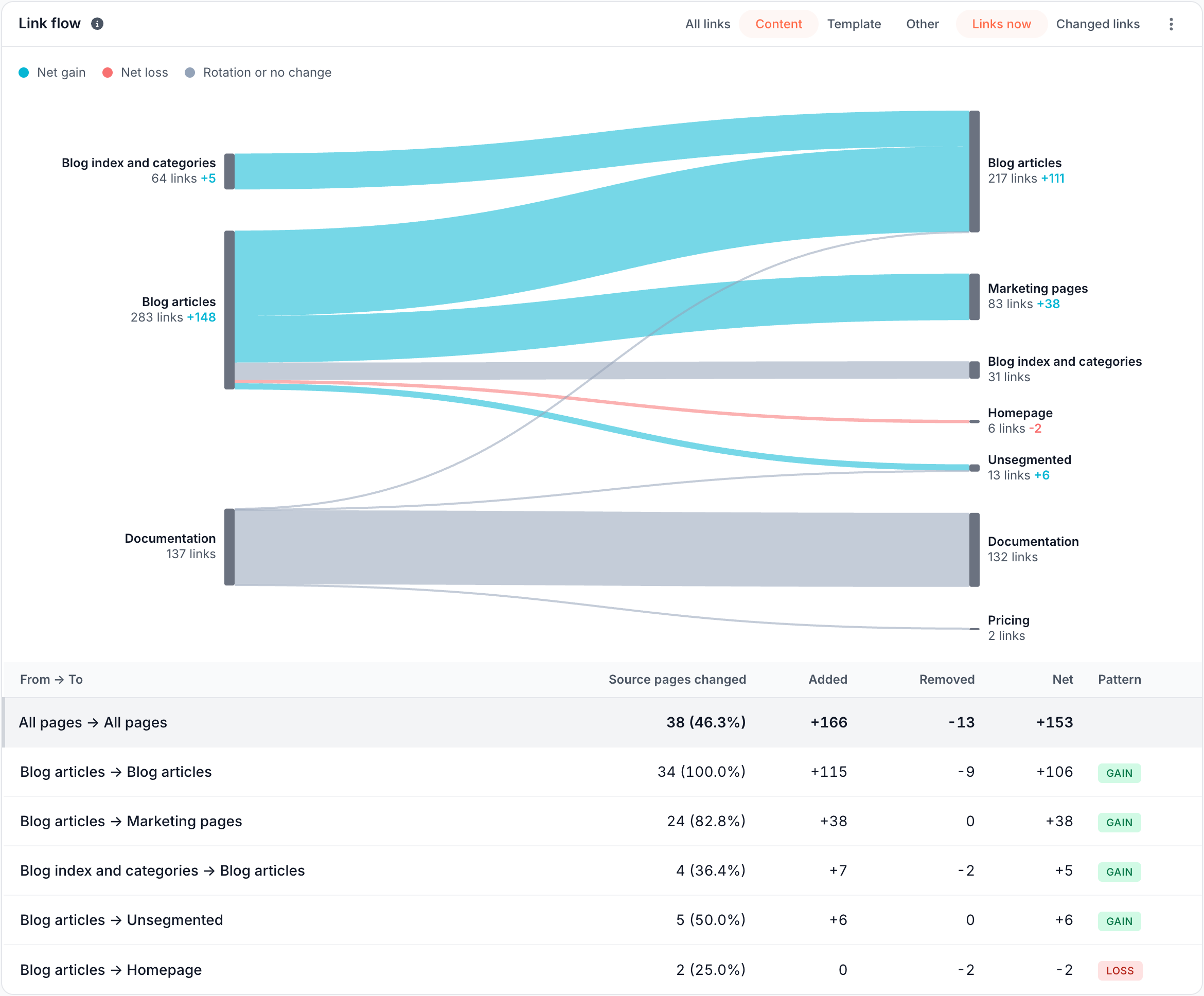
Link flow shows the links between segments of your site, such as blog articles to marketing pages. The diagram draws the largest flows, and the table lists every flow that changed with its Source pages changed, Added, Removed, Net and Pattern:
- Template edit: many pages changed the same links.
- Rotation: links came and went in similar numbers, as listings do.
- Gain or Loss: links mostly arrived or mostly left.
Switch the region with All links, Content, Template and Other, and the ribbon width with Links now and Changed links. Click a ribbon or a row to list the links behind it.
Pages that lost their links
Pages that lost their links lists indexable pages whose internal links fell away since the comparison crawl:
- Orphaned: no page links to them anymore.
- Template links only: templates still link to them, page content no longer does.
Each row shows the linking pages before and now, ranked by Google impressions. When none qualify, the card reads "No indexable page lost all its internal links."
How to read it
- Orphan means no observed inlink. The crawl holds the pages bots fetched. An orphan has no link from any page in this crawl, which is not always the same as no link anywhere on the site.
- A broken internal link points at a target that answered
4xxor5xx. A target the crawl never fetched is unknown, not broken. - Template links keep pages reachable, content links show they matter. A page with hundreds of footer links and no content link is in Template-only.
- "Its links have been dropped" means the crawl is too old for link data. Pick a more recent crawl, such as Current.
What to do next
- Link the starved winners. Add links from your content, starting with the pages in striking distance.
- Check every template edit. When an edit leaves pages with no links or adds broken links, correct it in the template.
- Fix broken targets. Redirect the target, or correct the link at the source. Hand the list to your developers from View rows in the issue dialog, or start from the matching Action Board finding.
- Ask about it. On the Overview tab, Ask starts with "How widespread is weak linking?", "Did linking get worse?" and "Which starved pages need links?". On the Changes tab, it starts with "What linking changed?", "Was a menu or template edited?" and "Which pages lost their last link?".
Where to find it
In the dashboard: Evergreen Crawl > Internal Linking, with the tabs Overview and Changes. Link regions are under Configuration > Link regions.