

Read an Action Board finding
An EdgeComet Action Board finding page shows one job: the pages it covers, the search and AI traffic at stake, the fix, and the evidence behind it. Open it from a row on the board. Also called SEO issue details.
The page has two panes. Finding on the left holds the figures, the fix and the evidence. Chat on the right is a conversation about this finding only.
Every figure on the page comes from your own data and is recounted each time the crawl is re-evaluated. See What the AI decides and what the engine computes.
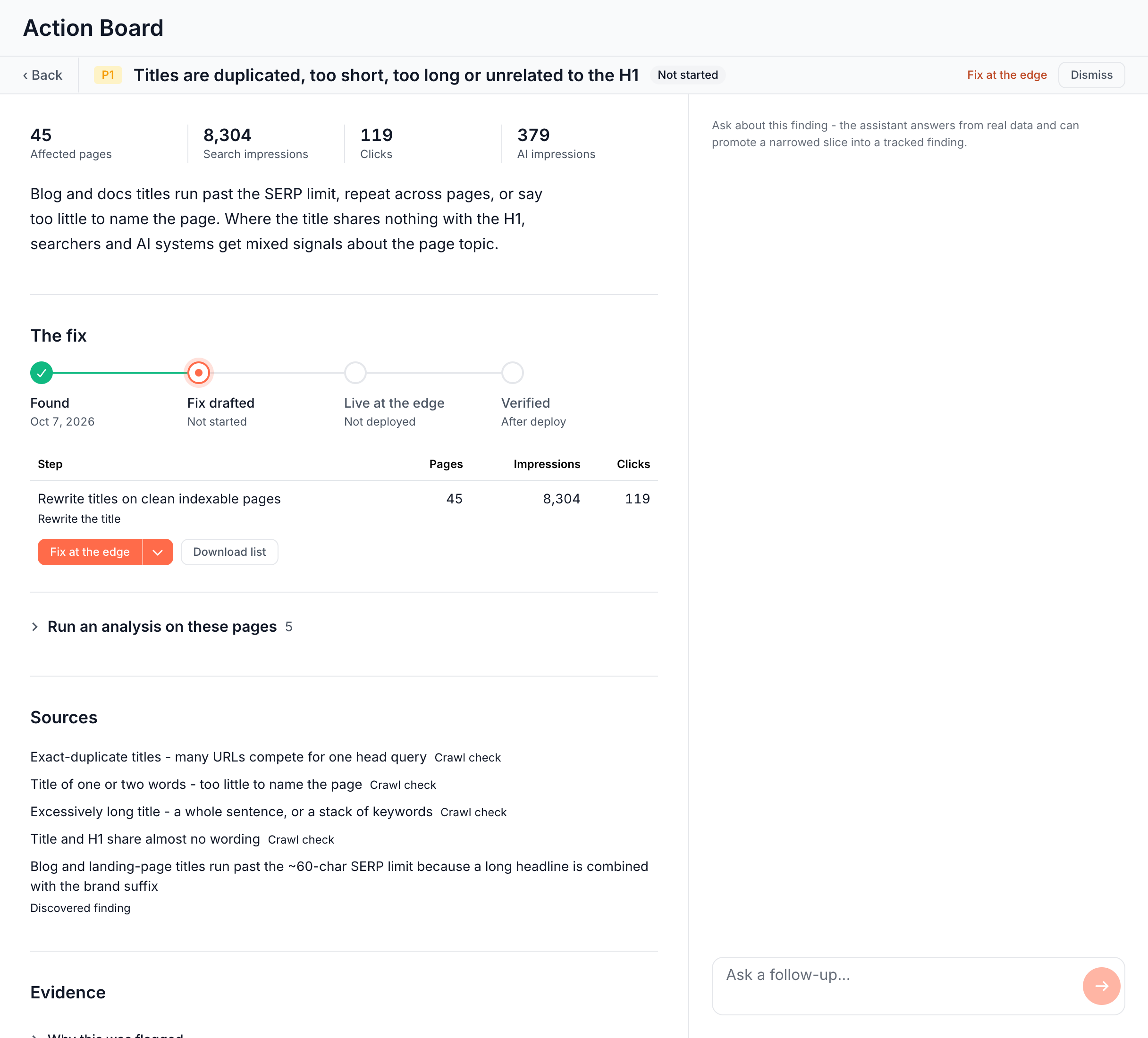
What the finding header shows
The strip at the top identifies the finding and its state:
- Back returns to the board.
- The priority badge shows P0 to P3. Hover it for what the level means. See Priority from P0 to P3.
- The title names the problem, never a count.
- The status badge shows where the fix stands, such as Not started, Needs your review or Live since a date. See Status.
- Paused appears when the finding's pages cannot be counted on the current crawl. Its info icon gives the reason.
- Premise disputed appears when a chat showed the finding's explanation is wrong. Hover it for the evidence.
- The lane name on the right says who fixes it, such as Fix at the edge or For your developers. See Lanes.
- Dismiss or Reopen sits at the far right. See Dismiss and reopen a finding.
If the finding has left the board, the page reads "This finding is no longer on your board (resolved, or the analysis changed)." with Back to board.
What the figures on a finding mean
Up to four tiles lead the page, picked from the figures that have a value:
- Affected pages: the pages the finding covers. Click the tile to open the full list.
- Search impressions and Clicks: Search Console figures on those pages.
- AI impressions: fetches by AI user bots, such as ChatGPT-User or Claude-User, which an AI assistant sends when a person asks it about the page. The board shows the same figure as AI visits. See AI user bots.
- Googlebot visits: requests from Googlebot to those pages.
- AI bots visits: requests from every AI bot, including training and search crawlers.
- Opportunity: the extra clicks the pages could earn, shown as "≈" and a number. EdgeComet estimates it from your site's own click-through rate at each Google position, applied to the pages' impressions and rank.
The figures are totals over the 30 days the crawl covers. Without Search Console, the Search Console figures show "-" with the note "Search Console data is not available for this scope".
The recommendation follows the tiles: what is wrong and what to do, written for this finding.
The fix
You start and follow the work under The fix:
- The progress shows where the fix stands in four stages, such as Found, Fix drafted, Live at the edge and Verified, with one sentence and a button to the task.
- The steps list each part of the job with its Pages, Impressions and Clicks, the action under its name, and buttons for the routes that fit. A last row, Needs no action, counts the finding's pages no step covers. Hover a step's name for why it is there, and click the step to see its pages.
- The chooser replaces the steps on a Discovered finding from an analysis skill and on findings from Ask or a skill run. It offers the routes as cards, with the recommended one first.
- The task that holds the work appears once you start a fix.
- Run an analysis on these pages runs one of your enabled skills on the finding's top pages.
For each route, its launch dialog and what it produces, see Fix an SEO finding: edge fix, dev task or content brief.
Below the fix, Custom skill run tracks a skill that ran on the finding's pages, and Documents lists the briefs and research attached to the finding. See SEO briefs, research and exports in Outputs.
Sources and Also found
Findings the analysis composed show what they were built from:
- Sources: each Crawl check links to its report in the Evergreen Crawl, and each Discovered finding links to the finding an analysis skill recorded. See Crawl issues.
- Also found: related findings that support this one, each with its count.
Why a finding was flagged: the evidence
The Evidence section holds what the finding rests on, one row each. Every row starts collapsed except What's affected:
- Why this was flagged: the Criteria the pages match, and the priority reason, such as "Why P1 (high):" followed by the check's risk level and the traffic on the pages the finding fixes.
- All metrics: every figure from the top, including the ones that did not make the four tiles.
- What's affected: a switch moves between a grouped table, such as the targets that broken links point at, and Affected URLs, each with its count. A finding with nothing to group shows Affected URLs only.
- Charts & tables: extra views of the finding, added by the analysis or by the chat.
- External research: research tables attached to the finding by a chat or a skill run, such as keyword or search results data. They show as they were when attached and are not recounted.
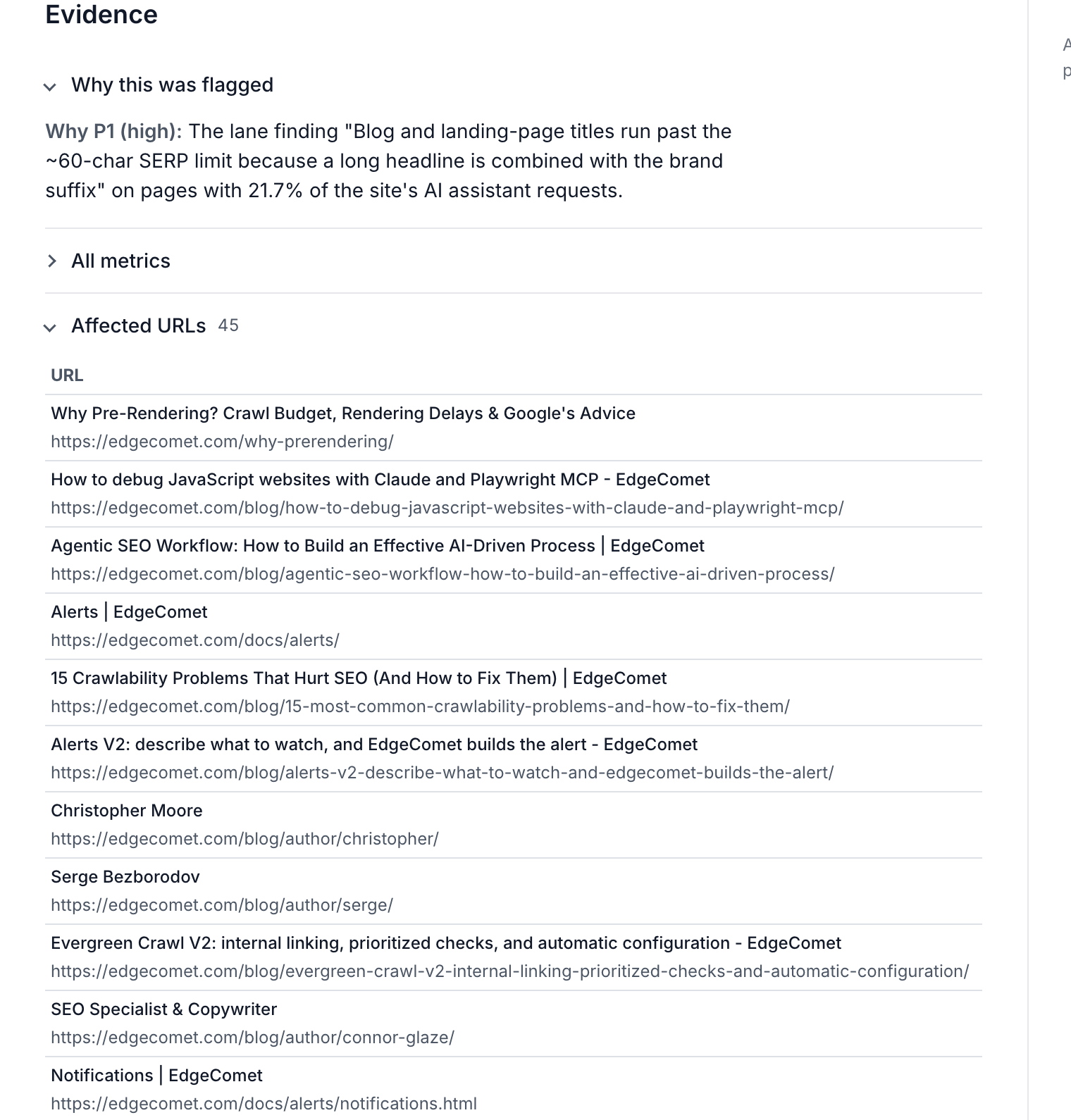
See and export every page
The page list is a sample, and the line under it says how much of the total it shows, such as "Showing 20 of 1,284". To work with the whole set:
- Click View all with the count, or the Affected pages tile. The list takes over the left pane, and Load more shows the next rows.
- On a grouped table, click Sort and export all instead. A column click then sorts the whole set, not only the rows on screen.
- Click Download CSV to export every row.
After 24 hours, the full list reads "This table has expired - go back and reopen it to refresh."
Notes on a finding
A note above the figures explains anything unusual about the finding:
- From conversation: the finding came from an Ask conversation. The link opens it.
- Premise disputed, Check withdrawn, Not prioritized or Closed by analysis: the label and the note that explains it. See Why a finding closed without a fix.
- Cannibalization caveat: Search Console leaves out anonymized low-volume queries, which makes the competition counts a lower bound.
- Deleted extraction rule: "A custom-extraction rule this finding relies on was deleted - its values are no longer computed, and the count will resolve on the next analysis."
Dismiss and reopen a finding
Dismiss a finding you decided not to act on. It leaves the Open list, and the page moves to the next finding in the lane, or back to the board when none is left.
EdgeComet keeps counting a dismissed finding, and the board lists it under Dismissed. Reopen on its page brings it back to Open. Dismissing does not resolve a finding: only the recount does, when none of its pages are left to fix.
Step through findings
The footer steps through the lane you came from, in the order the board showed it:
- Previous finding and Next finding move one finding at a time. The left and right arrow keys do the same.
- The position shows where you are, such as "3 of 6 in Fix at the edge".
Ask about a finding
The chat on the right answers questions about this finding's pages from your bot log, Search Console and the crawl. Tables and charts it builds appear in the left pane, below the finding.
From the chat you can also:
- Narrow or extend the finding, such as excluding a section or joining another data source. The finding keeps its identity and its history.
- Dispute the premise. When the chat shows the explanation is wrong, it marks the finding Premise disputed with the evidence.
- Pin research to the finding, such as a keyword table. It appears under External research.
- Record a new finding for a slice worth its own job. See Findings from Ask and skills.
- Start a fix on many pages. The chat starts a generation run, the same as a route on the finding. See AI generation runs: how EdgeComet drafts SEO fixes.
See Ask about the board and each finding and Ask conversations.
Findings from Ask and skills
A proposed finding is a finding that Ask or a skill run recorded in a conversation and that is not on the board yet. It appears in the conversation as a Proposed finding card with its title and Add to board. With several, Add all to board adds them at once.
After you add it, the card reads Recorded finding with Open on board. Its finding page then opens with the note From conversation: and the conversation title, which links back.
Once the finding is on the board, the engine counts and recounts it like any other. See Skills.
Where to find it
In the dashboard: Action Board > Board, then click a finding's row.