

Change page content on the page
Edit on the page opens the page bots receive inside the rule editor. Click an element to rewrite its text, fix its alt text, move it, change its tag, insert HTML next to it or remove it. EdgeComet writes the CSS selector for you.
A legacy SEO tool or a CMS plugin asks you for a selector or a template change. Here you work on the rendered page, the one bots read, and the engine checks every edit on it.
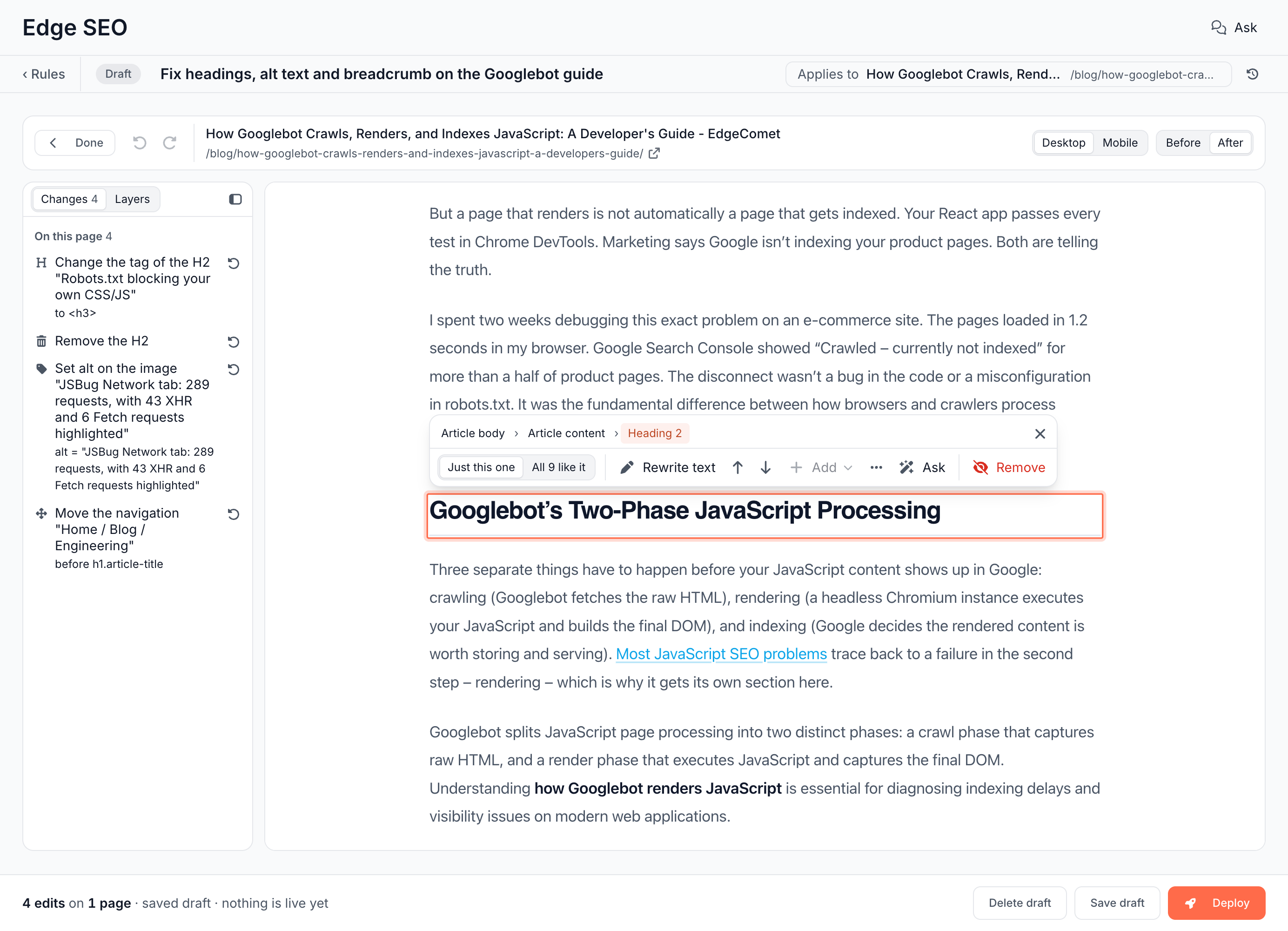
Change an element
- In the rule editor, choose the pages and click Edit on the page under the edits. The page opens in place of the edits, and the app sidebar folds to icons until you click Done.
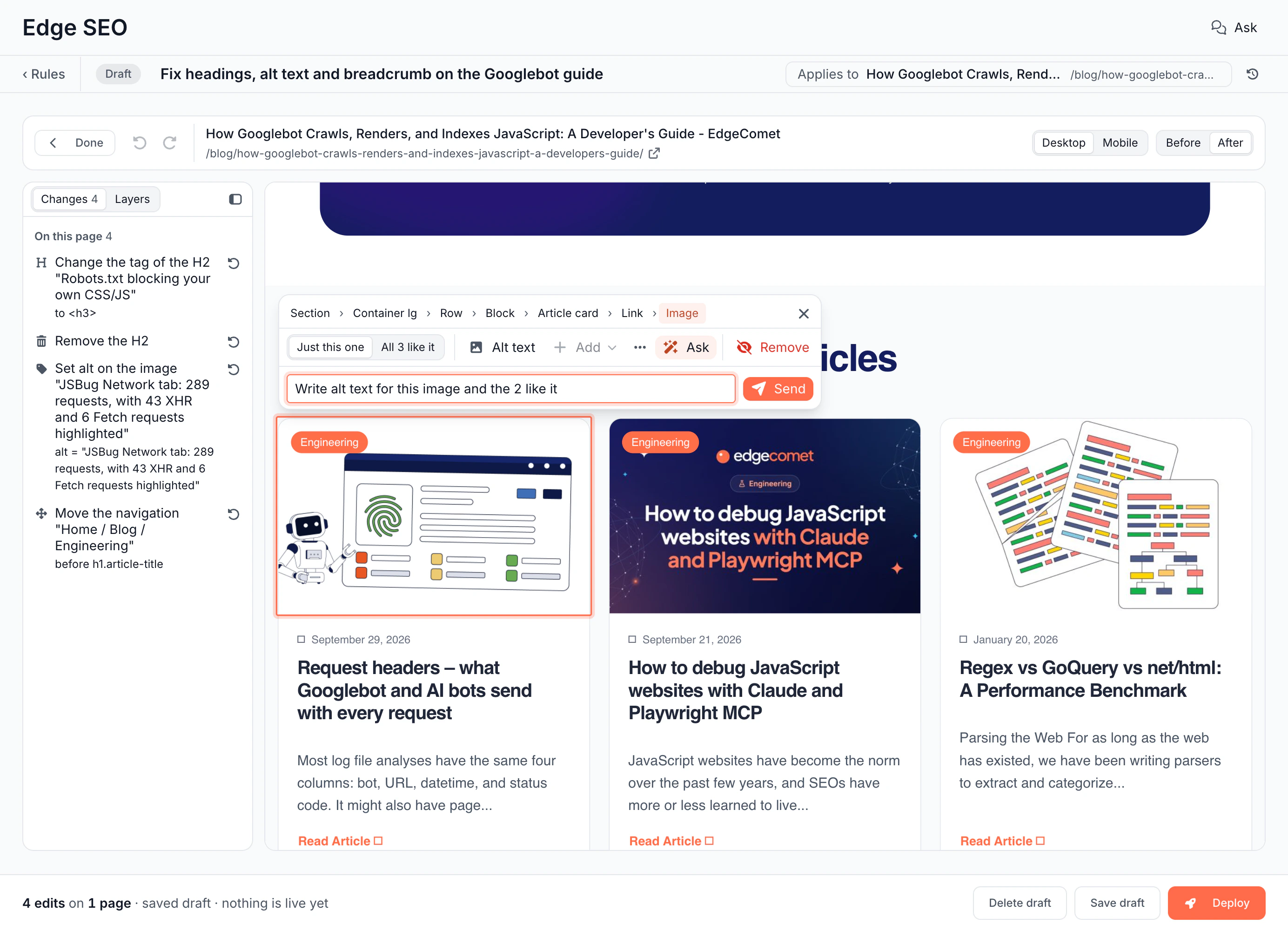
- Click the element you want to change. A bar opens next to it with its path, such as Article card › Link › Image, and the actions for its kind. To change a box around it instead, see Select the box around an element.
- When the page has similar elements, choose Just this one, or All N like it to change every one, such as every product card title.
- Pick an action. See Actions.
- The page shows the change in place, and the Changes panel lists it.
- Click Done to go back to the edits, then save.
The bar above the page has Done, Undo and Redo, Undo all (N), which takes back every change since the page opened, the page path, Previous page and Next page for a rule on several pages, Desktop or Mobile width, and Before or After this rule's edits. Ctrl+Z or Cmd+Z undoes, and Shift+Ctrl+Z or Shift+Cmd+Z redoes.
The page is a fresh render with every other active rule applied and the rule you are editing left out. It runs no scripts, and cookie bars and sticky headers are moved back into the page, where you can click what they covered. Desktop lays the page out 1280 pixels wide, Mobile 390.
Add an edit opens the page straight away for Rewrite an element, Remove an element, Image alt text and Add content. The first element you click gets that edit, and Esc cancels.
Select the box around an element
The path at the top of the bar lists every box the selected element sits in, from the top of the page down, and a click on a step selects that box. Use it when a click lands on the wrong element, such as the image inside a post card whose image and title cover the whole card.
- Before a click: the outline under the pointer carries the name of the element a click selects, such as Image, Heading 3 or Post card.
- The path: steps are separated by ›, and the selected one is marked. Hover a step to outline that box on the page, and click it to select it. The steps below the selected one stay on the path, and a click on Image goes back down.
- Shift+Enter: selects the box around the selection, one level up, and keeps the path. It does nothing in a text field, while an edit's form is open, or at the top of the page.
Headings, paragraphs, list items, links and images are named by their kind, such as Heading 2, Paragraph, Link or Image. Any other element takes its first readable class name, such as Article card for article-card, else the name of its tag, such as Section, or Block. Elements the page does not display at the current width are not on the path.
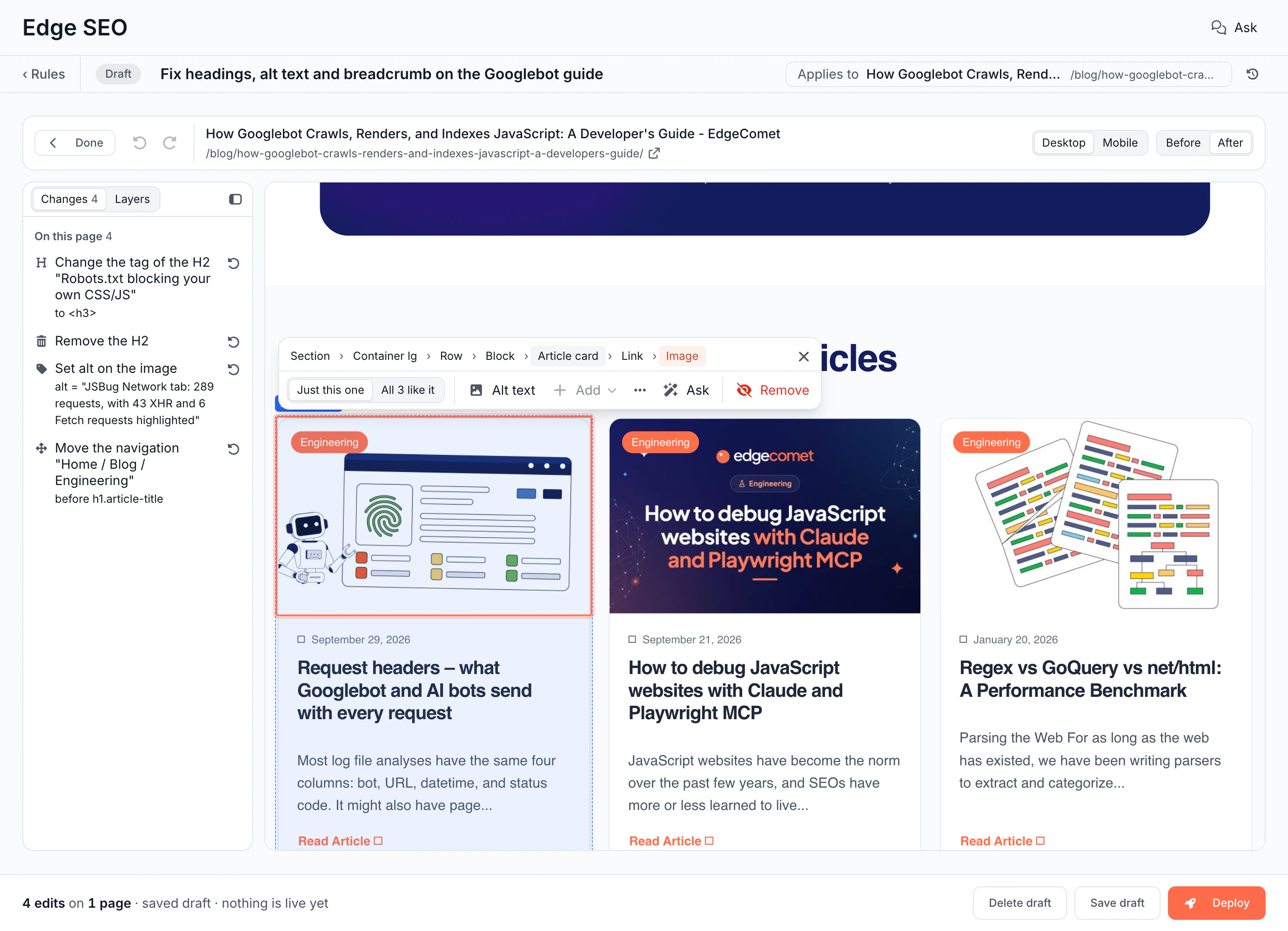
Actions
Each page edit is one action on the selected elements. The bar shows the actions that fit the element:
| Action | What it does |
|---|---|
| Rewrite text | Replaces the words inside the element. You type on the page itself: Enter saves, Esc cancels. Advanced moves the text into a form, where Use an operation instead offers steps such as Find & Replace or Append |
| Alt text | Sets the alt of an image. On an image with no alt, the rule adds one |
| Link target | Changes where a link points |
| Move up, Move down | Steps the block past its neighbor. Move left and Move right appear when the blocks sit in a row. See Move a block |
| Add | Add above or Add below the element, or Add item above and Add item below in a list. See Add content between blocks |
| Edit attribute | In More actions: changes what any attribute holds, such as class or title |
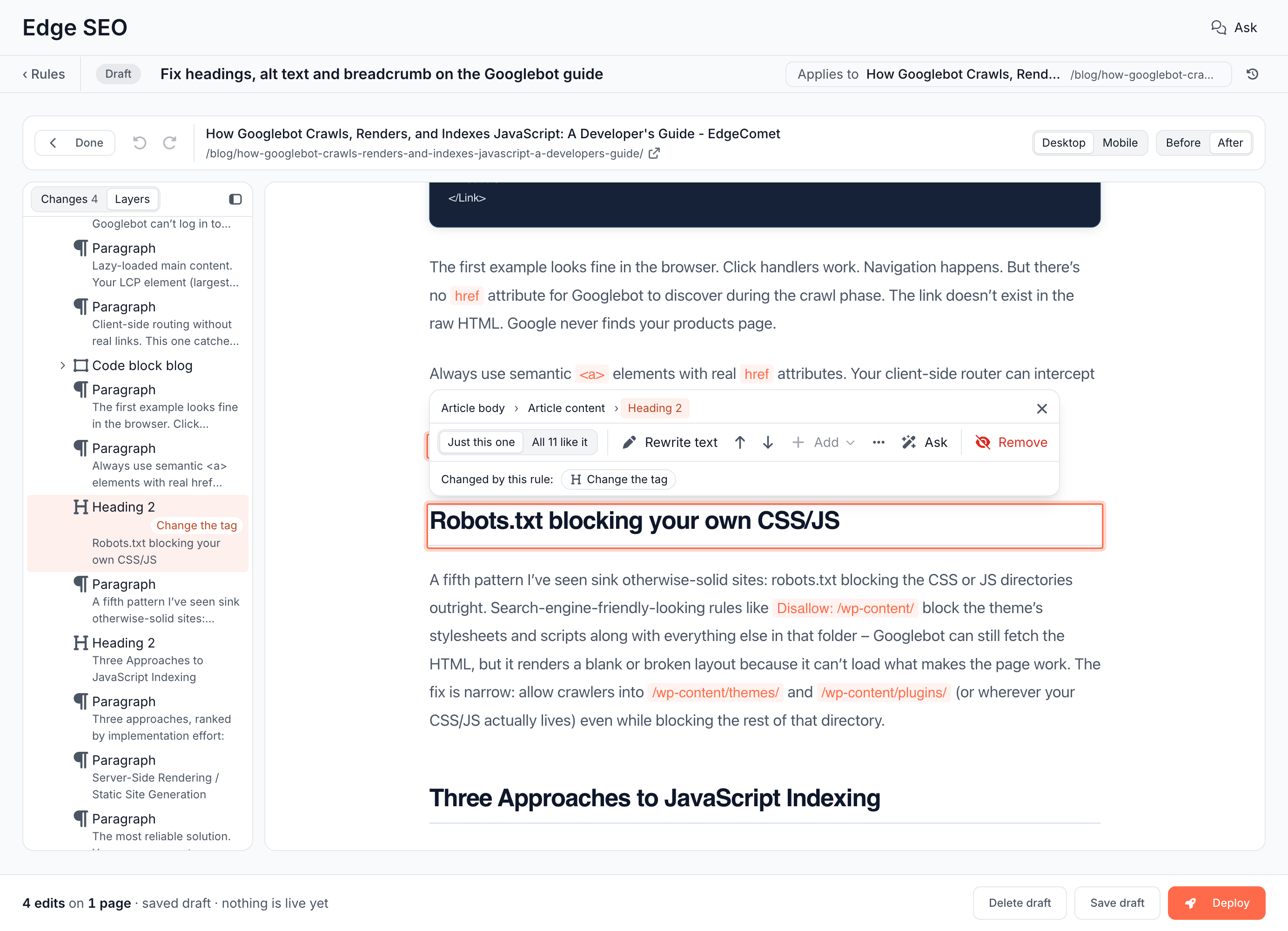
| Change the tag | In More actions: turns the element into another tag, such as an H2 into an H3. See Change a heading level or tag |
| Ask | Asks the chat about this element. See Ask the chat about an element |
| Remove | Takes the element off the page |
Remove and the move buttons apply at once. Other actions open a small form: click Add this edit, or Save this edit when you change one that exists. While a form holds unsaved input, the editor asks you to finish it first: "Add this edit or cancel it first."
Examples:
- Rewrite a vague H1 such as "Products" to "Running shoes for women".
- Set
alton product images to the product name, with the variable{h1}. - Remove an empty heading, a "Loading..." placeholder or an empty promotional block from the page bots read.
- Turn an H2 that is really a sub-point into an H3, which fixes the heading outline.
- Move the breadcrumb above the H1.
- Insert a short text block or a JSON-LD
<script type="application/ld+json">after the main heading.
Attributes that carry a URL, such as href and src, take one plain value with no variables, and refuse javascript: and data: values. Event attributes such as onclick are refused: "The onclick attribute runs script, so a rule cannot write it."
Move a block
Select the block and click Move up or Move down, once for each neighbor it should pass. A list item moves as a whole item. Across a separator, such as the / between breadcrumb links, the block and the next item trade places.
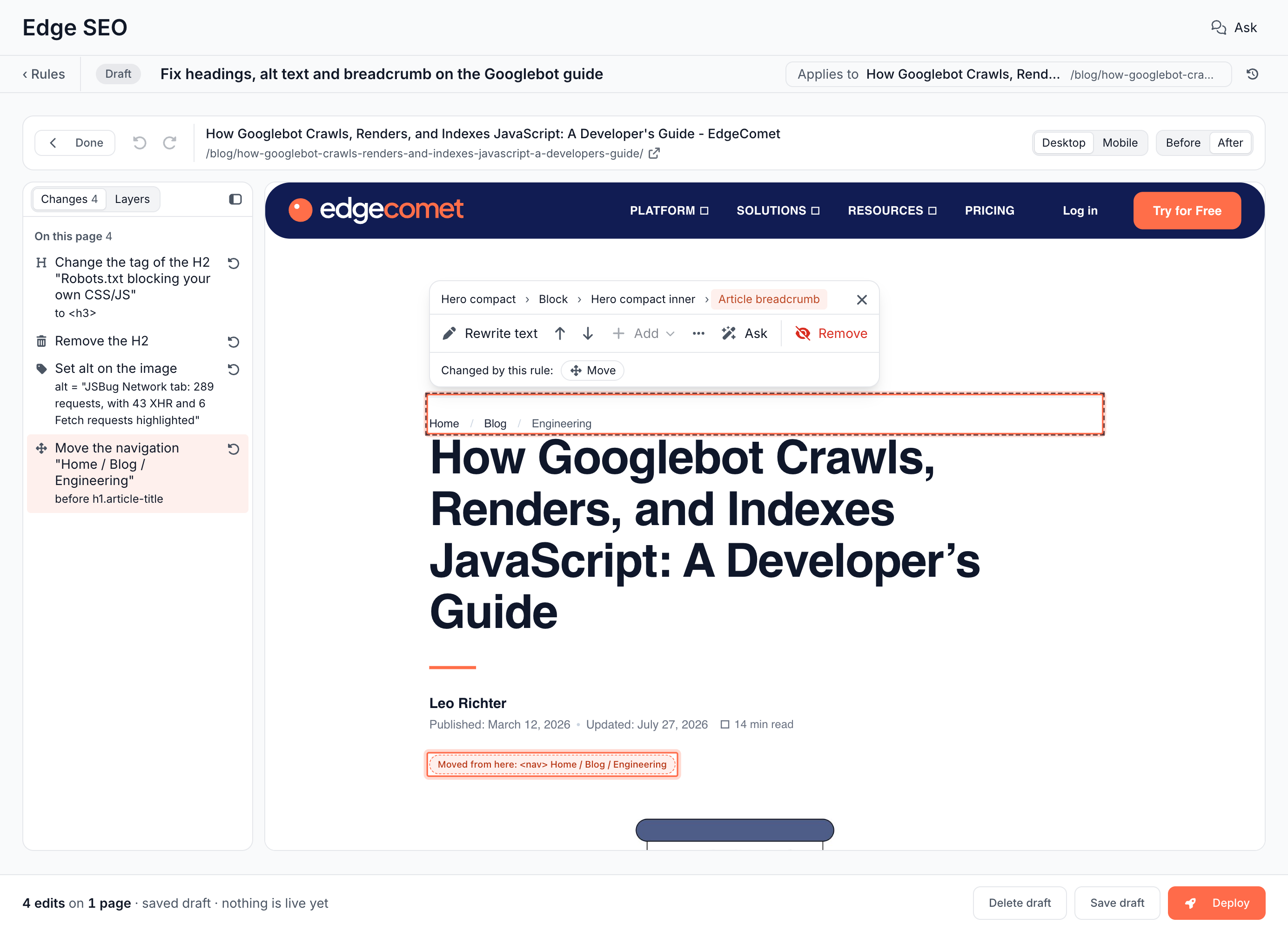
The page moves the block and leaves a marker at its old spot: "Moved from here". Click the marker for Edit block, Change the spot, which sets the target with a selector, and Move it back. Stepping a block back to where it started takes the move off the rule.
The engine moves the block on every page the rule matches, and the check on the selected page reports "Moved on this page".
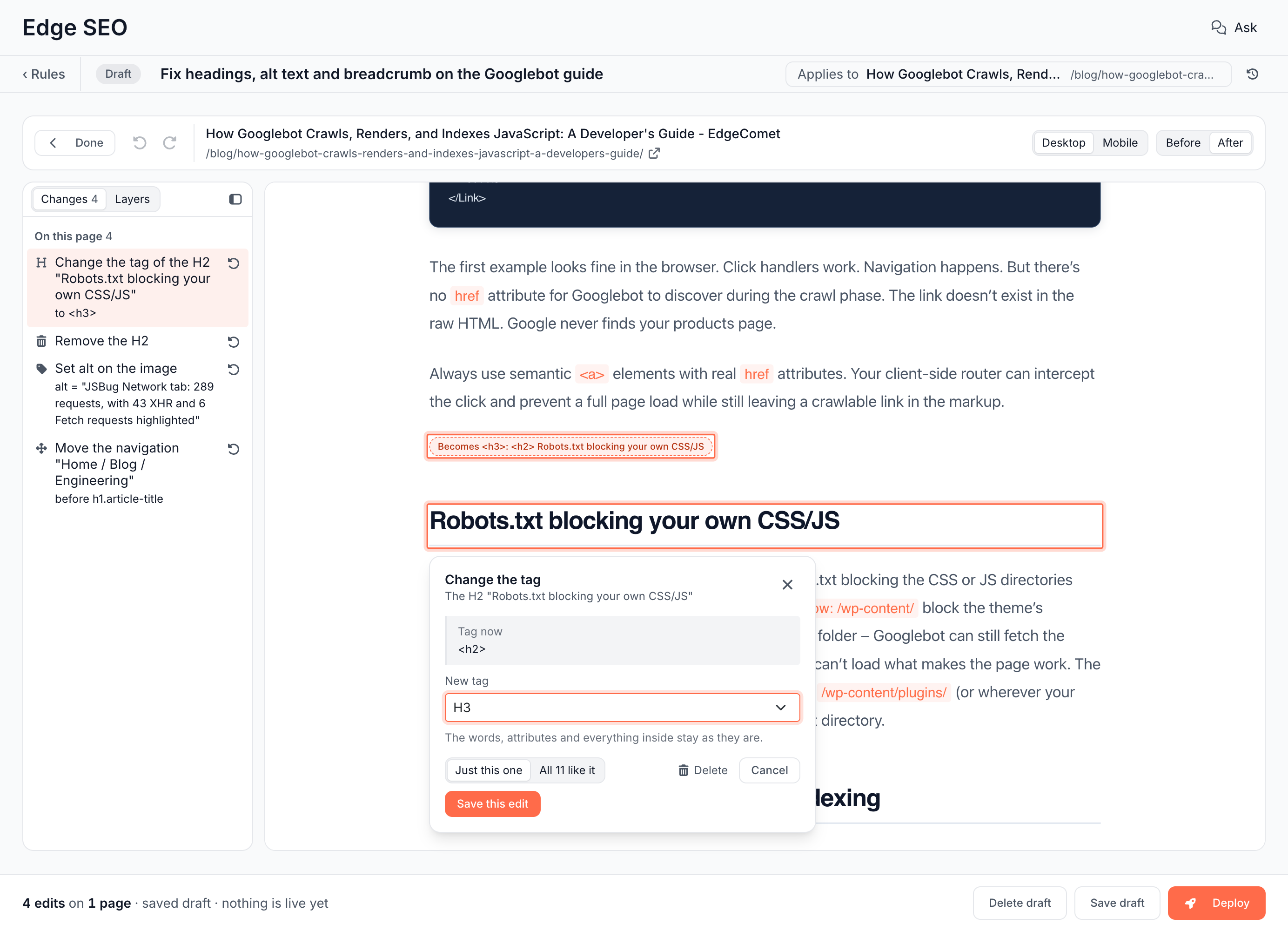
Change a heading level or tag
Select the element, open More actions and choose Change the tag. The form shows Tag now and a New tag list: H1 to H6, Paragraph, Span (inline text) and Div (block). "The words, attributes and everything inside stay as they are."
The page marks the change with a label, such as "Becomes <h3>". After you save, After shows the engine's render of the page with the new tag, and the check on the selected page reports "Tag changed on this page".
Add content between blocks
Hover between two blocks on the page and a round + button appears, "Add content here", or "Add item here" between list items. Click it, paste the HTML under HTML to add, and click Add this edit. Add in the bar does the same above or below the selected element, and Where in the form also offers Inside, at the start and Inside, at the end.
Every inserted fragment is cleaned before it is served: executable scripts are removed while JSON-LD is kept, event attributes are stripped, and javascript: and data: URLs are dropped. A fragment can be up to 64 KB.
Ask the chat about an element
Ask in the bar opens a box under it: "What should change here?". Type a request, such as "Write alt text for this image and the 2 like it", and click Send.
The question goes to the Ask panel with the element attached: its path, tag, selector, text and attributes, and whether it covers all the similar elements. The chat changes the draft, the page shows its edits, and the editor scrolls to the first one.
The chat works on drafts only. A draft with unsaved edits is saved before the question goes out. See Draft a rule with AI.
Changes and layers
The panel left of the page has two tabs: Changes lists everything the rule does, and Layers shows the page's structure around the selection. It is open by default.
Changes counts the rule's edits on its tab and lists them in up to three sections:
- On this page: the page edits this page has an element for. Hover a row to outline its element, and click it to scroll the page to the element and open the edit.
- In the page head: the rule's other edits, such as the title, the meta description or robots. They are read-only here. Change them in the edits after you click Done.
- Not found on this page: page edits whose element this page does not have. See An edit reads "Not found on this page".
The button at the end of a page edit's row, "Take this change out of the rule", removes the edit. A rule with no edits reads "No changes yet. Click anything on the page to start."
Layers is a tree of the page. The rows around the selection are open and the rest are folded, and a click on the page or on a path step opens the tree at the new selection. Each row has an icon for the element's kind, its name and a hint: its text, its alt text, or the only heading inside it.
- Click a row to select its element and scroll the page to it.
- A box that only wraps one other box shares its row, such as Hero compact › Block › Hero compact inner. Each name is its own click target.
- A row whose element this rule changes shows the change, such as Change the tag or Remove. A folded row with a change inside shows a dot.
- Up and Down move between rows, Right opens a row or moves into it, Left closes it or moves to its parent, Home and End go to the first and last rows, and Enter selects.
To give the page more room, click the panel icon at the right end of the panel's header, or press Cmd+\ on a Mac or Ctrl+\ elsewhere. The panel collapses to a thin strip beside the page, and the page takes its room.
The icon on the strip or the same keys bring the panel back. The editor remembers the panel and its tab in your browser.
Page edits in the editor
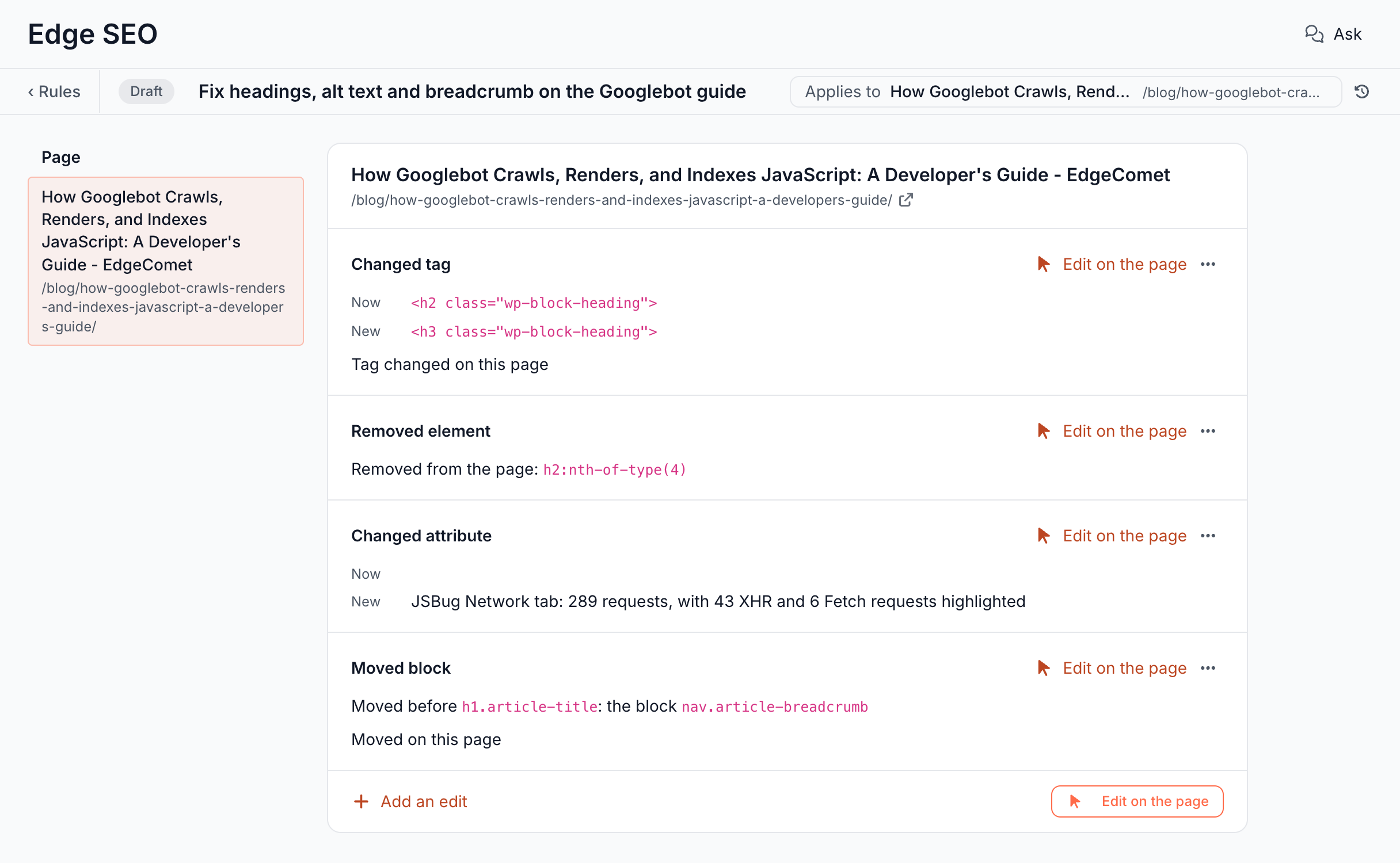
Each page edit is a row under the page's other edits, with Edit on the page, which opens the page at that edit:
- Added content shows the block as the page gets it.
- Removed element names what it removes, such as "Removed from the page: h2:nth-of-type(4)".
- Rewritten element and Changed attribute show Now and New on a one-page rule, and the change, such as "Rewrites …", on a rule for multiple pages.
- Moved block names the block and its new spot, such as "Moved before h1.article-title: the block nav.article-breadcrumb".
- Changed tag shows the tag Now and New.
Under each row, the engine check on the selected page adds what it found, such as "Moved on this page" or "Tag changed on this page". When the selected page has no element the edit matches, the row reads "Not found on this page".
Some changes made by the Action Board, Ask or AI clients cannot be drawn on the page, such as replacing an element's whole HTML. They show as "An edit this editor cannot show", deploy unchanged, and can only be removed.
Selectors
EdgeComet builds the selector when you click, and More actions > Show the CSS selector shows it in the bar. It climbs the page until the selector picks out the clicked element, and skips class names generated by build tools, such as .sc-bdfBwQ, which change with every release. On a rule for multiple pages it prefers classes over positions, and the selector keeps working across page templates.
To write a selector yourself, choose Custom selector in Add an edit, or open Advanced in a row's menu.
Selectors are full CSS3, including attribute selectors, combinators, :not(), :has() and :nth-child(), up to 1,000 characters. All N like it changes up to 1,000 elements per page. Prefer stable hooks: an id, a data-*, itemprop, role or aria-* attribute, or a readable class name.
What you should see
- The page shows your edit in place, and Before shows the page without it.
- The edit's row lists it for every page the rule matches.
- After the deploy, Page Analysis > Cache shows the changed page that bots receive.
If it does not work
An edit reads "Not found on this page"
The selector does not exist on the selected page. On live pages a selector that matches nothing changes nothing, with no error. Click the element again on the page, or narrow the rule's filters to the pages that have the element. On the page, Changes lists the edit under Not found on this page.
The page shows a notice instead of the page
- "This page returns 404. Pick a page that renders.": the selected URL does not answer 200. Pick another page in the rule's pages.
- "The render did not come back. Retry.": click Retry.
- "A 410 rule matches this URL first, so this rule never runs here.": an earlier redirect, 404 or 410 rule ends the cascade on this URL.
"Add this edit or cancel it first."
A form on the page holds input you have not added. Click Add this edit or Save this edit, or Cancel, before you leave the page, switch pages or save the rule.
Edit on the page is turned off
A rule that answers with a redirect, a 404 or a 410 never serves the page, which leaves nothing to edit. Edit on the page is also hidden on phones.