

Serve mobile and desktop versions to the right bots
A dimension is a device profile that decides how EdgeComet builds the copy a bot gets: its viewport, the user agent Chrome renders with, and which bots it serves.
Googlebot Smartphone gets a page rendered on a phone-sized screen, and Googlebot Desktop a desktop one. You can also block a bot outright.
You manage dimensions under Configuration > System Settings > Dimensions.
What a dimension does
Each dimension has one action and its own cached copy of every page:
- Render: Chrome renders the page with the dimension's viewport and user agent. See How rendering works.
- Bypass: EdgeComet sends your server's HTML without rendering. Every website has exactly one bypass dimension. It catches every user agent no other dimension matches, and its action cannot change.
- Block: EdgeComet answers
403 Forbiddenat once, before any URL rule, cache lookup or render.
EdgeComet matches each bot request to one dimension by its user agent, so every bot in a dimension shares one cached copy. A new dimension starts with an empty cache, which fills as bots request pages or a pre-cache rule runs.
Default dimensions
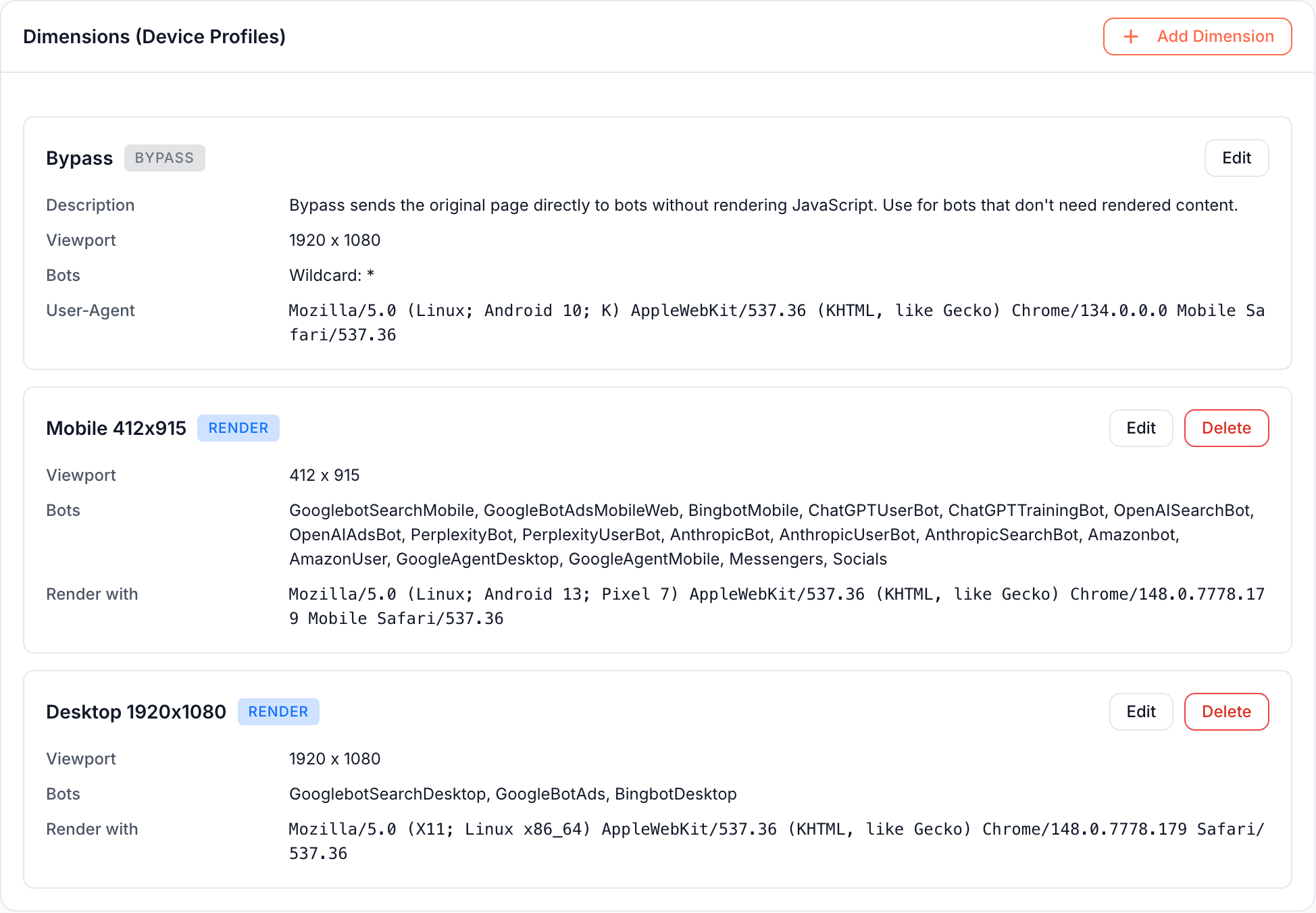
A new Cache + Render website starts with three dimensions:
| Dimension | Action | Viewport | Bots |
|---|---|---|---|
| Bypass | Bypass | 1920 x 1080 | Every user agent no other dimension matches |
| Mobile 412x915 | Render | 412 x 915 | Google Mobile, Google Ads Mobile, Bing Mobile, All AI Bots, All Messengers, All Socials |
| Desktop 1920x1080 | Render | 1920 x 1080 | Google Desktop, Google Ads, Bing Desktop |
AI bots render on the mobile profile by default, the same view Google indexes. Meta External Agent, Meta Web Indexer and Google Storebot are in no group, so they get the bypass copy until you add them to a render dimension. A Cache-only website starts with the Bypass dimension only. See Choose a serving mode.
Add or edit a dimension
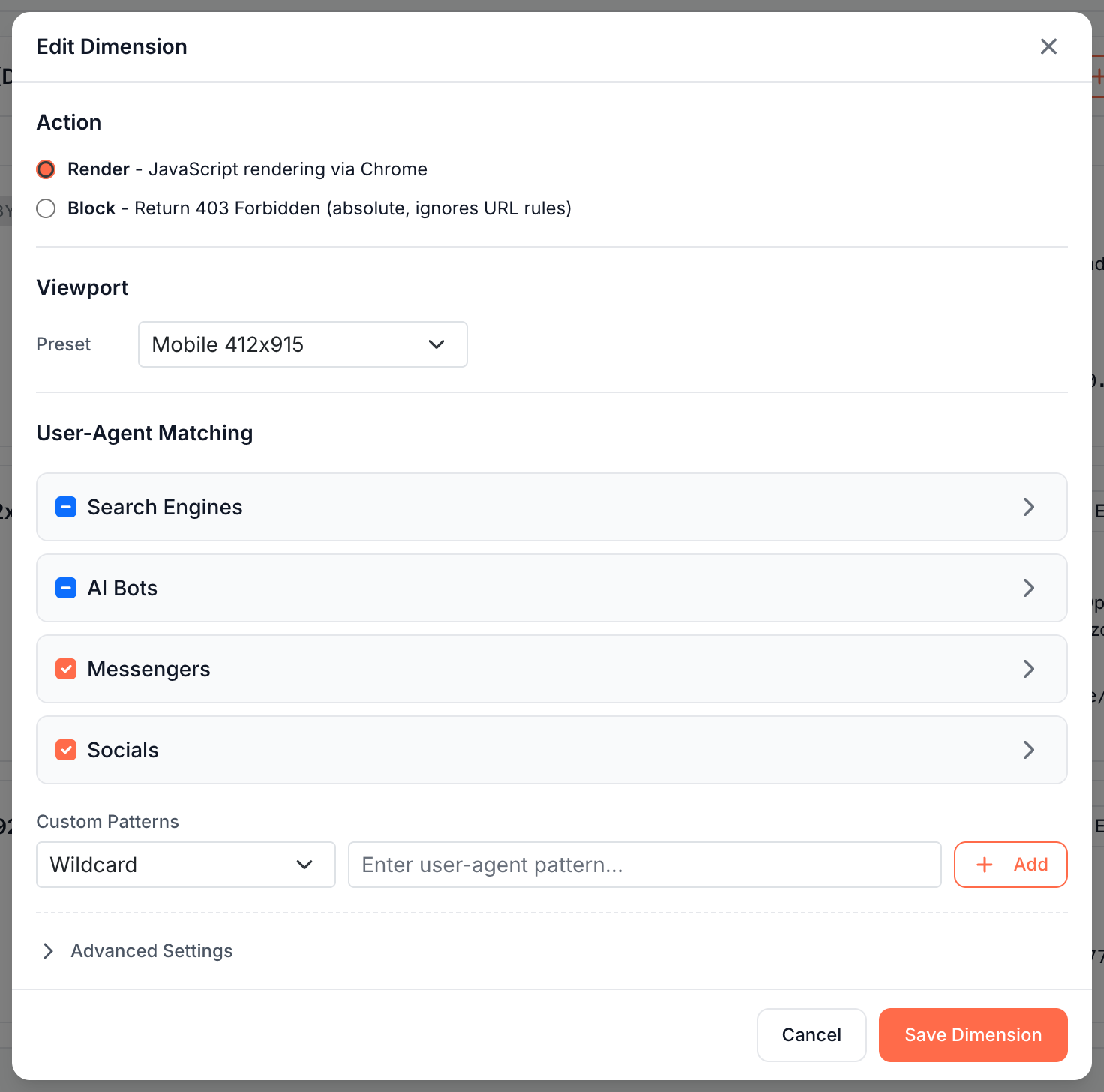
- Open Configuration > System Settings > Dimensions and click Add Dimension, or Edit on a dimension card.
- Under Action, choose Render or Block.
- Under Viewport, choose a preset: Desktop 1920x1080, Desktop 1440x900, Mobile 412x915, Mobile 375x812, or Custom with a width from 320 to 3840 and a height from 480 to 2160 pixels. Block dimensions have no viewport.
- Under User-Agent Matching, tick the bots this dimension serves, by group or one by one, and add Custom Patterns for bots not in the list, as Exact, Wildcard, Regex or Regex (i) for a case-insensitive regex. A bot already used by another dimension is marked.
- Optional: open Advanced Settings to change the Render User-Agent, the user agent Chrome sends to your server. It is set from the viewport preset.
- Click Save Dimension, then Save at the bottom of the page, then Deploy in the banner. See Deploy, roll back and restore settings.
EdgeComet names the dimension when you save, from its action and width: Mobile below 768 pixels, Desktop from 768 pixels, or Block.
Bot aliases you can pick
A bot alias is a named set of user agent patterns that EdgeComet keeps up to date, so you pick "Anthropic Bot" instead of writing a regex:
| Group | Aliases |
|---|---|
| Search Engines | Google Desktop, Google Mobile, Google Ads, Google Ads Mobile, Bing Desktop, Bing Mobile, Google Storebot |
| AI Bots | ChatGPT User, ChatGPT Training, OpenAI Search, OpenAI Ads, Perplexity Bot, Perplexity User, Anthropic Bot, Anthropic User, Anthropic Search, Amazon Bot, Amazon User, Google Agent Desktop, Google Agent Mobile, Meta External Agent, Meta Web Indexer |
| Messengers, Socials | All Messengers, All Socials |
All Search Bots covers the four Google and Bing search aliases. All AI Bots covers 13 AI aliases and leaves out the two Meta aliases. To see which crawler each alias stands for, see AI crawler user agents and Search crawler user agents.
Block a bot
A block dimension stops a bot site-wide:
- Click Add Dimension and choose Block.
- Tick the bot alias or add a custom pattern, such as
*Bytespider*as a Wildcard. - Click Save Dimension, Save and Deploy.
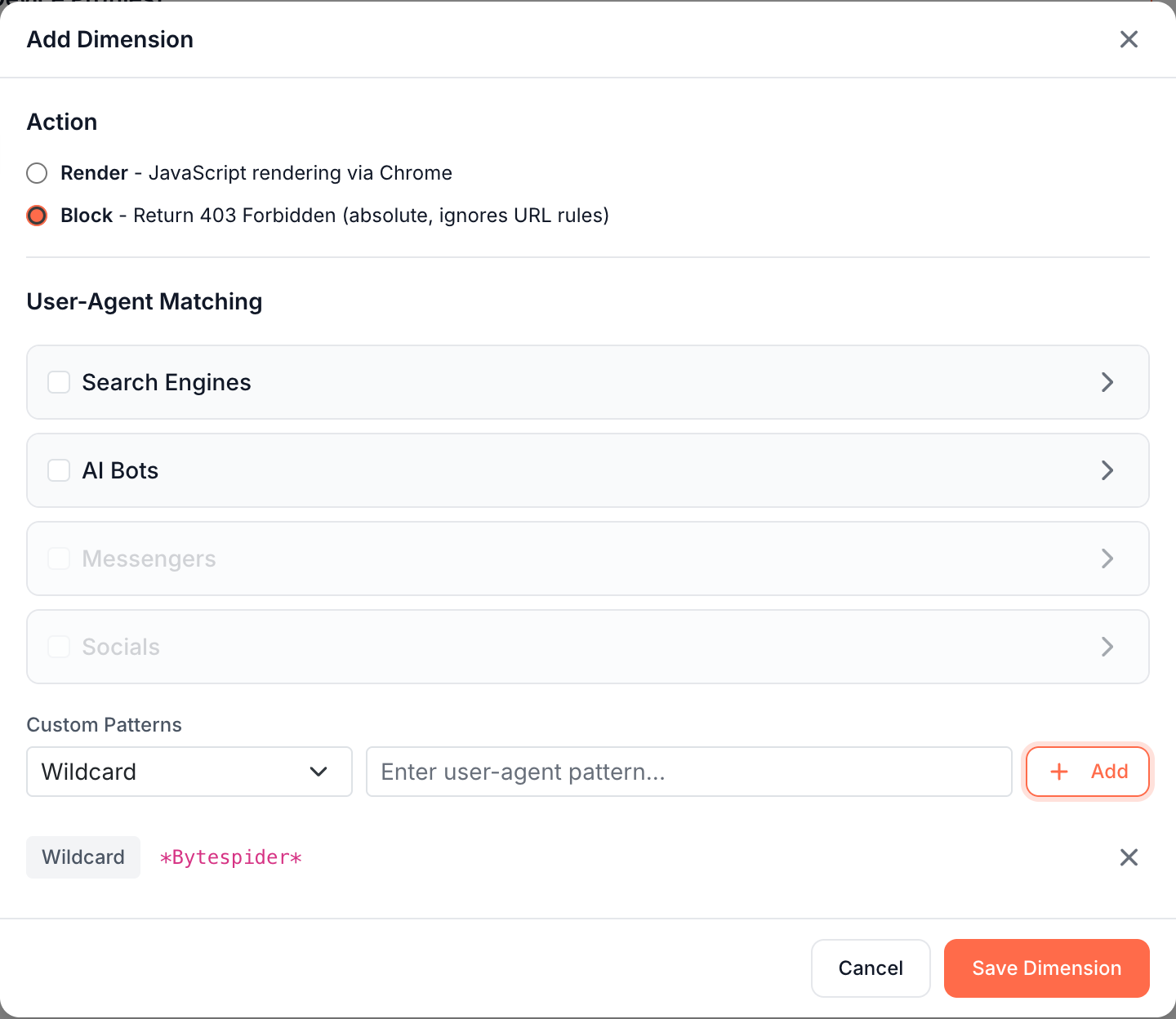
The bot then gets 403 Forbidden for every URL, and no URL rule can override it. Matching uses the user agent the request claims, so it blocks the real bot and anything that copies its user agent.
To block a bot on some URLs only, or answer it with another status such as 429, use a URL rule with Match User-Agent. To find bots that fake their identity, see Detect fake Googlebot and other bad bot traffic.
The bypass dimension
The bypass dimension cannot be deleted. Its User-Agent is the one EdgeComet sends to your server when it fetches HTML without rendering, a mobile Chrome user agent on new websites. Its viewport is used when a pre-cache rule stores rendered HTML for the bypass copy. Turn on the bypass cache so bypass copies are cached too.
What you should see
- After the deploy, each dimension appears as a card with its name, action badge, Viewport, Bots and Render with user agent.
- Cache > Precache > Cached URLs shows the dimension of each cached copy in the Dimension column.
- Page Analysis > Cache shows the copy each dimension holds for one URL.
If it does not work
"At least one bot alias or custom pattern is required"
Render and block dimensions need at least one bot. Tick an alias or add a custom pattern.
"Dimension ids shifted, so the per-copy choices on N pre-cache rule(s) were updated to follow."
Deleting or renaming a dimension renumbered the others. EdgeComet moved the per-dimension choices in your pre-cache rules along with them. Open each rule under Configuration > Caching and check its Pre-cached HTML choices.
"The URL rule for ... forces the dimension ..., which this site no longer renders."
A URL rule renders with a dimension you deleted or changed to block. Edit or delete that rule under URL Rules, then deploy again.
A bot gets the bypass copy instead of a rendered one
No render dimension matches its user agent. Add its alias or a custom pattern to a render dimension, then deploy and recache.