

Search and ask with Cmd+K
Search and ask is one box that finds anything in the dashboard and sends your questions to Ask. Press Cmd+K (Ctrl+K) on any page, or click the magnifier at the end of the website row in the sidebar. Also called the command palette.
Type a few words to jump to a report, a finding or a page. Type a question and it opens in Ask, or in the Ask panel of the report you are on.
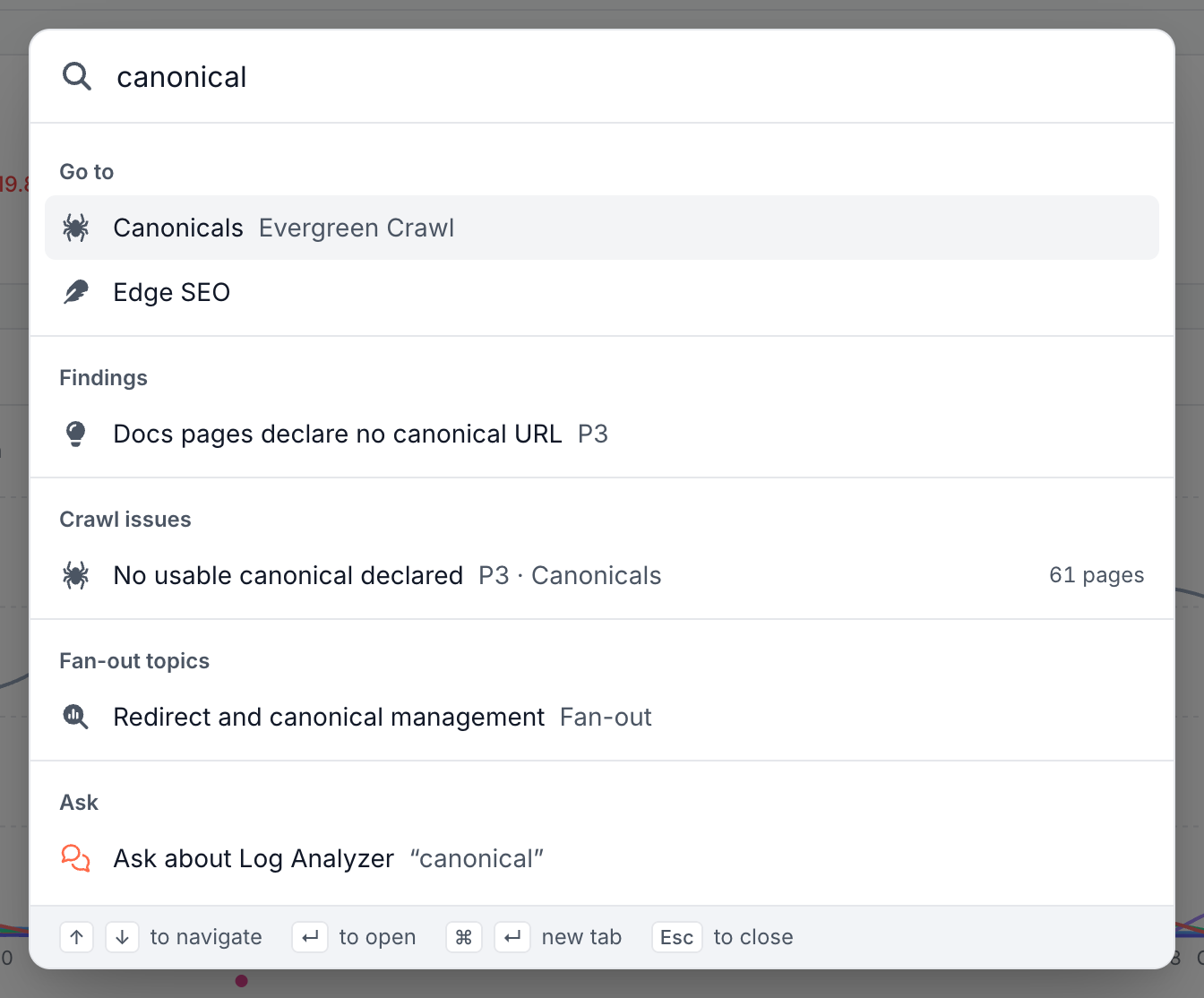
Open and close the box
- Press Cmd+K (Ctrl+K) to open it, and the same keys or Esc to close it.
- Click the magnifier at the end of the website row in the sidebar, or Search on the collapsed sidebar.
The field reads "Search {domain} or ask a question", or Search EdgeComet outside a website.
The footer lists the keys: ↑↓ to navigate, ↵ to open, Cmd+↵ (Ctrl+↵) to open in a new tab, and Esc to close.
Before you type
An empty box lists three groups:
- Recent: up to 5 places you opened from the box, remembered on this device for this website.
- Go to: the places in the sidebar, with the page you are on marked Current page.
- Settings: your account and team settings.
Search by words
Type words, such as "canonical" or "decay", and the results arrive in groups:
- Go to: reports, report tabs and settings.
- Websites: switch to another of your websites.
- Conversations and Custom reports: your site's Ask conversations and saved reports.
- Apply segment: apply one of your saved segments to the report.
- Actions: commands such as New conversation (see Actions).
- Findings: Action Board findings, with their priority.
- Crawl issues: Evergreen Crawl issues, with their priority, category and page count.
- Fan-out topics: topics from the Fan-out report.
- Ask: send the words to Ask as a question.
- Pages: pages of your site whose URL or title contains the words. See Find a page.
When nothing fits, the box shows Nothing matches.
Ask a question
Type a question and press Enter to send it to Ask. The box treats text as a question when it ends with "?" or starts with a question word, such as what, why, how, which, show, list, find or compare. The Ask row then comes first, as Ask about your report or domain.
Where the question goes:
- On a report with the Ask panel, the question goes to that panel. See Ask about any report.
- Anywhere else, the question starts a new Ask conversation and opens it. See Start and manage Ask conversations.
If the conversation cannot start, the box shows "The assistant could not start." Send the question again.
Analyze a URL
Type or paste a URL, a path such as /pricing/, or your domain, and the first row reads Analyze followed by the URL. Press Enter to open that page in Page Analysis, which the row labels Page Explorer.
The box checks the URL first:
- "Enter a valid URL." The text is not a URL. Check it and try again.
- "This URL is not on {domain}. Analysis only covers pages on this website." Page Analysis reads pages of the current website only.
The same text also offers Ask, conversations that mention the path, and matching pages.
Actions
The Actions group starts common tasks from the keyboard:
- New conversation
- New segment
- New Edge SEO rule
- New alert rule
- New skill
- Invite a teammate
- Switch to light mode or Switch to dark mode
- Expand sidebar or Collapse sidebar
- Ask about this report, on a report page
Find a page
The Pages group searches your site's pages by URL or title once you type 3 characters. It finds pages that bots or the EdgeComet pre-cache fetched in the last 30 days.
The group sorts results by bot visits and shows the count, such as 84 visits. A page that only the pre-cache fetched shows 0 visits. The group lists up to 5 pages, and clicking one opens it in Page Analysis.
When you type a URL or a path and no page matches, the group reads "No pages with "{term}" in the URL or title in the last 30 days". The Analyze row above it still opens the URL in Page Analysis.
Where to find it
In the dashboard: Cmd+K (Ctrl+K) on any page, or the magnifier at the end of the website row in the sidebar.