

Start and manage Ask conversations
An Ask conversation is one thread of questions and answers about a website, kept together with the tables, charts and documents it produced. You start it from the Ask home and come back to it at any time. Also called an Ask thread.
Conversations belong to the website, not to the person who started them. Everyone on your team sees them in the list and can continue them.
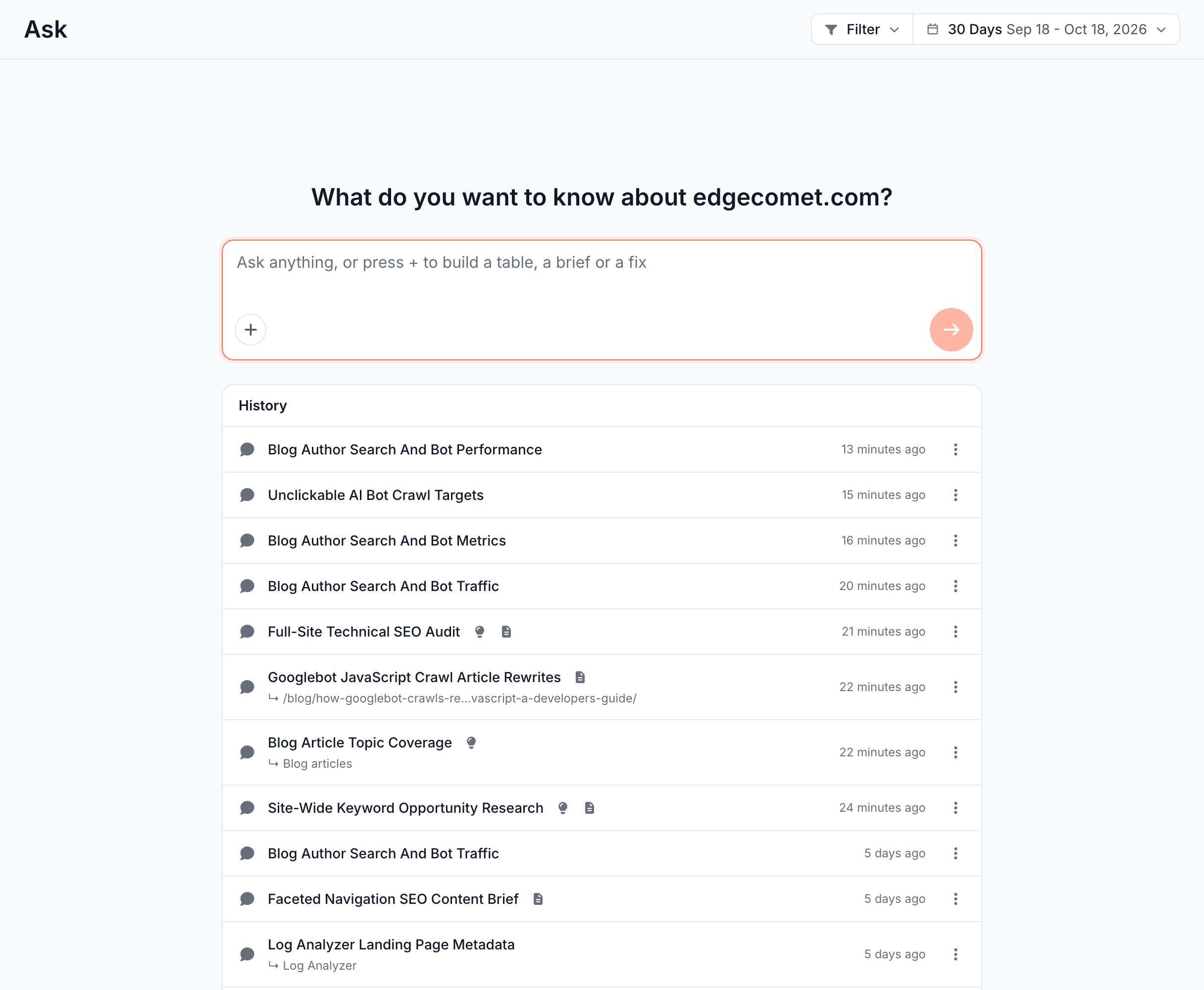
Start a conversation
- Click the Ask tab at the top of the sidebar, then New conversation.
- Type your question in the composer under What do you want to know about your domain. A question can be up to 2,000 characters.
- Press Enter to send. Shift+Enter adds a new line.
The conversation opens on its own page, and Ask names it from your first question.
You can also start a conversation from anywhere with Cmd+K, from the Ask panel beside a report, or from the first page of Data Explorer.
What the Ask home shows
- Active now: conversations with an answer still in progress, marked "thinking...". The card appears only while one is running.
- History: the site's conversations, newest first. Each row shows the title, the finding, pages or report it started from, and the time of the last activity.
Icons beside a title show what the conversation produced: findings, generations, exports and documents. Hover an icon to see the count.
Choose what a question does with the + menu
The + button in the composer sets what your next question does. Typing / in an empty field opens the same menu.
| Menu item | What the next question does |
|---|---|
| Add pages or a URL list | Reads only the pages you choose. See Focus a question on pages |
| Build a table | Asks for a table of your data. See Build SEO data tables and charts from a question |
| Build a report | Builds a report of several blocks in the same answer. See Custom reports |
| Keyword research | Asks about keywords, competitors or search results. See Keyword research in Ask |
| Edge SEO fix | Drafts the change as Edge SEO rules in the same answer, without asking you first. See Draft Edge SEO fixes in Ask |
| Create an alert | Drafts alerts, or a change to one, from your description, tested against your data. Nothing turns on until you accept them on the review page. See Create and change alerts by describing them to Ask |
| Rewrite titles and meta | Writes new titles, meta descriptions or H1s in the same answer, without asking you first. See Titles and meta descriptions with AI |
| Content brief | Opens the run dialog of the Content brief (new article) skill |
| Improve an article | Opens the run dialog of the Article optimization skill |
| Run a skill | Lists the other skills enabled on the site, then Manage skills. See AI SEO skills in Ask |
The item you pick shows as a chip next to +. Click the × on the chip to drop it before sending.
The chip clears when you send, and the sent question keeps a small badge with the item's name.
Content brief and Improve an article appear only while the site has those skills enabled.
Focus a question on pages
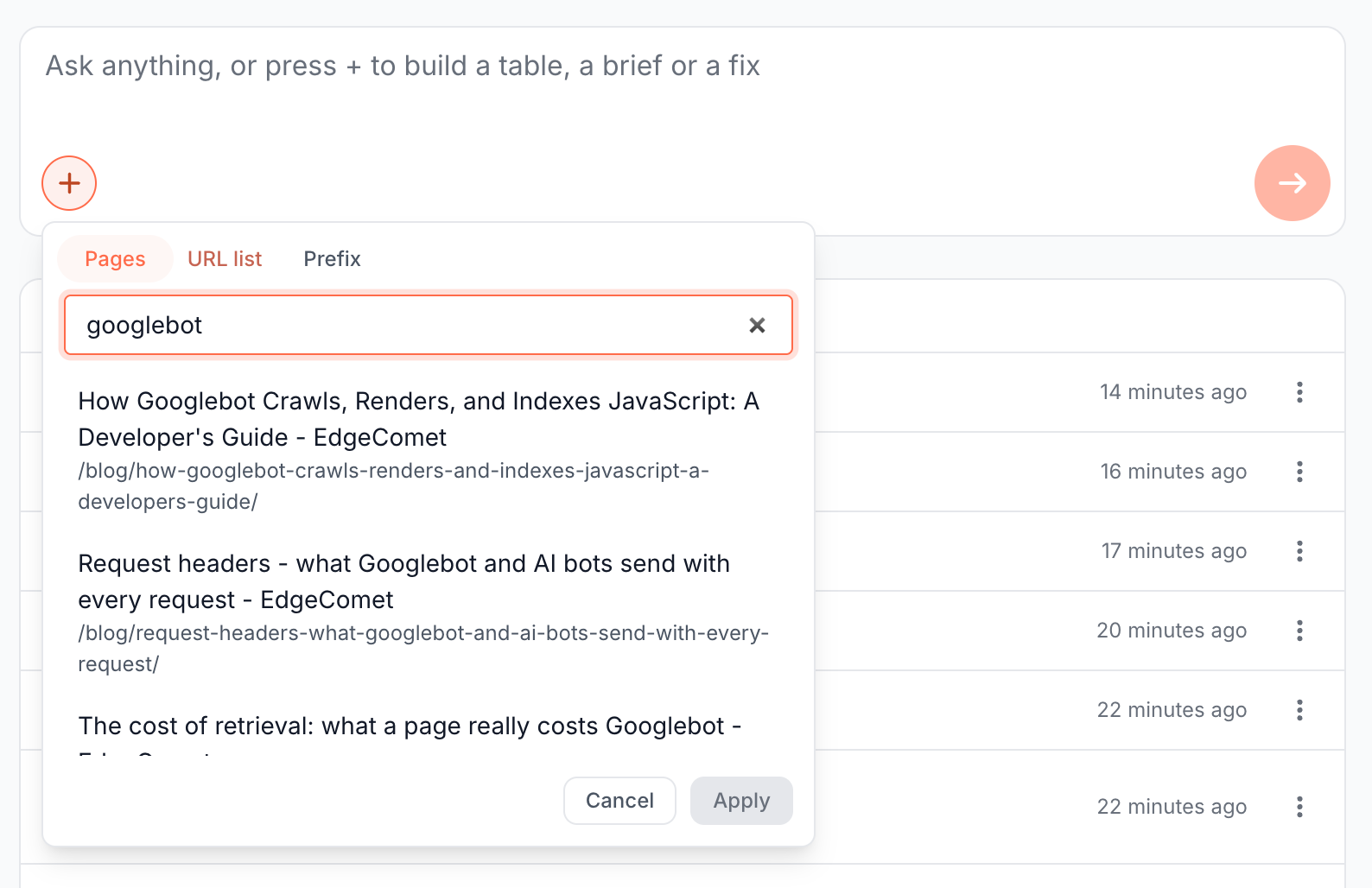
A Focus limits a question to the pages you choose: one article, a list of URLs or one section of the site. Choose Add pages or a URL list in the + menu, or type @ at the start of the field or after a space.
The Add pages panel has three tabs:
- Pages: type in Search pages by URL or title and pick up to 20 pages. The search finds pages bots fetched with a 200 in the last 30 days.
- URL list: paste up to 200 URLs or paths, one per line, such as
https://example.com/pricingor/blog/javascript-seo/. - Prefix: every page whose path starts with a prefix, such as
/blog/, under Pages whose path starts with.
Click Apply. The Focus shows as a chip above the field, such as Pages under /blog/ or 12 pages. It stays on for your next questions until you remove it. Click the chip to change the pages.
A Focus of up to 20 URLs carries into skills: Run a skill fills the skill's URL list with them. See Run a skill.
Focus messages
- "No page found. Pages bots never fetched with a 200 go in URL list." The page search has no match. Paste the URL in the URL list tab instead.
- "Line N is not a URL or a path." That line is not a URL or a path. Fix or remove it.
- "Line N is not a page of {domain}." That URL is on another domain. A Focus takes pages of the current website only.
- "Up to 200 URLs. Use a prefix for a whole section." The list is too long. Use the Prefix tab for a whole folder.
- "Start the prefix with /" and "The prefix is a path of up to 1000 characters with no spaces." The prefix must be a path, such as
/blog/.
Read the answer on the canvas and in the chat
Ask puts tables, charts and documents on the canvas and its reply in the chat:
- Canvas, on the left: the tables, charts, reports, documents, drafts and generation runs the answers produced.
- Chat, on the right: your questions and the answers, with the composer at the bottom.
Drag the divider between the panes to resize them. Your browser keeps the split for the next visit.
Hide chat in the chat header, or Cmd+. (Ctrl+.), gives the canvas the full width, and Show chat brings the chat back. On a phone the panes become Canvas and Chat tabs.
An answer that puts something on the canvas ends with On the canvas ↖. Earlier answers link to their own output on the canvas. Ask suggests up to two follow-up questions under the latest table.
While Ask is answering
An answer moves through these states:
- Queued: the question waits to start.
- Working: the chat shows the current step, such as "Reading the article body", and the elapsed time.
- Done: the answer is complete.
- Failed: the answer could not finish. See If Ask does not answer.
- Stopped: someone clicked Stop.
Click Stop to end an answer early. The chat shows Stopping... until the current step finishes, and keeps any text already written.
You can leave the page while Ask works. The answer keeps running and the conversation stays under Active now until it finishes.
One question at a time
A conversation answers one question at a time. Send your next question once the answer is done, or start a new conversation to ask something else in parallel.
Follow-up questions
Ask reads the earlier messages of the conversation with every new question. A short follow-up such as "only blog pages" or "add average position" changes the last table instead of starting over. See Refine a table with a follow-up.
In a long conversation, Ask condenses the oldest messages into a summary. Start a new conversation when you change topic.
Rename, delete and switch conversations
- Title: Ask names the conversation from your first question. A name you set always wins.
- Rename: open the title menu in the chat header, or the row menu on the Ask home, and choose Rename. The Rename conversation dialog takes a title of up to 120 characters.
- Switch: the title menu lists recent conversations and New thread.
- Delete: choose Delete in the same menus. The confirmation reads "This permanently removes the conversation and its messages. Any findings it produced stay on your board. This cannot be undone."
The Ask tab of the sidebar lists recent conversations under Conversations, with All conversations at the top. Each row has a menu with Open in new tab, Copy link, Rename and Delete.
A conversation started on an Action Board finding opens on that finding's page, beside the finding. See Ask about the board and each finding.
If Ask does not answer
Each message below names why the answer stopped or never started, and what to send next.
"The assistant ran out of time - try a narrower question."
The answer reached the time limit for one question before it wrote any text. Narrow the question to fewer pages with a Focus, one data source or one metric, or split it in two.
"(I had to wrap up early, so this may be partial.)"
The answer reached the work limit for one question and wrote what it had. Send a follow-up for the missing part, or narrow the question.
"I had to wrap up early before I could answer - try a narrower question."
The answer reached the work limit before it wrote anything. Narrow the question to fewer pages, one source or one metric.
"Stopped before the assistant could answer."
Someone clicked Stop before any text was written. Send the question again.
"The assistant did not return an answer - please try again."
The answer finished without any text. Send the question again, or rephrase it.
"The assistant could not complete this request."
The answer failed. Send the question again. If it keeps failing, rephrase it or split it into smaller questions.
"A previous message is still being answered."
The conversation is still working on your last question. Wait for Done, click Stop, or start a new conversation.
"The assistant could not start."
EdgeComet could not create the conversation. Reload the page and send the question again.
Where to find it
In the dashboard: Ask > New conversation, and Ask > Conversations > All conversations for the full list.