

EdgeComet account settings
Your EdgeComet account settings hold your profile, sign-in security, team, connected accounts and tokens. Open them from the account menu at the bottom of the left strip, then Settings. Also called user settings.
Account settings apply to you on every website you open. Settings for one website, such as rendering, caching and Search Console, live under Configuration on that website.
Open the account menu
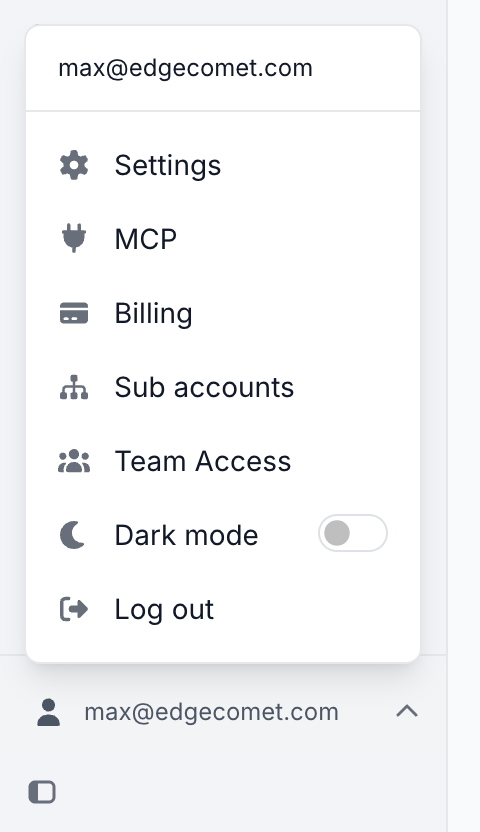
The account menu is the button with your email address at the bottom of the left strip, on every page of the dashboard. When the strip is collapsed, the button shows only your avatar. The menu lists:
- Settings: opens your profile and the rest of the account settings.
- MCP: opens the MCP Connection page, where you connect AI clients and revoke them.
- Billing: your plan, usage and invoices.
- Sub accounts: your client accounts, on agency accounts only.
- Team Access: the people you share your websites with. It appears once you own a website. See Invite your team.
- Dark mode: switches the dashboard between light and dark.
- Log out: signs you out of this browser.
What each settings page does
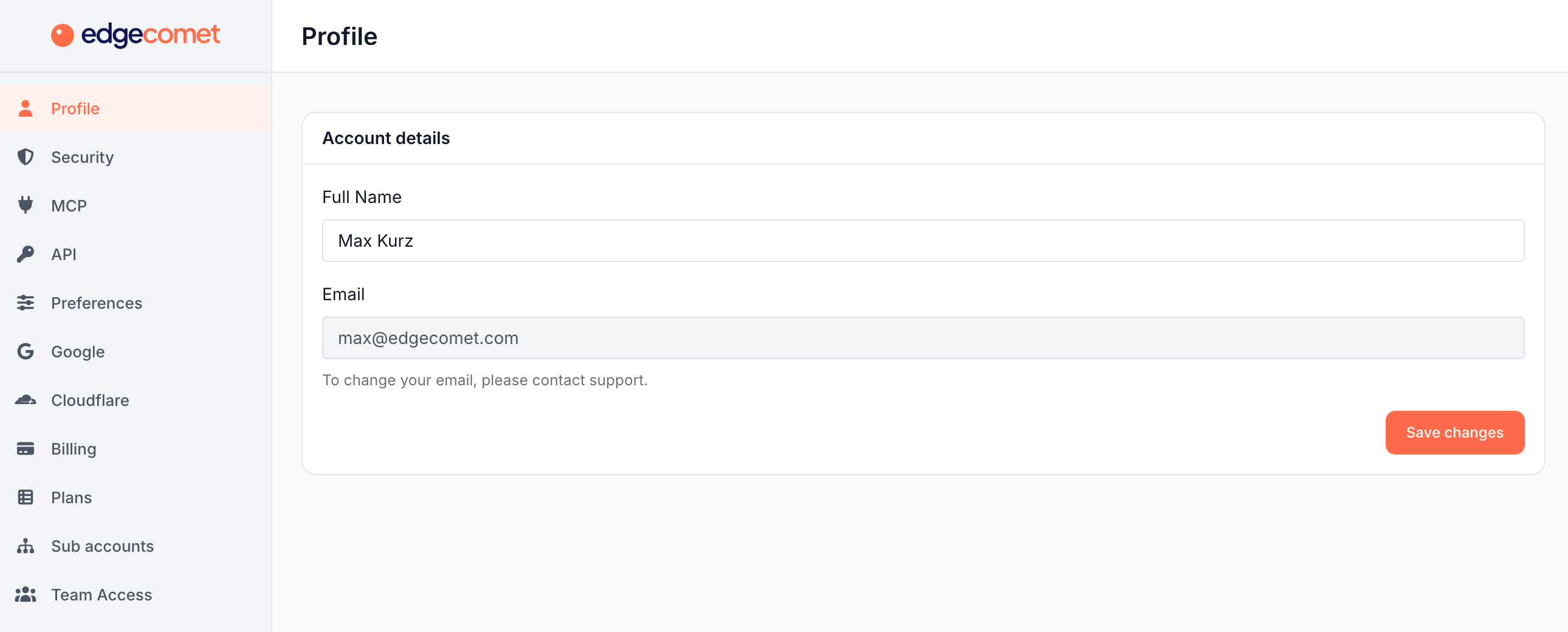
The account settings sidebar lists these pages in this order:
| Page | What you do there | Guide |
|---|---|---|
| Profile | Change your name and see your sign-in email | Profile and preferences |
| Security | Change your password, turn on two-factor authentication, link Google sign-in | Password, two-factor and Google sign-in |
| MCP | Connect Claude, ChatGPT, Codex and other AI clients, and revoke them | Connect an AI client |
| API | Create and revoke API tokens for the HTTP API | API tokens |
| Preferences | Choose how numbers and dates are formatted | Profile and preferences |
| Connect Google accounts for exports to Google Drive | Google Drive export | |
| Cloudflare | Manage your Cloudflare authorizations | Cloudflare app |
| Billing and Plans | Your plan, usage, invoices and plan changes | |
| Sub accounts | Add client accounts and their websites, on agency accounts | Manage clients as an agency |
| Team Access | Invite people to your websites and set their roles | Invite your team |
Account settings and website settings
Account settings belong to you as a person. Website settings belong to one website and apply to everyone who works on it.
- Per account: profile, password and two-factor authentication, number format, Google Drive and Cloudflare connections, API tokens, MCP connections and your team.
- Per website: rendering and caching settings, URL rules, the CDN connection and Search Console. You find them under Configuration on each website, and who can open the website under Configuration > Sharing.
Connections and tokens act as you, on the websites your account can open. See API tokens and AI clients.
Find a setting with Cmd+K
Press Cmd+K, or Ctrl+K on Windows and Linux, and type what you want to change, such as "password", "2fa", "token" or "members". The account pages appear in the results, and Enter opens the page. See Search the dashboard and ask with Cmd+K.
Changes that go through support
A few account changes are made by EdgeComet support, at [email protected]:
- Change your email address. See Change your email address.
- Delete your account or a website.
- Move a website to another account. The account that adds a website owns it.
- Turn off two-factor authentication if you lose both your authenticator app and your recovery codes. See If you lose your authenticator app.
Where to find it
In the dashboard: the account menu at the bottom of the left strip, then Settings. The account settings open on Profile at cloud.edgecomet.com/settings.