

Rewrite titles, meta descriptions and robots tags
Title, Meta description, Index or noindex and the Social edits rewrite the head of the page bots receive: the title, the meta description, the robots directive, and Open Graph, Twitter and other meta tags.
Use them to fix one page in a minute or to apply the same pattern across a section.
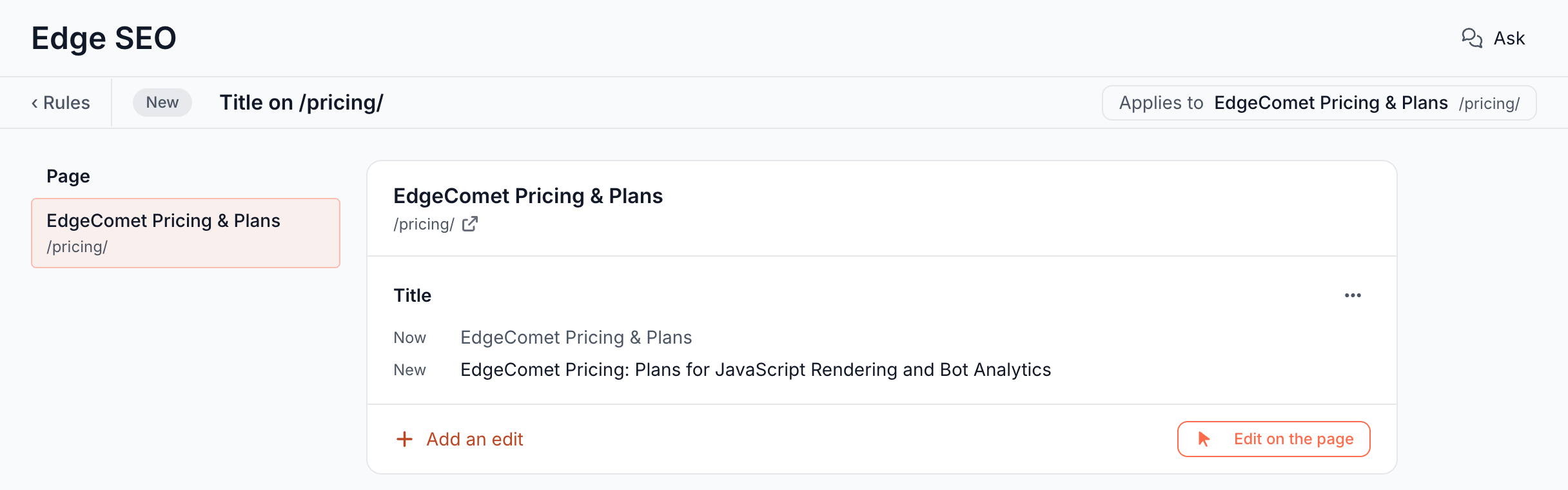
Change the title or meta description of one page
- Open Edge SEO, click New rule, then One page. Type part of the path or the title and pick the page.
- The center shows the page's current Title, Meta description and H1. Click the title to start the edit from its current value.
- Type the new title and click Save. The row shows Now and New. When you change a few words, they are marked.
- Click Save draft or Deploy.
If the page has no title or meta description, the rule adds one to the head.
Add noindex or nofollow
Noindex under the filters, or Index or noindex in Add an edit, sets the robots meta tag. The Indexing row shows the page's value, "index, follow (no robots tag)" when it has none, and the new one, such as noindex, follow. Click the new value to choose Index or noindex, and Follow or nofollow. The control shows the tag it writes, such as "writes: noindex, follow", and Done closes it.
The edit writes the whole robots tag:
- One page: the new value starts from the page's own robots tag with your two choices applied, and its other directives stay. Each shows as "Keeps
max-snippet:-1" with Remove. - Multiple pages: every page gets the same value. A page whose own robots tag carries a directive the new value does not is flagged, such as "Drops max-image-preview:large on this page".
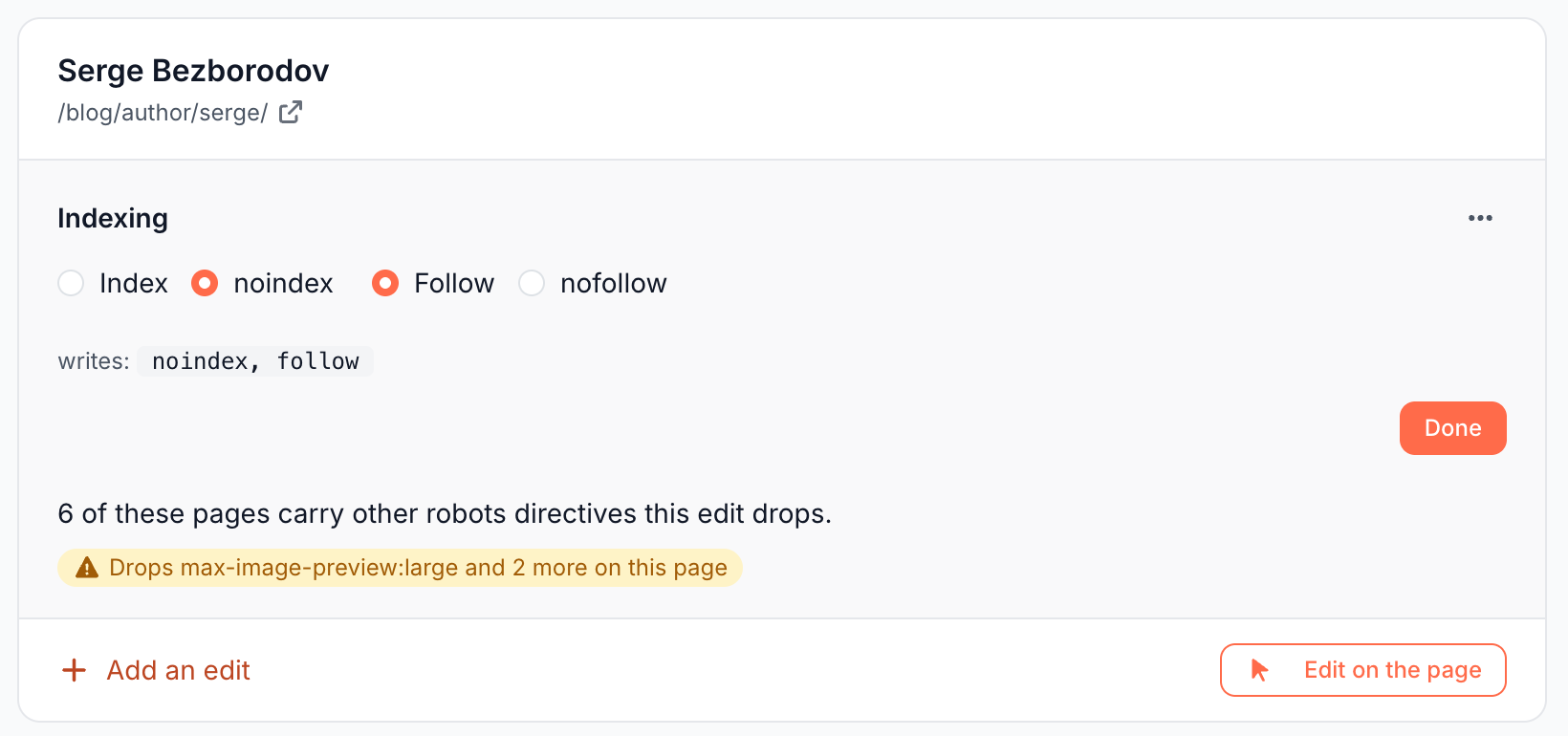
A common use: Multiple pages, a filter URL path Starts with /tags/, and noindex, follow. Thin tag archives drop out of the index while crawlers still follow their links. When the filters also match URLs that are not HTML pages, such as feeds, Leave them out adds a filter that skips them.
Open Graph, Twitter and other meta tags
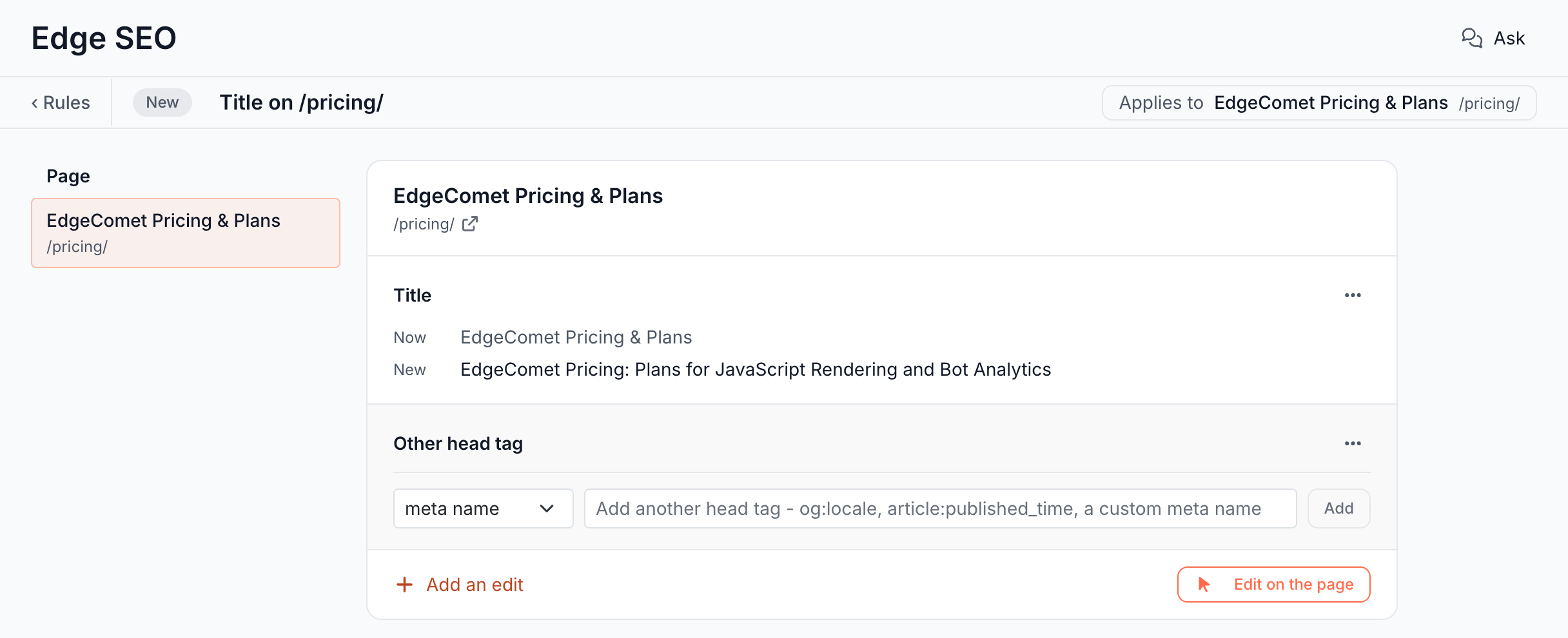
Social title, Social description and Social image in Add an edit write og:title, og:description and og:image. To change any other meta tag, choose Other head tag:
- Choose meta name or meta property. The editor picks it for you from the prefix:
og:,article:,book:,profile:,music:,video:andfb:tags are meta property, everything else, Twitter included, is meta name. - Type the tag name, such as
twitter:titleorog:locale, and click Add. Names take letters, digits, dots, colons, dashes and underscores. - Set its value like any other edit.
Rewrite titles across many pages
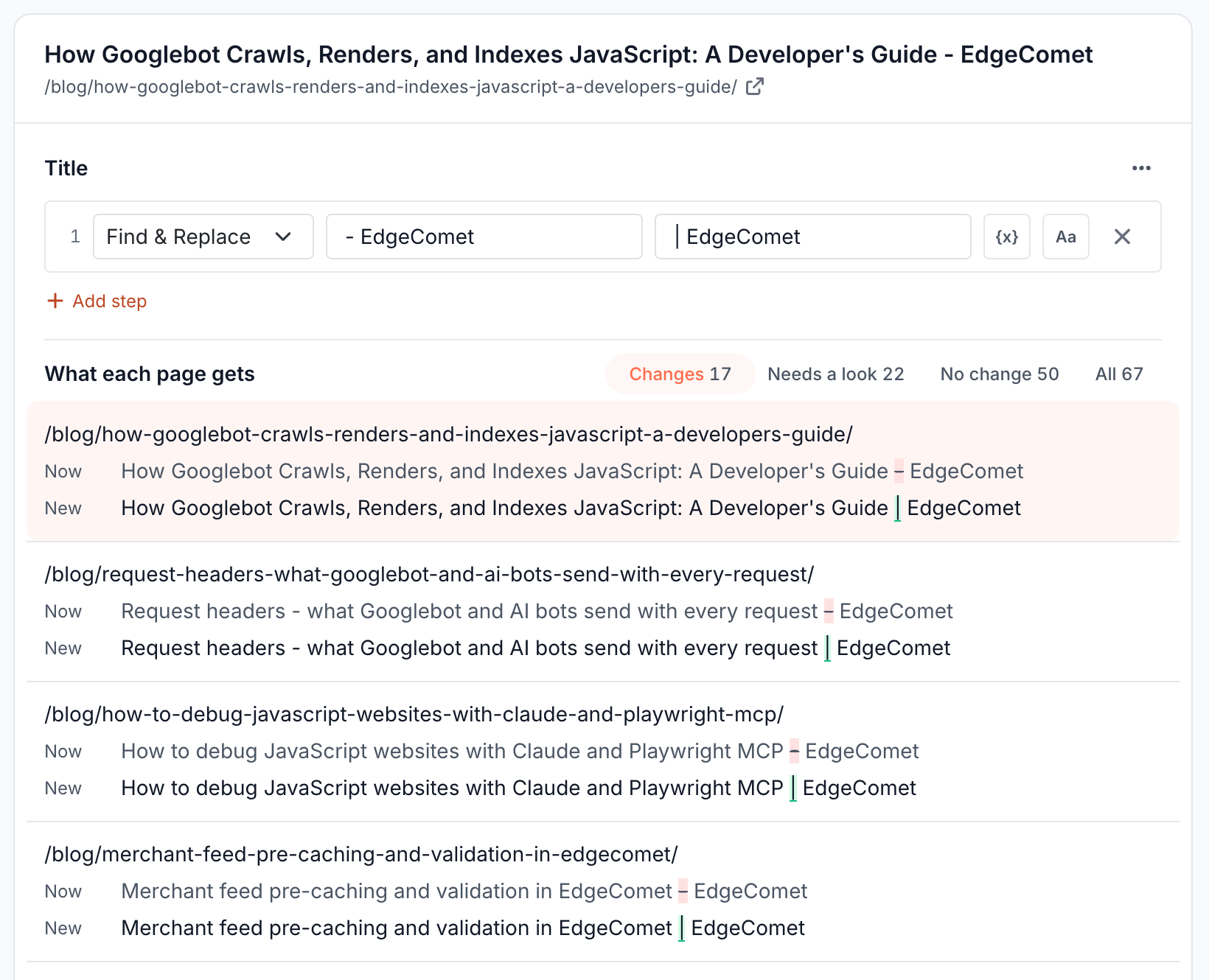
With Multiple pages, each text edit is a list of steps that run in order, and one rule can reshape thousands of titles:
| Goal | Steps |
|---|---|
| Add the brand to every title | Append | Example |
| Update the year | Find & Replace 2025 with 2026 |
| Cut titles to 60 characters | Truncate 60 |
| Build the title from the H1 | Set {h1} | Example |
| Give empty descriptions a template | Set Buy {h1} online. Free delivery on orders over $50. with a filter Meta description Is empty |
Values can use variables such as {h1}, {title} and {url_segment_1}, which read the page as it was before any rule ran. See Apply one rule to thousands of pages for every step and variable.
Under the steps, the edit lists what each page gets, with Changes, Needs a look, No change and All. Pages that already hold the appended text, or that share a title with another listed page, are flagged, and a page left with no value reads "Empty". See What each page gets.
Let EdgeComet write them
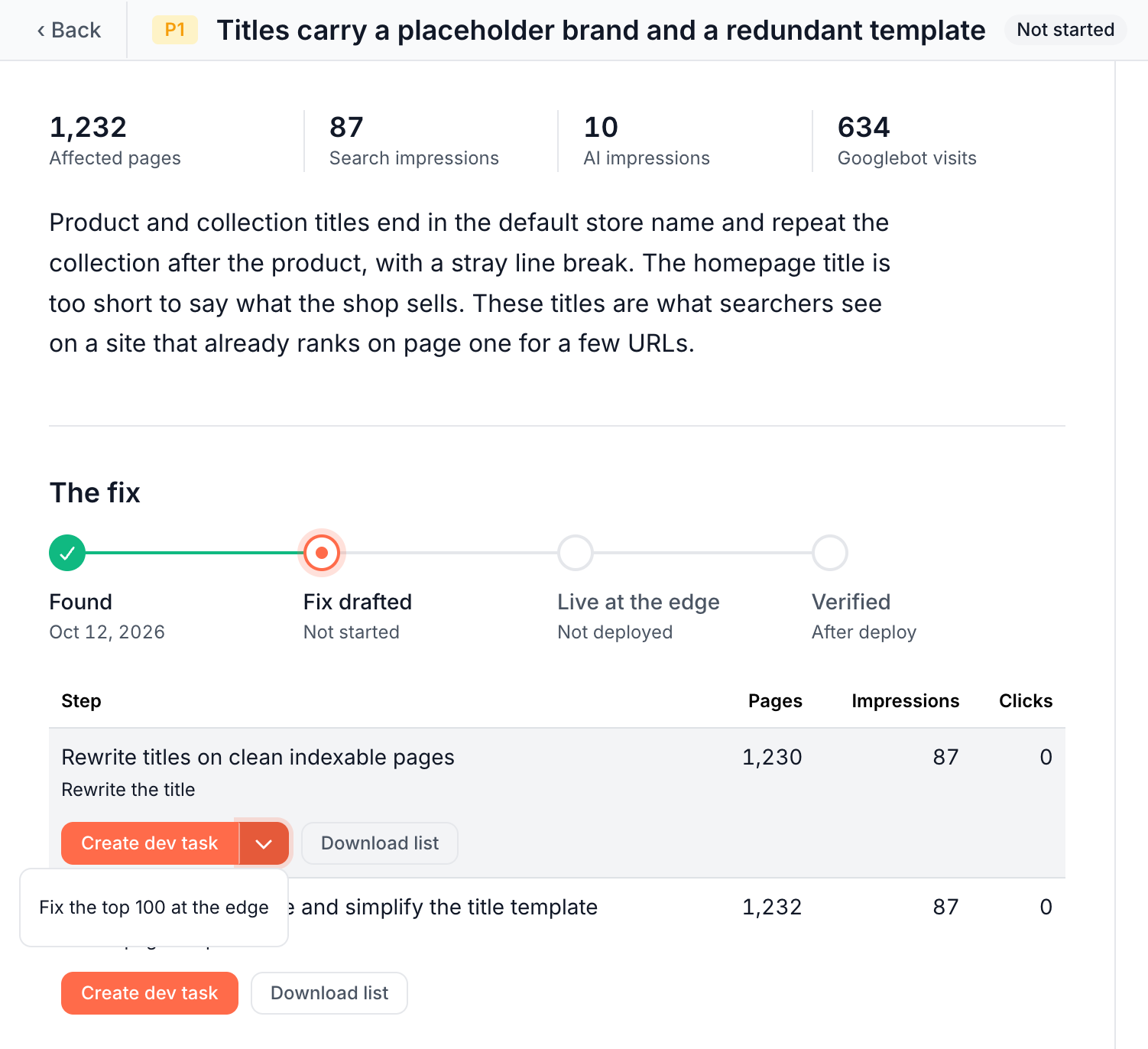
The Action Board finds pages with missing, duplicate or too-long titles and descriptions and drafts new ones, and Ask's Rewrite titles and meta option does the same from a request. AI drafts that give each page its own title arrive as a batch you review page by page, with each page's old and new value and the reason for the change. See Review drafts from the Action Board, Ask and AI clients and Generate titles and meta descriptions with AI.
What you should see
After the deploy and the recache, the page bots receive carries the new tags. Check them in Page Analysis > Cache, or request the page with a bot user agent and look at its <title>. See Check the headers bots receive for the request.
If it does not work
The title did not change on the live page
The rule may not be deployed yet, or the page has not been recached. Check that the rule is on the Live tab, then recache the page. Visitors in a browser see the change only if the Edge SEO snippet is installed.
A later rule writes the same field
Rules run in the order they went live, and a later rule's value for the same field wins. Paste the page URL into Search or paste a URL on the Edge SEO page: it lists the live changes on that page in the order they run. Check the page bots receive in Page Analysis > Cache.