

Review SEO changes across your site by priority
The Overview tab of the EdgeComet Changes report answers what changed on your site in a period, and which changes to look at first. Also called an SEO change review. It reads the page change log for every page EdgeComet renders or fetches.
The tab reads top to bottom:
- Cards: how many pages changed, stopped serving
200, lost indexability or flip back and forth. - Releases: the deploys EdgeComet found, covered in Site releases.
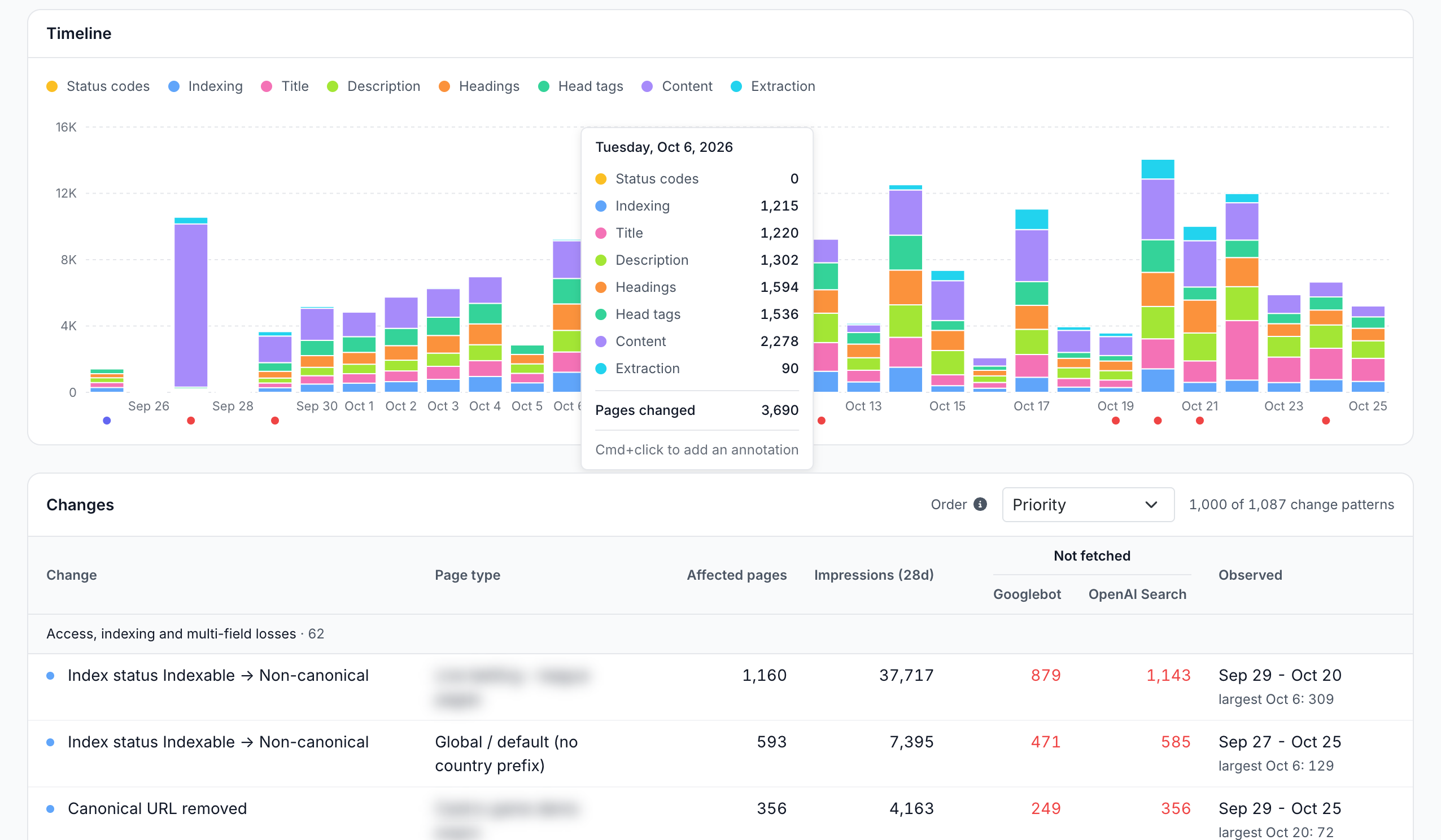
- Timeline: changed pages per day, by group of fields.
- Changes: every change pattern per page type, ranked by priority, with its Search Console impressions and the pages crawlers have not fetched since.
What the report shows
The cards, the Timeline and the Changes table count pages, over the period and filter in the header. The Releases card ignores the filter. See Period and filter.
How many pages changed, and how?
The four cards count pages. The last three are parts of the first:
- Pages changed: pages with at least one tracked change in the period. The footer gives their share of the tracked pages, every page EdgeComet has recorded on the site, such as "2.4% of 2,903,561 tracked pages".
- Stopped serving 200: pages whose status code left
2xx, or whose redirect target changed. - Lost indexability: pages whose index status went from Indexable to Blocked or Non-canonical, or whose meta robots gained
noindexornone. - Unstable pages: pages where one field changed 3 or more times in the period and ended on the value it started with. The footer reads "changed 3+ times, ended unchanged".
View on each card opens those pages in the Change log, one row per page.
A line under the cards reports the log's own state. "Last update {time}" means the log has not updated for more than 15 minutes. "History loading, filled through {date}." means EdgeComet is still rebuilding the site's history up to that date.
Which releases happened?
The Releases card lists the site releases of the period, with their date, change, page type, pages and status. Its Page type column shows URL patterns, not the segments of the Changes table. A red dot marks a loss that is not reverted or marked as expected. See Site releases: deploys that changed SEO on many pages.
When did pages change?
The Timeline has one stacked bar per day, in UTC. Each color is a group of fields: Status codes, Indexing, Title, Description, Headings, Head tags, Content and Extraction. See What Changes tracks.
- Counts: each color counts the pages changed that day in that group. A page changed in two groups counts in both, and the tooltip's Pages changed line gives the distinct pages for the day.
- Legend: click a group to hide it.
- One day: click a bar to narrow the Changes table to that day. The cards and Releases keep the whole period. Click the bar again, or the date chip on the table, to show the whole period again.
- Dots: red dots under the dates are EdgeComet notes, including each site release, with its name in the tooltip. Other dots are chart annotations, such as Google updates and your team's notes.
Which changes matter most?
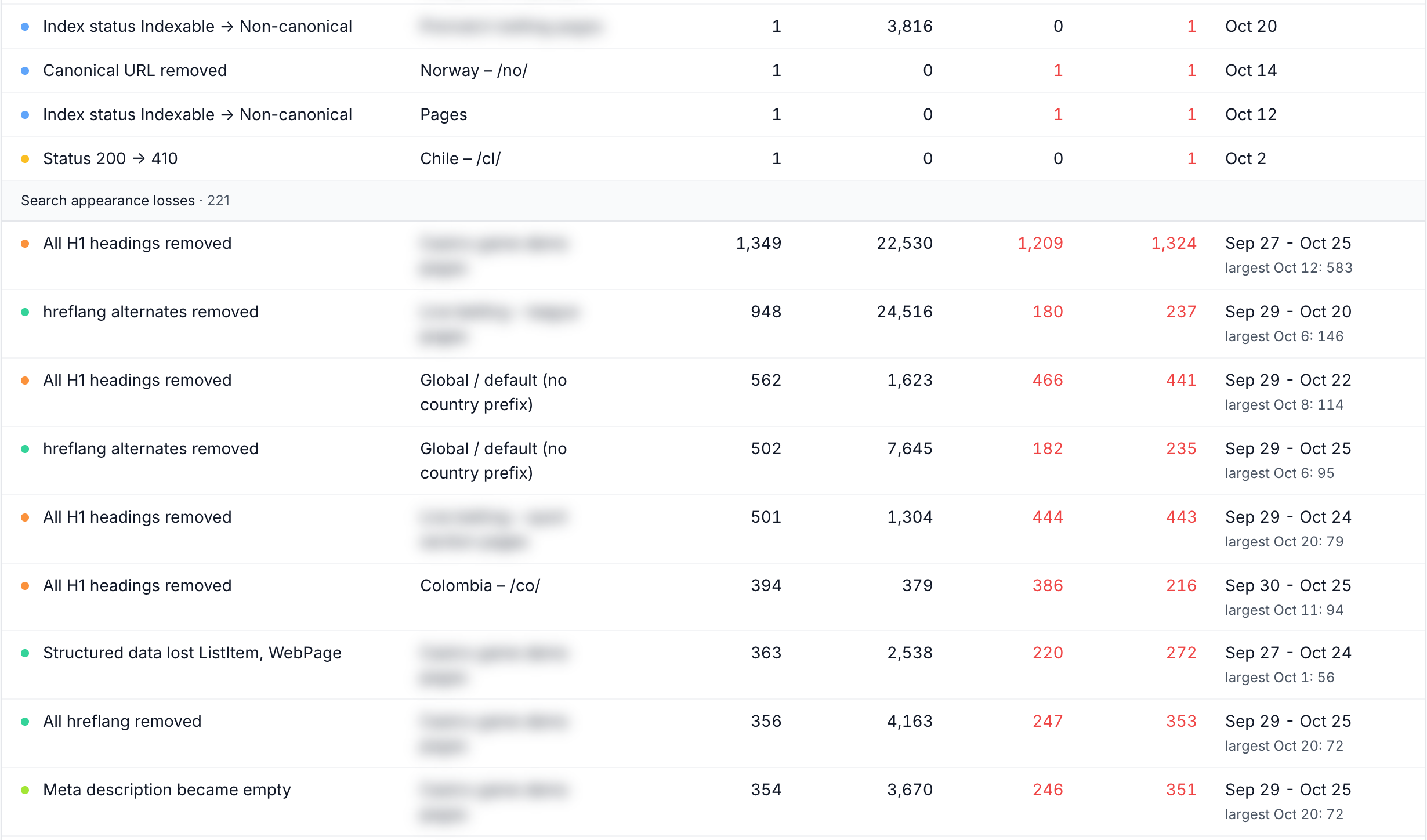
The Changes table has one row per change pattern on one page type. A change pattern is one kind of change in words, such as "Status 200 → 404", "Title rewritten", "Canonical URL removed" or "hreflang x-default removed".
The columns:
- Change: the pattern, with a dot in its group's color.
- Page type: the segment the pages belong to, or Other pages. See Page types.
- Affected pages: pages that show the pattern in the period or the selected day.
- Impressions (28d): the Google impressions of those pages over the last 28 days of Search Console data, whatever the period. It shows when Search Console is connected.
- Not fetched: for Googlebot and OpenAI Search, the pages that crawler has not fetched since the change, not counting pages no longer indexable. A red count opens them in the Change log, and a dash marks rows Recrawl does not count. See Which changed pages Recrawl counts.
- Observed: the first and last day the pattern appeared, and the day with the most pages, such as "largest Oct 6: 309".
Extracted fields that emptied together on the same pages share one row, such as "2 extracted fields became empty", followed by the field names. A crawler that has not fetched the site recently gets no Not fetched column. OpenAI Search is the name EdgeComet shows for OAI-SearchBot.
The header counts the patterns. Above 1,000 patterns, the table lists the first 1,000 in priority order, such as "1,000 of 1,087 change patterns". It shows 50 rows per page.
How is the table ordered?
Order offers Priority (the default), Affected pages, Latest observed and Impressions. Impressions appears once the Search Console figures have loaded.
A loss is a change that takes something away from search engines: a status that turns into an error or a redirect, a page that becomes blocked or non-canonical, noindex added, or a canonical, title, description, H1, structured data type or hreflang alternate removed.
Priority sorts the rows into five bands, and each band header counts its patterns, such as "Access, indexing and multi-field losses · 62":
- Access, indexing and multi-field losses: losses on the status code, redirect target, meta robots, index status or canonical, and rows that merge several fields.
- Search appearance losses: losses on the title, meta description, H1, structured data or hreflang.
- Other losses: such as a custom extraction field that became empty.
- Changed values: a value changed without being lost, such as "Title rewritten".
- Recoveries: a value came back or was added, such as a status back to
200, a canonical added or a title filled.
Inside a band, the patterns with the most affected pages come first.
What is behind a row?
Click a row, or press Enter or Space, to open it.
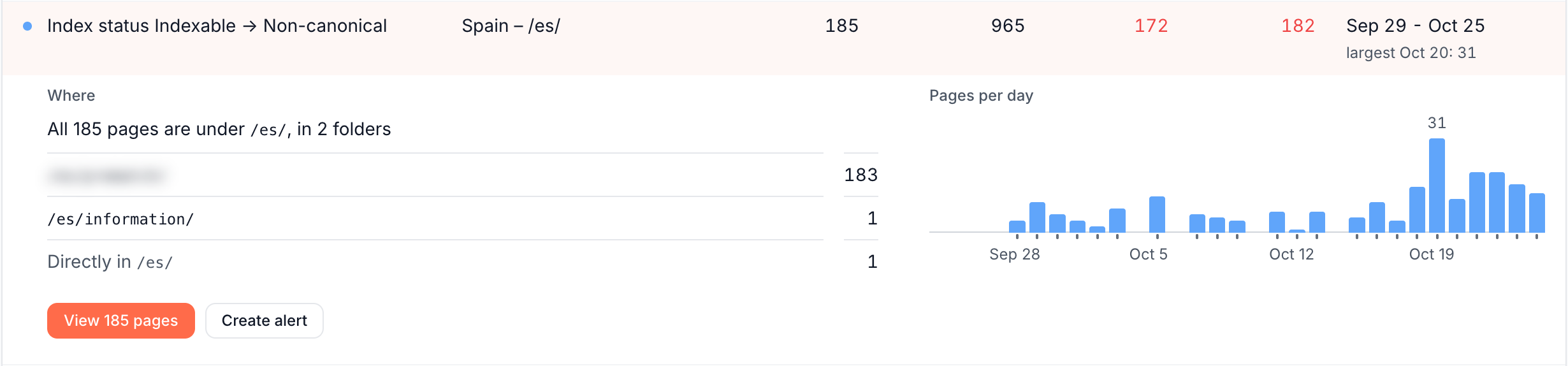
- Where: up to 10 pages are listed with their URL and title. For more, the pages are grouped by folder, such as "All 185 pages are under /es/, in 2 folders" or "356 pages in 24 top-level folders", with the five largest folders and the rest under "more folders".
- Pages per day: one bar per day, the largest labelled with its count.
- View {N} pages: opens exactly those pages in the Change log, for the period or the selected day.
- Create alert: opens the Pages changed alert form over the report, scoped to the row's page type (the whole site for Other pages), with the row's fields and kind of change already ticked. Nothing is created until you click Create rule. See Get alerted when titles, canonicals or noindex change.
How to read it
Start with the top band and the rows with the most impressions:
- A loss with impressions and red Not fetched counts. The pages earn search traffic, and the crawlers have not fetched them since the change. Fix and re-cache them now, and the next crawl gets the fixed version.
- Index status Indexable → Non-canonical on many pages. The canonical moved away from the pages themselves. Look for a Canonical URL row on the same page type, and open one page in Page Analysis to see the old and new canonical.
- A tall bar on one day across several groups. A deploy changed many fields at once. Check the Releases card for that day.
- Many unstable pages. A field keeps changing and ends where it started, and the copy a bot gets depends on when it comes. View on the card lists the pages, and the Change log marks how often each field changed, such as "×3".
- "Extracted fields became empty". The values a custom extraction rule reads are gone from those pages. Open one page in Page Analysis to see whether the page or its layout changed.
- Rows in Recoveries. Fixes and reverts that reached bots. Compare them with the loss bands to see what is still open.
What to do next
Most findings lead to a fix, a re-cache, or an alert that catches the next one:
- Undo a bad change without a release: set the title, description or robots directive with Rewrite titles, meta descriptions and robots tags, the canonical with Set canonical, hreflang and other link tags at the edge, or a redirect with Serve 301 redirects and 404 or 410 at the edge.
- Get the fixed version to bots: re-cache the changed pages after the fix. See Recache or remove many pages, or Re-cache on a release page.
- Watch for it next time: Create alert on the row, or set up Pages changed yourself.
- Check who saw it: see which crawlers fetched the changed pages again on Recrawl.
- Measure the traffic effect on one page: see Track SEO changes on one page against its Google traffic.
Where to find it
In the dashboard: Changes, tab Overview.