

Create an Edge SEO rule
The rule editor builds one rule: the pages it applies to and the edits they get. As you edit, it shows the current and the new value for each page, and checks the page you select with the rendering engine. You see the result before anything goes live.
Before you start
- Bots must reach EdgeComet through your CDN routing. Until then the Edge SEO page warns: "This site is not sending data to EdgeComet yet, so nothing you deploy will reach bots. You can still draft rules now."
- The pages you change should have been served through EdgeComet at least once, which lets the editor show their current values.
Steps
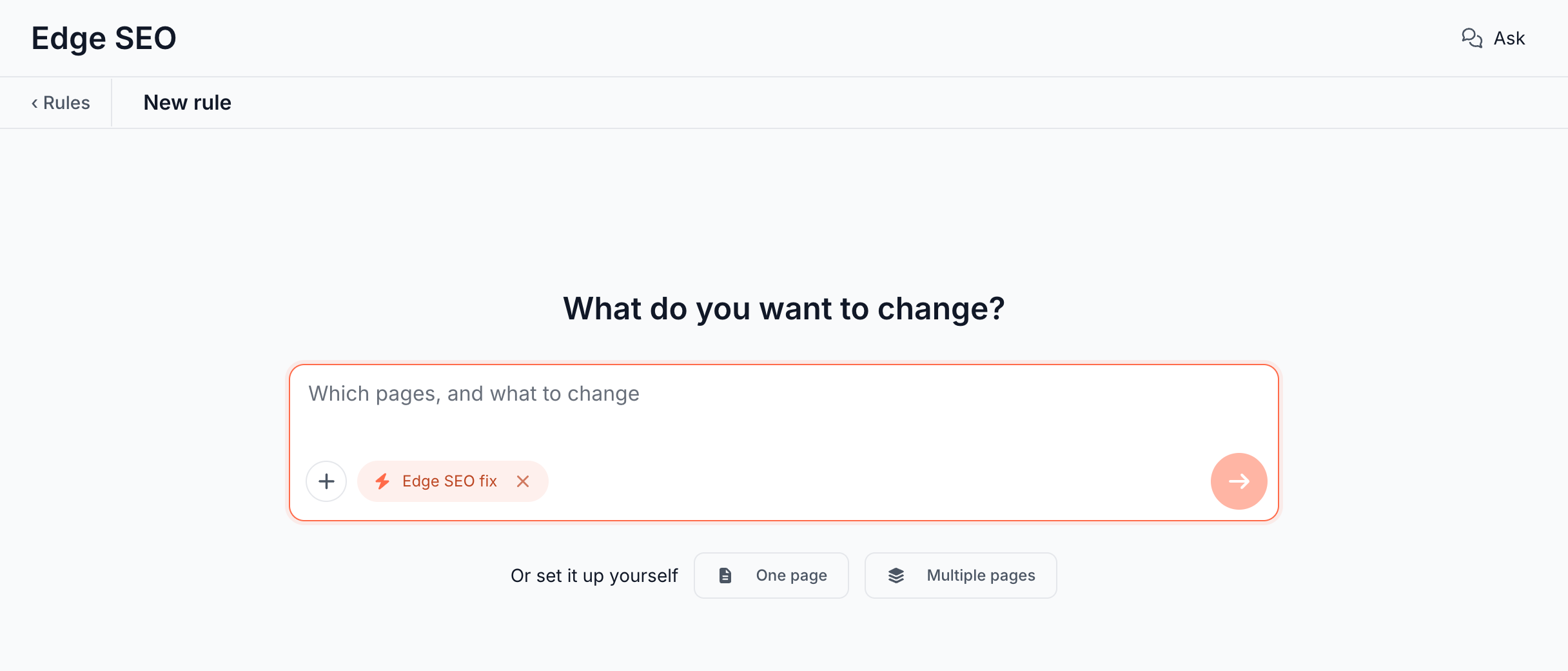
- Open Edge SEO and click New rule. The editor opens on "What do you want to change?". To start from one URL, open it in Page Analysis, go to the Edge SEO tab and click Create rule for this URL. The editor then opens on that page.
- Describe the change in the box, such as "noindex every page under /blog/category/", and press Enter. The Ask panel drafts the rule and the editor opens it. See Draft a rule with AI. To set the rule up yourself, click One page or Multiple pages.
- Choose the pages. See One page or multiple pages.
- Pick what the pages get, such as Noindex or Title, or click Add an edit. See Edits.
- Read the new value on each page. See What each page gets.
- Click Save draft, or Deploy to publish at once. See Preview, test and publish Edge SEO rules.
One page or multiple pages
The scope decides which pages the rule changes. Pick it with One page or Multiple pages at the top of the card:
- One page: the Page box lists the pages bots fetched most. Type part of a path or a title, or paste a URL. A URL on your site is accepted even when bots never requested it. The rule matches that exact address.
- Multiple pages: filter rows, the first one set to URL path Starts with. Type a value, such as
/docs/, and the count line reads "149 pages seen in the last 30 days, and any new page that matches later." The pages column lists them as you type. Every filter must match. See Apply one rule to thousands of pages.
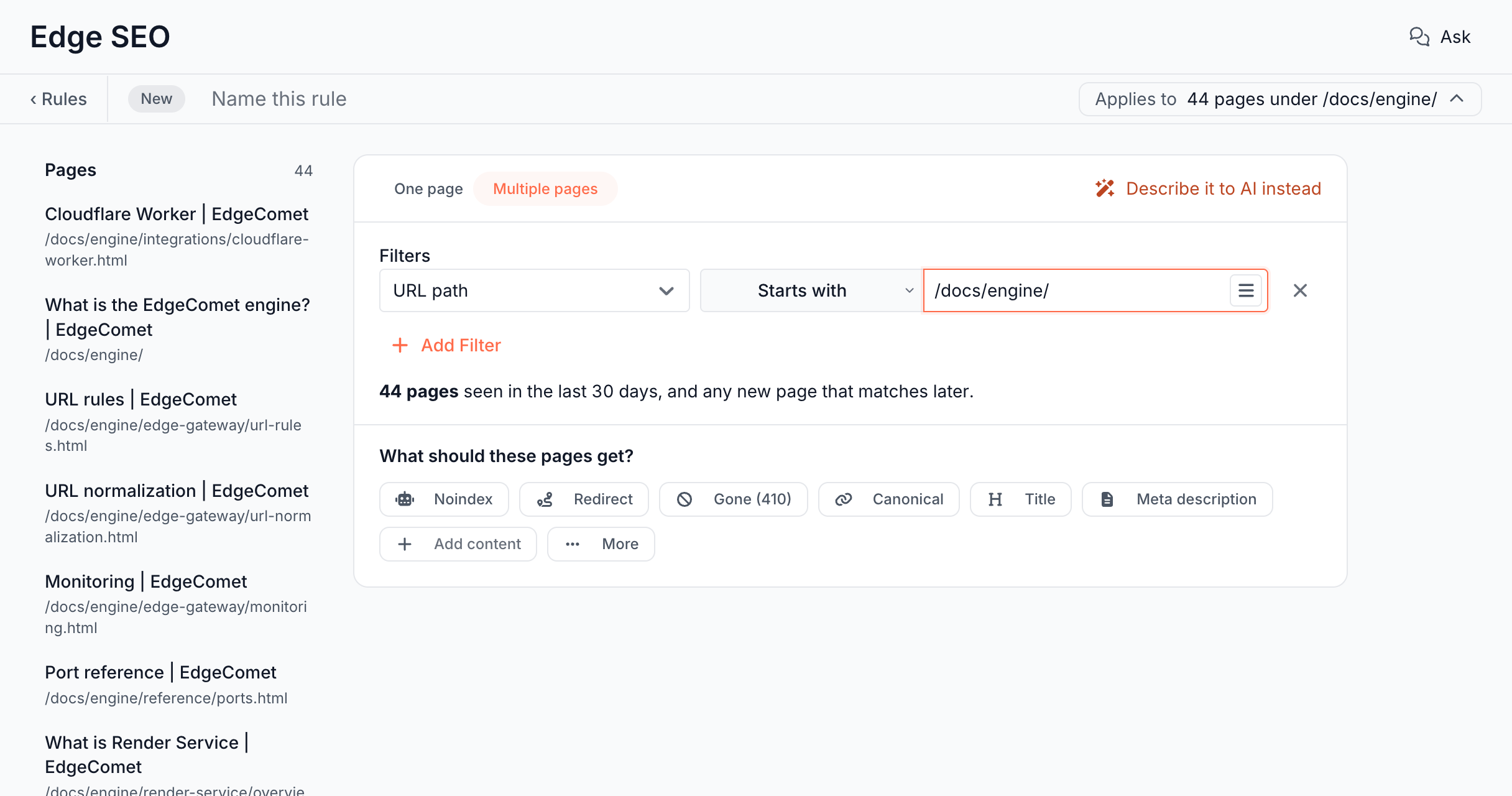
Under the filters, What should these pages get? offers the common edits: Noindex, Redirect, Gone (410), Canonical, Title, Meta description, Add content and More. After the first edit the card closes, and the rule stays a one-page or a multiple-pages rule. Applies to in the top strip shows the scope, such as "149 pages under /docs/":
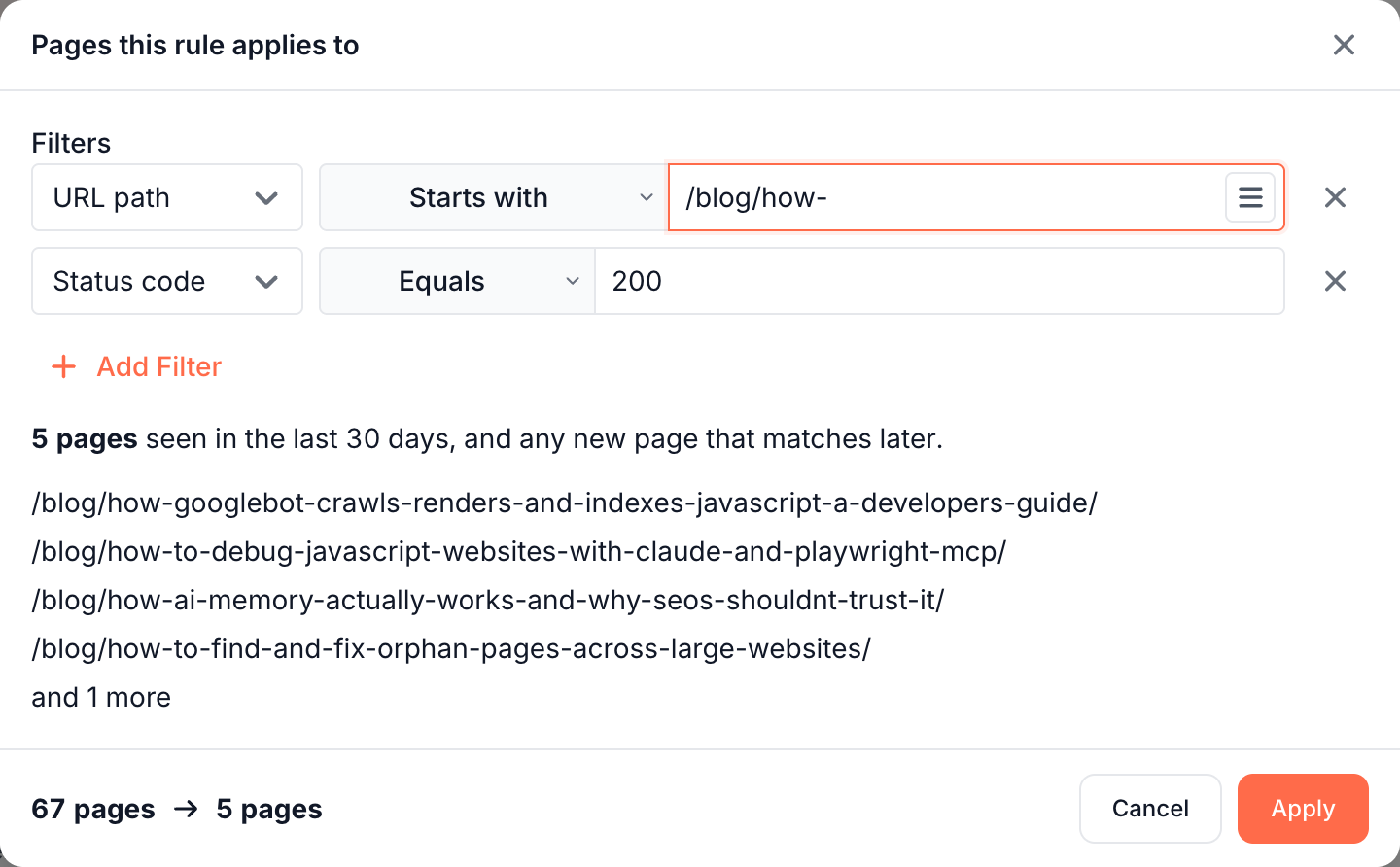
- Multiple pages: Applies to opens the filters in the dialog Pages this rule applies to, with the first matching paths. The footer shows the change before you make it, such as "67 pages → 5 pages". Click Apply to change the rule, or Cancel to keep it as it was. Ctrl+Z or Cmd+Z takes an applied change back.
- One page: the rule keeps its page. To make the same change on another page, create a new rule.
The editor layout
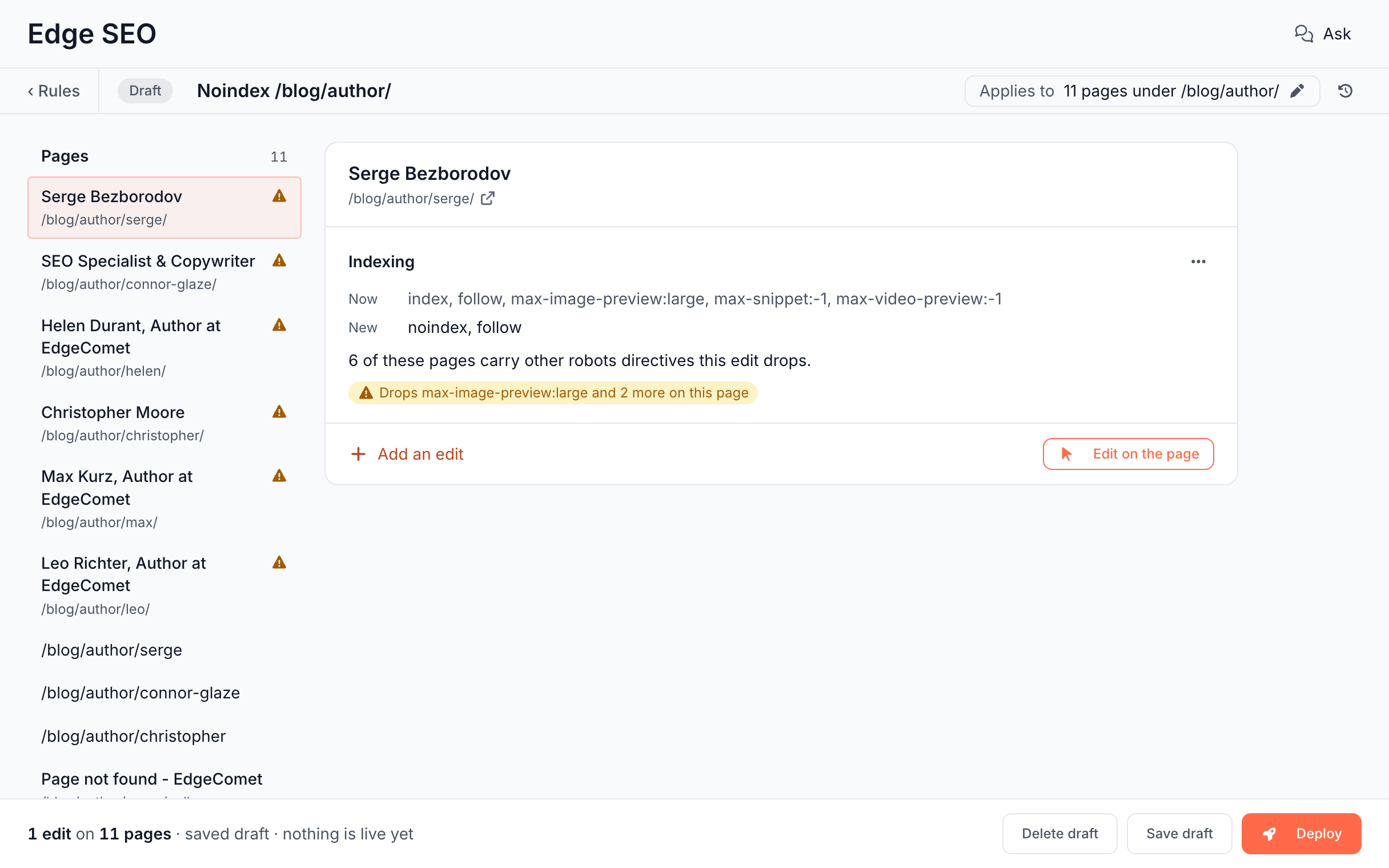
The editor has four parts:
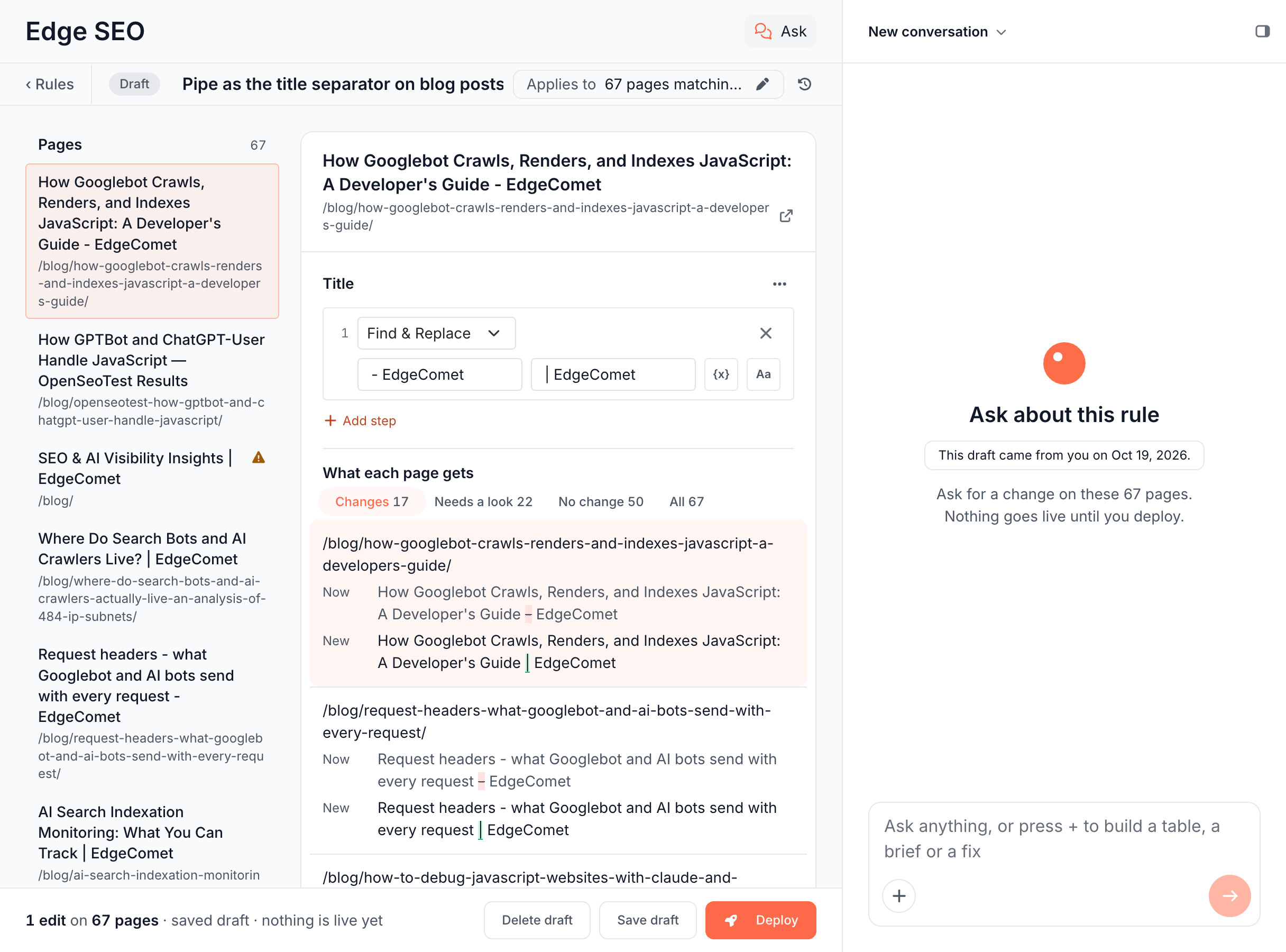
- Top strip: Rules to go back, the status (New, Draft or Live), the rule name, Applies to and the history button. The name fills itself in from the first edit and the pages, such as "Noindex /docs/", until you type one.
- Pages column: the pages the rule matches, most fetched first. It shows 100 pages; Show all loads up to 500. A warning mark flags a page where an edit needs a look. Click a page to see its edits.
- Center: the edits for the selected page, one row each. Edit on the page opens the page itself. See Change page content on the page.
- Footer: what the rule holds, such as "2 edits on 24 pages · saved draft · nothing is live yet", and the actions.
When a rule carries a reason, such as a draft from the Action Board or AI, it shows above the edits.
Edits
Each edit is a row with the page's Now value and the New value:
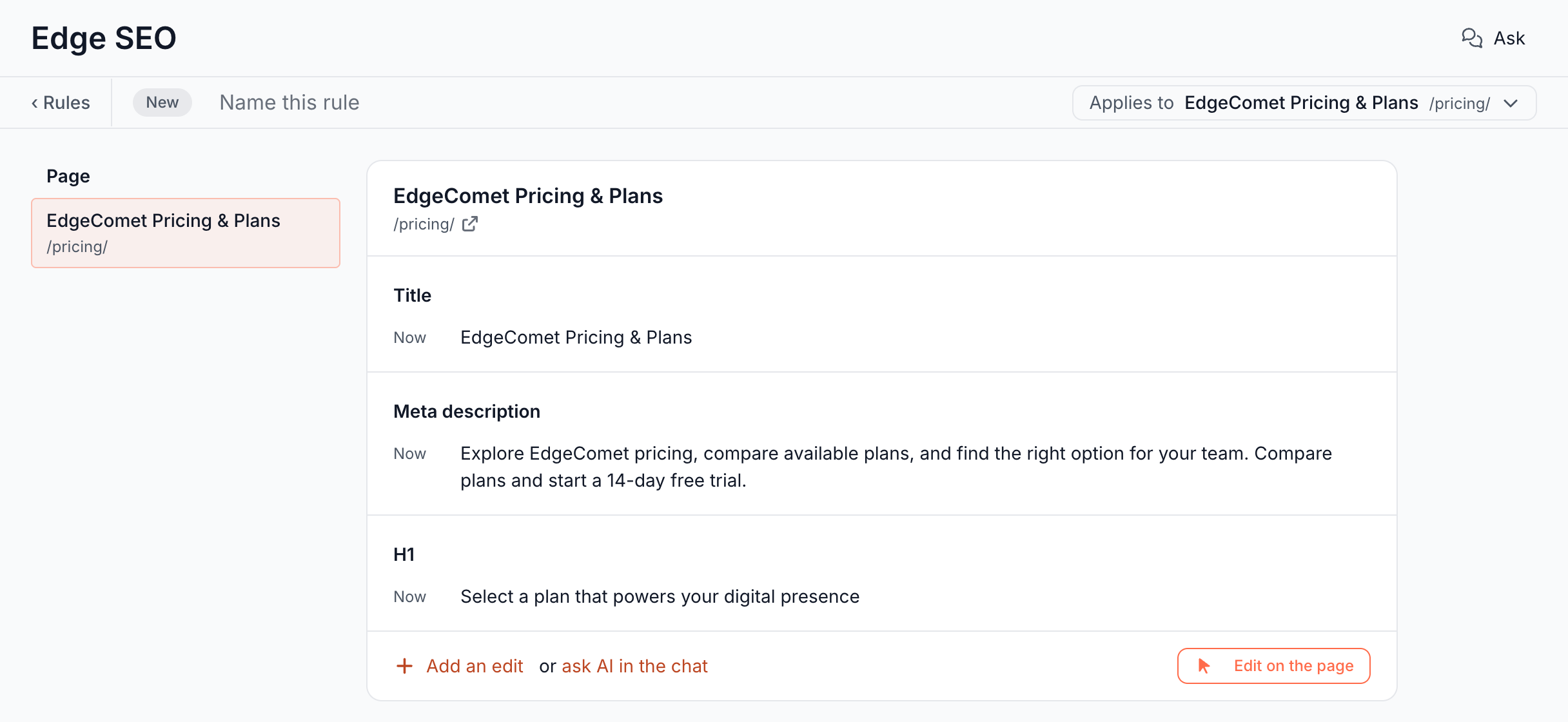
- One page: click the new value to change it in place, then click Save. On an empty rule, the rows show the page's current Title, Meta description and H1. Click one to start that edit from its current value.
- Multiple pages: a text edit is a list of steps, such as Set
{h1} | Exampleor Append| Example, that runs on every page. See Rewrite titles across many pages.
The menu on a row holds Advanced and Remove edit. Advanced shows the edit as JSON, and on a page content edit also its Selector and Match. A rule holds up to 20 edits.
Ctrl+Z, or Cmd+Z on a Mac, undoes the last edit, and Shift+Ctrl+Z or Shift+Cmd+Z redoes it. The keys do nothing while you type in a field.
Add an edit opens every edit the editor offers:
| Group | Edits |
|---|---|
| Search result | Title, Meta description |
| Page content | Add content, Rewrite the H1, Rewrite an element, Remove an element, Image alt text |
| Indexing | Index or noindex, Canonical, Hreflang |
| Social | Social title, Social description, Social image |
| Response | Redirect, Gone (410), Not found (404) |
| Advanced | Custom selector, Head links, Other head tag |
Page content edits that need an element open the page, where you click the element. A redirect, 404 or 410 replaces the page, and the rule cannot also edit it: Edit on the page is turned off with "A 301 response never renders the page."
What each page gets
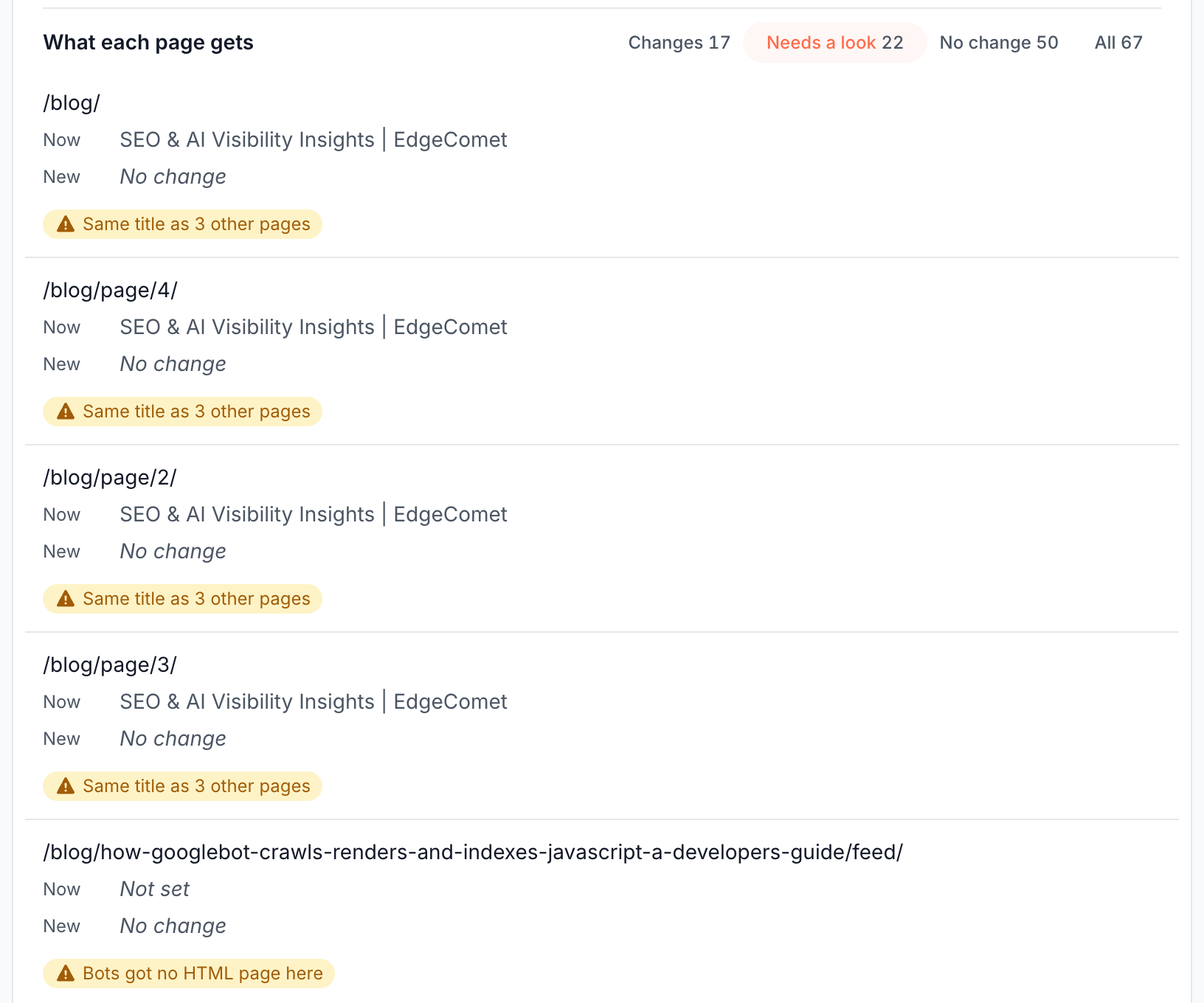
On a rule for multiple pages, each text edit lists what every loaded page gets: the Now value and the New value, with the changed words marked. Switch between Changes, Needs a look, No change and All. The list shows six pages, then Show all.
The editor computes the new values in your browser from what bots received in the last 30 days. Where the rule you edit is live and is the only rule that changed a page, it starts from the page as it was before Edge SEO. A value it cannot compute exactly, such as some regular expressions or a page that several rules change, reads "Checked by the engine when you open the page".
A row flags a page only when the edit breaks something there:
| Flag | When |
|---|---|
| "Text already there" | An append or prepend adds text the value already holds |
| "Same title as N other pages" | Two loaded pages end up with the same value |
| "No H1 on this page" | A variable reads nothing on this page |
| "Drops max-image-preview:large on this page" | An indexing edit removes a directive the page carries |
| "Bots got no HTML page here" | Bots never received an HTML head for this URL, such as a feed or a file |
When an edit leaves a page with no value, its New value reads "Empty" and the page counts under Needs a look. On an indexing edit, Leave them out adds a URL Not equals filter for the pages bots got no HTML page for. The counts cover the loaded pages and say so past 100.
The editor also sends the rule to the rendering engine for the page you select, 2 seconds after you stop editing. A content edit that matches no element reads "Not found on this page", and one that changes nothing reads "No change on this page".
Draft a rule with AI
The Ask panel writes and changes drafts for you. Start it from the box on the start screen, from Describe it to AI instead on the scope card, or from the Ask panel beside any rule:
- The chat writes drafts only. It never deploys and never changes a live or rolled-back rule.
- It sees your edits. A message sent from a draft with unsaved edits saves the draft first. On a live rule with unsaved edits, the panel asks you to "Deploy or discard your edits to this live rule first."
- The editor waits for it. While the chat works, the editor shows "The chat is editing this rule" and locks the edits. When it is done, the editor reloads and marks the rows the chat changed.
Each rule keeps its conversation, and the panel opens on the same thread the next time. The message that wrote the drafts carries Undo. See Review drafts from the Action Board, Ask and AI clients.
Save a draft or deploy
| Rule | Footer |
|---|---|
| New or draft | Delete draft, Save draft, Deploy |
| Draft in a batch of several rules, such as an Action Board task | Delete draft, Save draft, Deploy N drafts, which deploys the whole batch. The footer adds "One of N drafts in" and the batch name |
| Live | Roll back, and Deploy edits once you change it |
| Rolled back | Restore to draft |
Delete draft asks "Delete this draft? This cannot be undone." A new rule with no edits closes without asking.
Unsaved work survives leaving the page for 7 days in your browser. When you come back the editor shows "Picked up the unsaved draft you left here", with Start fresh to throw it away.
What you should see
- After Save draft, the rule appears on the Drafts tab of Edge SEO.
- After a deploy, it moves to the Live tab. Expand its row to see who deployed it and how many of its pages bots fetched in the last 7 days.
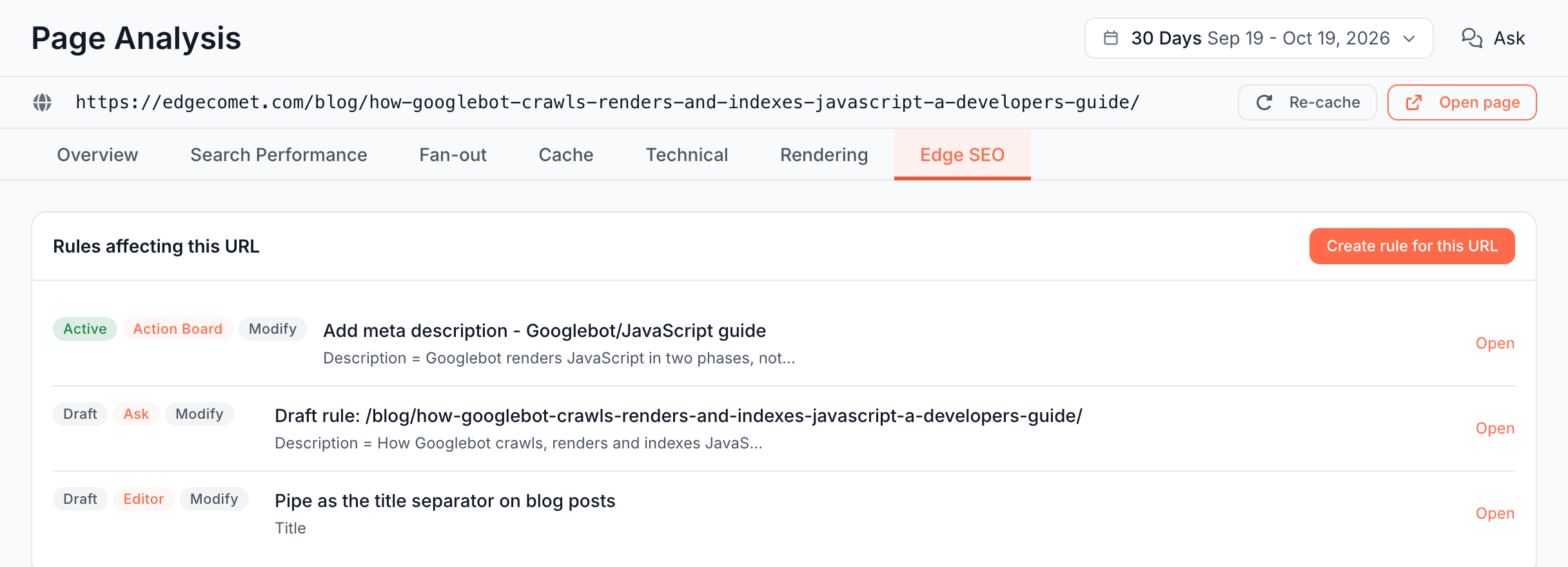
- Page Analysis > Edge SEO lists it under Rules affecting this URL for every page it matches.
If it does not work
The save and deploy buttons are turned off
The footer reads "No edits yet": the rule has no edit. Add one with the buttons under the filters or with Add an edit. When something else blocks the save, the footer names it, such as "Fill in the filter before saving."
"This rule redirects but has no destination. Fill in Redirect to before saving."
Enter the address the redirect sends bots to.
"No page bots fetched in the last 30 days matches. The rule applies to any that appear later."
No page bots requested in the last 30 days matches the filters. A URL filter compares the full address, such as https://www.example.com/blog/, and a path belongs in a URL path filter.
"This rule changed since you opened it, in the chat or another tab."
Someone saved the rule after you opened it: the chat, or you in another tab. Click Reload to see the saved version, or Overwrite to save yours over it.
An edit reads "Not found on this page"
The element does not exist on the selected page, or the selector is too specific. Open the page with Edit on the page and click the element again, or narrow the rule's filters to the pages that have it. See Selectors.
"Could not check this page against the engine."
The rendering engine did not answer for the selected page. The rows keep the values the editor computed, and the check runs again when you select another page or change the rule.