

Set cache lifetime, status codes and stale content
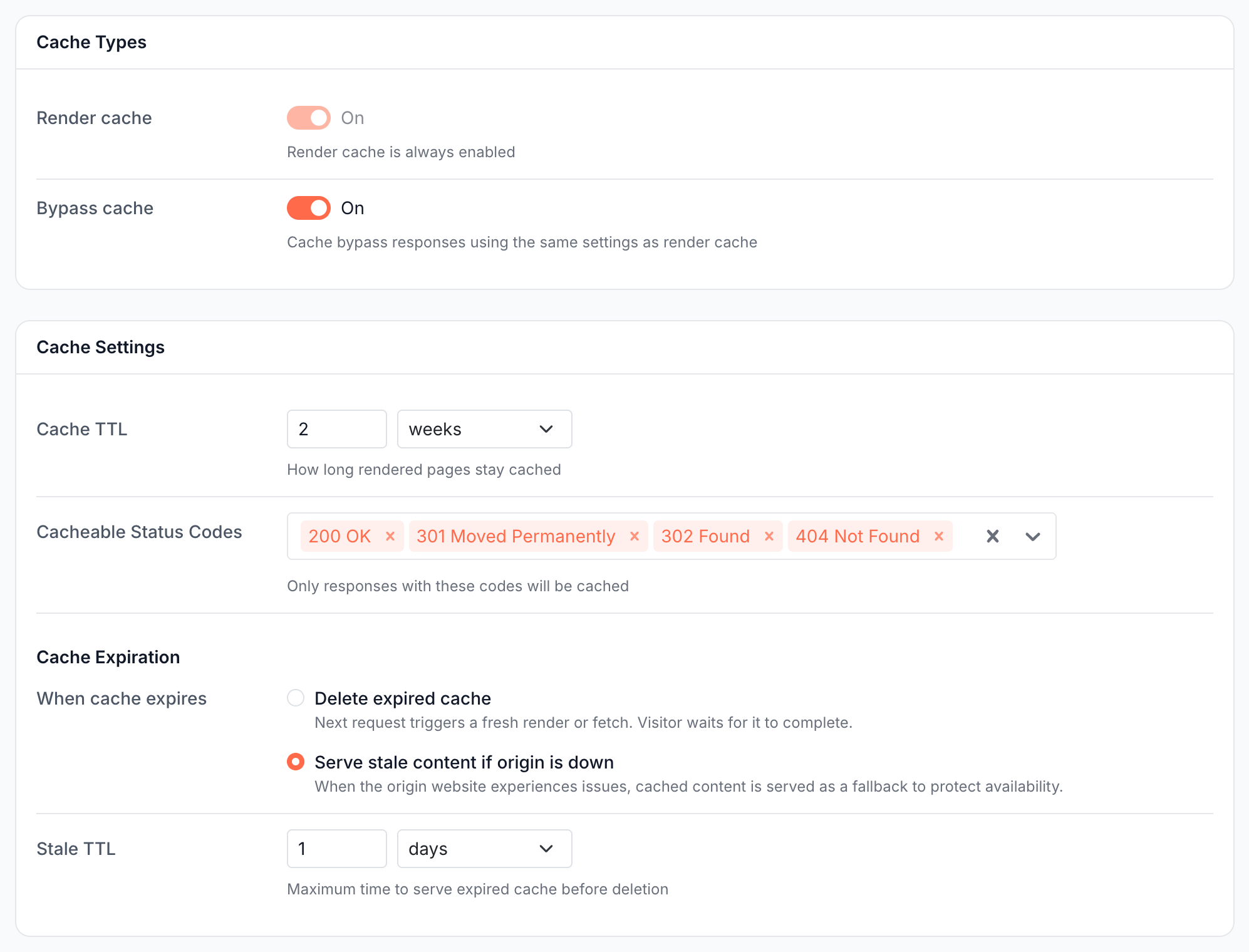
Configuration > Caching > Settings decides how long EdgeComet keeps each page it caches for bots, which responses it stores, and what bots get when a copy expires. Changes apply to the whole website and go live when you deploy them.
Before you start
You need a website in EdgeComet. For how the cache uses these values, see How the cache works.
New websites start with these values:
| Setting | Default | Allowed values |
|---|---|---|
| Cache TTL | 7 days | 1 minute to 30 days |
| Cacheable Status Codes | 200, 301, 302, 404 | Any of 200, 301, 302, 307, 308, 404, at least one |
| When cache expires | Serve stale content if origin is down | Or Delete expired cache |
| Stale TTL | 24 hours | 1 hour to 7 days |
| Bypass cache | On for Cache-only websites, off for Cache + Render websites | On or off |
| Concurrent re-caches | 5 | 1 to 50 |
Steps
- Open Configuration > Caching. The Settings tab opens first.
- Change the values in the Cache Types, Cache Settings and Re-cache cards. Each value is explained on this page.
- Click Save. The page shows "Cache settings updated." and a yellow banner: "You have unpublished configuration changes", with the changed section under Changed.
- Click Deploy in the banner. The Deploy Configuration dialog lists each changed field with its Previous and New value.
- Click Deploy in the dialog. The new values apply to live bot traffic at once.
Saved changes that you have not deployed stay as a draft and do not affect bots. Rollback in the banner discards the draft. See Undo a change.
Cache TTL: how long a copy stays fresh
Cache TTL is how long a cached copy is served before EdgeComet builds a new one. Enter a number and a unit: minutes, hours, days or weeks.
A longer TTL means more cache hits, fewer requests to your server and fewer renders. A shorter TTL means bots get changes sooner when nothing else refreshes the page.
Pre-cache rules remove most of that trade-off. Smart Re-cache refreshes the pages bots request as they change, and the other rules refresh pages when your sitemap or product feed shows a change. You can keep a long TTL and still serve current content. A pre-cache rule shows a warning when its interval is as long as the Cache TTL or longer. See How EdgeComet keeps cached pages fresh.
To give some URLs a different TTL, use a URL rule. See Different settings for some URLs.
Cacheable status codes
Cacheable Status Codes lists the responses EdgeComet stores. A response with any other code is served to the bot and not stored, so the next request for that page builds it again.
200: normal pages. Always keep it.301,302,307,308: redirects. A cached redirect keeps its target, so bots follow it without a request to your server.404: missing pages. Caching them stops bots that keep requesting removed URLs from reaching your server each time.
5xx errors are never in the list, so a server error is never stored as the page.
When cache expires: serve stale or delete
When cache expires decides what happens after the Cache TTL ends:
- Serve stale content if origin is down: "When the origin website experiences issues, cached content is served as a fallback to protect availability." The next request still renders or fetches the page fresh. If that fails, the bot gets the expired copy, called a stale copy, instead of an error.
- Delete expired cache: "Next request triggers a fresh render or fetch. Visitor waits for it to complete." There is no fallback.
Stale TTL appears with Serve stale content if origin is down. It is how long EdgeComet keeps an expired copy as a fallback before deleting it. Set it to cover the longest outage you want bots to ride through.
Bypass cache
The Bypass cache switch decides whether EdgeComet stores your server's HTML for bots it does not render for. See Render cache and bypass cache.
Turn it on for a Cache + Render website when you want bots that no render dimension matches, such as SEO tools or monitoring bots, to get a cached copy instead of a request to your server. When you save, EdgeComet copies the render cache's Cache TTL, Cacheable Status Codes and When cache expires values to the bypass cache, so both behave the same.
The Render cache switch is always on: "Render cache is always enabled".
Concurrent re-caches
Concurrent re-caches is how many pages EdgeComet refreshes at the same time for your website: "Maximum number of re-cache requests processed in parallel for this host. Higher values drain the queue faster but increase load on your origin. Applies to all re-cache sources - manual, bulk, and bot-triggered."

Raise it when pre-cache runs take too long to finish and your server has headroom. Lower it if pre-cache runs slow down your server. It limits refreshes only, not how EdgeComet answers live bot requests.
Tracking parameters and stored headers
Two more cache settings sit under Configuration > System Settings > Advanced, and deploy the same way:
- Tracking Parameters. With Strip Tracking Params on, EdgeComet removes tracking parameters such as
utm_source,gclidandfbclidfrom the URL before the cache lookup and before it fetches the page from your server, so/shoes?utm_source=newsletteruses the copy of/shoes. Extend defaults adds your parameters to the default list, and Replace all uses only yours. Add your own under Additional Parameters as a name or a pattern. - HTTP Headers. Request Headers are the headers EdgeComet sends to your server when it fetches a page. Response Headers are the headers from your server that a cached copy keeps and serves to bots. The default response headers are listed in What a cached copy holds. EdgeComet applies the list when it stores a copy, so a change reaches existing pages as they are refreshed.
Different settings for some URLs
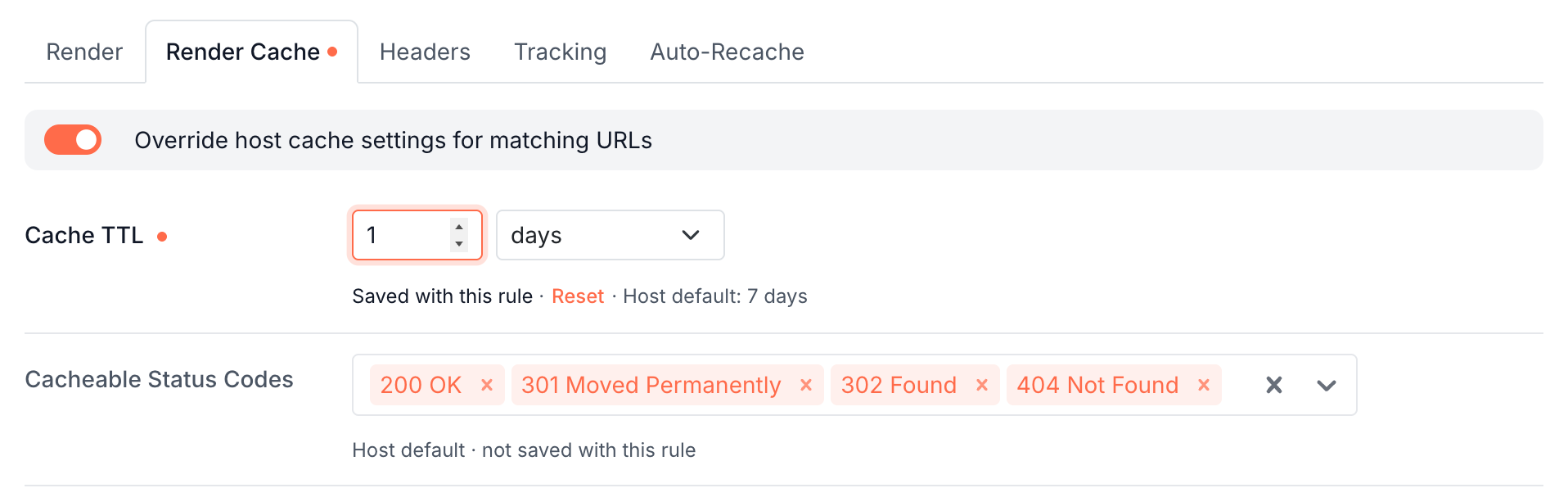
A URL rule gives matching URLs their own cache values. Open Configuration > System Settings > URL Rules, add or edit a rule with the Render or Bypass action, and turn on the override switch in one of these tabs:
| Tab | What you can set |
|---|---|
| Render Cache | Cache TTL, Cacheable Status Codes, When Cache Expires and Stale TTL for rendered copies. TTL from 1 minute to 30 days, stale period from 1 hour to 7 days |
| Bypass | Bypass Cache on or off, its Cache TTL and Cache Status Codes |
| Auto-Recache | When one of the bots you pick gets a cached copy, EdgeComet refreshes that URL again after the Recache Interval, from 30 minutes to 24 hours |
A field you do not change keeps following the website value and shows "Host default · not saved with this rule". For example, a rule for /products/* with a 1-day TTL keeps product pages current while the rest of the site keeps 7 days.
Undo a change
- Before you deploy: click Rollback in the banner. It discards every unpublished change and restores the last deployed configuration.
- After you deploy: open Configuration > System Settings > Deployment History, expand a deployment to see its changes, and click Restore. The old configuration comes back as a draft: "Configuration restored. Deploy to push changes live." Then deploy it.
What you should see
- After a deploy, the banner reads "Last deployed" with the date and your name, and View history.
- On Cache > Precache > Cached URLs, expanding a URL shows its TTL and Cache Age.
- A bot request for a cached page returns the
EC-Cache-Ageheader with the age of the copy in seconds. See Check the headers bots receive.
If it does not work
The change has no effect
Saved settings stay a draft until you deploy them. If the banner still reads "You have unpublished configuration changes", click Deploy.
Bots still get an old copy
A copy cached before your change can stay until it expires or is refreshed. Recache the pages on Cache > Precache > Cached URLs to replace them now.
"Deploy failed. Please try again."
EdgeComet could not apply the configuration, and your draft is kept. Click Deploy again, and contact [email protected] if it keeps failing.
"The cluster holds URL rules that were changed outside the dashboard. Contact support before deploying."
EdgeComet stops the deploy because URL rules on its servers differ from the ones in your dashboard, so a deploy would overwrite them. Contact [email protected] before you deploy.