

Check if a page answers the questions AI assistants ask
The Fan-out tab of EdgeComet Page Analysis lists the questions AI assistants searched for when Google showed them one of your pages. Its coverage check grades whether the page answers each question. Also called fan-out coverage or answer coverage.
The check reads the page as EdgeComet serves it to bots, the same copy Googlebot and AI assistants receive. For every question it gives a verdict and quotes the passages it relied on, linked to their place on the live page.
The questions come from your own fan-out keywords: searches assistants actually ran for people, recorded in your Search Console. Gaps go straight to Ask as small, targeted edits.
Before you start
- Search Console is connected. The Fan-out tab appears in Page Analysis only for a website with a connected property. See Connect Google Search Console.
- The page drew fan-out keywords in the period. Otherwise the tab reads "AI assistants have not expanded queries onto this page in the last N days." Choose a longer period, such as 90 Days.
What the Fan-out tab shows
The tab answers three questions in turn: how much AI interest the page draws, whether searches and fetches move together, and which questions reach the page.
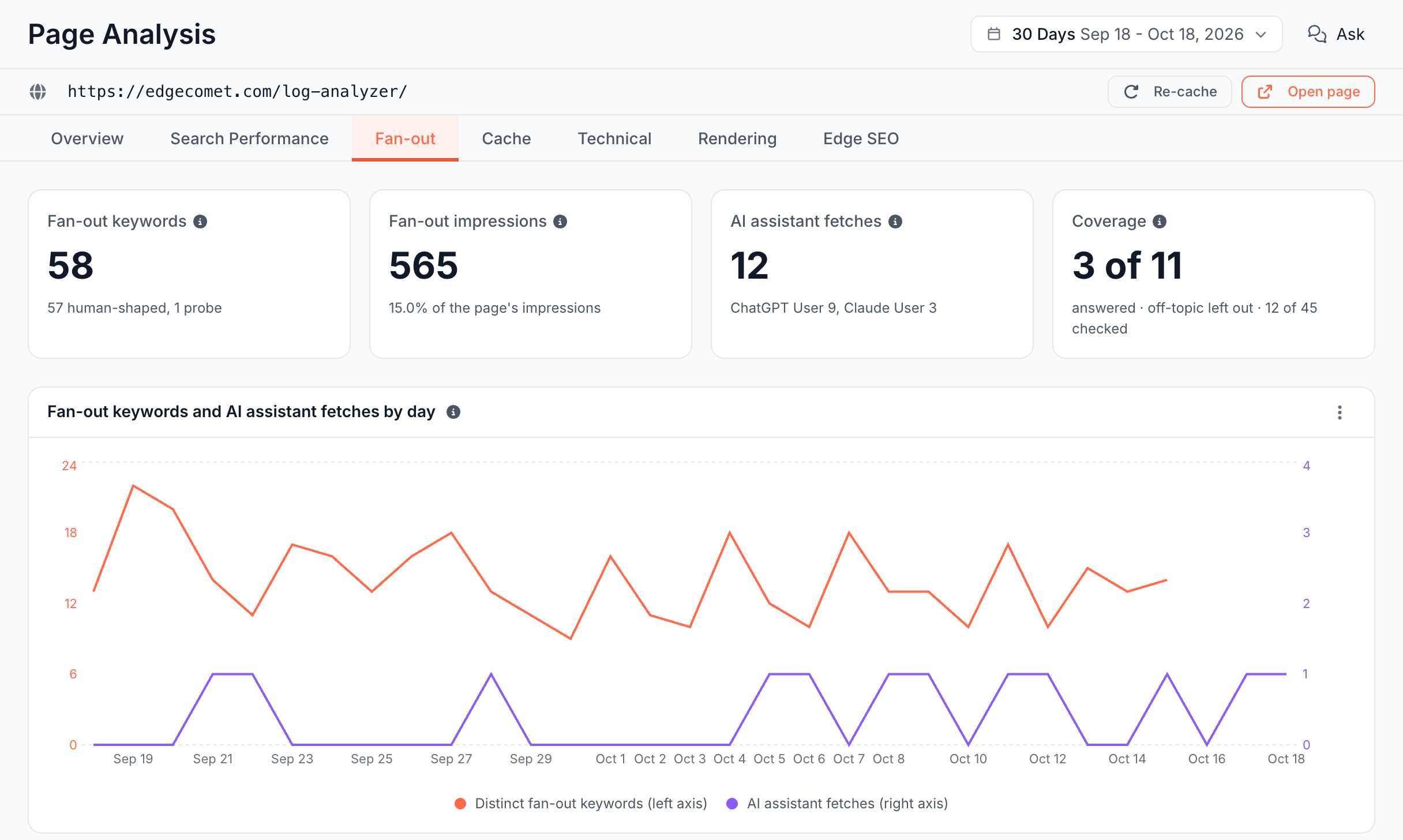
Stat cards: how much AI interest does the page draw?
Four cards sit at the top of the tab:
- Fan-out keywords: distinct fan-out keywords the page drew in the period. The footer splits human-shaped keywords and probes, or counts the keywords still pending classification.
- Fan-out impressions: the impressions from those keywords, with their share of the page's impressions. It is a floor: anonymized queries are not counted.
- AI assistant fetches: requests for the page by ChatGPT-User, Claude-User and Perplexity-User, the AI user bots that fetch a page while they answer a person. Requests whose IP failed verification are left out. The footer lists each assistant's count.
- Coverage: the questions the page answers out of the on-topic questions the check graded, such as 7 of 10. The footer counts the questions the check graded, such as "12 of 45 checked". Before a check, the card reads Not checked.
Fan-out keywords and AI assistant fetches: do searches and fetches move together?
The chart Fan-out keywords and AI assistant fetches plots two lines on one time axis. The left axis counts distinct fan-out keywords the page drew in Search Console. The right axis counts the AI assistant fetches from EdgeComet's request log.
The two come from different sources on different scales: compare their direction, not their size.
Questions AI asks about this page: which questions reach the page, and does it answer them?
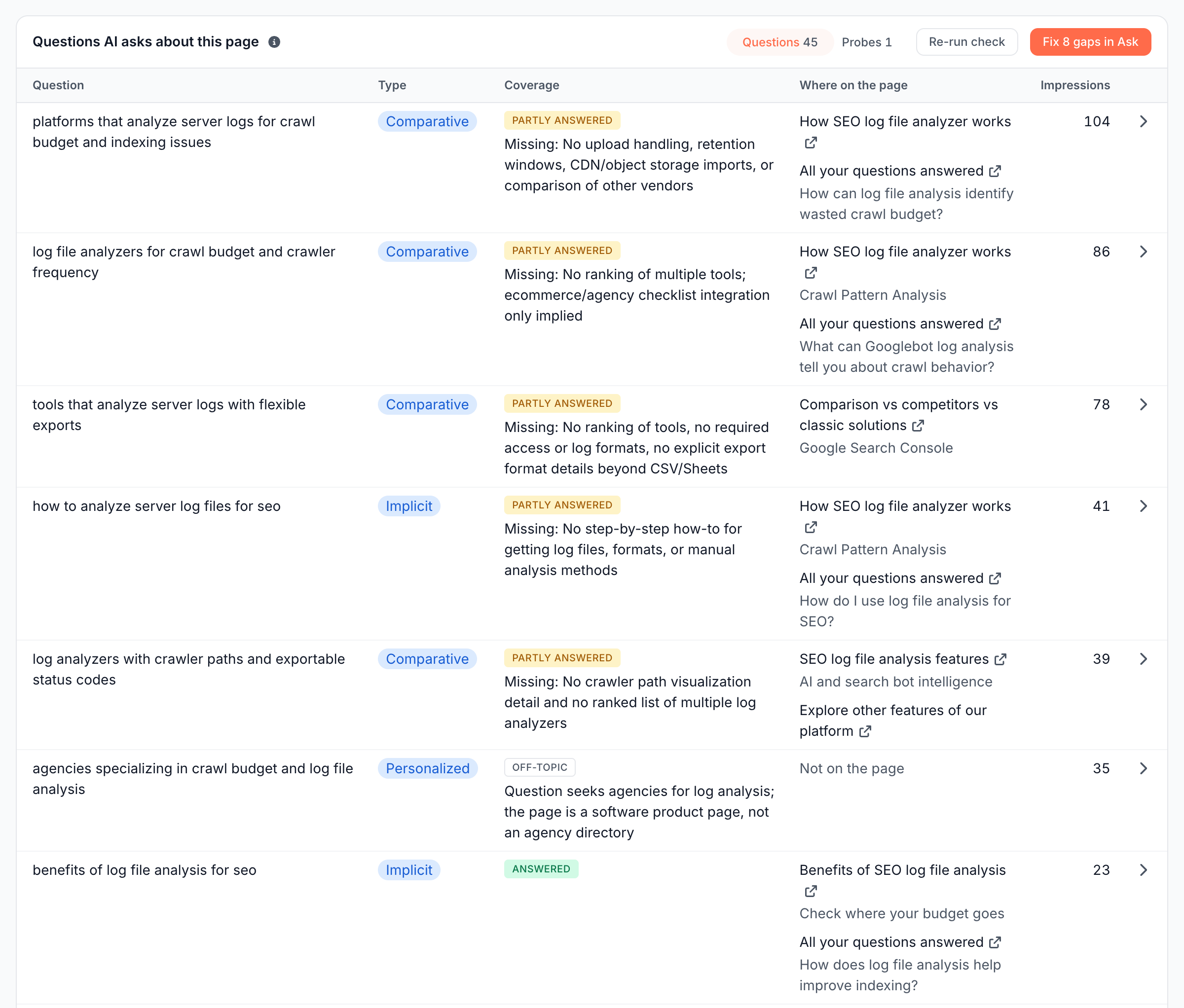
The card Questions AI asks about this page groups the page's fan-out keywords into questions, ranked by the impressions the page drew. The columns are Question, Type, Coverage, Where on the page and Impressions. It shows 25 questions, then Show N more.
The Probes toggle lists the page's probes instead, with their Family, the same lane name the report shows under Who is asking.
Check coverage
Run the coverage check from the card Questions AI asks about this page on the Fan-out tab:
- Open Page Analysis for the page from the search box (⌘K, type the URL, choose Analyze) or from the magnifier icon beside a URL in a report table, then click the Fan-out tab.
- Pick the period in the report header. The check grades the questions the page drew in that period.
- In Questions AI asks about this page, click Check coverage. On a page with an earlier check, the button reads Re-run check.
- Wait while the button and the graded rows read Checking. The tab updates on its own when the check finishes.
The check reads the page once, from the copy EdgeComet serves: a fresh render, the render cache, the bypass cache or the origin HTML. It grades the questions with the most impressions, and a verdict whose quote is not in the page text becomes Unable to assess.
The card header then names the date, the copy it read and how many questions it graded, as in "Checked {date}: one read of the render cache, N of M questions graded." The result stays on the page until the next run replaces it.
What the coverage verdicts mean
Each graded question gets one verdict in the Coverage column:
- Answered: the page answers the question.
- Partly answered: the page covers part of it. The line under the pill starts with "Missing:" and names what the page leaves out.
- Not answered: the page does not answer it. The "Missing:" line says what the question asks for.
- Off-topic: the question is not about this page. It is left out of the Coverage count.
- Unable to assess: the check's quote was not found in the page text ("The quote was not found on the page"). It is left out of the count. Questions the last check did not grade read Not checked. A low confidence mark next to the pill means the check was unsure of its verdict.
Where on the page names the headings of the sections the quotes come from, or reads Not on the page. Click a heading to open the passage on the live page.
Read the evidence for one question
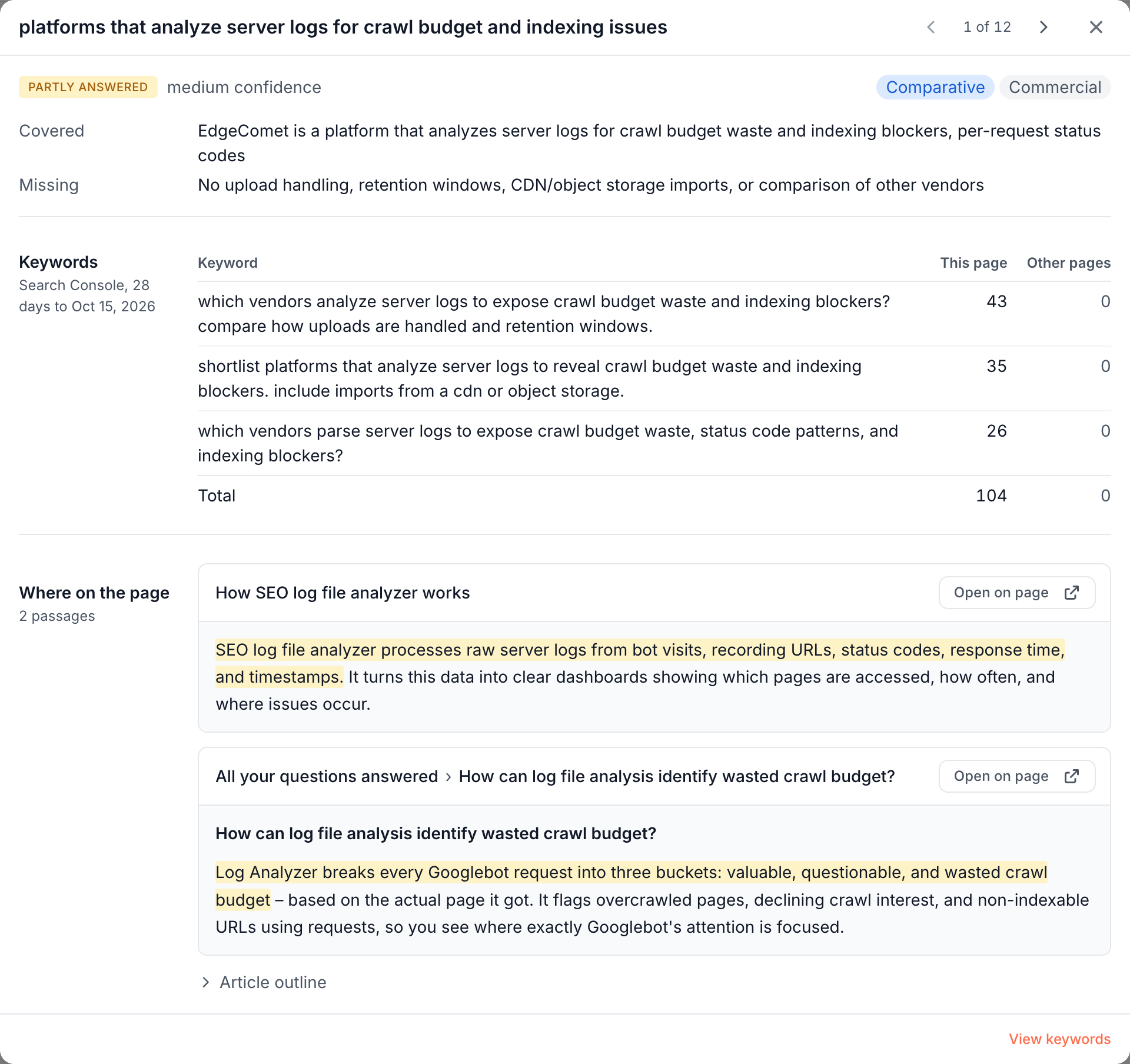
Click a graded question to open its evidence. The dialog shows:
- Verdict and confidence: the verdict, its confidence, and the question's type, intent and the vendors, products and technologies it names.
- Covered and Missing: what the page says on the question and what it lacks. An off-topic question shows a Reason instead.
- Keywords: each keyword behind the question, with its impressions on This page and on Other pages, and an Other pages table that names the pages sharing the same keywords.
- Where on the page: the page outline with the quoted passages marked, from H1 and intro down. Each passage links to its place on the live page.
The arrow keys move between questions. View keywords opens the question's keywords in the Keywords tab of Fan-out Queries.
Fix the gaps in Ask
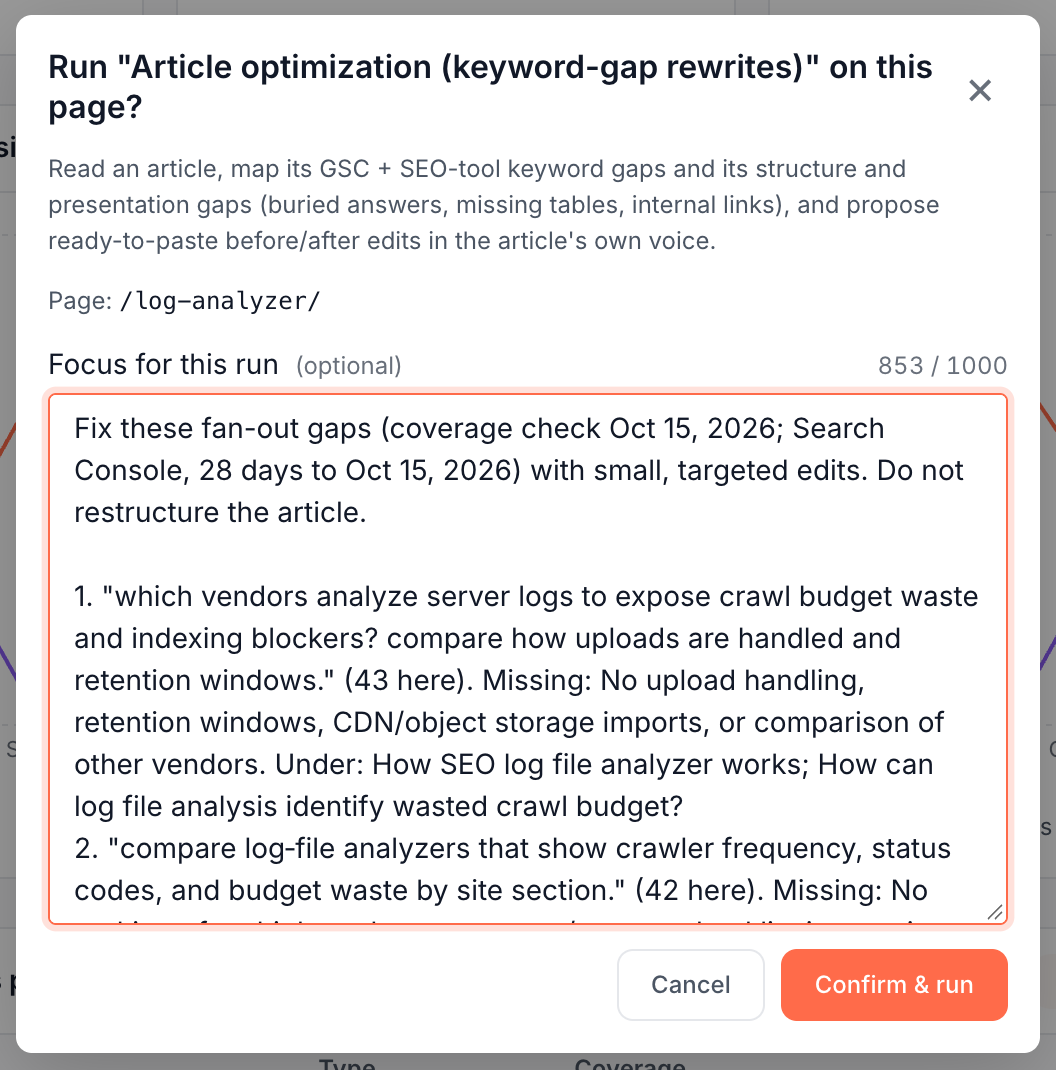
Fix N gaps in Ask runs the Article optimization skill on the page, with the gaps written into its guidance. The button appears after a check that finds questions Partly answered or Not answered, when the site has the Article optimization skill enabled. See AI SEO skills in Ask.
- Click Fix N gaps in Ask. A dialog opens: Run "Article optimization (keyword-gap rewrites)" on this page?
- Review the guidance. It opens with "Fix these fan-out gaps (coverage check {date}; Search Console, {window}) with small, targeted edits. Do not restructure the article." Then one line per gap: the top keyword and its impressions on the page, what is missing, the section it belongs under, and other pages that draw the same keywords.
- Edit the guidance if you want. When the gaps do not all fit, the last line counts the rest.
- Click Confirm & run. The skill runs in the Ask panel beside the page.
The skill returns ready-to-paste edits written in the article's voice. See Where the edits land.
How to read it
- High fan-out impressions with low coverage mark a page Google shows for questions it does not answer. Start there.
- Partly answered questions are the cheapest wins: the page has the section, and the "Missing:" line names what to add.
- Keywords shared with other pages in the evidence dialog point to cannibalization: decide which page should own the question before you add to this one.
- Off-topic questions mean Google shows the page for a subject it is not about. Another page may need to answer them.
How this differs from a content score
The coverage check grades your page against the questions AI assistants actually searched for when Google showed it, taken from your own Search Console. A content optimization tool scores a page against terms taken from competing pages.
- The copy bots receive. The check reads the page EdgeComet serves to Googlebot and AI assistants, rendered when your site needs rendering, not a copy fetched by a separate tool.
- Evidence, not a score. Every verdict comes with what the page covers, what it misses and the exact passages, linked to the live page.
- Straight to a fix. The gaps become the guidance of an edit run in Ask, with no copying between tools.
What to do next
- Fix the page: run Fix N gaps in Ask, review the edits, publish them in your CMS, then click Re-run check once the page is updated.
- Check the whole blog: run Blog fan-out coverage to find articles that leave their topic half covered.
- Find the next page to check: open Fan-out Queries and pick a topic with many impressions on one page.
If the check fails
When a check fails, the Coverage card reads Check failed and a warning above the questions gives the reason:
- "The page did not answer 200 when it was read." The page returned an error or a redirect. Check its status in Page Analysis > Overview.
- "The page came back with no readable text." The served copy is empty, for example a JavaScript shell that was not rendered. See Fix blank, partial or slow prerendered pages.
- "This site has no render host, so the page cannot be read." EdgeComet could not read pages for this site. If it persists, contact [email protected].
- "The page could not be fetched. Try again later.", "The model call failed. Try again.", "The model answer could not be read. Try again." or "The check stopped before it finished. Try again." Run the check again.
- "A check is already running for this page." A check on the same page has not finished yet. Wait for it, then reload the tab.
- "No fan-out questions reached this page in this period." Choose a longer period.
Where to find it
In the dashboard: Page Analysis > Fan-out for a URL. The tab sits between Search Performance and Cache and appears when Search Console is connected.