

Site releases: deploys that changed SEO on many pages
EdgeComet finds site releases on its own: deploys that made the same change on many pages of one page type, such as removing the H1 from every product page. Also called deploy detection or template change detection.
Nobody has to log a deploy. EdgeComet finds releases in the page change log and follows each one while it rolls out, until it completes or is reverted.
A release that removes or breaks something search engines read is a loss. A loss that is not reverted or marked as expected carries a red dot and can open an alert incident. Edits and gains are recorded on the report without an alert.
What counts as a release
A release is one change that many pages of a page type, a URL pattern such as /products/*, picked up from the same deploy, for example:
- Product pages started answering
404or gainednoindex. - Every article lost its H1 or one schema.org type.
- The titles of a section had "|" replaced by "-".
Releases cover the status code, redirect target, indexability, canonical, title, meta description, H1, structured data and hreflang. Page body changes and custom extraction fields are not part of releases.
On a new site, releases show up once EdgeComet has enough change history for it.
Page types in a release
Site releases names each page type by its URL pattern, such as /products/* or /blog/*. It does not use your segments, and the report's filter does not apply to it.
One release can span several page types, such as "52 pages on 3 page types". Pages that pick up the change over the following days join the same release.
Why a release keeps growing
A release keeps growing for days after the deploy, as cached pages are refreshed and show the change. The Rollout card shows the date by which every copy cached before the release has expired, and Re-cache speeds it up.
A release shows up within about an hour after its changes reach the change log, and its pages, Googlebot counts and status keep updating while it rolls out.
Loss, edit or gain: how a release is classed
Each release has a class, shown as a pill beside its name:
| Class | Meaning | Examples |
|---|---|---|
| Loss | Something search engines read went away or broke, such as a redirect or error, lost indexability, or a removed canonical, title, schema or hreflang | Started answering 404, H1 removed, Canonical removed |
| Edit | The same text edit on many pages. Recorded on the report, not emailed | Title: “|” replaced by “-” |
| Gain | Something appeared on the pages. Recorded on the report, not emailed | Description added, Canonical now points to the page itself |
Each change reads as a short sentence, such as "H1 removed" or "Started redirecting (301) to /new-path/".
A release is named after its first change and its first page type, such as "H1 removed on /products/*". You can rename it.
Release statuses
Each page type in a release has a status, and the release has an overall status. Statuses keep updating while the release rolls out.
| Status | Meaning |
|---|---|
| Rolling out | Pages of the type still serve copies cached before the release. More pages will show the change |
| Complete | The rollout is over |
| Reverted | The changed pages went back to their earlier value. The date is the first day they did |
| Loss reverted | The loss page types were reverted, while the release's other page types were not |
| Partly reverted | Some of its page types went back, others did not |
| Flipping back and forth | Pages keep switching between the old and the new value |
| Expected | Someone marked the release as expected. This status replaces every other one |
Loss reverted, Partly reverted and Expected apply to a whole release. A page type never shows them.
Releases card: every release in the period
The Releases card on the Overview tab lists every release whose day falls in the period, newest first, with its count in the title.
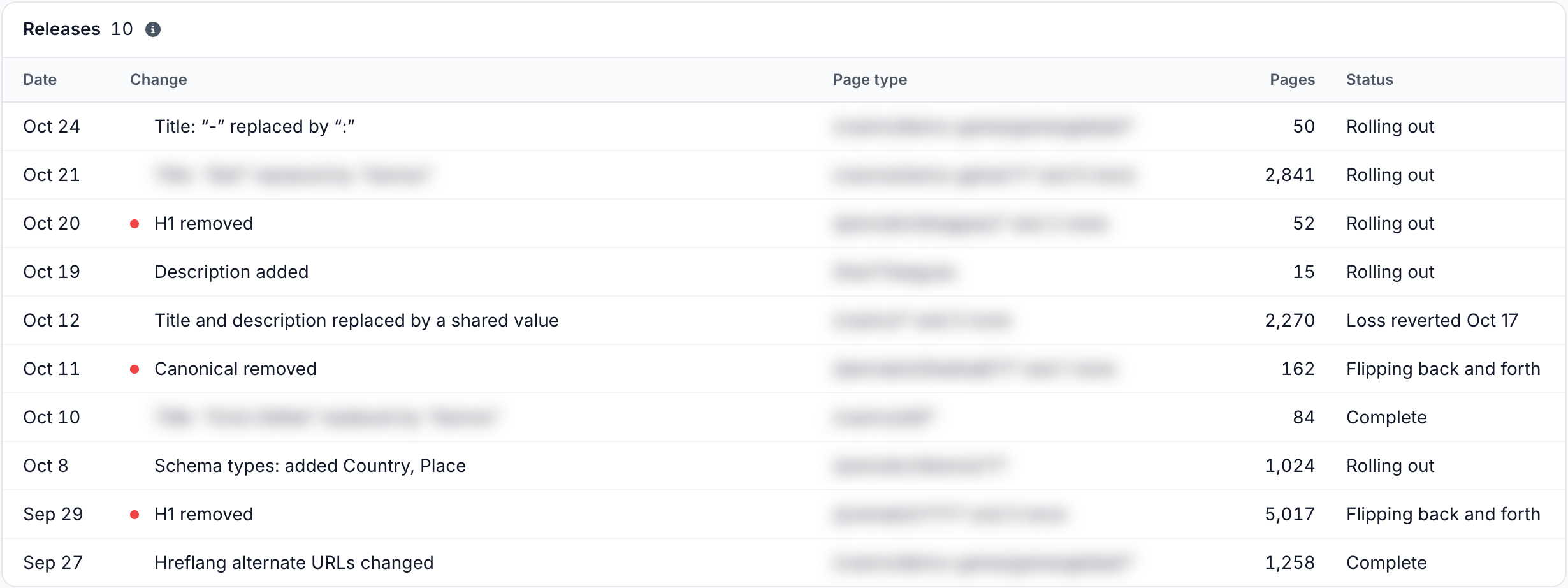
Each row shows the release day in UTC, its first change with a red dot for a loss still in place, its first page type with "and {N} more", the pages over all its page types, and its status. Click a row to open the release page. With no release in the period, the card reads "No releases between {date} and {date}".
The release page
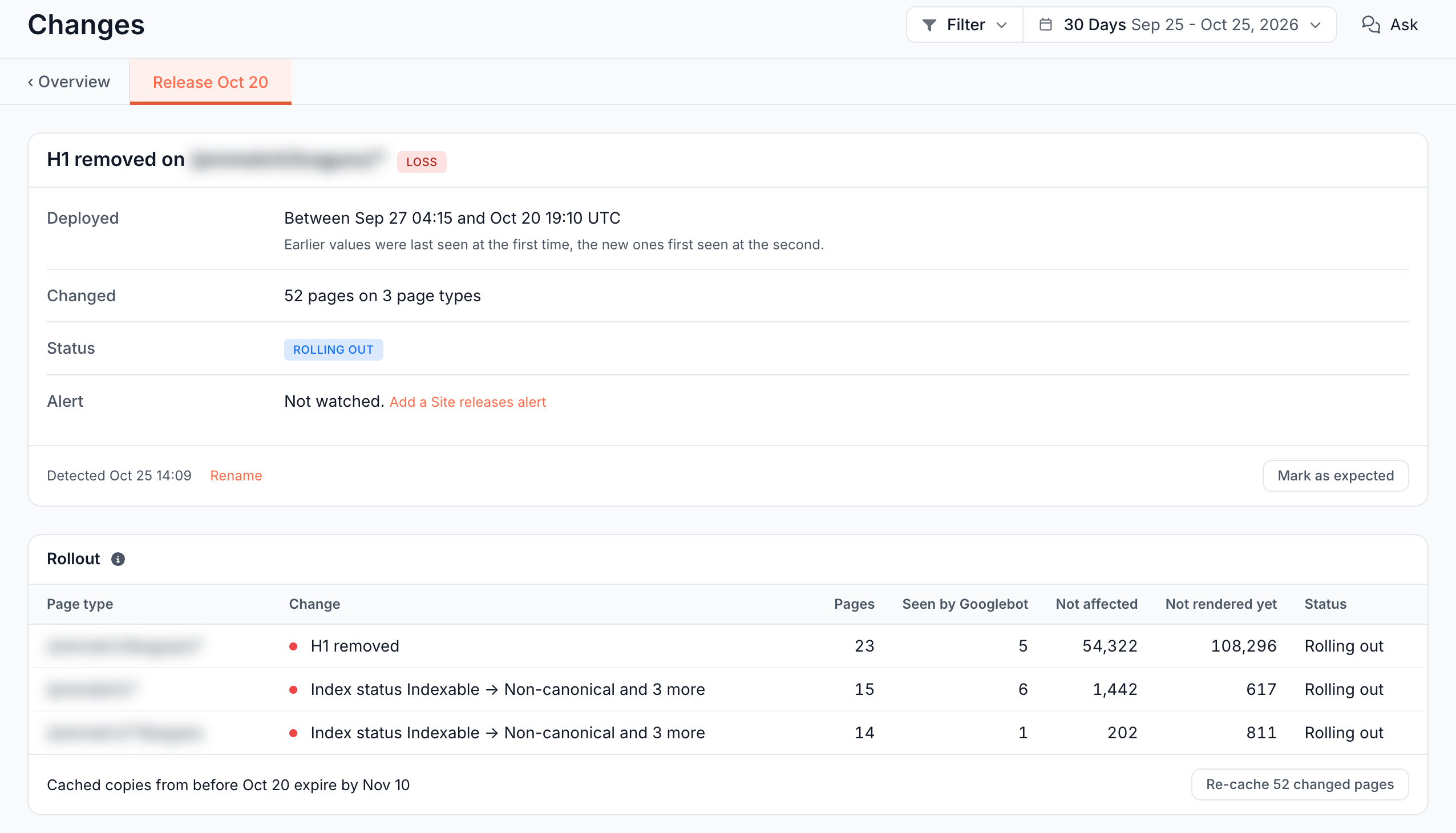
A release page has two cards: a summary and the rollout per page type. The ‹ Overview link at the left of the tabs returns to the report.
Summary
The card's title is the release name, with its class pill:
- Deployed: "Between {time} and {time} UTC": the deploy happened between these two times.
- Changed: "{N} pages on {M} page types".
- Status: see Release statuses.
- Alert: whether a Site releases alert follows it. A loss that no rule watches reads "Not watched." with the link Add a Site releases alert. An edit or a gain reads "None. A release that only edits or adds is recorded here and not sent."
The footer shows when the release was detected, with Rename and Mark as expected.
Rollout
The Rollout card has one row per page type, losses first:
- Page type and Change: the URL pattern and its first change, with "and {N} more" when there are more.
- Pages: pages that showed the change since the release.
- Seen by Googlebot: of those, the pages verified Googlebot fetched while they served it. A dash means Googlebot does not reach the site through EdgeComet.
- Not affected: pages of the type rendered since the release without the change.
- Not rendered yet: pages still served from a cache made before the release, or not requested by any bot since.
- Status: the page type's status.
The footer reads "Cached copies from before {date} expire by {date}", from your site's cache lifetime, or "Every cached copy from before {date} has expired".
Every change, with example pages
Click a page type, or its page count, to see every change on it with example pages.
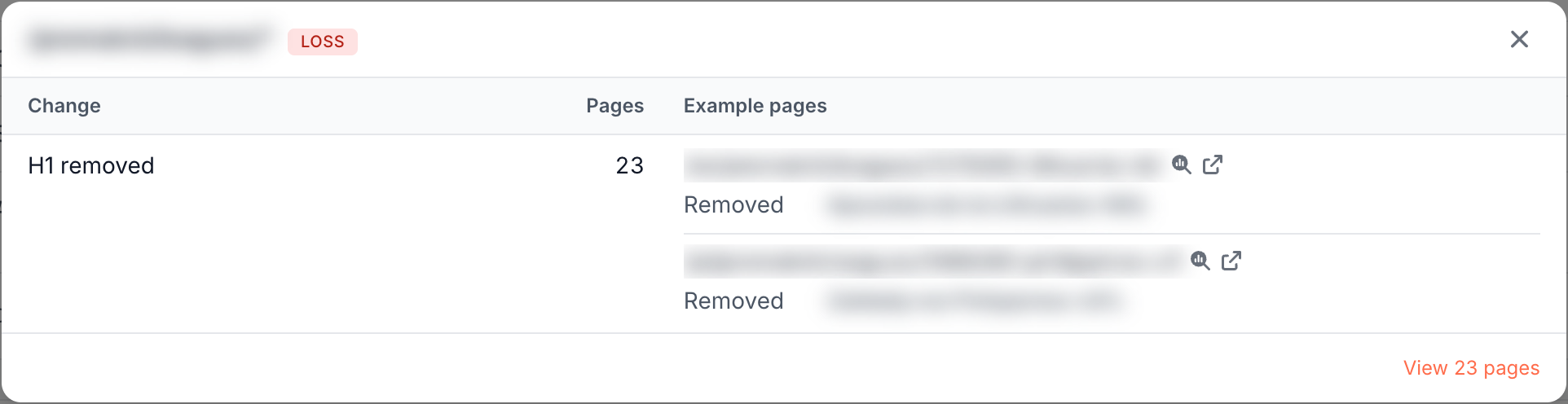
- Example pages: up to 2 pages per change, each with icons to open it in Page Analysis or on your site.
- Before and after: a title, H1, description or canonical shows the old and new value, or "Removed" and "Added" when one side is empty. A redirect shows its target. Hreflang shows the alternates that moved, such as "de: /de/old/ → /de/new/".
- View {N} pages: opens exactly those pages in the Change log, from the release day on.
Mark a release as expected
Click Mark as expected on a release you meant to ship, such as a planned title rewrite. The release changes to Expected, its red dot goes, and an open Site releases incident for it closes as acknowledged. No new incident opens for it.
The mark stays on the release, and Re-cache stays available.
Rename a release
Click Rename, type a name in Release name and click Save. The new name shows on the release page, on chart annotations and in the headline of an open incident. An alert email already sent keeps the old name, and the Releases card keeps showing the change itself.
Re-cache the changed pages
The Re-cache button in the Rollout footer renders the pages of a release again, without waiting for their cached copies to expire. Each page it sends is rendered once more:
- A loss: "Re-cache {N} changed pages" sends the pages that show the loss. Fix the cause first, at your origin or with Edge SEO, then re-cache: bots get the fixed version at their next fetch.
- An edit or a gain: "Re-cache {N} pages" sends the pages not refreshed since the release, which completes the release sooner.
The button changes to "Re-cache queued". The same button is on a Site releases incident, for its loss page types. For other ways to refresh cached pages, see Recache, invalidate and flush cached pages.
Get alerted about a release
The Site releases alert opens one incident for each loss release detected after you add the rule. Edits and gains are recorded on the Changes report and not sent.
- Growing: later days of the same release join its incident, without a new email.
- Closing: the incident closes when every loss is reverted, with a resolution email, when you acknowledge it, or 7 days after the last new page.
- Acknowledge: acknowledging the incident also marks the release as expected.
To add it, click Add a Site releases alert on an unwatched loss, or pick Site releases in the template gallery. See Site releases in the alert templates.
Where else releases show up
Releases appear across the dashboard:
- Charts: each release adds a red dot under its day on report charts, with "Release: {name}" in the tooltip.
- Alerts page: the Timeline card draws each release as a dotted line, and the mark on its axis links to the release page. See Open incidents and alert history.
- Change log: the Release filter narrows the log to one page type of a release, labelled "{pattern}: {release name}". See Filters.
- Ask and MCP: Ask and connected AI clients list your releases and read one in full with its example pages. On a release page, Ask knows which release you are looking at. See Ask and MCP.
What to do with a release
Start with the releases that carry a red dot:
- A loss you did not plan: open the page type and check the examples. Fix the cause, or set the old value back at the edge with Edge SEO, then re-cache the changed pages.
- A change you planned: mark it as expected, which closes its incident.
- Flipping back and forth: the pages serve the old and the new version by turns. The page type's pages in the Change log show the order of the changes.
- Seen by Googlebot is high on a loss: Googlebot has already fetched the broken version. Fix and re-cache first, then check Recrawl for when Googlebot comes back.
Where to find it
In the dashboard: Changes, tab Overview, the Releases card. Click a release to open its page.