

Preview, test and publish Edge SEO rules
An Edge SEO rule goes live in two steps: you save it as a draft, then you deploy it. Nothing reaches bots until a person deploys it, including drafts from the Action Board, Ask and AI clients.
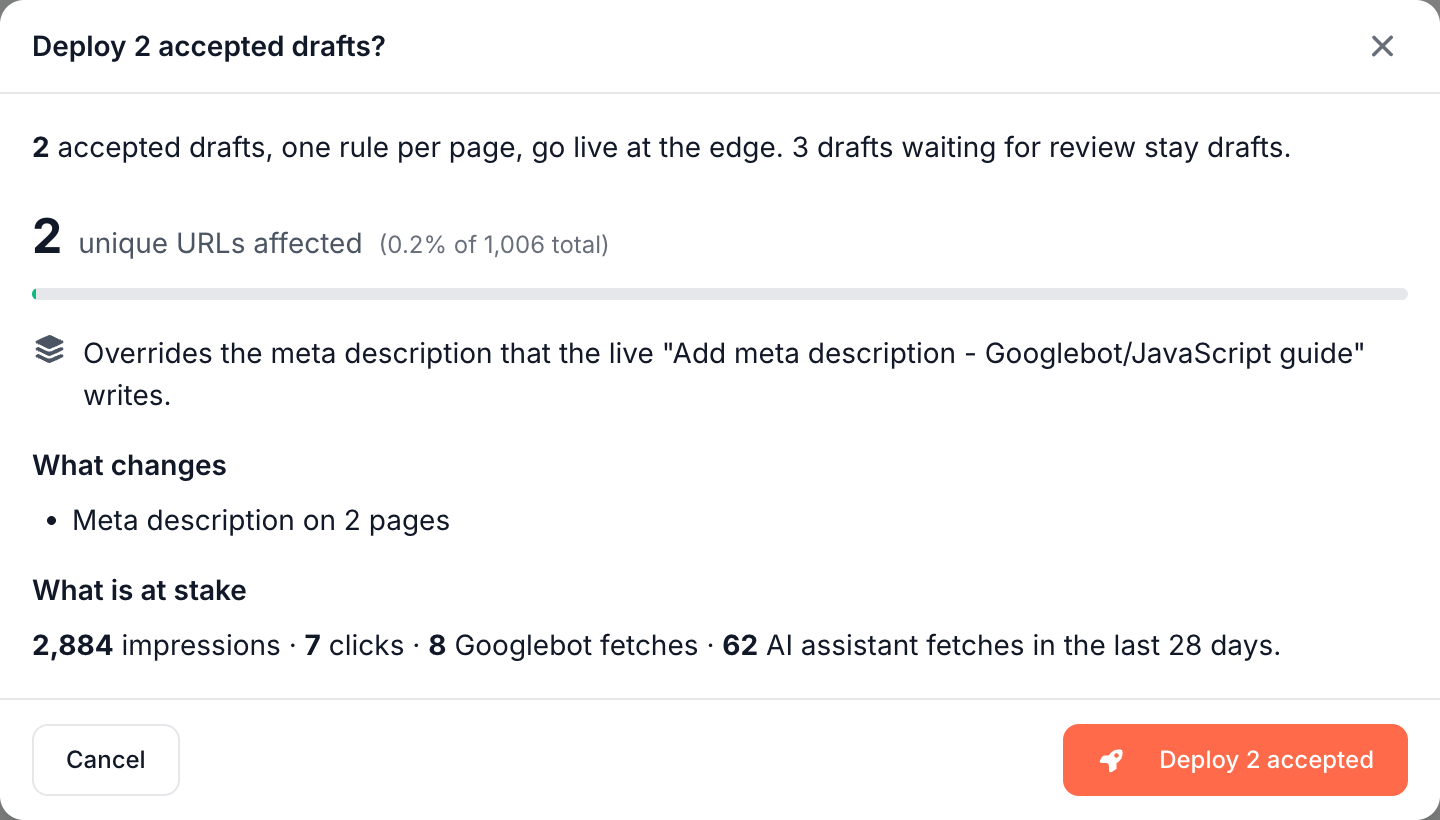
Before the deploy, EdgeComet shows what changes, how many pages it reaches and the traffic on them. An indexing, canonical or response change, and any change on 100 pages or more, asks you to type your domain.
After the deploy, EdgeComet recaches the affected pages, and bots get the new version without waiting for the cache to expire. Roll back takes a change out of production.
Draft, live and rolled back
Every rule has one status, and the Edge SEO page has a tab for each:
| Status | What it means |
|---|---|
| Draft | Saved, not live. Bots never see it. |
| Live | It runs on every matching page, in deploy order. |
| Rolled back | Taken out of production. Not live, kept with its history, and can be restored to draft. |
The tabs count changes: a batch of drafts counts as one. The page opens on Drafts while any draft exists, and on Live otherwise.
Find a change
The bar above the list narrows it:
- Search or paste a URL: type part of a rule or batch name, or paste a page URL or path to list every change that touches that page. See See every change on a page.
- Filters: Author, Source (Editor, Ask, Claude (MCP) or Action Board) and Changes, the field a rule writes, such as Title or Redirect. The Live tab adds Live since: the last 7 or 28 days, this month or last month. Clear all removes them.
- Export: on the Live tab, downloads the filtered live changes as a CSV file, one line per page and field, with the columns Change, Page, Field, Now, New, Live since, Author and Source.
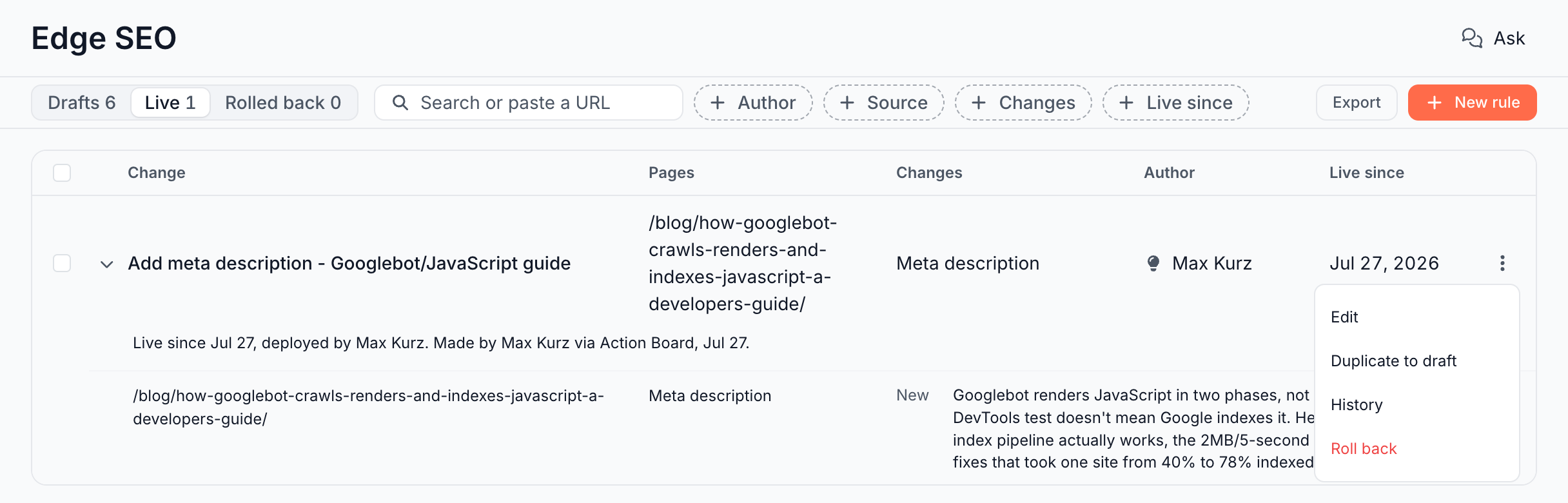
Click the arrow beside a change to expand it. The details say who made it and through which source, and on the Live tab who deployed it, how many of its pages bots fetched in the last 7 days, and the clicks before and after. See What happens when you deploy.
See every change on a page
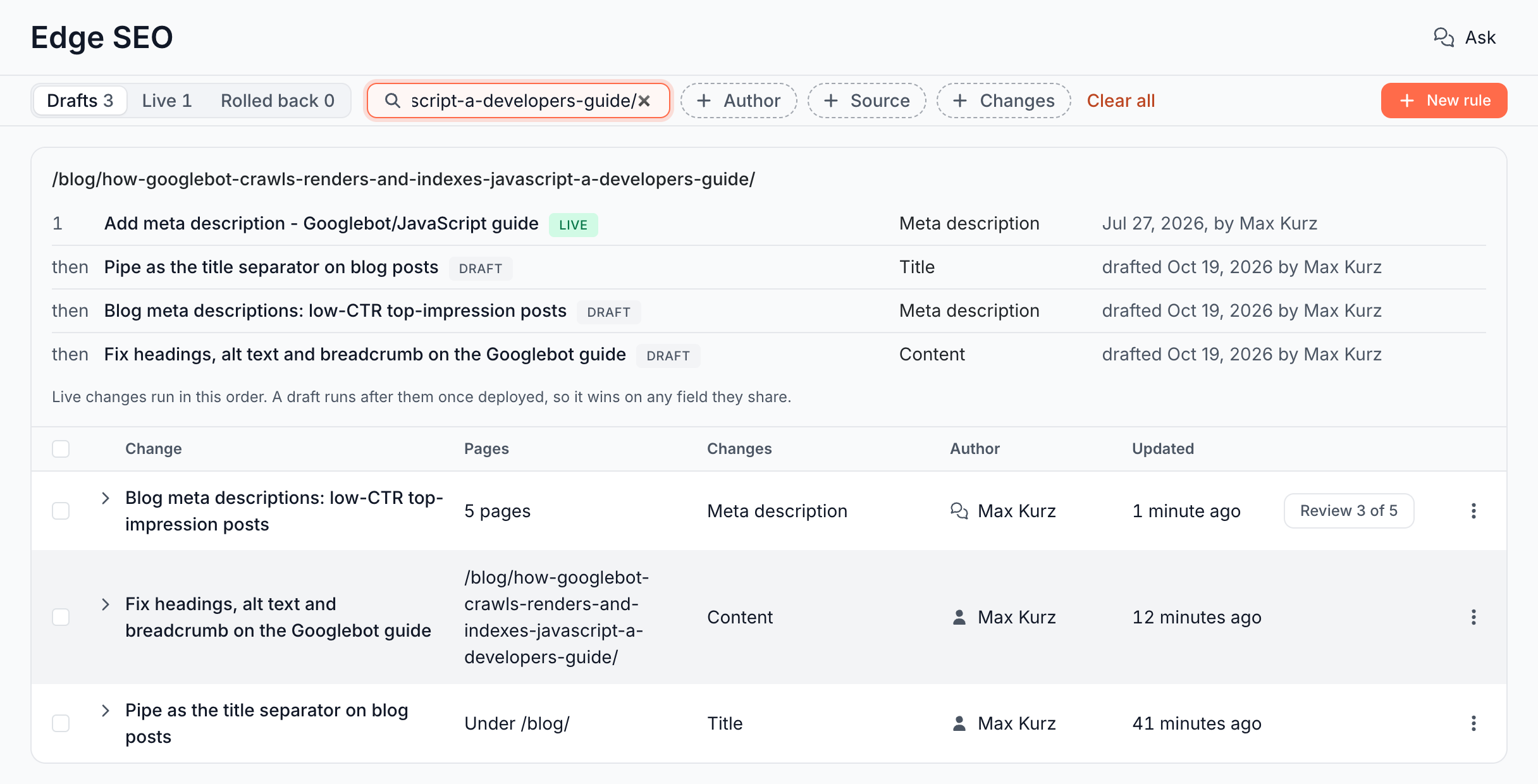
Paste a page URL, such as https://www.example.com/pricing/, or a path into Search or paste a URL. A panel above the list shows every change that touches the page:
- Live changes, numbered in the order they run, with the date and who deployed them.
- Drafts, marked "then": a draft runs after the live changes once you deploy it, and wins on any field they share.
- Rolled-back changes, with the dates they were live.
The tabs and the list narrow to the same changes. A page no rule touches reads "No change has touched this page.", with New rule for this page.
Check a rule before you deploy it
The editor shows the result while you edit:
- What each page gets: the current and new value for every loaded page, with flags where an edit breaks something. See What each page gets.
- The engine check: the rendering engine runs the rule on the page you select and reports edits that find nothing or change nothing.
- Edit on the page: the page itself, with Before and After this rule's edits. See Change page content on the page.
How many pages a rule affects
The blast radius is the number of pages a rule matches, out of all the pages bots requested through EdgeComet in the last 30 days. You see it in three places:
- The editor: Applies to and the pages column, such as "149 pages under /docs/".
- The deploy confirmation: "N unique URLs affected (P% of N total)", with a bar colored by the highest warning.
- The Action Board task page: "Affects X of Y pages (P%) seen in the last 30 days.", and from 40%, "Wide blast radius: this changes most of the site."
When you deploy one rule, the confirmation adds warnings above what changes:
| Warning | When |
|---|---|
| "No URL filter is set. This rule will apply to every crawled page on your site." | No URL, URL path or URL query filter |
| "This rule affects P% of all pages. Verify this is intentional." | 80% of pages or more |
| "This rule affects a large portion of your site (P%)." | 50% to 79% |
| "This is a destructive rule type." | A redirect, 404 or 410 rule |
| "This rule is currently live. Changes take effect immediately." | Editing a live rule |
| "No pages currently match these filters. The rule will apply when matching pages appear." | No match among the pages bots requested |
| "No crawl data available yet. Impact cannot be assessed." | No bot traffic recorded yet |
Deploy from the editor
- Click Deploy in the footer. On a live rule the button reads Deploy edits.
- The confirmation opens, such as "Deploy this rule?", with "This rule goes live at the edge. Bots and visitors get the new version on their next request; your site's code does not change." It measures the rule as it is on screen, unsaved edits included.
- Read the page count, the warnings, What changes, such as "Indexing set to "noindex, follow" on 149 pages", and What is at stake: the impressions, clicks, Googlebot fetches and AI assistant fetches on those pages in the last 28 days. When another rule writes the same field, an overlap line names it: "Overrides the {field} that the live "{rule}" writes." for a live rule, or "The {field} is also set by the draft "{rule}". Whichever is deployed last wins." for a draft.
- For an indexing, canonical or response change, and for any change on 100 pages or more, type your domain as shown, such as "This changes how search engines index 149 pages. Type example.com to deploy."
- Click Deploy. The dialog reads "The rule is live."
Cancel closes the confirmation and keeps your edits in the editor. A draft in a batch of several rules, such as an Action Board task, deploys the whole batch, and the footer button says so: Deploy N drafts.
The deploy ships exactly the rules and versions the confirmation showed. If a batch changed in the meantime, in the chat or in another tab, the dialog says "Changed since you opened the confirmation. Review it again." and measures again. For one rule, the editor shows "This rule changed since you opened it, in the chat or another tab." with Reload and Overwrite.
Where you deploy
You deploy from three places:
- The rule editor: Deploy, Deploy edits on a live rule, or Deploy N drafts for a batch.
- The batch review: Deploy N accepted for AI drafts you review page by page. See Review a batch page by page.
- The Action Board task page: Deploy at the edge (N). See The Action Board task page.
The list on the Edge SEO page does not deploy. On a batch with pages waiting for review, Review 3 of 5 on its row opens the batch review. Select rows with their check boxes to act on several changes at once: Discard N on the Drafts tab, Roll back N on the Live tab.
What happens when you deploy
- The rule moves to Live and runs after the rules already live.
- The edge updates in one step with the full set of live rules. If the update fails, the rule stays a draft and bots see no change.
- One change at a time per website. A deploy, roll back or live edit started while another runs gets "Another deploy is in progress for this website. Please retry shortly."
- The affected pages are recached. A rule for one page recaches it at high priority. A rule for many pages recaches up to 20,000 matching URLs, at high priority when it matches 5,000 or fewer. See Recache, invalidate and flush cached pages.
- The row reports the result. Expand the change on the Live tab. It reads "Live since" with the date and who deployed it, and how many of its pages bots fetched in the last 7 days.
- The row measures the change. Once a change has been live for 28 days and Search Console has reported them, the row compares the clicks and impressions of those 28 days with the 28 days before the deploy: "Clicks" and "impressions", each as before → now. Indexing, canonical and response changes show no comparison.
Review drafts from the Action Board, Ask and AI clients
EdgeComet can write rules for you, and each one arrives as a draft for a person to deploy:
- The Action Board turns a finding into a task with its own review. See The Action Board task page.
- Ask, the Ask panel on any report and the panel beside the rule editor draft rules from a request in plain language, and change drafts that exist. See Draft a rule with AI and Edge SEO fixes from Ask.
- AI clients over MCP save drafts with
save_edge_seo_draftsand change them withedit_edge_seo_drafts. The MCP server has no tool that publishes. See MCP tool reference.
Every AI draft keeps the reason for the change, shown above its edits, and the conversation it came from. The Ask panel beside the editor opens on that conversation.
Review a batch page by page
Drafts that give each page its own value, such as a new meta description for each of 40 pages, arrive as one batch with one draft per page. Open it with Review 3 of 5 on its row on the Drafts tab, Review pages in the row menu, Open in Edge SEO in the chat, or the link an AI client returns.
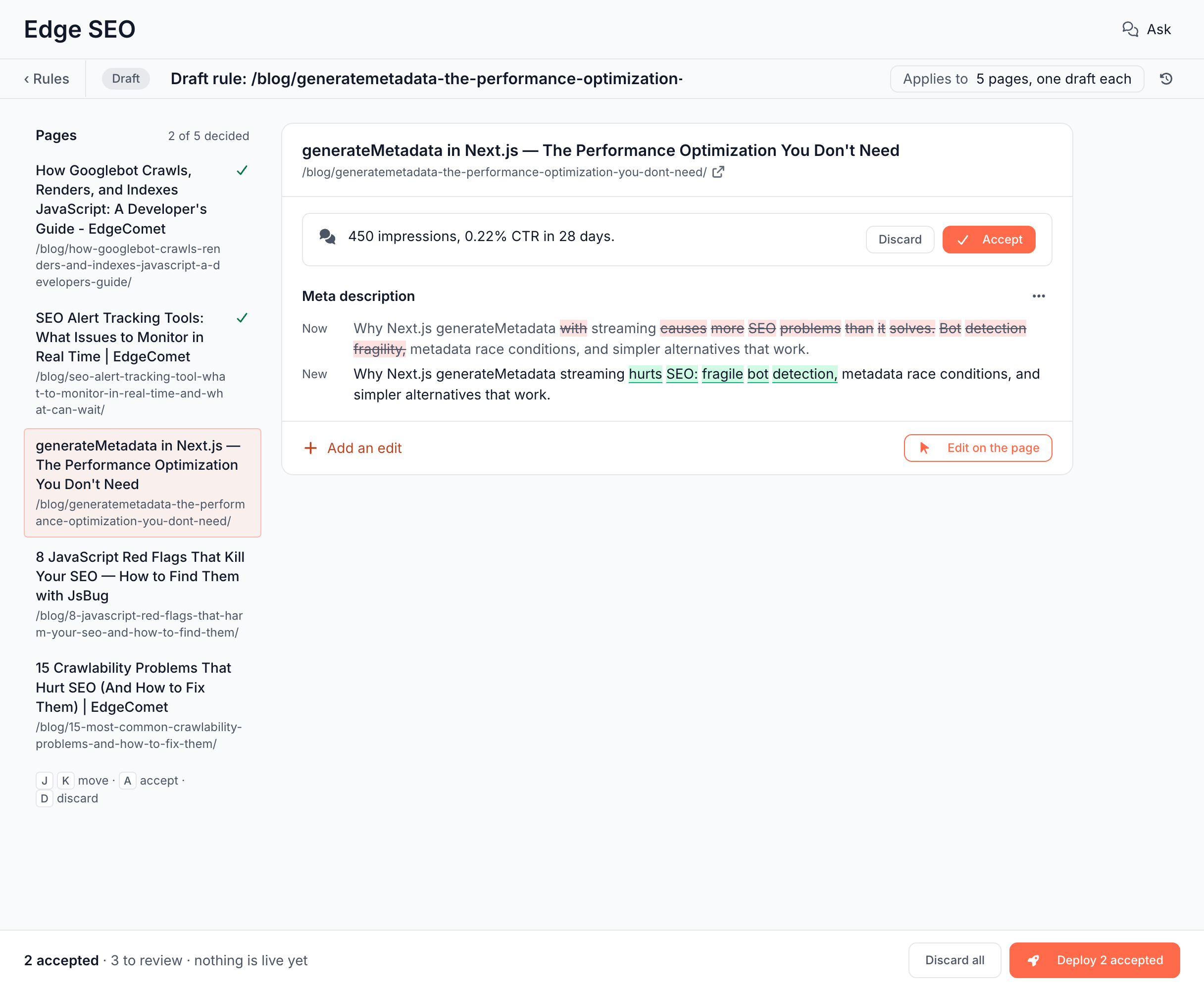
- The pages column lists the drafts, with "2 of 5 decided" at the top and a check mark on each accepted page.
- The center shows the selected draft: its reason, such as "450 impressions, 0.22% CTR in 28 days.", Discard and Accept, and its edits with the changed words marked.
- Accept moves on to the next page. An accepted page reads "Accepted" with Undo. Discard removes the draft.
- Keys: J and K move between pages, A accepts and D discards.
- Saving a value in place saves the draft and accepts it in one step: the button reads Save and accept.
The footer counts the decisions, such as "2 accepted · 3 to review · nothing is live yet", and Deploy 2 accepted ships the accepted drafts only. Drafts waiting for review stay drafts. Discard all asks "Discard every draft in this batch, accepted ones included? Live rules stay live. This cannot be undone." When the chat changes a draft you accepted, it goes back to review.
Undo what the chat wrote
A chat message that saved, changed or discarded drafts shows a card under it, such as "Saved 5 drafts", with Open in Edge SEO and Undo. Undo puts back every draft that message touched: it discards the drafts it created, restores the ones it changed and recreates the ones it discarded. The card then reads "Undone".
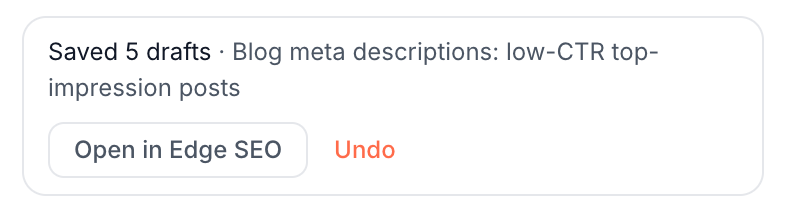
Undo is available while nobody has changed those drafts since. After a person edits one, the card reads "Changed since. Undo is no longer available.", and once one is deployed, it offers no undo.
The Action Board task page
The Action Board turns a finding into a task. Its Pages table lists every page with the Now and After value. Clean rows arrive ticked; flagged rows, such as an unchanged value or one over the length guideline, arrive unticked. Edit or untick rows, then click Deploy at the edge (N), or Save as drafts (N) to deploy later. See Review and deploy AI-generated SEO fixes for every state of the task page.
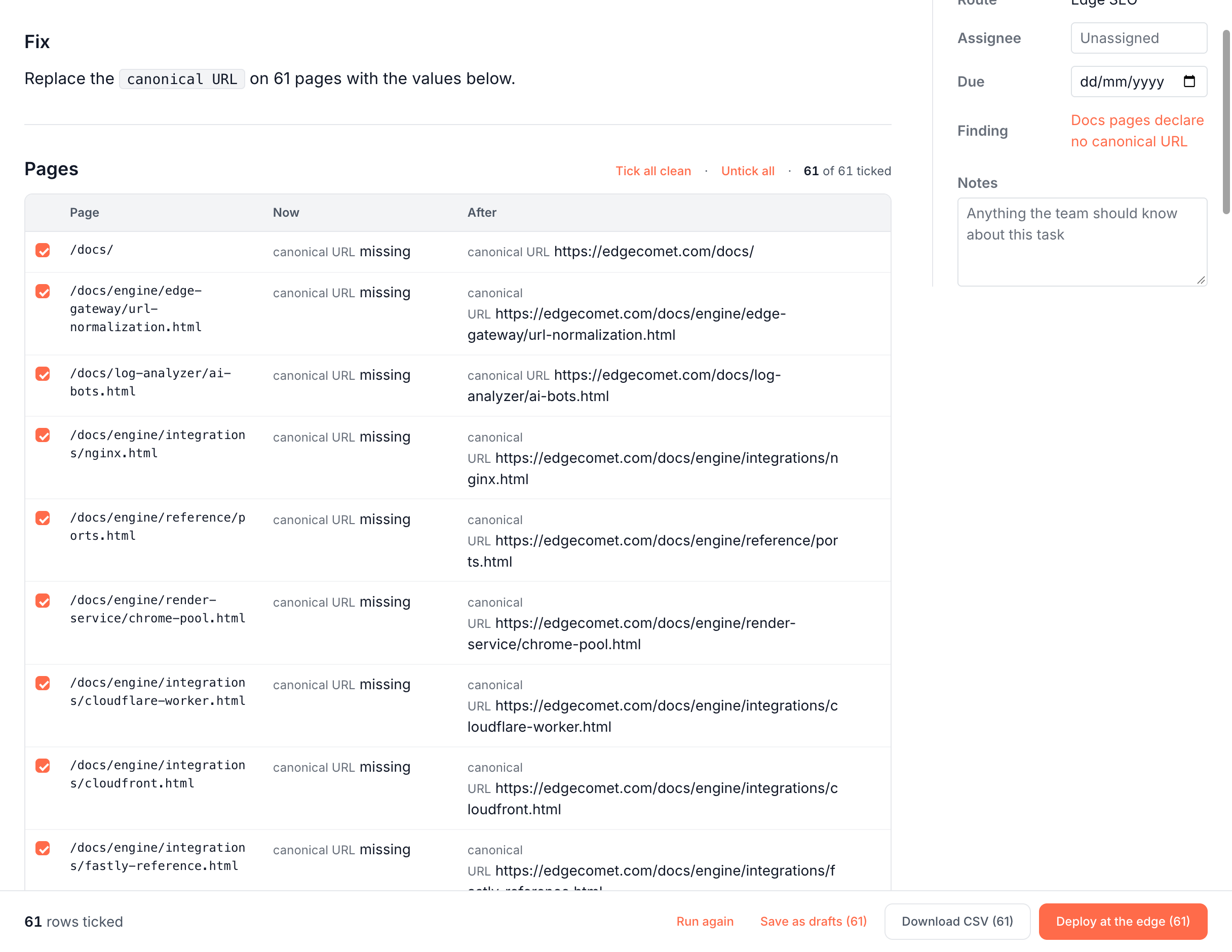
The task page confirms the deploy ("The rules go live on the edge immediately. Your origin code is not changed"), keeps Roll back one click away, and then tracks the fix with a Verification line, such as Change confirmed live or Confirmed fixed.
Saved drafts also appear on the Drafts tab of Edge SEO, with the Action Board icon beside the author. Expand the row: "Fixes the Action Board finding" links to the finding.
Edit a live rule
Open a live rule, change it and click Deploy edits. The confirmation reads "Deploy your edits?" with "Your edits go live at the edge. Bots and visitors get them on their next request; your site's code does not change." and the warning "This rule is currently live. Changes take effect immediately." The new version replaces the live one at once, and History records the edit.
The chat changes drafts only, and a live rule is edited by hand. To work on a change without touching the live rule, Duplicate to draft, edit the copy, and roll back the original when the copy goes live.
Roll back a rule
Roll back is how you take a rule out of production. Click it in the row menu on the Live tab, or in the editor's footer, and confirm: "Roll back "{rule name}"? Bots get the original values on their next visit." On a batch row it rolls back every rule in the batch, and Roll back N rolls back several selected changes. EdgeComet removes the rules from the edge and recaches the affected pages, and bots get your original page again.
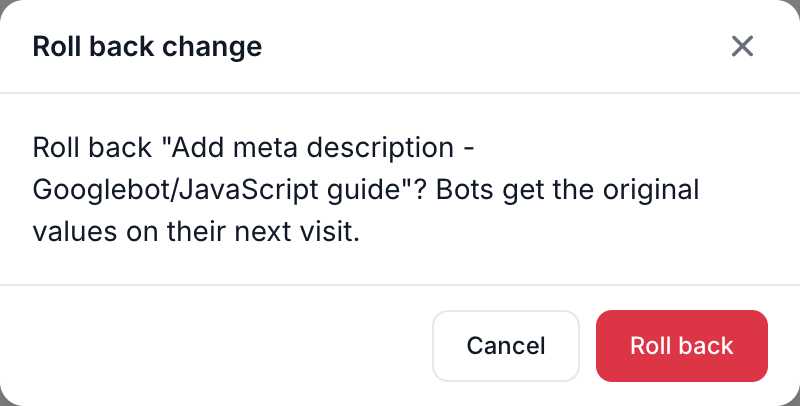
A rolled-back rule stays on the Rolled back tab with its history. Restore to draft on its row moves it back to Drafts without making it live. Deploy it again to bring it back.
See who changed a rule
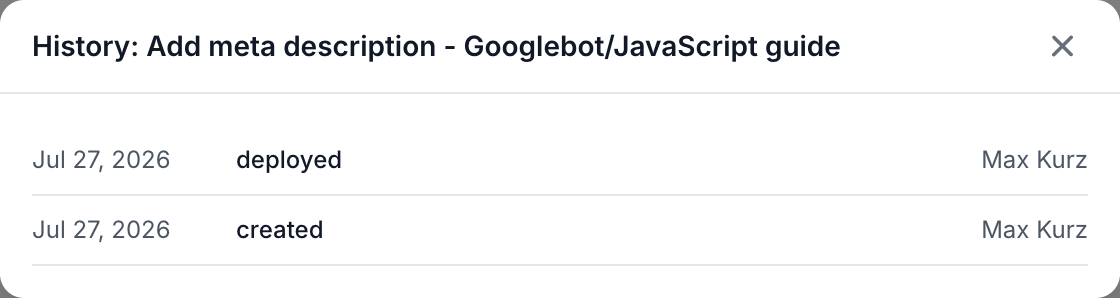
History in a rule's row menu, on a batch, or in the editor's top strip lists each event with its date and who made it: created, edited, deployed, rolled back, restored and draft discarded. An event with no person behind it shows "agent".
Other rule actions
| Tab | Row menu |
|---|---|
| Drafts | Edit on a rule, or Review pages or Open on a batch, Duplicate (rules only), History, Discard |
| Live | Edit or Open, Duplicate to draft (rules only), History, Roll back |
| Rolled back | Restore to draft, History |
Discard deletes a draft for good: "Discard "{name}"? This cannot be undone." A batch goes with every draft in it. Duplicate copies a rule into a new draft named "{name} (copy)".
What you should see
- The rule on the Live tab, and after bots request the pages, its expanded row reports how many of them bots fetched.
- The new values in the copy bots receive, under Page Analysis > Cache. See Check the headers bots receive to request a page as a bot.
If it does not work
"Another deploy is in progress for this website. Please retry shortly."
Someone is deploying, rolling back or editing a live rule on the same website. Wait a few seconds and try again.
"No pages match this rule yet. Deploying it changes nothing today - it will apply to any page that starts matching later."
No page bots requested in the last 30 days matches the filters. Check the pages column in the editor. A URL filter compares the full address, such as https://www.example.com/blog/, and a path belongs in a URL path filter. See Apply one rule to thousands of pages.
"No crawl data available yet. Impact cannot be assessed."
EdgeComet has recorded no bot traffic for the website, and it cannot count pages. See Check that bots reach EdgeComet.
"Domain does not match"
Type the domain exactly as the dialog shows it, without https:// or a path.
"Changed since you opened the confirmation. Review it again."
A rule in the deploy changed after the confirmation opened, in the chat or in another tab. The dialog measures again; read it and deploy.
"How many pages this affects could not be read."
On the Action Board task page, the count failed, but the deploy still works. To see the count first, open the rule in the editor: Applies to shows how many pages it matches.
"Changed since. Undo is no longer available."
One of the drafts changed after the chat wrote it, and undoing the message would erase that change. Edit or discard the drafts by hand.
Bots still get the old page
Check that the rule is on the Live tab, then recache the page. A later rule that writes the same field wins: paste the URL into Search or paste a URL to see the order. Visitors see changes only through the Edge SEO snippet.