

Generate and refine segments with AI
EdgeComet creates segments from your own bot traffic on its own, and its AI agent revises them when you describe a change in plain language. Every proposal is tested against the URLs bots requested on your site before you see it.
Runs you start end on a review screen, where you accept or reject each change before anything is saved. The automatic first run applies its segments on its own.
The automatic first run
Within an hour after your website's first Search Console import completes, EdgeComet analyzes its bot traffic and creates segments for the page types it finds, such as product pages, listings, articles and parameter URLs. See What EdgeComet configures on its own.
- No review step. Segments from the automatic run apply as soon as it finishes cleanly. A run that stops early applies nothing.
- It only adds. The automatic run never changes or removes a segment. If you made segments by hand before it ran, it adds its own next to them and skips any it would duplicate.
- Once per website. EdgeComet runs it once, and not at all when a person started a segment run first.
A website without Search Console gets no automatic segments. Click Generate segments on the Segments page, or Add or refine segments when the site has segments, to run the same analysis. See When a step cannot run.
Generate segments
On a website with no segments, the Segments page offers Generate segments:
- Open Configuration > Segments and click Generate segments.
- Optionally open Steer the analysis (optional) and describe what matters under Focus the analysis, such as "split the blog by language, keep product and brand pages separate". Paste example URLs into the same box if it helps.
- Click Generate. The run page opens.
Add or refine segments
On a website with segments, Add or refine segments asks the agent for new segments or for changes to the ones you have:
- On Configuration > Segments, click Add or refine segments.
- Describe the change, such as "a segment for the shower pages" or "split the blog by language". Paste an example URL if it helps.
- Click Start run.
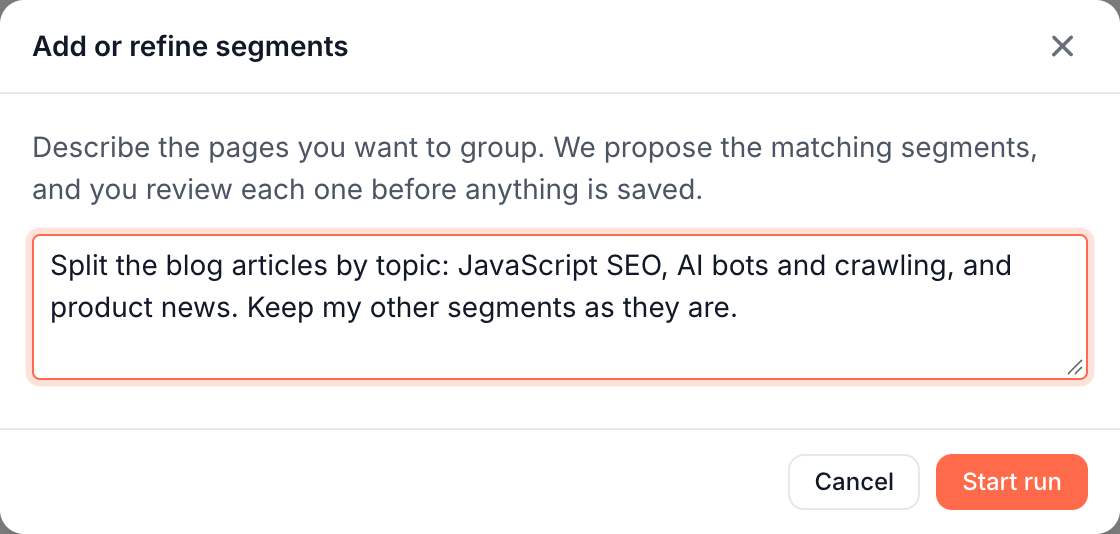
The agent sees your current segments and what each one matches, and proposes new segments, updates or removals.
Follow the run
A segment run is one pass of the AI agent over your site, started by EdgeComet or by you. The run page, Generating segments, shows the agent's steps as it works, such as "Mapping the URL structure", "Scanning query parameters", "Reading site navigation" and "Testing filters". Proposed so far lists each segment as the agent proposes it.
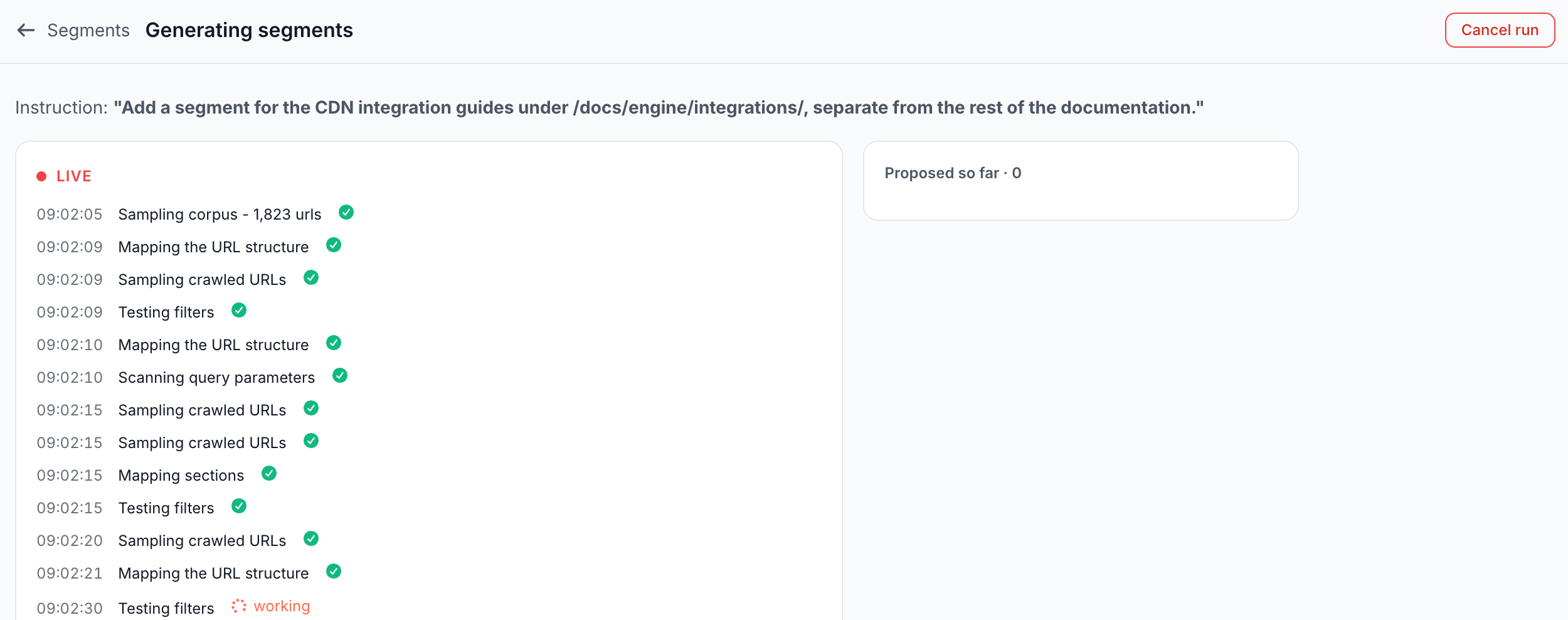
The agent reads the same evidence a person would:
- It reads your site's structure. It looks at URL paths and templates, sections with their page counts and query parameters, and renders a few pages to read the navigation.
- It works by site type. It detects whether the site is an online store, a publisher, a SaaS or documentation site, or another kind, and checks each page type that kind of site has.
- It tests before it proposes. Every filter runs against the URLs bots requested before the agent proposes it, and a filter that matches too few URLs, or duplicates a segment you have, is dropped.
While the run is open, the Segments page shows "Generating segments..." with View run, then "Review ready - proposed segment changes await you" with Review. Cancel run stops it without changes.
Review proposed changes
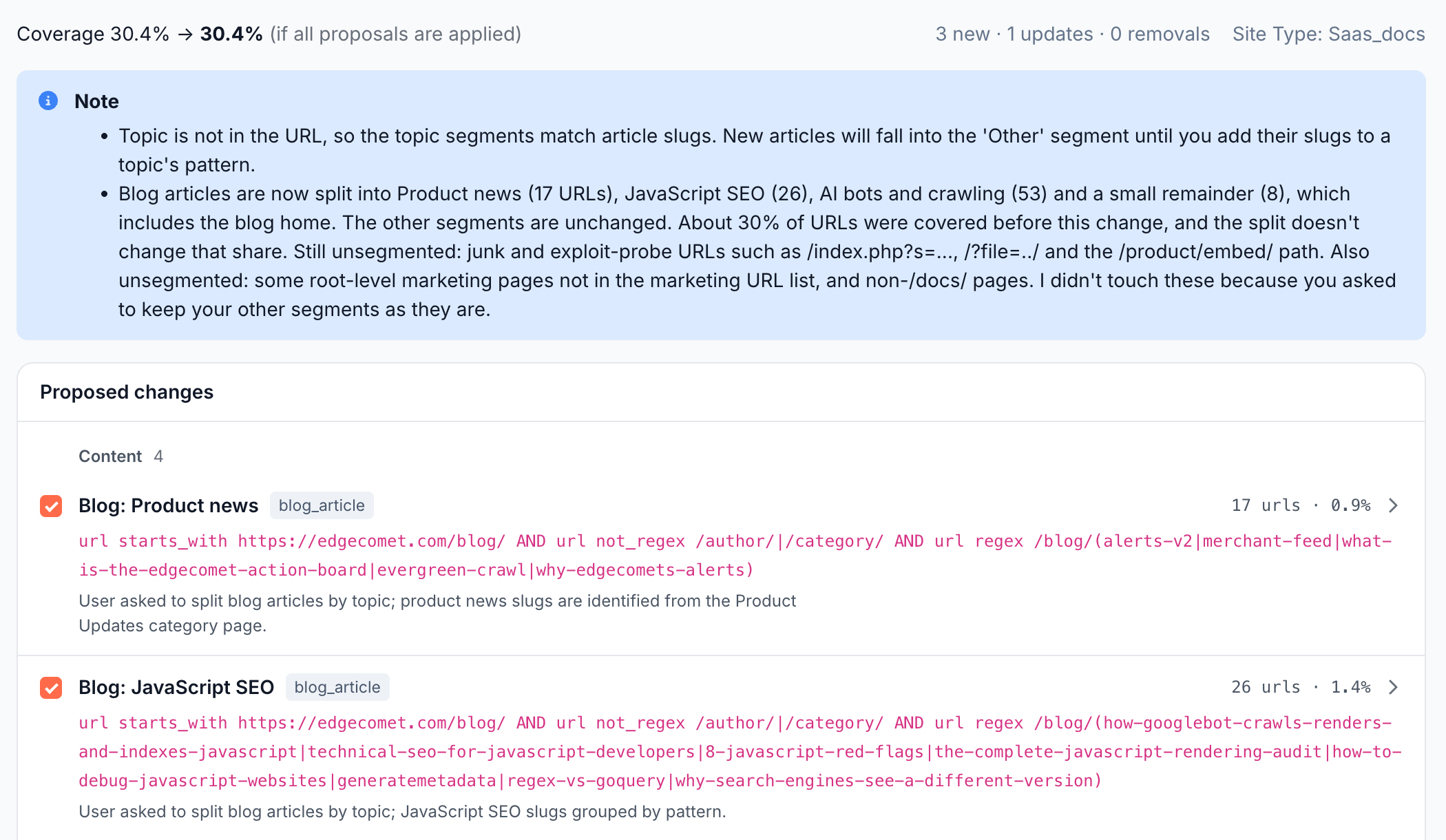
Review proposed changes lists what the run would change, before anything is saved:
- The strip: coverage before and after, "Coverage {X%} → {Y%} (if all proposals are applied)", where coverage is the share of requested URLs that at least one segment matches. Then the counts, "{n} new · {n} updates · {n} removals", and the site type the agent detected.
- Requested but not found: parts of your request the agent could not match on your site.
- Note: the agent's notes on the run, such as how it split a section or what stays unsegmented.
- Proposed changes: one row per change, grouped by the proposed group.
Each row has a checkbox, the name, an UPDATE or REMOVE pill for changes to existing segments, the archetype, the filter, the agent's reason, and the URLs it matches, "{N} urls · {X%}" for a new segment or "{before} → {after} urls" for an update. Expand a row to see the change against the old rules and sample URLs.
Rows that change a segment you made or edited carry a "! manual" or "! ai_edited" badge and start unchecked. A tinted URL count marks a proposal that matches few URLs, with the tooltip "Matches only N URLs - near the minimum threshold".
Refine the proposals
When the proposals are close but not right, describe what to change under Refine these changes, such as "don't split the blog by year, use language only", and click Refine.
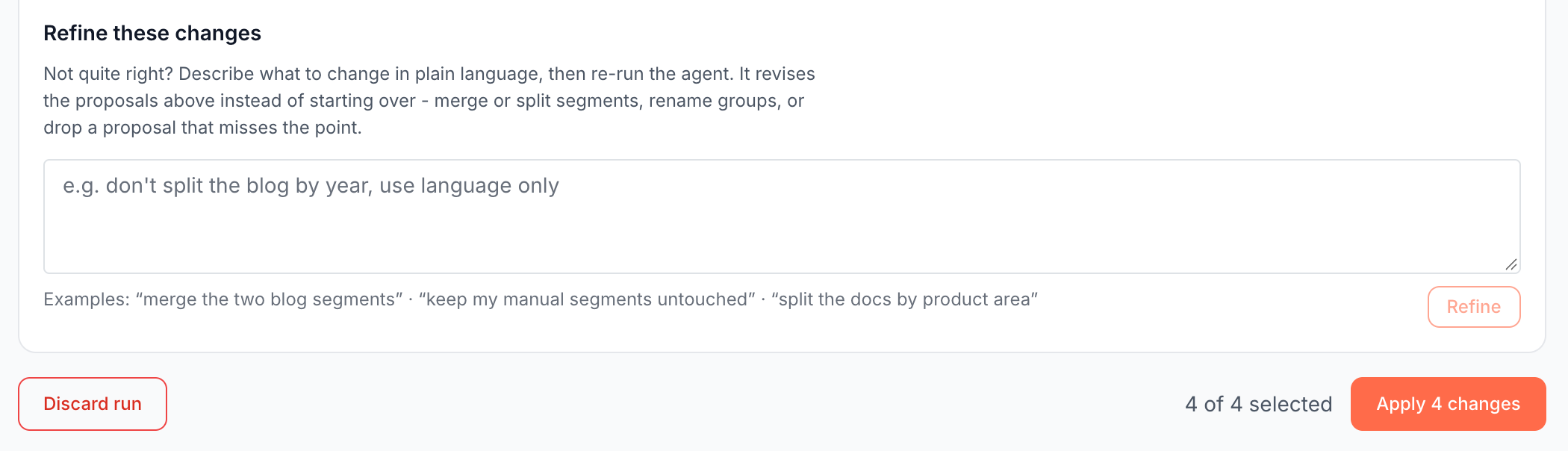
A refine starts a new run that revises the proposals instead of starting over. It keeps the rows you left checked, and the old run reads "This run was replaced by a refinement" with View the latest run.
Apply or discard
The action bar counts your choice, such as "5 of 7 selected":
- Apply N changes creates, updates and removes the checked segments in one step.
- Finish without changes closes the run when you unchecked every row.
- Discard run throws the proposals away. The run reads "This run was discarded" and "No changes were applied."
If a segment changed after the run proposed its change, that change is skipped, and the result says "skipped - segment changed during review". When the run proposes nothing, it reads "No changes were proposed - your current segments already partition the crawl well." with Done.
Add a segment from a report
Six Log Analyzer cards let you add a segment without leaving the report: Segment Performance on Googlebot, Bing, AI Chatbots and AI Crawlers, and Segments on Status Codes, Loading Time and Page Size. Their footer has Add segment, the status of an open AI run, and Manage segments, which opens the Segments page.
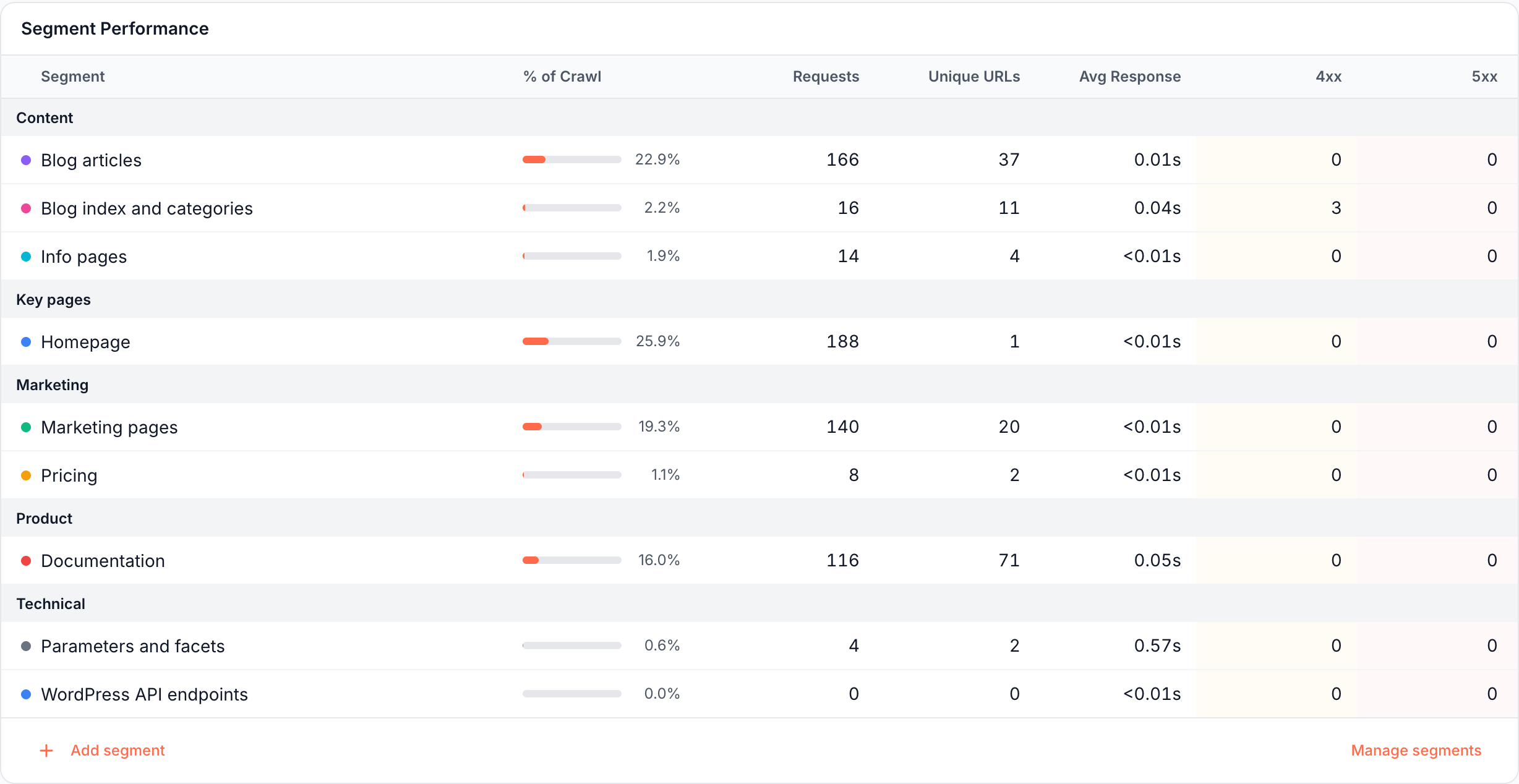
- Click Add segment in the card footer.
- In Create Segment, enter a Name. The first rule already reads URL Starts with your site's address: type the path after it, such as
blog/. - Optionally set a Group and a Color, or add rules.
- Click Save Segment.
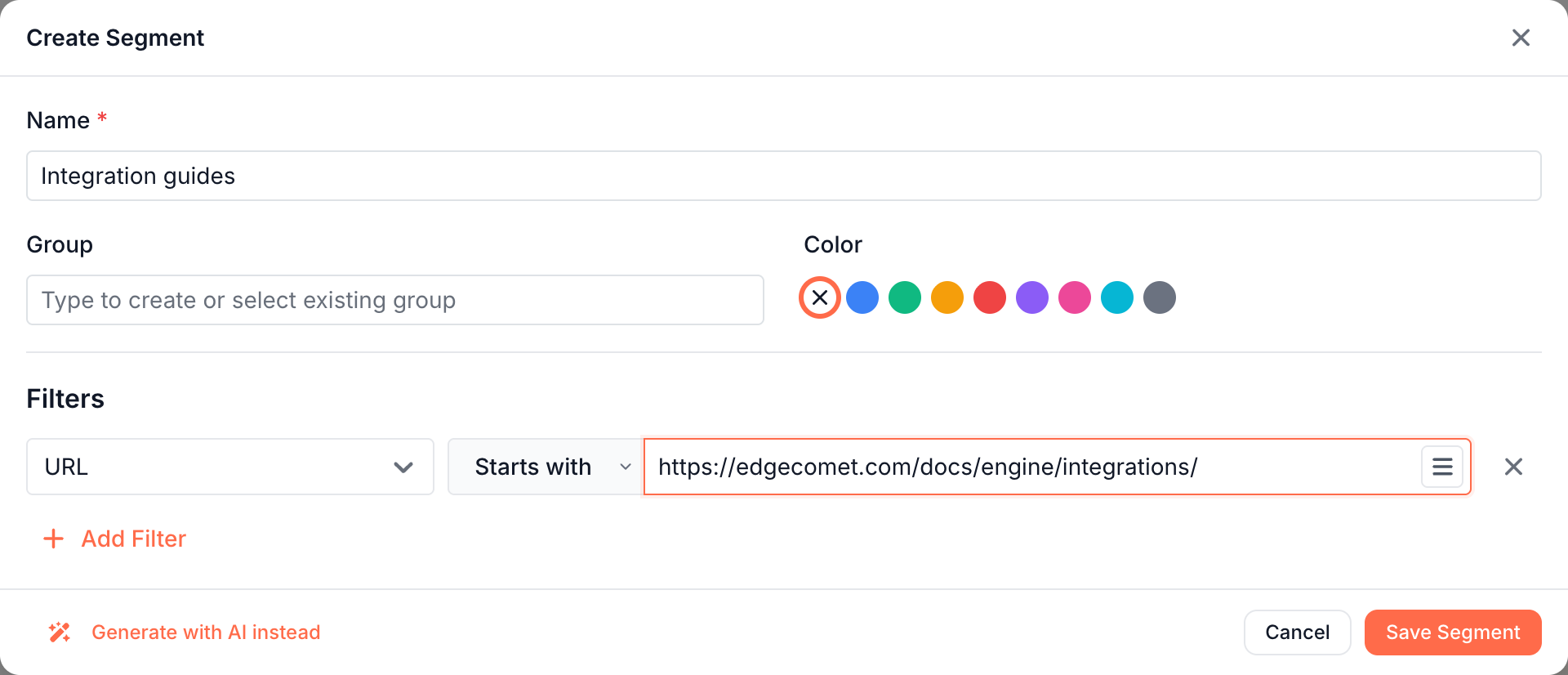
The table updates at once. If the new segment is not among the 10 busiest the card shows, the footer reads Saved "{name}" - outside the top 10 by requests. Set its Archetype later on the Segments page.
Generate with AI instead opens the same request box as Generate segments or Add or refine segments on the Segments page, and the run plays in a dialog on the report. Run in background closes the dialog while the run continues, and Open full review opens the run page.
If it does not work
"A run is already in progress for this site."
A website has one open segment run at a time. Open it from the chip on the Segments page, then finish, refine or discard it.
"No crawled pages were found for this site, so there was nothing to segment."
The agent works from the URLs bots requested, and the website has none yet. Run it again after the first verified bot visit. See Check the integration.
"The run hit its budget before finishing"
The run stopped early, and the review lists what it collected. Apply what is right, or refine the request into something narrower.
"Type a path after the host, or add a filter."
The rule in Create Segment still holds only your site's address, which would match every page. Type a path after it, or add another rule.
The AI buttons are missing or fail
Your role on this website lets you view segments but not change them. See Team roles and permissions.
Where to find it
In the dashboard: Configuration > Segments, Generate segments or Add or refine segments. Runs open at /websites/{id}/segments/ai-runs/{run}. The quick add sits in the footer of the Log Analyzer segment cards.