

Password, two-factor authentication and Google sign-in
You sign in to EdgeComet with your email and password, or with Google. Two-factor authentication adds a 6-digit code from an authenticator app to email and password sign-in. Also called 2FA, MFA or two-step verification.
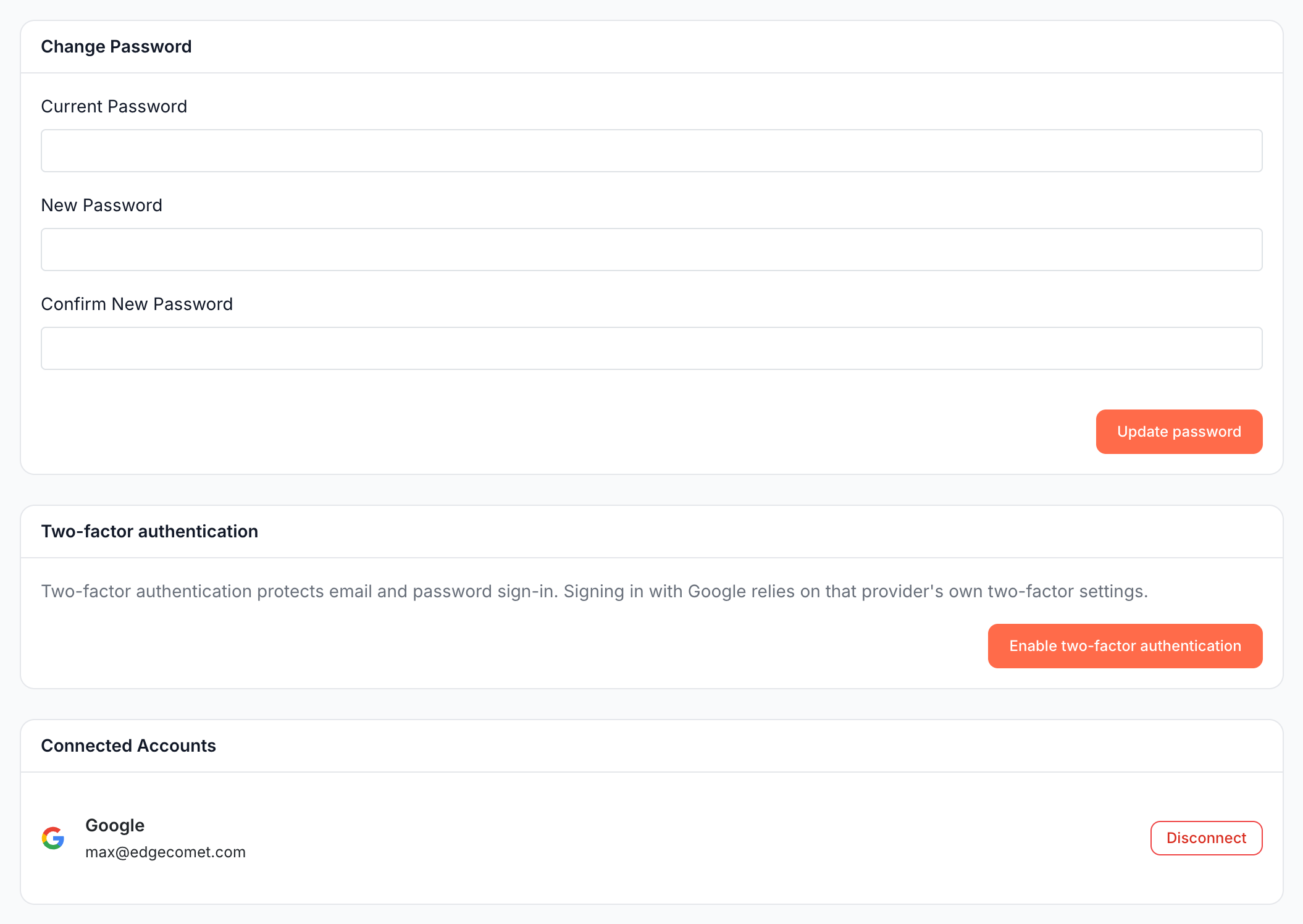
You manage all three on the Security page: your password, two-factor authentication and the Google account linked for sign-in.
How sign-in works
The EdgeComet sign-in page offers two ways in:
- Continue with Google: signs you in with a Google account linked to your EdgeComet account, or one with the same email address.
- Email and password: with Remember me to stay signed in on this browser.
With two-factor authentication on, email and password sign-in continues on a second screen, Enter your verification code. See Sign in with a code.
Change your password
- Open the account menu at the bottom of the left strip, then Settings > Security.
- On the Change Password card, enter Current Password.
- Enter the new password in New Password and Confirm New Password. It needs at least 8 characters.
- Click Update password. The page confirms "Password updated successfully."
Reset a forgotten password
On the sign-in page, click Forgot password?, enter your email under Reset your password and open the link in the email EdgeComet sends. The link opens a page where you set a new password.
Set a password after signing up with Google
An account created with Google has no password. The card reads "You signed up using a social provider. Set a password to enable email/password login."
Enter New Password and Confirm Password, then click Set password. You can then sign in with your email and password, and turn on two-factor authentication.
Turn on two-factor authentication
You turn on two-factor authentication on Settings > Security with an authenticator app. It protects email and password sign-in. Google sign-in relies on the two-step verification of your Google account.
Before you start:
- Your account has a password. The Two-factor authentication card appears only then. See Set a password.
- You have an authenticator app on your phone or computer, such as Google Authenticator, 1Password, Authy or any other TOTP app.
Steps:
- Open Settings > Security.
- On the Two-factor authentication card, click Enable two-factor authentication.
- Scan the QR code with your authenticator app, or type the key shown under "Or enter this key manually:".
- Enter the 6-digit code from the app under Enter the 6-digit code from your app.
- Enter your Current password and click Confirm and enable.
- Save your recovery codes, then click I saved them. See Save your recovery codes.
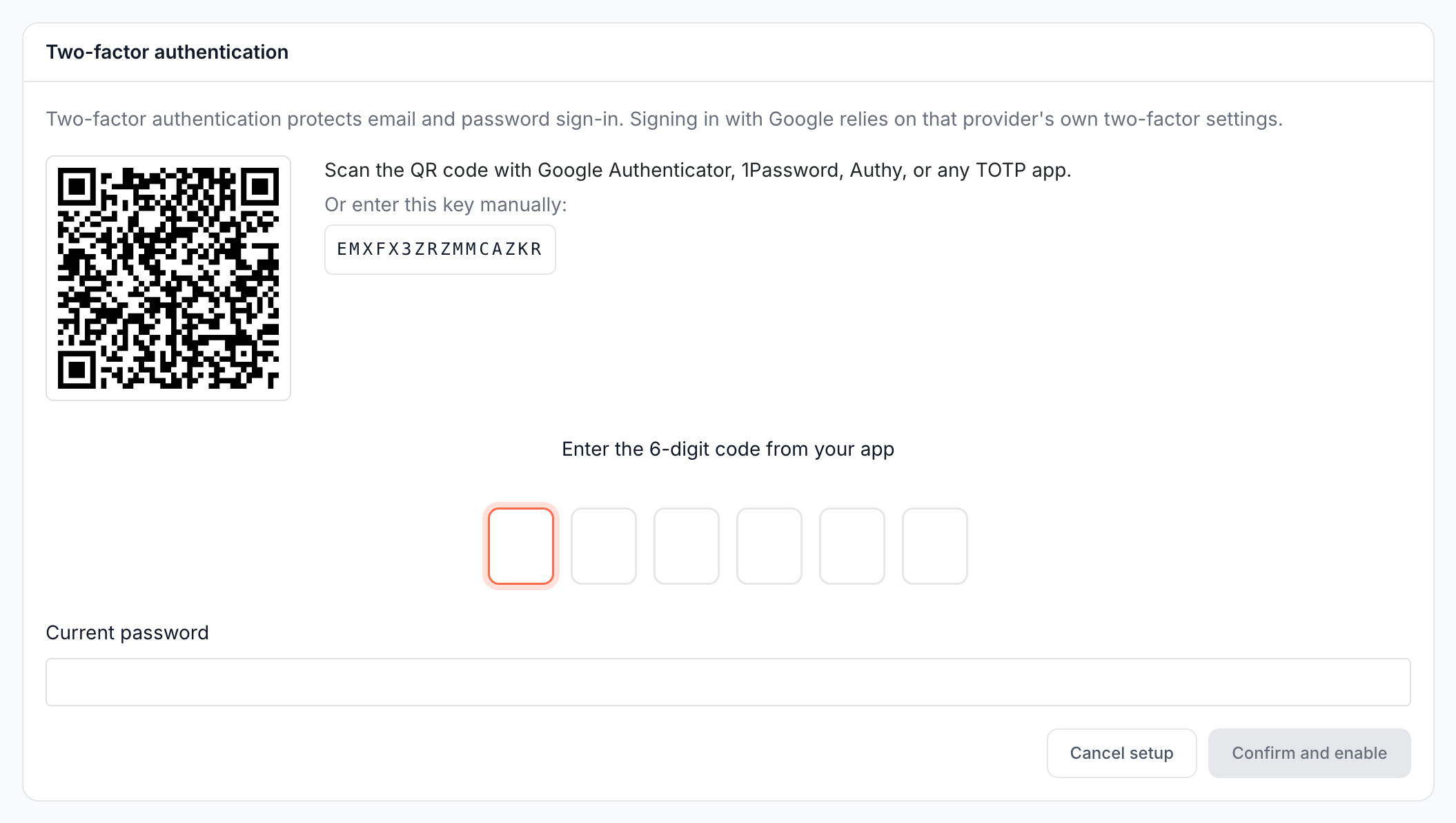
The card then shows an Enabled badge. Cancel setup, at any point before Confirm and enable, leaves two-factor authentication off.
Save your recovery codes
A recovery code signs you in when you do not have your authenticator app. EdgeComet shows them once, in the Save your recovery codes dialog, right after you turn on two-factor authentication:
- 8 codes, each written as two groups of five characters, such as
k3x9a-q7m2p. - One use each. A code stops working once you sign in with it.
- Copy puts all codes on your clipboard. Download .txt saves them as
recovery-codes.txt.
Store them in a password manager or another safe place. The dialog says: "They will not be shown again - regenerate from Settings if you lose them."
To get a new set, click Regenerate recovery codes on the card, enter your Current password and click Regenerate codes. The new set replaces all old codes.
Sign in with a code
After your email and password, the Enter your verification code screen asks: "Open your authenticator app and enter the 6-digit code." The code is checked as soon as you type the sixth digit.
To use a recovery code, click Use a recovery code, paste one code into Recovery code and click Verify. Use authenticator code instead switches back.
A wrong code returns "The code is invalid." After too many wrong codes, EdgeComet sends you back to the sign-in page: "Too many attempts. Please sign in again."
Turn off two-factor authentication
- Open Settings > Security.
- On the Two-factor authentication card, click Disable.
- Enter your Current password and click Disable two-factor.
Your recovery codes stop working with it. Turning it on again creates a new key and new codes.
If you lose your authenticator app
Sign in with a recovery code and set up two-factor authentication again. Without a code, EdgeComet support turns it off for you.
- You have a recovery code: sign in with it, then open Settings > Security. Turn two-factor authentication off and on again to move it to a new device, or regenerate your codes.
- You have neither the app nor a code: contact [email protected]. Support turns two-factor authentication off for your account, and you set it up again after you sign in.
Link or unlink Google sign-in
The Connected Accounts card shows the Google account linked for sign-in, or "Not connected".
- Connect opens Google's sign-in and links the account you choose. You can then use Continue with Google on the sign-in page.
- Disconnect removes the link. The page confirms "Google account disconnected."
Continue with Google also signs in a Google account that uses the same email address as your EdgeComet account, and links it again.
You cannot unlink Google while it is your only way to sign in. The button is disabled with the tooltip "You cannot disconnect your only sign-in method. Set a password first."
This link is for signing in only. Exports to Google Drive and Search Console use separate connections. See Three separate Google connections.
AI clients and API tokens
AI clients and API tokens also reach your account, and both act as you. An AI client asks for your approval on an Authorize {client} screen in EdgeComet. See API tokens, Google Drive and Cloudflare and Connect an AI client.
If it does not work
"The code is invalid."
The code from your app expired or does not match. Codes change every 30 seconds and depend on the time on your device. Turn on automatic date and time on your phone, then enter the current code.
The setup went back to Enable two-factor authentication
The setup expires when you wait too long before Confirm and enable, and the card returns to Enable two-factor authentication. Click it again and scan the new QR code. Delete the old EdgeComet entry from your app.
"Too many attempts. Please sign in again."
You entered too many wrong codes. Wait a few minutes, then sign in again with your email and password and enter a current code or a recovery code.
The Two-factor authentication card is missing
Your account has no password because you signed up with Google. Set a password first, and the card appears.
Where to find it
In the dashboard: the account menu at the bottom of the left strip, then Settings > Security.