

Find pages and keywords losing traffic
EdgeComet Traffic Decay finds the pages and keywords that are losing Google clicks, from your own Search Console data. Also called content decay or a traffic drop report.
It compares the selected period with the period of the same length before it. Each page that meets the decay rule lands in a decay bucket, and the report shows how much traffic the losses cost, whether rank, click-through rate or impressions caused them, and whether they are new or persistent.
The report has three tabs: Overview, with the cards and charts, then Decaying pages and Decaying keywords, the tables behind them. The period, filter, drill-downs and Ask panel work as on every Search report: see Filter, drill down and ask.
What counts as traffic decay
A page or keyword is decaying when it earned at least 10 clicks in the previous period and lost at least 20% of them in the current one. The 10-click floor keeps pages that went from 3 clicks to 1 out of the count.
Decaying pages fall into three buckets, the same names the tables use in the Decay bucket column:
- Slow decay: down at least 20% and less than 50%, and still earning clicks.
- Acute decay: down 50% or more, and still earning clicks.
- Lost: had clicks in the previous period and none in the current one, shown as Lost / deindexed on the waterfall.
The current period ends at the last complete Search Console day, about 3 days ago, and the previous period covers the same number of days right before it. See what EdgeComet imports.
The tab bar shows Data as of {date} and Google anonymizes ~X% of query clicks, as on Keywords.
What the report shows
The Overview tab answers how much decay costs, where the clicks went, why pages lost them and which sections lose most.
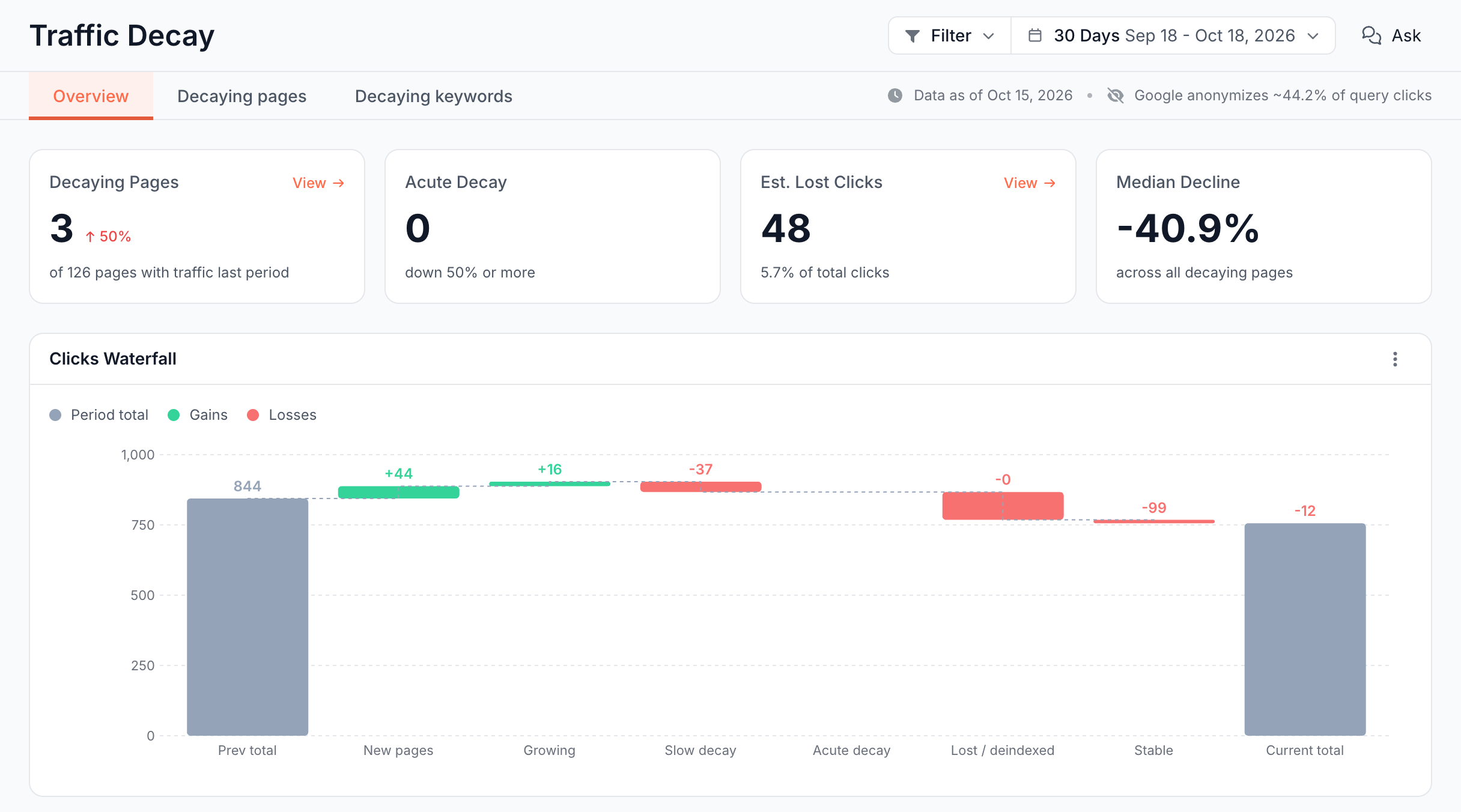
Stat cards: how much is decaying, and what does it cost?
- Decaying Pages: pages that meet the decay rule, with the footer "of N pages with traffic last period". It is the only card with a change: the count now against the same count one period earlier.
- Acute Decay: decaying pages down 50% or more that still earn clicks, with the footer "down 50% or more". A page that lost every click is decaying but counts under Lost, not here.
- Est. Lost Clicks: the clicks decaying pages lost, not offset by growth elsewhere. The footer shows it as a share of all clicks in the previous period.
- Median Decline: the typical drop across decaying pages, as a negative percentage, with the footer "across all decaying pages".
View on each card except Median Decline opens the pages behind the number in the Decaying pages tab.
Clicks Waterfall: where did the clicks go?
The Clicks Waterfall walks from the previous period's clicks to the current total, one step per bucket. Every page with clicks in either period lands in exactly one step:
| Step | What it holds |
|---|---|
| Prev total | Clicks in the previous period |
| New pages | "Pages with their first clicks this period" |
| Growing | "Pages with clicks up more than 20%" |
| Slow decay | "Pages down 20% to 50%" |
| Acute decay | "Pages down more than 50%" |
| Lost / deindexed | "Had clicks previous period, zero this period" |
| Stable | "Small changes or pages with fewer than 10 prior clicks" |
| Current total | Clicks in the current period |
Hover a step to see its clicks and pages. Click a step to list its pages. The legend toggles Period total, Gains and Losses.
Decay Trend: is decay building or easing?
Decay Trend plots Decaying pages and Lost clicks over time. Each point measures decay as if your period had ended on that date, with the same rule as the cards; the rightmost point matches them.
A point is a snapshot of how much decay existed then, not the number of pages that started to decay that day.
Decay by Cause: did rank, click-through rate or impressions fall?
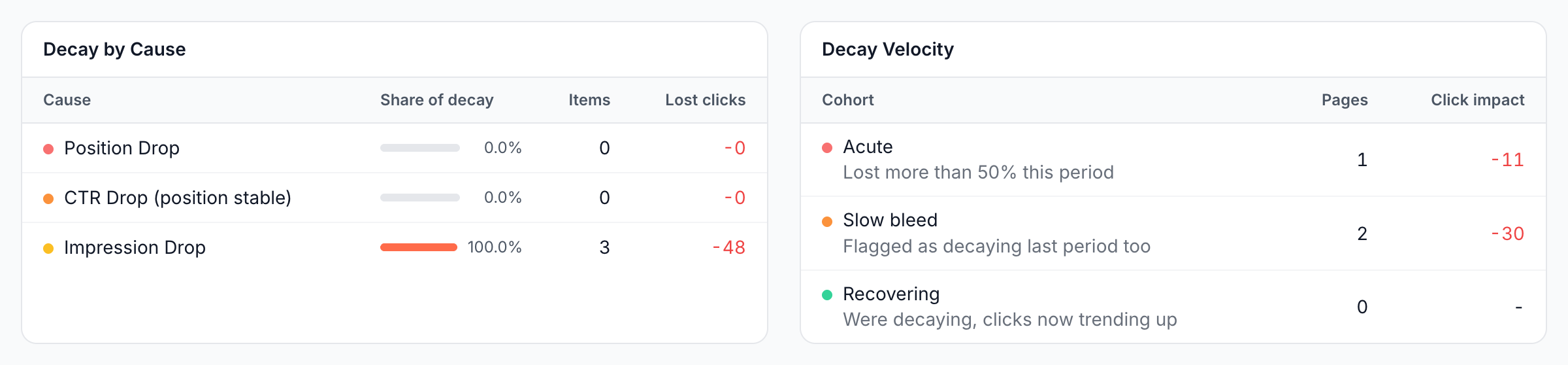
Decay by Cause puts each decaying page under one cause, tested in this order:
- Position Drop: the page's average position moved down by more than 2 ranks.
- Impression Drop: the position held within 2 ranks, and impressions fell by more than 15%. A page with no impressions left also lands here.
- CTR Drop (position stable): the position and impressions held, and fewer searchers clicked.
The columns are Cause, Share of decay (its share of the lost clicks), Items (pages) and Lost clicks. The three causes add up to the Est. Lost Clicks card. Click a cause to list its pages with a Decay cause column.
When CTR drops are present, a note under the table reads "May indicate AI Overview or SERP feature displacement".
Decay Velocity: is decay new, persistent or recovering?
Decay Velocity reads three periods of the same length: the current one, the previous one and the one before it. It splits pages into cohorts by speed and persistence:
- Acute: "Lost more than 50% this period".
- Slow bleed: "Flagged as decaying last period too", which means the page decayed in both comparisons.
- Recovering: "Were decaying, clicks now trending up", which means the page decayed in the earlier comparison and gained 20% or more in the latest.
Each row shows Pages and Click impact, the current clicks minus the previous ones. Click Acute to list its pages.
The cohorts can overlap: a steep drop that started earlier counts as both Acute and Slow bleed. They do not add up to the Decaying Pages card.
Decay by Segment: which sections lose the most?
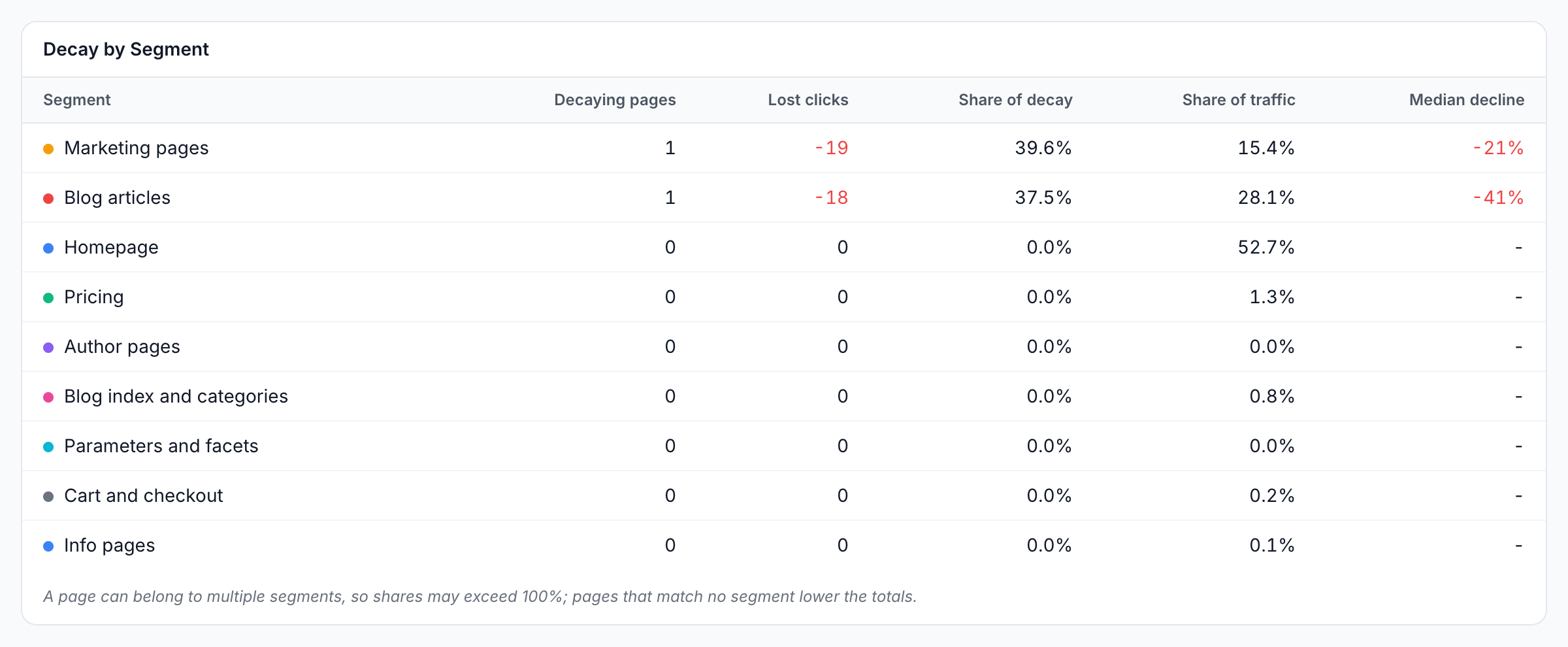
Decay by Segment shows decay for each of your page segments, such as blog posts or product pages, ordered by lost clicks. The columns are Segment, Decaying pages, Lost clicks, Share of decay, Share of traffic and Median decline.
The note under the table reads "A page can belong to multiple segments, so shares may exceed 100%; pages that match no segment lower the totals." Without segments, the card reads "No segments configured for this website".
EdgeComet creates segments from your own data after the first import, and you can edit them under Configuration > Segments.
Decaying pages and Decaying keywords: which URLs and queries?
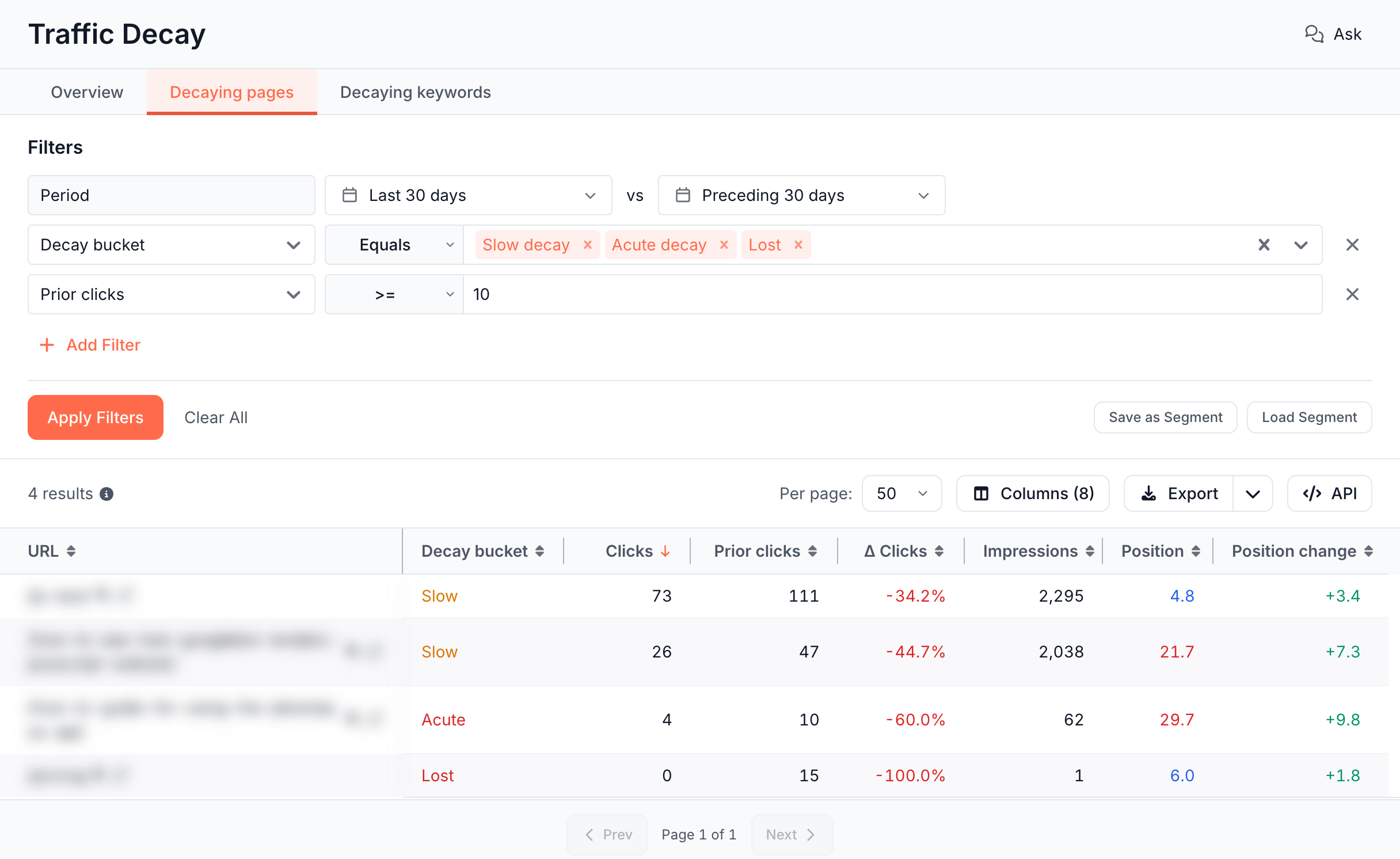
The Decaying pages and Decaying keywords tabs list every decaying page or keyword: the buckets Slow decay, Acute decay and Lost, with the 10-click floor.
The default columns are URL, Decay bucket, Clicks, Prior clicks, Δ Clicks, Impressions, Position and Position change. Decaying keywords adds Keyword.
Both tabs are Data Explorer tables: add columns, export the rows or change the filters. The Decay bucket filter also offers New, Growing and Stable, and Decay cause lists the pages behind one cause.
How to read it
- Start with the cause.
- Position Drop points to ranking: competition, content or a technical change.
- Impression Drop points to demand or indexing: fewer searches, or the page dropped out for some queries.
- CTR Drop (position stable) points to the result itself: the title, the snippet or what else the results page shows.
- Acute or slow. Acute decay is a sudden event worth checking today: a release, a redirect, a
noindex. Slow decay over several periods, the Slow bleed cohort, is usually content aging. - Lost is not always deindexed. A page with zero clicks in the current period may still draw impressions. Check its status code and robots directives before you treat it as removed: see Find pages Google cannot index.
- Some lost pages appear only in the cards. A page with no Search Console row at all in the current period counts in the cards, but the tables list current rows only. The link tooltip reads "Pages with no Search Console row in the current window cannot be listed", or "Keywords with no Search Console row in the current window cannot be listed" for keywords.
- Keyword totals run lower than page totals. Google withholds rare queries from keyword data, which is why the Decaying keywords tab adds up to less than Decaying pages. See anonymized queries.
How this differs from a date comparison
Traffic Decay separates real drops from noise and names the cause for every page in your Search Console data. A date comparison in a search analytics tool, or a spreadsheet of two exports, lists each page's click change and leaves that work to you. Traffic Decay adds:
- A fixed rule. The 10-click floor and the 20% drop filter out small pages and normal swings.
- A cause for each page. Every decaying page gets one cause: rank, impressions or click-through rate.
- Persistence. The velocity cohorts separate a sudden drop from a slow slide and from a recovery.
- Your sections. Decay by Segment shows which part of the site carries the loss.
- The bot side. The same URLs carry what Googlebot received in Log Analyzer and Evergreen Crawl, where a status code,
noindexor canonical change behind a drop shows up.
What to do next
- Refresh decaying articles: the Article optimization skill writes targeted edits for the article, each tied to the queries it ranks for.
- Fix titles and snippets for CTR drops: rewrite a title or meta description with an Edge SEO rule, or across many pages with one rule.
- Check one page: open it in Page Analysis to see whether its title, headings or canonical changed before the drop. See Track SEO changes on one page against its Google traffic.
- Check lost pages: a lost page often answers
404, carries anoindexor has a canonical pointing elsewhere. See Find pages Google cannot index. Send a removed page to its replacement with a 301 redirect. - Let the Action Board pick it up: its Search Performance analysis turns decaying pages into findings, with the cause already separated.
- Get alerted next time: Pages lost their clicks catches pages whose Search Console clicks fell by half or more against the previous seven days, and A section lost its clicks watches a section's total Search Console clicks against the previous seven days. Both check when Search Console publishes a day.
- Ask about it: Ask in the header starts with "Which segment loses most clicks?", "Which decay cause dominates?" and "Is decay acute or persistent?".
Where to find it
In the dashboard: Search > Traffic Decay, with the tabs Overview, Decaying pages and Decaying keywords. Without a Search Console connection, the report shows a Connect Google Search Console card instead.
A card with nothing to show reads "No decay detected for this period" (Decay by Cause, Decay Velocity), "No decay detected in this period" (Decay Trend) or "No GSC data for this period" (Clicks Waterfall).