

Creating an alert
There are three ways to create a rule. All of them produce the same thing: a rule that watches a set of pages and fires when its condition holds.
Creating and editing rules needs manager access to the website.
From a template
Alerts, Rules, Templates lists the twenty five built-in alerts. Each card says what the alert watches, its severity, and how often it checks. A card that needs Search Console or a custom extraction field says so rather than letting you create a rule that can never report.
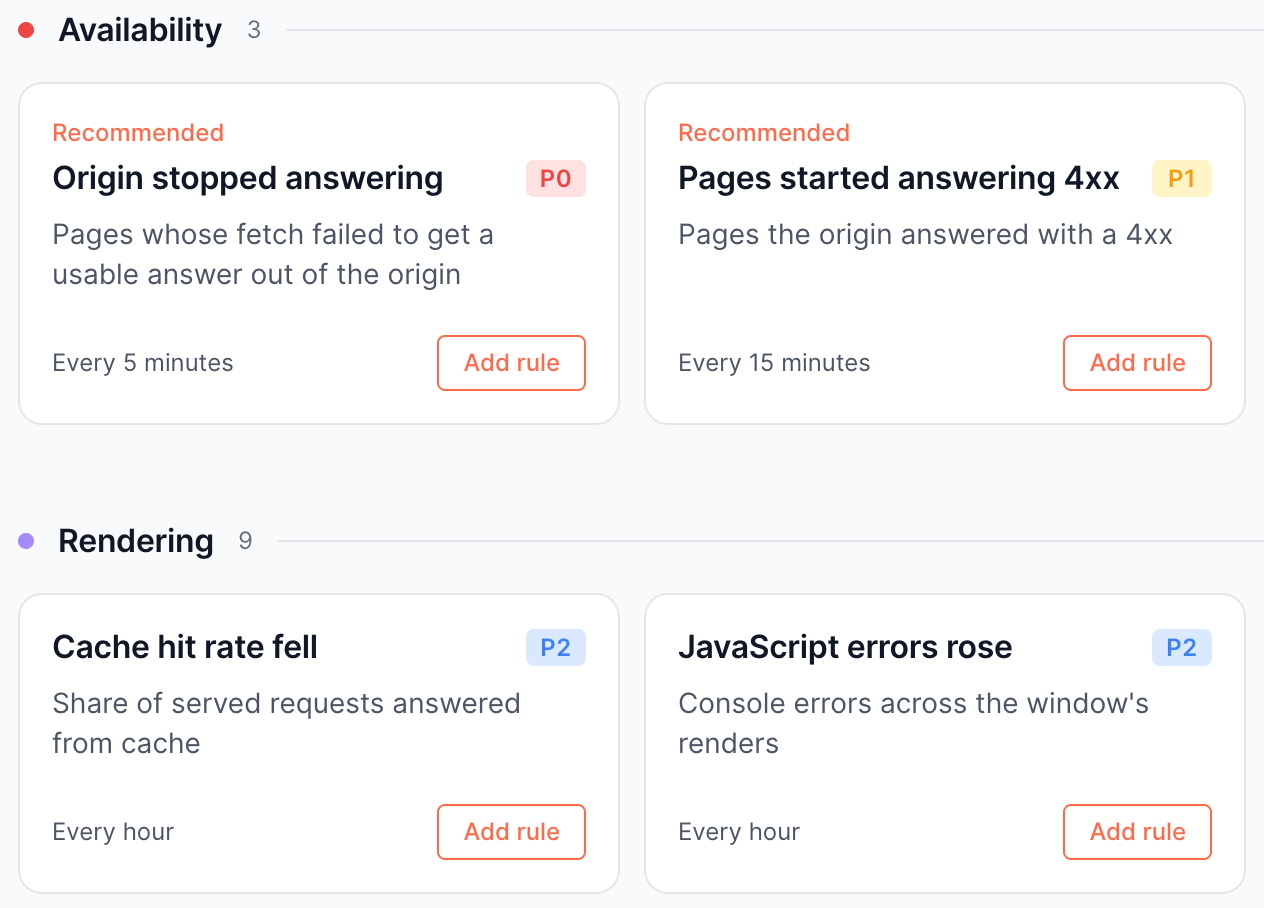
A template is a blueprint, not a switch. You add a rule from it, choose which pages that rule watches, set its threshold and severity, and save. The rule starts checking on its own cadence from that point; there is no separate activate step. You can pause it later from the Rules page.
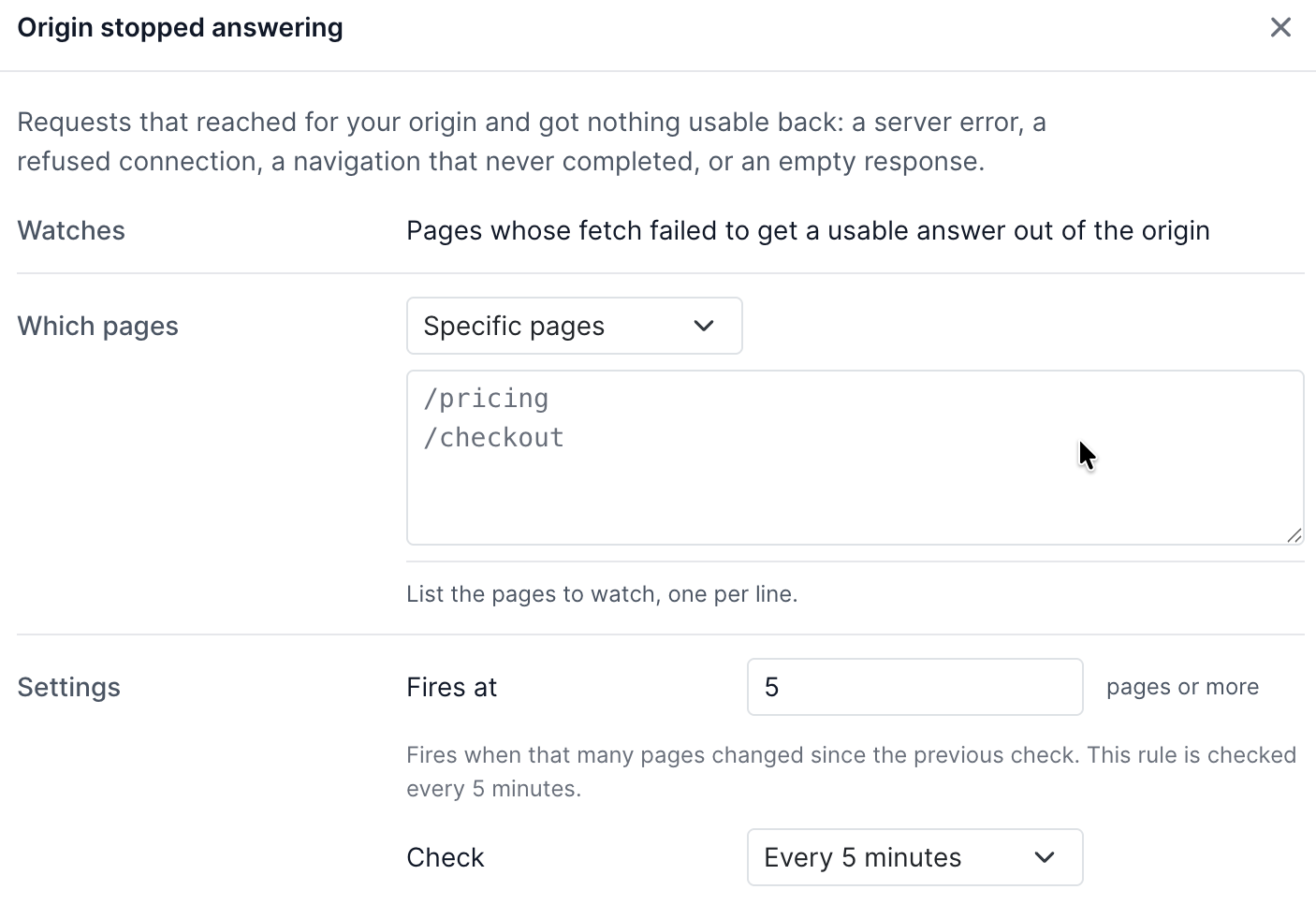
You can add several rules from the same template, one per section of the site, each with its own pages and its own numbers. The card lists the rules you have already cut from it.
From the starter pack
On a site with nothing watching yet, the Alerts page offers a short list of suggested alerts instead of an empty queue. Before arming anything it measures what each one would find on your site right now, so you see real counts rather than defaults.
The panel also asks for a delivery address first, because rules with nowhere to send would fire silently.
By describing it
Type one sentence into the composer and EdgeComet drafts the rules for you.
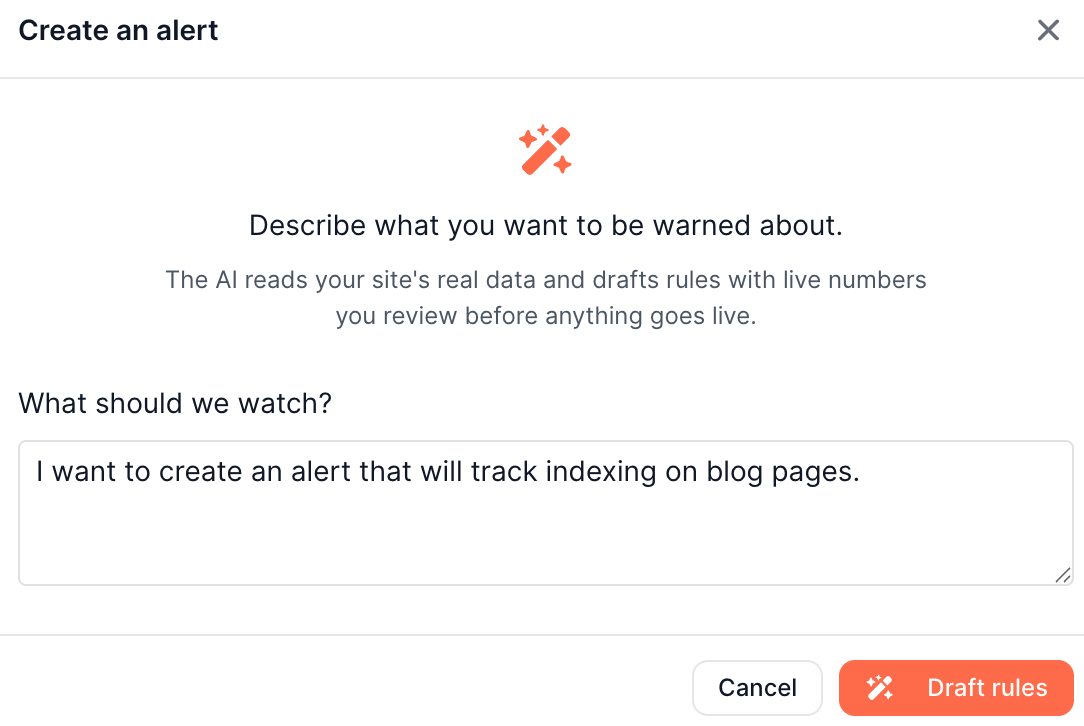
Anything you can describe in a sentence works:
Tell me when the review stars stop rendering on product pages under /products/, that would be criticalA background run reads your site's real data, drafts one or more rules, and checks each one against that data through the same engine a live rule uses, so you see what it would have found rather than a guess. It then parks the drafts on a review page.
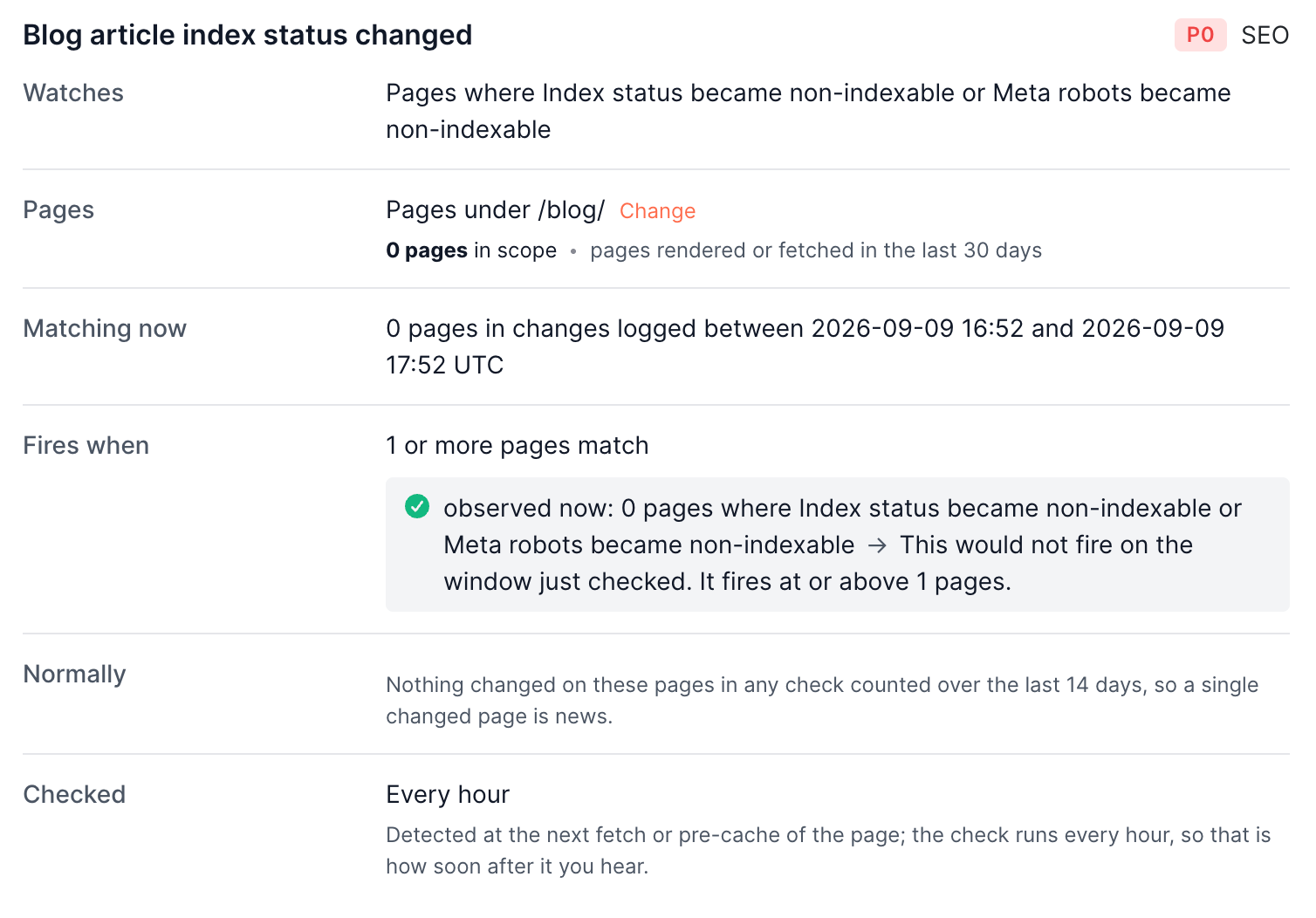
Each draft card shows the same things you would set by hand, already filled in and already checked against your data.
Nothing is written to your rules until you accept the drafts and press apply. You can edit the numbers and the pages on each draft card before accepting, refine the whole set with another sentence, or discard it.
If the rule you asked for needs data the site does not collect yet, the run can propose a new custom extraction to go with it, so the measurement and the rule arrive together.
Two other places start the same loop:
- Tune on a rule's page, to change an existing rule by describing the change: "only 5xx, not 404s", "this fires too often", "check it hourly".
- Too noisy? Tune this alert on a fired incident, which takes you to the same composer.
Choosing which pages a rule watches
Every rule carries a scope. It defaults to the whole site.
| Scope | Use it for |
|---|---|
| The whole site | Everything EdgeComet sees for this website |
| Section of the site | One or more folders, picked from your site's own folder tree |
| Specific pages | A list of exact URLs, for pages that matter individually |
| URL pattern | Pages whose address starts with, ends with, contains, does not contain, or matches a regular expression |
| A saved segment | An existing segment, resolved at every check so the rule follows the segment as it changes |
The whole site, sections, and URL patterns also accept exclusions, so you can watch a section and leave out one folder inside it.
As you build a scope the control shows how many pages are in it, counted over the pages bots rendered or fetched in the last 30 days. Check that count before you save. A scope that matches nothing produces a rule that is running correctly and has nothing to report, which on the Rules page reads as Watching, the same as a healthy quiet rule. The page count at authoring time is where you catch that.
The count covers the pages your scope selects. Each check then reads the pages in that scope that were actually fetched or pre-rendered inside the window, so a page nothing requested contributes nothing to that check.
URLs are matched in the form EdgeComet stores them, so paste addresses as they appear in your reports rather than with tracking parameters attached.
Setting the threshold
Most alerts fire on a count of pages, such as "5 pages or more". Some fire on a share of the pages in scope, and some on a move against the same window yesterday or the same week last week.
Several alerts also carry a floor, such as "at least 200 requests", so a quiet window cannot produce a large percentage move out of a handful of events. Setting a floor to zero turns it off where the alert allows that.
Test it before you rely on it
Three controls answer different questions.
Test now
Runs the rule against the most recent completed window and tells you what would have happened, without writing anything or notifying anyone. It reports one of:
| Result | Meaning |
|---|---|
| Would fire | The condition holds on the window just checked |
| Would not fire | The window was read and the condition does not hold |
| Arms first | The rule compares against a previous reading and has none yet. The first live check records the baseline, and the rule can fire from the check after that. A test does not record the baseline itself |
| Warming | The rule reads a measurement that does not exist yet, or an extraction field too young to have covered the pages |
Normally
For "Pages changed" rules, this shows how much these pages normally move. It measures the last 14 days and reports what a typical check saw, what nine checks in ten stayed under, and the busiest window, then suggests a threshold.
The threshold is per check, not per day. Ten title changes spread evenly over an hour will fire an hourly watch and will never fire a five minute one.
Replay
On a saved rule, replay answers "what would this threshold have done to this rule's own past". It reads the rule's stored checks over the last 30 days and counts alerts, not crossings, so repeated firing inside one cooldown counts once:
Applied to the last 30 days: 1 alert instead of 3.When a change would not have altered anything it says so plainly. Replay declines rather than guessing when the change alters which data is counted, for example when you change which page facts a watch follows.
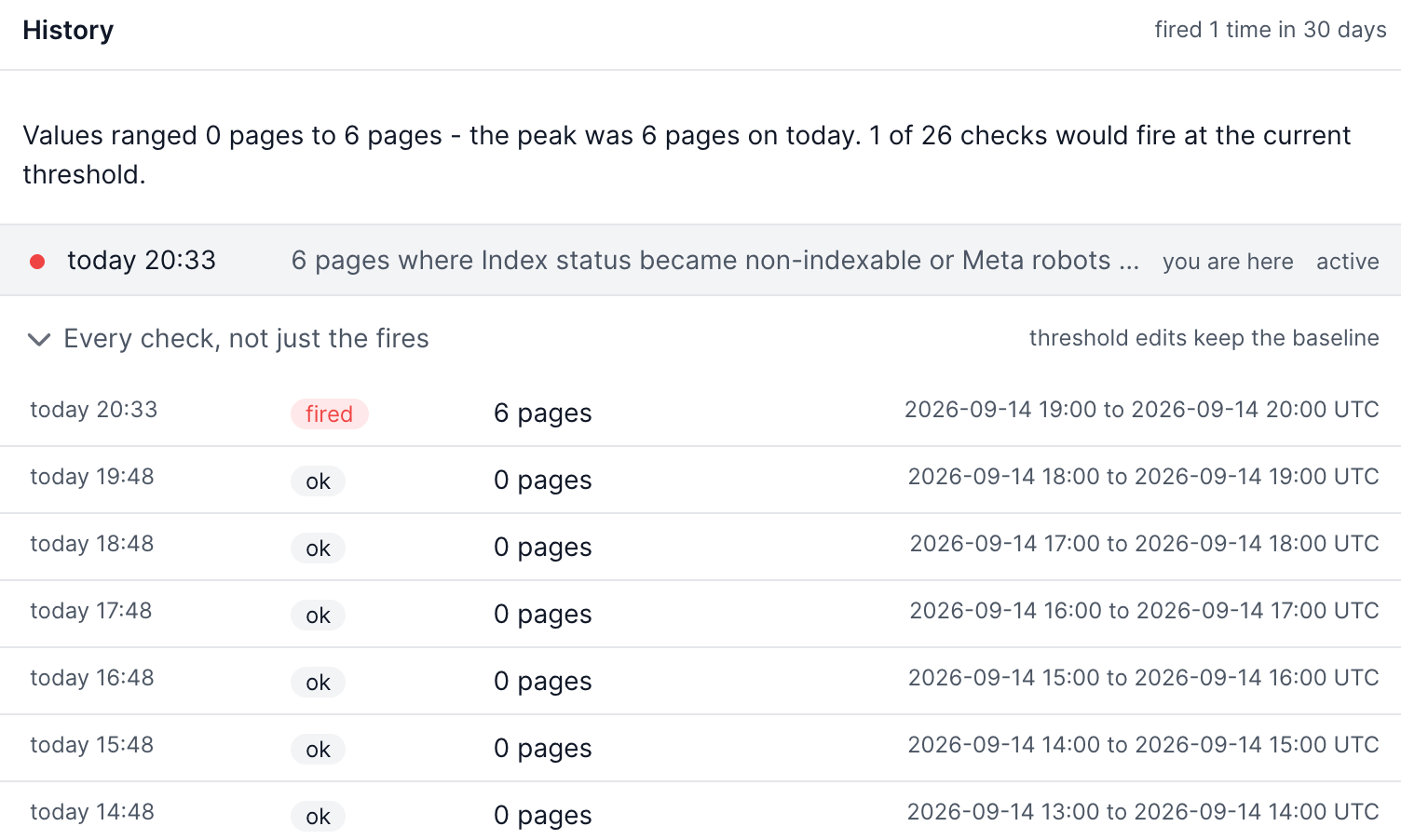
A rule's own history shows every check, not just the fires, with the value it measured and the window it read. This is what replay counts against.
Worked example: catching an accidental noindex
A deploy ships noindex to a set of product pages and nobody notices. Two rules cover this, and they do different jobs.
The backstop. Add a rule from Noindex on live pages, scoped to your product section. It fires at one page or more by default, at critical severity, and checks once a day. It watches the state rather than the moment of change, so it also catches a noindex that shipped before you created the rule. This is the rule that guarantees you find out.
If parts of your catalogue carry noindex on purpose, such as filtered or out-of-stock pages, exclude those folders in the scope. The rule reports any page that answers 200 and carries the directive; it cannot know which ones you meant.
The fast one. Add a rule from Pages changed, scoped to the same pages, and under Indexing select Index status narrowed to became non-indexable. Leave it at hourly. This one reports the change within an hour of a bot or a pre-cache render reaching an affected page, rather than waiting for the daily check.
Run Test now on both before you rely on them. On the change watch, use Normally to see how much these pages move already, so you set a threshold that is not buried in ordinary churn.
Together they give you a fast signal on pages bots reach often and a daily sweep that eventually covers the rest.