

Check one page's Google rankings, clicks and keywords
The Search Performance tab of EdgeComet Page Analysis shows how one URL performs in Google: clicks, impressions, CTR and average position against the previous period, a chart with the page's SEO changes marked on it, and every keyword the page ranks for.
The data comes from your Google Search Console property. Without a connected property, the tab shows Connect Google Search Console. See Connect Google Search Console.
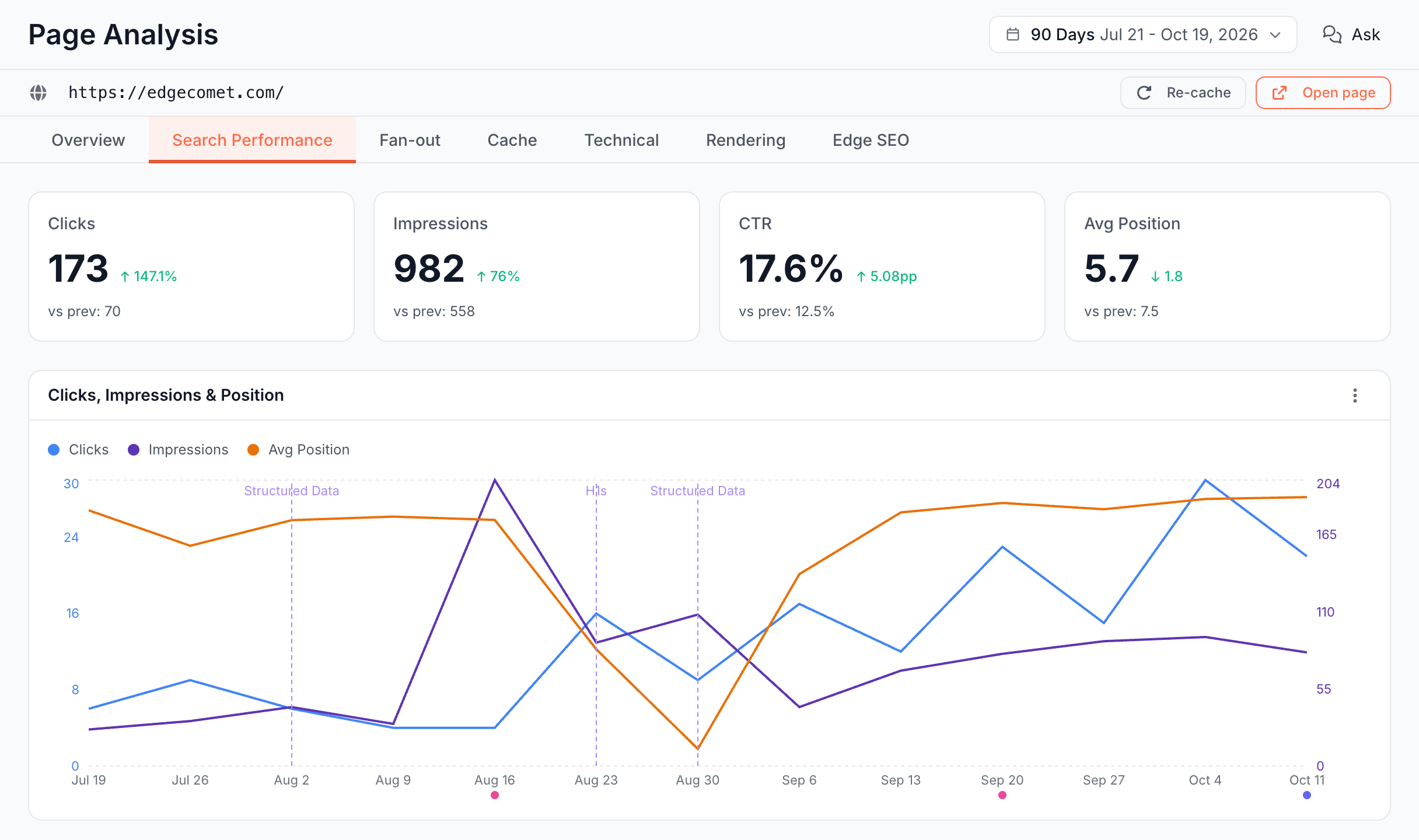
Stat cards: is the page gaining or losing Google traffic?
Four cards sit at the top of the tab: Clicks, Impressions, CTR and Avg Position. Each shows the period's value, its change, and the previous period's value as "vs prev:". CTR changes in percentage points ("pp"), and a lower Avg Position is shown as an improvement.
The period ends at the last complete Search Console day. See Where the data comes from.
Clicks, Impressions & Position: when did the page's traffic move?
The chart draws the page's Clicks, Impressions and Avg Position over the period:
- Scales: each line has its own scale. Clicks use the left axis and impressions the right axis.
- Position: average position is drawn on a hidden, reversed scale: the line goes up when the ranking improves. The tooltip gives the exact value.
- Empty lines: a line with no data in the period, such as clicks on a page that earned none, starts hidden. Click it in the legend to show it.
- Change markers: dashed lines mark the dates the page's SEO tags changed. See SEO change markers on the search chart.
With no Search Console rows for the URL, the card reads "No Search Console data for this URL in the selected period".
Keywords: which searches show the page?
The Keywords card lists every query the page earned impressions for, with its change against the previous period. Type in Search keywords... to find one.
The header shows the impressions Google withholds from query-level data, such as "560 impressions (57.0%) from anonymized queries". Those impressions count in the Impressions card but belong to no keyword, which is why the rows add up to less. See Anonymized queries.
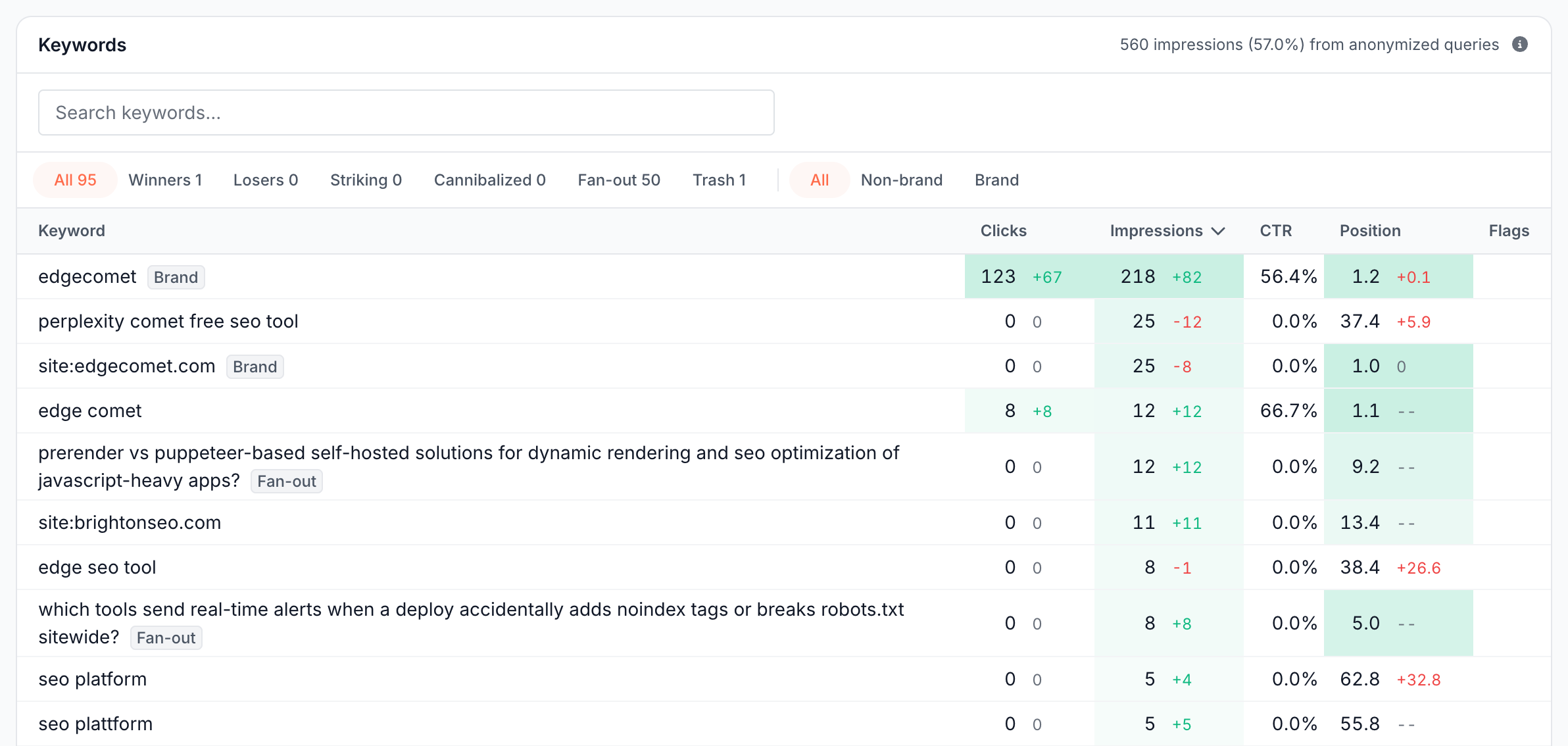
Chips: which keywords need attention?
Chips filter the table and show how many keywords each holds:
- Winners: clicks went up against the previous period, on a keyword with at least 50 impressions in either period.
- Losers: clicks went down, or the keyword stopped appearing, with the same 50-impression floor.
- Striking: positions 11 to 20 with at least 100 impressions, the rule of the Striking distance bucket.
- Cannibalized: at least two of your URLs each earn at least 10% of the keyword's clicks, the rule of the Cannibalized keywords bucket.
- Fan-out: searches AI assistants ran on Google for people, the fan-out keywords.
- Trash: rank-tracker artifacts, not real queries. See trash keywords.
When you have branded keywords, a second group filters All, Non-brand or Brand. The chip counts follow that filter and the Search keywords... box.
Winners and Losers are hidden while the previous period is not fully covered by your Search Console history, because the comparison would be incomplete.
Columns and flags: what does each keyword row show?
The columns are Keyword, Clicks, Impressions, CTR, Position and Flags. Clicks, impressions and position carry their change, and shading marks the larger values. Next to the keyword, Brand and Fan-out labels classify it. Flags adds:
- Striking and Cannibalized, by the chip rules.
- New: the keyword earned impressions only in this period, at least 50 of them.
- Lost: the keyword earned impressions only in the previous period.
The table sorts by impressions, Winners by the largest click gain and Losers by the largest loss. Click a column header to sort by it.
Load more shows more rows. On a page with very many keywords, the ones with the most impressions load first, and a second button at the end of the table adds the next batch.
Keyword dialog: how did one keyword do on this page?
Click a keyword row to open its dialog, the keyword's numbers on this page:
- Stats: Clicks, Impressions, CTR and Avg Position, with their change against the previous period.
- Trend: daily clicks, impressions and position over the previous and current periods, split by a dotted Current period line, with the page's change markers. See Did a change move one keyword?
- Also ranking on this site for this keyword: for a keyword other pages on your site also rank for, each URL with its position and share of clicks.
View rows opens the keyword and page in Data Explorer.
How to read it
- Losers with a steady position. The page ranks as before but earns fewer clicks: check the title and meta description, and whether the results page changed.
- Losers with a worse position. The page lost rankings for those queries. Look for a change marker before the drop, and check Recent changes.
- Many Striking keywords. The page sits on page two for a group of queries. Adding the missing subtopics and internal links from related pages can move them together.
- Cannibalized keywords. Two of your pages split the clicks. Decide which page should own the query. See Find keyword cannibalization in Search Console data.
- Many Fan-out keywords. AI assistants search for the page's topic. Check that the page answers their questions on the Fan-out tab.
What to do next
- Rewrite a title or meta description that loses clicks: change it without a release with Rewrite titles, meta descriptions and robots tags.
- Compare with the whole site: Track rankings, striking distance keywords and opportunities.
- Find the questions the page misses: Check if a page answers the questions AI assistants ask.
Where to find it
In the dashboard: Page Analysis > Search Performance for a URL. Open Search Performance on the Overview tab's Search Performance card opens it too.