

See the cached HTML bots receive: rendered, source and Markdown views
The Cache tab of EdgeComet Page Analysis shows the copy of one URL that EdgeComet serves to search engines and AI bots. It has three views: the page drawn from that copy, its HTML source, and a Markdown version. Also called the cached HTML or the prerendered snapshot.
On a website EdgeComet renders, the copy is the HTML after JavaScript ran: what bots get instead of an empty app shell. On a cache-only website, it is your server's HTML. See Cache-only or Cache + Render: choose a serving mode.
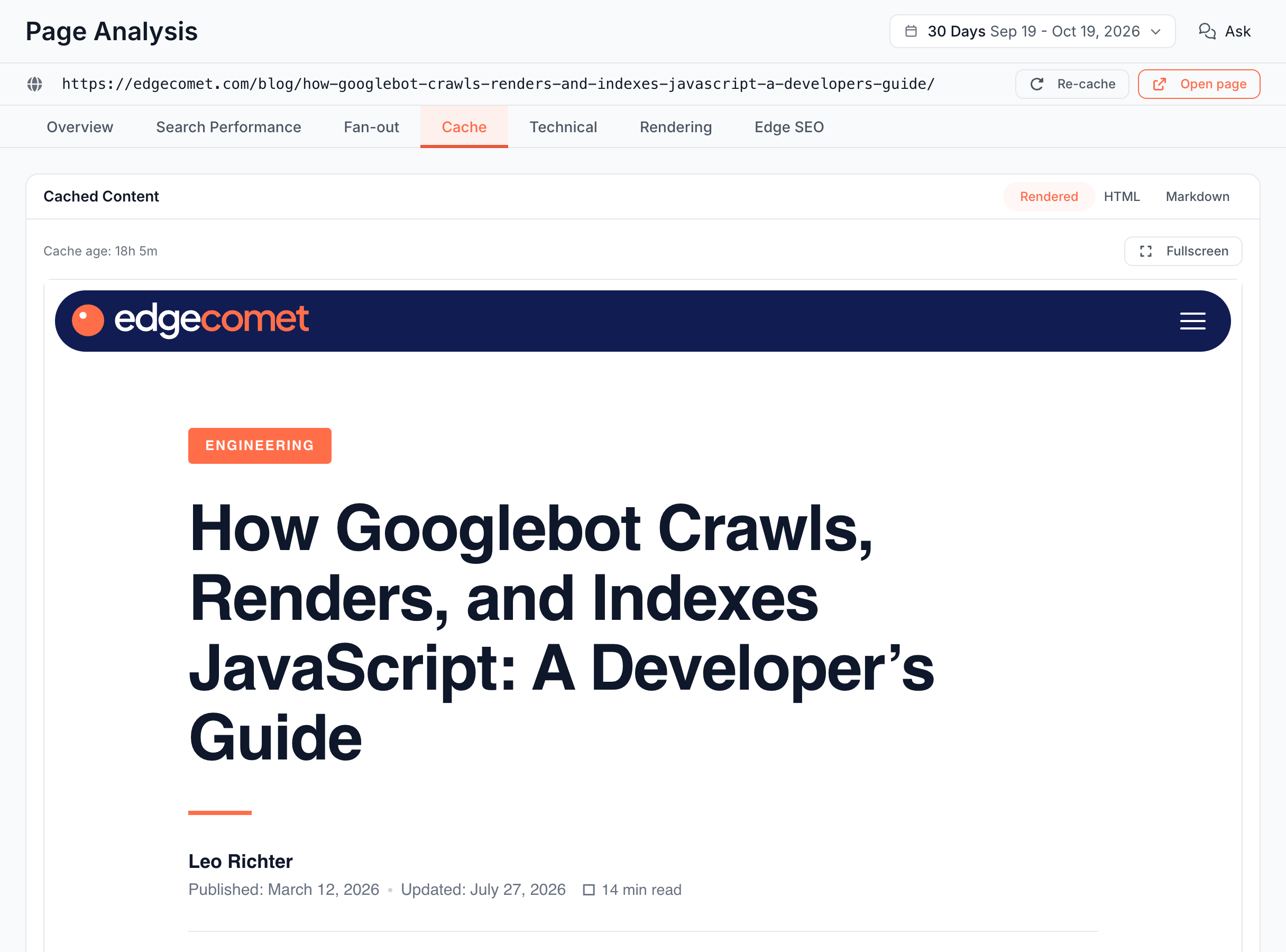
When the Cache tab is available
The Cache tab is greyed out when the URL is not cached or its copy expired. Opened from a link, the card gives the reason:
- "This URL is not currently cached. Cache entries appear after the first render."
- "The cache for this URL has expired. Use Re-cache to generate a fresh copy."
When a stored copy can no longer be read, the card reads "This cached copy is no longer available. Re-cache the URL to generate a fresh one." Click Re-cache next to the URL to store a new copy. See Re-cache: store a new copy and see what changed.
Every view shows Cache age: how long ago EdgeComet stored the copy.
Rendered: what does the copy look like?
Rendered draws the cached copy as a page. Scripts in the copy do not run, which shows what the stored HTML holds on its own.
Images and styles load from your site. The copy for a dimension named mobile is drawn at phone width. Fullscreen opens the copy over the whole window; press Escape or click Exit fullscreen to leave.
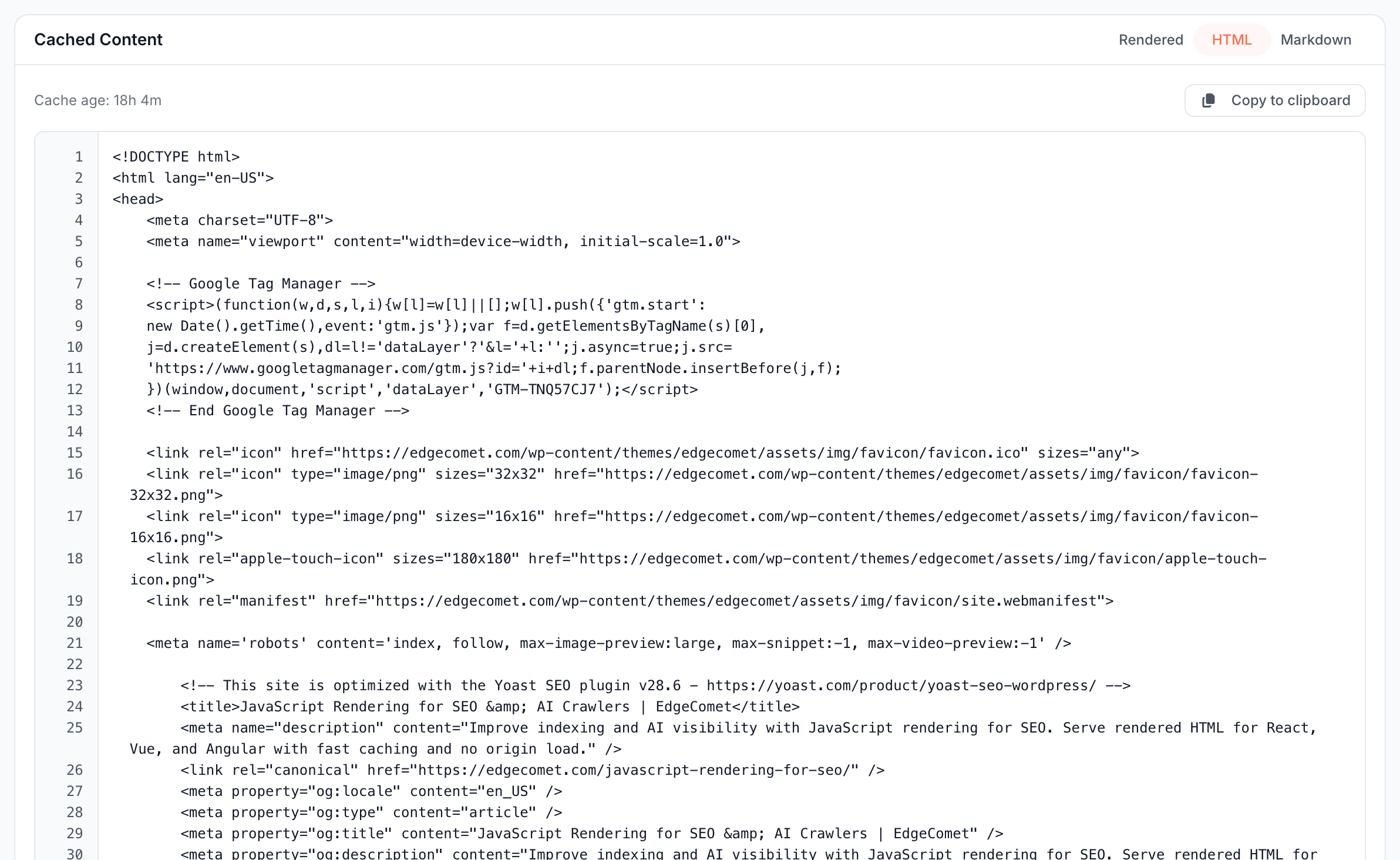
HTML: which tags does the copy carry?
HTML shows the stored source with line numbers, and long lines wrap. Use it to check the tags bots read: <title>, the meta description, meta robots, the canonical link, hreflang links and JSON-LD blocks.
Copy to clipboard copies the whole source.
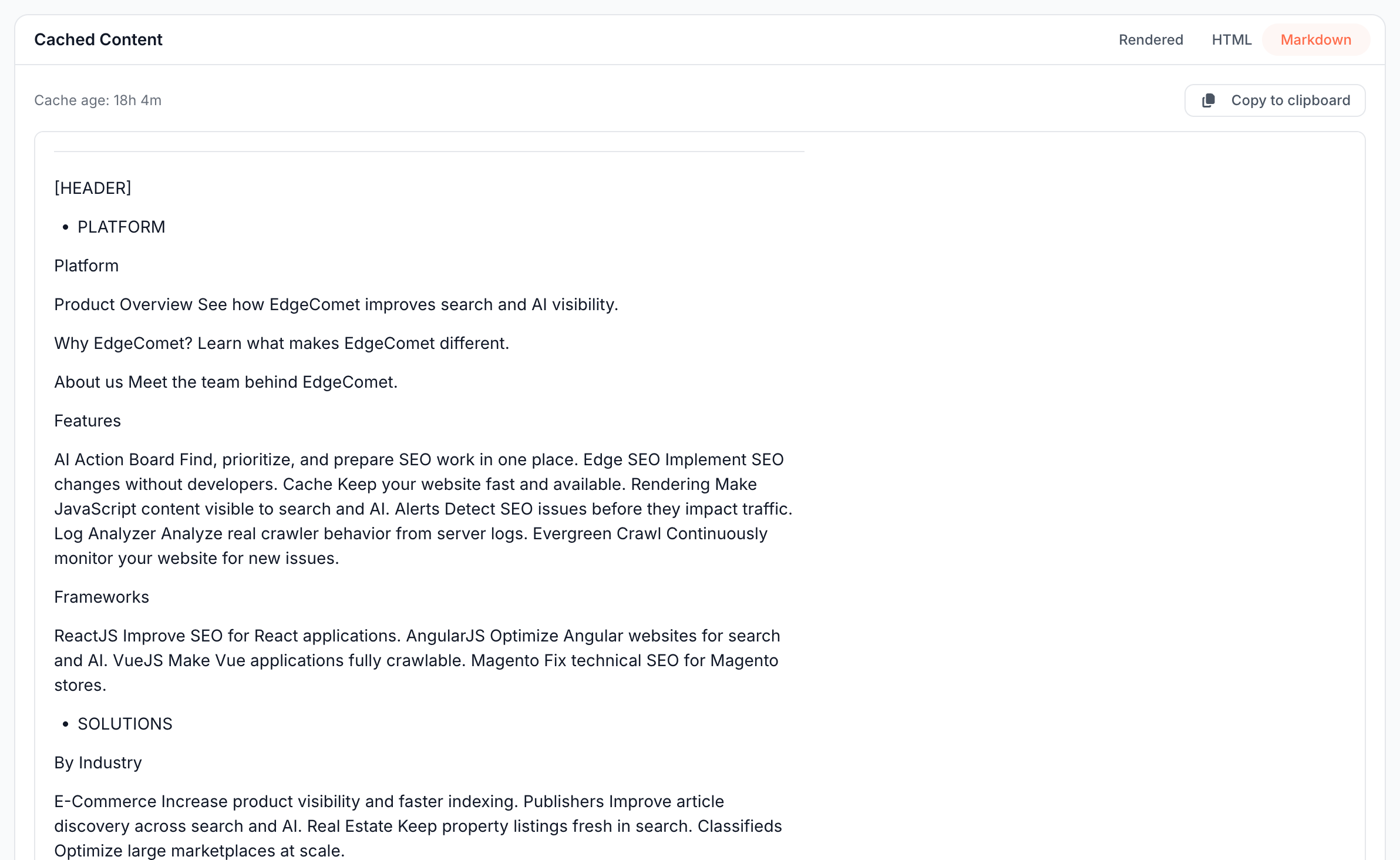
Markdown: what text does the copy hold?
Markdown converts the cached copy into Markdown and shows it formatted: the text, headings, lists and links without markup. Copy to clipboard copies the raw Markdown.
Use it to read the copy's text in order, to check that the main content is in the HTML and not only in scripts, or to paste the page into an AI chat or a content brief. For a file that is not HTML, the view reads "Markdown is only available for HTML pages."
Bots get the HTML, not this view. See Does EdgeComet serve Markdown to AI bots?
Desktop, Mobile and Bypass: which copy does each bot get?
When the URL has more than one cached copy, buttons such as Desktop, Mobile or Bypass switch between them. EdgeComet keeps one copy per dimension: the device profile bots are matched to. See Cache key: one copy per URL and device profile.
How to read it
- Content you see in a browser is missing from Rendered or HTML. Bots do not get it either. On a site EdgeComet renders, the render may end before the content loads. See Fix blank, partial or slow prerendered pages.
- An old Cache age. Bots get an older version of the page. See How EdgeComet keeps cached pages fresh, or click Re-cache.
- An Edge SEO change is not in the HTML. The copy was stored before the rule went live, or the recache the publish started has not finished. Click Re-cache, then check the tags again. See Preview, test and publish Edge SEO rules.
What to do next
- Content is missing: see Fix blank, partial or slow prerendered pages.
- Tags are wrong: fix them without a release with Rewrite titles, meta descriptions and robots tags.
- The copy is old: keep pages refreshed before bots ask with Pre-cache pages before bots request them.
Where to find it
In the dashboard: Page Analysis > Cache for a URL. The Analyze button on Cache > Precache > Cached URLs opens the URL in Page Analysis.