

Custom reports
A custom report is a report you build by describing it in Ask. EdgeComet builds the stat cards, trend lines, charts and tables from your own data. Also called the AI report builder.
You save the answer as a report your whole team can open. Every block reads live data for the period and segment on screen, and every change makes a new version you can go back to.
A report can mix sources on one page, such as Search Console clicks next to Googlebot and AI bot fetches for the same folder. The engine computes every number from your bot log, Search Console and crawl data.
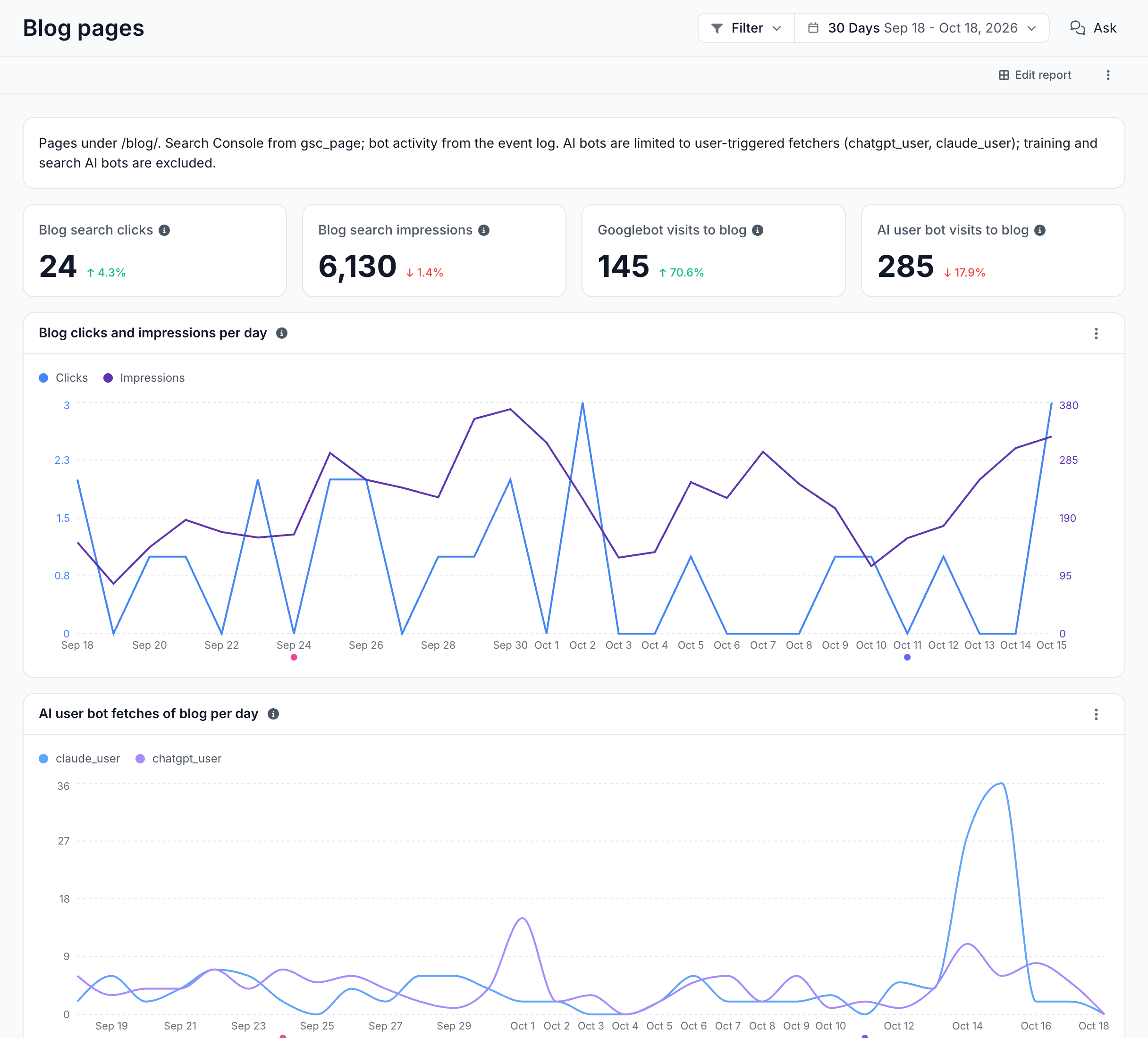
How a custom report works
A custom report is a grid of 1 to 12 blocks: stat cards, line charts, bar charts, pie charts and tables. Each block holds a query the engine runs, not a picture of numbers.
- Blocks follow the page. Change the period or the segment in the header and every block reads again. A stat card compares the period with the one before it.
- Blocks read your sources. One report can combine the bot log, Search Console, the Evergreen Crawl and sitemaps. See What data Ask can read.
- The Filter rows do not narrow blocks. A block reads the whole site, or the segment you pick, and a note on its card says when something did not apply. See Notes on a block.
- Results are cached. EdgeComet keeps a block's result for 12 hours on periods of 7 days or more, and for 10 minutes on shorter periods. A saved report draws the cached blocks at once and loads the rest one after another.
For what each block kind shows, see Block kinds.
Build a report in Ask
- Open Ask > New conversation, or the Ask panel on any report.
- Press + and choose the Build a report chip. The field reads "What should the report cover?".
- Describe the report in plain words, such as "Search and AI bot performance of blog articles by author".
- Send it. The report opens on the canvas beside the chat.
Ask builds the whole report in one answer, with the period and segment on screen. It asks one short question first only when the request leaves the scope open, such as which bot family or which section of the site.
A follow-up such as "add Googlebot visits per day" builds the next version of the report on the same canvas tab. Step through the versions with Previous version and Next version beside the "v3 of 7" counter.
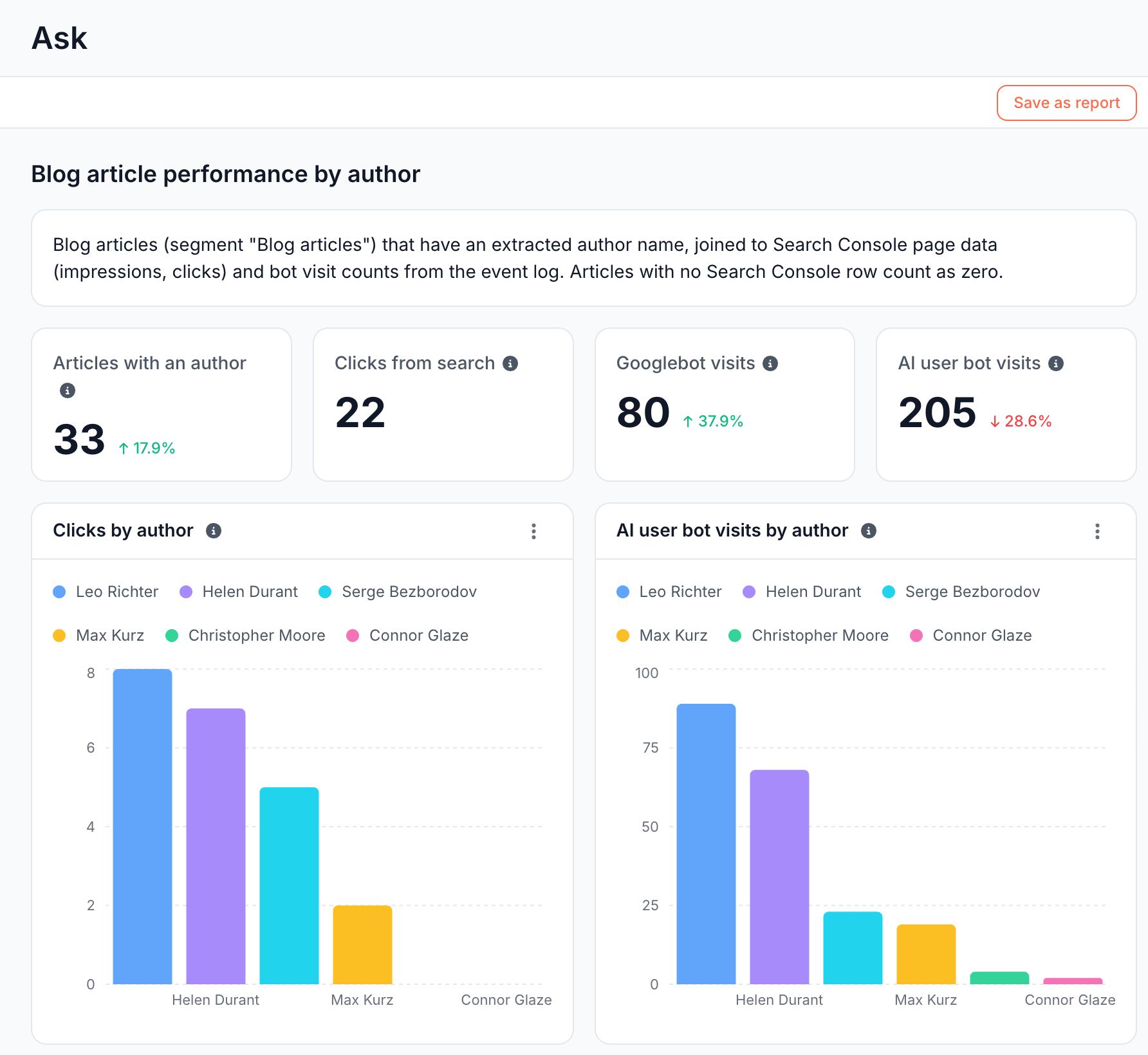
Save a report
An answer that holds a report has a save button in the canvas bar, and its label shows where the report stands:
- Save as report saves the version on screen as a new custom report. The report takes the answer's title as its name and records the period on screen.
- Saved as {name} ↗ replaces the button once saved and opens the report.
- Update {name} appears on any other version of the same canvas tab. It adds that version to the saved report.
You can also ask the chat to save it, for example "save this as a report". The chat saves an Ask answer only when you ask. When it is not sure, it builds the report without saving it and asks whether to save it.
Start from the Custom Reports page
The Custom Reports page lists every saved report and starts new ones:
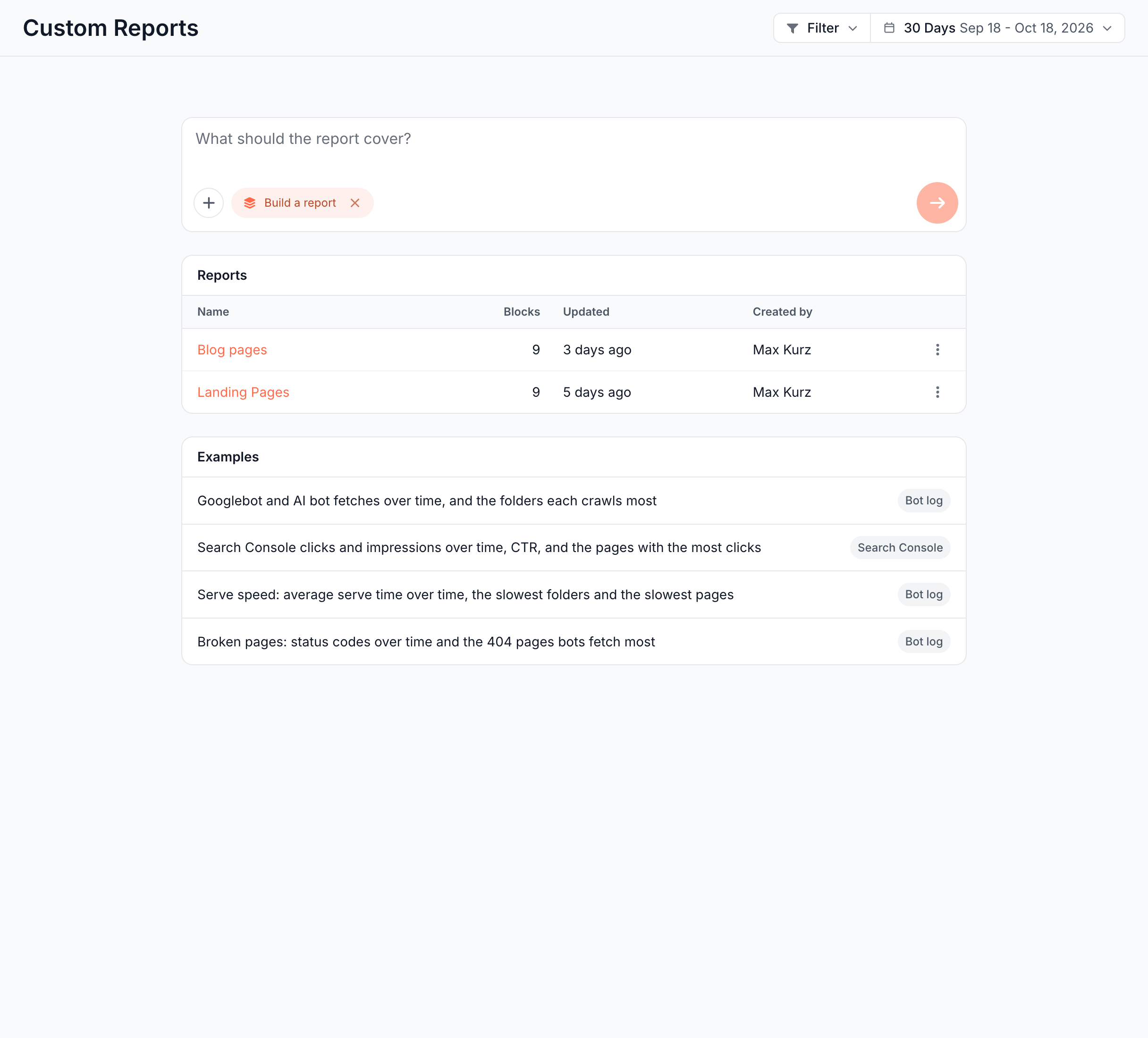
- The composer starts with Build a report selected. Sending opens a build page titled "New report" with the Ask panel open beside it.
- Reports lists each saved report with Name, Blocks, Updated and Created by. A report made by someone who left the team reads "Former member".
- Examples start a report in one click, such as "Broken pages: status codes over time and the 404 pages bots fetch most".
On the build page, the report appears as the chat builds it. Save report stays disabled until there is something to save:
- "The chat has not built a report yet": no answer has built a report.
- "Wait for the chat to finish": the chat is still answering.
After you save, the build page opens the saved report.
Open a saved report
A saved report opens on its latest version, at the period that version was saved with. Pick another period or segment in the header to read the same blocks for it. A link that names a period opens with that period.
The Ask panel on a saved report opens on the report's own conversation. It greets you with "Ask about its numbers, or ask to add, change or remove a block." and offers "What could this report add?" among its starters.
Asking for a change in that panel saves the answer as the next version at once. The chat marks it "Saved as version 4", or "Saved as version 4 of {name} ↗" when the answer belongs to another report.
To get a new report and keep this one as it is, say so: "make a copy of this report", "save this as a new report", or "the same report for /docs/". The chat saves the answer as a new report under its own title, adds no version to the report on screen, and opens the new report, so your next question changes the new one. When a request could mean either a change to this report or a new one, the chat asks which before it builds. During Edit report, the chat keeps your edit on screen and marks the answer "Saved as new report {name} ↗" instead.
To rearrange, resize or remove blocks by hand, click Edit report. See Edit a custom report.
Versions
Every change you save makes a new numbered version, and the report keeps its 50 most recent. These actions make a version:
- Update {name} on an Ask answer.
- Save in Edit report.
- Restore on an earlier version.
- Any report answer in the Ask panel beside the saved report, except one you asked for as a new report.
Renaming a report does not make a version. EdgeComet never reuses a version number, and the next save removes versions beyond the 50 most recent.
To open an earlier version, add ?version=3 to the report's address. The bar then shows Restore v3, which saves a copy of version 3 as the latest version, and Latest, which returns to the current one. A removed version reads "This version is no longer available."
Rename, delete and share a report
Custom reports belong to the website, and everyone on your team sees every report. The sidebar's Ask tab lists up to 20 saved reports by name under Custom Reports, and All reports lists every one.
- Rename: the report's menu > Rename opens "Rename report" with a Report name of up to 120 characters.
- Delete: the report's menu > Delete asks "Delete {name}?" and names the versions deleted with it. Deleting cannot be undone.
- Share: the sidebar row's menu has Copy link and Open in new tab.
If a block shows an error
Each message below names why a block cannot draw, and what to do.
"This block no longer works with this site's data. Ask to rebuild it."
The block's query no longer fits your data, which happens after a change to the issue checks, a custom extraction field or a segment. In the report's Ask panel, ask to rebuild that block.
"Search Console is not connected for this site."
The block reads Search Console and the site has no connection. See Connect Google Search Console.
"Search Console has no data for this period yet: it reports a few days behind."
Search Console publishes each day about 3 days after it ends. Pick a period that ends at least 3 days ago, or wait. See Search Console freshness.
"Search Console has no data for these pages in this period."
The pages the block reads earned no impressions in the period. Widen the period or the segment.
"No crawl is available for this block."
The block reads the Evergreen Crawl and no crawl covers the period yet. See Evergreen Crawl.
"The segment selected on this page no longer exists. Pick another segment or clear the Filter."
Someone deleted the segment the page shows. Pick another segment in the header or clear it.
"This block uses a segment that was deleted or can no longer be used in a query. Ask to rebuild it."
The block's own query uses a segment that no longer exists. In the report's Ask panel, ask to rebuild the block.
"This block could not be loaded. Try again later."
The query behind the block did not finish. Reload the page in a few minutes.
"The answer could not be saved as a version of this report."
A report answer in the panel did not save as a version. Send the question again, or save it from the Ask conversation with Update {name}. If someone deleted the report in the meantime, the chat reads "This report was deleted. The answer was not saved."
Where to find it
In the dashboard: Ask > Custom Reports > All reports, from the Ask tab at the top of the sidebar, or Save as report on any Ask answer that holds a report.