

Product Feed: monitor your Merchant Center feed
The Shelf Edge Product Feed report shows the state of your Google Merchant Center product feed: the items it lists, what each fetch changed, which feed checks fail, and whether Google's crawlers came back for the products that changed. Also called a Merchant Center feed monitor or a product feed audit.
EdgeComet fetches the feed you add to Merchant Feed Re-cache every hour by default, and you can set it as often as every 5 minutes. It keeps the current state of every item and records which fields each fetch changed.
EdgeComet re-caches product pages whose price, stock or title changed at high priority, which means bots read the new values. You add only the feed URL: EdgeComet needs no access to your Merchant Center account.
What the report shows
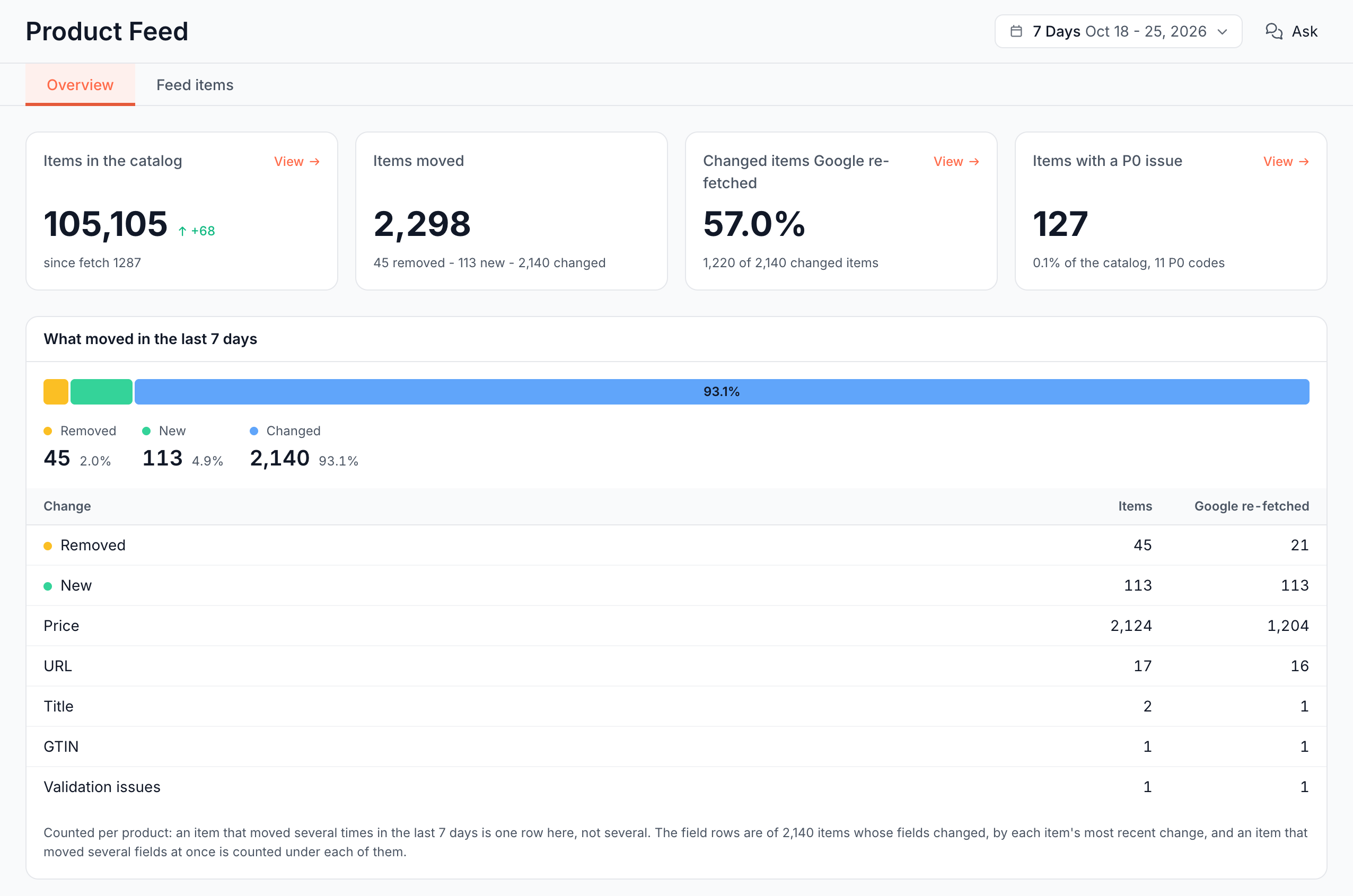
The report has two tabs: Overview and Feed items. Overview reads the items EdgeComet stored from your feed and Google's fetches of your product pages.
The header sets the period: Last 24h, 7 Days (the default) or 30 Days. It applies to the cards, What moved, the Change column of Issues and Waiting for Google. Fetch history always covers the last 30 days. Demand on issues covers Search Console's last 28 days and the last 30 days of AI fetches.
Cards: how big is the catalog, and did Google see the changes?
- Items in the catalog: the items in the feed now, with the change since the last fetch before the period, such as +68 above the footer "since fetch 1287".
- Items moved: items removed, new and changed in the period, such as "45 removed - 113 new - 2,140 changed".
- Changed items Google re-fetched: of the items whose page fields changed in the period, the share that a verified Googlebot, AdsBot or StoreBot fetched after the change. Red at 0%.
- Items with a P0 issue: items that carry any P0 issue, such as a missing price or an invalid link. See Feed check severity from P0 to P3.
View on Items in the catalog, Changed items Google re-fetched and Items with a P0 issue opens the matching rows in the Feed items tab.
What moved: which items changed, and in which field?
This card splits the period's movement into Removed, New and one row per changed field: URL, Title, Price, Sale price, Sale price dates, Availability, Availability date, Link in scope, Currency, Brand, GTIN, Product type and Validation issues. Only fields that changed get a row.
A page field is one that shows on the product page: the link, title, price, sale price, sale price dates, availability and availability date. A change to a page field makes EdgeComet re-cache the page and counts toward Google re-fetches.
Google re-fetched counts the items a verified Googlebot, AdsBot or StoreBot fetched after the change, or after the removal on the Removed row. An item that moved several times in the period is one row. An item that changed several fields at once counts under each of them.
Issues: what is wrong with the feed and its items?
EdgeComet runs every feed check on every fetch. The Issues card lists them, worst first, in two lenses:
- What changed: checks grouped into New, Worse, Improved, Open, nothing to compare and Resolved, against the catalog before the period.
- All issues: checks grouped by category: Feed Health, Item Data, Links & Scope and Coverage.
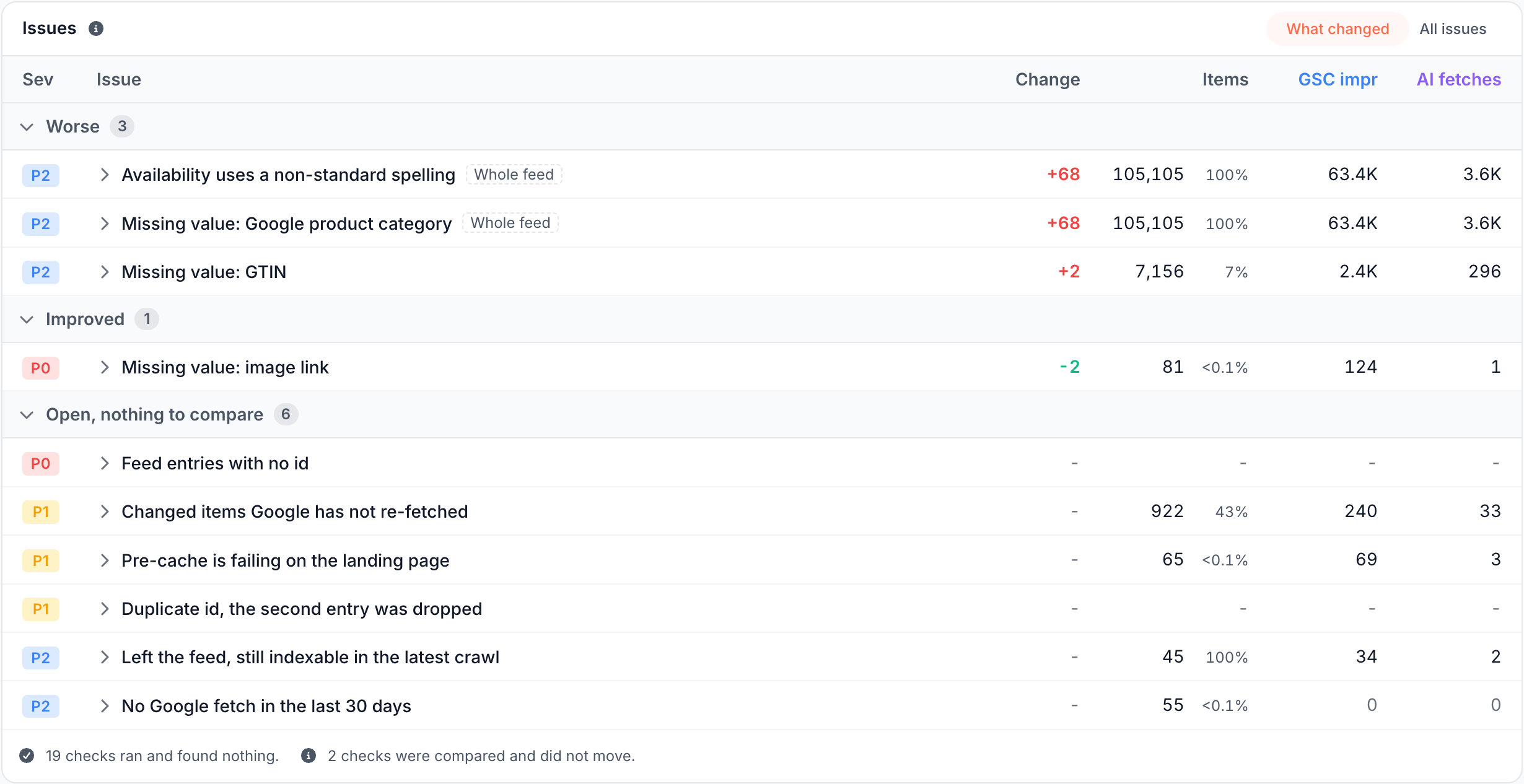
Each row shows Sev, Issue, Change, Items, GSC impr and AI fetches. Rows rank by severity, then by demand. See Feed check severity from P0 to P3. Two chips mark special rows:
- Whole feed: every live item carries the issue. It is one wrong column at the source, not a list to work through.
- Feed-level: the check counts feed files, not items.
Click a row for its details and the affected items. See Merchant Center feed checks and feed errors. A feed with no failing check reads "Nothing to fix in this feed."
Waiting for Google: which crawlers came back for changed items?
For AdsBot, StoreBot and Googlebot, this card shows the feed items each crawler fetched in the period, the items that changed, and the changed items it fetched after the change. Coverage is the share of changed items the crawler fetched after the change. A fetch counts only from a verified IP address.
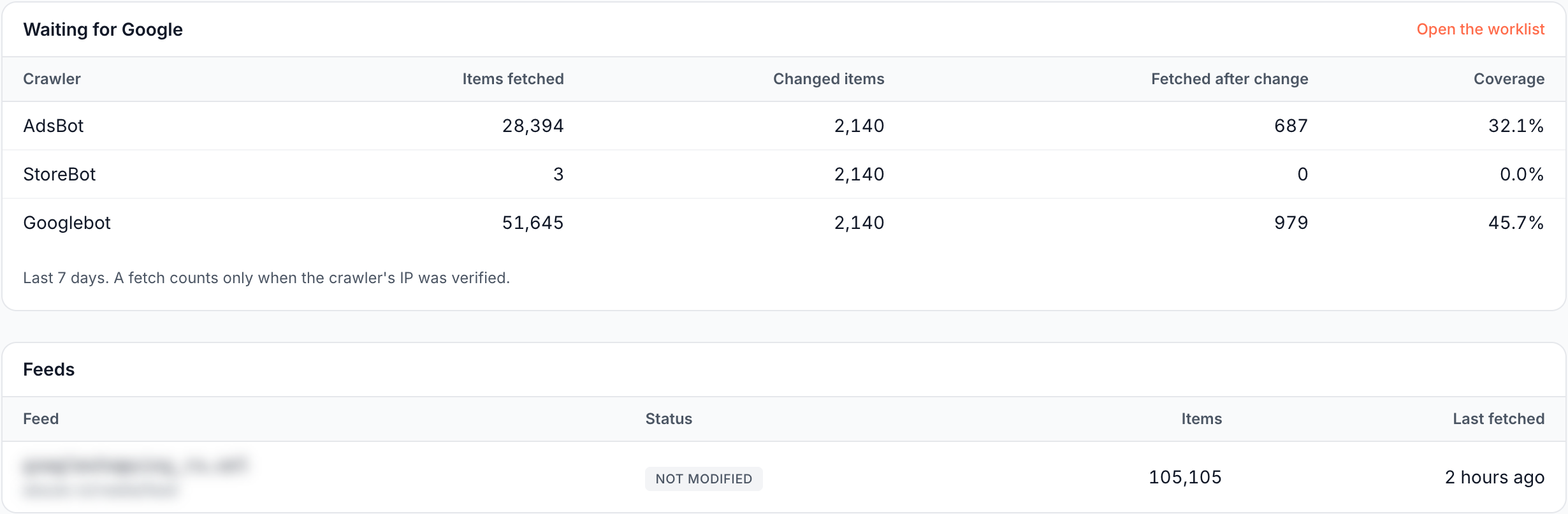
Open the worklist lists the changed items no Google crawler has fetched since the change, oldest change first.
Feeds: did each feed import?
The Feeds card lists each feed file with its status, items and last fetch. Statuses:
- Fetched: EdgeComet read the whole feed.
- Not modified: the feed server answered that nothing changed since the last fetch, and the stored items stay as they are. EdgeComet asks the server for changes only, which keeps repeated fetches light.
- Failed: the fetch failed, with the reason beside the status. See Feed errors.
- Removed: the feed URL left the rule.
- Not fetched yet: EdgeComet has not fetched the feed since you added it.
Fetch history: what did each fetch change?
Daily bars split each day's movement into Removed, New and Changed, over the last 30 days. The table lists the newest fetches with Fetch, When, Result, Items found, Removed, New and Changed. Two or more fetches in a row that the feed server answered as not modified fold into one line, such as "20 fetches not modified".
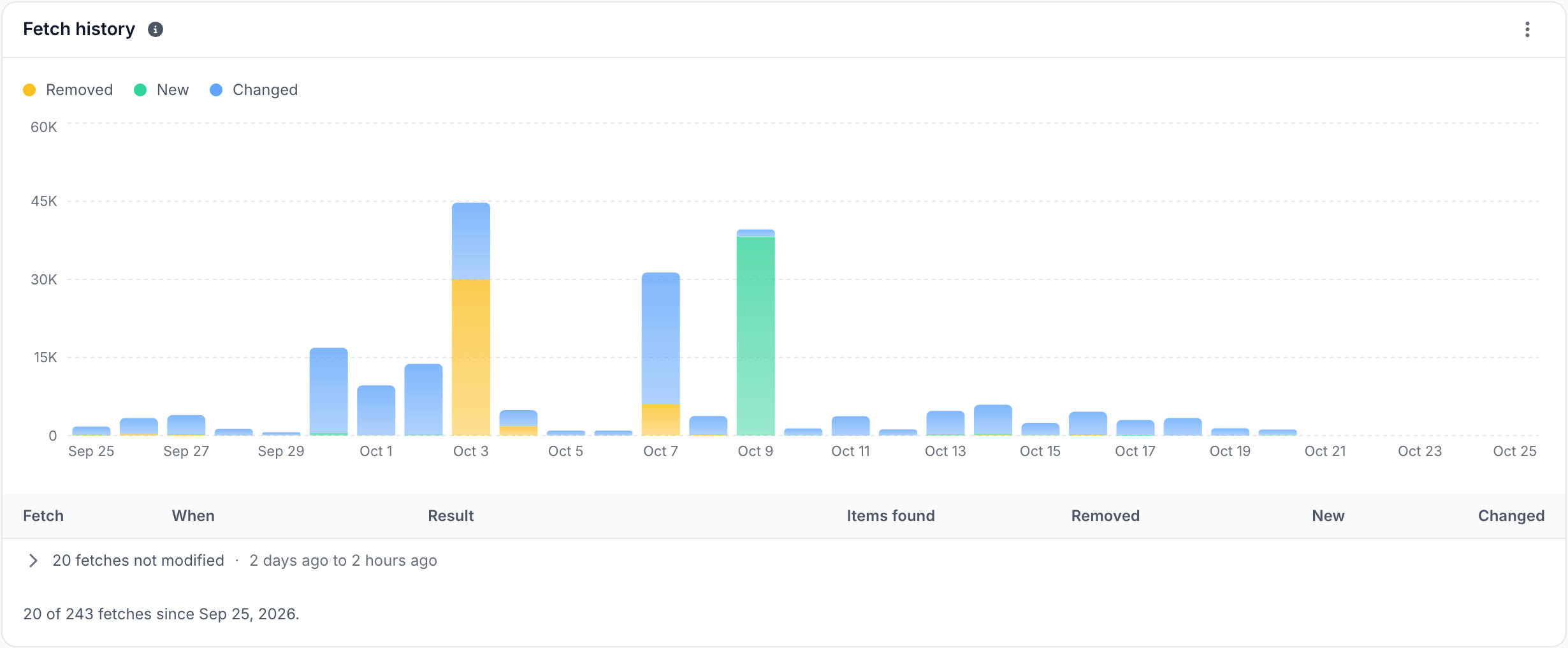
Click a fetch number to open the items that fetch touched. The menu in the card header exports the chart or its data.
Feed items tab: what does each item in the feed show?
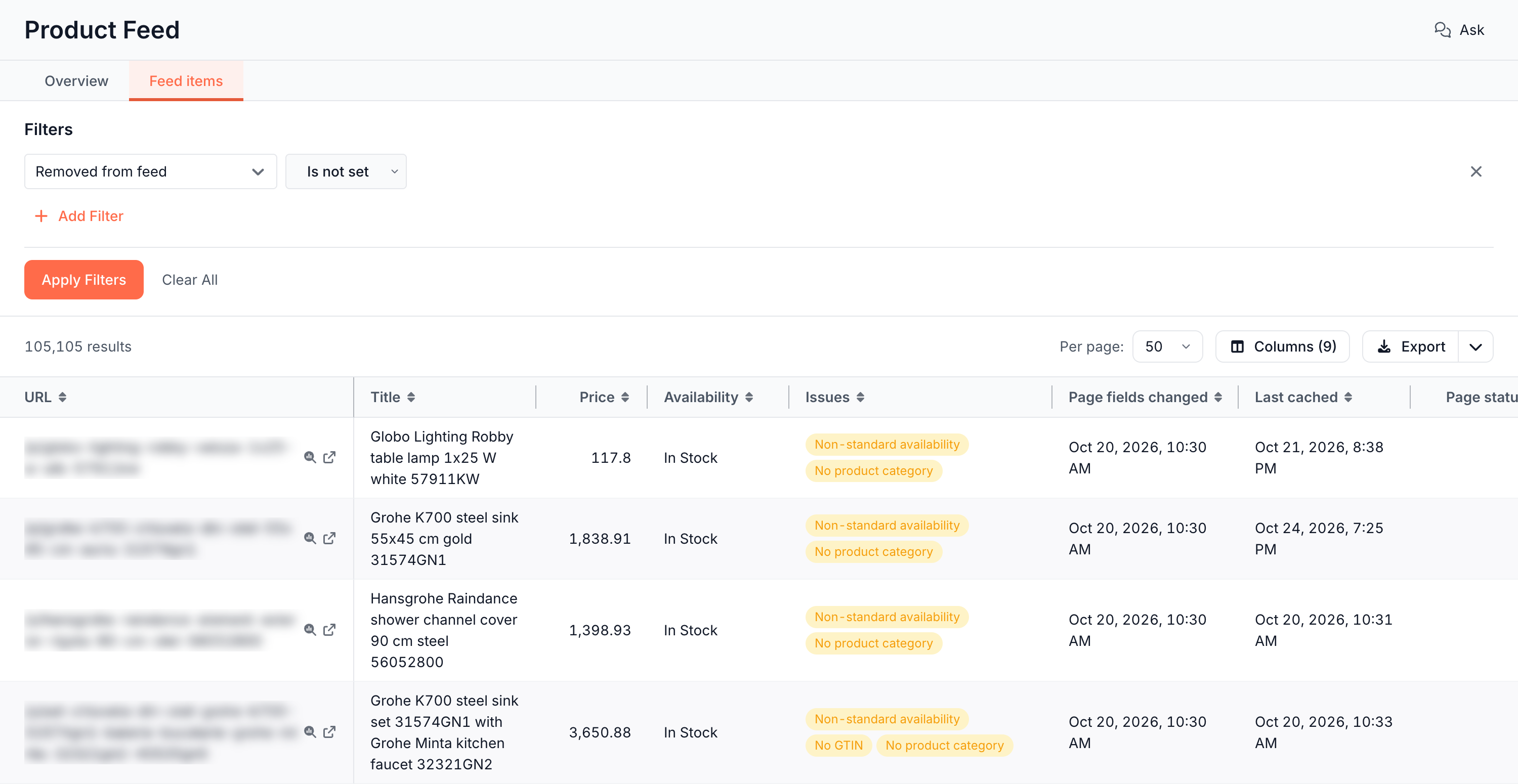
The Feed items tab lists every item still in your feed, with its price, availability, issues, last cached copy and last Google fetch. It is the same table as Data Explorer > Feeds > Merchant feed. See Merchant feed: every product in your feed.
How to read it
- Low Coverage on Googlebot or AdsBot: Google has not fetched many changed product pages since the change, and may still hold the old price or stock. See Product pages against the feed.
- A Whole feed chip: fix the column once in your feed export.
- A spike in Items moved or Fetch history: a large share of the catalog changed at once. That is often a feed format change, not a product change.
- Removed items still indexable: products that left the feed still have indexable pages. See the Coverage check "Left the feed, still indexable in the latest crawl" in Coverage examples.
What to do next
- Fix failing checks in your shop platform or feed tool. See Merchant Center feed checks and feed errors.
- Compare the feed with the product pages bots receive. See Product pages against the feed.
- Keep the rest of the catalog cached between changes. See Re-cache products when your Merchant Center feed changes.
- Ask about the feed with the Ask button, such as which changed products Google has not fetched yet.
"No product feed yet": add your feed
Cause: no feed URL is on the Merchant Feed Re-cache rule, or the rule is off. The report shows Add a product feed.
Fix: add your feed. See Add your Merchant Center feed. Until the first fetch completes, the report shows only Issues and Fetch history.
Where to find it
In the dashboard: E-commerce > Product Feed, with the tabs Overview and Feed items. Add or change feeds in Configuration > Caching > Merchant Feed Re-cache.