

Crawl budget rules: see and steer the rules behind crawl waste
The EdgeComet Crawl Budget Rules page lists the rules that mark bot requests as Wasted or Questionable, which decide the Valuable, Questionable and Wasted split in your reports. It shows which URLs each rule matches, and it is where you steer the rules EdgeComet generates for your site.
The rules come in two layers: a baseline every site gets, and rules generated from your site's own bot data. What the buckets mean and which baseline rules exist is explained in Crawl budget and crawl waste explained.
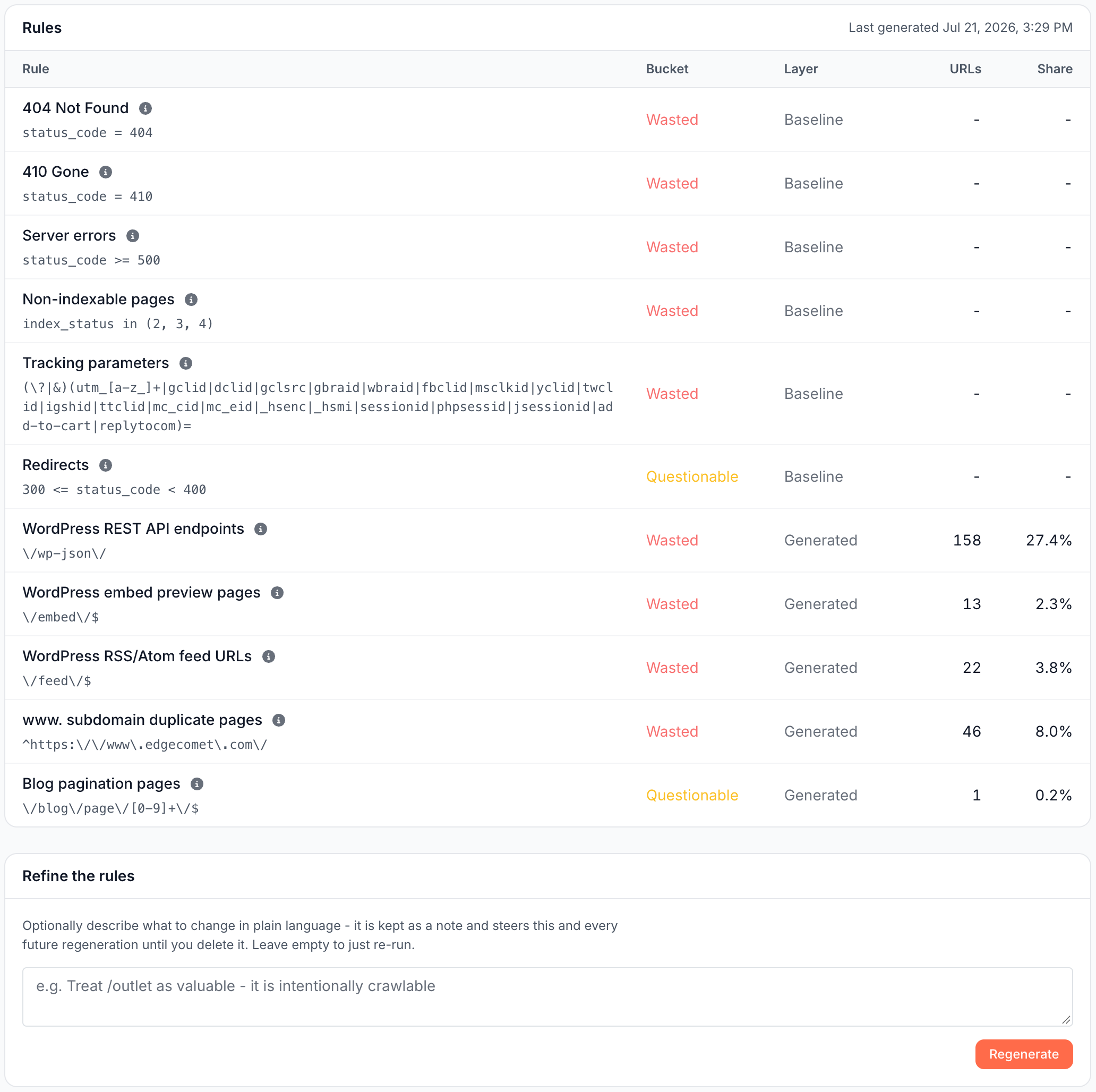
Read the rules table
The Rules card shows "Last generated" with the date of the last completed analysis, then one row per rule, baseline rules first:
- Rule: the rule's name and its condition, such as
status_code = 404or a URL pattern. The info tooltip holds its description, or the reason it was generated. - Bucket: Wasted or Questionable. No rule makes a request Valuable: Valuable is every request that no rule matches.
- Layer: Baseline for the rules every site gets, Generated for the rules made for your site.
- URLs: for a generated rule, how many distinct URLs its pattern matched in the 30 days before it was generated. Baseline rows show "-".
- Share: those URLs as a part of all distinct URLs bots requested in the same 30 days.
URLs and Share are counted once, when the rule is generated, and stay as they were. For the URLs a rule matches today, open its list. See See the URLs a rule matches.
A request that matches rules in two buckets counts once, as Wasted. See Crawl budget allocation.
See the URLs a rule matches
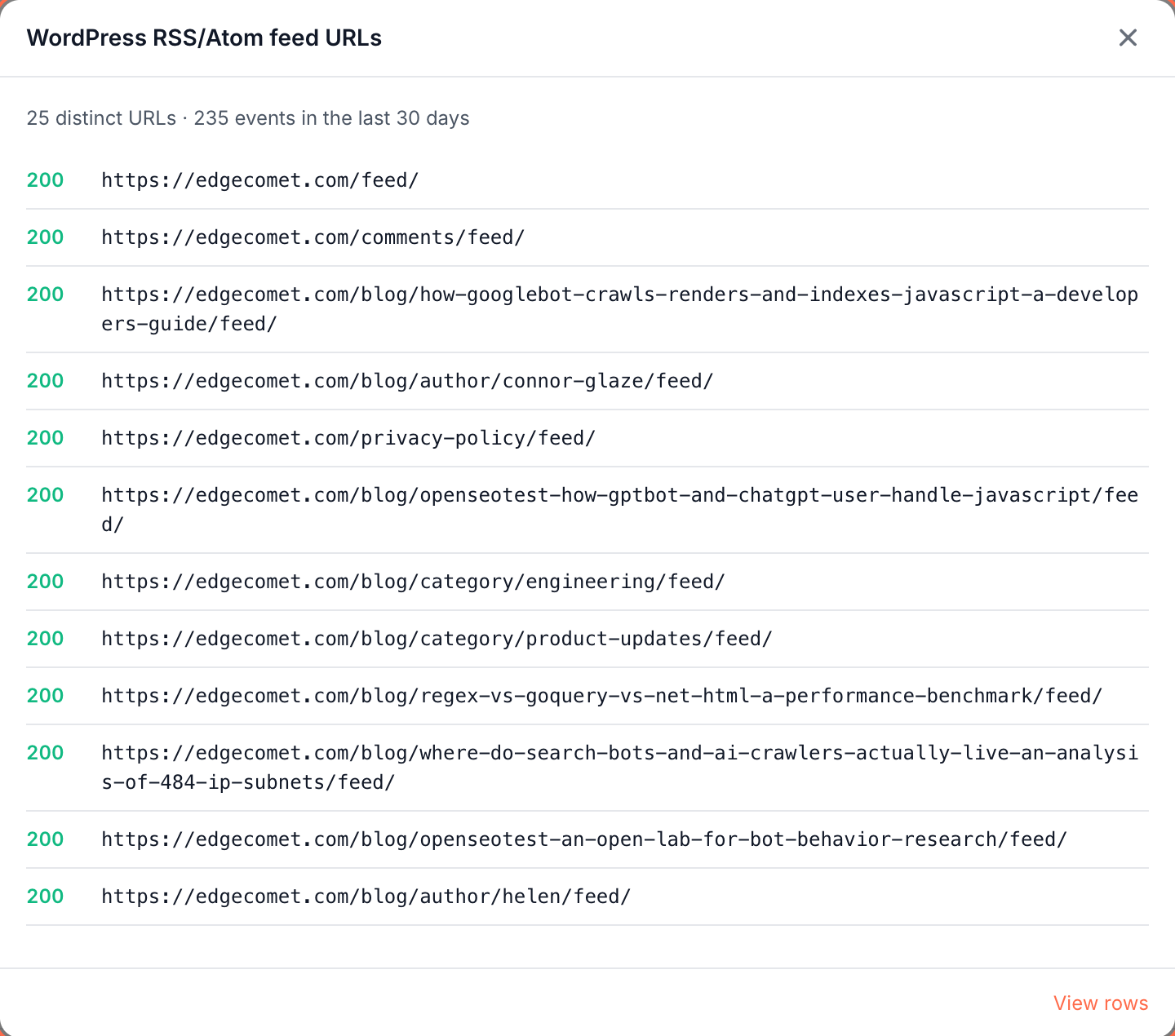
Click the URLs count of a generated rule. The list, titled with the rule's name, reads "{N} distinct URLs · {N} events in the last 30 days" and shows up to 25 of the URLs bots requested most, each with its status code. When the rule matches more, the line adds "showing top 25 by crawl volume".
View rows opens the requests in Data Explorer, filtered by the rule's URL pattern.
The list is counted when you open it and checks only this rule's pattern. A URL that also matches a baseline Wasted rule, such as a 404 page, appears here as well, and your reports count it as Wasted.
When site-specific rules are generated
While no site-specific rules are active, only the baseline applies, and a notice above the table says why:
| Notice | Meaning |
|---|---|
| "Collecting crawl data - site-specific rules generate automatically around {date}." | The site is still gathering data |
| "First analysis running - only the universal baseline is active so far." | The first analysis is running. View progress opens it |
| "Site-specific rules could not be generated - only the universal baseline is active." | The first analysis failed. Click Regenerate to run it again |
| "No site-specific rules - this site’s crawl showed no waste beyond the universal baseline." | The analysis found no waste beyond the baseline |
| "The last analysis hit its budget before finishing, so only the universal baseline is active. Regenerate below to try again." | The analysis stopped before it kept a rule |
The first analysis starts on its own once all three are true:
- At least 7 days have passed since the first verified bot visit. The date in the first notice is that day plus 7 days.
- Bots requested at least 300 distinct URLs of your site in the last 30 days.
- EdgeComet has finished setting up segments, or 21 days have passed since the first verified bot visit. See What EdgeComet configures on its own.
A site where bots requested fewer than 300 distinct URLs gets Run analysis now, which starts the analysis without waiting.
Steer the rules with notes
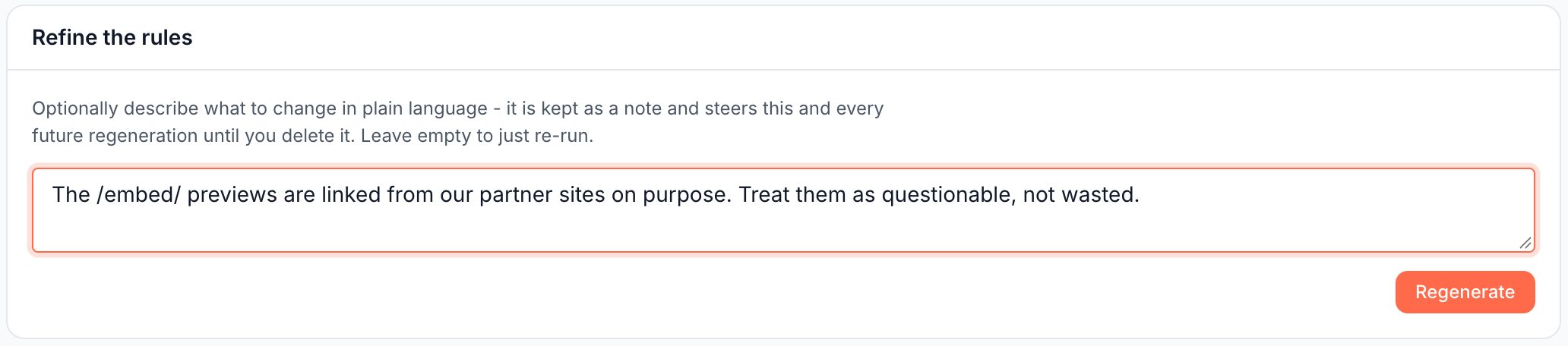
A guidance note is an instruction in plain language that steers every later analysis of your site, such as "The /embed/ previews are linked from our partner sites on purpose. Treat them as questionable, not wasted." A note stays until you delete it.
The Refine the rules card appears once the first analysis has finished. To add a note:
- Type the note in the box.
- Click Regenerate. EdgeComet saves the note, starts a new analysis with all your notes, and opens its progress page.
Each note shows with "added {date}" and a delete button. You can keep up to 20 notes of up to 500 characters each. Members who cannot change the rules see existing notes, if any, in a card titled Guidance.
A note steers the generated rules only. Requests that match a baseline rule, such as a 404 or a tracking parameter, stay Wasted or Questionable whatever the note says. See Can I change what EdgeComet counts as crawl waste?
Regenerate the rules
Click Regenerate with the box empty to run the analysis again on the last 30 days of bot data, with your notes. When the run completes, its rules replace all generated rules. Your reports use them at once, for past requests too.
Regenerate after a large change to your URL structure, such as a migration or new faceted navigation. Regenerate with a note when the Wasted bucket on the Efficiency tab holds URLs you want crawled, or misses waste you know about.
You change generated rules through notes and regeneration: describe the change in a note and click Regenerate. The button is disabled while an analysis runs.
Follow an analysis
The progress page reads Analyzing crawl logs while the analysis runs:
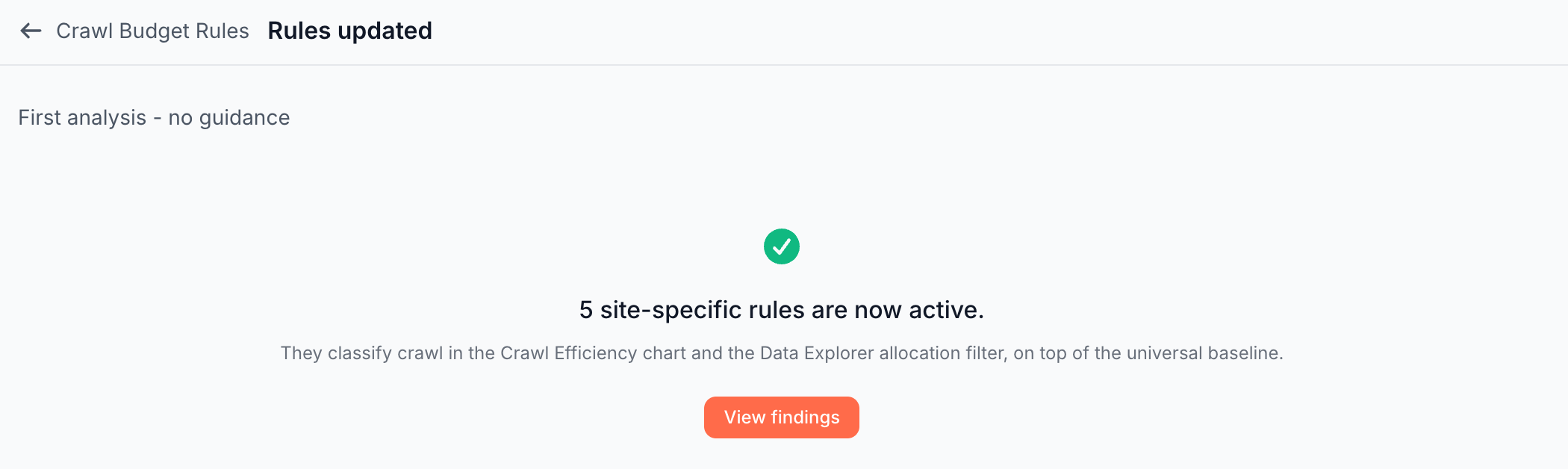
- Guidance line: "Guidance: {N} standing notes applied", or "First analysis - no guidance" when there are no notes.
- Activity feed: the steps as they happen, such as "Mapping the URL structure", "Scanning query parameters" and "Testing a candidate pattern".
- Findings so far: the rules proposed until now, by bucket.
Your current rules stay active in all reports until the run completes. It ends in one of four states:
- Rules updated: "{N} site-specific rules are now active." View findings opens the rules table.
- Analysis complete: "No site-specific waste found beyond the universal baseline."
- Analysis stopped early: "The analysis hit its budget before finishing."
- Analysis failed: "The analysis could not be completed."
After a failed run, or a stopped run that changed nothing, the page reads "Your previous rules are unchanged and stay active in all reports." A first analysis that stopped early keeps the rules it verified, and the page reads "The {N} rules it verified before stopping are now active." Try again starts a new run.
Where the rules apply
The rules label requests in your reports and do not change what bots receive. The labels show in these places:
- Efficiency tab: the Crawl Budget Allocation card on Log Analyzer > Googlebot, Bing and AI Bots. Its Settings link opens this page.
- Data Explorer: the Budget Allocation filter of Bot log.
- Ask, the Action Board, alerts and MCP: read the same bucket for each request when they query your bot log.
See Where you see crawl budget allocation in EdgeComet.
If it does not work
The regenerate buttons are greyed out
When Regenerate or Run analysis now shows the tooltip "You have read-only access to this website", your role cannot change the rules: regenerating and notes need the Manager role or higher. See Team roles and permissions. Without the tooltip, an analysis is running: wait for it to finish.
"You can keep at most 20 guidance notes. Delete one to add another."
Delete a note you no longer need, then add the new one.
"Keep notes under 500 characters."
Shorten the note, or split it into two notes.
The page shows only baseline rules
The notice above the table gives the reason. See When site-specific rules are generated.
Where to find it
In the dashboard: Configuration > Crawl Budget Rules, or Settings on the Crawl Budget Allocation card of the Efficiency tab.