

AI SEO skills in Ask
A skill is a saved SEO workflow that the EdgeComet AI SEO agent follows from start to finish, such as a technical SEO audit or a content brief. You run it from Ask on your whole site, a segment or a list of URLs. Also called an AI SEO skill or an agent playbook.
A skill tells the agent what to look for, which data and tools to use, and what to deliver: findings for the Action Board, a document or a table. The agent works from your bot log, Search Console and Evergreen Crawl, and adds live keyword and search data where the skill needs it.
Every site comes with five skills. You can run them as they are, steer a run with a focus, or write your own skill in plain Markdown.
Skills every site comes with
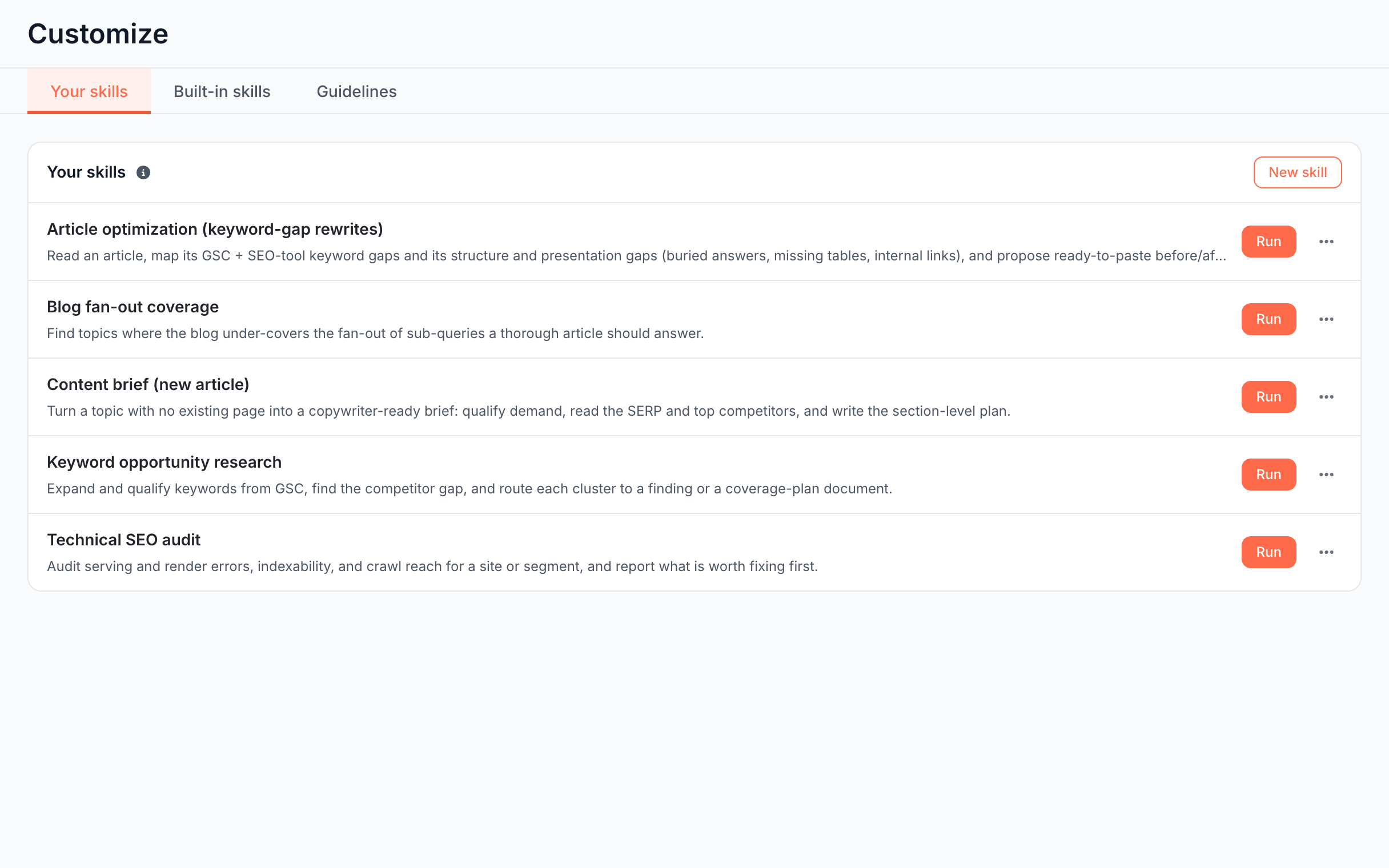
Every EdgeComet site comes with these five skills on Action Board > Skills > Your skills:
| Skill | What it delivers | Runs against |
|---|---|---|
| Keyword opportunity research | Findings for pages that underperform on keywords worth winning, and a coverage plan for topics you have no page for | Whole site, a segment or a URL list |
| Content brief (new article) | One brief per topic that a copywriter can work from | Whole site, up to 5 topics per run |
| Article optimization (keyword-gap rewrites) | Ready-to-paste before-and-after edits for an article, in its own voice | A URL list |
| Technical SEO audit | An audit document and a proposed finding for each issue class | Whole site, a segment or a URL list (a URL list reports only) |
| Blog fan-out coverage | One finding that names the sub-questions each article misses | Whole site, a segment or a URL list |
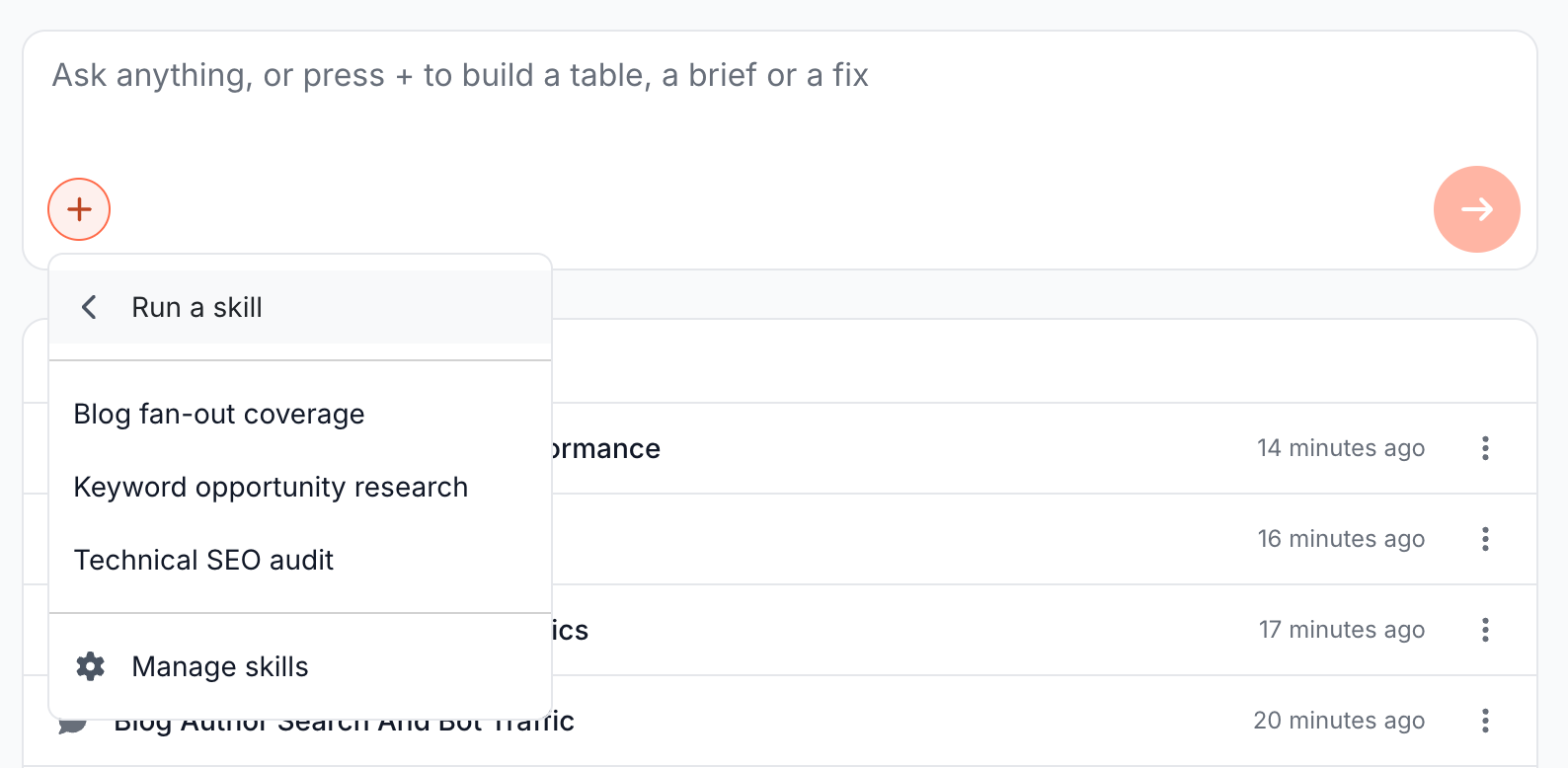
In the Ask + menu, Content brief and Improve an article start the Content brief and Article optimization skills directly. Every other skill is under Run a skill.
Skills that build the board and write fixes
EdgeComet also runs built-in skills that you do not start from Ask:
- Analysis skills: Indexability, Content Quality and Search Performance analyze your site for every Action Board analysis. See How the Action Board analyzes your site.
- Generation skills: Rewrite page fields, Draft a developer brief and Draft per-page content briefs write the drafts and briefs when you start a fix on a finding. See Generation runs.
The Built-in skills tab of the Skills page lists both groups. To steer them with rules about your business, use Guidelines.
Run a skill
Start a skill from a new Ask conversation: press + and choose Run a skill. The run opens in its own conversation, and the chat shows each step the agent takes.
Run a skill from Ask
- Click the Ask tab at the top of the sidebar, then New conversation.
- Press + in the composer, or type / in the empty field.
- Choose Run a skill, then the skill. For a content brief or an article rewrite, choose Content brief or Improve an article in the menu itself.
- In the Run this skill dialog, choose what the skill runs against and fill in its fields. See Choose the scope and focus in the Run dialog.
- Click Start.
The run keeps going if you leave the page, and the Ask home lists it under Active now until it finishes.
If you added pages with Add pages or a URL list before you chose the skill, the dialog fills its URL list with them. A URL prefix, or more than 20 URLs, does not fit a skill run. The dialog then asks you to pick a scope: "A skill runs on the whole site, a segment or up to 20 URLs. Pick one."
Run a skill from the Skills page
In the dashboard, open Action Board > Skills. On the Your skills tab, click Run on the skill's row. The same Run this skill dialog opens, and Start takes you to the new conversation.
Run a skill on the pages of one finding
A finding page lists your enabled skills under Run an analysis on these pages. Run scopes the skill to the finding's top 20 pages by impact, and the run happens in the finding's chat. The group appears on findings that list pages.
A finding can also offer a skill among its recommended fixes. The Action Board picks a skill for a finding from the skill's When to use text. See Choose how to fix a finding.
When Ask suggests a skill
When one of your skills covers your question from start to finish, Ask answers and adds a Suggested skill card with the reason and a Run button. Ask suggests at most one skill per answer, and picks it from each skill's When to use text.
The card targets the pages the conversation was about, or the whole site or a segment for a site-wide job. A skill run starts without the conversation's memory, which is why Ask fills in the run's focus with what the conversation narrowed down. You can edit or clear that focus before you confirm.
After the run, the card shows Ran instead of Run.
Choose the scope and focus in the Run dialog
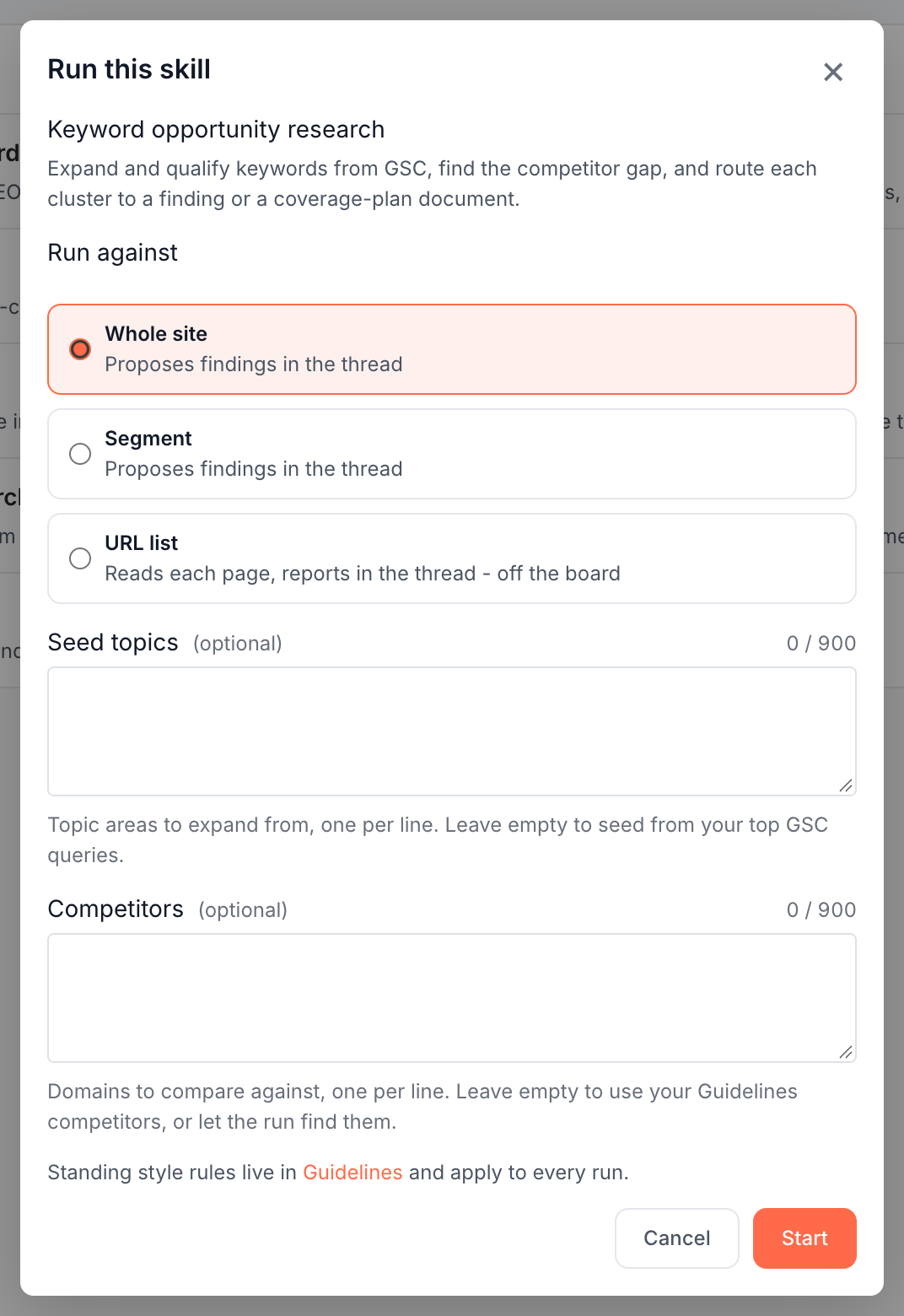
The Run this skill dialog asks where the skill runs and how to steer it:
- Run against: the pages the skill reads.
- Whole site: "Proposes findings in the thread".
- Segment: "Proposes findings in the thread". The list holds your segments that have URL rules. With none, the option reads "No page-type segments yet".
- URL list: "Reads each page, reports in the thread - off the board". One URL per line, up to 20, including URLs on other domains. The dialog removes duplicates and counts the URLs under the box.
- The skill's own fields: some skills ask questions before they run, such as Seed topics and Competitors for Keyword opportunity research. A required field left blank shows "Fill this in to run.", and each answer takes up to 900 characters. Below the fields: "Standing style rules live in Guidelines and apply to every run."
- Focus for this run (optional): skills without fields offer one free-text box of up to 1,000 characters, which "Steers this run. Not a place for page data or the task - the skill knows what to do." For example: "Focus on pages we published this quarter."
Some skills pin where they run:
- Content brief (new article): "Runs across your whole site."
- Article optimization: a URL list only, with the hint "One URL per line. Off-site URLs are allowed - you can refine and ask follow-ups.", plus the optional focus.
To make your own skill ask questions or pin its scope, see Ask for inputs when the skill runs.
The dialog does not start the run while something is missing, and shows one of these messages:
- "Choose a segment to run against." when Segment has no segment picked.
- "Line N is not a valid URL.", "Add at least one URL." or "A worklist takes at most 20 URLs." for the URL list.
- "This skill is disabled. Enable it to run." when someone disabled the skill since the page loaded.
Where the results land
A skill run delivers in up to four places:
- The conversation: the agent's steps and its summary in the chat, and tables on the canvas beside it. The conversation stays in the Ask tab under Conversations.
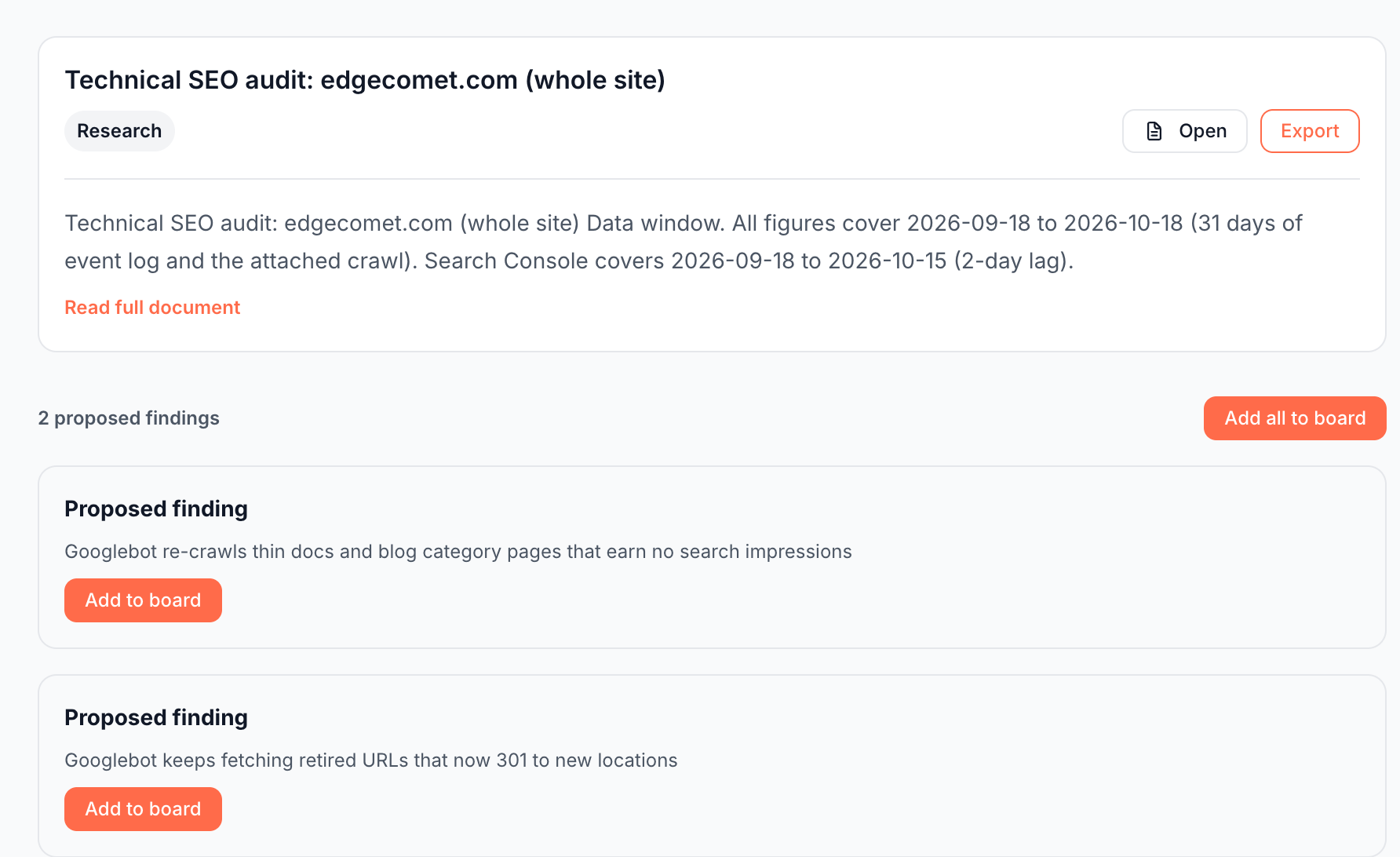
- Proposed findings: a run on the whole site or a segment shows each finding as a Proposed finding card on the canvas, with Add to board, and Add all to board above several. Nothing reaches the Action Board until you add it, and an added card reads Recorded finding with Open on board. See Findings from Ask and skills.
- Documents: audits, coverage plans, briefs and article edits open on the canvas with Open, Export and Read full document, and stay in Action Board > Outputs > Documents. See Documents.
- Generation runs: a skill can start a generation run on a finding, such as new titles for its pages. The drafts wait for your review on a task, and the run shows under Action Board > Outputs > Generations. See Generation runs.
A URL list run reports in the conversation and records nothing on the board. Article optimization is the exception: with five URLs or more, it proposes a finding per article.
Each run from the Run dialog starts a new conversation and writes new documents, and earlier runs stay for comparison. When you ask the agent to redo the work in the same conversation, it updates that conversation's document in place.
Manage your skills
Manage every skill on your site, enabled or not, from Action Board > Skills. The page header reads Customize, with the tabs Your skills, Built-in skills and Guidelines. From Ask, + > Run a skill > Manage skills opens the same page.
Each row on Your skills offers:
- Run: opens the Run dialog.
- Edit: in the row menu, opens the skill editor. Change the details or the playbook and click Save. The next run uses the new version.
- Turn a skill off: open Edit, clear Enabled and click Save. The row shows a disabled badge, its Run button is greyed out with "Enable the skill to run it", and the skill leaves the + menu and the skills Ask suggests.
- Delete: in the row menu, asks "Delete the skill "{name}"?". Conversations, findings and documents the skill already produced stay.
New skill opens the editor for a skill of your own. See Create a custom AI SEO skill.
What skills do not do
- They do not publish on their own. Proposed findings wait for Add to board, and generation drafts wait for your review on a task.
Where to find it
In the dashboard: Ask > New conversation > + > Run a skill. To see, create and edit skills: Action Board > Skills.