

What data Ask can read: bot log, Search Console, crawl
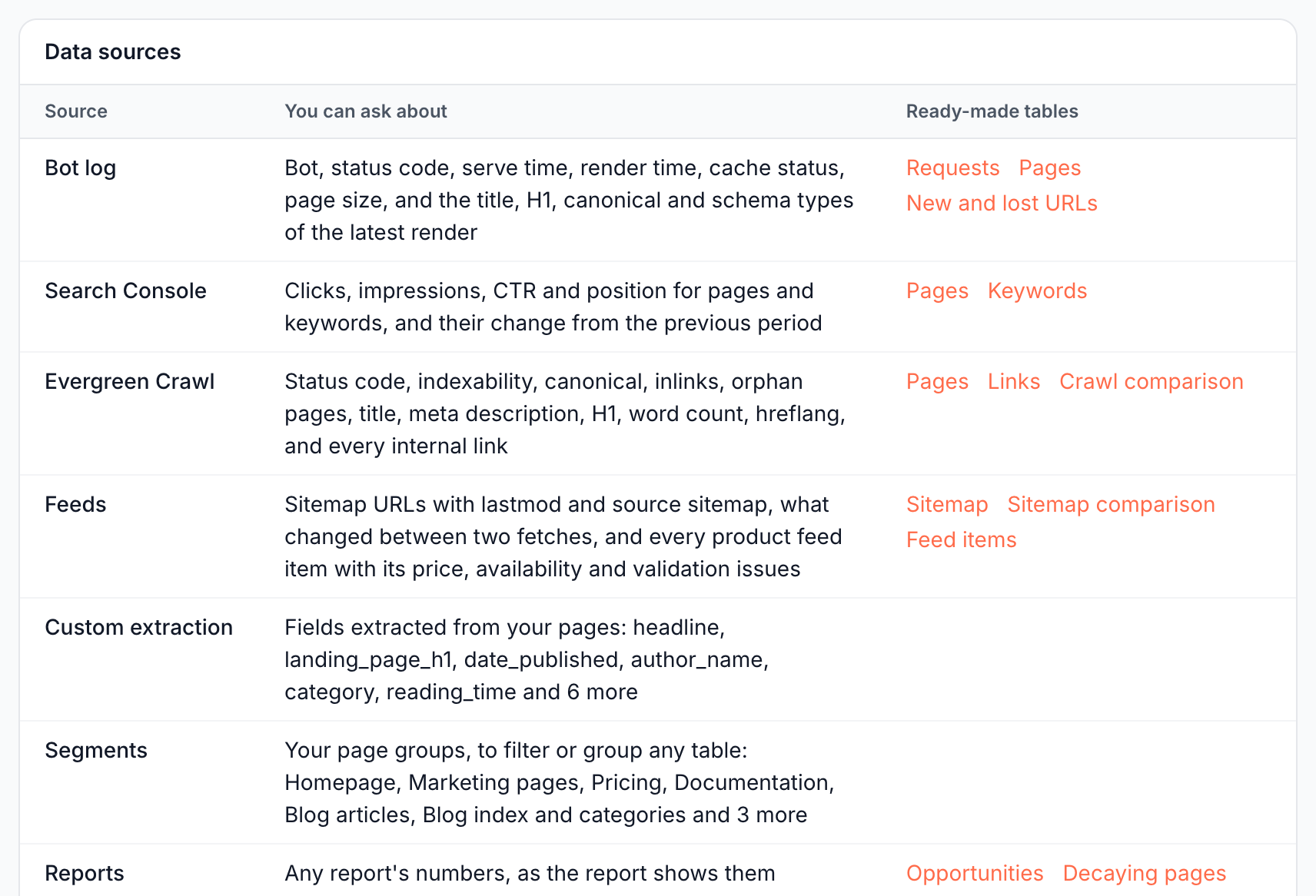
Ask reads your site's own data: every bot request EdgeComet served, your Search Console performance, the Evergreen Crawl and your XML sitemaps. The four share the same URLs, which lets one question combine them, such as noindex pages that still earn clicks.
It also reads the numbers your dashboard reports show, your setup, live keyword data and the content of any page on the web. For definitions of each source, see The sources EdgeComet reads.
How Ask computes the numbers
The engine computes every number in an answer from a query that Ask writes. Ask does not write SQL or estimate figures. For each question:
- The agent writes a query in the EdgeComet query language: which source, which pages, which filters, groups and sums.
- The engine checks the query and runs it over your data.
- The table shows what the engine returned, and the chat explains it.
Report numbers come from the same cache the report pages read. When Ask quotes a report, it matches what the report shows for the same period.
The one exception is a snapshot table, which holds figures no query can express, such as keyword research rows. Ask writes it from what its research tools returned.
Search Console reports about 3 days behind the bot log, and an answer that combines them names each window. See Search Console freshness.
Bot log
The bot log holds every request from search engine bots and AI bots that EdgeComet served. Ask reads it per request or per page, with the bot, status code, serve time, render time, cache status and page size, and the title, H1, canonical and schema types of the latest render.
The log records EdgeComet's own pre-cache fetches too. Ask counts them separately from bot requests, and crawl volume counts bots only.
Questions to try:
- "Which pages with search impressions take over 3 seconds to serve or do not return 200?"
- "List folders by average render time, slowest first, with their bot fetches."
- "Which AI user bots fetched the pricing page this month, and how often?"
- "Which bots fetched the most 404 pages this week?"
See Bot requests EdgeComet serves and Bot types.
Search Console
Ask reads clicks, impressions, CTR and position for every page and query, the change against the previous period, and daily site totals.
Site totals come from Google's report for the whole property, which counts a result page that shows several of your URLs once. Totals added up from pages come out higher. When Ask compares two numbers, it takes both from the same view.
Questions to try:
- "Which blog articles are on page two of Google, with their impressions and CTR?"
- "Which pages lost the most clicks against the previous period?"
- "Which queries have two or more of our pages competing?"
- "Which pages do AI bots fetch most that get no clicks from Google?"
See Google Search Console performance data.
Evergreen Crawl
Ask reads the pages of a crawl with their status code, indexability, canonical, inlinks, title, meta description, H1, word count and hreflang. It reads every internal link with its placement, the redirects and the crawl issues on each page.
Questions to try:
- "Which internal links point to 404 pages, grouped by the linking page?"
- "Which indexable pages have no internal links?"
- "Which pages with duplicate titles earn search impressions?"
- "Which pages point their canonical to another URL but still earn clicks?"
See Evergreen Crawl.
Sitemaps
Ask reads every URL your XML sitemaps list. Joined with the bot log and the crawl, the sitemap answers which listed pages bots never fetch and which listed URLs redirect or return errors.
Questions to try:
- "Which sitemap URLs did Googlebot not fetch in this period?"
- "Which sitemap URLs redirect or return 404?"
- "Which indexable pages are missing from the sitemap?"
See XML sitemaps EdgeComet fetches.
Compare two periods or two crawls
Ask compares the same pages at two points:
- Two periods of Search Console: clicks, impressions and position now against the previous period.
- Two crawls: pages and internal links present in one crawl, the other or both, and the values that changed between them.
- Page changes: the title, canonical, robots and other changes EdgeComet detected on your pages, read from the Changes report.
Ask reads the Current crawl, monthly crawls and crawls you created, and knows which of them it can compare. See Manage crawls.
Questions to try:
- "What internal linking changed since the previous crawl?"
- "Which pages became non-indexable since the previous crawl?"
- "Which pages lost their last internal link?"
Segments, page groups and extracted fields
Ask uses your site's own structure:
- Saved segments: filter or group any table by them, such as "Googlebot visits by segment".
- Groups you describe: name buckets in the question, such as "product pages, category pages and everything else". A page lands in the first bucket it matches, and a bucket can be a saved segment.
- Custom extraction fields: values extracted from your pages, such as author, category or price. "Impressions and AI user bot visits by blog author" groups articles by the author field.
A segment built only from URL rules narrows a table. A segment with other rules does not, and the table says why. See Read a table.
Report numbers
Ask reads the numbers any dashboard report shows. It can read several reports in one answer and names the window of each number.
When a report cannot answer, such as a Search Console report on a site without Search Console, Ask says what the site lacks instead of reporting zero.
To ask about the report on your screen, open the Ask panel beside it.
Your setup: serving settings, alerts, Edge SEO rules and crawls
Ask reads how your site is set up before it explains a number, such as a cache miss or a duplicate URL:
- Serving settings: your render and bypass rules, the query parameters EdgeComet strips before the cache key, cache lifetimes, and the dates the bot log covers.
- Alerts: your alert rules and their firing history, such as "Which alerts fired this week, and why?". See Alerts.
- Edge SEO rules: drafts, live and rolled-back rules, and who authored each one: a person, the Action Board, Ask or an MCP client. See Edge SEO.
- Crawls: every crawl that can still be read, and which one an answer uses by default.
Any page on the web
Ask reads the full content of a URL:
- Your own pages: Ask reads them exactly as EdgeComet serves them to search and AI bots, from the render cache or a fresh render. The answer notes the status code, whether the page came from cache and how old it is, and any redirect target.
- Other domains: Ask fetches them live, such as a competitor's article or a reference page.
On your own pages, Ask can read only the elements you ask about, such as the JSON-LD scripts, the heading outline or every link. Before it drafts a change to a custom element, Ask reads a page map, an outline of the page's rendered structure, to find the element. See Draft Edge SEO fixes in Ask.
Questions to try:
- "Does /pricing/ serve JSON-LD to bots, and which types?"
- "Which headings does the top result for the query javascript seo use?"
Live keyword and search data
Ask reads live keyword data: search volume, difficulty and intent, the keywords a domain ranks for, and keyword gaps against competitors. It reads live search results with People Also Ask and AI Overviews, and backlink profiles. These rows appear as snapshot tables. See Keyword research in Ask.
Where to find it
In the dashboard: the Data sources card on Data Explorer > Custom lists what you can ask about each source.