

Article optimization skill
EdgeComet's Article optimization skill reads one of your articles and returns ready-to-paste edits that close its keyword and structure gaps, written in the article's own voice. In Ask it is the Improve an article item. Also called content optimization or an AI article rewriter.
Each edit shows why it matters, where it goes, the current text and the new text. The edits target the queries the page already earns in Search Console and the passages that search results and AI answers quote.
Where an edit needs a fact the skill could not verify, it leaves a marked placeholder for your editor instead of inventing one.
What you get
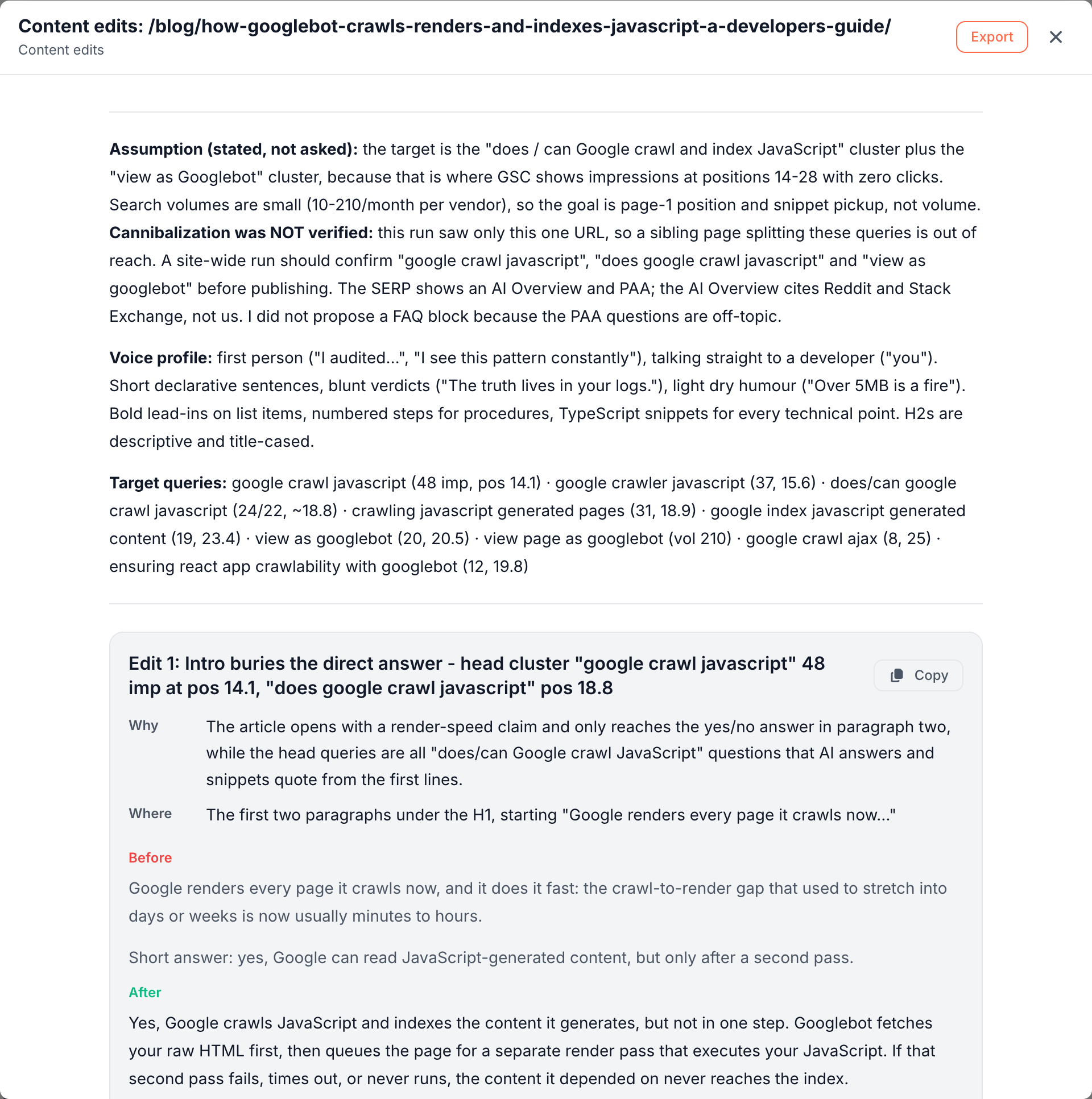
The skill writes a Content edits document titled "Content edits:" followed by the article path. It holds, in order:
- The assumption, when the run had to choose a direction, such as which query cluster to target.
- A voice profile of three or four lines: point of view, formality, sentence rhythm and formatting habits. Correct it in a follow-up if it is off, and every edit follows the correction.
- The target queries, with their impressions and position.
- Up to 10 edits, biggest opportunity first. Each edit has four parts: Why (the gap and its evidence in one sentence), Where (the heading or passage to find), Before (the current text) and After (the new text). A new section or table has no Before.
Every edit has a Copy button that copies its After text. The canvas also shows a table of the target queries with their impressions, average position, monthly volume, difficulty and the edit that targets each one.
On edgecomet.com, the run on the Googlebot JavaScript guide (1,994 impressions, average position 11.3) wrote 10 edits. They open the article with a direct "Yes, Google crawls JavaScript" answer and add a "view as Googlebot" walkthrough for queries at positions 20 to 28. Others add a comparison table of server-side rendering, prerendering and hybrid setups and a table of contents, and fix a heading that promised four patterns but listed five.
How article optimization works
The skill works through seven steps on every run:
- It gathers keyword data. It pulls the article's Search Console queries, then live data: what the page ranks for, related keywords with volume, difficulty and intent, and the terms competitors rank for. With no keyword data at all, the run stops and says it has no queries to base the edits on.
- It reads the whole article. It reads the page as EdgeComet renders it for bots, which includes content that JavaScript loads.
- It builds the voice profile. It uses your style guide when you give one in the focus or in Guidelines. Otherwise it derives the profile from the article.
- It finds the keyword gaps. Typical gaps are queries in positions 5 to 20 that a stronger passage could move up, queries the page earns impressions for but barely mentions, and sub-topics it skips.
- It checks for cannibalization. It looks for other pages of yours that compete for the same queries. When a sibling page splits a query, the edits set the two pages apart instead of pushing both, and the summary can recommend merging them.
- It checks structure and presentation. See Structure and presentation checks.
- It writes up to 10 edits, ordered by the traffic they can win. An edit that lifts the whole page, such as a comparison table the results reward, can come before a single-passage rewrite.
Structure and presentation checks
The skill checks the article for these gaps:
- Buried answers: sections that do not answer their heading's question in the first paragraph. Featured snippets and AI answers often quote that paragraph.
- Missing practical elements: a comparison table, checklist, flow diagram, worked example or short definition box that the ranking pages carry.
- Repetition: one concept explained in several sections, or sibling sections that all share the same shape.
- FAQ: proposed only when People Also Ask or AI Overviews show demand for one.
- Internal links: a sentence rewritten to carry a link to a relevant page of yours.
- Claims and dates: technical claims that need a primary source, and statistics or years that date the article.
- Navigation: a long article with no table of contents.
The skill does not edit titles or meta descriptions, and its summary says when they need work. To rewrite them, use Titles and meta descriptions.
Optimize an article
Run the skill from a new Ask conversation:
- Click the Ask tab at the top of the sidebar, then New conversation.
- Press + and choose Improve an article. You can also click Run next to Article optimization (keyword-gap rewrites) under Action Board > Skills.
- Under Run against, paste the article URL. The field takes one URL per line, up to 20.
- Optional: in Focus for this run, steer the run in up to 1,000 characters, such as the query cluster to target.
- Click Start.
Run it on one article or a few at a time. A run on one article sees only that article's Search Console data, which limits the cannibalization check. Its summary names the queries to check across the whole site before you publish.
Two more places start the skill on the right pages:
- Page Analysis, Fan-out tab: after a coverage check, Fix N gaps in Ask asks "Run "Article optimization (keyword-gap rewrites)" on this page?". The dialog opens with the questions the page answers only partly or not at all already filled in, and the run happens in the Ask panel beside the report. To find gaps across the whole blog first, run Blog fan-out coverage.
- A finding: Run an analysis on these pages on the finding page runs the skill on the finding's top pages, in the finding's own chat.
See Run a skill for what all skills share.
Where the edits land
Where the edits land depends on how many articles you gave the run:
- Fewer than five URLs: the edits land in the conversation as a Content edits document, with no finding. The chat offers to record a finding if you want the article tracked on the Action Board.
- Five URLs or more: the run proposes one finding per article, with its keyword table and its edits attached. When an earlier run already recorded a finding for the same article, the run reuses that finding.
The chat summary lists the edits and what to check before you publish:
- Cannibalization: whether the check covered the whole site, and the queries to confirm if it did not.
- Placeholders: the edits that carry a marked placeholder, such as
[CITE: source for the current render delay figure]or[CONFIRM ...]. - Title and meta description: whether they need work.
Act on the result
- Paste the edits. Fill in every placeholder, then copy each After text into your CMS.
- Hand it to an editor. Export the document to Google Docs or download it as Markdown. See Export documents.
- Track the article. In the same conversation, ask to record a finding, or click Add to board on a proposed one. See Findings from Ask and skills.
- Run it again with a focus. A run with different guidance, such as another query cluster or a corrected voice profile, writes a new Content edits document. See Where the results land.
How this skill differs from a content optimization tool
- A content optimization tool scores a page against a list of terms taken from the top results, and you write the changes. This skill starts from the queries your page already earns, reads what the article says, and writes the replacement passages in the article's voice.
- A rewrite from a general AI assistant has no search data behind it. This skill ties every edit to a query, a position or what the results reward, and checks your own pages for cannibalization before it pushes a query.
Where to find it
In the dashboard: Ask > New conversation > + > Improve an article, Action Board > Skills, or Fix N gaps in Ask on the Fan-out tab of Page Analysis. Content edits documents are under Action Board > Outputs > Documents.