

Create a custom AI SEO skill
A custom skill is an SEO workflow you write once in plain Markdown and run on demand from Ask. The EdgeComet AI SEO agent follows your playbook with the same data and tools as the skills that come with your site. Also called a custom agent playbook.
Use one for checks your team repeats, such as a monthly review of one section or an audit of new product pages. The agent reads the playbook, works through your bot log, Search Console and crawl, and delivers findings, a document or a table.
A custom skill can ask questions before it runs and pin where it runs, with a short block at the top of the playbook. See Ask for inputs when the skill runs.
Create a skill
- In the dashboard, open Action Board > Skills. From Ask, + > Run a skill > Manage skills opens the same page.
- On the Your skills tab, click New skill.
- Under Details, fill in:
- Name: up to 160 characters, such as "Blog fan-out coverage".
- When to use: up to 500 characters, "A short note on when this skill is worth running." See Write a When to use line that matches.
- Enabled: on by default.
- Under Playbook, write the instructions in Markdown, up to 20,000 characters. Preview shows how the Markdown renders. See Write the playbook.
- Click Create skill.
The editor reopens on the saved skill, and later changes save with Save. The skill appears on the Your skills list, in the Ask + > Run a skill menu, and among the skills Ask can suggest.
Write a When to use line that matches
When to use controls when the agent offers your skill. Ask matches it against the conversation before it suggests the skill, and the Action Board matches it against findings to choose which ones offer the skill as a fix.
Write it as the situation the skill fits, not as a description of its steps. For example: "Run on one section when pages with little text earn impressions but few clicks."
Write the playbook
The playbook is a set of plain instructions to the agent. A useful playbook states five things:
- The job: the question the skill answers, and for which pages.
- How to work: which data to read first, and which tools to use in what order.
- What counts as a problem: what the agent records, and what it leaves alone.
- What to deliver: findings for the board, a document, or a table, and how to title them.
- When to stop: a run that finds nothing wrong records nothing, and says what it checked.
You do not need to explain your site in the playbook. Every run already knows its scope, which data sources have data, and the crawl issue checks. It also receives the findings already on the board for that scope, the documents on your site, your Guidelines and the focus you gave the run.
EdgeComet computes every number on a finding from the query behind it. Ask the agent to title findings by the problem, such as "Thin product pages earn impressions but no clicks", and to leave counts out of titles.
Tools a custom skill can use
A custom skill gets the agent's full analysis toolset. Name a tool in backticks in the playbook, such as `read_page`, when you want the agent to use it at a given step:
- Query and findings:
query: run a structured query over your pages and get counts, samples and grouped rows.site_configuration: how the site serves bots, what the cache keys on, cache lifetimes and how much history exists.path_tree: drill the URL hierarchy to find a section before sizing it.analyze_decay: diagnose Google traffic decay for a scope or one page.cannibalization_detail: break a keyword cannibalization finding into its competing URL clusters.fan_out_expand: expand a topic into the sub-questions a thorough article should answer.record_finding: record a finding with the query that selects its pages.refine_finding: narrow, exclude, add to or join an existing finding.mark_done: close the run with notes on what was checked.
- Presentation:
present_result: show a live table, chart or stat.present_snapshot: show rows no query can express, such as keyword data, and attach them to a finding.
- Documents:
write_document: write a named document, such as a brief or a research note.read_document: read a document already on your site, such as a coverage plan the skill works from.
- Content:
read_page: read any URL's content, or pull elements from your own pages by CSS selector.
- Keyword research:
serp_check: the live Google results for a keyword, with its search features and People Also Ask.ranked_keywords: what a domain or URL ranks for.keyword_expand: grow a seed topic or query into new keyword candidates.keyword_metrics: search volume, difficulty, cost per click and intent for a batch of keywords.keyword_gap: keywords a competitor ranks for that you do not.find_competitors: who competes for a set of keywords or against your domain.backlink_summary: a domain's backlink profile.
- Actions:
start_process: start a generation run on a finding, such as new titles for its pages, which waits for your review.
Findings a skill records on the whole site or a segment arrive as proposed findings in the conversation. They join the Action Board when you click Add to board. See Where the results land.
Ask for inputs when the skill runs
A run-inputs block at the top of the playbook lists the questions the Run dialog asks before the skill starts, and can pin where the skill runs. Content brief (new article), Article optimization and Keyword opportunity research each use one.
The block opens with a line of three backticks followed by run-inputs, and closes with a line of three backticks. Between them go scope:, required: and optional: lines:
```run-inputs
scope: site
required: Topics to brief | One topic per line.
optional: Seed keywords | Terms the article must cover, comma separated.
```

The rest of the playbook starts here.
The rules for the block:
- Position: the block comes first in the playbook. Blank lines above it are fine. The editor treats an indented fence, or one made of four backticks or tildes, as an ordinary code block.
- Lines: only
scope:,required:andoptional:lines, in any order. Blank lines inside the block are ignored. - Fields: each
required:oroptional:line is one question, written asLabel | Help text. The first|separates the label from the help text, and the help text is optional. - Limits: up to 4 fields per block, labels up to 60 characters, help text up to 200 characters, and each answer up to 900 characters.
- Labels: each label needs a letter or digit, and two labels must differ in more than case or punctuation.
The editor checks the block when you save. See Errors when you save the block.
Pin where the skill runs
The scope: line sets what the Run dialog offers under Run against. Use it once per block:
| Line | What the Run dialog shows |
|---|---|
scope: site | No choice. The dialog says "Runs across your whole site." |
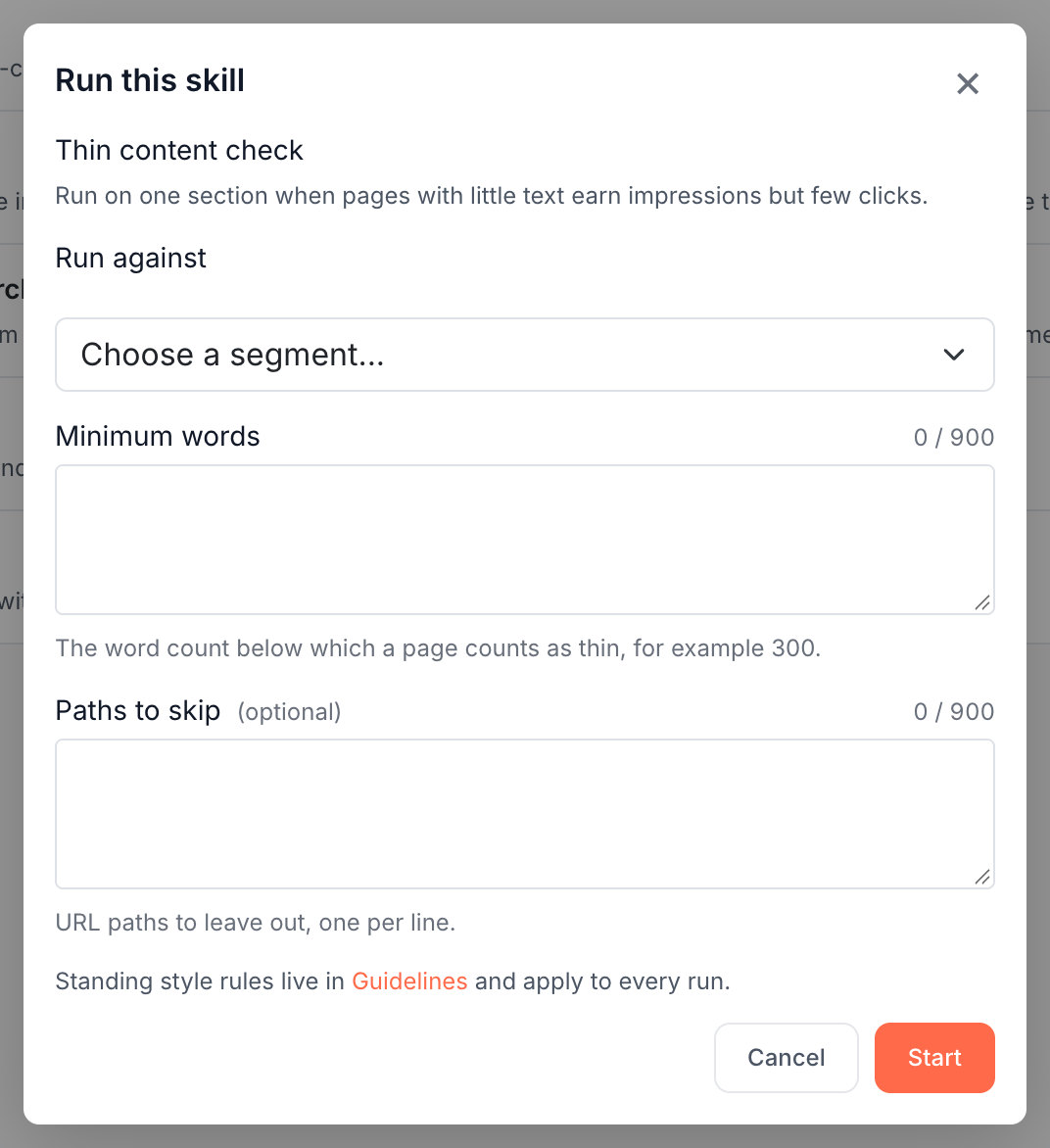
scope: segment | Only the segment picker. With no segments that have URL rules, it says "No page-type segments yet. Create one to run this skill." and Start stays off |
scope: urls | Only the URL list, one URL per line, up to 20 |
scope: ask, or no scope: line | The usual choice of Whole site, Segment and URL list |
Pin a scope when the skill only makes sense at that scope. For example, an article rewrite needs the article's URL, and a brief for a page that does not exist yet needs the whole site.
What the dialog and the agent receive
With fields in the block, the Run dialog shows one text box per field, marks optional ones "(optional)", and shows each field's help text under its box. A required box left blank shows "Fill this in to run."
The fields replace the Focus for this run box. A block that only pins a scope keeps that box.
The agent never sees the block itself. It receives the answers as the run's focus, each under its label, and blank optional fields do not reach it.
Errors when you save the block
The editor refuses to save a block it cannot read and names the line. Line numbers count from the top of the playbook:
| Error | Fix |
|---|---|
| "Line N: a run-inputs block takes only scope:, required: and optional: lines." | Remove or rewrite the line. Every non-blank line needs one of the three keywords and a colon |
| "Line N: a run-inputs block can declare scope only once." | Keep one scope: line |
| "Line N: unknown scope "x". Use site, segment, urls, ask." | Use one of the four values |
| "Line N: a run-inputs block takes at most 4 fields." | Merge or remove fields |
| "Line N: a field label is limited to 60 characters." | Shorten the label and move detail into the help text |
| "Line N: field help text is limited to 200 characters." | Shorten the help text |
| "Line N: label needs a letter or digit." | Write a label with words in it |
| "Line N: two fields share the key "x". Give them different labels." | Give the two fields labels that differ in words, not only in case or punctuation |
The run-inputs block has no closing ``` line. | Close the block with a line of three backticks |
Example: a thin content check
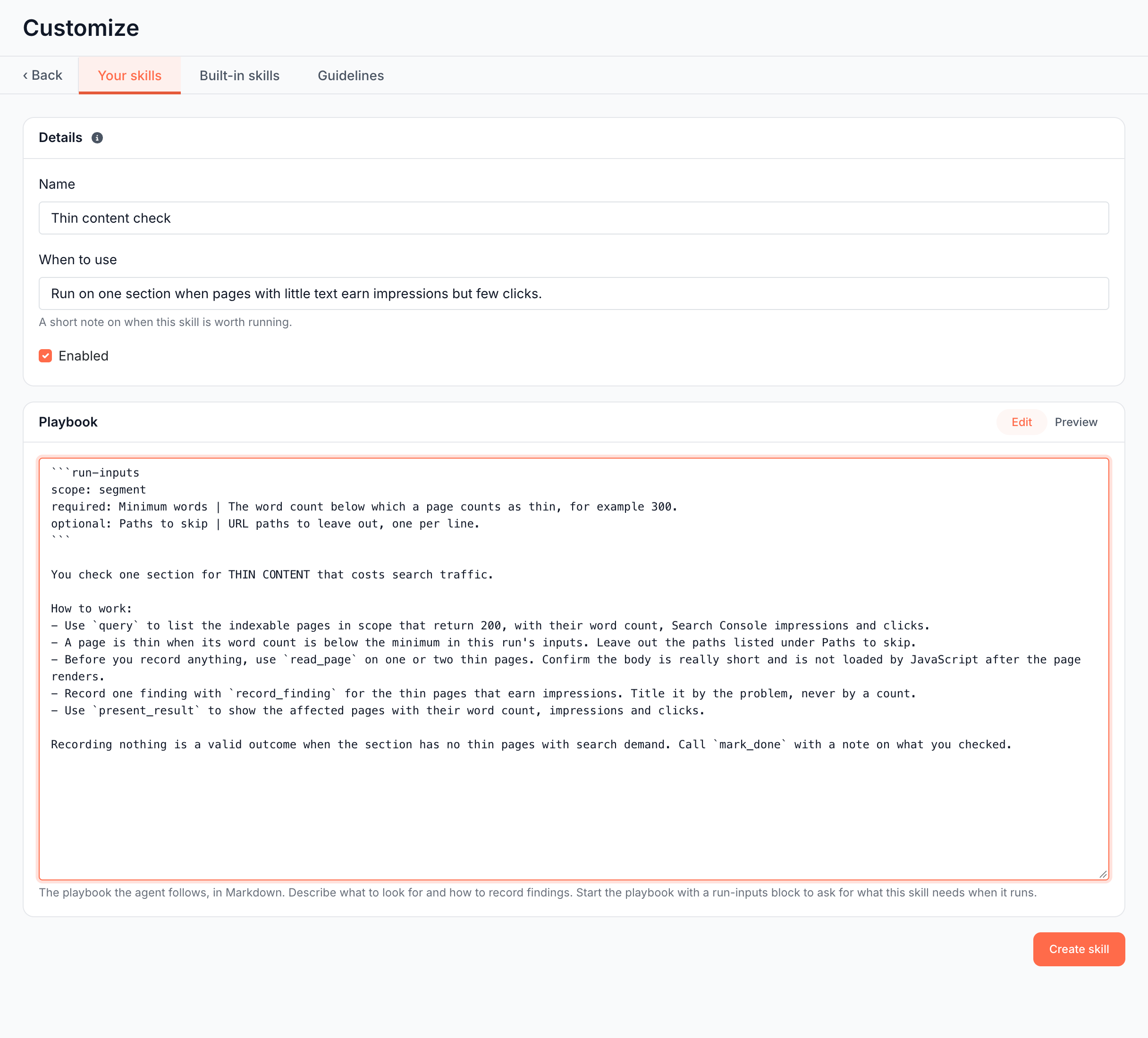
This skill checks one section for pages with little text that earn impressions. It pins the run to a segment and asks for the word count that counts as thin.
- Name: Thin content check
- When to use: Run on one section when pages with little text earn impressions but few clicks.
- Playbook:
```run-inputs
scope: segment
required: Minimum words | The word count below which a page counts as thin, for example 300.
optional: Paths to skip | URL paths to leave out, one per line.
```

You check one section for thin content that costs search traffic.

How to work:
- Use `query` to list the indexable pages in scope that return 200, with their word count, Search Console impressions and clicks.
- A page is thin when its word count is below the minimum in this run's inputs. Leave out the paths listed under Paths to skip.
- Before you record anything, use `read_page` on one or two thin pages. Confirm the body is really short and is not loaded by JavaScript after the page renders.
- Record one finding with `record_finding` for the thin pages that earn impressions. Title it by the problem, never by a count.
- Use `present_result` to show the affected pages with their word count, impressions and clicks.

Recording nothing is a valid outcome when the section has no thin pages with search demand. Call `mark_done` with a note on what you checked.
When you run it, the Run dialog shows only the segment picker, a required Minimum words box and an optional Paths to skip box.
Turn a skill off, edit or delete it
Open Edit from the skill's row on Action Board > Skills > Your skills to change its details or playbook, or clear Enabled to turn it off, then click Save. The next run uses the new version. See Manage your skills for what a disabled skill shows and what Delete keeps.
Where to find it
In the dashboard: Action Board > Skills > Your skills > New skill.