

Track rankings, striking distance keywords and opportunities
EdgeComet's Keywords report shows where your site ranks in Google for every query in your Search Console data, which keywords moved, and which ones are worth working on next. Also called keyword rankings or a keyword ranking report.
The report has four tabs:
- Overview: keywords in the top 10, striking distance keywords, keyword movement, four opportunity buckets with the clicks you could recover, and your keyword portfolio by position.
- Keywords: every keyword with the page it ranks with, its clicks, impressions, CTR and position.
- Pages: the same metrics per page.
- Opportunities: the keywords in one opportunity bucket.
The period, filter, drill-downs and Ask panel work as on every Search report: see Filter, drill down and ask.
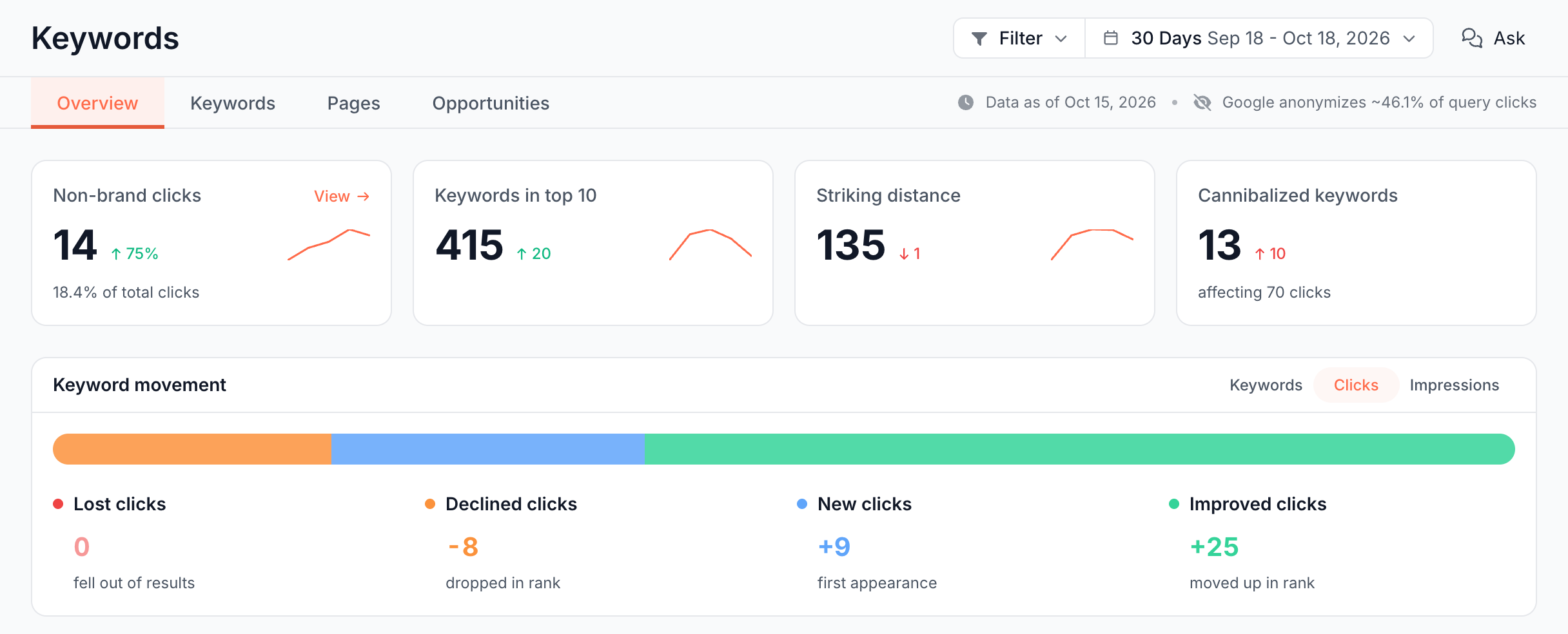
What the report shows
Every tab reads Google web search results. Positions are impression-weighted averages over the period.
Data as of and anonymized clicks: how complete is the keyword data?
The tab bar carries two notes:
- Data as of {date}: the last complete Search Console day in the report, about 3 days ago.
- Google anonymizes ~X% of query clicks: the share of your clicks that Google withholds at the query level, which keeps keyword totals below page totals. See Anonymized queries.
Stat cards: how many keywords rank, and how many are close?
Four cards sit under the ribbon:
- Non-brand clicks: clicks from queries that do not contain your branded keywords, with "x% of total clicks" underneath.
- Keywords in top 10: distinct keywords with at least 10 impressions in the period and an average position from 1 to 10.
- Striking distance: distinct keywords with at least 10 impressions and an average position from 11 to 20.
- Cannibalized keywords: keywords for which two or more of your pages each have at least 10 impressions and an average position of 20 or better, with "affecting N clicks", the clicks those pages earned. The Cannibalization report also counts keywords whose leading page keeps changing.
Striking distance: which keywords are almost on page one?
A striking distance keyword ranks at an average position from 11 to 20, on page two of Google results. Moving it to page one is usually a smaller change than ranking a new keyword, which makes these keywords the first place to look for more clicks.
Each place that counts striking distance keywords states its own rule:
- The Striking distance card counts keywords with at least 10 impressions.
- The Striking distance opportunity bucket and the Opportunities tab count each keyword and page with at least 100 impressions ("position 11-20, impressions >= 100").
- The Striking chip in Page Analysis > Search Performance uses the bucket's rule.
- The Striking distance band of Portfolio by position covers positions 4 to 10, not 11 to 20. See Portfolio by position.
Keyword movement: did gains outweigh losses?
Keyword movement is a stacked bar of Improved, New, Declined and Lost keywords, with a column for each. The toggle measures it by Keywords, Clicks (the default) or Impressions.
The groups follow the click-change rule of Keyword Movement in Search Overview, one count per keyword and page. The Improved, New and Declined values open the matching keywords in the Keywords tab.
Opportunities this period: which buckets hold the most recoverable clicks?
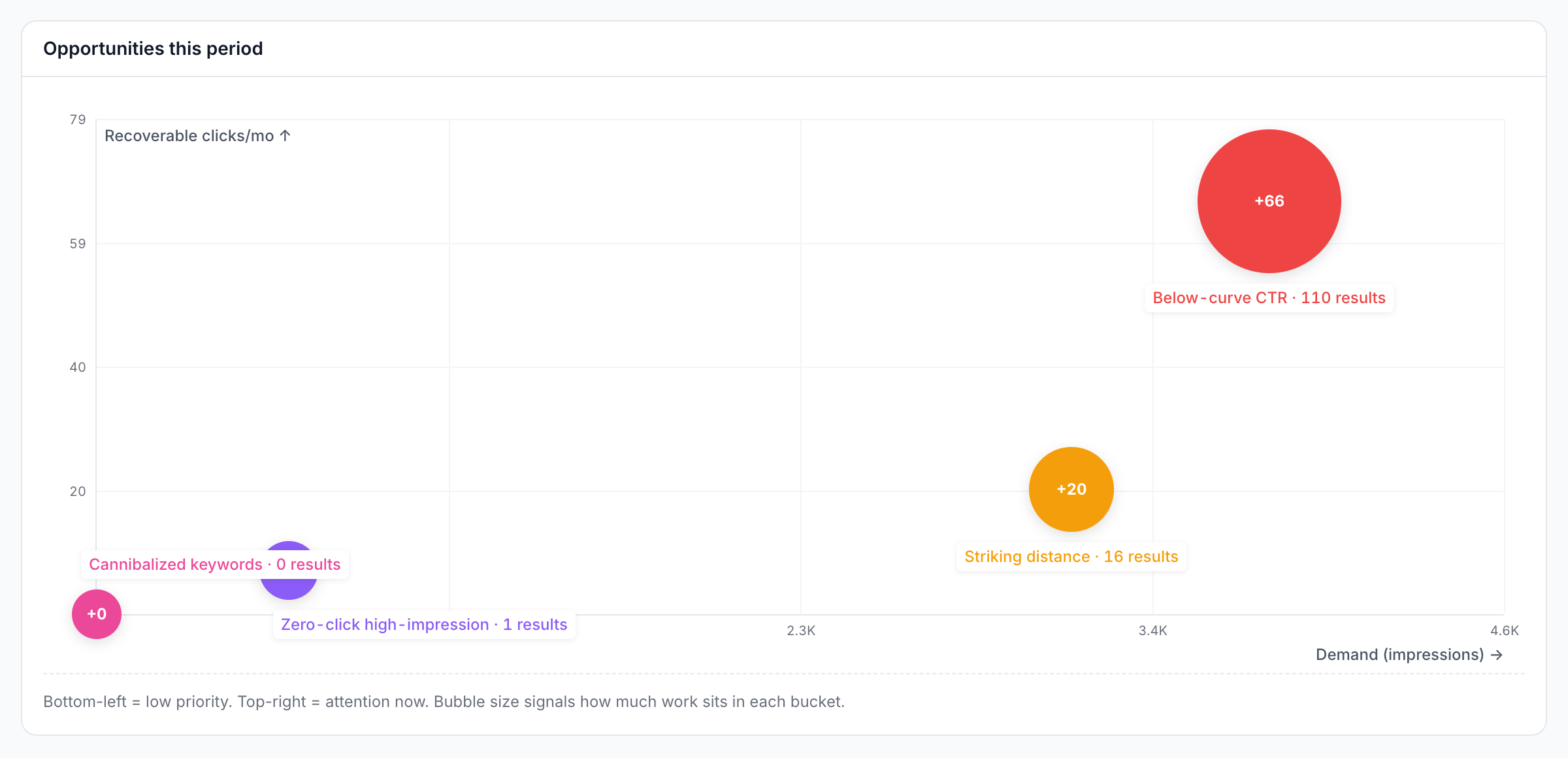
A keyword opportunity is a keyword and page pair that meets one of four rules, each a different reason it earns fewer clicks than it could. Opportunities this period plots the four buckets on one chart:
- Recoverable clicks/mo (vertical): an estimate of the extra clicks a month if you worked the whole bucket, scaled to 30 days.
- Demand (impressions) (horizontal): the impressions the bucket's keywords earned.
- Bubble size: how many keyword and page pairs the bucket holds, shown as "{bucket} · N results".
The note under the chart reads "Bottom-left = low priority. Top-right = attention now. Bubble size signals how much work sits in each bucket." Each bubble opens the Opportunities tab filtered to its bucket.
Striking distance
Rule: "position 11-20, impressions >= 100". The recoverable clicks assume each pair earns your site's average CTR for the top 10.
Below-curve CTR
Rule: a top-10 position, at least 10 impressions, and a CTR below your site's own CTR for that position. These keywords rank well but searchers skip them, often because of the title or description. The recoverable clicks assume each pair reaches your CTR by Position curve.
Zero-click high-impression
Rule: "impressions >= 500, CTR < 0.5%". These keywords show your pages often and almost never earn a click. The recoverable clicks assume a 1% CTR.
Cannibalized keywords
Rule: "2+ URLs with >= 10% click share each". Two or more of your pages each take at least a tenth of the keyword's clicks, and the recoverable clicks are the clicks of the pages that are not the leader. The Cannibalization report uses its own rule.
Portfolio by position: how deep do your rankings go?
Portfolio by position splits your keywords into two bars:
- Non-brand: "earned SEO performance", with its share of the total.
- Brand: "protection health", with the share of branded keywords at positions 1 to 3.
Each bar is cut into five bands by position, each with its range and share:
| Band | Positions |
|---|---|
| Winning | 1-3 |
| Striking distance | 4-10 |
| Long tail | 11-20 |
| Buried | 21-50 |
| Dead | 51+ |
Hover a band to see its name, such as "Striking distance (4-10)". This card names positions 4 to 10 striking distance; elsewhere in the Search reports, striking distance means positions 11 to 20.
The toggle measures the bands by keywords, clicks or impressions. A non-brand band opens its keywords; the brand bar opens your branded keywords.
Without branded keywords, the card reads "Brand keywords not configured yet. The portfolio split needs branded terms to separate brand from non-brand performance." with a Configure brand keywords button.

Segment Performance: which sections win non-brand clicks?
Segment Performance lists each segment of your site with Share of non-brand clicks, Keywords, Non-brand clicks, Avg pos* and Click delta. The footnote reads "Avg position is impression-weighted over non-brand impressions."
Keywords and Pages tabs: every keyword and page with its numbers
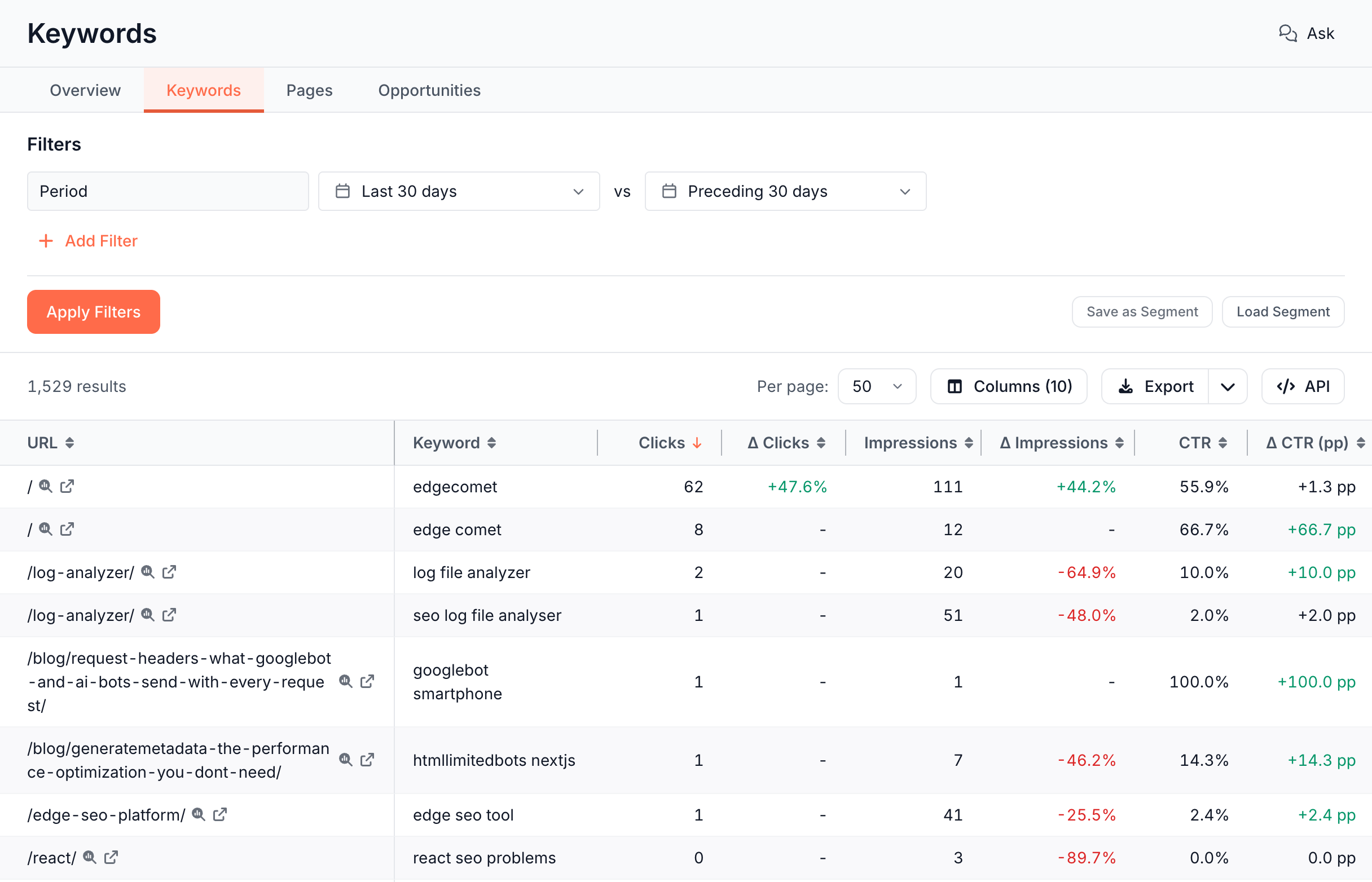
The Keywords and Pages tabs open Data Explorer's Search Console tables inside the report:
- Keywords: one row per keyword and page, with URL, Keyword, Clicks, Impressions, CTR and Position, each with its change against the previous period. Sorted by clicks.
- Pages: one row per page with the same metrics.
You can add columns and filters, including Bot log columns with the requests bots made to the same pages, and export the full table.
Opportunities tab: the keywords behind each bucket
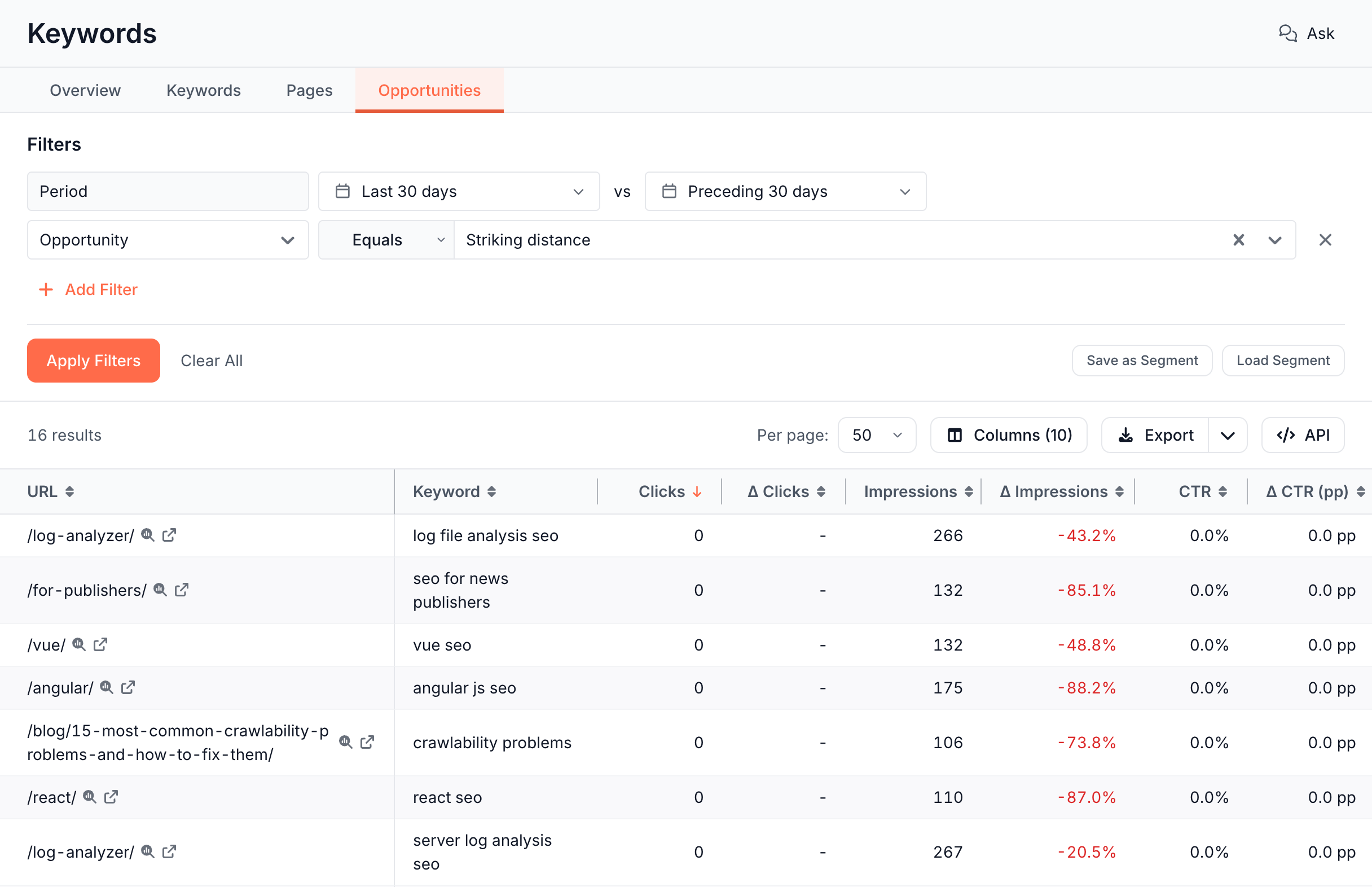
The Opportunities tab is the Keywords table with the Opportunity filter set. It opens on Striking distance, and the filter switches between Striking distance, Below-curve CTR, Zero-click high-impression and Cannibalized. For the cannibalized bucket, the table lists every page that ranks for each qualifying keyword.
Fan-out and trash keyword filters
Two yes or no filters on the Keywords and Opportunities tabs separate searches that people did not type. Neither filter is set by default, which keeps every keyword in the table:
- Fan-out queries: keywords that AI assistants searched for on a person's behalf, the fan-out keywords.
- Trash keywords: rank-tracker artifacts shaped like "12 : some keyword", not real search queries.
Set a filter to No to remove those keywords, or to Yes to list only them.
Search Performance tab: how does one page rank?
For one URL, Page Analysis has a Search Performance tab with the page's Clicks, Impressions, CTR, Avg Position and keywords. Chips filter the keywords: All, Winners, Losers, Striking, Cannibalized, Fan-out and Trash, plus All, Non-brand and Brand when you have branded keywords.
Striking uses the rule of the Striking distance bucket: positions 11 to 20 and at least 100 impressions. Cannibalized uses the rule of the Cannibalized keywords bucket: at least two URLs, each with at least 10% of the keyword's clicks. See Check one page's Google rankings, clicks and keywords.
How to read it
- Many striking distance keywords on a few pages. Those pages are close to page one for a group of queries. Better content and internal links from related pages can move them together.
- A large Below-curve CTR bucket. Pages rank and lose the click. Titles and meta descriptions are the first thing to check.
- A large Zero-click bucket. Part of it is often searches by AI assistants, which rarely click. On the Opportunities tab, set Fan-out queries to No to see what is left from people.
- Most non-brand keywords in Buried and Dead. Your site appears for many queries without ranking well for them. Start with the keywords at positions 11 to 20, the striking distance keywords.
- A low share of branded keywords at positions 1 to 3. Other sites outrank you for your own name, a brand protection problem.
How this differs from a rank tracker
A rank tracker reports positions for a keyword list you build and maintain. The Keywords report starts from every query Google recorded for your site, with the clicks and impressions each one earned:
- No keyword list to maintain. New queries appear as Google starts showing your pages for them.
- Positions with traffic attached. Real impressions and clicks drive the recoverable click estimates.
- Classified for you. Brand, striking distance, opportunities, cannibalization and fan-out searches come labeled.
- Bot data on the same pages. Bot log columns show how Googlebot and AI bots treat the pages that rank.
A rank tracker's strength is keywords you do not rank for yet. For those, see Keyword research in Ask.
What to do next
- Rewrite titles and meta descriptions: for below-curve keywords, write them with Titles and meta descriptions with AI and publish them as Edge SEO metadata rules without a release.
- Resolve competing pages: see Find keyword cannibalization in Search Console data.
- Research new keywords: for queries you do not rank for yet, see Keyword research in Ask.
- Let the Action Board pick: the Action Board turns Search Console data into findings with the search traffic at stake.
- Ask: the Ask panel starts with "Did gains outweigh losses?", "Which opportunity has most upside?" and "Can I trust this period's change?".
Where to find it
In the dashboard: Search > Keywords, with the tabs Overview, Keywords, Pages and Opportunities.