

Notifications
Alerts are delivered to email addresses, Slack channels, and webhooks. Set them up under Alerts, Notifications.
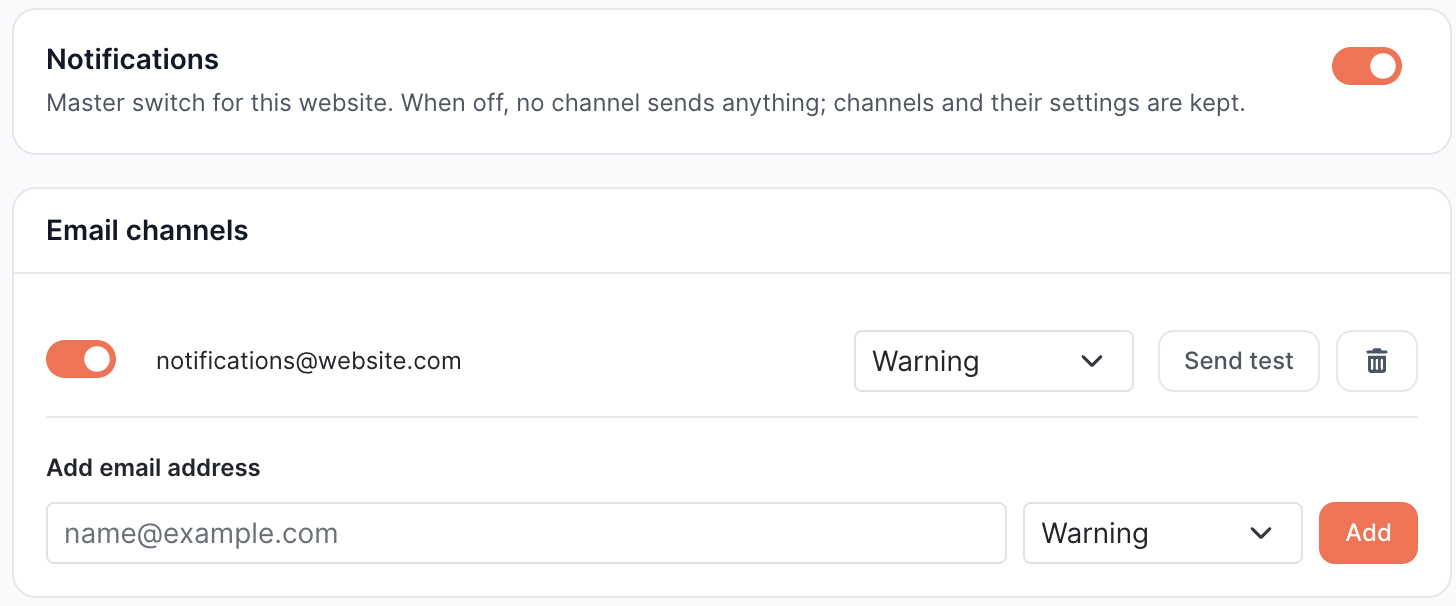
Every channel works the same way regardless of type: it has a minimum severity, it can be switched off without being removed, and it can be sent a test. A website can hold up to 20 channels in total.
Email
| Field | What it does |
|---|---|
| Address | Where alerts for this website go |
| Minimum severity | Warning sends both warning and critical. Critical sends critical only |
| Enabled | Turn one address off without removing it |
When a website is created, EdgeComet adds the owner's account email as the first channel, set to warning, so any rule you create has somewhere to send. A channel on its own watches nothing; it is the rules that do that.
An email address cannot be edited after it is added. Remove it and add the new one.
Team members do not receive alert mail because of their team access. Only the addresses listed here do.
Slack
Add a Slack channel by pasting the incoming webhook URL that Slack gives you when you add an incoming webhook to the channel you want alerts in. It then carries a minimum severity and an enabled switch like every other channel.
Alerts arrive as a message naming the rule, the severity, what fired and how many pages are affected, with a link to the incident.
Webhooks
Add a webhook by giving the URL to post to. EdgeComet sends a JSON POST when an alert fires and again when it resolves, carrying the rule, the severity, what fired, the pages behind it, and the incident URL.
Use this to reach an on-call system, a ticket queue, or your own automation.
Routing
Destinations receive every alert for the website that meets their severity floor. There is no per-rule or per-section routing.
Severity narrows what a channel receives, but it does not split an audience in two. A channel set to warning receives warnings and criticals; one set to critical receives a subset of the same alerts. You can give an on-call webhook the critical floor and an SEO Slack channel the warning floor, and both will see the criticals.
Test send
Send test delivers a sample alert to one channel immediately. It works even when the channel is disabled or the website is muted, so you can debug a quiet setup.
Muting a website
The master switch on the same page stops every channel for that website from sending, and keeps them and their settings. Use it during a migration rather than deleting rules.
Muting does not stop the weekly performance email.
What an alert email contains
Subjects carry an [EdgeComet] prefix and name the site:
[EdgeComet] Critical: Render failure rate on example.com
[EdgeComet] 3 new warning issues on example.com
[EdgeComet] Resolved: Render failure rate on example.com
Alerts that fire in the same check arrive as one email rather than several.
Each panel in the body carries the rule name, the severity, up to three lines saying what fired and what is at stake, and a link to the incident. A "Pages changed" panel also carries up to three sample changes, each showing the page, the field, and the old and new values.
The footer names the address the mail went to and carries an unsubscribe link.
Unsubscribing from email
The unsubscribe link in an alert email opens a confirmation page and asks you to confirm, so a mail scanner following links cannot silently switch an address off. Confirming disables the address rather than deleting it, and a manager can switch it back on.
Unsubscribing an address also stops custom extraction attention emails to that same address.
Weekly performance email
A separate weekly summary of how the site performed, sent on Wednesdays. It goes to the website owner's account rather than to the alert channels, and it is configured under Alerts, Weekly Digest.
It is deliberately independent of the alert master switch: muting noisy alerts does not silence the weekly report. Account owners can pause it across every site from the same page.