

Show Edge SEO changes to visitors with the browser snippet
The Edge SEO snippet applies your live Edge SEO rules in visitors' browsers. Bots get the changes from EdgeComet. Visitors open your server directly, and they see the changes only with the snippet.
It is one script tag in your page <head>. Install it when your rules change what people read or where URLs lead. Bots and people then get the same page.
What the snippet does
The snippet runs the same live rules that EdgeComet applies for bots, with the same filters, variables and steps:
- Tags and content: titles, meta descriptions, robots tags, canonicals, hreflang, Open Graph tags, page content edits and inserted blocks, JSON-LD included.
- Redirects: a redirect rule moves the visitor to the new address in the browser.
- 404 and 410: the snippet sends the visitor to your site's status page, by default the home page.
When you deploy or roll back a rule, the snippet updates on its own. You never change the tag.
Bots do not need the snippet: they get the changes in the HTML EdgeComet serves. See How Edge SEO works.
Before you start
- You can edit the
<head>of your page templates, or publish tags in your Google Tag Manager container. - The tag goes on every page your rules change. Verify installation checks the home page.
Install the snippet
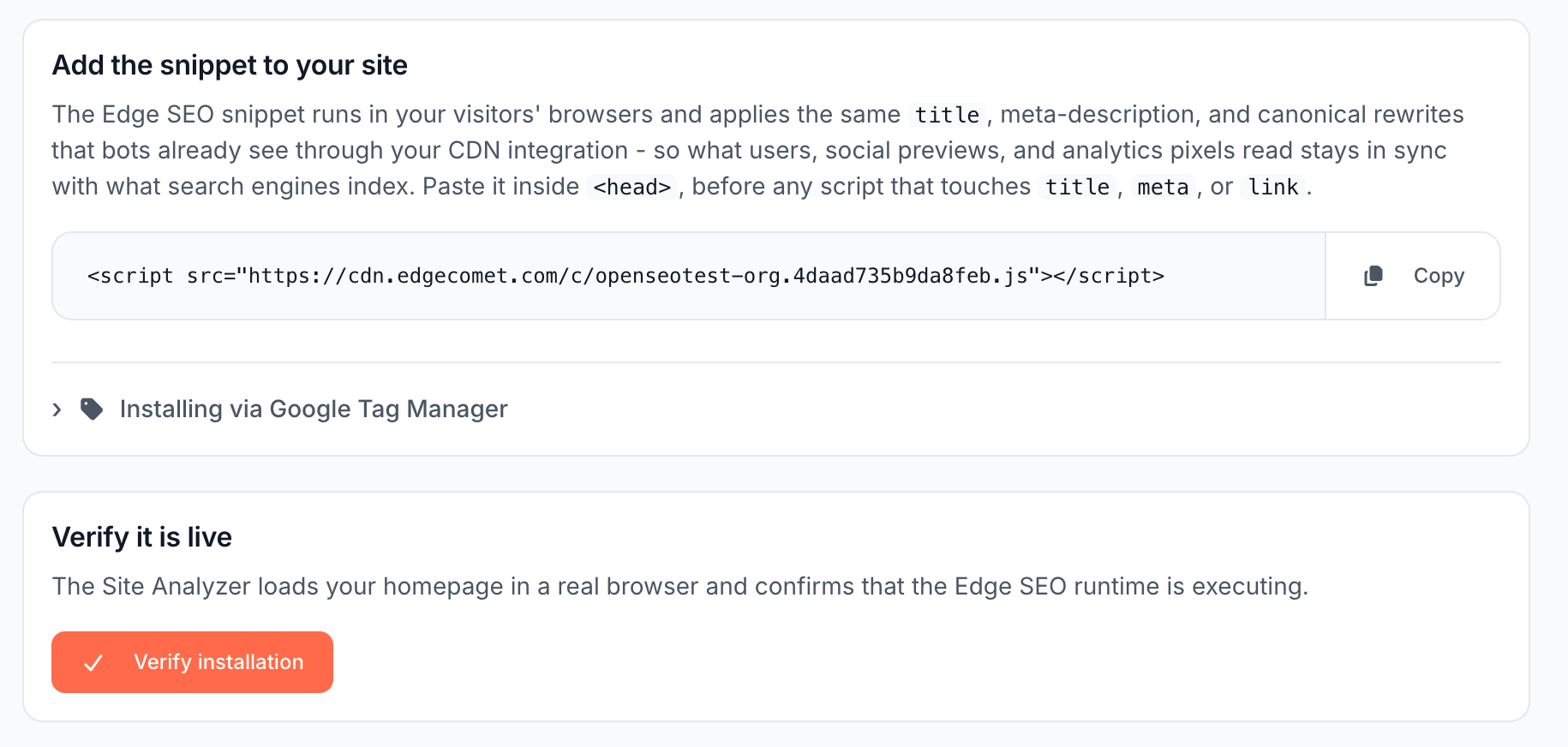
- Open Configuration > Connections and the CDN integration tab.
- At step 2, Add the Edge SEO snippet, click Open installation guide. The Install the Edge SEO snippet page opens.
- Click Copy next to the tag.
- Paste the tag inside the
<head>of your page template, before any script that reads or changes thetitle,metaorlinktags. - Publish the template, then click Verify installation.
<head>
  <meta charset="utf-8">
  <script src="https://cdn.edgecomet.com/c/example-com.0123456789abcdef.js"></script>
  <title>Blue running shoes | Example</title>
</head>
Copy your own tag from the dashboard: its address is unique to your site and does not change for the lifetime of the site. The tag carries no account ID or key.
Install through Google Tag Manager
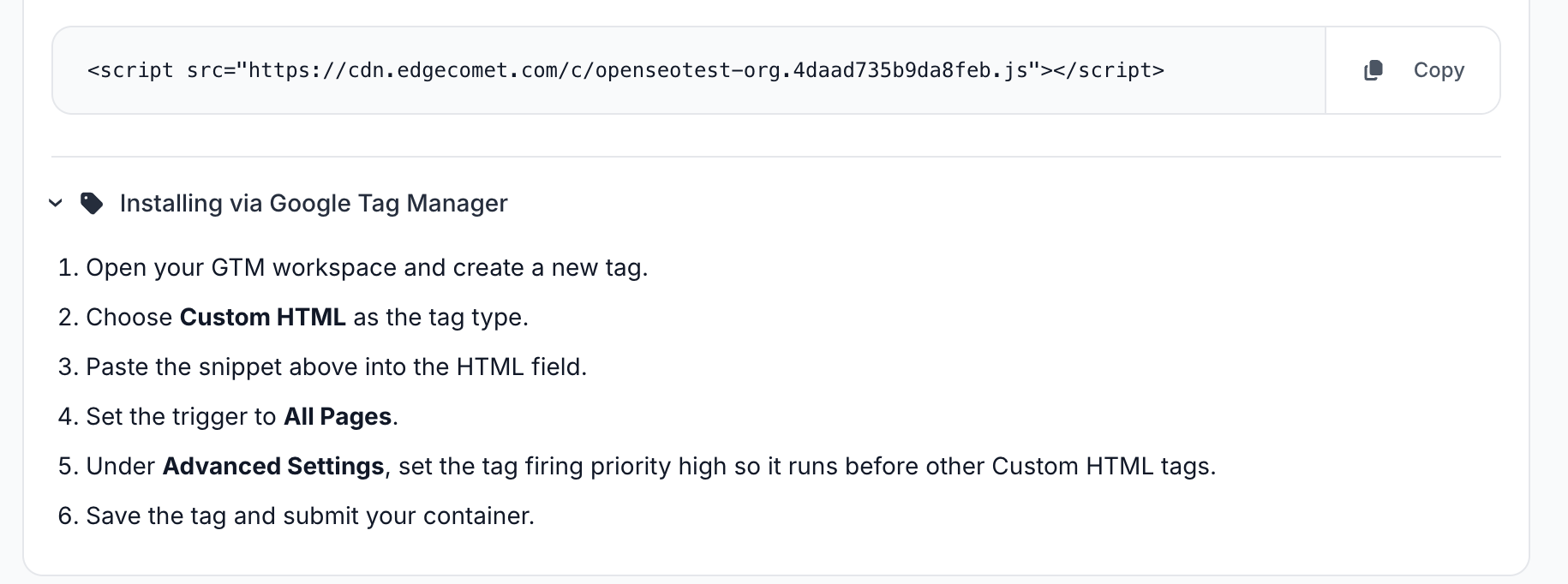
Installing via Google Tag Manager on the same page lists the steps:
- Open your GTM workspace and create a new tag.
- Choose Custom HTML as the tag type.
- Paste the snippet into the HTML field.
- Set the trigger to All Pages.
- Under Advanced Settings, set the tag firing priority high, which runs it before other Custom HTML tags.
- Save the tag and submit your container.
A tag in your <head> runs before the page paints. Through Google Tag Manager, the snippet runs later, once GTM loads its tags.
Why the tag is synchronous
The tag is synchronous by design: the browser runs it before it paints the page, and the snippet applies your rules as soon as the browser has read the HTML. That is why the tag carries no async or defer attribute.
The script is light:
- Small: about 5 KB compressed, plus your rules, served from a CDN.
- No other requests: your rules ship inside the script, and it calls no other address while it runs.
- Once per page: it runs once, even when the tag is on the page twice.
- Fails safe: if the script does not load, the page shows as your server sent it. A rule that fails stops quietly and does not break the page.
Check that it runs
Verify installation, under Verify it is live, loads your home page in a real browser and confirms that the snippet runs. The card then reads Snippet installed with "Last verified" and the time, and Re-check runs the test again. Step 2 on the CDN integration tab reads Done.
To see a change, open, in your browser, a page that a live rule changes and inspect its <head> with the browser's developer tools. View page source shows the HTML your server sent, before the snippet ran.
Remove the snippet
Delete the tag from your page template, or delete the Custom HTML tag in Google Tag Manager and submit the container. Visitors then see your pages as your server sends them. Bots keep getting the Edge SEO changes from EdgeComet.
If it does not work
"The Edge SEO snippet was not found on https://example.com/" {#not-detected}
The check loads your home page and did not find the snippet running. Check that the tag is in the <head> of the home page and that your template change is published. If your site sends a Content Security Policy, allow scripts from cdn.edgecomet.com.
"The Edge SEO container is still being provisioned for this site. Refresh in a moment, or contact support if this persists."
The script for your site is not ready yet. Reload the page in a few minutes. If the message stays, contact [email protected].
"Your site took too long to load for the check. Please try again."
Your home page did not finish loading in time for the check. Click Verify installation again.
"Site analyzer is unreachable. Please try again."
The checking service did not answer. Try again in a few minutes.
Visitors do not see a change
Check that the tag is in that page's template: Verify installation checks only the home page. Check that the rule is on the Live tab. Then reload the page without the browser cache, and inspect the <head> with the developer tools instead of View page source.