

Change your name, email and number format
You change your name on the EdgeComet Profile page. Your sign-in email address changes through support.
Preferences sets the locale that formats numbers, dates and relative times across the dashboard. Each person picks their own.
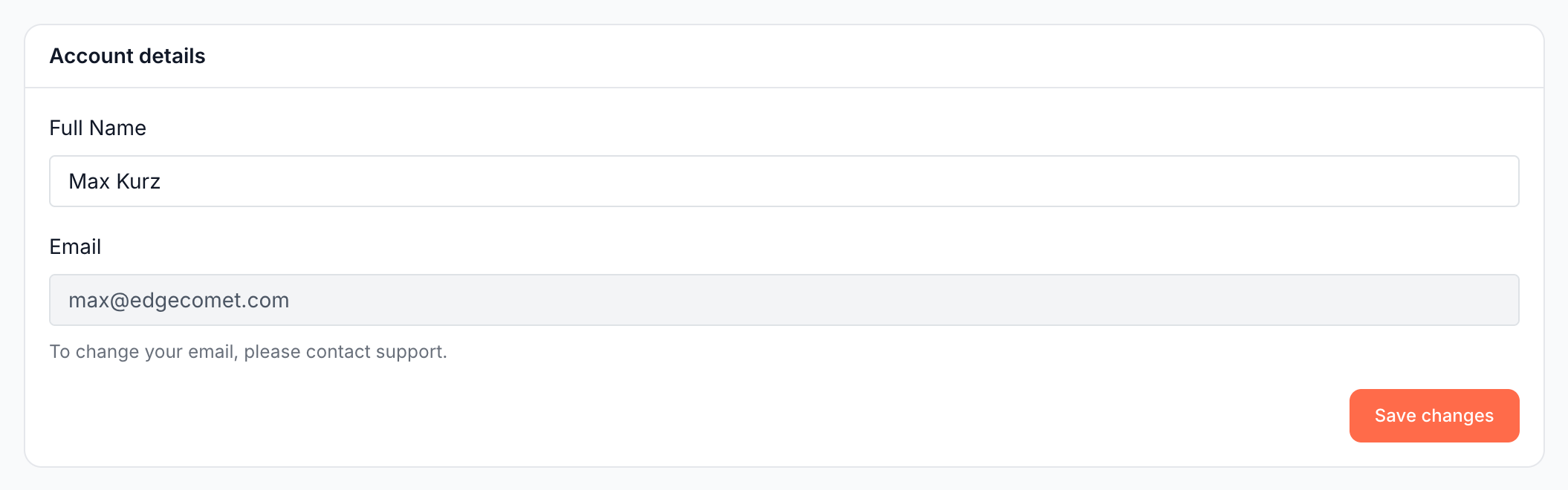
Change your name
- Open the account menu at the bottom of the left strip, then Settings. The Profile page opens.
- On the Account details card, edit Full Name.
- Click Save changes. The page confirms "Profile updated successfully."
Your name appears to the people you work with: in Team Access and Sharing, and in the emails EdgeComet sends when you invite someone or change their access.
Change your email address
The Email field on Profile is read-only, with the hint "To change your email, please contact support." Send the new address to [email protected].
To sign in with a Google account, link it on the Security page. See Link or unlink Google sign-in.
Set number and date formats
The locale decides how the dashboard writes numbers, dates and relative times. English (US) writes 1,234.5 and Oct 26, 2026. German writes 1.234,5 and 26.10.2026.
- Open Settings, then Preferences.
- On the Locale card, pick a locale.
- Click Save changes. The page confirms "Preferences updated successfully."

Until you save a locale, the dashboard follows your browser's language when it is on the list, and English (US) otherwise.
The list holds 15 locales: English (US), English (UK), German (Deutsch), French (Francais), Spanish (Espanol), Italian (Italiano), Dutch (Nederlands), Portuguese (Portugues), Portuguese - Brazil (Portugues), Polish (Polski), Japanese, Korean, Chinese (Simplified), Chinese (Traditional) and Arabic.
The locale belongs to you. Teammates on the same website keep their own.
Switch to dark mode
Open the account menu and turn on Dark mode. The switch sits in the menu, not on Preferences, and applies at once.
Where to find it
In the dashboard: the account menu, then Settings for Profile, and Settings > Preferences for the locale.