

Export Data Explorer tables to CSV or Google Sheets
Every EdgeComet Data Explorer table exports as a CSV file or a Google Sheet. The export holds the rows behind the applied filters, with the table's columns and sort order.
CSV exports run in the background and stay in your export history. Google Sheets exports open in your own Google Drive.
On the Bot log and Search Console tables, API shows the request that returns the same view from the Data Explorer API.
Before you start
- Apply your filters first. The export uses the last applied view, not edits that are still waiting for Apply Filters.
- For Google Sheets, connect a Google account. Choose Add Google account in the export window, or manage accounts in Settings > Google, on the Google Drive export card.
Export a table
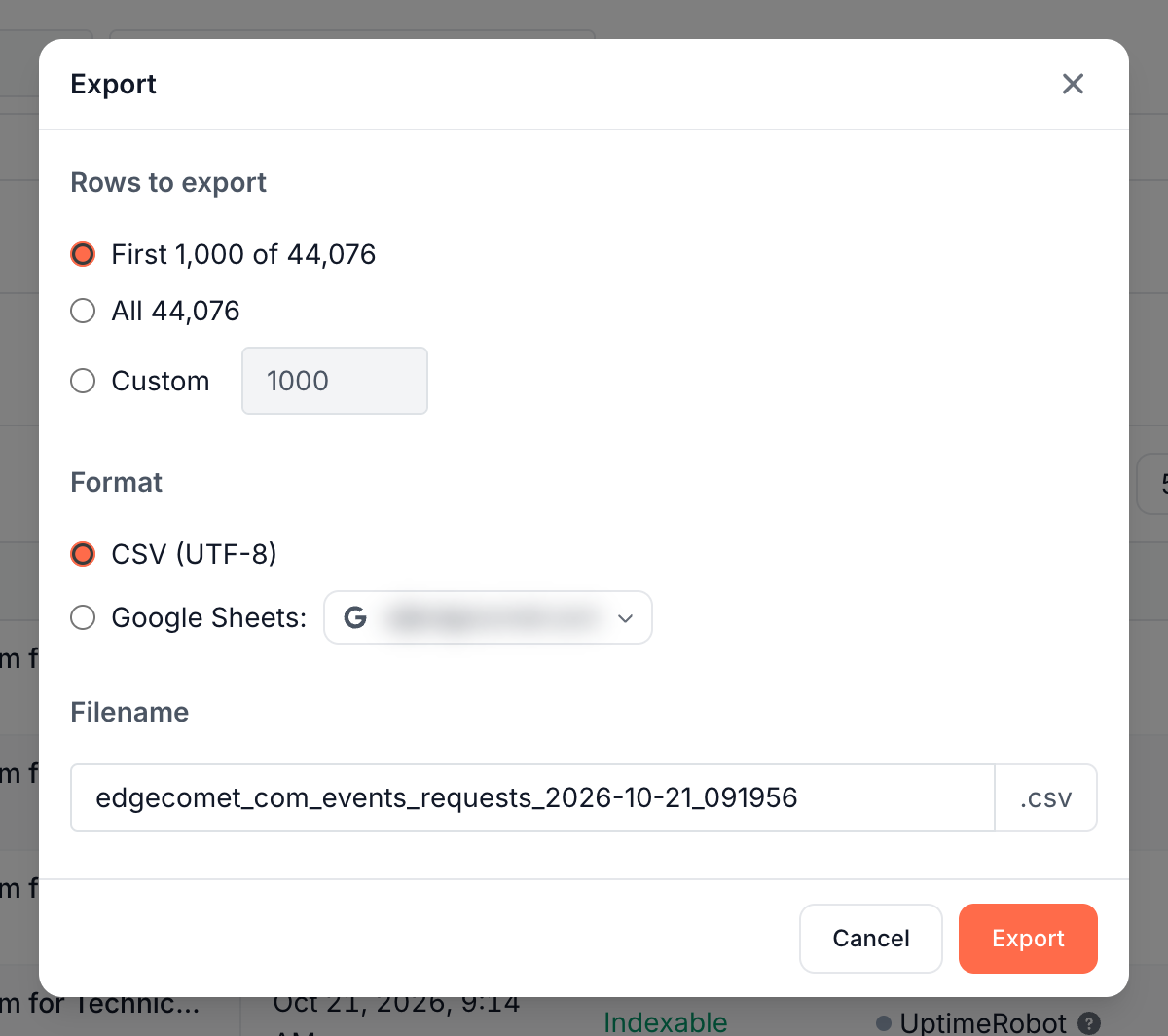
- Click Export above the table.
- Under Rows to export, choose First 1,000 of {N}, All {N} or Custom with a number. A table with 1,000 rows or fewer offers First {N}. With Google Sheets on a table over 10,000 rows, the first choice reads First 10,000 of {N}.
- Under Format, choose CSV (UTF-8) or Google Sheets and the account to save to.
- Check the Filename. It defaults to the domain, the table, the tab and the time in UTC, such as
example_com_events_requests_2026-10-21_143005. For Google Sheets, the name becomes the sheet title. - Click Export.
What you should see
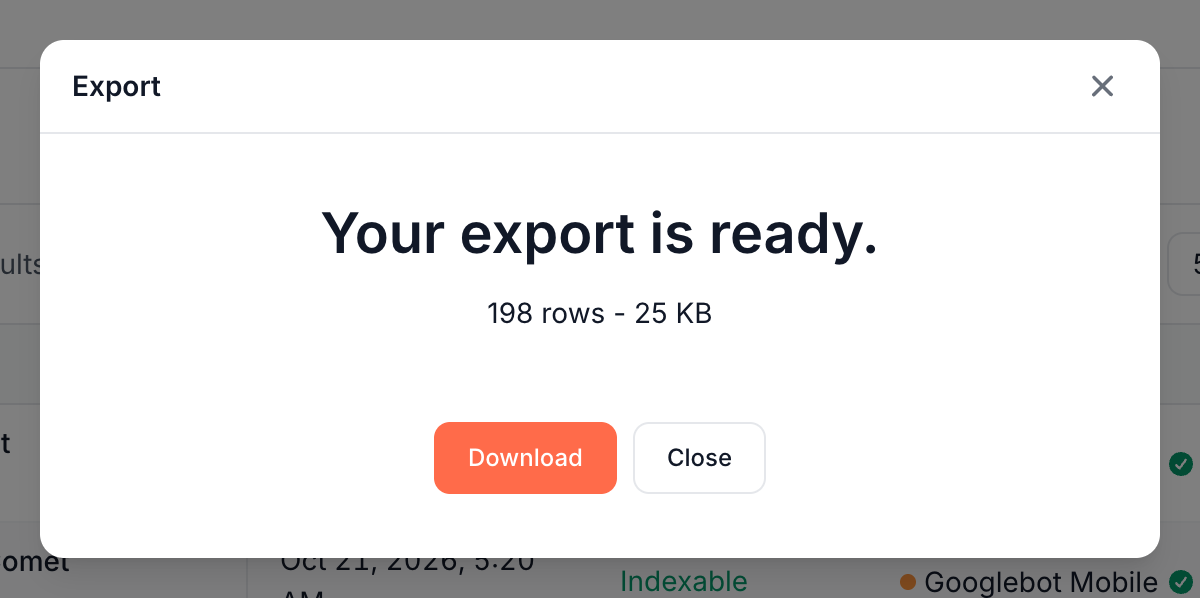
A CSV export reads "Preparing your export..." while it runs, then "Your export is ready." with the number of rows and the file size. Click Download to save the file.
A Google Sheets export reads "Creating your Google Sheet..." and then "Your Google Sheet is ready." with the file name and the account. Click Open in Google Sheets.
The file uses the column titles you see on screen, such as Page and Serve Time. The rows hold raw values for other tools to read: the full URL, stored keys such as googlebot_mobile and bypass_cache, and serve times in seconds.
A filter that matches no rows still exports a file with the header row: "No rows to export. The file will contain only the header row."
Find earlier exports
The arrow beside Export opens your export history: the CSV exports you made, from every website, newest first. A badge on the arrow counts exports that finished since you last opened it.
Each row shows the file name, the table and tab it came from, such as Bot log - Requests, the number of rows, the status and when you made it. Download saves a finished file again, and Delete removes it. A running export has Open, which shows its progress. On a failed export, the arrow on the row shows the error.
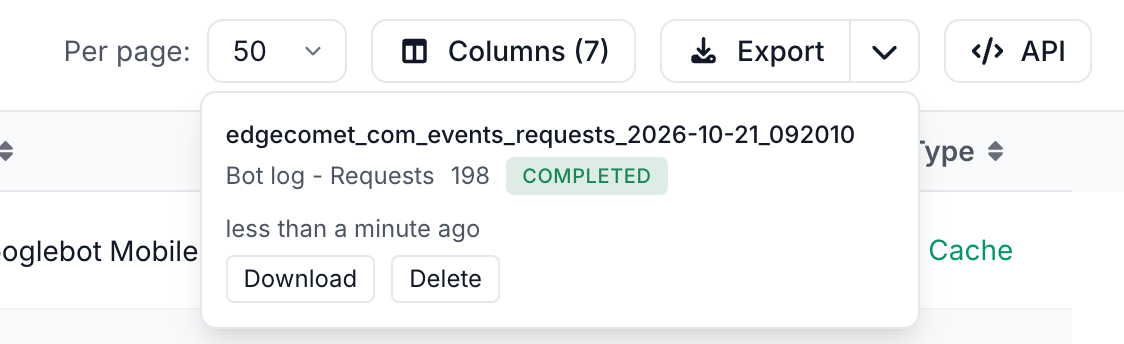
The history is personal. It lists your own exports, and only you can download them. Google Sheets exports live in your Google Drive and are not listed. With no CSV exports, the history reads "No exports yet."
One export at a time
EdgeComet runs one CSV export per person at a time, across all your websites, the dashboard, the MCP server and the API. While one runs, Export is disabled with the tooltip "You already have an export running". It comes back when the export finishes.
In the API, a second export returns the error code EXPORT_SLOT_BUSY with the running export's id. See Errors and rate limits.
Get the API request for a view
On the Bot log and the Search Console tables, API above the table shows the request that returns the same view from the Data Explorer API: "Run this exact view - same filters, columns, sort and period - from the public API."
Choose the endpoint:
- Query - JSON rows: returns the rows as JSON, page by page.
- Export - CSV file: queues the whole result as a CSV file and returns a download link.
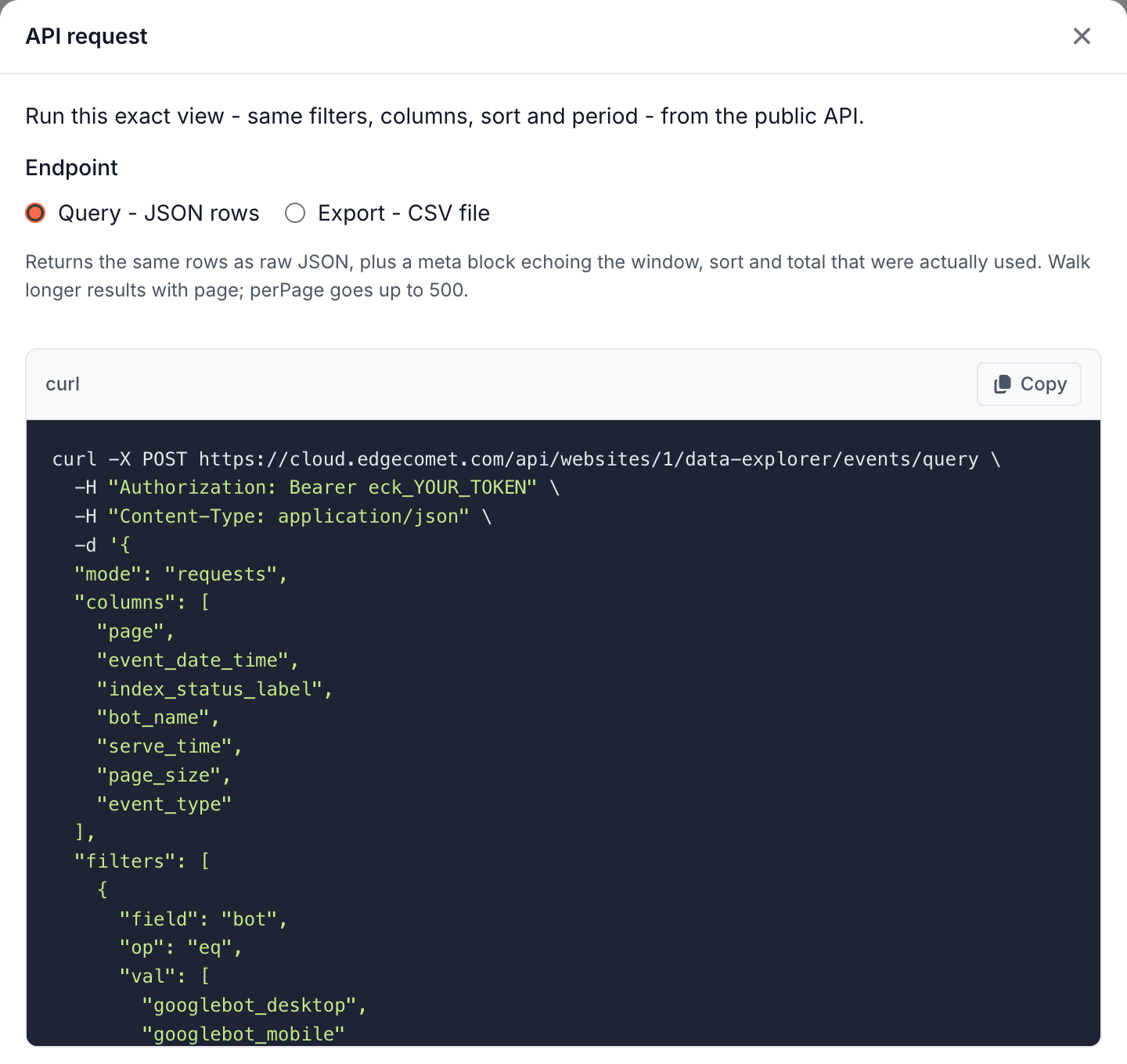
The window shows a curl command with the placeholder token eck_YOUR_TOKEN. Create API token creates a token and fills it in.
The token is shown only once. Manage your tokens in Settings > API. See Authentication.
If an export does not work
The Export button is disabled: "You already have an export running"
One of your CSV exports is still running, on this or another website, or through the API or the MCP server. Wait for it to finish. The export history shows it as Pending or Running, and Open on a running export shows its progress.
"Google Sheets exports are capped at 10,000 rows. Download the CSV for a complete export."
The table has more rows than a Google Sheets export takes. Export the first 10,000 rows to Google Sheets, choose CSV (UTF-8) for every row, or narrow the filters. A large result can also read "This export is too large for Google Sheets. Download the CSV instead."
"Your export failed."
The export window and the history show the error. Try again with fewer rows or narrower filters.
"Could not export to Google. Try again."
The Google Sheets export did not finish. Try again. If it fails again, check the account in Settings > Google, on the Google Drive export card, or choose CSV (UTF-8).
Where to find it
In the dashboard: Export sits above the table on every Data Explorer page, and API above the Bot log and Search Console tables. Export is also above the Data Explorer tables inside reports, such as Search > Keywords > Keywords.